
The Fast2SMS address book stores your customers’ names and mobile numbers so you can send SMS, WhatsApp and voice campaigns without uploading a file every time. You can add contacts one by one, sort them into groups, add your own fields such as city or customer type, restore deleted contacts from Trash and export everything as a CSV file. This guide walks through each of these in the new panel.
Where to find the address book
On the dashboard, click Address Book in the Utility row. The left menu has four pages: Contact, Groups, Trash and Export. Column Settings opens from a button on the Contact page.
How to add a contact
-
Open Add Contact
On the Contact page, click Add Contact. A panel opens on the Manually tab. To add many contacts from a file, use the Upload CSV tab instead.
-
Fill in the details and save
Choose a group in Select Group (you can pick more than one, or keep No group). Enter the Name (3 to 50 characters) and the Mobile Number (10 digits, starting with 6, 7, 8 or 9). Any columns you have switched on, such as Email or City, show below. Click Add Contact. You see “Contact added successfully.”
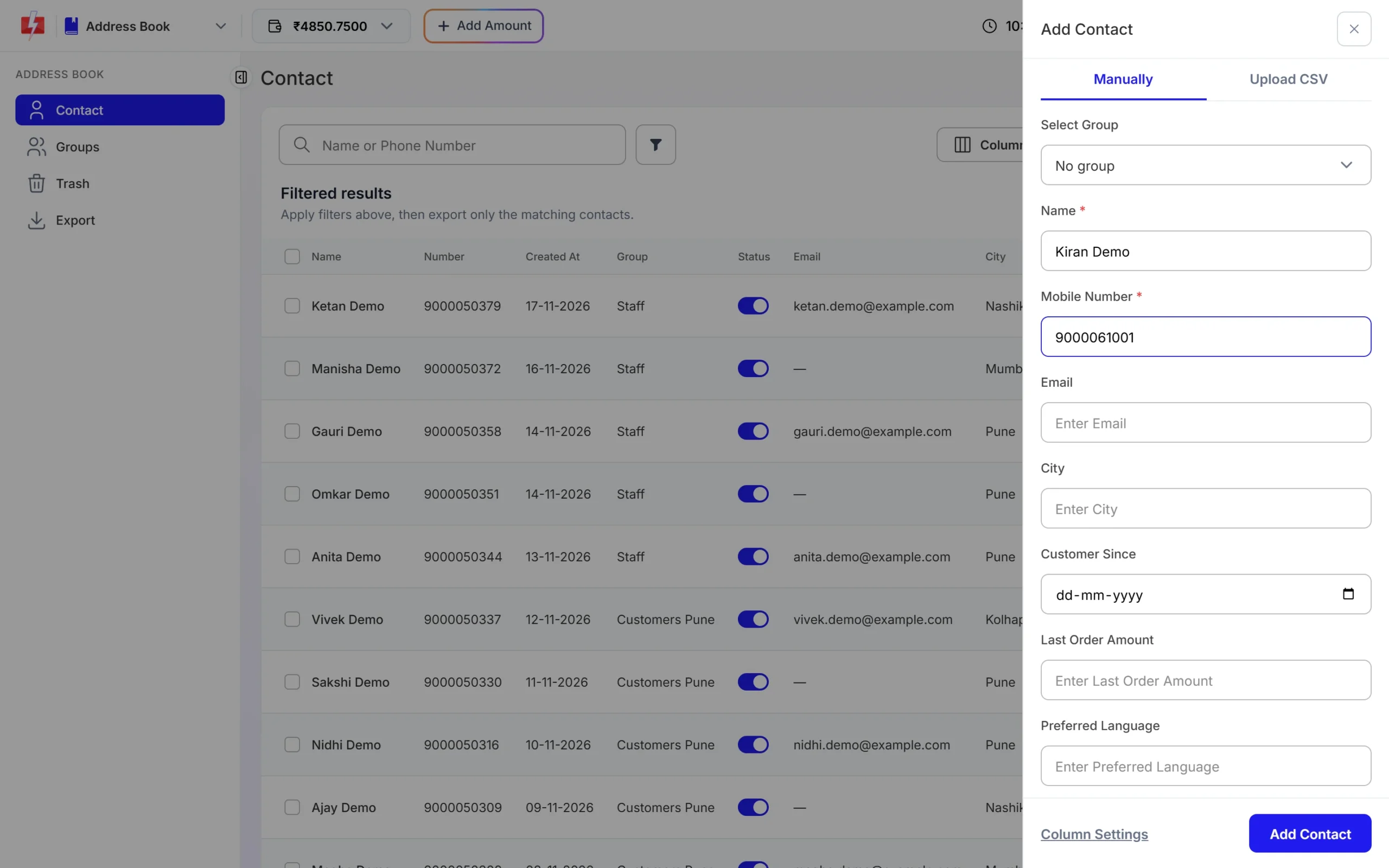
Add one contact with a group and extra fields.
If the number is already saved, you see “Contact already exists.” Each number can be saved only once. To edit or delete a contact later, click the three dots at the end of its row.
How to create and use contact groups
A group is a named list, for example “VIP Buyers” or “Wholesale Dealers”. One contact can be in many groups. When you send a campaign, you can pick a group instead of typing numbers.
-
Open Groups and click Add Group
Click Groups in the left menu. Each card shows the group name and how many contacts it has. Click Add Group at the top right.
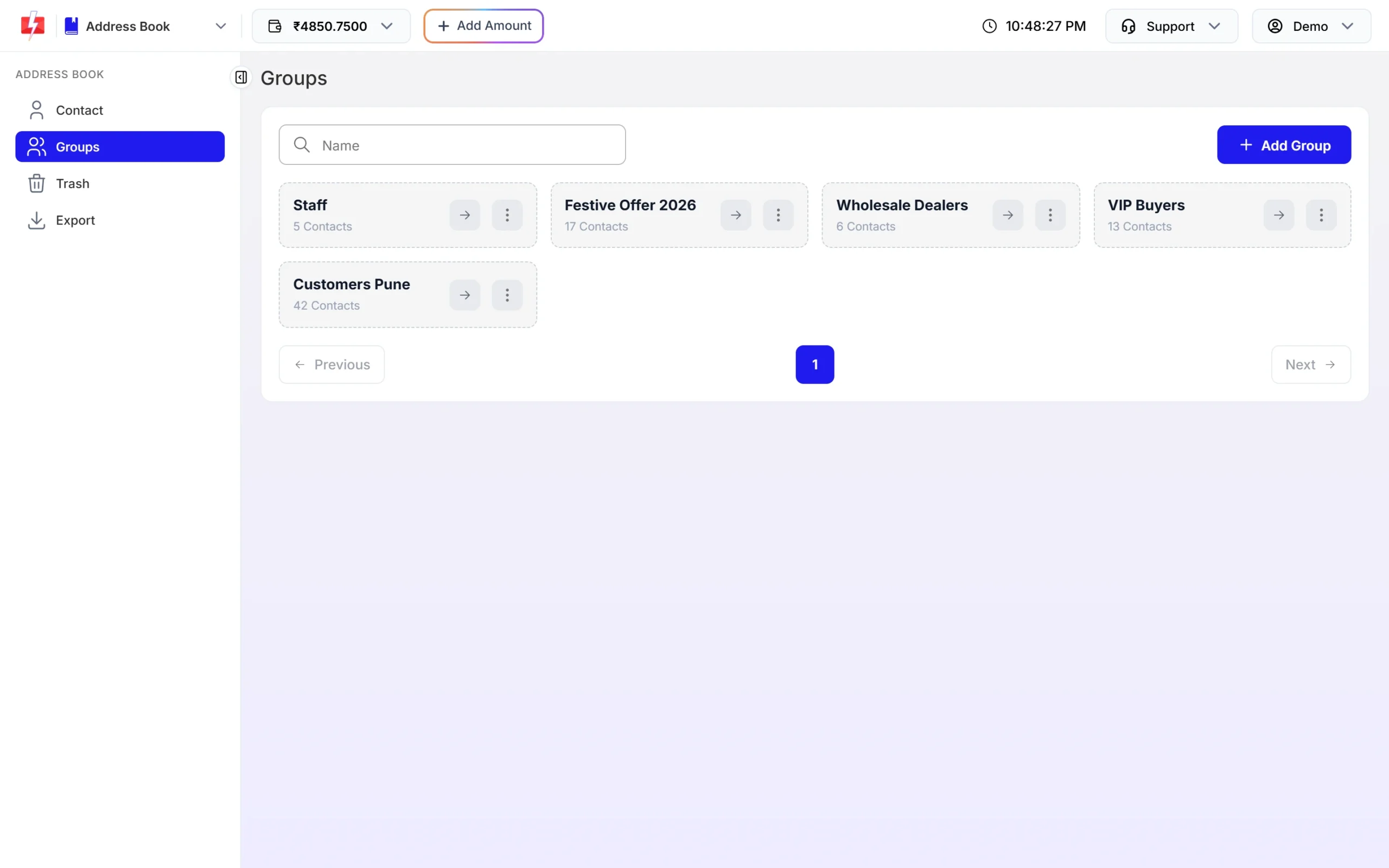
Your groups with live contact counts. -
Name the group
Type a Group Name of 3 to 50 characters and click Create Group. Each group name must be different; a repeat gives “Group name already exists.”
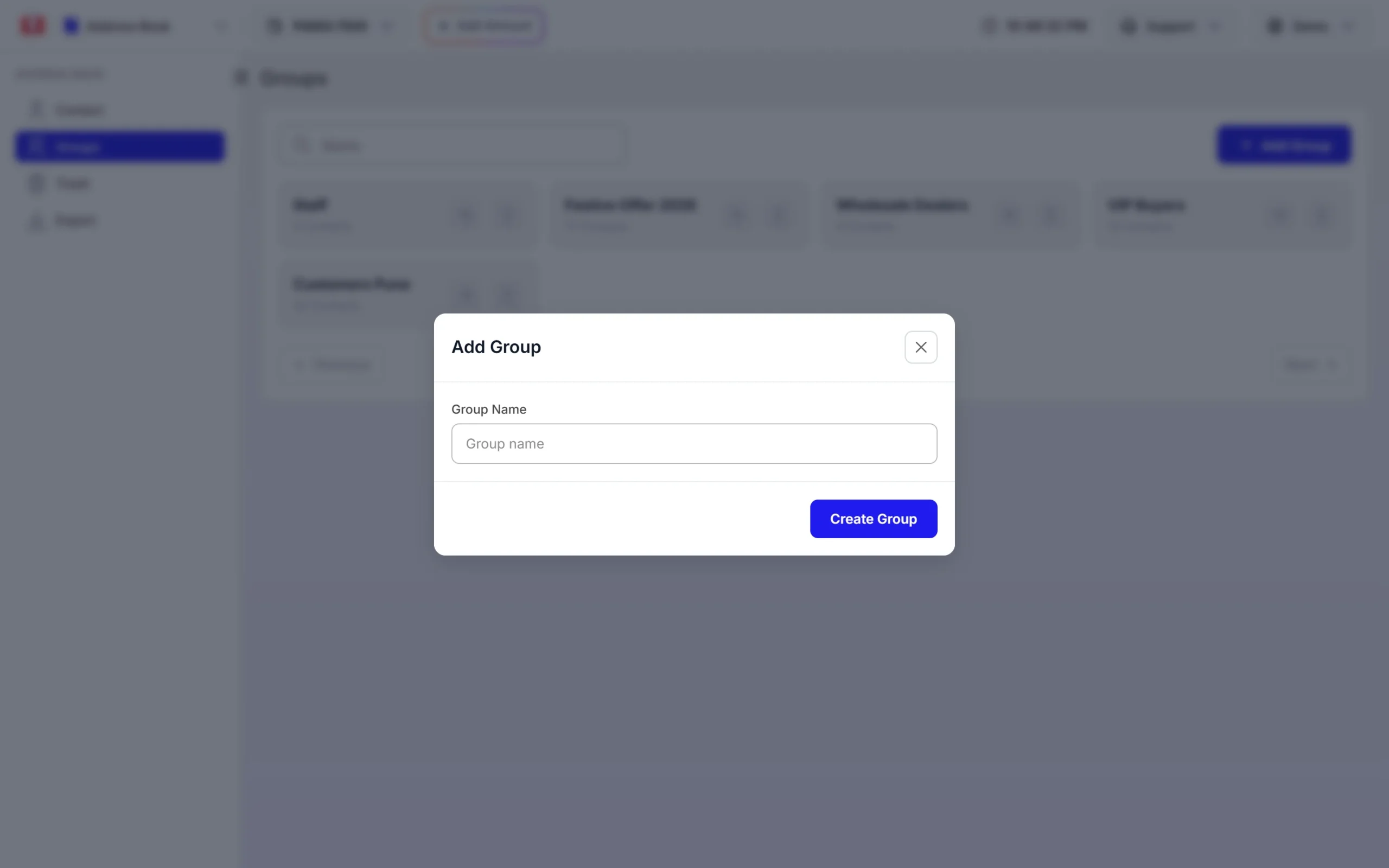
Create a new group. -
Add contacts to the group
Pick the group in Select Group when you add or edit a contact, or in Add to group when you import a file. Click the arrow on a group card to see only the contacts in that group.
Use the three dots on a group card to Rename or Delete it. Deleting a group removes only the group. The contacts stay in your address book. A deleted group cannot be restored, so you would need to create it again.
Send a campaign to a group
On the DLT SMS, Bulk WhatsApp or Bulk Voice Call page, choose Address Book under Send To. Open the Group tab, tick the group and carry on with your message.
How to add custom fields (Column Settings)
Custom fields let you keep extra details with each contact, such as city, customer since date or preferred language.
-
Open Column Settings
On the Contact page, click Column Settings. You see all columns with their type and a Visibility switch. Columns marked System (Contact ID, Email, City, IP, Region, Country, Domain and Case Sensitive) are built in. They are hidden until you switch them on, and they cannot be deleted.
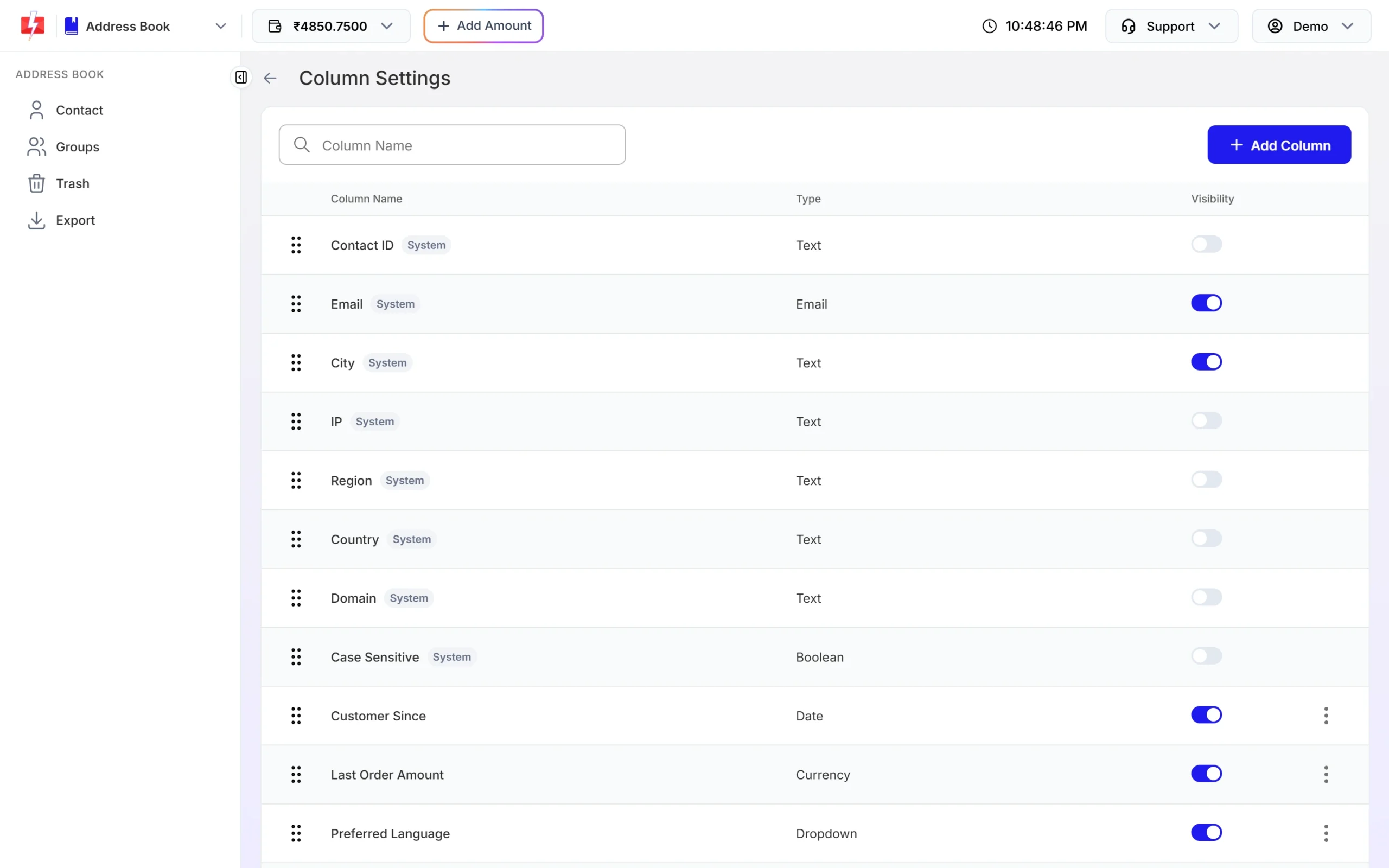
Built-in and custom columns with their visibility switches. -
Add a column
Click Add Column, enter a Name (2 to 50 characters) and choose a Column Type such as Text, Date, Number, Email, Currency or Phone Number. Click Add. The type decides what kind of input box you get when you add a contact.
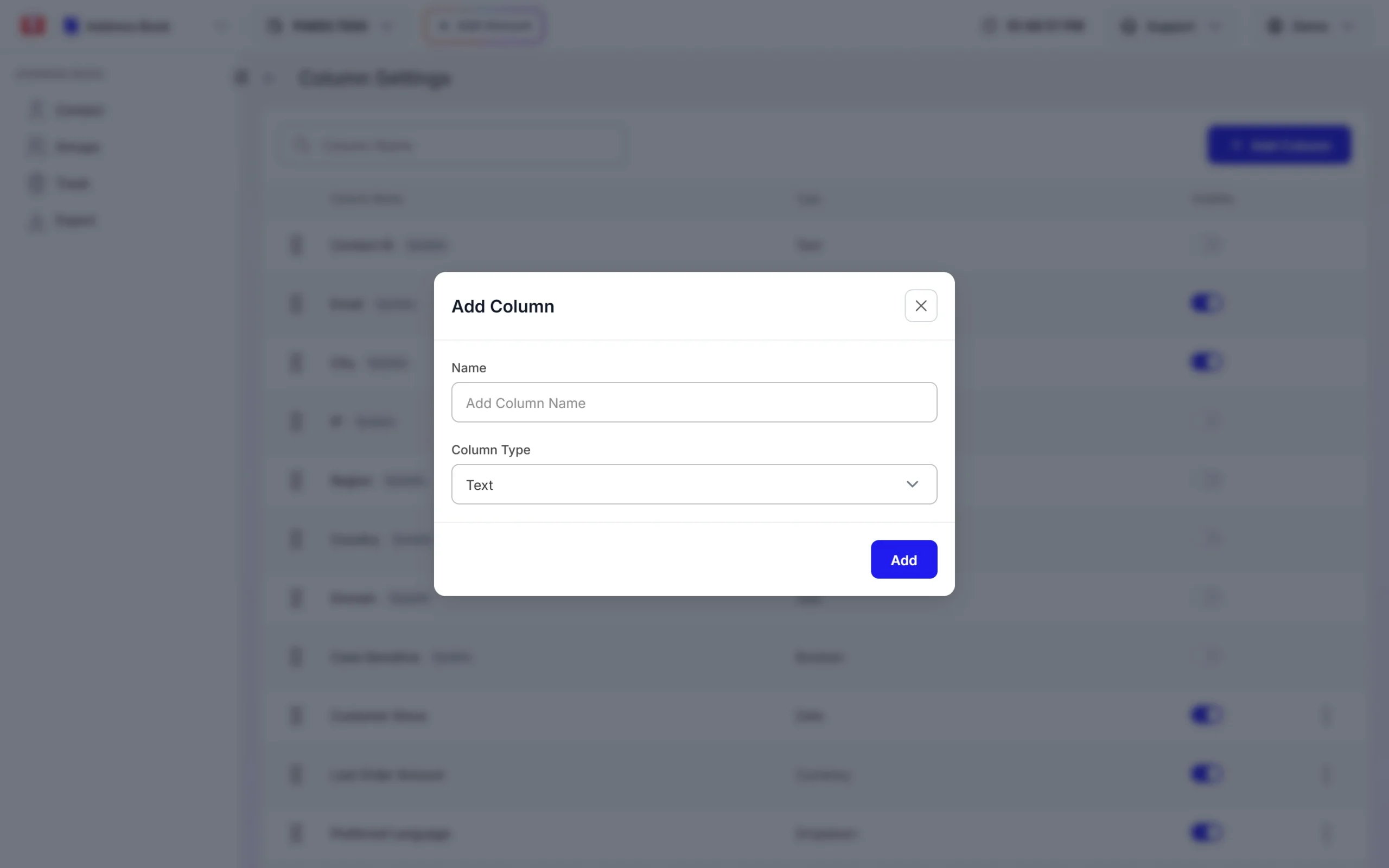
Name the new column and pick its type. -
Switch it on and order it
New columns start hidden at the end of the list. Turn on Visibility so the column shows in Add Contact and in the contact list. Drag the dots on the left to change the order.
Custom columns are filled when you add or edit a contact by hand. A file import saves only the name and number, so extra columns in your Excel file are not copied in.
How to find contacts
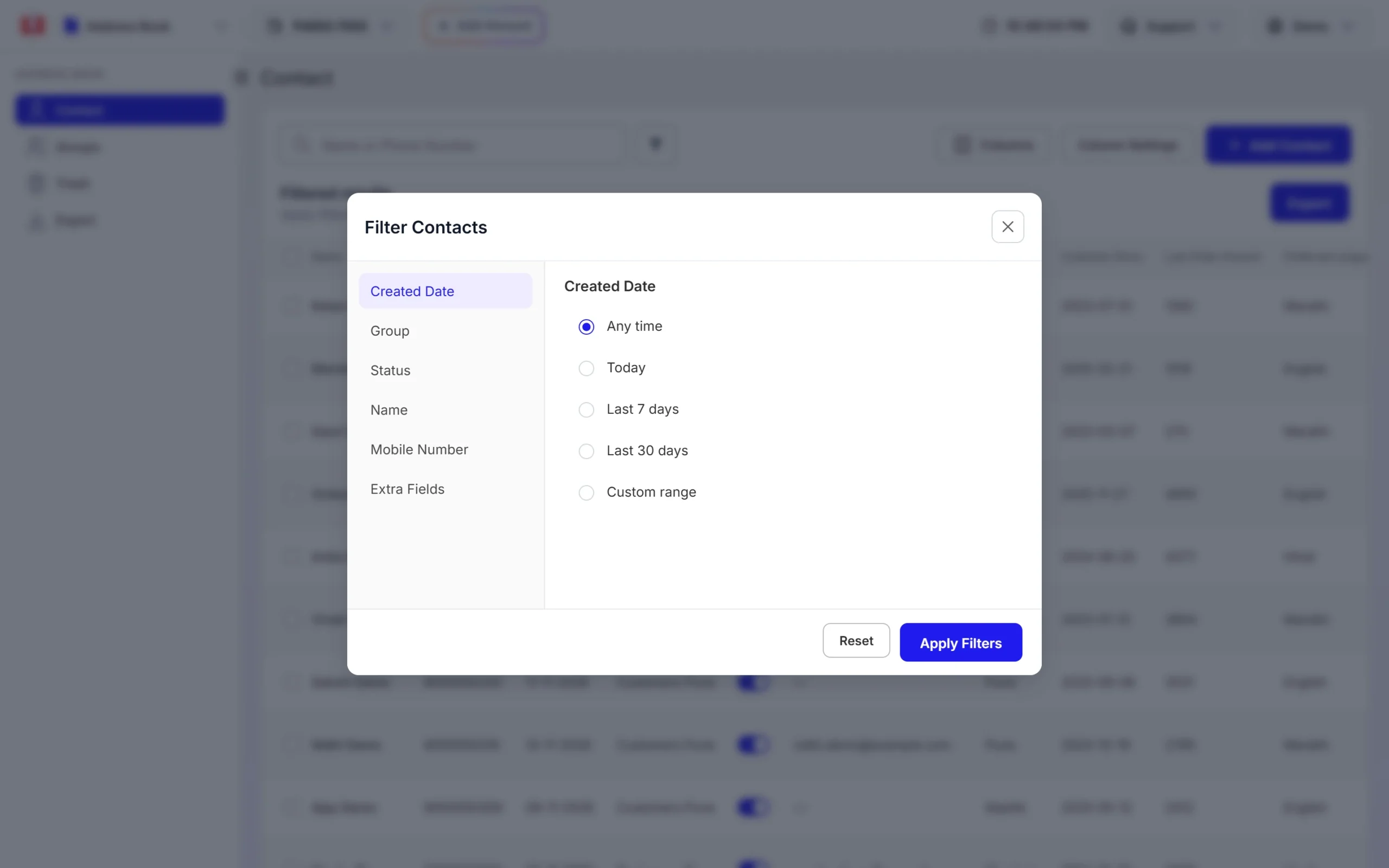
Type at least 2 characters of a name or number in the search box. For more options, click the filter button. Filter Contacts lets you narrow the list by Created Date, Group, Status (Active or Inactive), Name, Mobile Number and Extra Fields. Use Columns to choose which columns show in the table.
Delete and restore contacts (Trash)
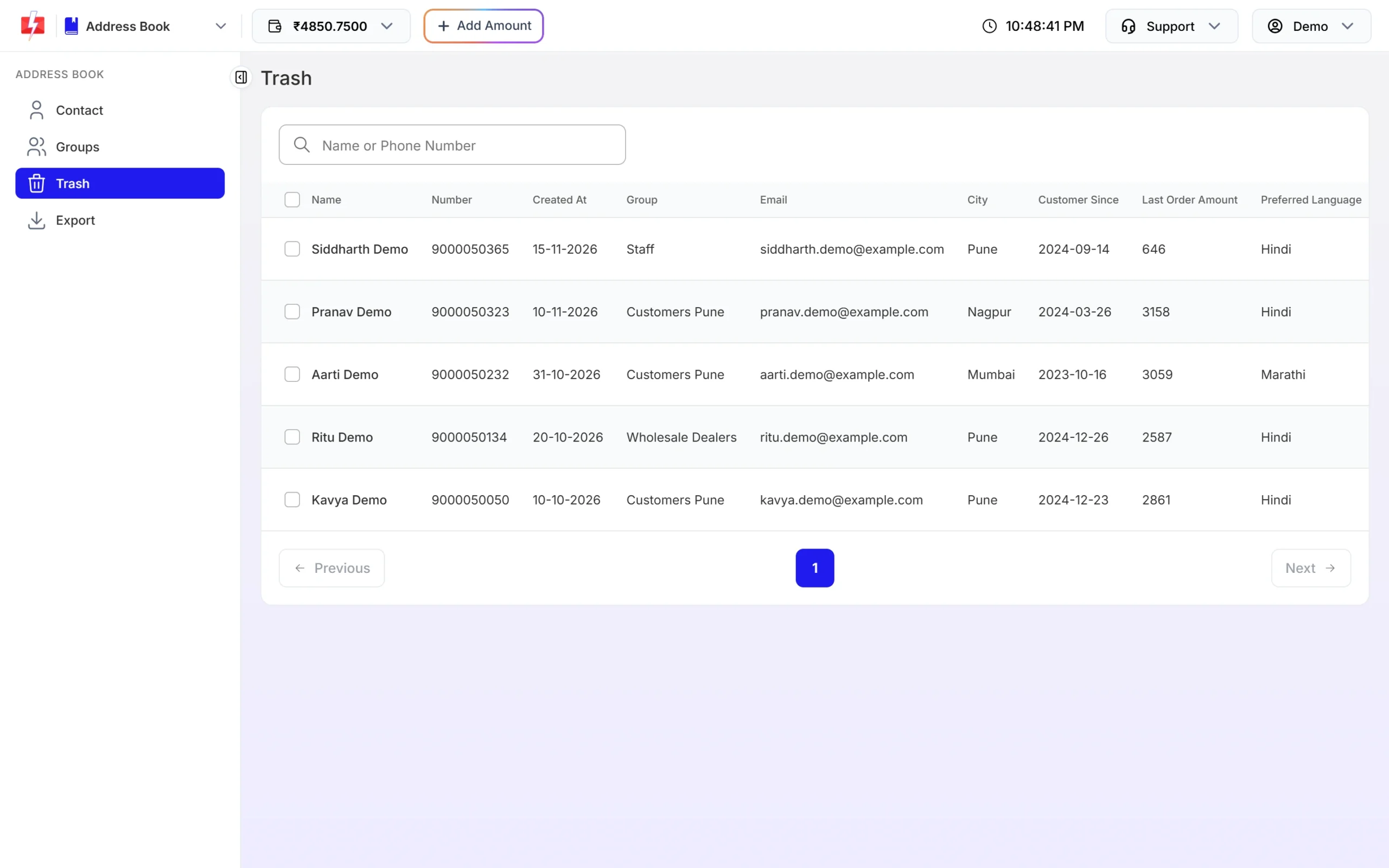
Deleted contacts are not lost straight away. They move to Trash with their group links. Open Trash to restore them, which brings back the groups too, or to delete them forever. Trash is not emptied automatically, so contacts stay there until you remove them.
How to export your contacts
There are two ways:
- On the Contact page, apply filters and click Export. Only the contacts that match your filters are exported.
- Open Export in the left menu. Choose All Groups or one group, pick a date range if you want (up to 370 days) and click Submit.
The file is prepared in the background. Click the refresh button after a short while. When it says Download, the zip file is ready. It holds a CSV with Name, Number, Created At, Group, Status and your visible custom columns. Files are removed after 48 hours.
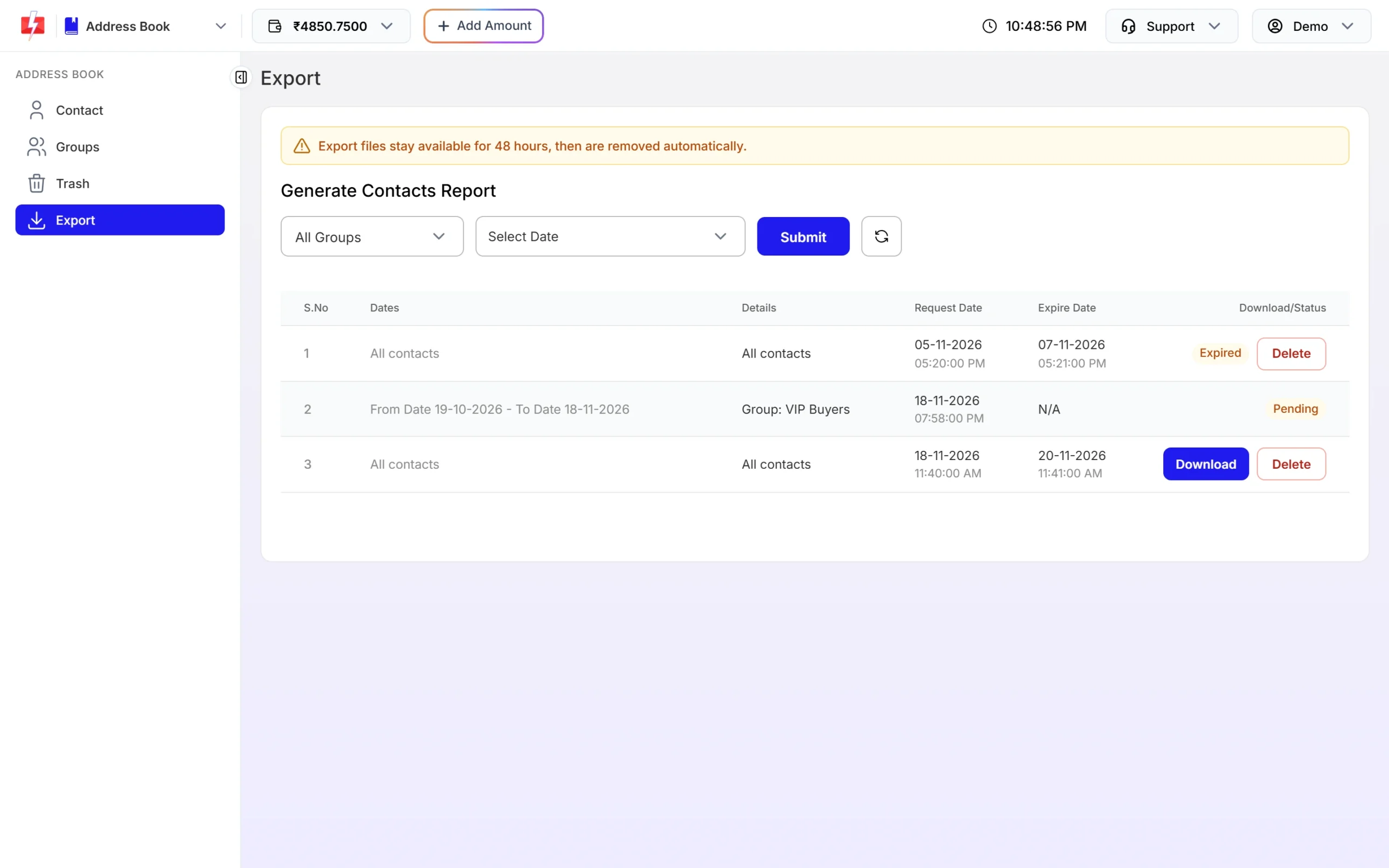
Only valid 10-digit Indian mobile numbers are included in the export. You can keep up to 5 export files at a time, with no more than 2 waiting to be prepared.
Common problems and fixes
“Contact already exists.”
The number is already saved. Search for it and edit that contact instead. Contacts in Trash do not count, so restore the old one if you want its details back.
“Enter a valid 10-digit Indian mobile number starting with 6, 7, 8 or 9.”
Remove +91, 0, spaces and dashes and enter only the 10-digit mobile number. Landline and foreign numbers cannot be saved.
“You cannot export more than 5 reports, wait until old reports expires.”
Delete old files from the Export list or wait until they expire after 48 hours.
“No contacts found for the selected filters.”
The group or date range has no contacts. Choose All Groups or a wider date range.
My custom column does not show when I add a contact
New columns are hidden by default. Turn on its Visibility switch in Column Settings.
Frequently asked questions
Can one contact be in more than one group?
Yes. Pick several groups in Select Group when you add or edit the contact.
If I delete a group, are its contacts deleted?
No. Only the group is removed. The contacts stay in your address book.
How long do deleted contacts stay in Trash?
Until you restore them or delete them forever. Trash is not cleared automatically.
Can I add my own fields like city or birthday?
Yes. Add a column in Column Settings, choose its type and switch on Visibility.
What does the Status switch on a contact do?
It marks a contact as Active or Inactive. Inactive contacts stay in the list, and you can filter by status.
Can I export only one group?
Yes. On the Export page, pick the group instead of All Groups and click Submit.