
DLT template reject क्यों होता है? ज़्यादातर मामलों में वजह इनमें से एक होती है: गलत category चुनना, service message में offer डाल देना, brand का नाम न होना, variables गलत तरीके से लगाना, या link और call-back नंबर पहले से DLT पर दर्ज न होना। Fast2SMS में template reject होने की वजह अलग होती है: आपने जो text, Template ID या screenshot डाला, वह DLT portal के approved record से मेल नहीं खाता।
यह पेज उन businesses के लिए है जिनका DLT template बार-बार reject हो रहा है। इसमें दोनों जगह की आम वजहें, उन्हें ठीक करने का तरीका और Fast2SMS में template दोबारा जोड़ने के steps हैं।
Template दो जगह reject हो सकता है
| कहां reject हुआ | इसका मतलब | कारण कहां लिखा मिलेगा |
|---|---|---|
| DLT portal पर (Jio, Airtel, Vi, BSNL, SmartPing, Tata) | Operator की जांच में template पास नहीं हुआ। अभी यह template किसी भी provider से इस्तेमाल नहीं हो सकता। | Portal पर template के सामने का remark |
| Fast2SMS के DLT Manager में | Template DLT पर approved है, पर आपकी डाली details उस record से मेल नहीं खाईं। | Template card पर Reason |
एक तीसरी स्थिति भी है जो reject नहीं है: template दोनों जगह approved है, फिर भी SMS fail हो रहा है। तब operator SMS को DLT जांच (scrubbing) में रोक रहा है, आमतौर पर इसलिए कि भेजा गया text approved template से मेल नहीं खाता। इसके लिए नीचे “Approved template पर भी SMS fail” वाला हिस्सा पढ़ें।
DLT portal पर template reject होने की आम वजहें
| वजह | उदाहरण | क्या करें |
|---|---|---|
| गलत category | Offer वाला message Service Implicit में, या login OTP Promotional में | OTP और order, payment जैसे updates service या transactional में रखें। Offer और sale को Promotional में डालें। |
| Service message में offer | “आपका ऑर्डर भेज दिया गया है, अगली खरीद पर 10% छूट पाएं” | Offer वाला हिस्सा हटाएं। Offer के लिए अलग promotional template बनाएं। |
| Brand या business का नाम नहीं | “आपका कोड {#numeric#} है” | Template के fixed text में अपने business का नाम लिखें, variable के अंदर नहीं। |
| Variable गलत tag में | Link को {#alphanumeric#} में रखना | सही tag चुनें: नंबर के लिए {#numeric#}, link के लिए {#url#} या {#urlott#}, call-back नंबर के लिए {#cbn#}, email के लिए {#email#}। |
| Template में लगभग सब variables | “{#alphanumeric#} {#alphanumeric#} {#alphanumeric#}” | Message का मकसद fixed text में साफ लिखें। सिर्फ बदलने वाली चीज़ें (नाम, रकम, तारीख) variable में रखें। |
| Link या नंबर पहले से दर्ज नहीं | Template में ऐसी website का link जो DLT पर whitelist नहीं है | पहले अपना URL या call-back नंबर portal पर CTA के रूप में दर्ज कराएं, फिर template भेजें। |
| Header और content मेल नहीं खाते | एक brand के header पर दूसरे brand का message | Template उसी header से जोड़ें जो उसी business या brand का है। |
| अधूरा या गोलमोल text | “ज़रूरी जानकारी के लिए क्लिक करें {#url#}” | साफ लिखें कि message किस बारे में है और किसे भेजा जा रहा है। |
हर portal remark में अपनी भाषा में वजह लिखता है। Remark ध्यान से पढ़ें और सिर्फ वही चीज़ बदलें जो उसमें लिखी है। एक साथ सब कुछ बदलने से नई गलती आ सकती है।
Fast2SMS में template reject क्यों दिखता है
DLT portal पर approve होने के बाद आप template को DLT Manager > Content Template में जोड़ते हैं। वहां वह पहले PENDING रहता है और हमारी team उसे आपके DLT screenshot से मिलाती है। कुछ मेल न खाए तो card पर REJECTED और नीचे Reason दिखता है।
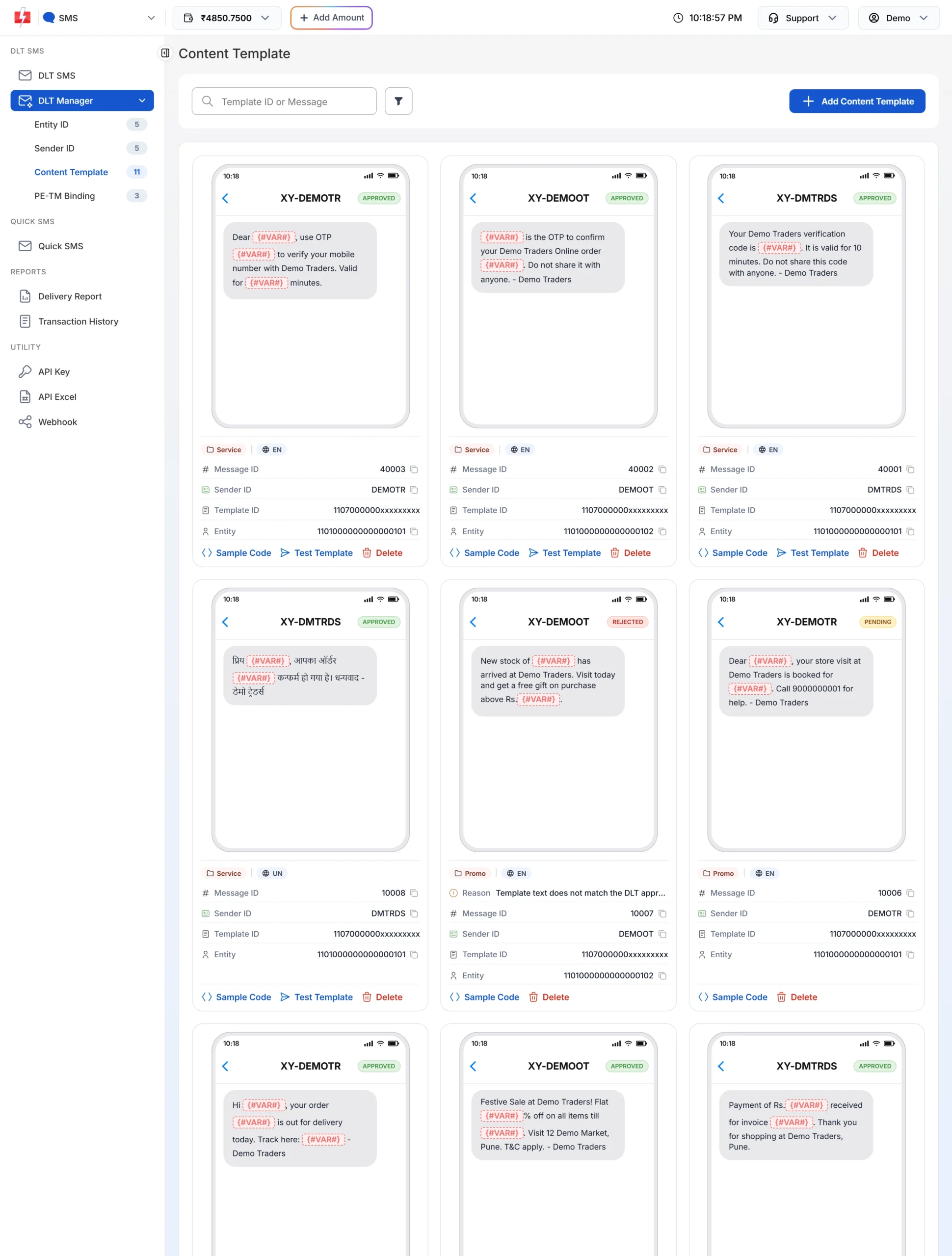
आम वजहें:
- Text मेल नहीं खाता: Copy-paste करते समय कोई space, full stop या variable tag बदल गया। Portal से text दोबारा copy करके बिना बदलाव paste करें।
- Screenshot साफ नहीं: Screenshot में Template ID, पूरा text और Approved status साफ दिखना चाहिए।
- गलत Template ID या Sender ID: Portal पर देखें कि template किस header के लिए approved है और वही Sender ID टिक करें।
- Sender ID ही approved नहीं: Template उसी Sender ID के साथ चलता है जो Sender ID टैब में Approved हो। Sender reject हो तो पहले उसे ठीक करें।
- “Content template blocked, contact Fast2SMS support.”: यह Template ID block list में है। Support से बात करें।
Rejected template को ठीक करके दोबारा कैसे जोड़ें
-
Reason पढ़ें
DLT Manager > Content Template खोलें। ऊपर filter से Status में Rejected चुनें ताकि सिर्फ rejected templates दिखें। हर card का Reason पढ़ें।
-
पुराना card हटाएं
Rejected card पर Delete दबाएं, अपना account password डालें, confirmation box टिक करें और Delete दबाएं। यह template सिर्फ आपके Fast2SMS account से हटता है, DLT portal का record वैसा ही रहता है।
-
Add Content Template से सही details डालें
Add Content Template दबाएं। Select Entity चुनें, फिर वह Sender ID टिक करें जिसके लिए template approved है। Content Template ID में portal वाला ID डालें, Template Type में Service Implicit या Service Explicit or Promotional चुनें, Copy-Paste Approved Message Text में portal का text बिना बदलाव paste करें और Upload DLT Approved Screenshot में साफ screenshot लगाएं। Submit दबाएं।
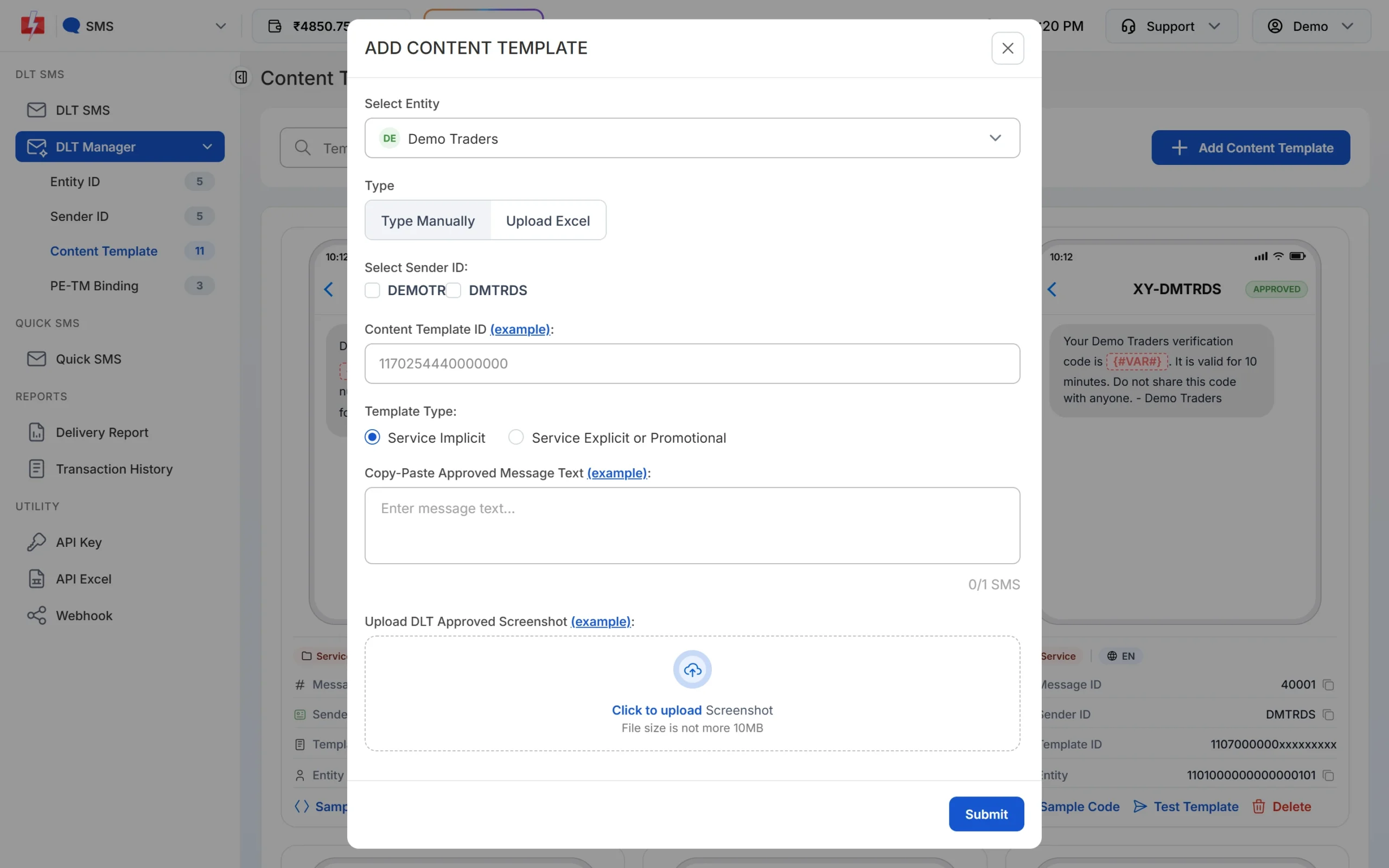
Text वही paste करें जो DLT portal पर approved है। -
Approve होने पर test SMS भेजें
Template Approved होने के बाद card पर Test Template दबाएं, अपना नंबर और variables डालें और Send Test SMS करें। यह असली SMS है, इसलिए पूरी list को भेजने से पहले एक नंबर पर जांच लें।
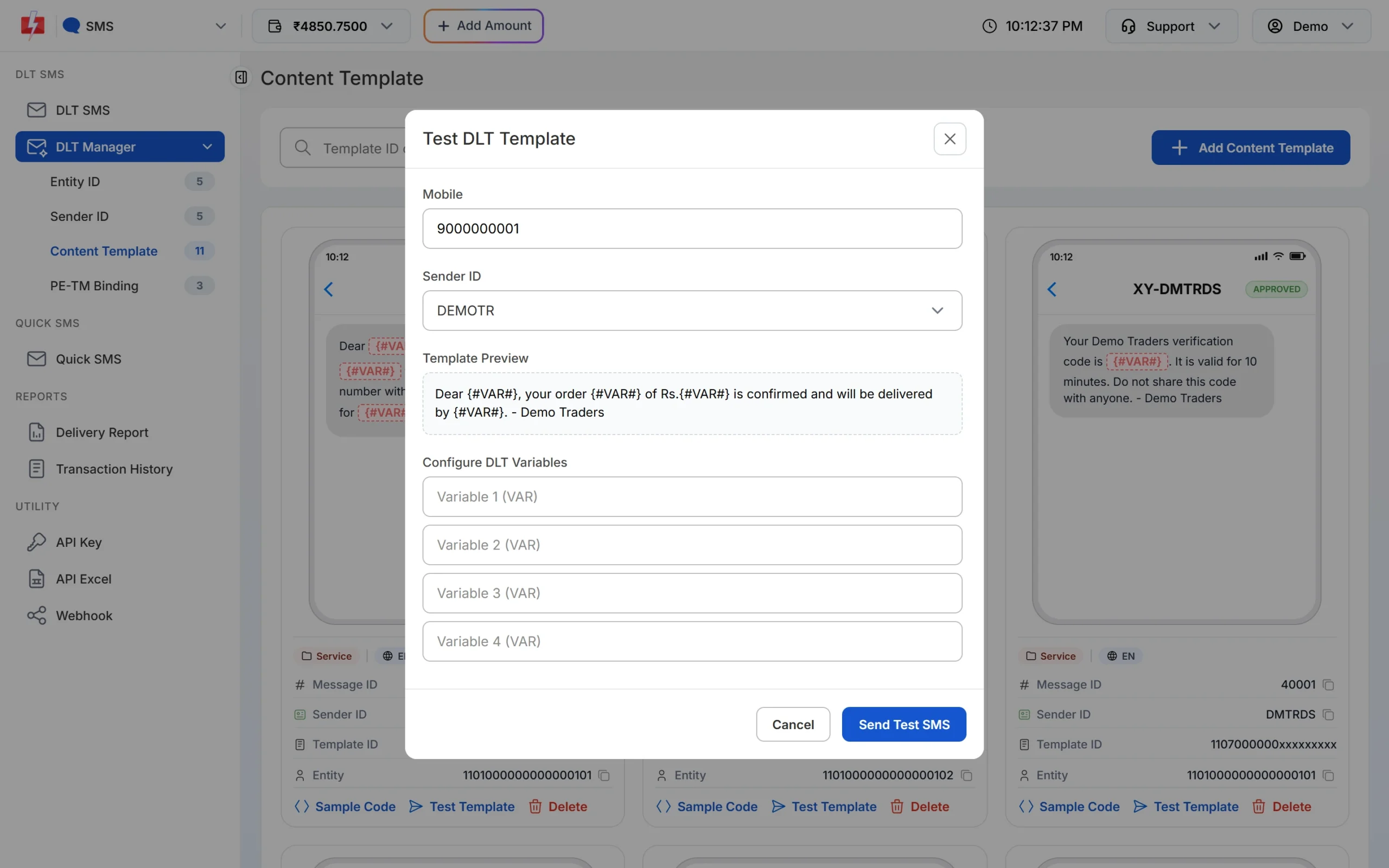
नए template को पहले अपने नंबर पर भेजकर देखें।
अगर आपकी Sender ID 6 अंकों का नंबर है, तो Fast2SMS उसके साथ जुड़े template को अपने आप Service Explicit or Promotional मानता है। Hindi या किसी और भाषा के अक्षर होने पर template की भाषा अपने आप Unicode (UN) हो जाती है।
Approved template पर भी SMS fail हो रहा है?
यह reject नहीं है, पर इसकी वजहें मिलती-जुलती हैं। Delivery Report में fail हुए नंबर का Description पढ़ें। Operators इस तरह के कारण भेजते हैं:
| Operator का कारण | मतलब | क्या करें |
|---|---|---|
| Jio TEMPLATE_NOT_MATCHED (633), Airtel “SMS Content mismatch at DLT” (666) | भेजा गया text approved template से मेल नहीं खाया | Fixed text एक अक्षर भी न बदलें, सिर्फ variables बदलें |
| Jio HEADER_NOT_REGISTERED_FOR_TEMPLATE (634), Airtel “The template does not match with Header” (614) | Template इस header के लिए दर्ज नहीं | सही header से भेजें या portal पर template को header से जोड़ें |
| Airtel 635 (variable की value तय लंबाई से ज़्यादा), Jio TEMPLATE_FAILED_ON_DYNAMIC_PART (635) | Variable में डाली value ठीक नहीं बैठी | Variable की value छोटी करें या सही tag वाला template बनाएं |
| Jio TEMPLATETYPE_AND_ACCOUNTTYPE_MISMATCH (642), Airtel (683, 687) | Template का प्रकार header या भेजने के प्रकार से मेल नहीं खाता | Template की category और header का प्रकार portal पर जांचें |
अक्सर पूछे जाने वाले सवाल
DLT template reject होने का कारण कहां दिखेगा?
DLT portal पर template के सामने remark में। Fast2SMS में rejected card पर Reason लिखा होता है।
DLT पर approved template Fast2SMS में rejected क्यों है?
आपने जो text, Template ID, Sender ID या screenshot डाला, वह DLT record से मेल नहीं खाया। Card का Reason पढ़ें, card delete करें और सही details से दोबारा जोड़ें।
क्या Fast2SMS में rejected template edit हो सकता है?
नहीं, उसे delete करके Add Content Template से दोबारा जोड़ना होता है। Delete के लिए account password चाहिए।
क्या Fast2SMS से template delete करने पर DLT portal से भी हट जाता है?
नहीं। Delete उसे सिर्फ आपके Fast2SMS account के DLT Manager से हटाता है। इसके बाद वह template आगे के campaigns और API requests में नहीं चलता।
Offer और order update एक ही template में डाल सकते हैं?
ऐसा न करें। Service template में offer जोड़ने पर reject होने का खतरा रहता है। Offer के लिए अलग promotional template बनाएं।
Template reject हुआ तो क्या DLT registration दोबारा करना होगा?
नहीं। Entity और header पहले जैसे रहते हैं। सिर्फ template को सुधारकर portal पर दोबारा भेजें।
सुधारा हुआ template approve हो गया, आगे क्या करें?
Portal पर दिखने वाला Template ID और approved text लेकर Fast2SMS में Add Content Template से जोड़ें, फिर Test Template से एक SMS भेजकर जांचें।