
A DLT template is usually rejected for one of a few reasons: the wrong category, an offer inside a service message, too many or wrongly tagged variables, too little fixed text, a sample message that does not match, or a missing brand name. Read the remark next to the rejected template, fix only that point and submit again. This page lists the common reasons with fixes, for both the DLT portal and your Fast2SMS DLT Manager.
Where was your template rejected?
There are two different checks, and the fix depends on which one failed:
- On the DLT portal (Jio, Airtel, Vi, BSNL, Tata, Smartping): the operator’s reviewer did not approve your template. You see a rejected status and a remark on the portal, often also by email.
- In Fast2SMS DLT Manager: the template is approved on DLT, but the details you added in Fast2SMS could not be matched with it. The template card shows REJECTED and a Reason.
Top reasons a template is rejected on the DLT portal
| Reason | Example | Fix |
|---|---|---|
| Wrong category | An order update registered as Transactional, or a login OTP as Promotional | OTPs are Transactional, updates to existing customers are Service Implicit, offers are Promotional. |
| Offer inside a service or transactional template | “Your order is shipped. Use code SAVE10 for 10% off” | Remove the offer. Under TRAI rules a message mixing promotion with service is promotional. Register the offer as a separate promotional template. |
| Too many variables | “{#alphanumeric#} {#alphanumeric#} {#alphanumeric#} {#alphanumeric#} – BRAND” | Keep to three variables or fewer. More need written reasons and separate approval. |
| Too little fixed text | A template that is mostly variables | Make sure at least 30% of the template is fixed text that says who is sending and why. |
| Untagged or wrong variable tags | Old {#var#}, or a link placed in {#alphanumeric#} |
Use the typed tags: {#numeric#}, {#alphanumeric#}, {#url#}, {#urlott#}, {#cbn#}, {#email#}. |
| Two variables side by side | “Rs {#numeric#}{#numeric#}” | Put fixed text between variables. Only {#alphanumeric#} may sit next to another {#alphanumeric#}. |
| Sample message does not match | Sample has different words or punctuation from the template | Copy the template and replace only the tags with real values. |
| Brand name missing or inside a variable | “Dear {#alphanumeric#}, your code is {#numeric#}” with no sender name | Add your brand or business name as fixed text. |
| Template linked to several headers | One template ticked for two headers | Link each new template to one header. Register a copy for the second header. |
| Link or number not registered as a CTA | A {#url#} template for a domain you never whitelisted |
Register your URL, app link or callback number as a CTA first, then submit the template. |
| Vague or misleading text | “Click here for important information {#url#}” | Say clearly what the message is about. Reviewers reject messages that could be used for anything. |
Since TRAI’s February 2025 amendment, portals use a separate reviewer for template approvals, who also looks at how many templates you already have and how many of yours were blacklisted. Clean, specific templates get through faster.
How to fix a template rejected on DLT
-
Read the remark
Open the rejected template on your DLT portal and read the reviewer’s comment. It usually names the problem.
-
Change only what the remark mentions
Fix that one point. Changing everything at once can create a new problem and another rejection.
-
Check it against the table above
Before you resubmit, confirm the category, the tags, the fixed text, the brand name and the sample message.
-
Submit again
Submit the corrected template. If you think the rejection is wrong, raise a ticket with your portal’s support with proof, such as a trademark certificate for your brand.
Template rejected in Fast2SMS DLT Manager
When you add an approved template in DLT Manager > Content Template, it starts as PENDING and our team compares it with your DLT screenshot. If something does not match, the card turns REJECTED and the reason is shown on the card.
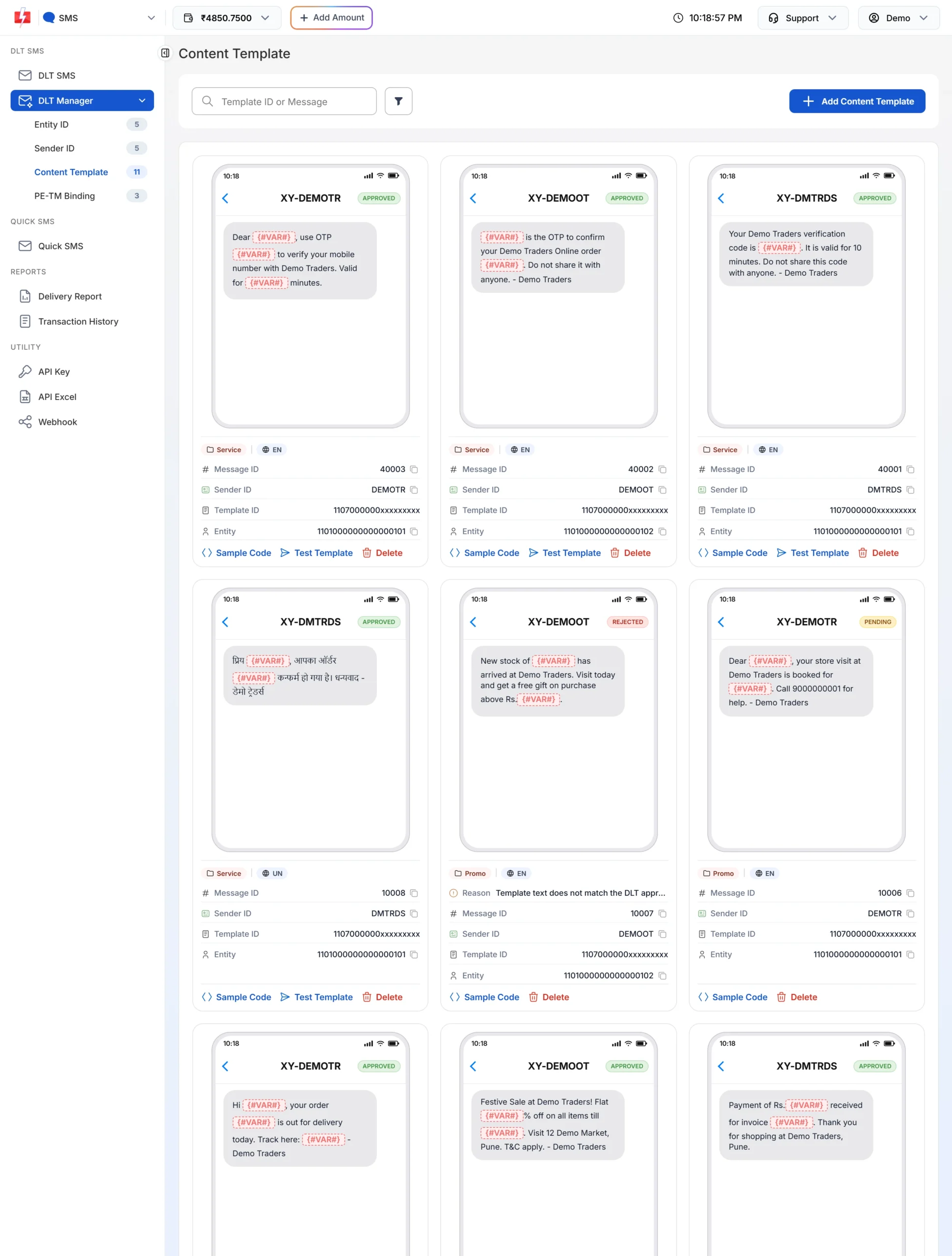
Common reasons and fixes:
- Text does not match the DLT approved text: copy the text from the portal and paste it exactly, with every space, full stop and variable tag.
- Screenshot does not show the approved status: upload a clear screenshot from your DLT portal showing the template ID, the text and the approved status.
- Wrong template ID or Sender ID: check the template ID on your portal and tick the Sender ID the template is approved for.
- “Content template blocked, contact Fast2SMS support.”: the template ID is on a block list. Contact support.
Delete the rejected card and add it again
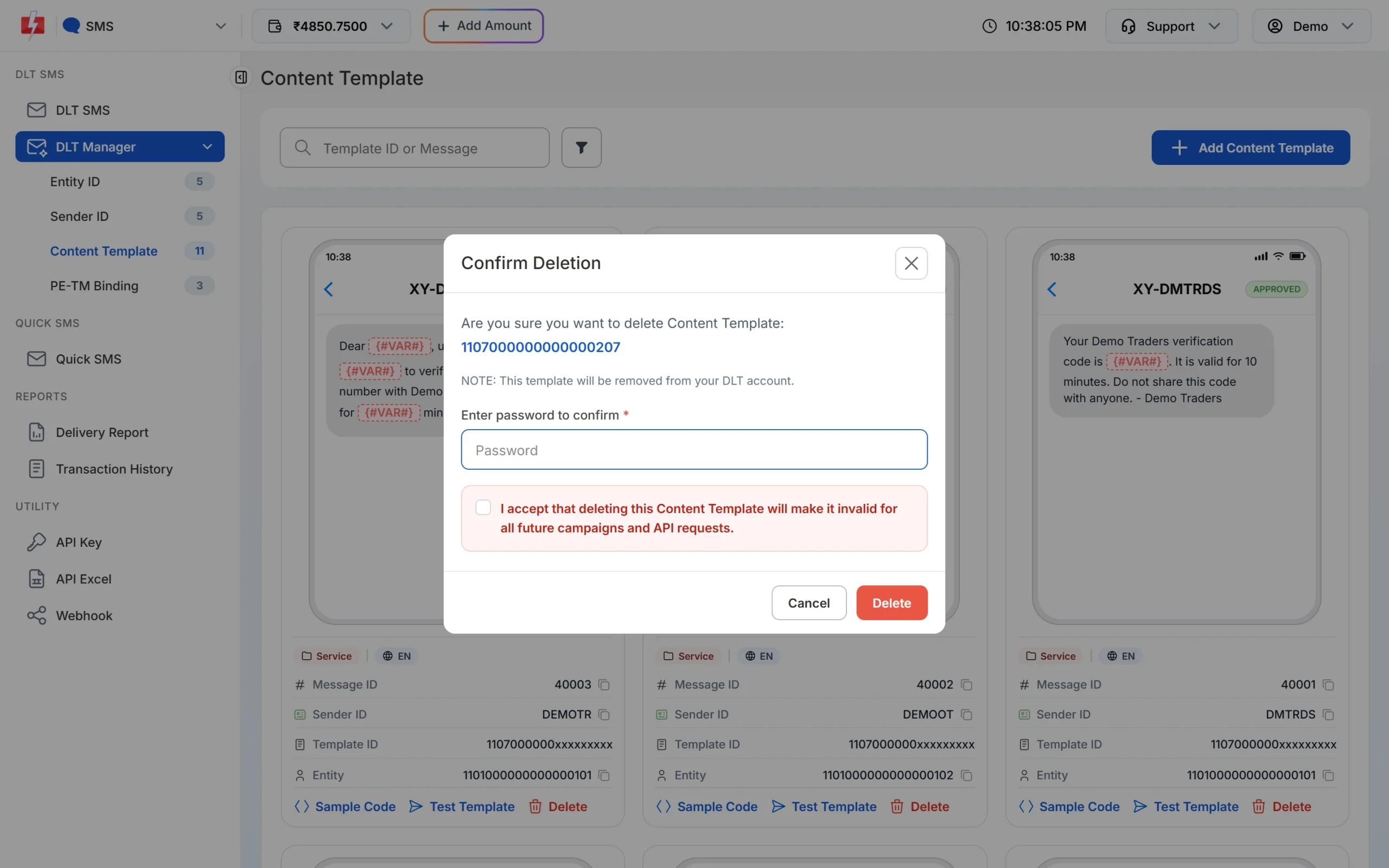
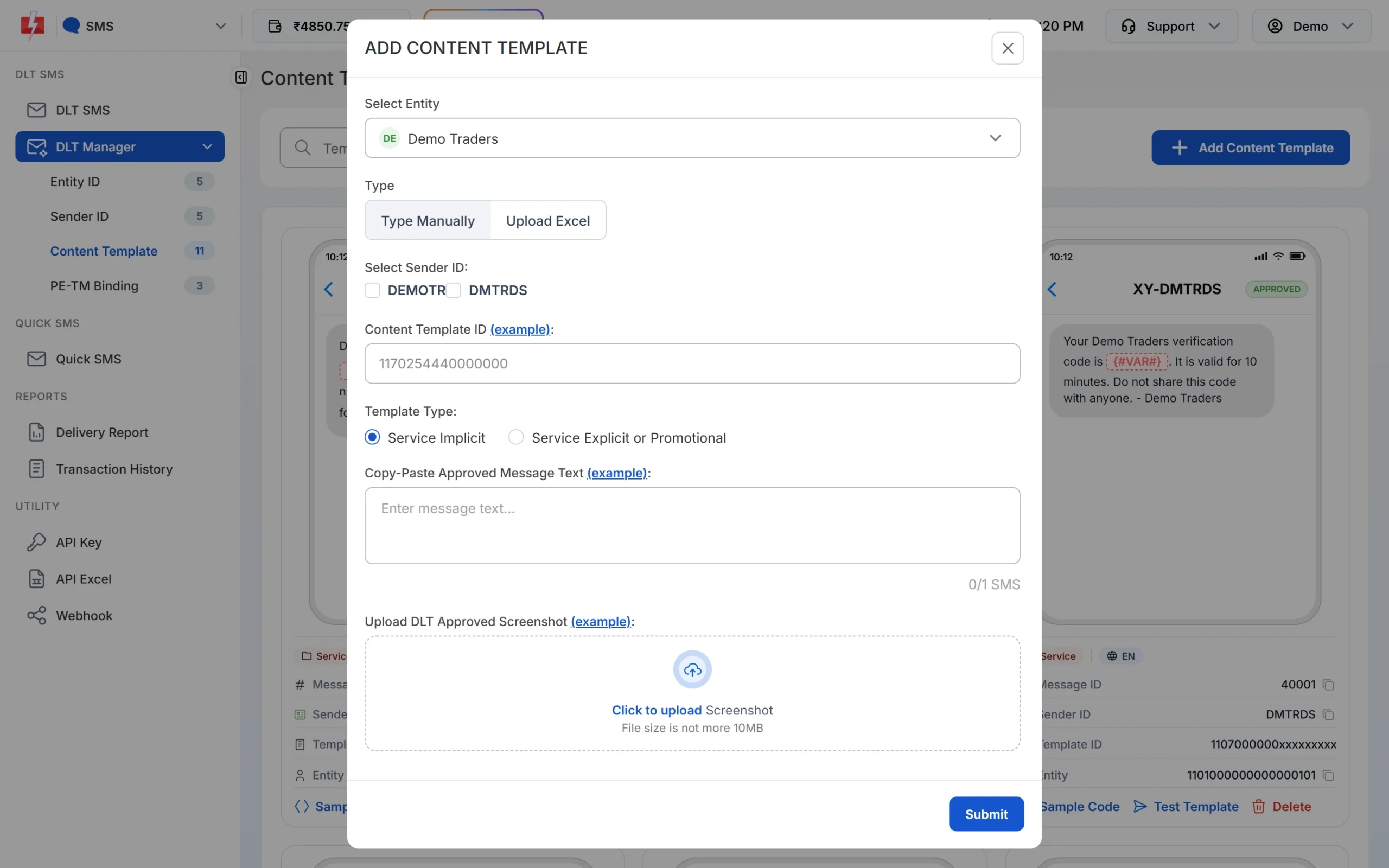
Click Delete on the rejected card, enter your password, tick the confirmation box and click Delete. Then click Add Content Template and add it again with the right details. Deleting only removes the template from your Fast2SMS account; your record on the DLT portal stays as it is.
Approved but the SMS still fails?
That is not a rejection. It usually means the message you sent does not match the approved text (an extra space or changed word), a variable value does not fit its tag, a link is not whitelisted, or the PE-TM chain is not set up. Check the delivery report for the failure reason and compare your text with the approved template character by character.
Frequently asked questions
Why was my DLT template rejected?
Most often because of the wrong category, an offer inside a service message, too many variables, wrong tags, a mismatched sample message or a missing brand name. The remark on your portal tells you which one.
How many variables can a DLT template have?
Three, in normal cases. More are allowed only in special cases with written justification, and at least 30% of the template must stay fixed text.
Can I use {#var#} in DLT templates?
New templates must use the typed variable tags. The old open {#var#} tag is being phased out.
Can I appeal a DLT template rejection?
Usually you fix the issue and resubmit. If you believe the rejection is wrong, raise a ticket with your DLT portal’s support with proof.
Why does Fast2SMS show my template as rejected when DLT approved it?
The details you added in Fast2SMS did not match the DLT record, often the text or the screenshot. Read the reason on the card, delete it and add it again correctly.
Do I need to add the template again in Fast2SMS after fixing it on DLT?
Yes. A corrected template is a new template with a new template ID, so add it in DLT Manager once it is approved.