
In Fast2SMS Cloud Telephony you choose the hold music for each business number in Configure Route, and during a call you use Hold and Transfer in the Web Phone. Transfer has four options: Transfer now to a team member or another number, Move to my mobile to carry on from your own phone, Talk first, then transfer, and Park so anyone in your team can pick the call up.
This guide shows how to set your own hold music, how to put a caller on hold, and how each type of call transfer works, with screenshots.
Part 1: Set hold music for your number
Hold music is what the caller hears while you have them on hold. Every number starts with Default music. You can change it to any ready voice message in your account: a music file you upload, or a typed message such as “Please hold, we will be with you shortly”.
-
Check the voice messages you already have
Open Cloud Telephony > Call Menu (IVR) > Voice Messages. Every account gets sample messages, including Sample – Please Hold in English. Click the play button to listen. Only messages with the status Ready can be used as hold music.
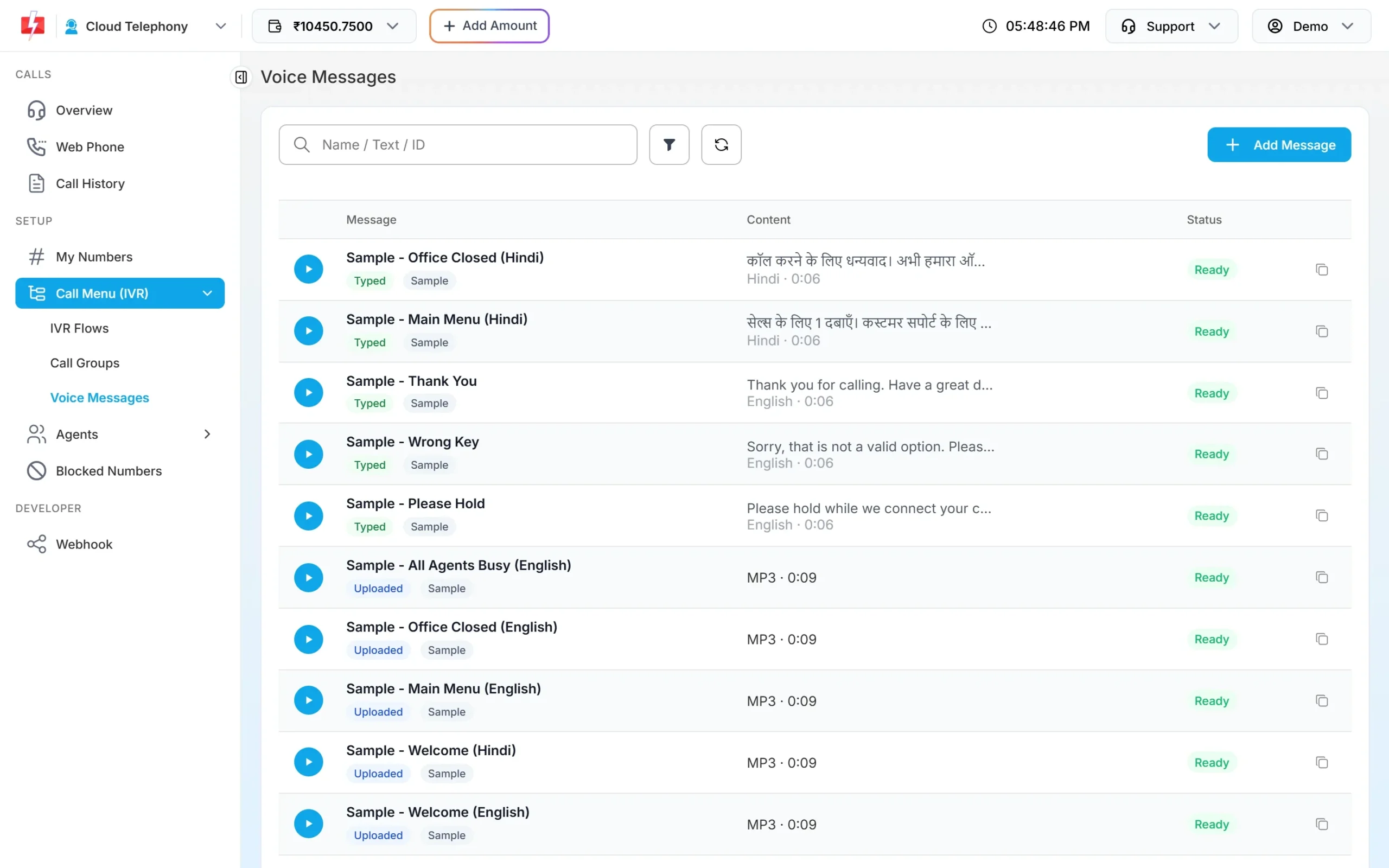
Sample voice messages every account gets. -
Upload your own hold tune (optional)
Click Add Message and open the Upload tab. Give it a Name such as “Hold tune”, click to upload an MP3 or WAV file (up to 10 MB), or use Record in Browser to record with your microphone. Click Upload. A WAV file is ready at once; an MP3 takes about a minute. To make a spoken hold message instead, use the Type tab. See text to speech voice messages.
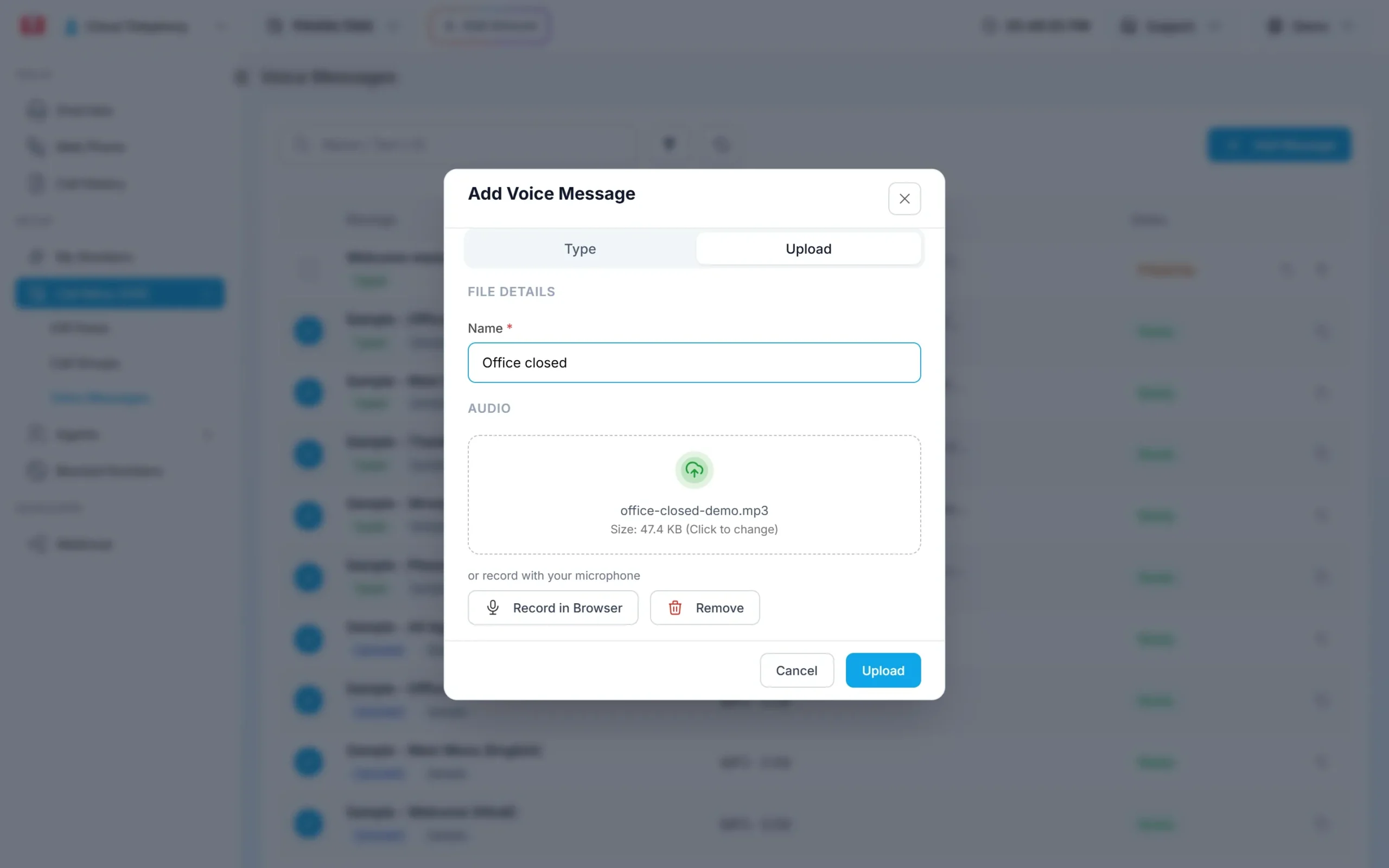
Upload an MP3 or WAV, or record one in the browser. -
Choose it as the number’s hold music
Go to My Numbers, open the number’s row menu and click Configure Route. In Hold music, pick your message. The hint below says “What callers hear while on hold.” Click Save Changes. Each number can have its own hold music, so a sales line and a support line can sound different.
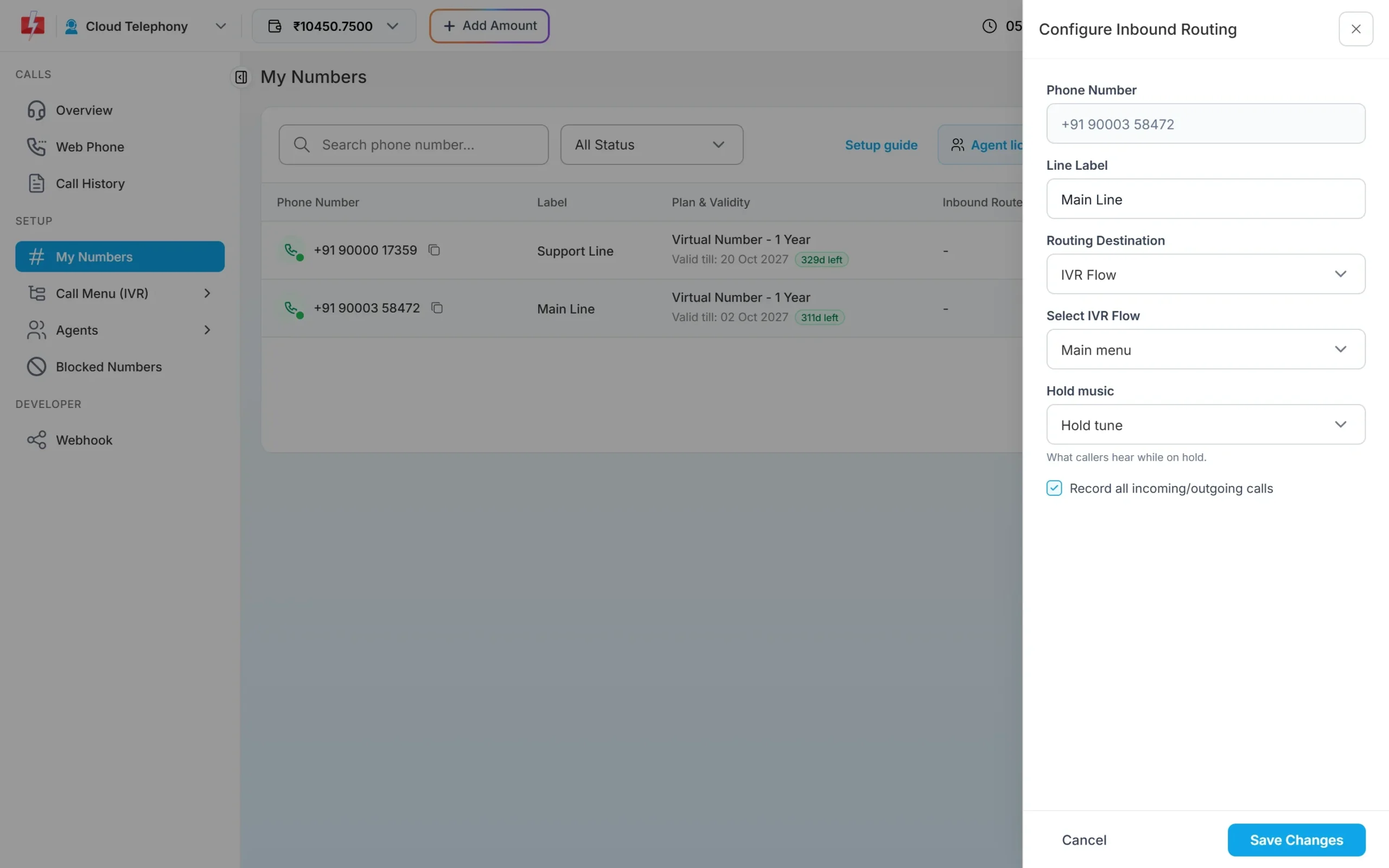
Hold music is set per number in Configure Route.
When does the caller hear hold music?
- When you click Hold in the Web Phone or in the call bar.
- While you speak to a colleague with Talk first, then transfer.
The music used is the one set on the business number in that call: the number the customer dialled, or the number you called from.
Part 2: Put a caller on hold
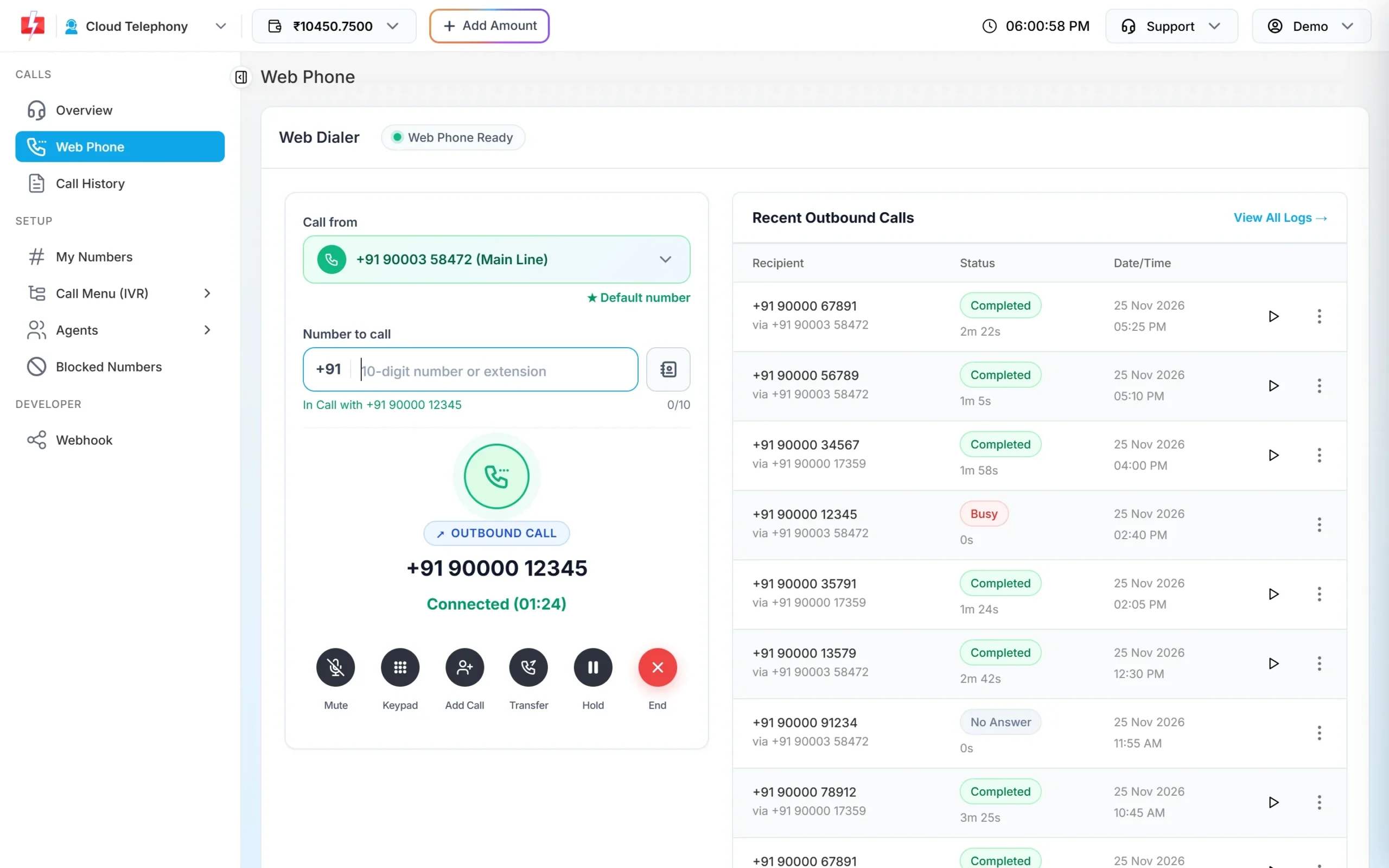
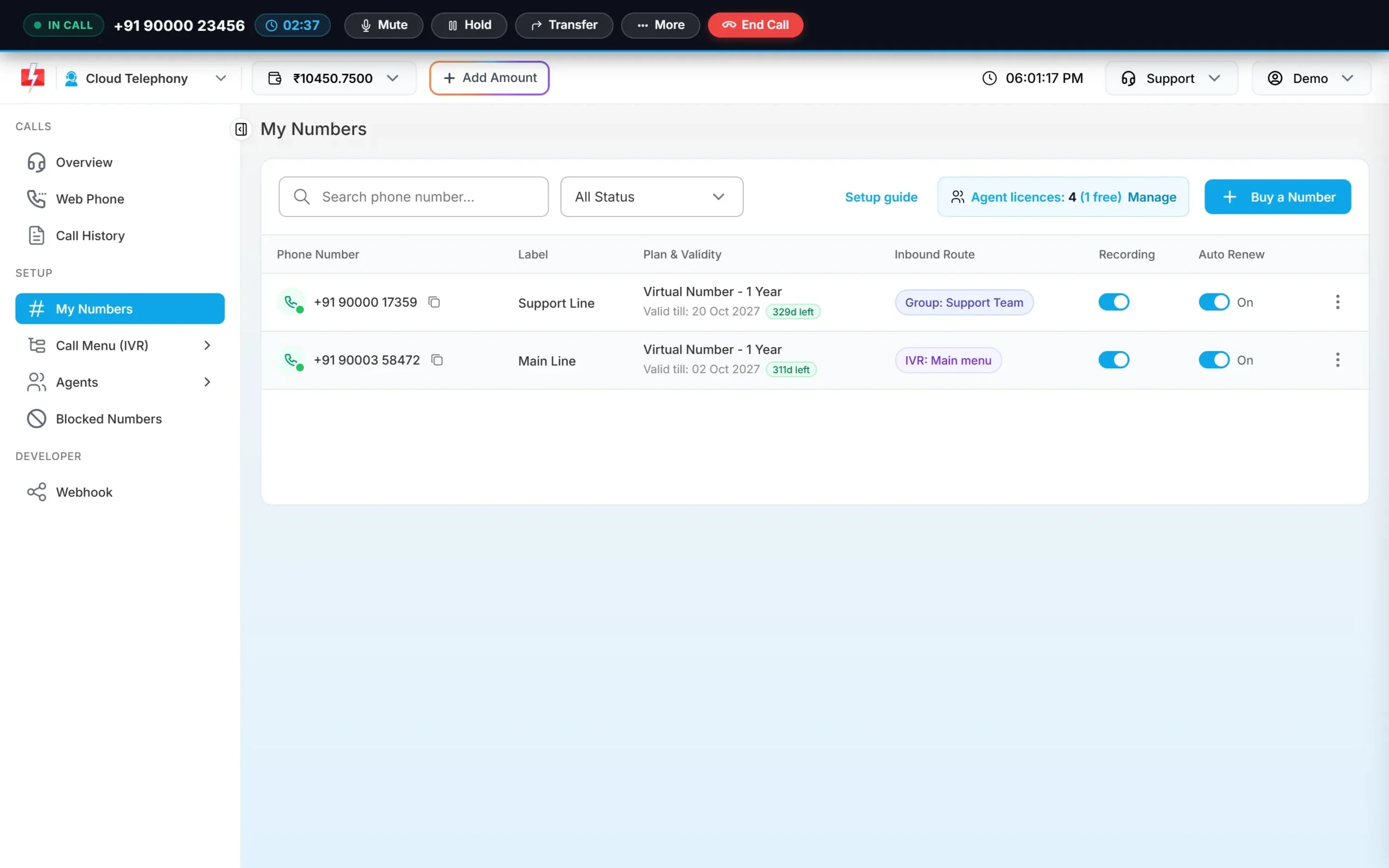
During a call, click Hold on the in-call screen. The button shows On Hold and the caller hears your hold music. Click it again to take them off hold. You can do the same from the black call bar at the top of any panel page.
Part 3: Transfer a call
Click Transfer during a call. A menu opens with four options:
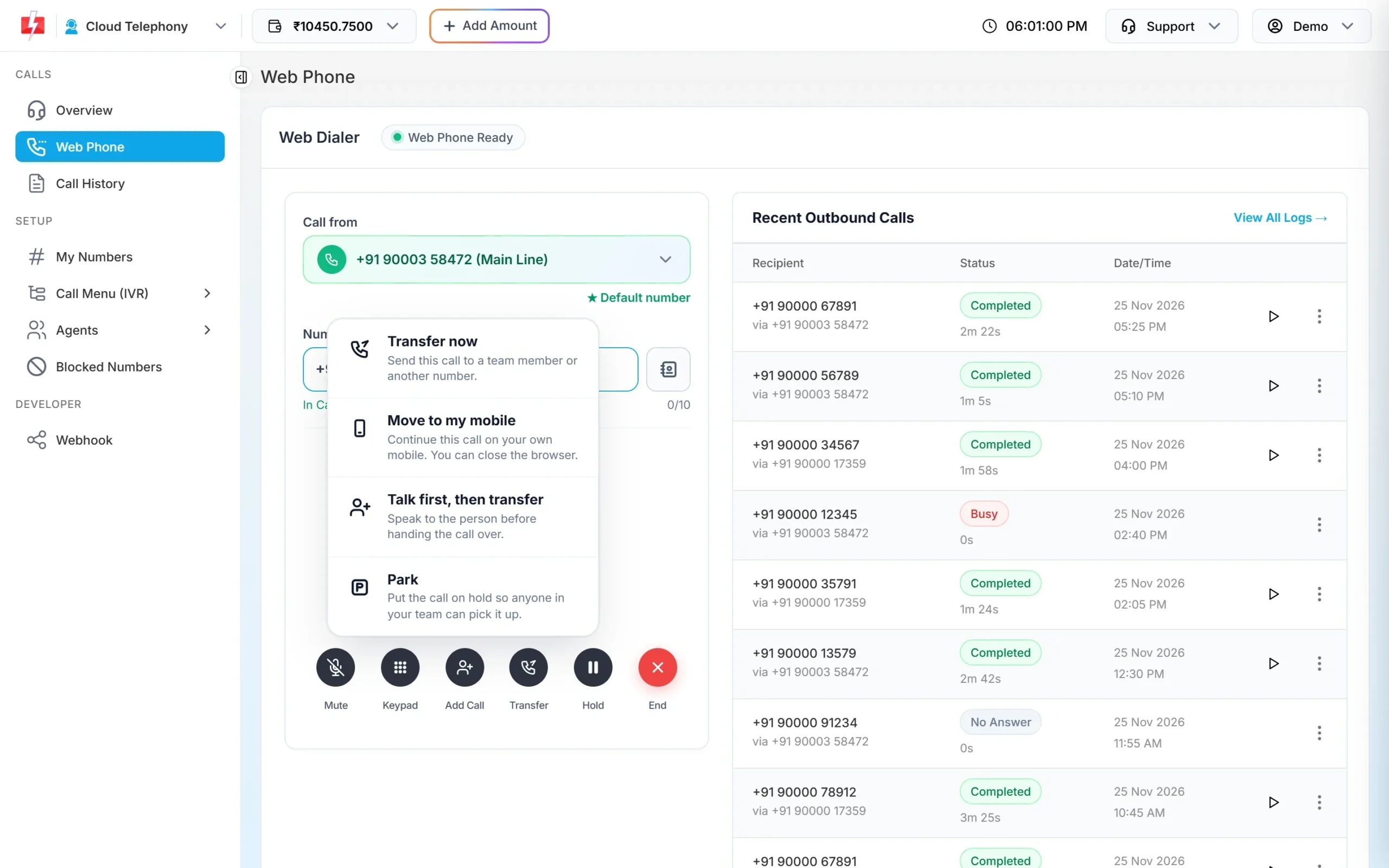
| Option | What it does | Use it when |
|---|---|---|
| Transfer now | Sends the call straight to a team member or another number | You know who should take it and they are free |
| Move to my mobile | Continues the call on your own mobile; you can close the browser | You need to leave your laptop mid-call |
| Talk first, then transfer | You speak to the person first while the caller hears hold music, then hand over | You want to brief a colleague before they take over |
| Park | Puts the call on hold at a parking spot that anyone in your team can pick up | You are not sure who will take it, or the person is on another floor |
Transfer now
- Click Transfer > Transfer now. A panel titled Transfer To: opens with your team under AGENTS.
- Search by name or extension and pick the person, or switch to the keypad and type an extension (such as 102) or a 10-digit phone number.
- Confirm. The call moves to them and your Web Phone is free for the next call.
Talk first, then transfer
- Click Transfer > Talk first, then transfer and pick the colleague or number.
- The caller is put on hold with your hold music while you talk to the colleague.
- Click Complete Transfer to hand the call over, or Cancel Transfer to go back to the caller.
Move to my mobile
Click Transfer > Move to my mobile. The call is sent to your own registered mobile number; you answer it there and carry on. You do not type any number, the panel uses the mobile saved on your login:
- Account owner: the verified mobile number in your profile. If it is not verified, you will see “Verify your mobile number in your profile first.”
- Team member: the mobile number the owner saved in Team Members. If it is missing, you will see “Your mobile number is missing. Ask the account owner to add it in Team Members.”
Move to my mobile is also in the call bar under More, so you can use it from any panel page.
Park a call
Click Transfer > Park. The Web Phone shows a message such as “Call parked at spot 71” with the code to pick it up. Tell your team the spot number. Any team member can pick the call up while it waits on hold.
Add Call is not the same as Transfer
Add Call brings a third person into the same call, so all of you can talk together. Use it for a quick three-way call with a manager. Transfer hands the call over and you leave it.
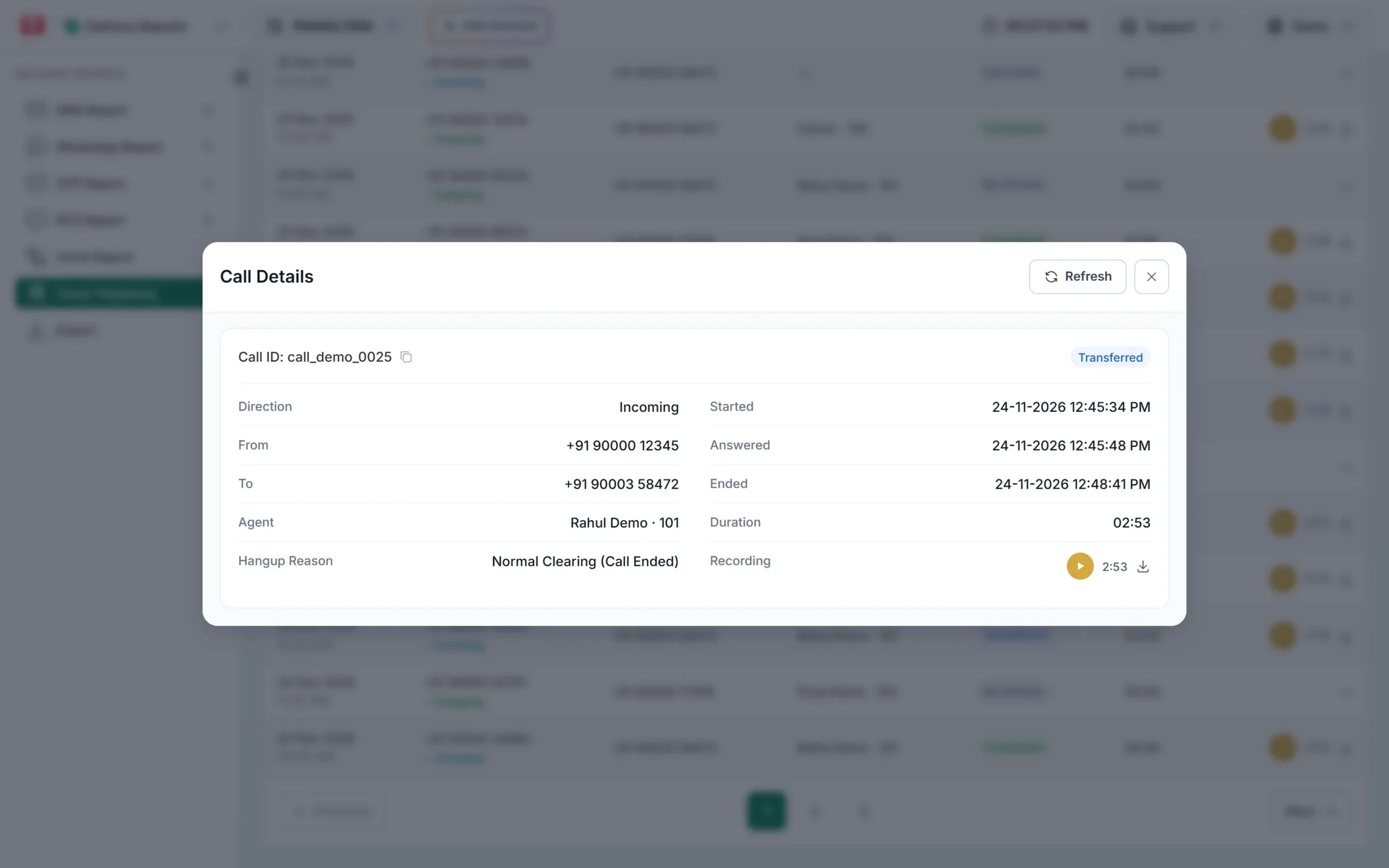
See transferred calls in Call History
Transferred calls show the status Transferred in Call History, and the customer column marks extra legs with “· Transfer” or “· Added call”. Click a call to open Call Details: direction, from, to, agent, hangup reason, times, duration and the recording. See call recording and call history.
Common problems and fixes
| Problem | Fix |
|---|---|
| My message is not in the Hold music list | Only ready messages show. Wait until its status in Voice Messages changes from Preparing to Ready, then reopen Configure Route. |
| I cannot delete a voice message | It is in use by a number (for example as hold music), a call group or an IVR. Pick another message there first. |
| Move to my mobile shows an error | Owner: verify your mobile in your profile. Team member: ask the owner to add your mobile in Team Members. |
| The colleague is not in the transfer list | Only team members with Cloud Telephony (an agent licence) are listed. Assign them a licence in Agents > Licences. |
Frequently asked questions
Can I use my own music as hold music?
Yes. Upload an MP3 or WAV up to 10 MB in Voice Messages, then pick it in Hold music for the number. Use music you have the right to use.
Can I transfer a call to a mobile number?
Yes. In Transfer now, type a 10-digit mobile number. To send it to your own phone, use Move to my mobile.
What is the difference between Transfer now and Talk first, then transfer?
Transfer now hands the call over straight away. Talk first, then transfer lets you speak to the colleague first while the caller hears hold music.
Can I set different hold music for each number?
Yes. Hold music is set per number in Configure Route.
Does transferring a call cost extra?
No. Cloud Telephony has no per-minute charges, including for transfers.