
You can make and take business calls from your laptop with the Fast2SMS Web Phone. It is a phone dialer inside the Fast2SMS panel that runs in your browser: you type a number, click Call and talk through your headset, and the customer sees your business number. There is no app to install, no desk phone and no SIP settings.
This guide shows how to set up browser calling, make your first call, answer incoming calls from any panel page, and fix the common problems, with screenshots of the real Web Phone.
Before you start
- A Cloud Telephony number. Buy one in Cloud Telephony > My Numbers. See how to get a virtual phone number.
- A laptop or desktop with an up-to-date browser. The Web Phone also works in a phone’s browser.
- A headset with a microphone. Laptop speakers and mic work, but a headset sounds much clearer and avoids echo.
- Stable internet. Voice quality depends on your connection, so use good Wi-Fi or a cable where you can.
- For team members: an agent licence. The account owner’s own Web Phone needs no licence. See how to add agents.
How to make a business call from your browser
-
Open the Web Phone
Go to Cloud Telephony and click Web Phone under CALLS in the sidebar. At the top you will see Web Dialer and a status. Wait for Web Phone Ready. The first time, your browser asks for microphone access: click Allow.
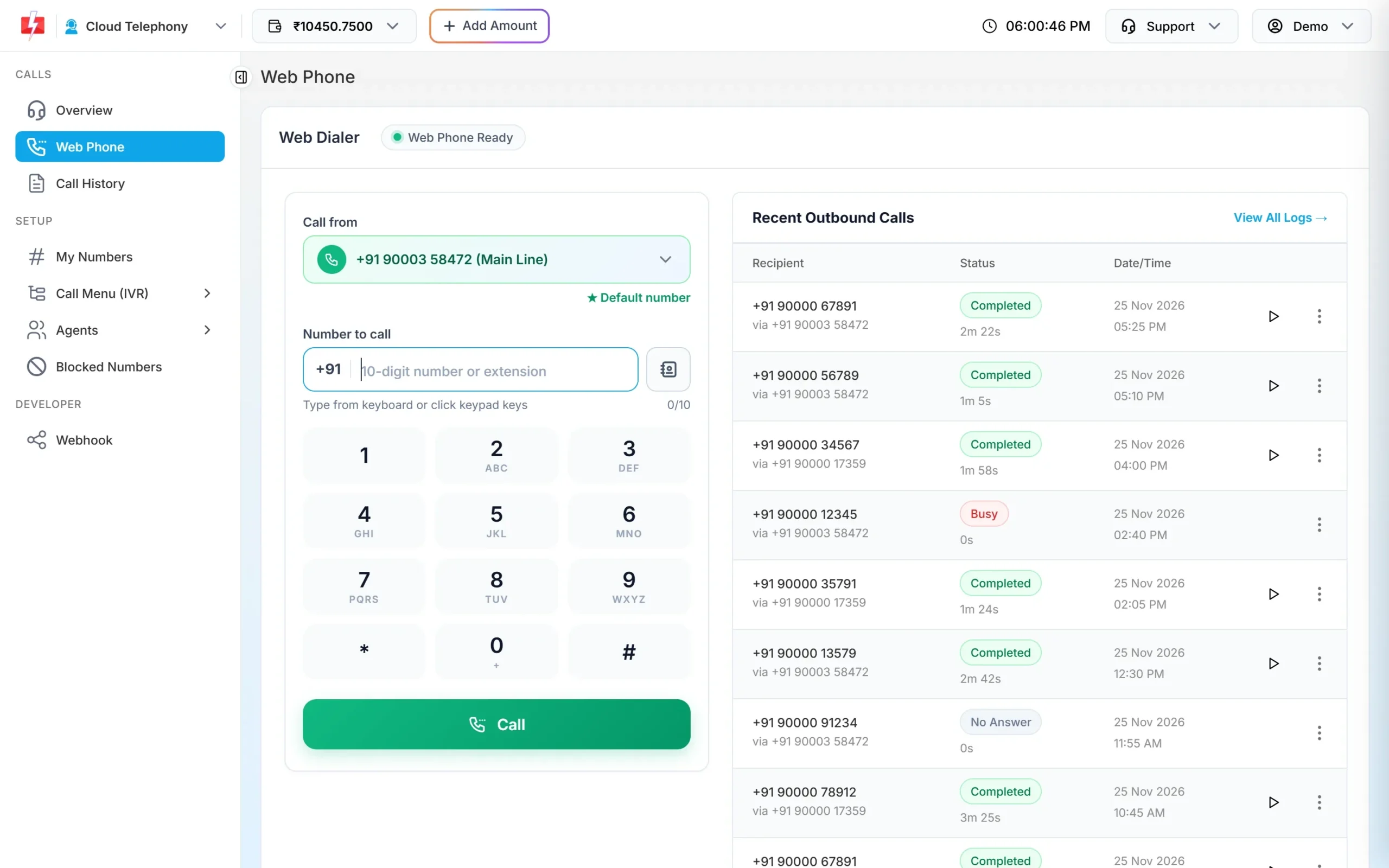
The Web Phone page with the dialer on the left and recent calls on the right. -
Choose the number customers will see
In Call from, pick one of your numbers, for example “+91 90003 58472 (Main Line)”. The number marked Default number is picked every time you open the page. If you have more than one number, choose another and click Set as default to change it.
-
Type the number to call
Type the 10-digit mobile or landline number in Number to call, or click the keypad buttons. The +91 is already there. When the number is complete you will see “Valid number – Ready to dial”. To call a colleague, type their short extension instead, such as 101.
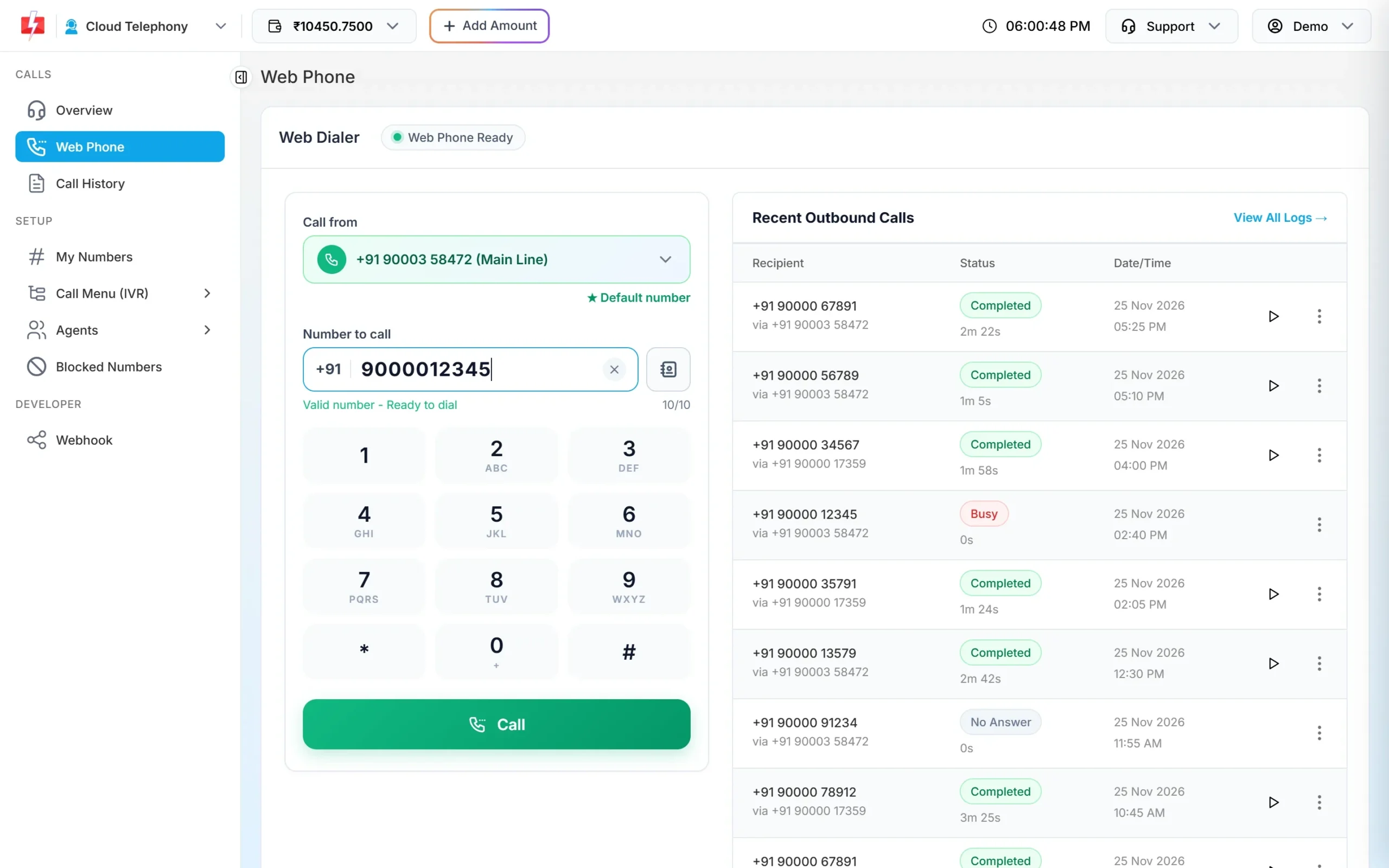
A full 10-digit number is ready to dial. -
Or pick a contact from your address book
Click the contact book button next to the number box. Select Contact opens with the contacts from your Fast2SMS Address Book. Search by name or number and click a contact to fill the number.
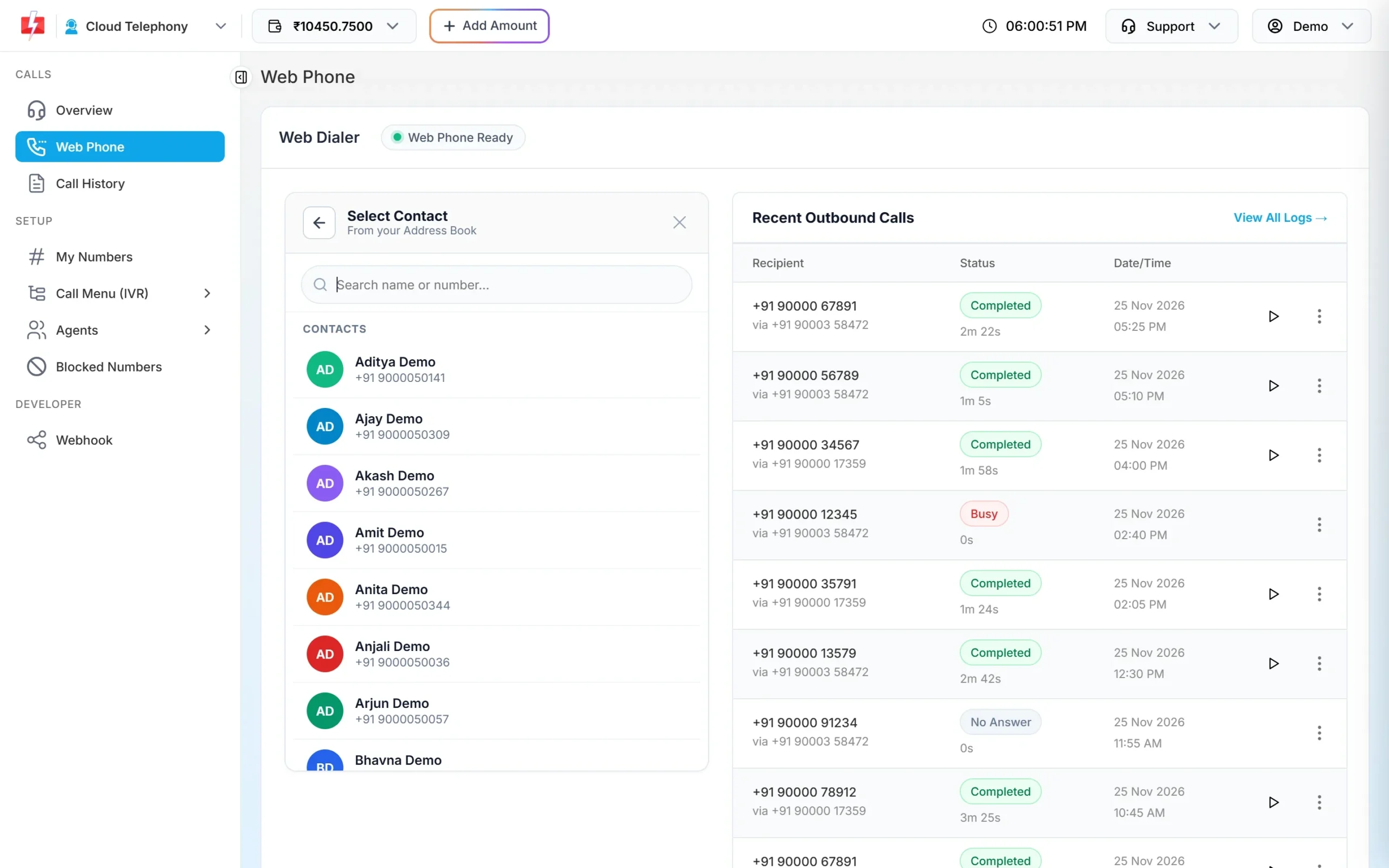
Call your saved contacts without typing the number. -
Click Call and talk
Click Call. The screen shows “Calling…”, then “Ringing…” when the customer’s phone rings, and “Connected” with a timer once they pick up. During the call you have these buttons:
- Mute: the customer cannot hear you.
- Keypad: press keys, for example to choose an option in another company’s phone menu.
- Add Call: bring a colleague or another number into the call.
- Transfer: hand the call to a team member, another number or your own mobile.
- Hold: the customer hears your hold music until you take them off hold.
- End: hang up.
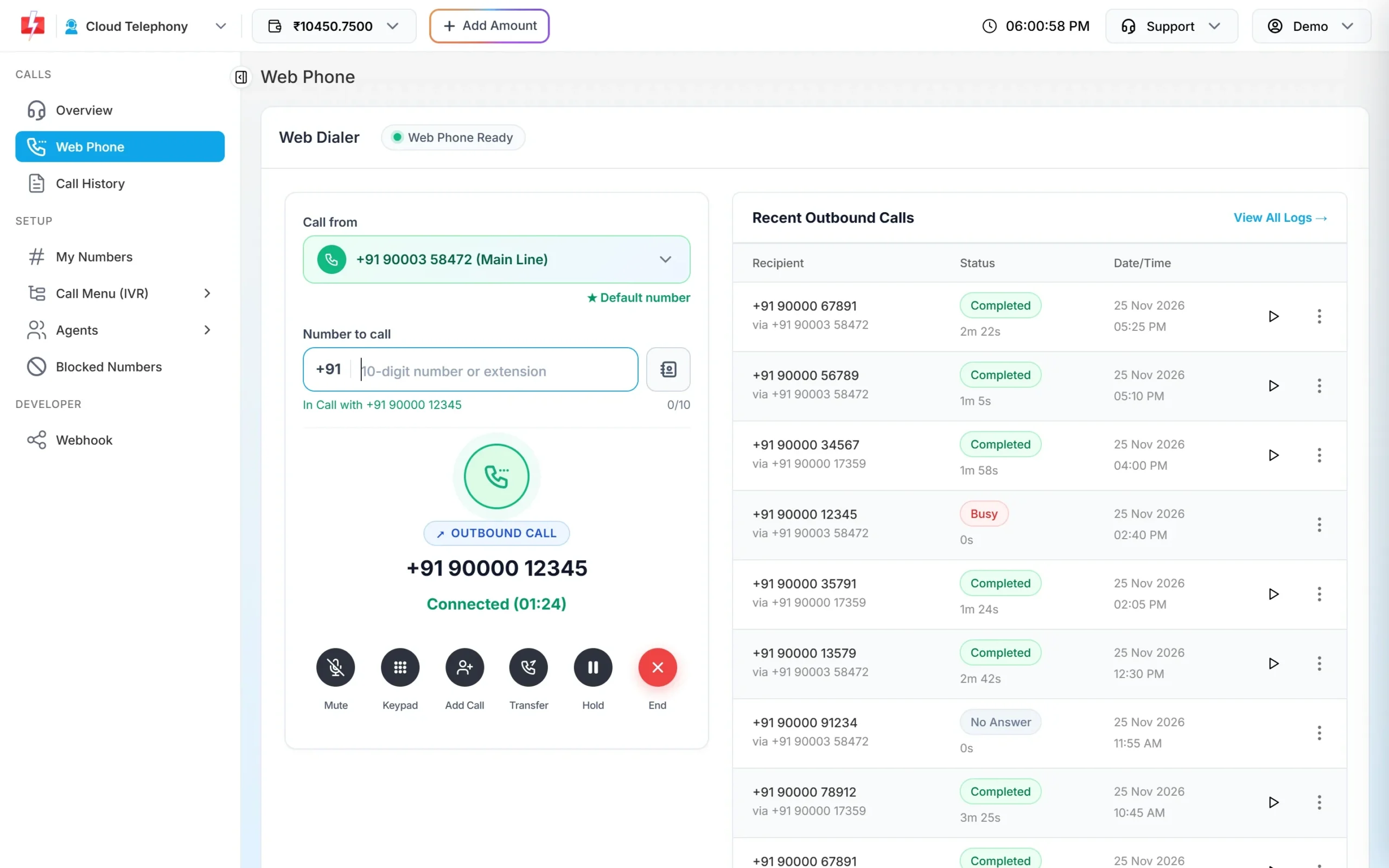
The in-call screen during an outbound call.
How to receive calls in the browser
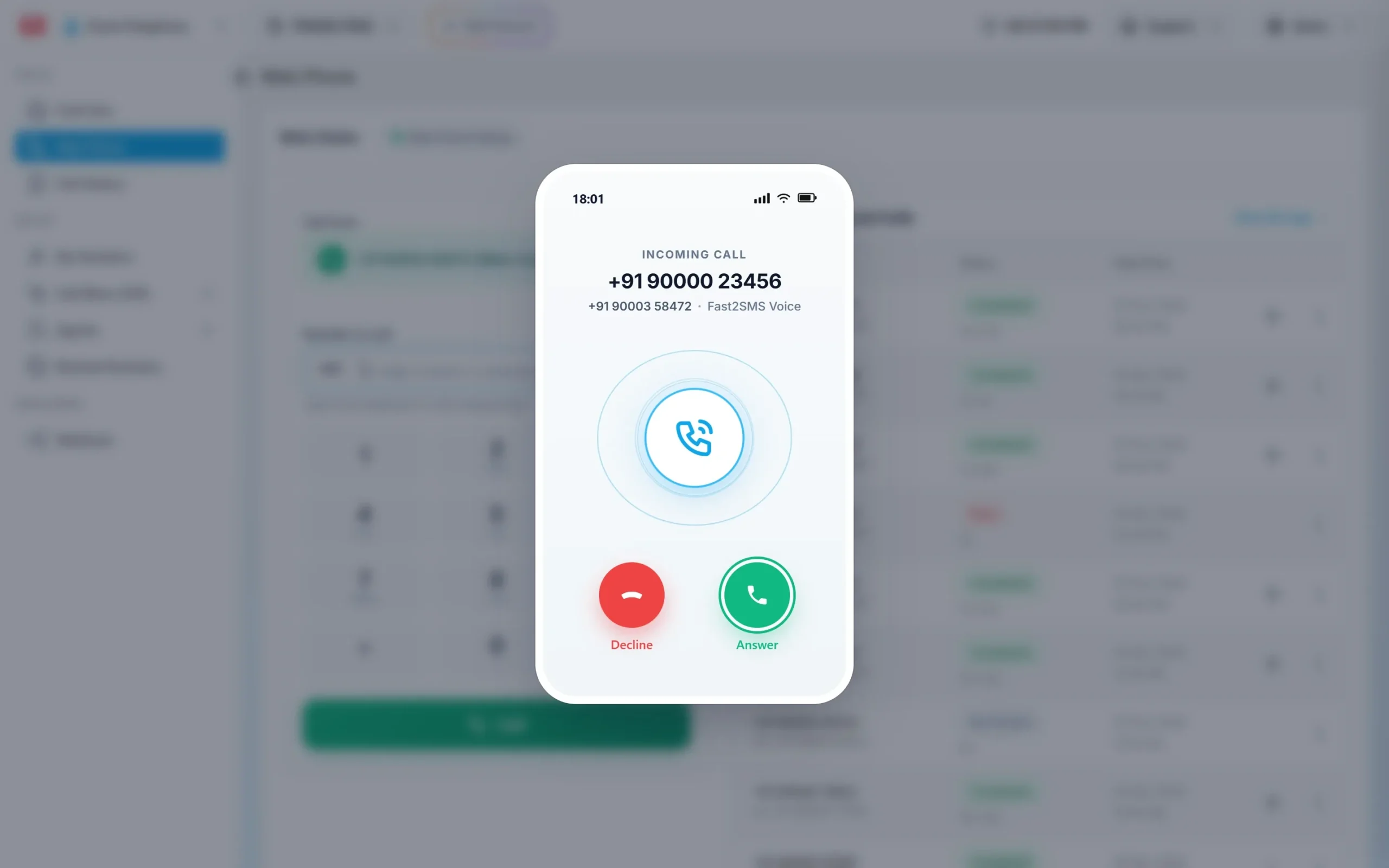
When a call comes to a number routed to you, the Web Phone page shows an incoming call screen with the caller’s number and which of your numbers they called. Click Answer or Decline.
The call bar on every panel page
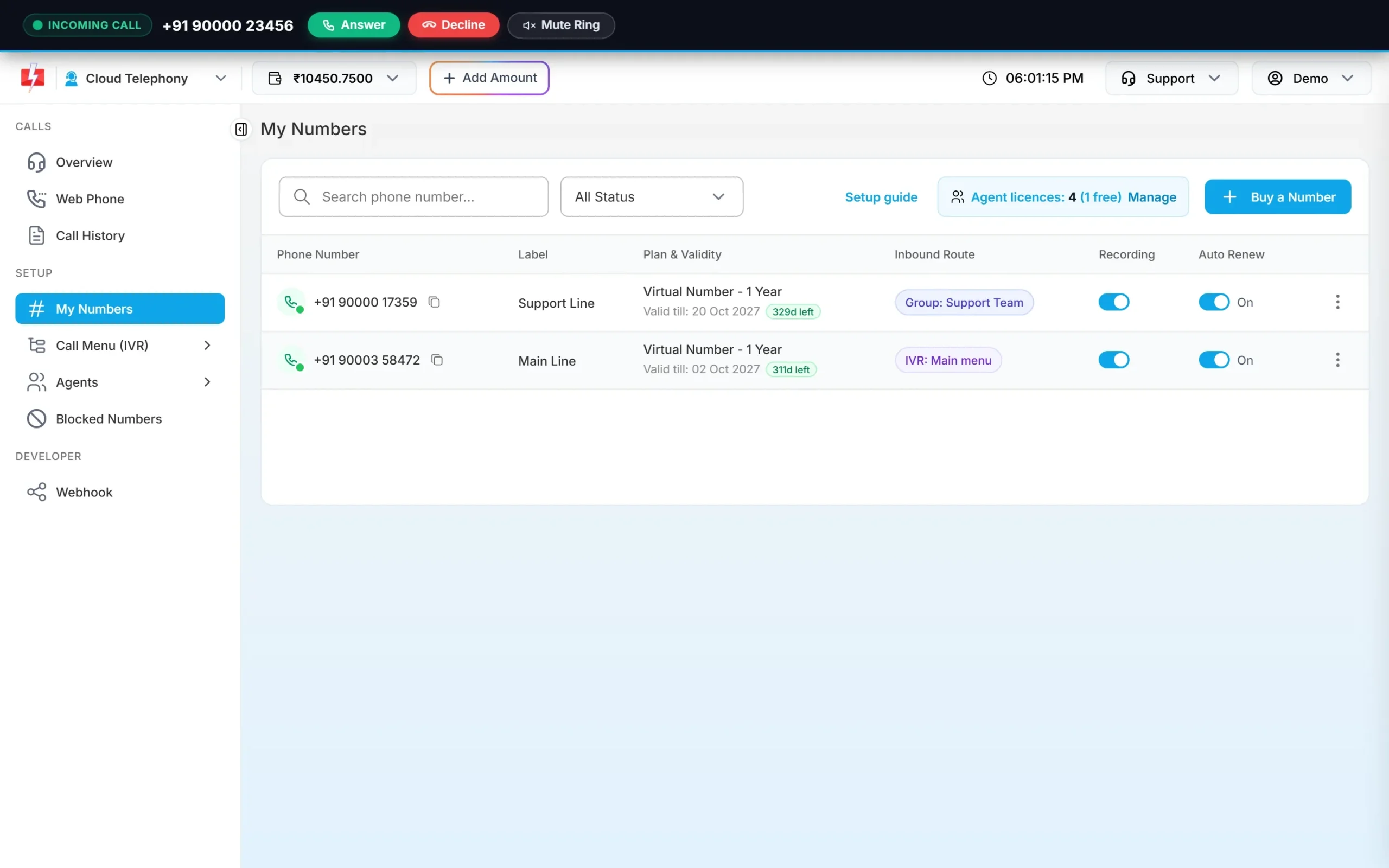
You do not have to stay on the Web Phone page. While you work in SMS, WhatsApp or reports, a black call bar appears at the top of the panel for incoming calls, with Answer, Decline and Mute Ring.
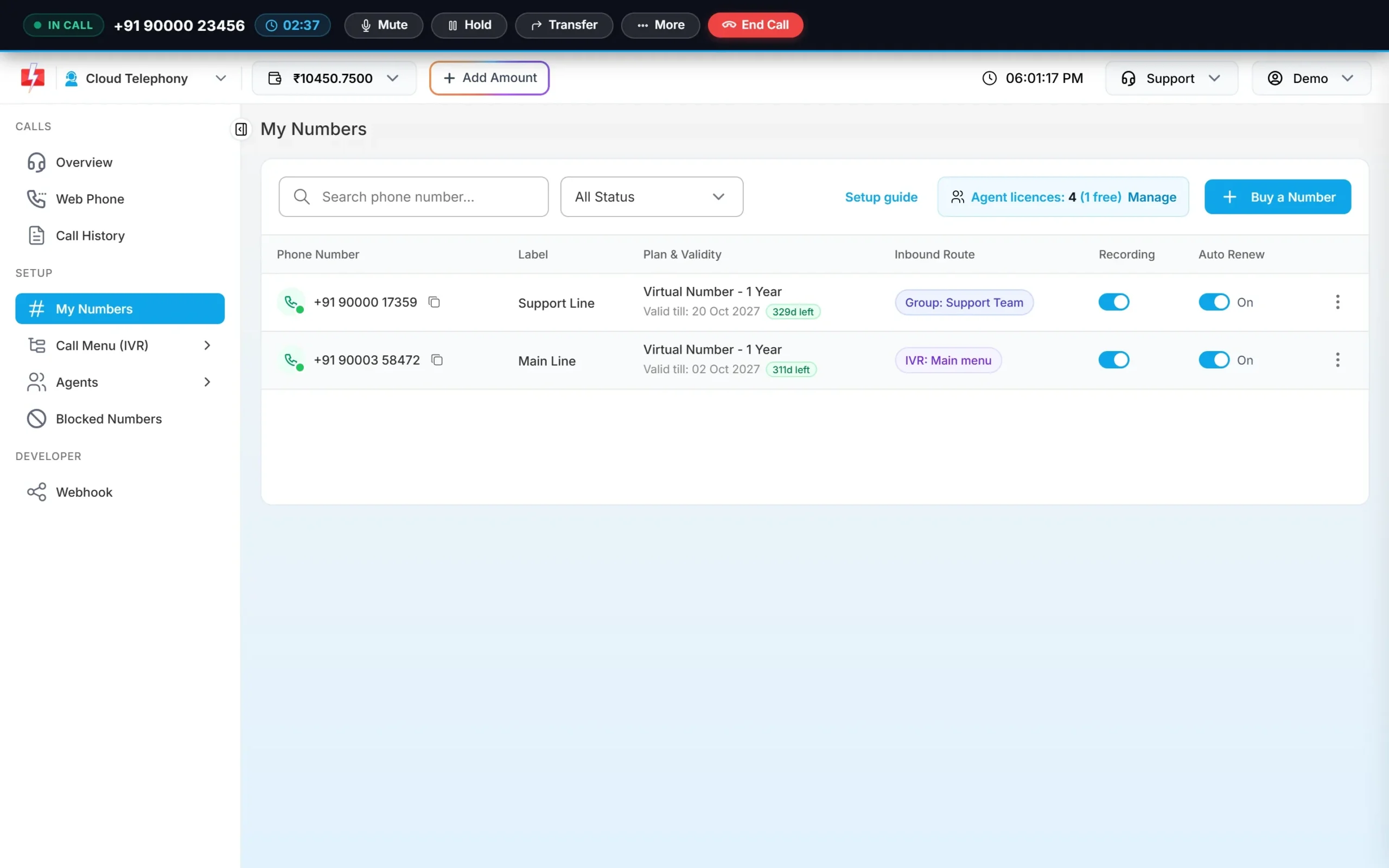
During the call the same bar shows a timer and Mute, Hold, Transfer, More (keypad, add call, move to my mobile) and End Call.
Calling from your phone’s browser
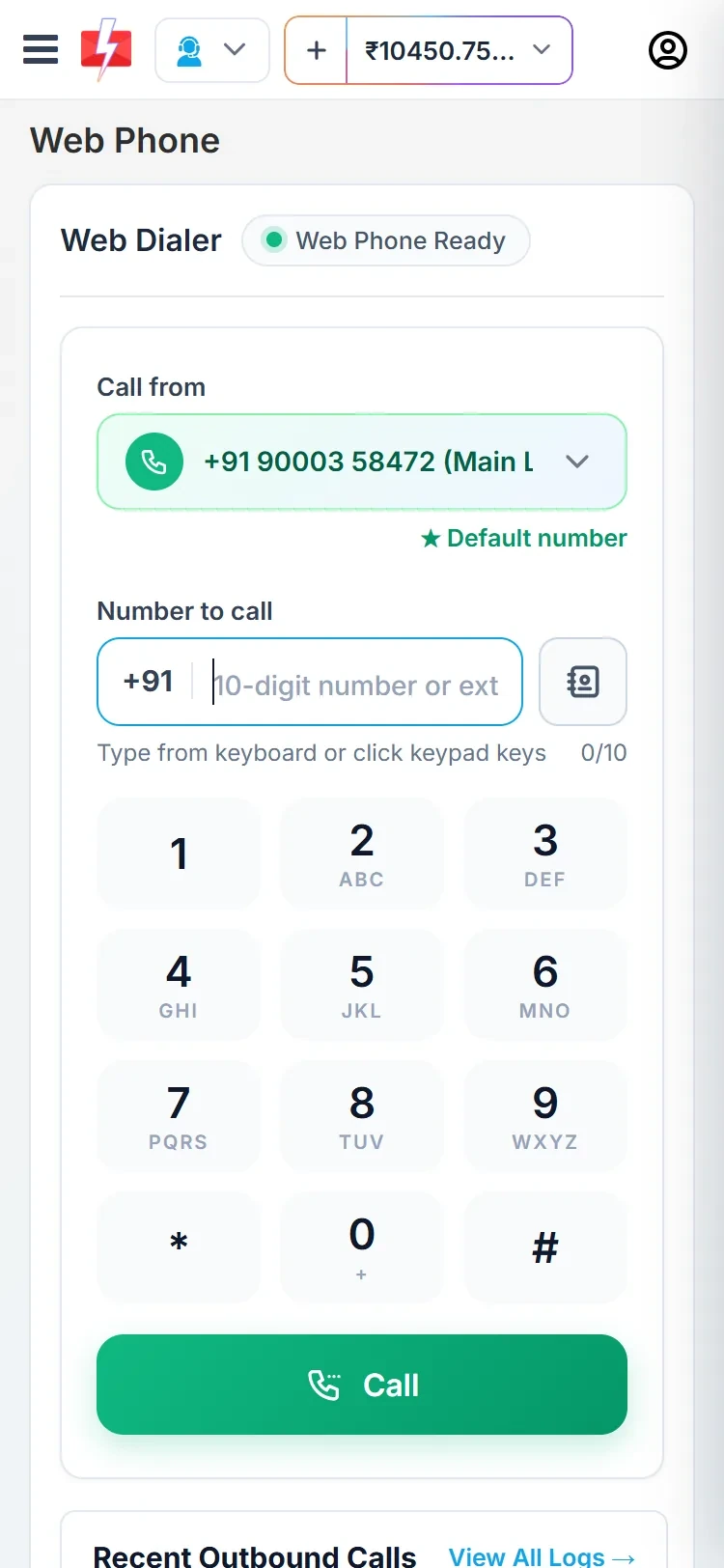
The same Web Phone works when you open the Fast2SMS panel in your phone’s browser. You get the same Call from, number box, keypad and Call button. It is handy when you are away from your desk and want customers to still see the business number.
If a live call needs to move to your mobile, use Transfer > Move to my mobile. The call carries on on your own mobile and you can close the browser. Read more in hold music and call transfer.
Your recent calls and recordings
The right side of the Web Phone lists Recent Outbound Calls with status (Completed, Busy, No Answer) and time. Click the play button to listen to a recording, or open the row menu for Download Recording, Redial, Copy Number and View Call Logs. View All Logs opens the full Call History. Team members see only their own calls.
Common problems and fixes
| What you see | What to do |
|---|---|
| “Microphone is blocked. Allow microphone access for this site in your browser, then try again.” | Click the lock or site icon in the address bar, set Microphone to Allow, and reload the page. |
| Status stays on Connecting, Reconnecting or Disconnected | Check your internet, then reload the page. On office networks, ask IT not to block browser calling. |
| “In use on another device” | Your Web Phone is open on another laptop or phone. Click Use here to move it to this browser. |
| “Phone is in use in another tab” | Close the other panel tab, or make calls from that tab. |
| The customer cannot hear you, or hears an echo | Check Mute, pick the right microphone in your browser settings, and use a headset. |
| The number “is currently in your Blacklist” | The number is in Blocked Numbers. Unblock it there if you want to call it. |
Frequently asked questions
Can I make business calls from my laptop without a SIM card?
Yes. With a Fast2SMS Cloud Telephony number you call from the Web Phone in your browser. The call goes out from your business number, and no SIM or desk phone is needed.
Which number does the customer see?
The number you choose in Call from. For team members, the owner sets “Outgoing calls from” in their licence settings, either the account default number or a chosen number.
Do I need to install any software?
No. The Web Phone runs inside the Fast2SMS panel in your browser. You only allow microphone access once.
Are browser calls charged per minute?
No. Cloud Telephony has unlimited calling with no per-minute charges. You pay the yearly plan for numbers and agent licences only.
Are my browser calls recorded?
Yes, if recording is on for the number or the team member. Recordings appear in Call History and the Recent Outbound Calls list, and are kept for 3 months.