
To get RCS approved for your brand, you need a working website, an email address on the same domain as the website, a GST certificate, Terms and Privacy Policy pages, and an opt-in form on your site. In Fast2SMS you answer these questions on Create RCS, fill the Custom RCS Registration Form and submit it to the operator. Approval may take 3-7 days, and there is no registration fee.
This guide lists every RCS registration requirement, what each form field needs, how long approval takes and the most common reasons an RCS application is rejected.
RCS registration requirements
The operator checks your business before it allows your brand on RCS. Keep these ready before you start:
| Requirement | Why it is needed |
|---|---|
| Working brand website | Customers see it on your RCS profile, and the operator uses it to check your business. |
| Email on the website domain (for example [email protected]) | The display email and contact email must match your website. Gmail or Yahoo addresses do not fit. |
| GST certificate | Proof that the business is registered. Upload as PDF, JPG or PNG, up to 5 MB. |
| Terms and Privacy Policy pages | Their links are part of your RCS profile. |
| Opt-in form on your website | Proof that customers agreed to receive messages from you. Without it, the operator rejects the application. |
| Brand icon and cover image | Icon 224 x 224 px and cover 1440 x 448 px, JPG or PNG, up to 2 MB each. |
| Phone number and email you can verify | Both are confirmed by OTP during the form. |
How to register your brand for RCS in Fast2SMS
-
Answer the questions on Create RCS
Open the RCS app. If you have not registered yet, you land on Create RCS. Under “Mandatory requirement for Custom RCS Approval” the page asks one question at a time, starting with “Do you have a working brand website?”. If you click No, the page explains why it is needed.
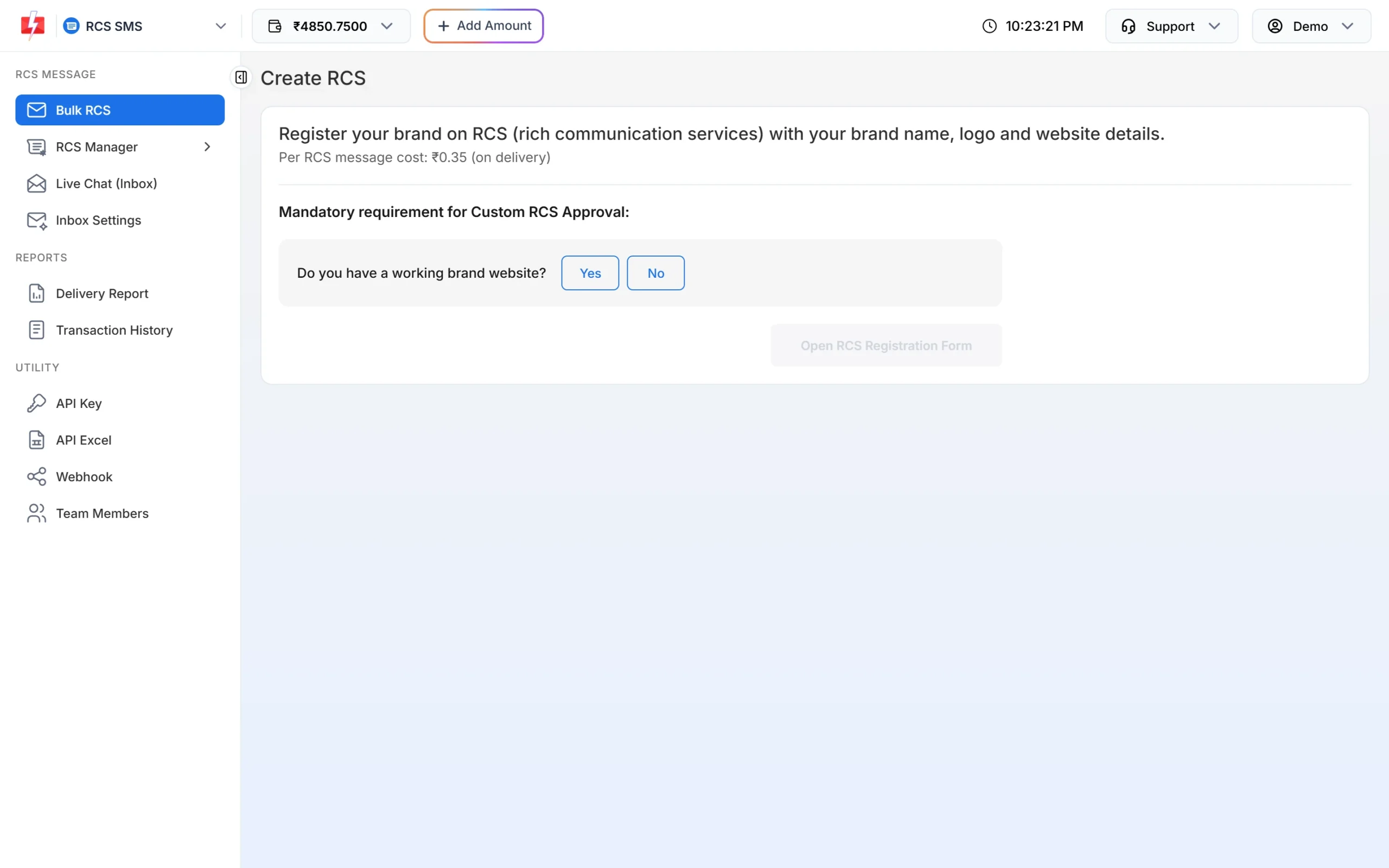
The first requirement question. -
Confirm all requirements
Answer Yes to each question: website, email on the same domain, GST certificate, Terms and Privacy Policy pages, opt-in form, and expected volume of more than 1 lakh RCS per month. Tick the confirmation box and click Open RCS Registration Form. If you are not sure about the volume question, talk to support first.
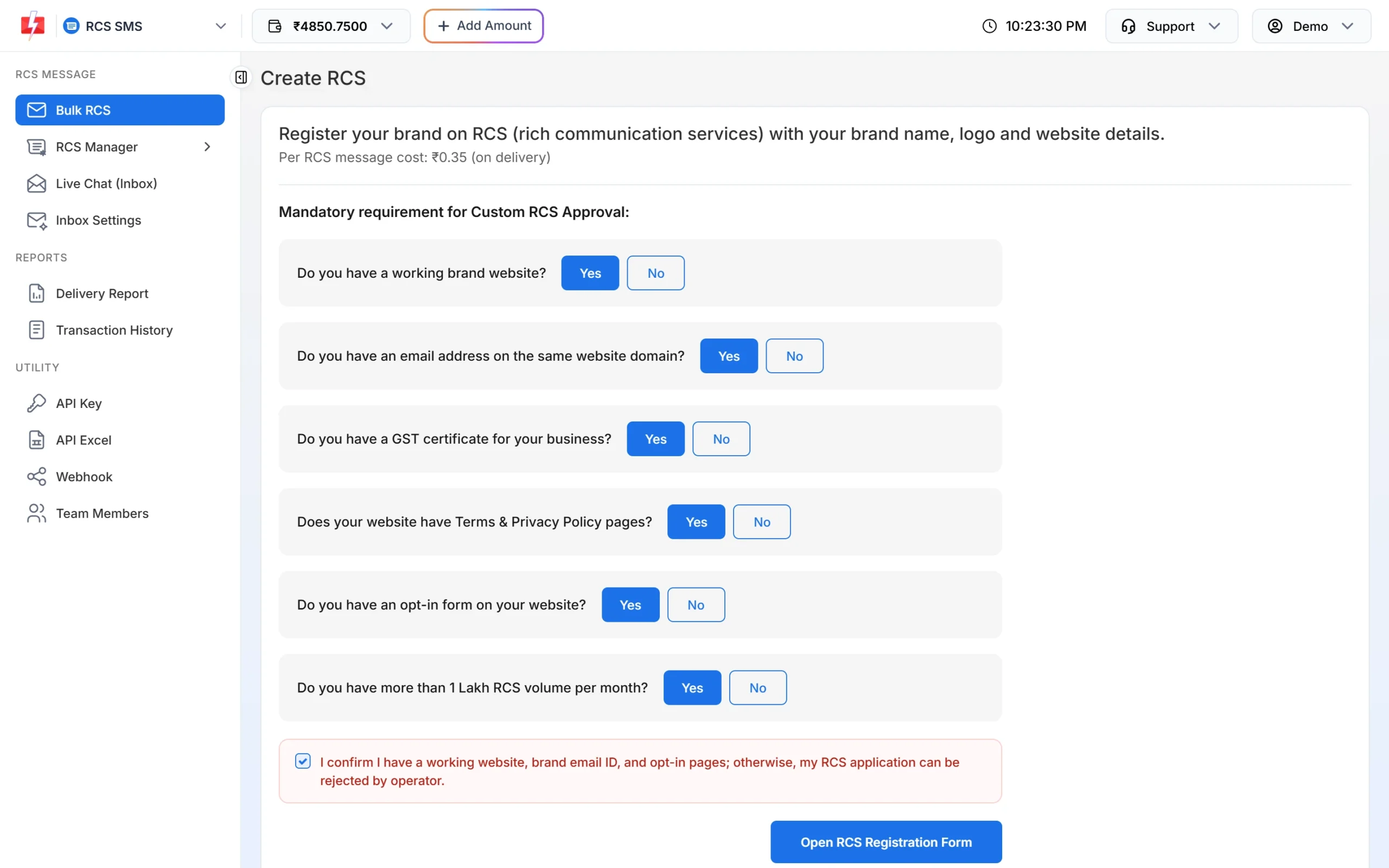
All questions must be answered Yes. -
Fill the branding information
Under BRANDING INFORMATION (visible to users), enter the Brand Name, Display Website, a Short Description of up to 100 characters, the Terms and Conditions URL and the Privacy Policy URL. Upload the Brand Icon and Cover Image. The phone preview on the right shows how your profile will look.
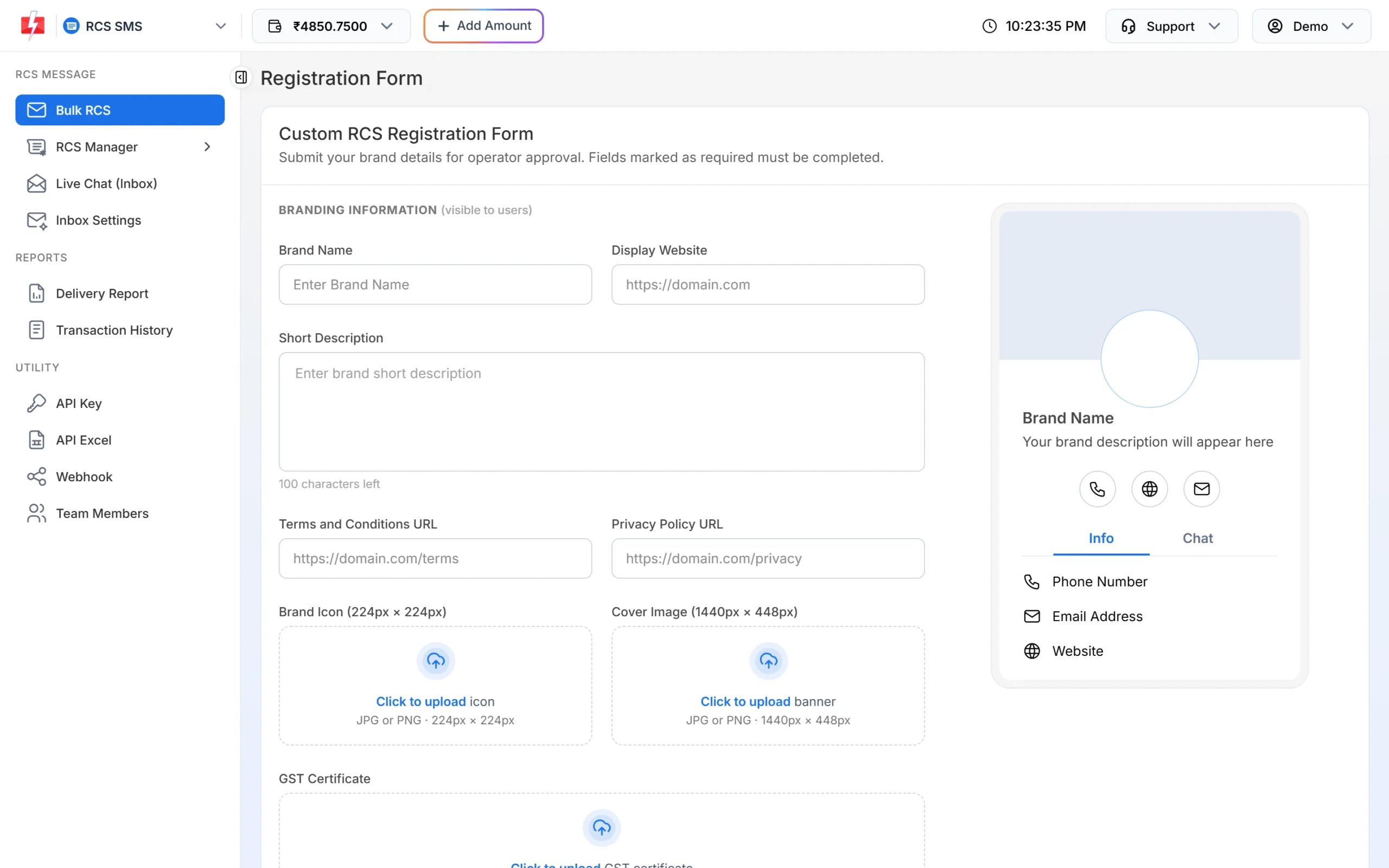
Your brand profile as customers will see it. -
Upload GST and verify phone and email
Upload your GST Certificate. Enter the Display Phone Number and click Verify to confirm it by OTP. For Display Email Address, type only the part before the @; the domain is taken from your website. Under BRAND POINT OF CONTACT, enter the contact person’s name and email and verify the email too. The operator sends a final confirmation mail to this address, and you must reply from it.
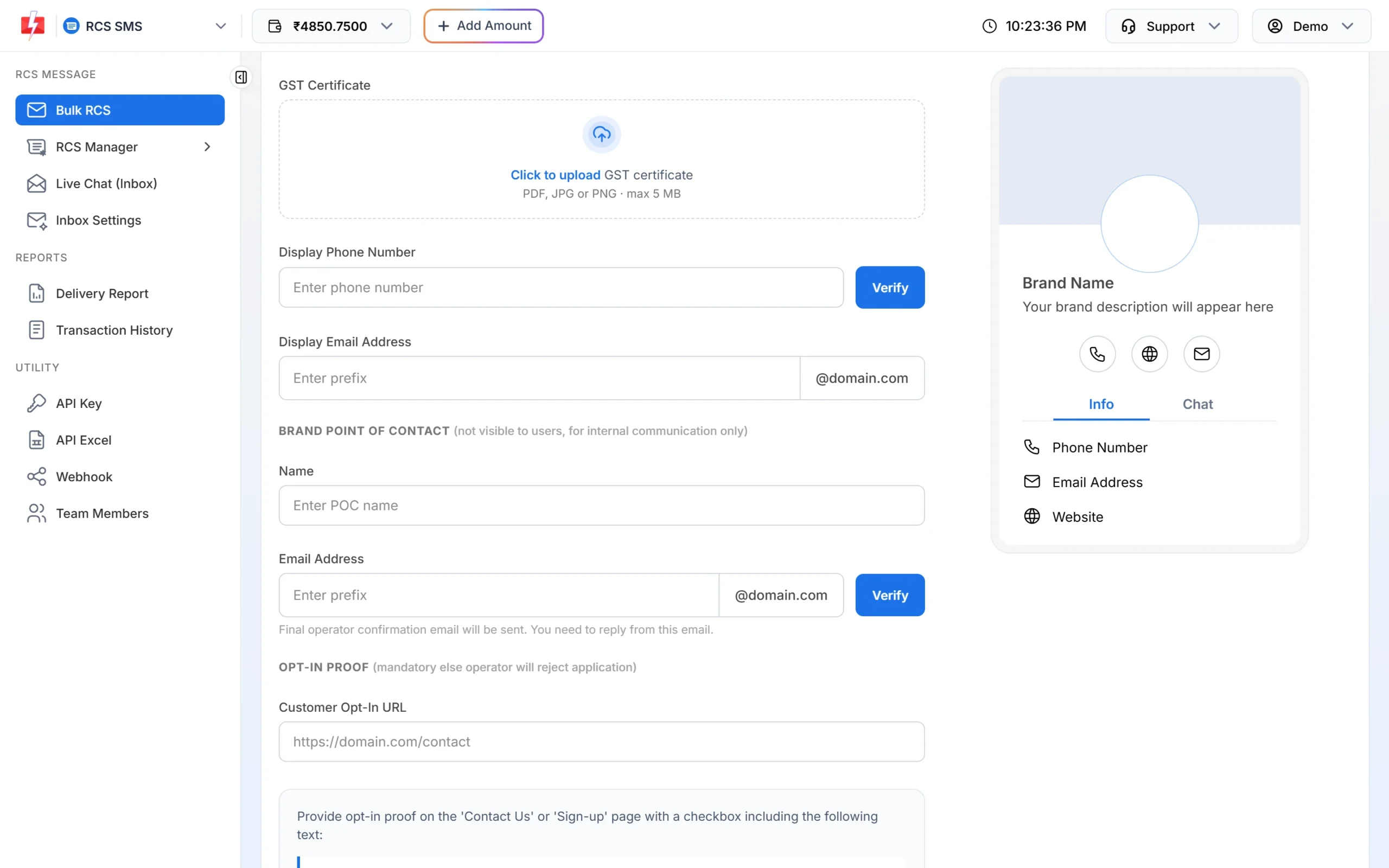
Phone and contact email are confirmed by OTP. -
Add your opt-in proof and submit
In Customer Opt-In URL, paste the link to the page with your opt-in checkbox, usually the Contact Us or Sign-up page. The form shows the checkbox text to use: “I would like to receive communication from [BRAND NAME] via SMS, RCS, Email & WhatsApp for services, offers, and updates.” Tick the agreement and click Submit to Operator. The button turns on after both OTPs are verified.
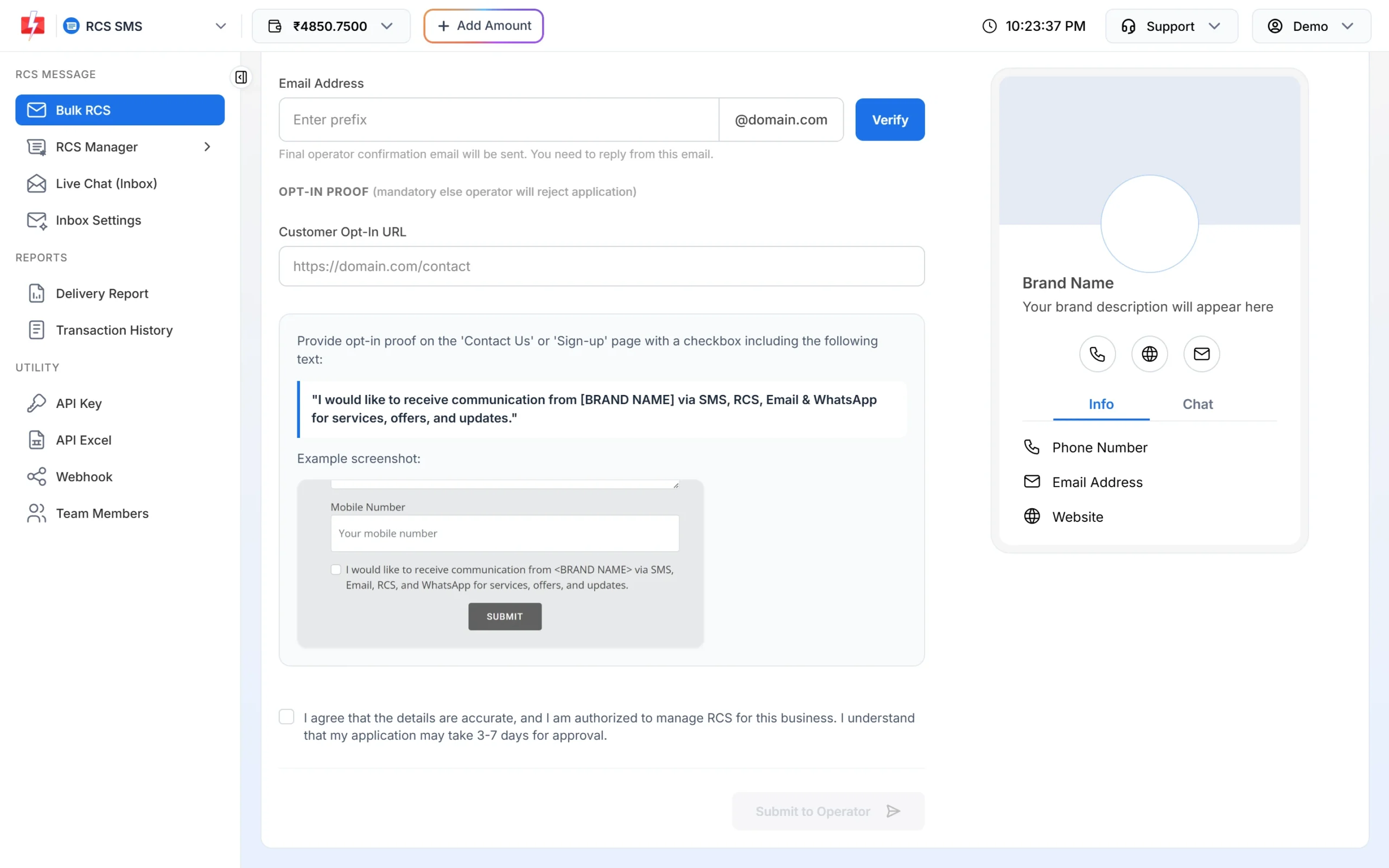
The opt-in proof is mandatory. -
Wait for approval and check your bot
After you submit, a message confirms that your RCS bot details were submitted, and the status becomes Pending for approval. Once the operator approves, your bot appears in RCS Manager > Bots with its Bot ID, category (promotional, transactional or OTP) and status. Only Active bots can send.
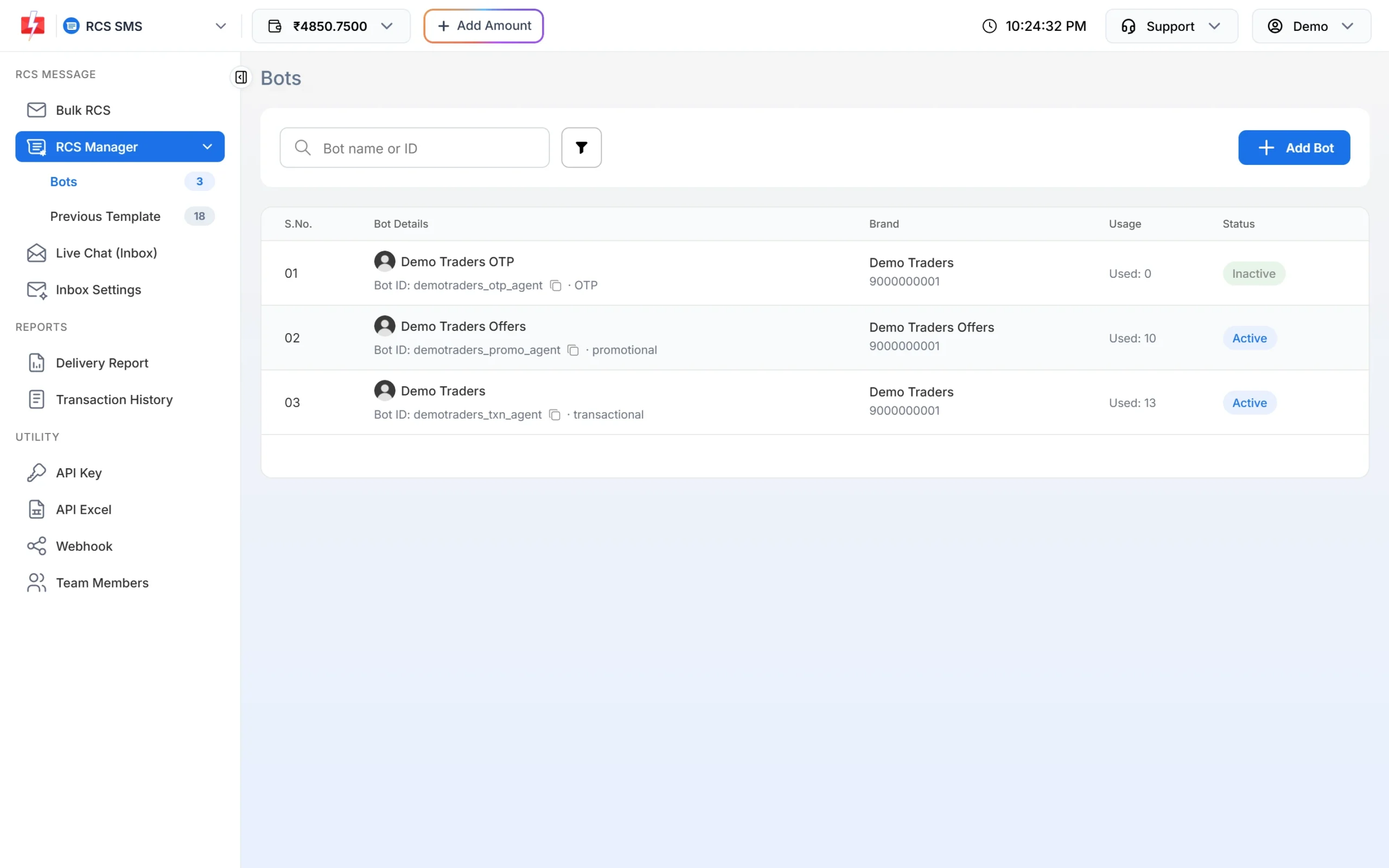
Approved bots in RCS Manager.
How long does RCS approval take?
The registration form says approval may take 3-7 days. The time depends on the operator’s checks and on how quickly your point of contact replies to the operator’s confirmation email. While you wait, the Bulk RCS page shows “Your RCS brand is pending approval. You cannot send RCS messages until it is approved.” along with the list of your requests and their status.
Why is an RCS application rejected?
The panel itself warns that missing items lead to rejection. The usual reasons are:
- No opt-in proof. The Customer Opt-In URL does not open, or the page has no consent checkbox.
- Email not on your domain. The display or contact email does not match the website.
- Website not working when the operator checks it.
- Terms or Privacy Policy links missing or broken.
- No reply to the operator’s confirmation email from the point of contact address.
If a request is rejected, fix the issue and send a new request with Add New RCS Request or Add New RCS Bot.
Form errors and fixes
| Message you see | What to do |
|---|---|
| Please upload your GST certificate. | Upload the GST certificate before submitting. |
| GST certificate must be a PDF, JPG or PNG file. | Save the certificate in one of these formats. |
| GST certificate must not be larger than 5 MB. | Compress the file or scan at a lower resolution. |
| You must have an email with your website domain. | Create an email on your domain, then answer Yes. |
| You must have an opt-in form on your website. | Add a form with the consent checkbox to your Contact Us or Sign-up page. |
Frequently asked questions
Is there a fee for RCS registration in Fast2SMS?
No. Brand registration is free. You pay only for the RCS messages you send.
Can I register for RCS without a website?
No. A working website, an email on the same domain and an opt-in form on the website are all required for approval.
Can I use a Gmail address for RCS registration?
No. The display email and the contact email must be on your website’s domain.
What is the brand icon size for RCS?
The brand icon must be 224 x 224 px and the cover image 1440 x 448 px, both JPG or PNG up to 2 MB.
What is the difference between a promotional and a transactional RCS bot?
A promotional bot sends offers between 7 AM and 10 PM with a limit of 4 promotional RCS per number per month. A transactional bot is only for informative messages such as order or payment updates and has no monthly limit.
Can I register more than one brand?
Yes. Use Add New RCS Bot on the Bulk RCS page or Add Bot in RCS Manager to send another request.
Where do I find my RCS Bot ID?
In RCS Manager > Bots. Click the copy icon next to the Bot ID to use it in the API.