
To register a DLT content template, log in to your operator’s DLT portal, open the content template section, pick the header, choose the category, write the message with tagged variables, add a sample message and submit it. When it is approved, copy the template ID and add the template in Fast2SMS under DLT Manager > Content Template. This guide walks you through both parts, with the rules that decide whether your template gets approved.
यह गाइड हिंदी में पढ़ें: DLT टेम्पलेट कैसे बनाएं (DLT template kaise banaye): वेरिएबल, कैटेगरी और सैंपल
Before you start
- An approved entity (Principal Entity) on a DLT portal such as Jio, Airtel, Vi, BSNL, Tata or Smartping.
- An approved header (Sender ID) under that entity. A template is always linked to a header.
- If your message has a link, an app link or a callback number, register it as a CTA (call to action) on your DLT portal first. Messages with links or numbers that are not whitelisted fail even when the template is approved.
- The exact message text you want to send, written with the new variable tags.
Part 1: How to register the template on your DLT portal
Every portal looks a little different, but the flow is the same on all of them. Menu names below are the common ones; your portal may use slightly different words.
-
Open the content template section
Log in to the DLT portal where your entity is registered. Go to the templates area (often called Content Template or Template Registration) and choose to add a new template.
-
Choose the template type and category
Pick the content type (plain text, or Unicode for Hindi and other Indian languages) and the category. OTPs go under Transactional. Order, delivery, booking and account updates go under Service. Offers and marketing go under Promotional. Pick the category that matches what the message really does, because a wrong category is one of the most common reasons for rejection.
-
Link one header
Select the approved header this template will be sent from. Under TRAI’s 2025 amendment to the commercial communication rules, one content template must not be linked to more than one header. If you want the same message from two headers, register it twice.
-
Write the message with tagged variables
Type the fixed text and put a variable tag wherever a value changes:
{#numeric#}for OTPs and amounts,{#alphanumeric#}for names and order IDs,{#url#}or{#urlott#}for links,{#cbn#}for callback numbers and{#email#}for email addresses. Keep your brand name in the fixed text, not inside a variable.Example:
Dear {#alphanumeric#}, your order {#alphanumeric#} of Rs {#numeric#} is confirmed. - Demo Traders -
Add a sample message
Fill in the sample message: the same template with every variable replaced by a realistic value. For the example above:
Dear Priya, your order ORD4821 of Rs 1499 is confirmed. - Demo Traders. The sample must match the template word for word apart from the variable values. -
Submit and wait for approval
Submit the template. Approval time depends on the portal’s queue. When the status shows approved, copy the template ID (a long number) and download a screenshot or the template Excel export. You need these in Part 2.
Rules your template must follow
These rules come from TRAI’s commercial communication regulations (TCCCPR 2018, amended in February 2025) and the DLT portals’ tagging rules. Breaking any of them usually means rejection.
| Rule | What it means for you |
|---|---|
| One template, one header | A new template is linked to a single header. One header can still carry many templates. |
| Up to three variables normally | More than three variables are allowed only in special cases, with written reasons, and need separate approval on the portal. |
| At least 30% fixed text | The regulation asks for a minimum of thirty percent fixed content in a template with more variables. A message that is mostly variables will not pass. |
| Every variable is tagged | Each variable must be tagged for what it holds. Nothing else may be sent in that variable. |
| No mixing promotion into service | If a transactional or service message contains promotional content, it is treated as promotional. |
| Links and numbers whitelisted | URLs, app links and callback numbers in the message are checked against the CTAs you uploaded on the portal. |
Part 2: How to add the approved template in Fast2SMS
Once your template is approved on DLT, add it to your Fast2SMS account so you can send it from the panel or the API. Your entity and Sender ID must already be added in DLT Manager.
-
Open Content Template in DLT Manager
In the SMS app, open DLT Manager > Content Template and click Add Content Template.
-
Fill in the template details
In ADD CONTENT TEMPLATE, choose your entity in Select Entity. Its Sender IDs load as checkboxes. Tick the Sender ID the template is approved for, type the Content Template ID from your portal, choose the Template Type (Service Implicit or Service Explicit or Promotional), paste the approved text in Copy-Paste Approved Message Text and upload a screenshot in Upload DLT Approved Screenshot. Click Submit.
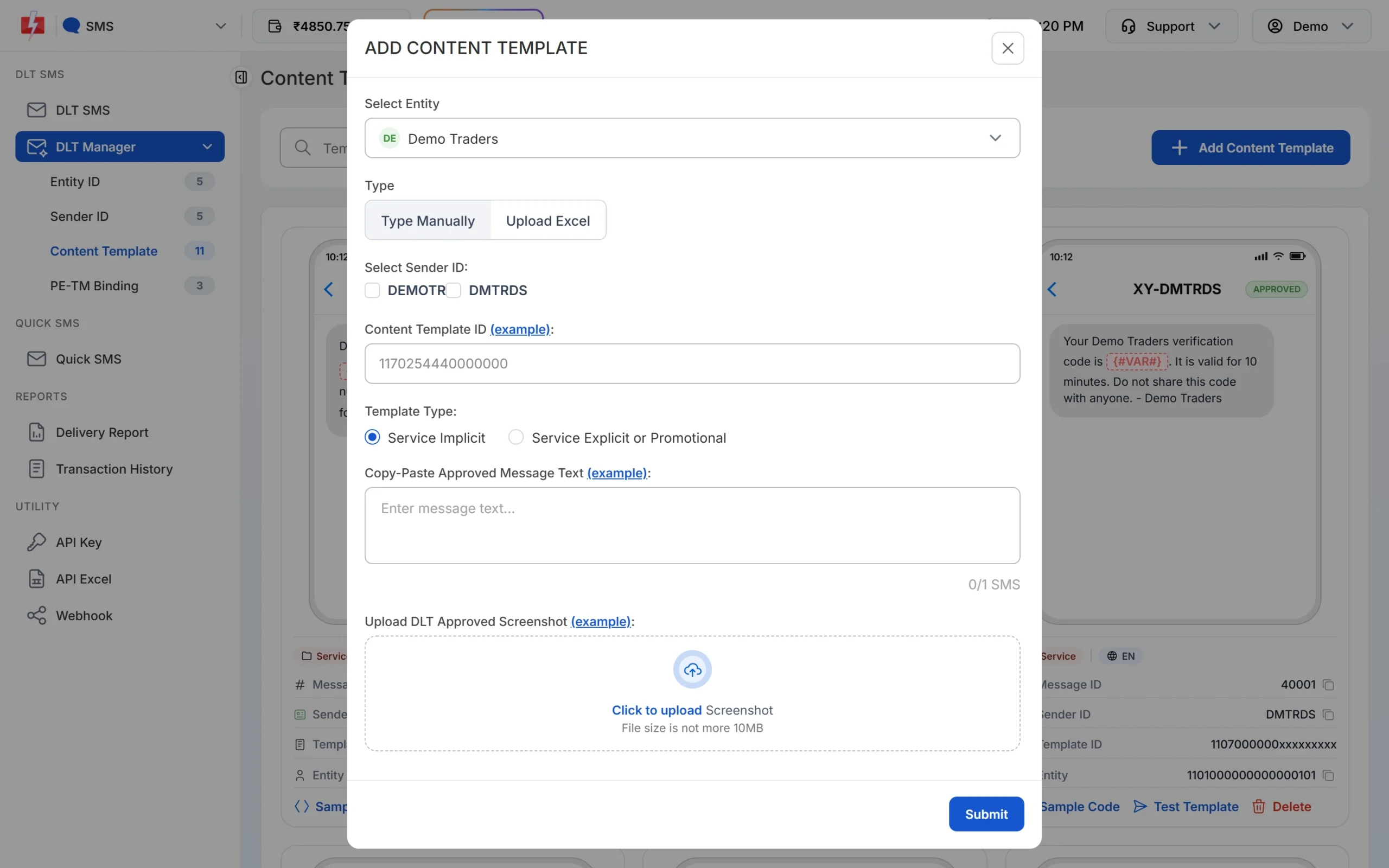
Adding one approved DLT template by hand. Paste the text exactly as DLT approved it, with the variable tags as they are. The counter under the text box shows how many SMS parts the message uses.
-
Or import many templates from your DLT Excel
Click Upload Excel in the same form and upload the template export from your portal (.csv or .xlsx). Exports from Airtel, Jio, Vi, BSNL and Smartping are recognised, and only approved or active rows are imported.
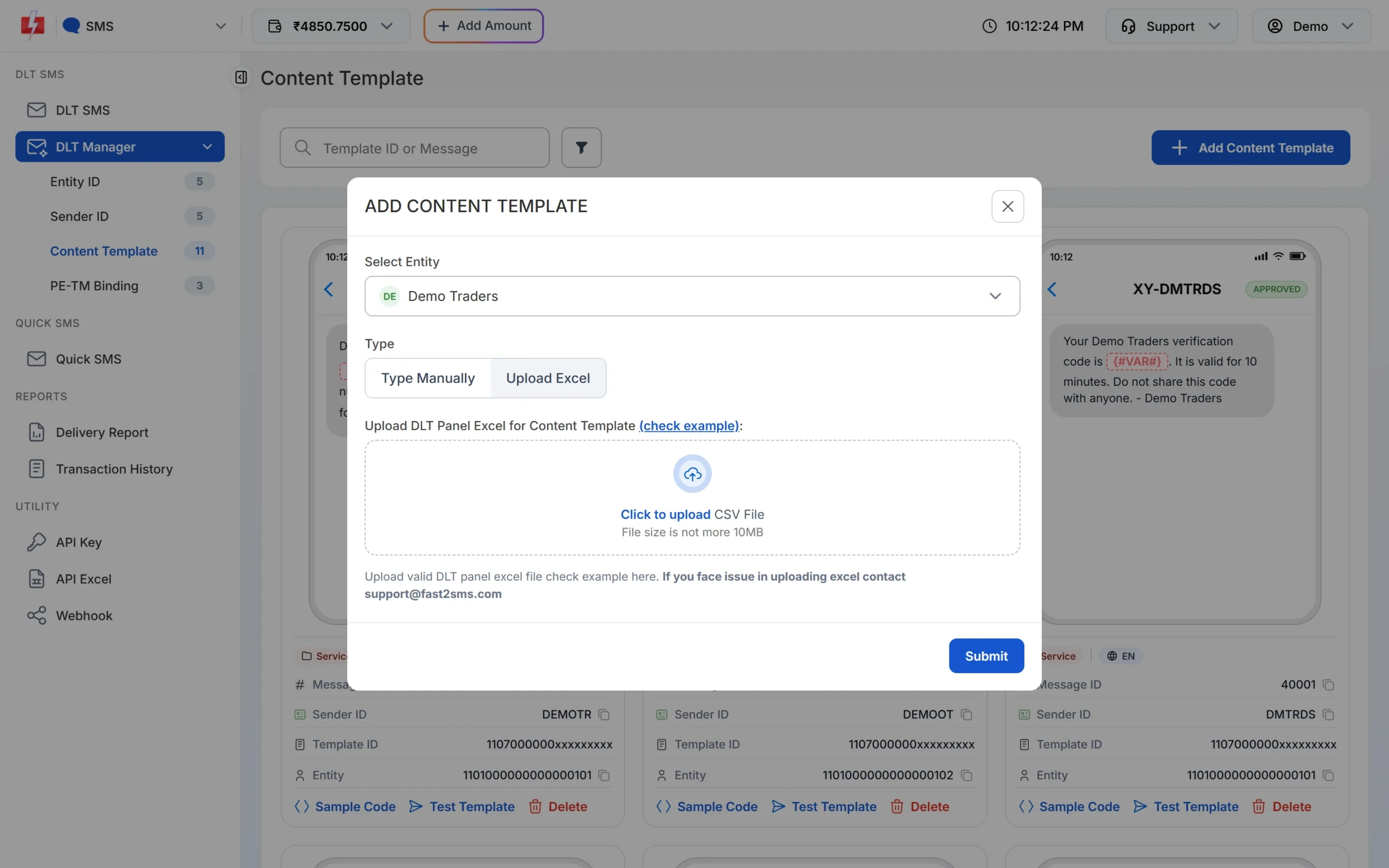
Import your whole template list in one upload. -
Check the status and test it
New templates show as PENDING until the Fast2SMS team checks them, then APPROVED. A rejected card shows the reason. On an approved card, click Test Template to send yourself a real test SMS before using it in a campaign.
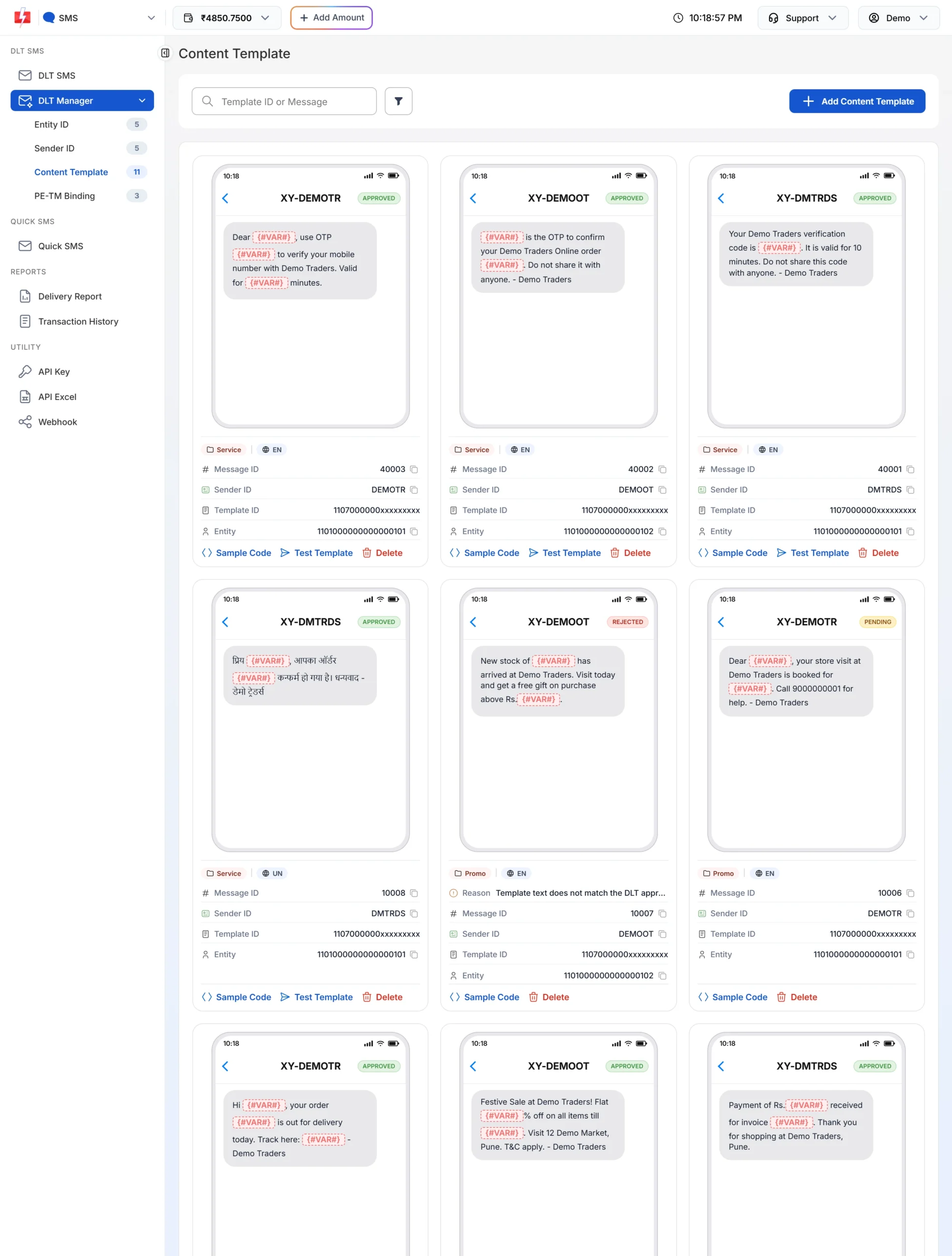
Each card shows the status, category, language and the Message ID used in the API.
Common problems and fixes
| Problem | Likely cause | Fix |
|---|---|---|
| Template rejected on the DLT portal | Wrong category, offer inside a service template, too many variables, weak or mismatched sample message. | Read the portal remark, fix only that point and submit again. |
| “At least one sender ID is required.” in Fast2SMS | No Sender ID ticked. | Tick the header the template is approved for. |
| No Sender IDs appear in the form | The Sender ID is not added or not approved in DLT Manager yet. | Add the Sender ID first and wait for it to be approved. |
| Template saved as Promotional although you picked Service Implicit | The first Sender ID you ticked is a 6-digit numeric header. | Numeric headers are for promotional templates. Link service templates to a letter header. |
| Template not showing on the DLT SMS page | Still pending, or linked to a different Sender ID. | Check the card status and the Sender ID listed on it. |
| Approved template but SMS fails | The text you send differs from the approved text, or a link is not whitelisted. | Send the exact approved text and whitelist every link and number. |
Frequently asked questions
Can I register a DLT template in Fast2SMS directly?
No. Templates are registered on your operator’s DLT portal, in your own entity’s name. Fast2SMS stores the approved templates so you can send them from the panel and API.
Where do I find my DLT template ID?
On your DLT portal, in the content template list, next to each approved template. It is a long number. You can also find it in the portal’s template export file.
Do I need a separate template for each header?
Yes, for new templates. The rule is one template, one header. Register the same text again under the second header if you need it there.
Which variable tag should I use for an OTP?
Use {#numeric#} for an OTP that has only digits. Register OTP templates in the Transactional category.
Can I write a DLT template in Hindi?
Yes. Choose the Unicode content type on the portal. In Fast2SMS, a template with any non-English character is saved as Unicode and shows UN on its card.
What is the Message ID on a Fast2SMS template card?
It is a short Fast2SMS number for your template. You pass it as message in the DLT SMS API instead of the full text.
Can I edit an approved DLT template?
Approved templates generally cannot be edited. Register a new template with the new text, add it in Fast2SMS once approved, and stop using the old one.