
Transaction history in Fast2SMS lists every rupee that goes in or out of your wallet: recharges, charges for SMS, WhatsApp, OTP, RCS and voice calls, and any amount credited back. This guide covers each tab, the filters, the View Details pop-up and exports. Only the account owner can open this page.
How to open Transaction History
From the dashboard, click Transaction History in the Utility row. You can also open it from the apps menu at the top left. The page opens on the All tab and shows the last 2 days by default, newest first, 10 rows per page.
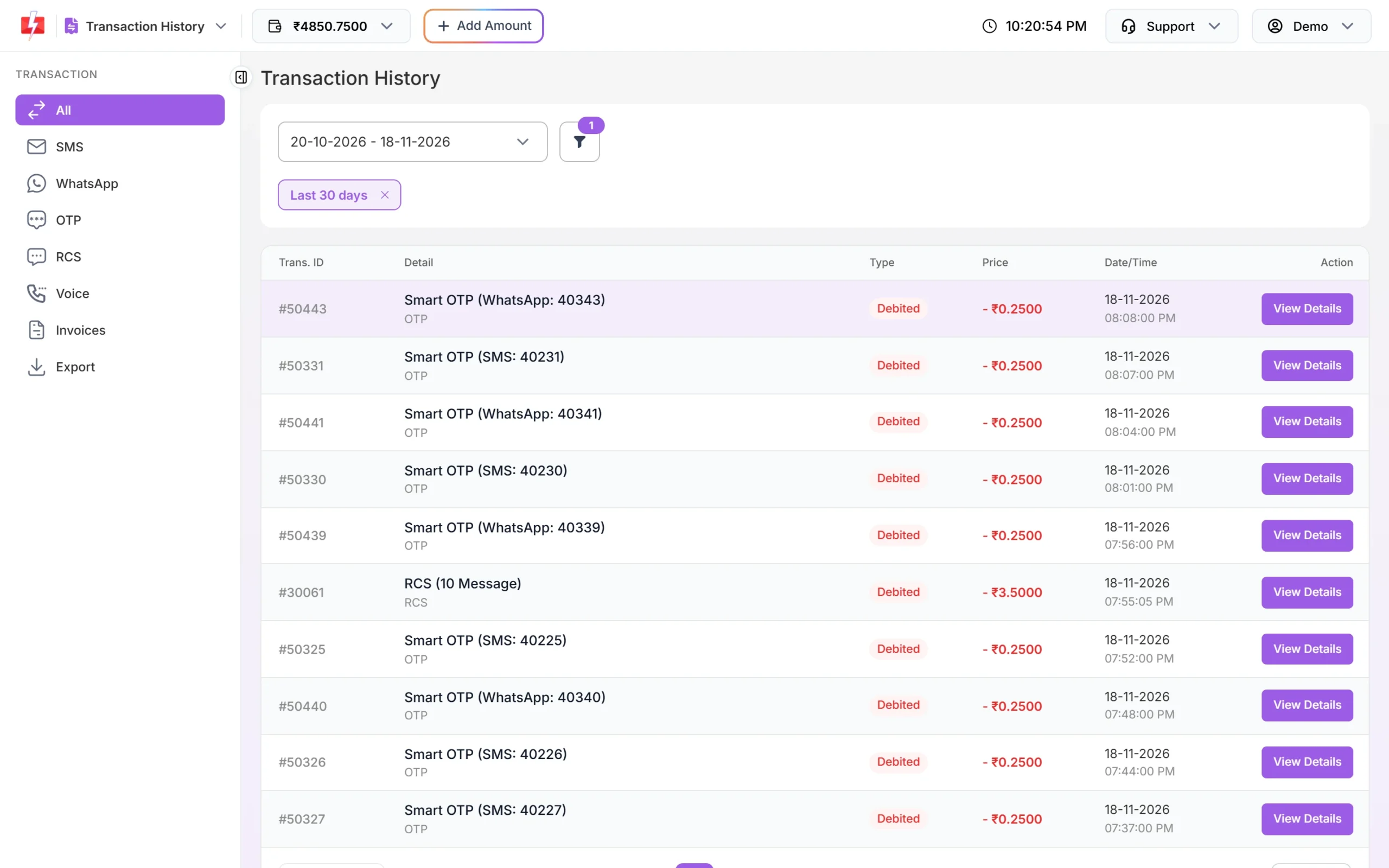
The tabs
| Tab | What it lists |
|---|---|
| All | Everything: recharges, charges and credits for every channel |
| SMS | Bulk, DLT, Quick and custom SMS charges, and SMS credits |
| WhatsApp template and session message charges, and WhatsApp credits | |
| OTP | Smart OTP charges, one row per OTP (SMS or WhatsApp) |
| RCS | RCS message charges and RCS credits |
| Voice | Voice call campaign charges and voice credits |
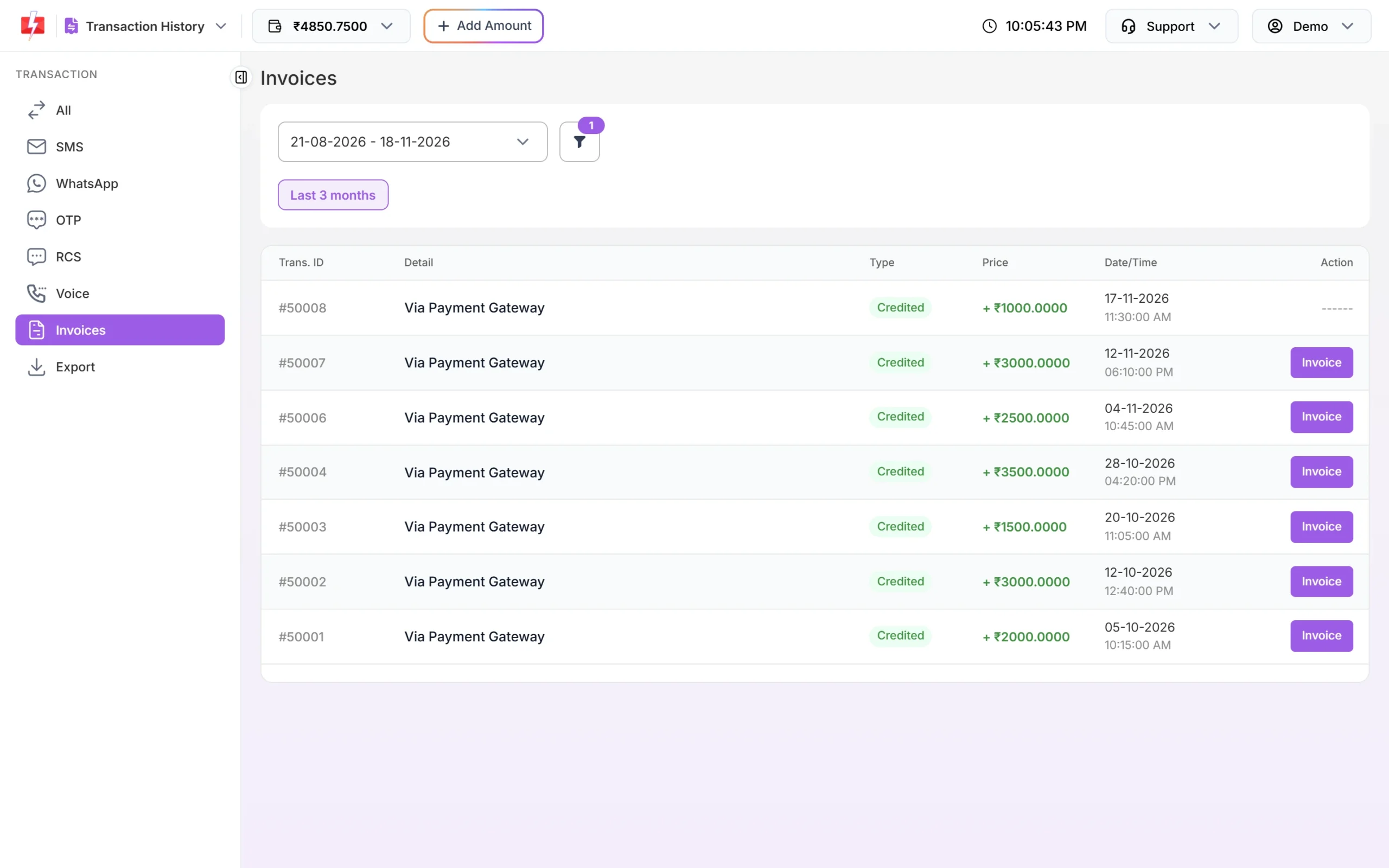
| Invoices | Wallet recharges that have an invoice. Shows the last 3 months by default. |
| Export | Create and download a transaction report |
What each column means
- Trans. ID: the transaction number.
- Detail: what the money was for, with a channel label under it (SMS, WhatsApp, RCS, Voice, OTP, Invoice or Other). Credits that are refunds also carry a Refund tag.
- Type: Debited (red) when money left your wallet, Credited (green) when it was added.
- Price: the amount, with 4 decimals, for example “- ₹0.2500” or “+ ₹1000.0000”.
- Action: View Details for message, voice and refund rows, Invoice for a recharge whose invoice is ready, or “——” when there is nothing to open.
Sending in bulk? For high SMS volumes our team offers discounted rates. Talk to our team or see SMS pricing.
Common texts in the Detail column
| Detail text | Meaning |
|---|---|
| DLT SMS (N SMS), Quick SMS (N SMS), Bulk SMS(N SMS), Custom SMS(N SMS) | An SMS send and the number of SMS charged |
| N WhatsApp (Marketing / Utility / Authentication) | A WhatsApp template send and its category |
| 1 WhatsApp (Session) | A message sent inside the 24-hour chat window |
| Smart OTP (SMS: id) / Smart OTP (WhatsApp: id) | One OTP and the channel it went on |
| RCS (N Message) | An RCS send |
| Voice Call (N Calls) | A voice call campaign |
| Via Payment Gateway | A wallet recharge |
| Schedule SMS / Whatsapp Message / RCS Message / Call Cancelled | Amount credited back after you cancelled a scheduled send |
| Failed WhatsApp Refund, Failed RCS Refund, Voice Call Refund, Unanswered Voice Call Refund | Amount credited back for the messages or calls named in the row |
How to filter transactions
-
Open the filter
Click the funnel button next to the date box. The Filter Transactions window opens with a list of filters on the left.
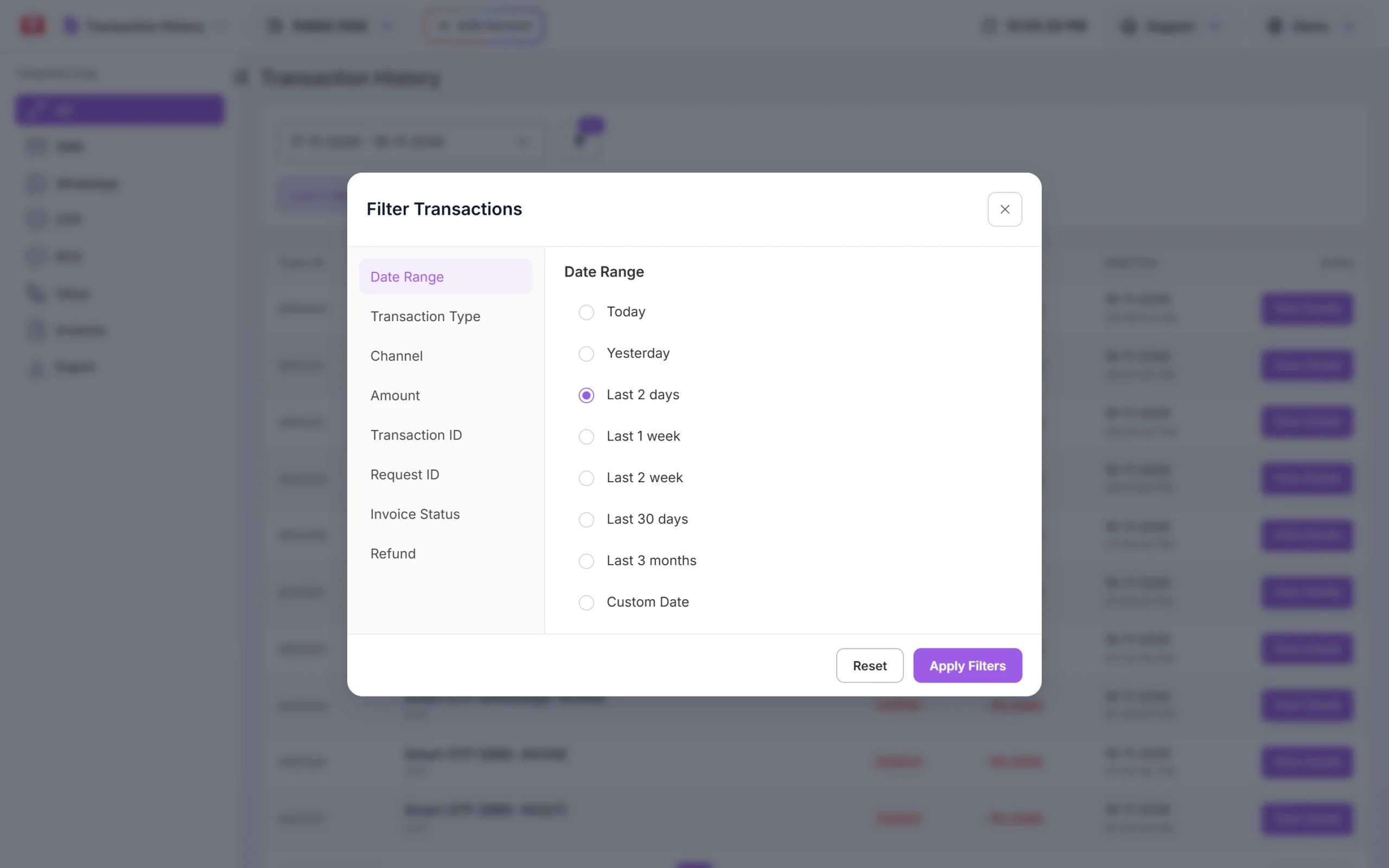
Date Range presets in the filter window. -
Pick your filters
Set any of these, then click Apply Filters. Reset clears them.
- Date Range: Today, Yesterday, Last 2 days, Last 1 week, Last 2 week, Last 30 days, Last 3 months or Custom Date.
- Transaction Type: All, Debited or Credited.
- Channel (All tab only): All, SMS, WhatsApp, OTP, RCS, Voice, Wallet or Invoice.
- Amount: finds rows with this exact amount.
- Transaction ID: finds one transaction by its ID. The date range is ignored.
- Request ID: finds the charge for a send by the request ID you got in the API response. The date range is ignored. Not available for voice calls or on the Invoices tab.
- Invoice Status (All and Invoices tabs): Approved or Pending.
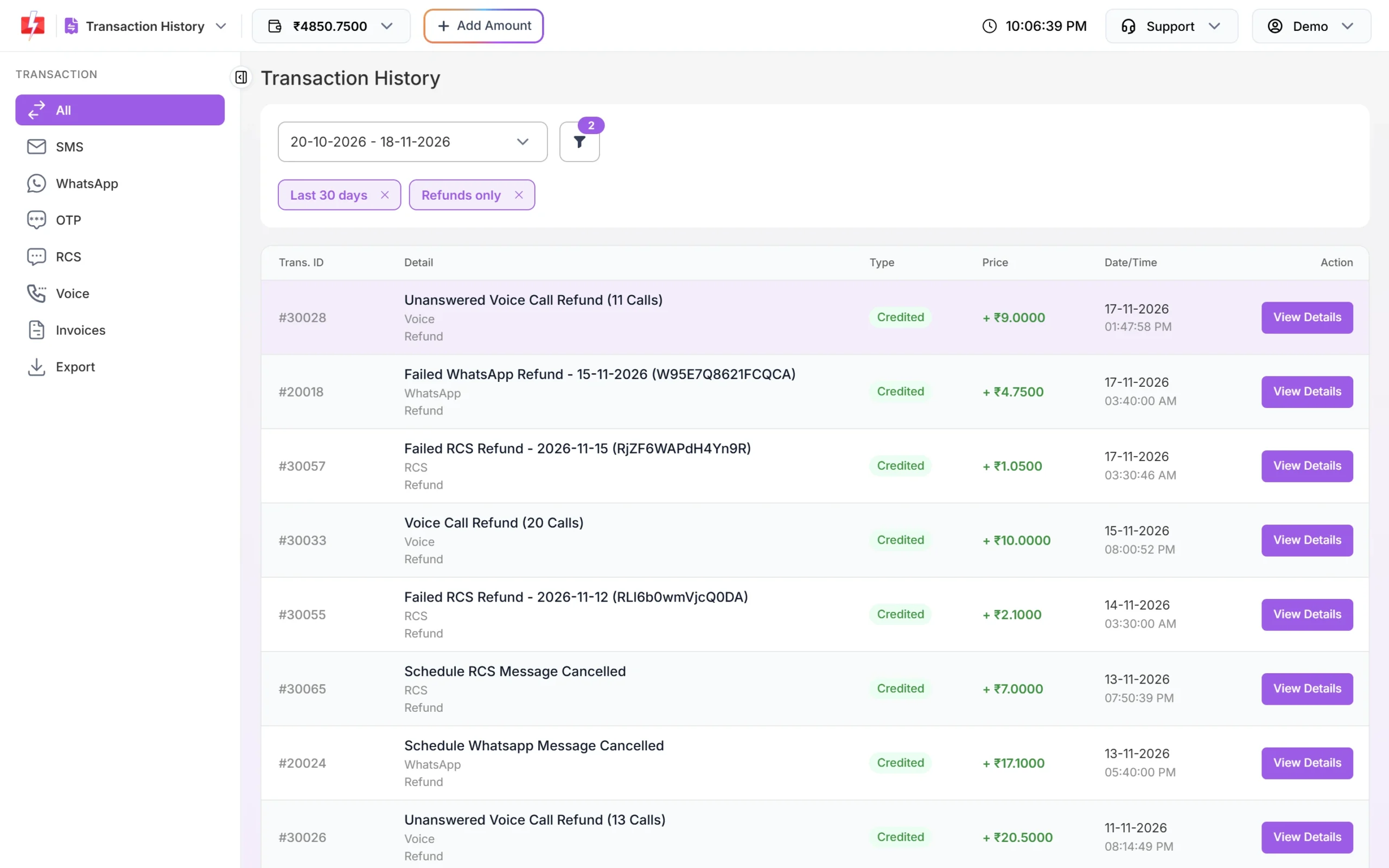
- Refund: All, Refunds only or Exclude refunds.
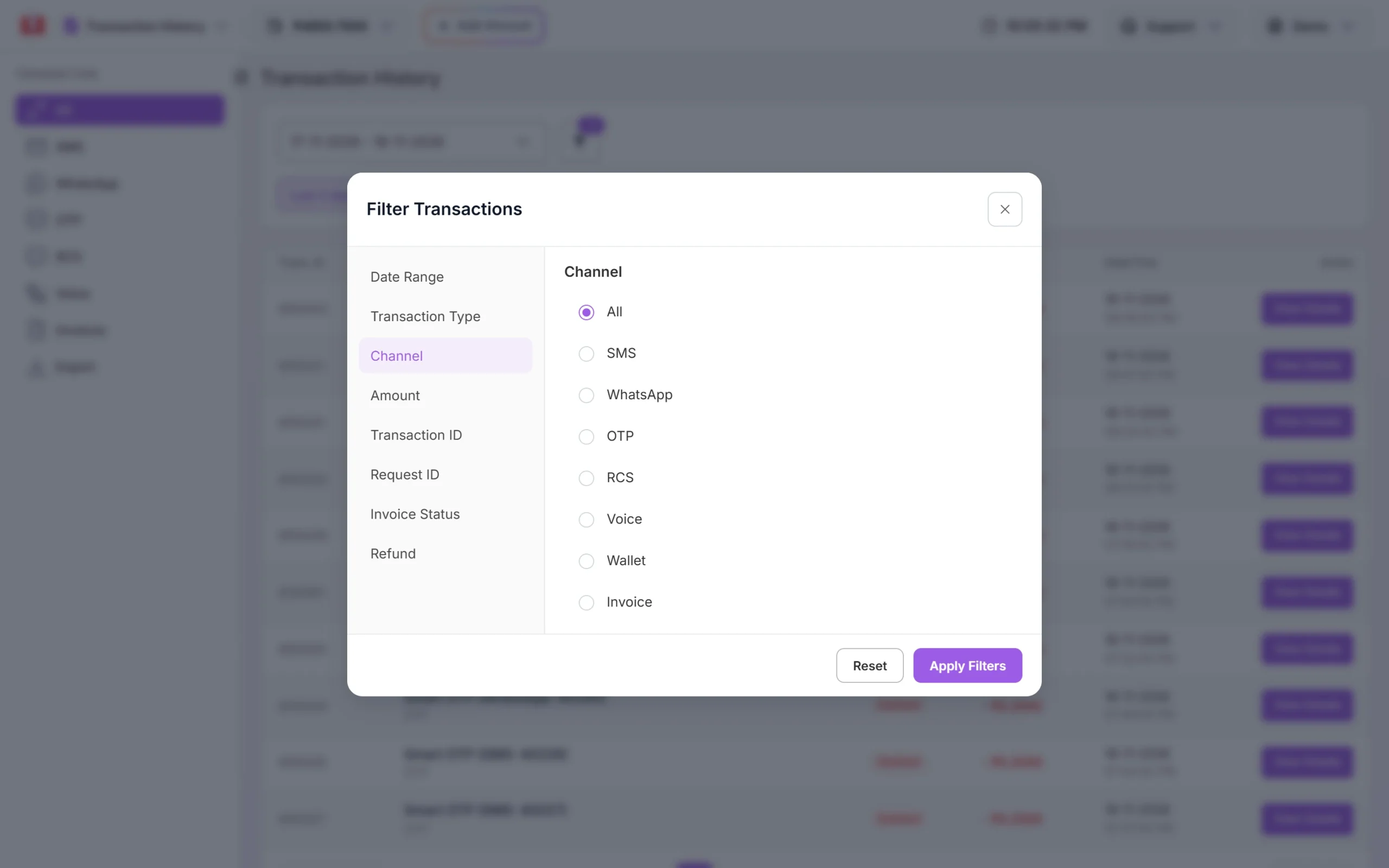
On the All tab you can narrow the list to one channel. -
Read and remove active filters
Each active filter shows as a pill under the date box, for example “Last 30 days ×” or “Credited ×”. Click × to remove it. The number on the funnel button tells you how many filters are on.
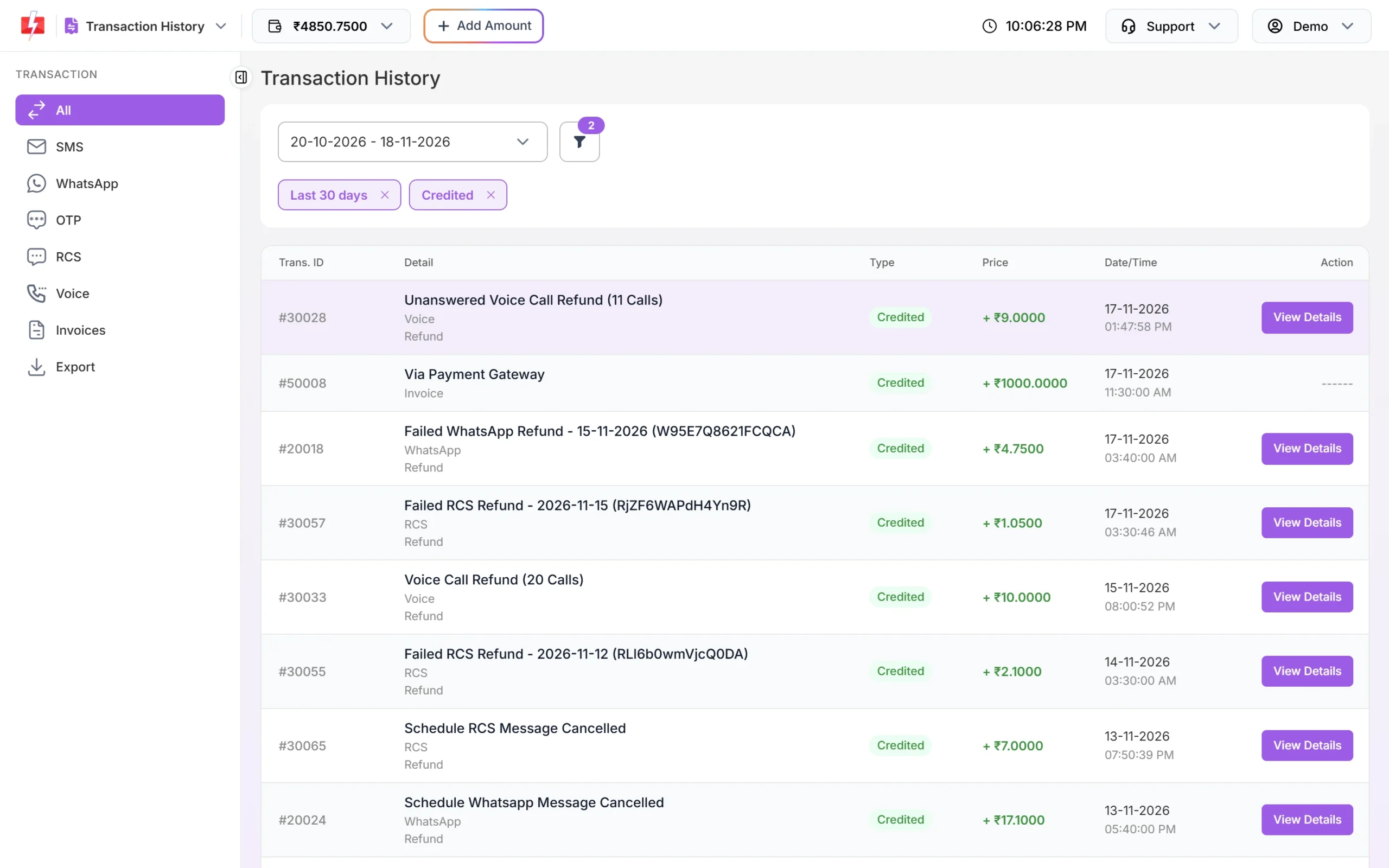
Credited only: recharges and amounts credited back.
View Details: how each charge is worked out
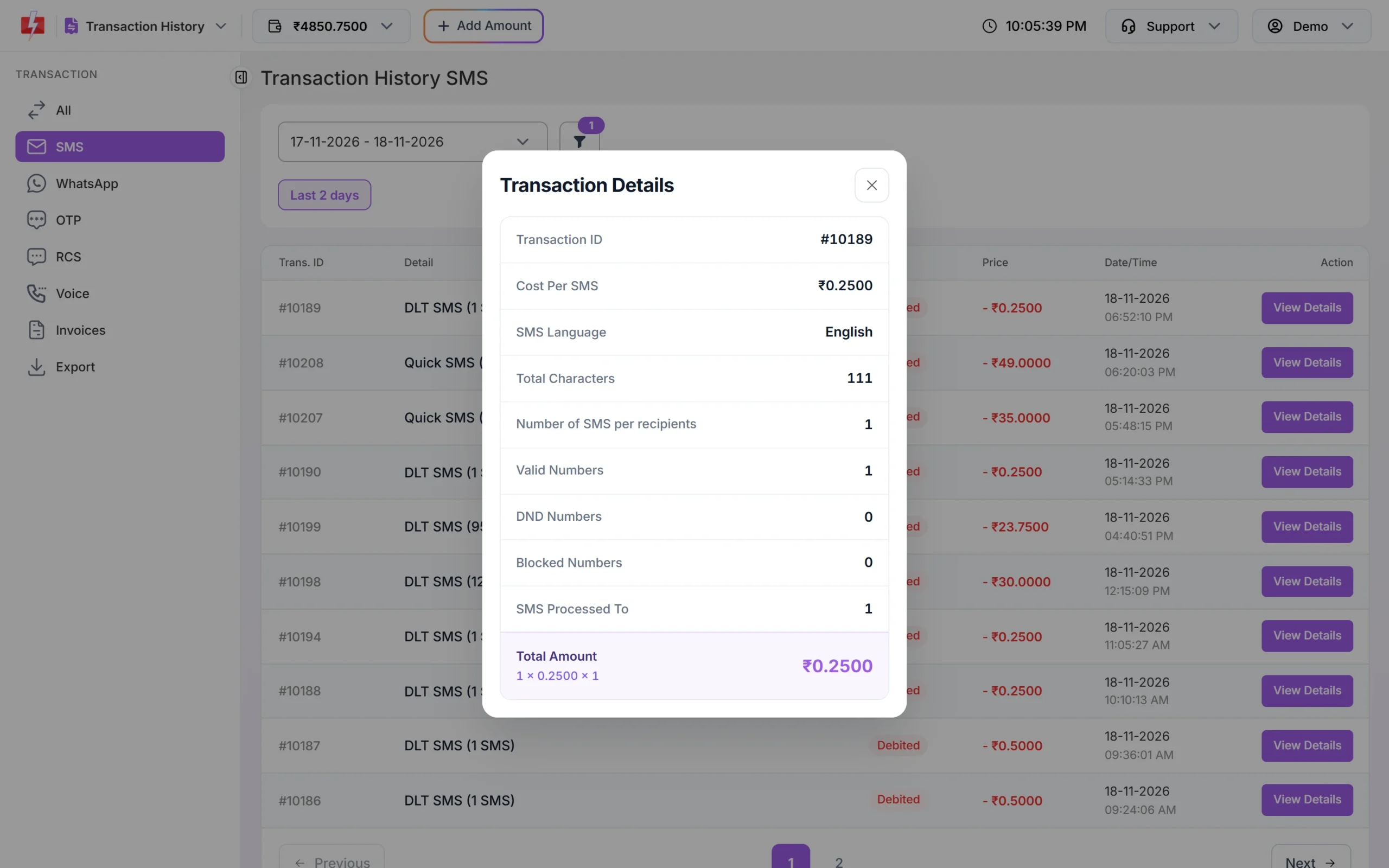
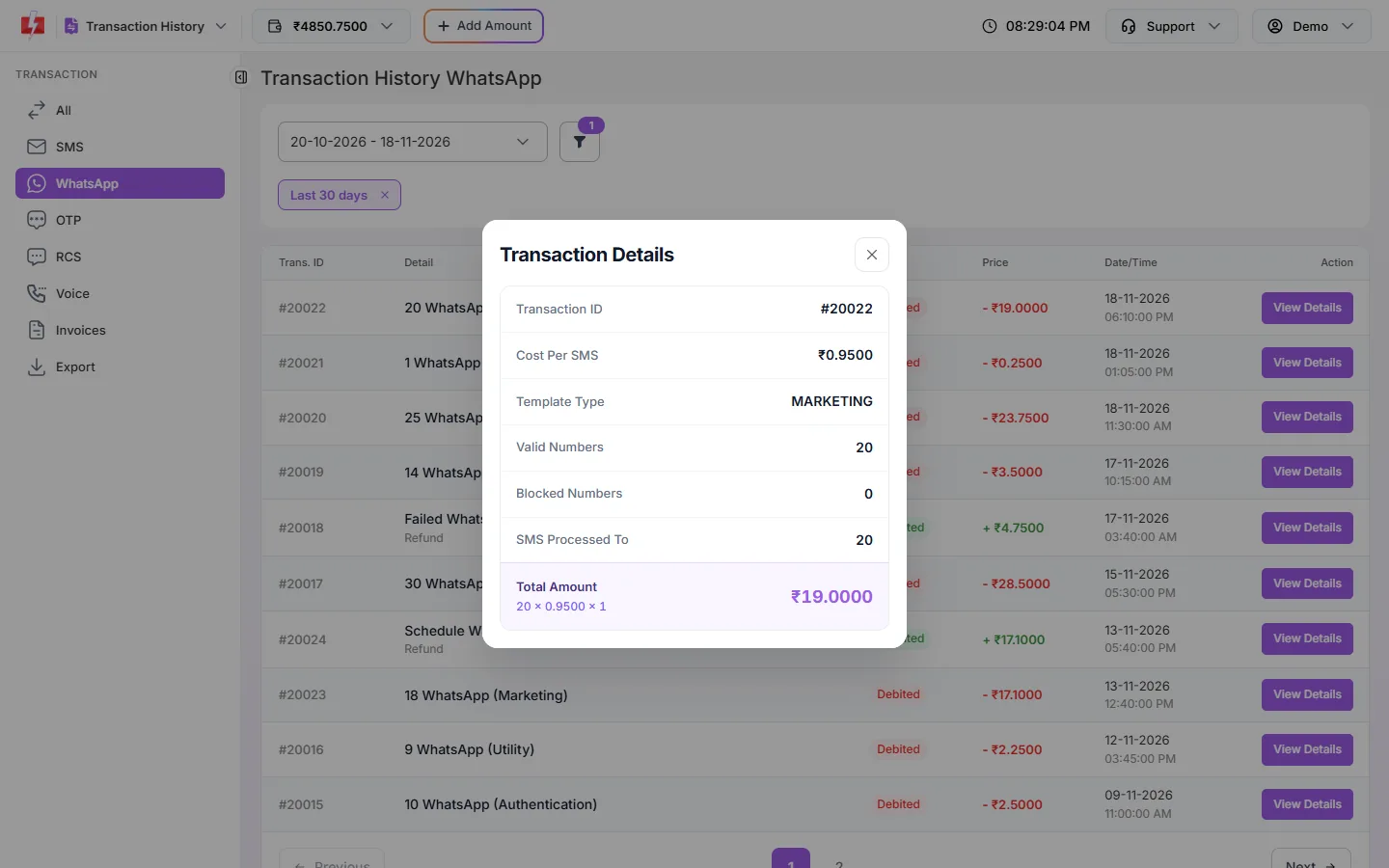
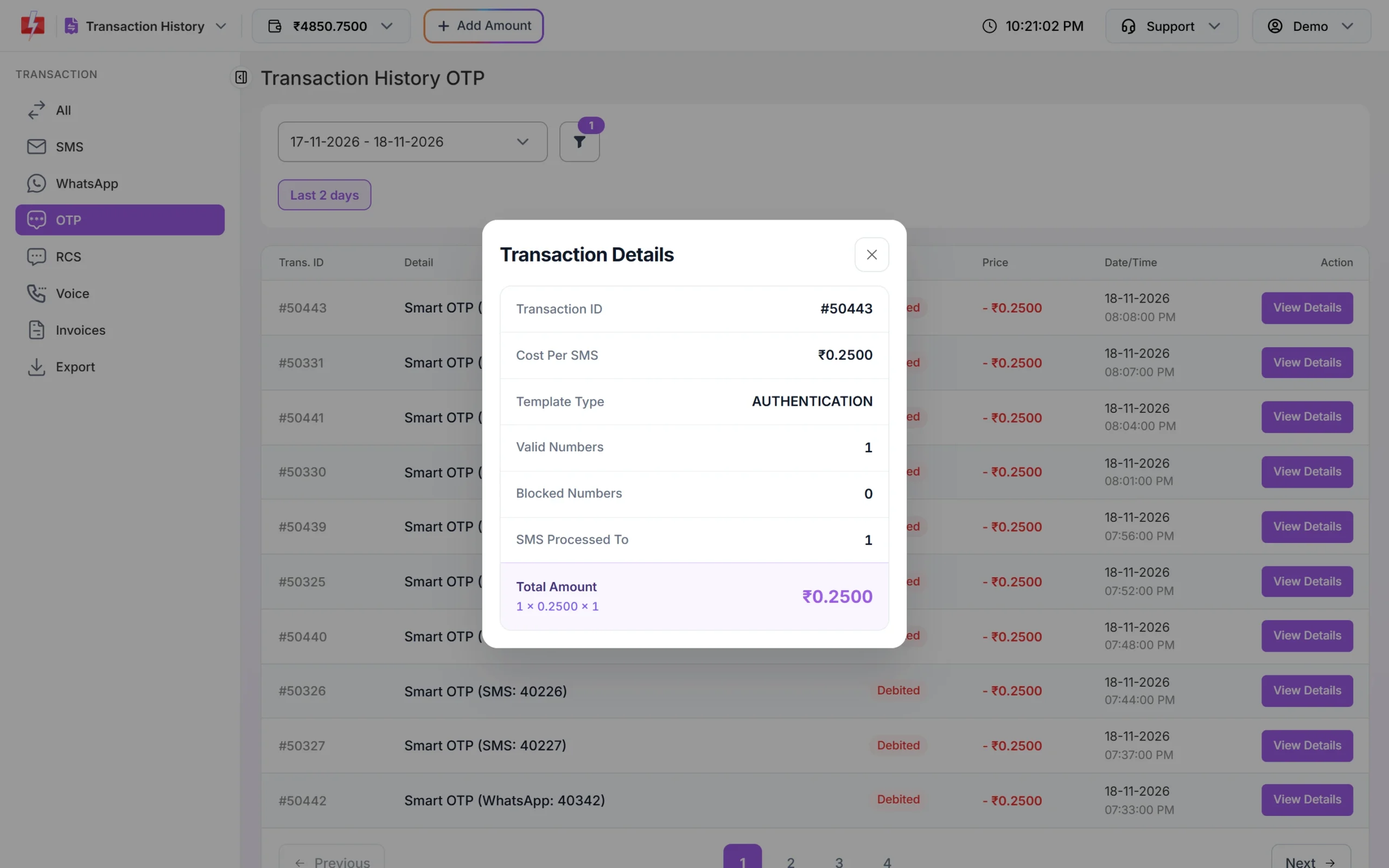
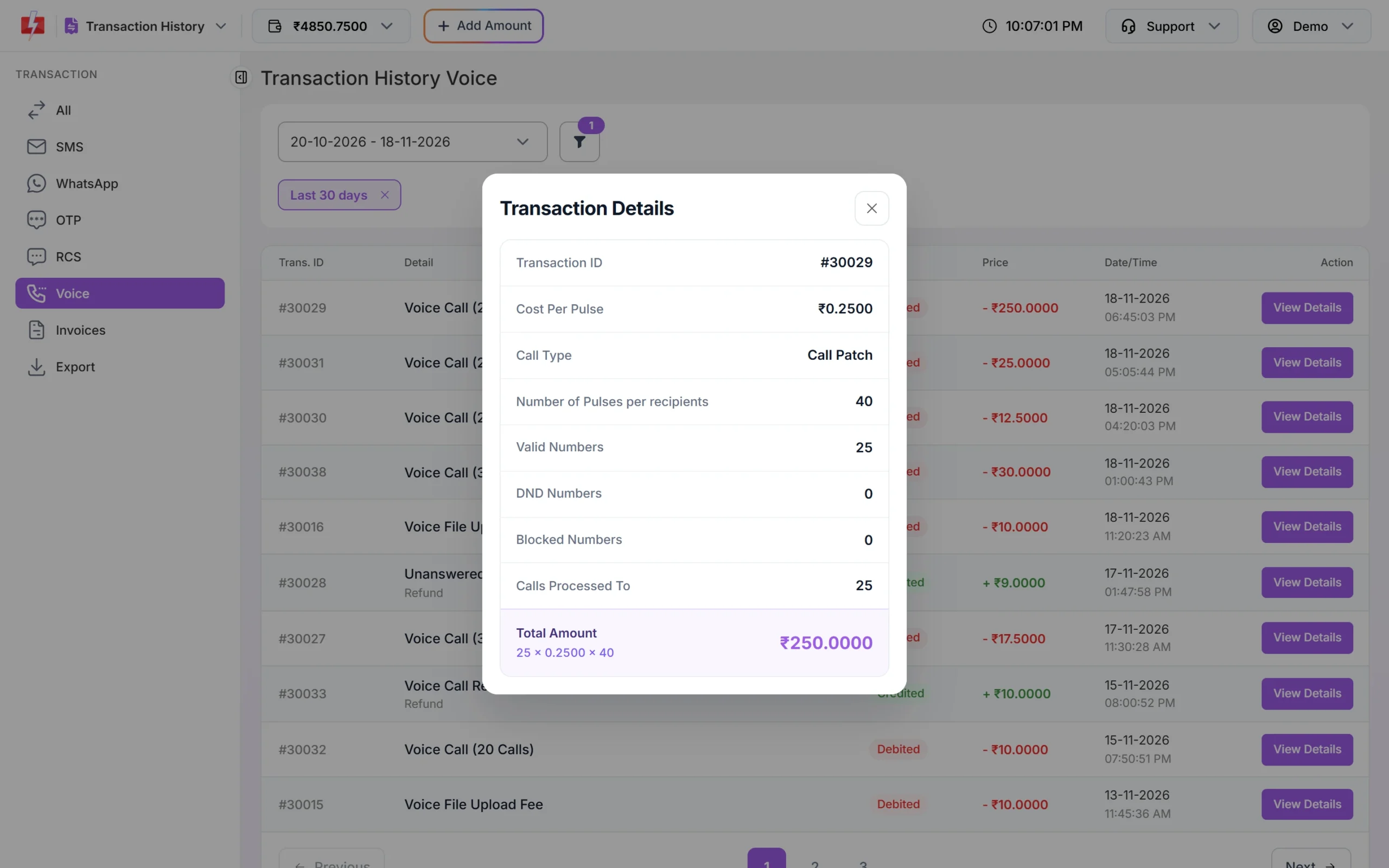
Click View Details on a row to see the breakup. The Total Amount line shows the formula, so you can check the charge yourself.
SMS
Shows Cost Per SMS, SMS Language, Total Characters, Number of SMS per recipients, Valid Numbers, DND Numbers, Blocked Numbers and SMS Processed To. Total = valid numbers × cost per SMS × SMS per recipient. A long or Unicode message counts as more than one SMS per recipient. See how bulk SMS works in Fast2SMS.
Shows Cost Per SMS (the rate per WhatsApp message), Template Type (MARKETING, UTILITY or AUTHENTICATION), Valid Numbers, Blocked Numbers and SMS Processed To. Total = valid numbers × rate. If you set a maximum price on the template, the pop-up also shows the template name, max price, standard rate and a pricing note.
OTP
Each Smart OTP is one row. The pop-up shows the rate, the type (for a WhatsApp OTP, AUTHENTICATION), valid and blocked numbers and the total.
RCS
Shows the rate, Message Type, valid, failed and blocked numbers, and how many messages were processed.
Voice
Voice calls are charged per pulse. The pop-up shows Cost Per Pulse, Call Type (Simple, Key Press or Call Patch), Number of Pulses per recipients, valid, DND and blocked numbers, and Calls Processed To. Total = valid numbers × cost per pulse × pulses per recipient. The pulse length is shown next to the Voice rate in the wallet dropdown.
Credits back to your wallet
For a refund row, the pop-up shows Refund: Yes, the Detail, Channel, Type, Amount and Date/Time. To see only these rows, set the Refund filter to Refunds only.
Your rate for each channel
The rate in each pop-up is the rate charged for that send. Your current rates are in the wallet dropdown at the top of the panel. For SMS, the rate depends on your recharge amount: see the bulk SMS pricing page and how to add money to your wallet.
Invoices tab
The Invoices tab lists your wallet recharges (“Via Payment Gateway”) for the last 3 months. Click Invoice to download the GST invoice as a PDF. If the row shows “——“, the invoice is not ready yet: a GST (B2B) invoice needs its e-invoice generated first. Use the Invoice Status filter to list Approved or Pending invoices.
How to export your transaction history
-
Open Export
Click Export in the left menu of Transaction History. The page is called Generate Transaction Report.
-
Choose what to export
Pick a channel (All Channels, SMS, WhatsApp, OTP, RCS, Voice or Invoices), a type (Both, Debited or Credited) and a date range of up to 370 days. Click Submit. You will see “Export Request Successfully Sent, Please Refresh This Page After Sometime.”
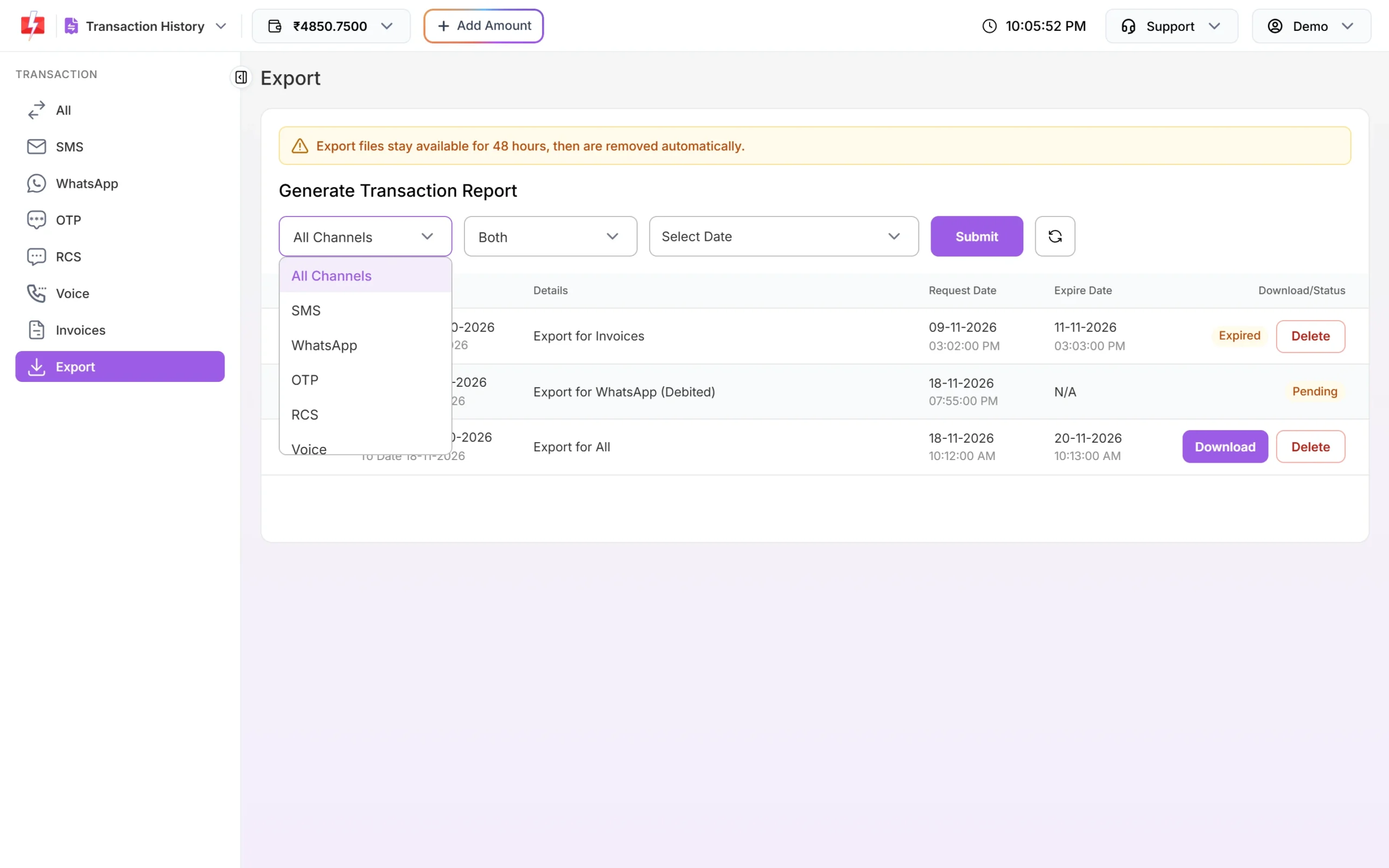
Pick the channel for your report. -
Download the file
The report appears in the list below as Pending. Click the refresh button after a short while. When it is ready, click Download. The file is an Excel sheet inside a zip, with the columns Trans. ID, Details, Transaction Type, Price, Date/Time, Channel and Refund. Files stay available for 48 hours, then show Expired. You can Delete a report at any time.
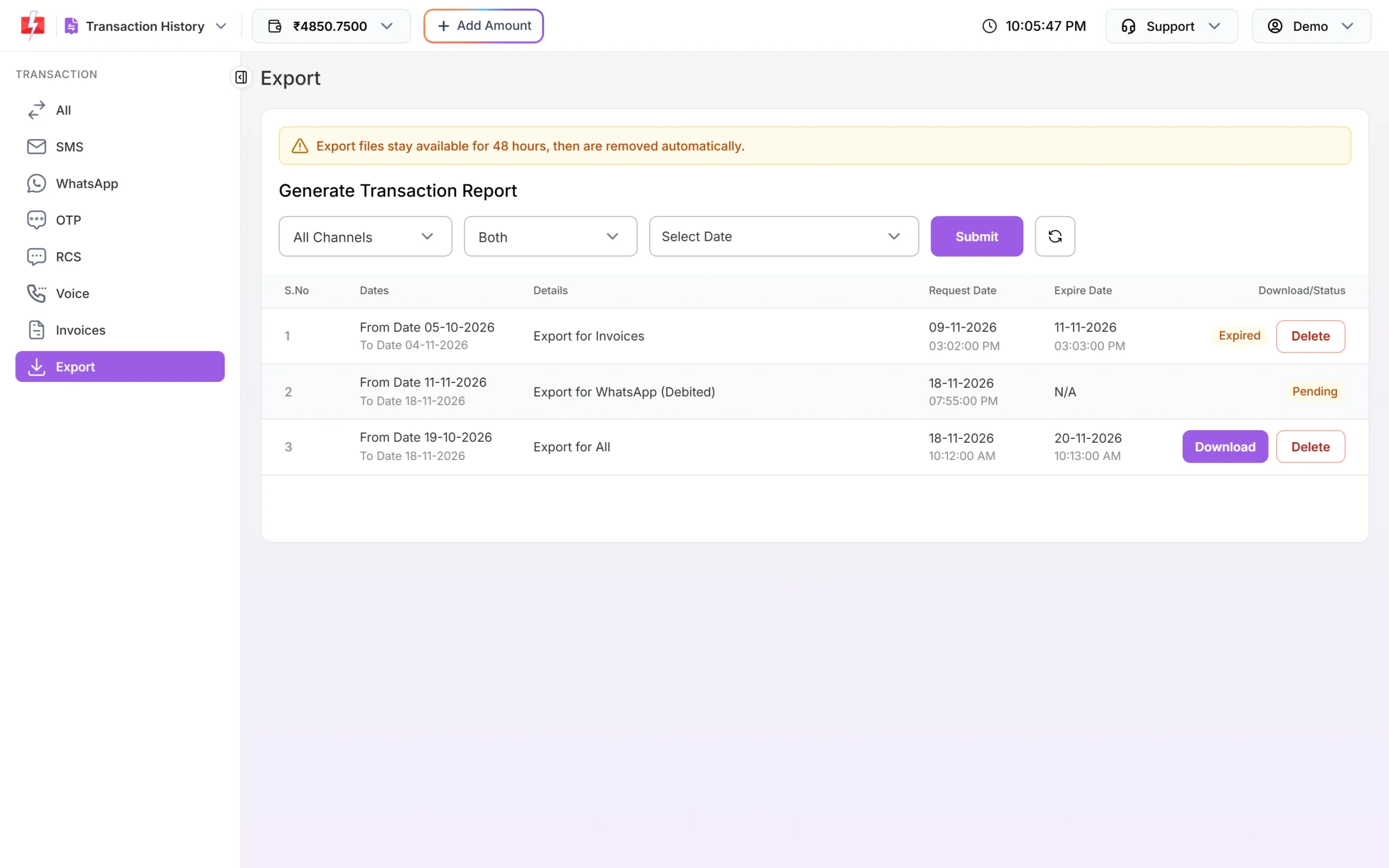
Reports move from Pending to Download, then Expired after 48 hours.
Common problems and fixes
| Message or problem | Fix |
|---|---|
| “You cannot export reports more than 370 days.” | Pick a shorter range and export in parts. |
| “You cannot export more than 5 reports, wait until old reports expires.” | Delete old reports from the list, or wait for them to expire. This count includes other exports from your account. |
| “You already have more than 2 pending export request.” | Wait for the pending reports to finish. |
| “No data found on these dates.” | There are no transactions for that channel, type and range. Change the filters. |
| A recharge I paid for is missing | A failed payment is not listed here. See what to do if money was debited but the wallet was not updated. |
Frequently asked questions
How do I see how much a campaign cost?
Find the row in the SMS, WhatsApp, RCS or Voice tab and click View Details. The Total Amount line shows the formula.
How do I find the charge for one API request?
Use the Request ID filter with the request ID from the API response. It searches all dates.
Why was I charged for 2 SMS per number?
Long or Unicode messages are split into parts. View Details shows Total Characters and Number of SMS per recipients.
Where do I see amounts credited back to my wallet?
Set the Refund filter to Refunds only. These rows are Credited and carry a Refund tag.
How far back can I see transactions?
The list has no date limit. View Details works for the last 180 days, and one export can cover up to 370 days.