
An AI voice agent answers WhatsApp calls to your business number, speaks with the caller and replies from your own business information, such as your price list, return policy or store timings. This guide shows how to create an AI agent in Fast2SMS, train it with a knowledge base, connect it to your WhatsApp number and check what it said on each call.
Before you start
- A WhatsApp number connected to the WhatsApp Business API in Fast2SMS, with WhatsApp calling switched on. AI routing is not offered for numbers that also run on the WhatsApp Business app.
- Your business information in a file or on your website: FAQs, product list, policies, timings.
- Wallet balance. Creating an agent is free; calls the agent handles are charged per minute.
How it works
A customer taps the call icon in your WhatsApp chat. If the number’s calls are routed to an AI agent, the agent picks up, says your welcome line and answers the caller’s questions using the knowledge sources you gave it. Every call and question is logged so you can check and correct the answers.
How to set up an AI voice agent
-
Create the agent
Go to Voice Automation > AI Agents and click Add AI Agent. On the General tab, enter the Agent Name (2-100 characters) and an Agent Description of its job, for example “Answers product, price and store-timing questions on calls”. You can add a Background Ambient Sound: none, office chatter, or call centre sound. Click Save Agent.
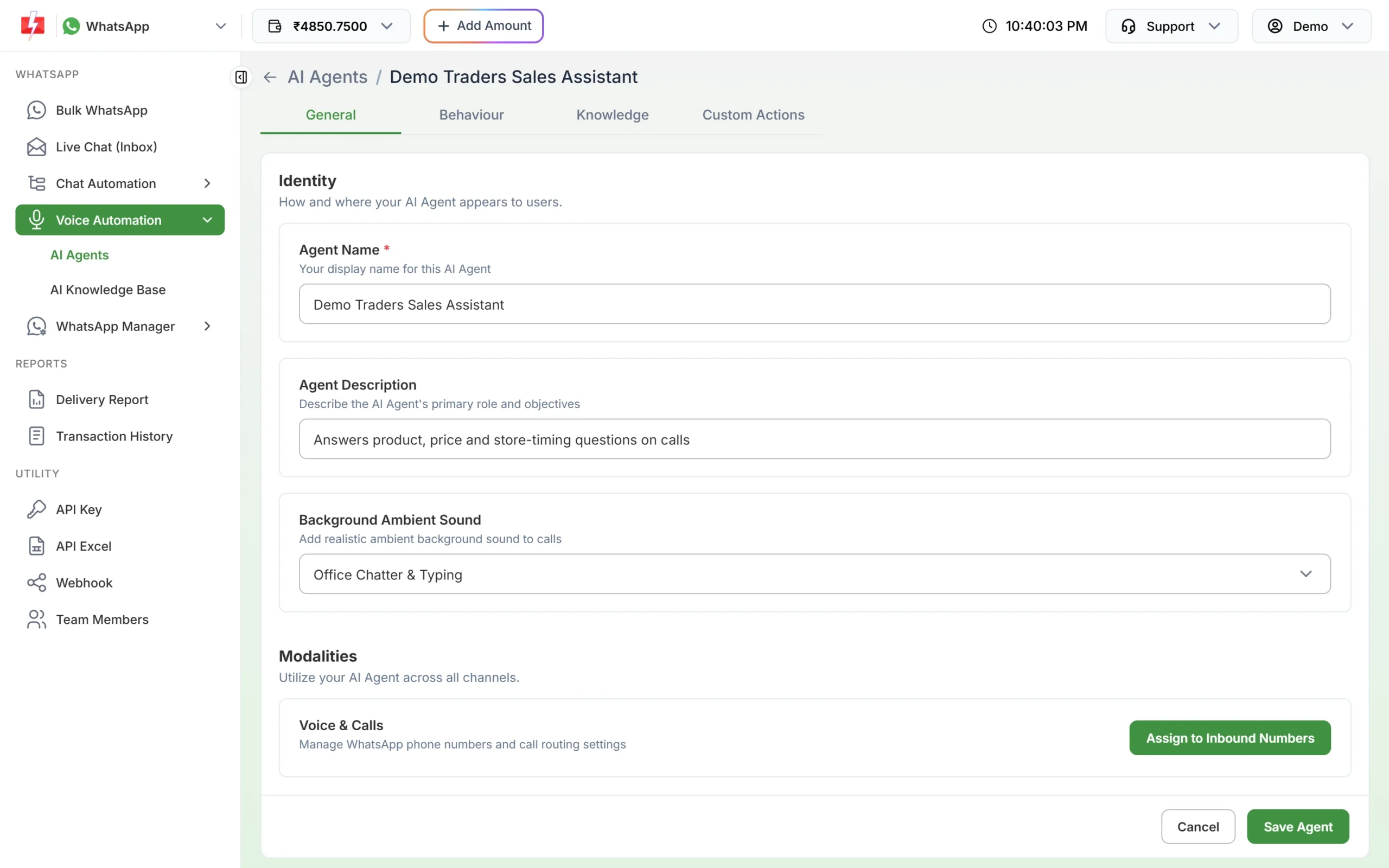
The General tab of an AI agent. -
Write the agent’s instructions
Open the Behaviour tab. The most important field is Global Prompt (System AI Agent): tell the agent who it is, what it may answer and how to behave. Keep it plain, for example: “You are the voice assistant of our kitchenware shop. Answer only from the knowledge base. Be polite and brief. If the caller asks about bulk orders, ask them to message us on WhatsApp.”
Then set the Welcome Message (Initial Greeting) the agent says when the call connects. Other settings on this tab:
- Wait for User Greeting: the agent speaks only after the caller says something.
- Noise Cancellation and Interruption Threshold (how quickly the agent stops when the caller talks over it).
- Speech Speed from 0.5x to 2.0x.
- Inactivity Timeout (5-60 seconds), the check-in message, and whether to hang up or transfer after the set number of warnings.
- Max Invalid Answer Attempts with a fallback message.
- Enable Live Call Transfer: when switched on, you fill in the trigger for a transfer, the transfer announcement, the number of retries, the hold music and the messages for a busy or unavailable agent.
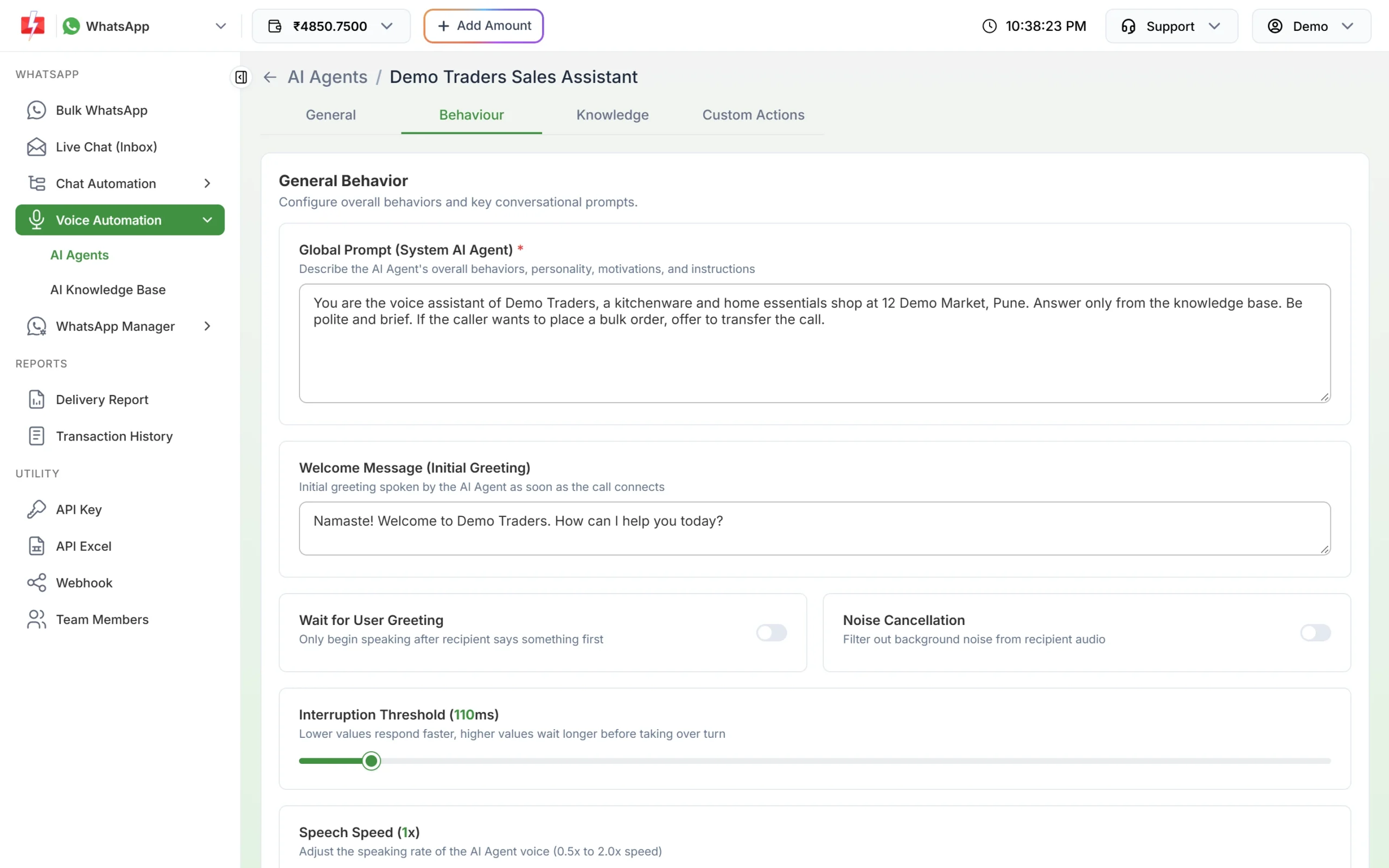
The Behaviour tab holds the prompt and call handling rules. -
Add your business knowledge
Go to Voice Automation > AI Knowledge Base and click Add Source. There are three ways to add knowledge:
- Upload: PDF, DOCX, TXT, CSV or XLSX files, up to 10 MB each and up to 10 files at a time.
- Website: enter your site, click Analyze Website and pick up to 100 pages.
- Text: paste FAQs or notes with a Source Name and click Create Text Source.
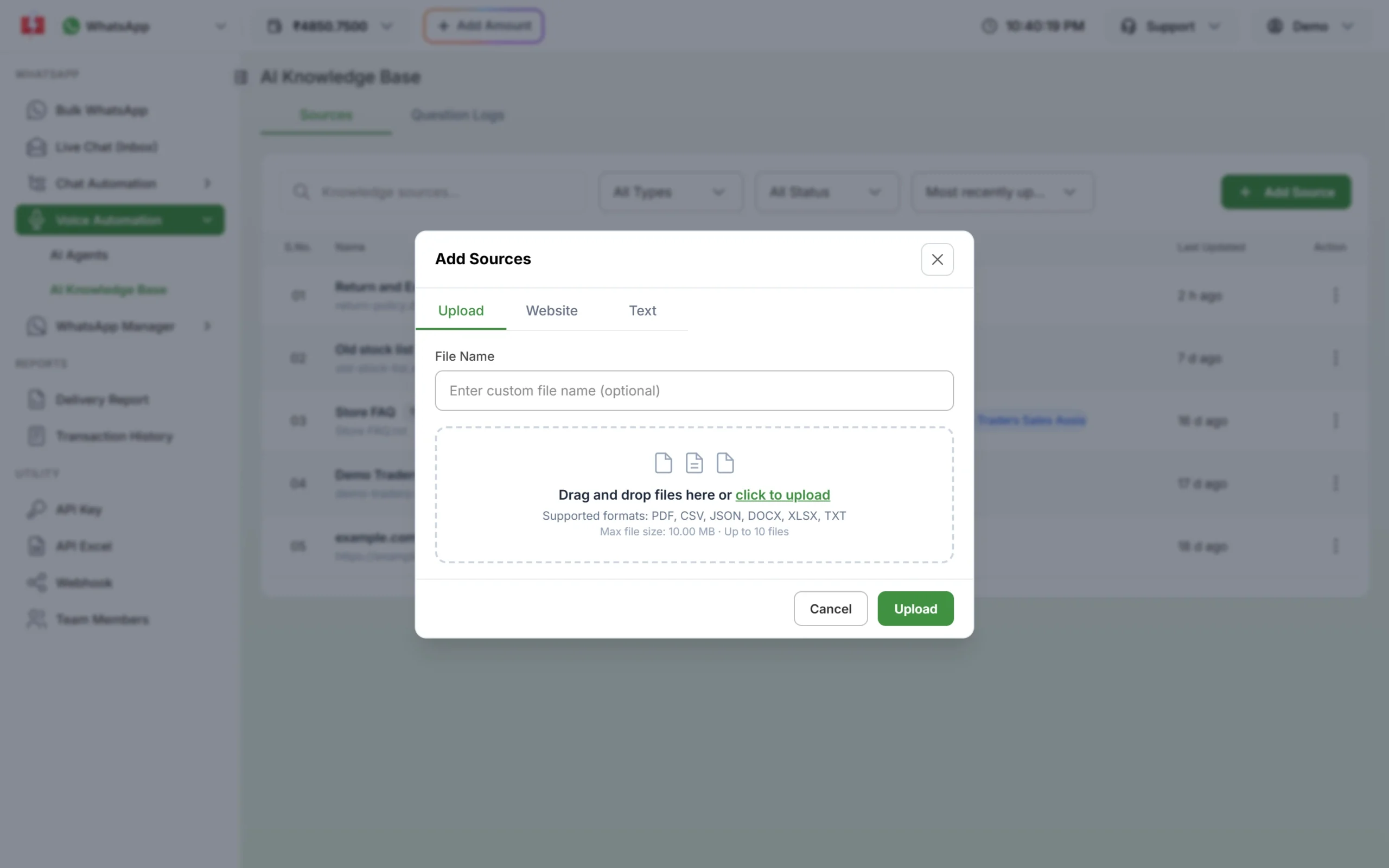
Add knowledge from files, your website or plain text. Each source shows as Processing first and then Active when it is ready. A Failed source could not be read; check the file and upload it again.
-
Connect the knowledge to the agent
Back in the agent, open the Knowledge tab. Pick a source in Select source to add; it appears under Connected Sources. Click the x to remove one, then click Save Agent. Give each agent only what it needs: a sales agent does not need your staff policies.
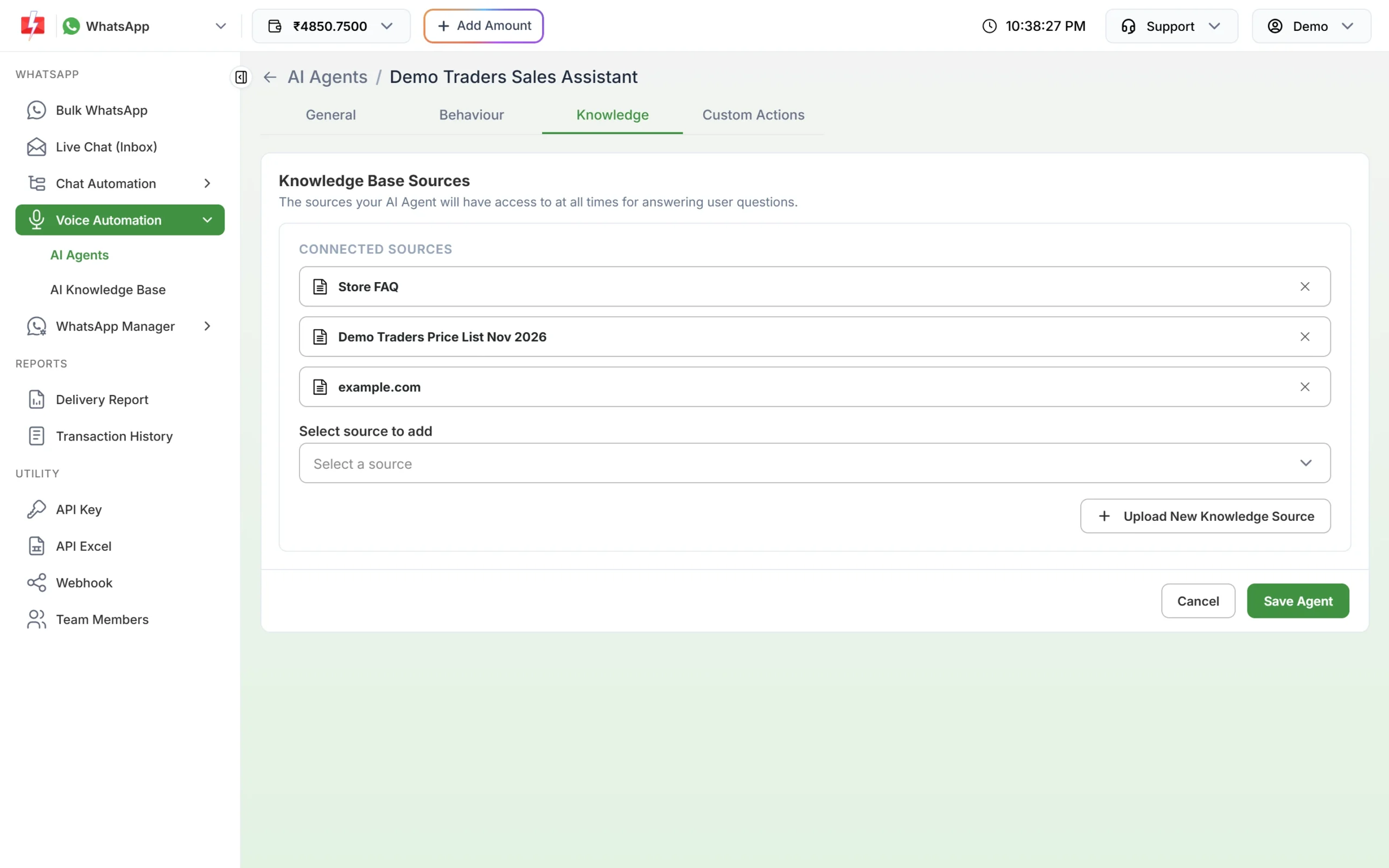
Choose which sources the agent can answer from. If the agent must look something up live, such as an order status, the Custom Actions tab lets you add an API call to your own system with a rule for when to use it. Your developer can paste a cURL request and test it there.
-
Assign the agent to your WhatsApp number
On the General tab, click Assign to Inbound Numbers, choose the number and click Assign Number. The agent must be saved first. Here you also set the Maximum Call Duration (1-60 minutes, 10 by default) and Record Calls (on by default).
You can also do this from WhatsApp Manager > Numbers: open the number’s menu, choose AI Agent & Routing Settings, select the agent, tick Enable AI Voice Call Route and click SAVE SETTINGS.
-
Check calls and correct answers
In AI Knowledge Base, the Question Logs tab lists every question with the agent’s answer and a status: Answered, Unanswered or Corrected. The top line shows AI Accuracy, Unanswered Questions and Today’s Calls.
When an answer is wrong or missing, click Edit, write the right answer in “Ideal Correct Answer (Bot Training)” and click Save & Train Bot. Your correction is saved to a source called “Trained Q&A (Call Corrections)” that the agent uses from then on.
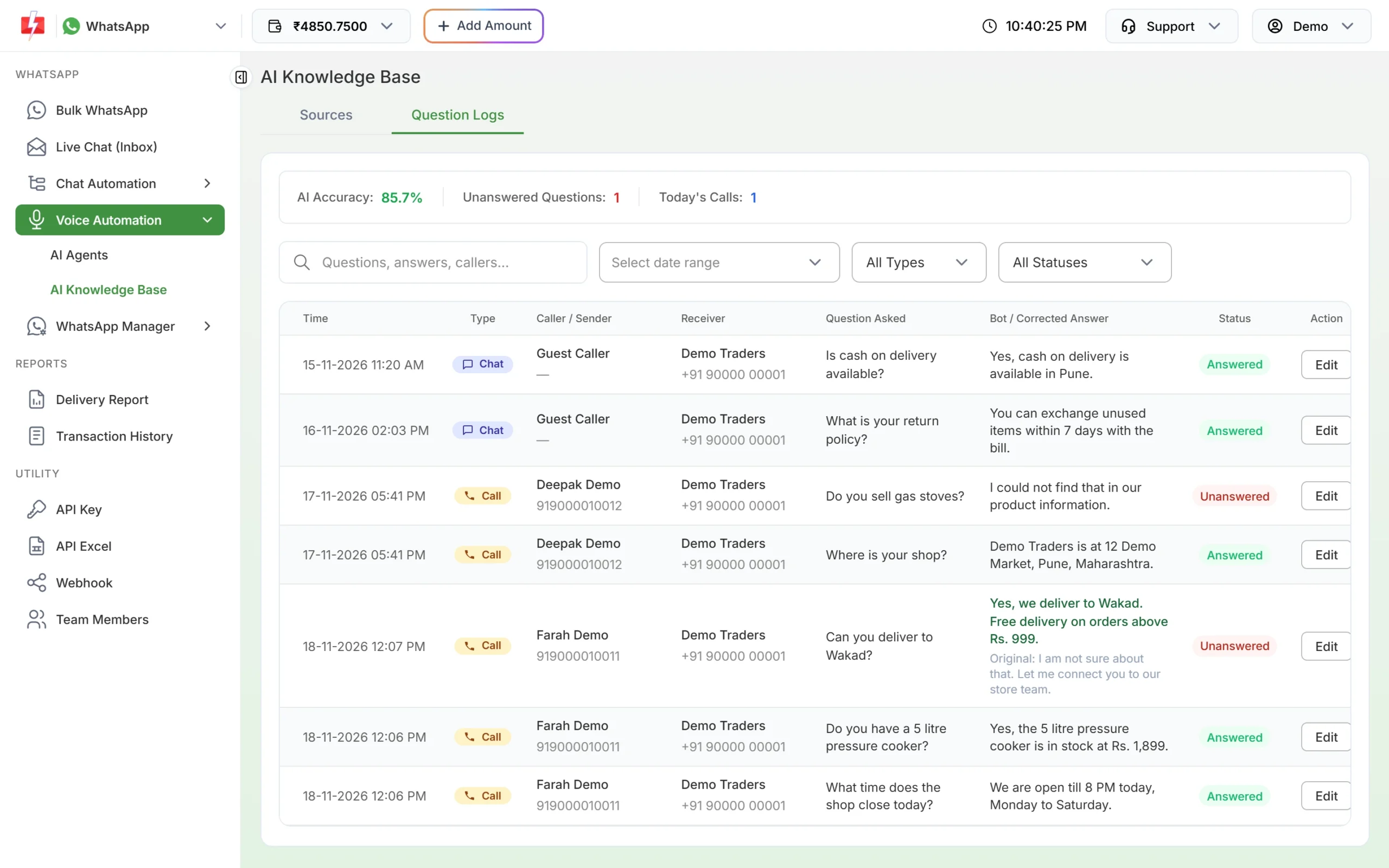
Fix wrong answers from Question Logs. For recordings and transcripts of each call, open the number’s menu in WhatsApp Manager and choose AI Voice Call Logs.
Tips for a helpful AI agent
- Start with your 20 most asked questions as a Text source. Short question-and-answer pairs work better than long brochures.
- Tell the agent in the prompt what not to do, for example “Do not promise discounts” or “Do not share staff phone numbers”.
- Keep prices and timings in one source and update it when they change. Edited sources are re-indexed automatically.
- Read Question Logs every few days for the first weeks and correct every Unanswered question.
Common problems and fixes
| Problem | Fix |
|---|---|
| “Please save the AI Agent first before attaching numbers.” | Click Save Agent, then assign the number. |
| “Please select an AI Agent to enable AI routing.” | Pick an agent in AI Agent & Routing Settings before ticking the route. |
| A source stays Failed | Use PDF, DOCX, TXT, CSV or XLSX under 10 MB and upload it again, or paste the text as a Text source. |
| The agent says it does not know | The answer is not in its sources, or the source is not selected on the Knowledge tab. Add it, or correct the answer in Question Logs. |
| No AI Agent option for my number | The number also runs on the WhatsApp Business app. AI routing is available only for numbers on the API alone. |
Frequently asked questions
Is the Fast2SMS AI agent free?
Creating agents and knowledge sources costs nothing. Calls the agent handles are charged per minute from your wallet.
What files can I use to train the agent?
PDF, DOCX, TXT, CSV and XLSX files up to 10 MB, pages from your website (up to 100), or text you paste in.
Can I see what the AI said on a call?
Yes. AI Voice Call Logs has the recording and transcript of each call, and Question Logs lists every question and answer.
Can I have different agents for different numbers?
Yes. Create several agents and assign each to its own WhatsApp number.
Are calls recorded?
Record Calls is on by default in the agent’s call settings. You can switch it off when you assign the number.