
WhatsApp message formatting uses simple symbols around your text: *bold*, _italic_, ~strikethrough~ and ```monospace```, plus lines that start with - , 1. or > for lists and quotes. The same symbols work in WhatsApp Business API template bodies and in replies you send from Live Chat. This guide lists every format, shows where you can use it in Fast2SMS, and explains what to avoid so your template is not rejected.
WhatsApp message formatting symbols at a glance
These are the formats listed in WhatsApp’s own help article, How to format your messages, at the time of writing.
| Format | Type this | Customer sees |
|---|---|---|
| Bold | *Order confirmed* |
Order confirmed |
| Italic | _Thank you for shopping_ |
Thank you for shopping |
| Strikethrough | ~₹999~ ₹749 |
|
| Monospace | ```DT-1042``` (three backticks each side) |
DT-1042 in a fixed-width font |
| Inline code | `DIWALI20` (one backtick each side) |
DIWALI20 highlighted as code |
| Bulleted list | Start the line with * or - (symbol and a space) |
A bullet point |
| Numbered list | Start the line with 1. , 2. (number, full stop, space) |
A numbered list |
| Quote | Start the line with > (angle bracket and a space) |
An indented quote block |
WhatsApp’s help article also says there is no option to turn formatting off. The customer’s app applies it whenever the symbols are there.
Where formatting works on WhatsApp Business API
| Place | Formatting | How to add it in Fast2SMS |
|---|---|---|
| Template body | Yes | Type the symbols in the Body box when you create the template |
| Template text header | No | Meta’s template components guide says not to use Markdown special characters in the text header |
| Template footer and button text | Keep plain | Short plain text reads best in these small areas |
| Live Chat replies | Yes | Use the formatting toolbar (bold, italic, strikethrough, numbered list, bulleted list) or type the symbols |
| Predefined (quick reply) messages | Yes | Use the B, I, S, bullet and numbered buttons in Add Predefined Message |
| Icebreakers and commands | Plain text, no emojis | The panel says emojis are not supported in icebreaker prompts and commands |
How to format a WhatsApp template in Fast2SMS
-
Open the template form
Go to WhatsApp Manager > Templates and click Add Template. Choose the type (Marketing, Utility or Authentication), a name and the language.
-
Type the formatting symbols in the Body
The template Body box has no formatting buttons, so type the symbols yourself, for example
*Order confirmed*. Press Enter for a new line, and start lines with-for bullets. The body can have up to 1,024 characters, and the counter under the box shows how many you have used.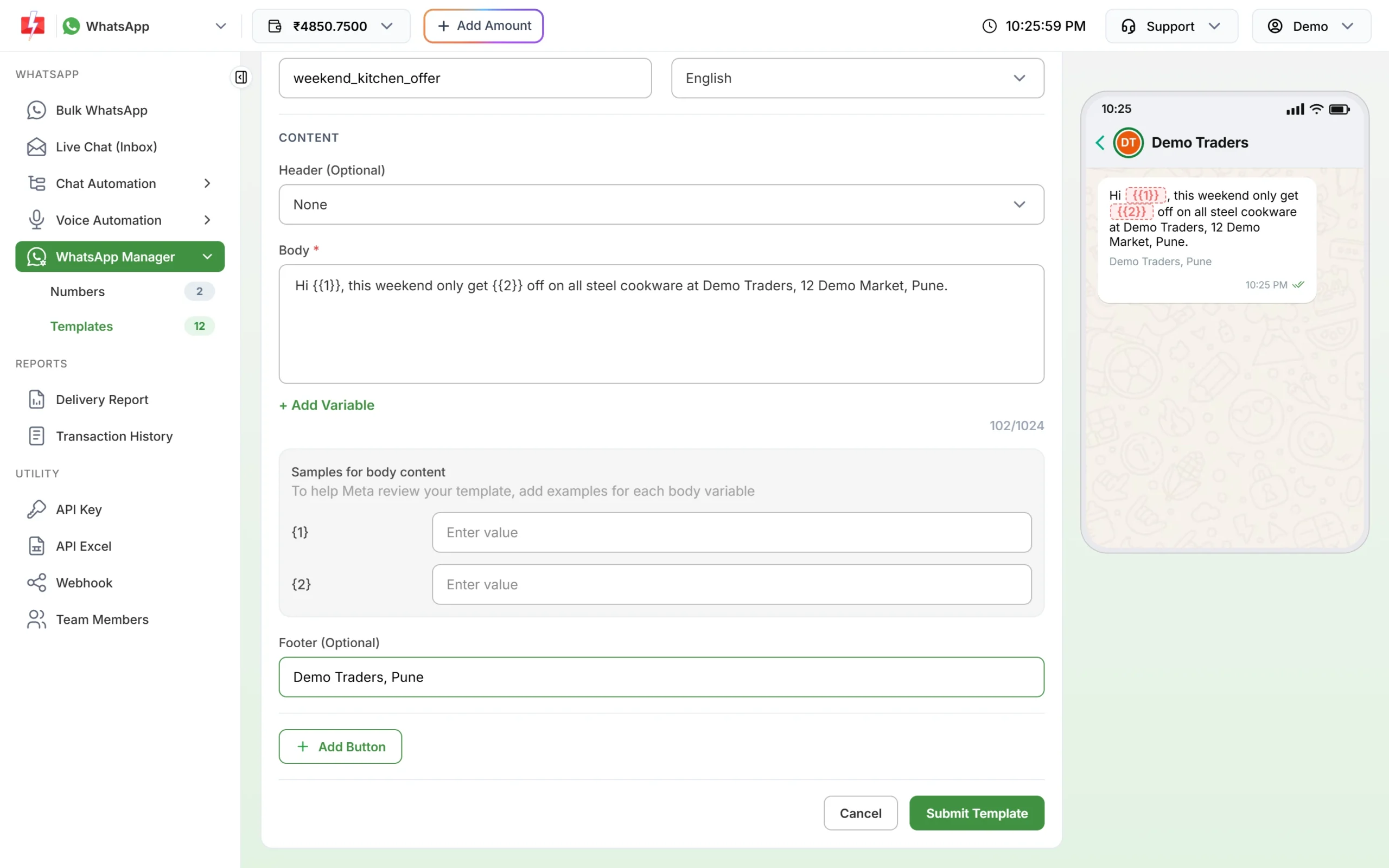
Type formatting symbols directly in the Body box. The counter shows the 1,024 character limit. -
Keep variables outside the formatting where you can
Click + Add Variable to insert
{{1}},{{2}}and so on, and fill the Samples for body content boxes. Format the fixed words around a variable, for exampleOrder *confirmed* for {{1}}, so the message still looks right whatever value goes in. -
Submit and test
Click Submit Template. Once Meta approves it, use Test on the template card to send it to your own phone and check how bold, lists and line breaks look on a real WhatsApp screen.
Example: a formatted utility template body
Hi {{1}},

*Your order is confirmed*
Order ID: {{2}}
Amount: ₹{{3}}

- Delivery by {{4}}
- Track it anytime with the button below

_Thank you for shopping with Demo Traders_
Notice that the body does not start or end with a variable. Meta does not allow a template to start or end with a parameter.
How to format replies in Live Chat
When you reply to a customer inside the 24-hour window, the Live Chat message box has a formatting toolbar with bold, italic, strikethrough, numbered list and bulleted list, plus an emoji picker. You can also save often-used answers with formatting as predefined messages.
-
Create a formatted predefined message
Open Predefined Messages and click Add Predefined Message. Choose the number, write the message and use the B, I, S, bullet and numbered buttons. Click Save.
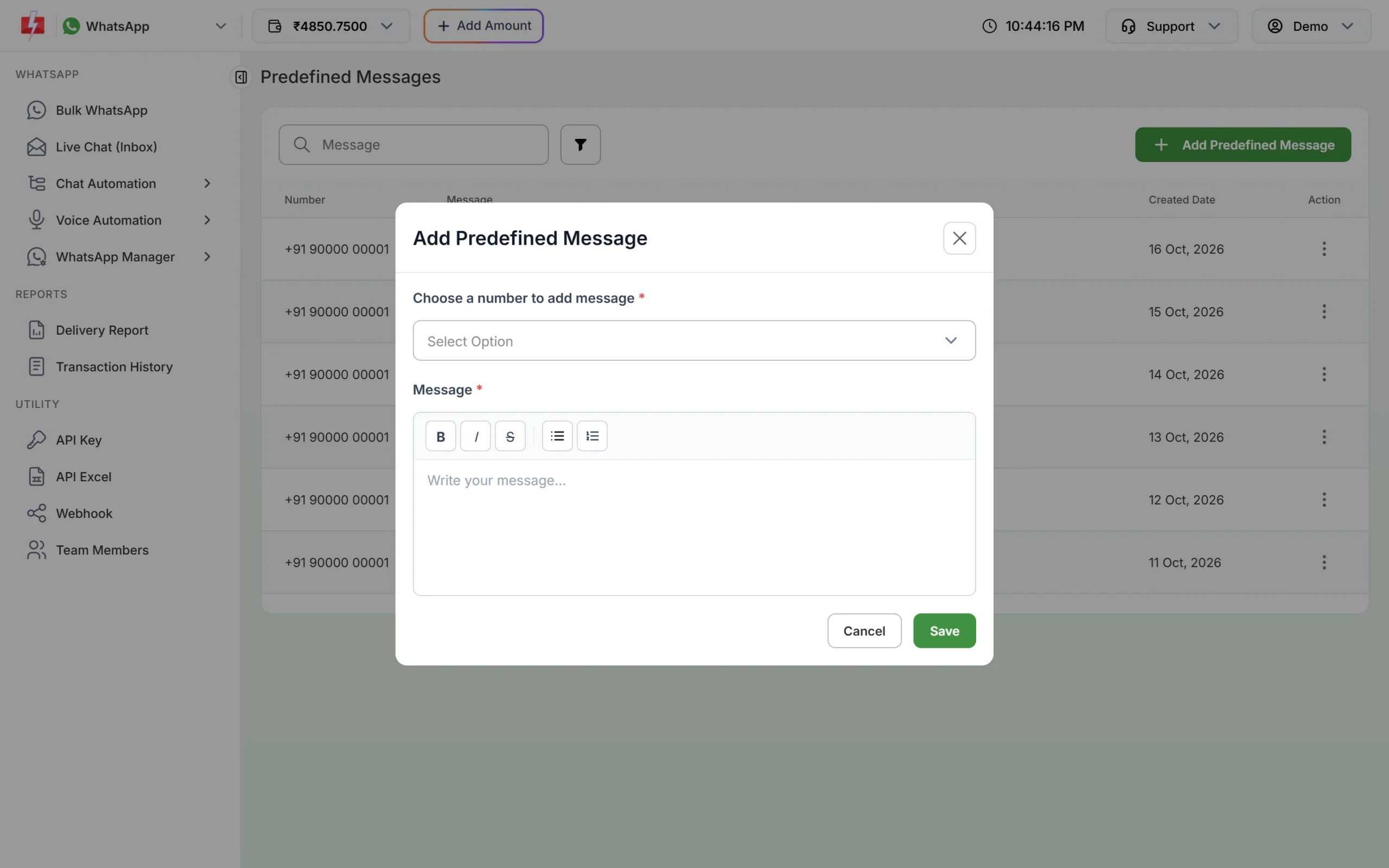
Bold, italic, strikethrough and list buttons in Add Predefined Message. -
Insert it while chatting
In Live Chat (Inbox), click the predefined message icon and pick the message. It fills the message box, so you can edit it before you send.
Formatting and emoji mistakes that get templates rejected
Meta reviews every template. These are the formatting problems from Meta’s template review guide that we see most often:
| Problem | Fix |
|---|---|
| Variables with missing or mismatched curly braces | Use {{1}}, {{2}} exactly. Let + Add Variable insert them for you. |
Variables not in order, such as {{1}}, {{2}}, {{5}} |
Number them in sequence |
| Special characters such as #, $ or % inside a variable | Keep only the number inside the braces |
| Body starts or ends with a variable | Add words before the first and after the last variable |
| Too many variables for a short message | Add more fixed text or use fewer variables |
| Too many emojis | Meta says the number of emojis in the body may be limited. Use one or two where they help. |
| Formatting symbols in the text header | Keep the header plain (up to 60 characters) |
For all character limits and variable rules, see WhatsApp template character limits and variable rules.
Tips for formatting that customers read
- Bold one thing per message, usually the status or the action (“*Payment received*”).
- Use a short list for two to four items. Long lists are hard to read on a phone.
- Use monospace for order IDs and codes so customers can read each character clearly.
- Use strikethrough only for an old price next to the new one.
- Leave a blank line between sections. White space helps more than heavy formatting.
Frequently asked questions
How do I make text bold in a WhatsApp template?
Put an asterisk on each side of the text in the template body, for example *Order confirmed*. The customer sees it in bold.
Can I use bold or italic in the template header?
No. Meta says not to use Markdown special characters in the text header. Keep the header plain and put formatting in the body.
Can I add line breaks and lists to a WhatsApp template?
Yes. Press Enter in the Body box for a new line, and start lines with - or 1. for lists.
Can I use emojis in WhatsApp templates?
Yes, in the body. Meta may limit how many emojis a body can have, so use them sparingly. Icebreakers and commands do not support emojis.
Can a customer turn formatting off?
No. WhatsApp’s help article says there is no option to turn formatting off, so any pair of symbols in your text is shown as formatting.
Does formatting change the price of a WhatsApp message?
No. You pay by message category (Marketing, Utility, Authentication or session reply), not by formatting or length.
Sending in bulk? For high WhatsApp volumes our team offers discounted rates. Talk to our team or see WhatsApp pricing.