
WhatsApp Live Chat in Fast2SMS is a shared team inbox where you and your team reply to customers who message your WhatsApp Business number. This guide explains the inbox layout, how to add agents and assign chats, how to use labels, tags, notes and quick replies, what to do when the 24-hour window is closed, and how to set up automatic replies.
Before you start
- A WhatsApp number with the status Connected. Until you connect one, Live Chat is greyed out in the menu. See how to connect your number to the WhatsApp Business API.
- Some wallet balance. If the wallet is at zero or below, the reply box is replaced by “Insufficient wallet balance” and you cannot send.
- At least one approved template, for chats where the 24-hour window is closed. See how to create a WhatsApp template.
What Live Chat costs
Messages from customers are free. Replies you send inside the 24-hour window are charged as session messages, which is ₹0.13 per message at the time of writing. Automatic replies (welcome, out of office, delayed response, keyword auto replies) are also charged at the session rate. A template sent from Live Chat is charged at its own category rate. See the current rates on the WhatsApp pricing page.
Sending in bulk? For high WhatsApp volumes our team offers discounted rates. Talk to our team or see WhatsApp pricing.
How to set up and use the WhatsApp team inbox
-
Open Live Chat (Inbox)
In the WhatsApp app, click Live Chat (Inbox) in the sidebar. On the left you see your business name and number. If you have more than one connected number, click the arrow next to it to switch. Below that is the search box “Name or start a new chat” and the pills All, Unread and Active. Active means the customer wrote in the last 24 hours, so you can reply freely.
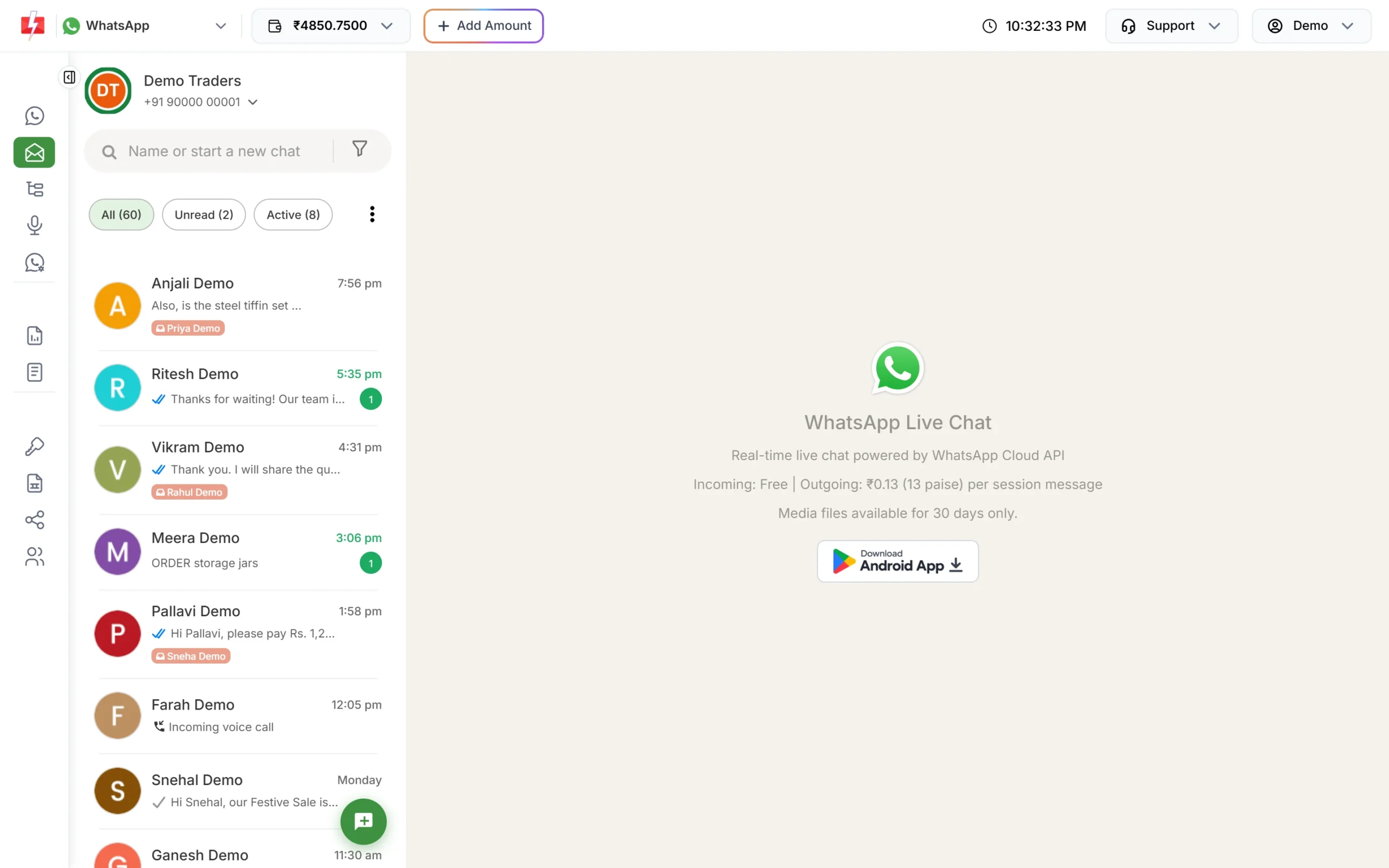
The conversation list. Chats with new messages show a green count. The three-dot menu next to the pills adds Assign Multiple Chats and the filters Assigned, Open, Pending and Closed. The funnel icon opens Filter Conversations, where you can filter by Labels, Tags, Chat Status, Assignee, Reply Status, Read/Unread and Response Window.
-
Reply to a customer
Click a chat to open it. Type in the “Type a message” box and press Enter to send (Shift+Enter adds a new line). You can use bold, italic and lists, add emoji, record a voice note, or click + to attach images, videos, audio or documents. You can send up to 10 files at a time, each up to 10 MB.
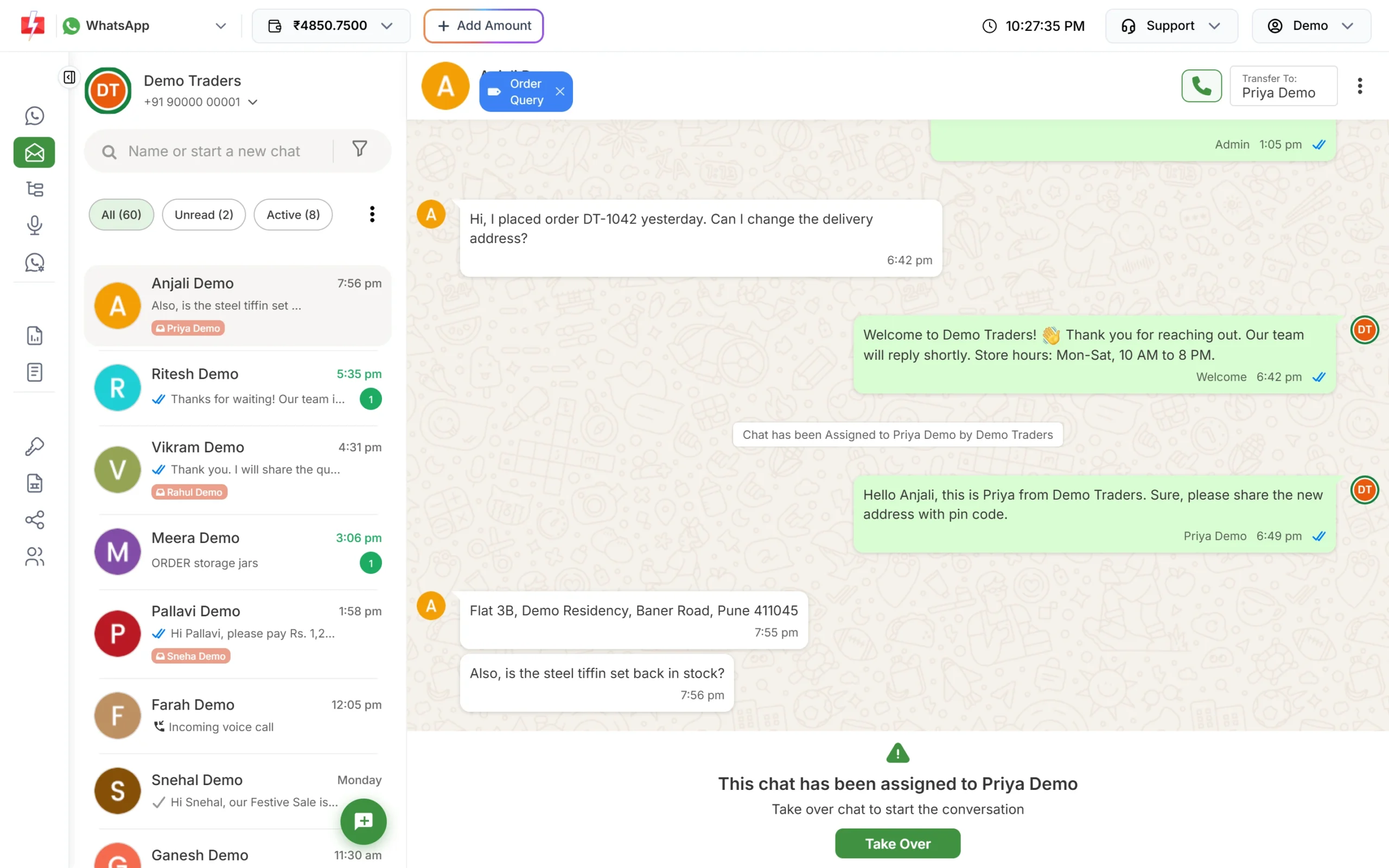
Each reply is tagged with who sent it: an agent, Welcome, Chatbot and so on. Under every reply you see who sent it: the agent’s name, “Admin” for the owner, or a tag for automatic replies such as “Welcome”, “Delay” or “Chatbot”. Ticks show sent, delivered and read. Hover over a failed tick to see the reason. Media files in the inbox are available for 30 days.
To message someone new, click the round green button at the bottom of the list and enter their number. A new chat can only start with a template, because the customer has not written to you yet.
-
Add your team as agents
Go to Team Members (under Utility in the WhatsApp sidebar) and click Add Agent. Fill in:
- Agent Name, Mobile Number and Email
- Agent Role: “Chat Agent (only assigned chats are shown)” or “Admin (all chats are shown)”
- Password of at least 6 characters
- Under access settings, tick WhatsApp and select the business number(s) this agent can use
- Show Owner Contacts, if the agent may start new chats from your Address Book
You can add team members (agents). Agents log in at the address that Open Login URL copies for you, or with the Fast2SMS Agent Login Android app. They only see Live Chat. An agent with WhatsApp ticked but no number selected cannot log in.
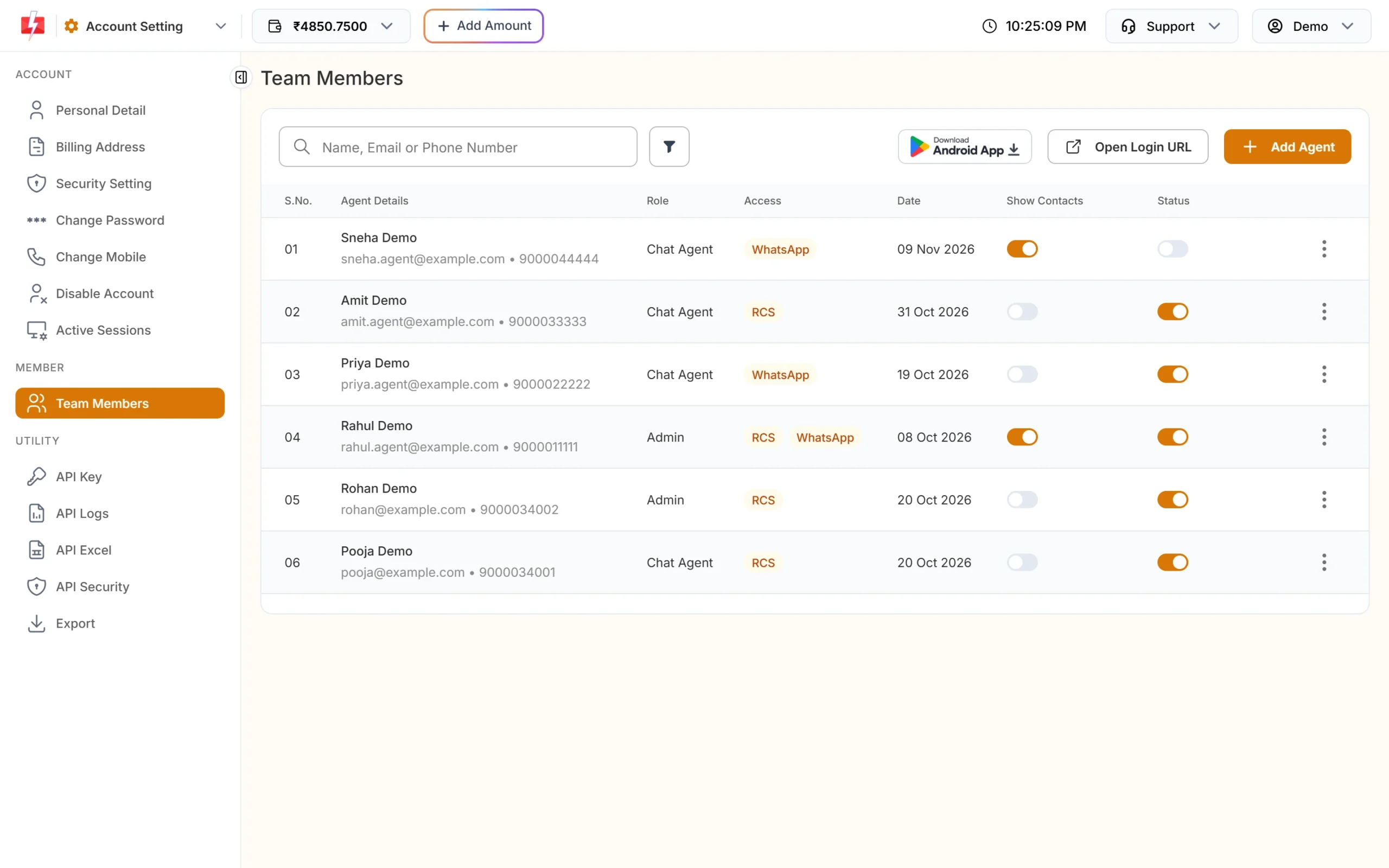
Team Members: add agents, set their role and switch them on or off. -
Assign chats to agents
Open a chat and click Transfer To at the top right. Pick an agent from the list and confirm. A line like “Chat has been Assigned to Priya Demo by Demo Traders” appears in the chat, and the agent’s name shows under the chat in the list.
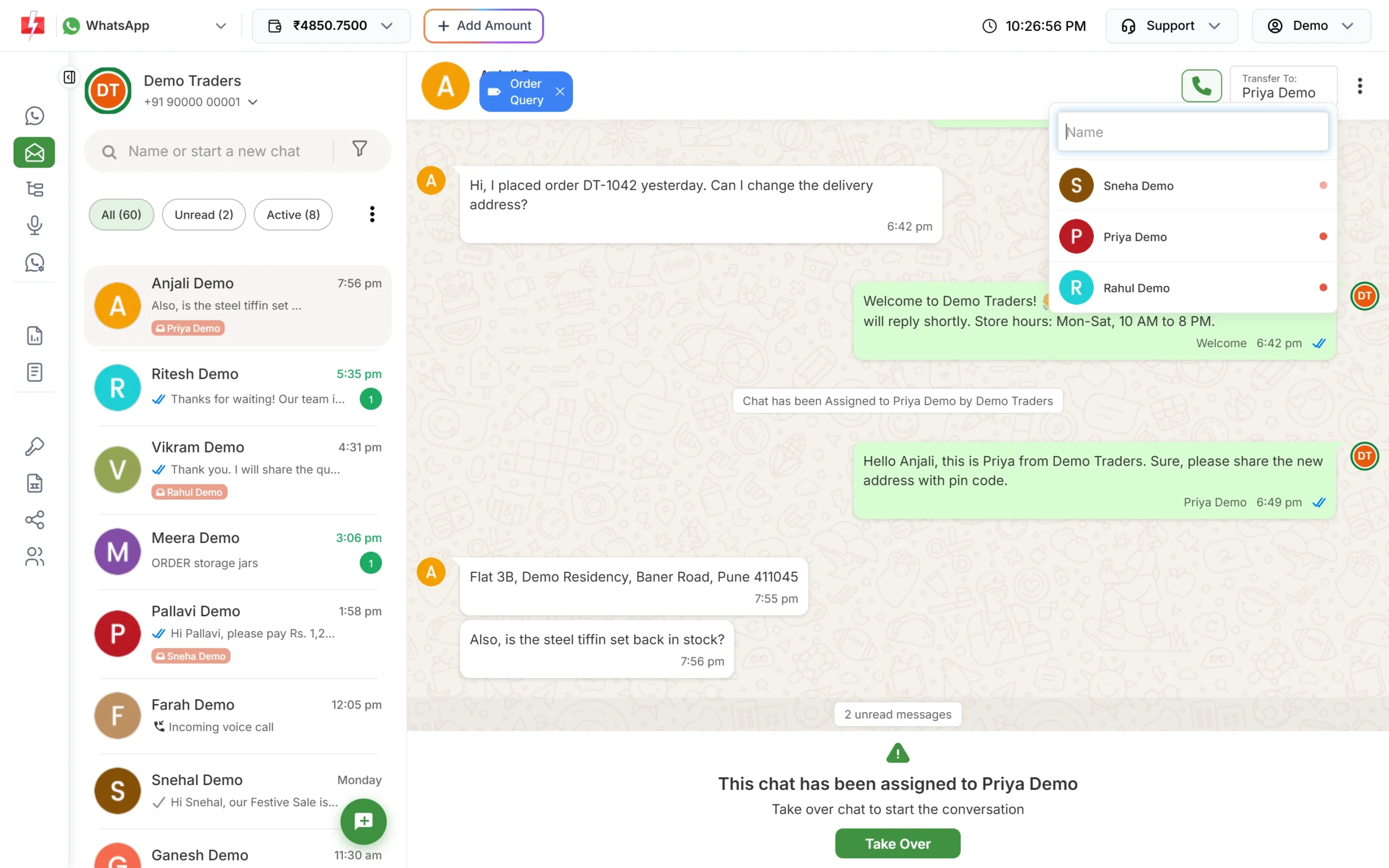
Transfer a chat to the right person. To assign many chats at once, use the three-dot menu > Assign Multiple Chats, tick the chats, choose Select Agent and confirm. When you, as the owner, open a chat assigned to an agent, you see “This chat has been assigned to …” with a Take Over button. Click it to reply yourself; the agent is unassigned. Remove transfer chats in the chat’s three-dot menu unassigns the agent without taking over.
-
Use labels, tags and notes
Labels sort chats at a glance, for example Complaint, VIP or New Lead. Click Add Label under the customer’s name, pick one or type a new name. Each chat has one label, and you can create up to 50 labels.
Tags and Notes live in the contact panel. Open the chat’s three-dot menu and click Contact info. You see the customer’s last activity and message counts, plus Tags (a chat can have many), Attributes and Notes. Notes are only for your team; the customer never sees them. Each note shows who wrote it and when.
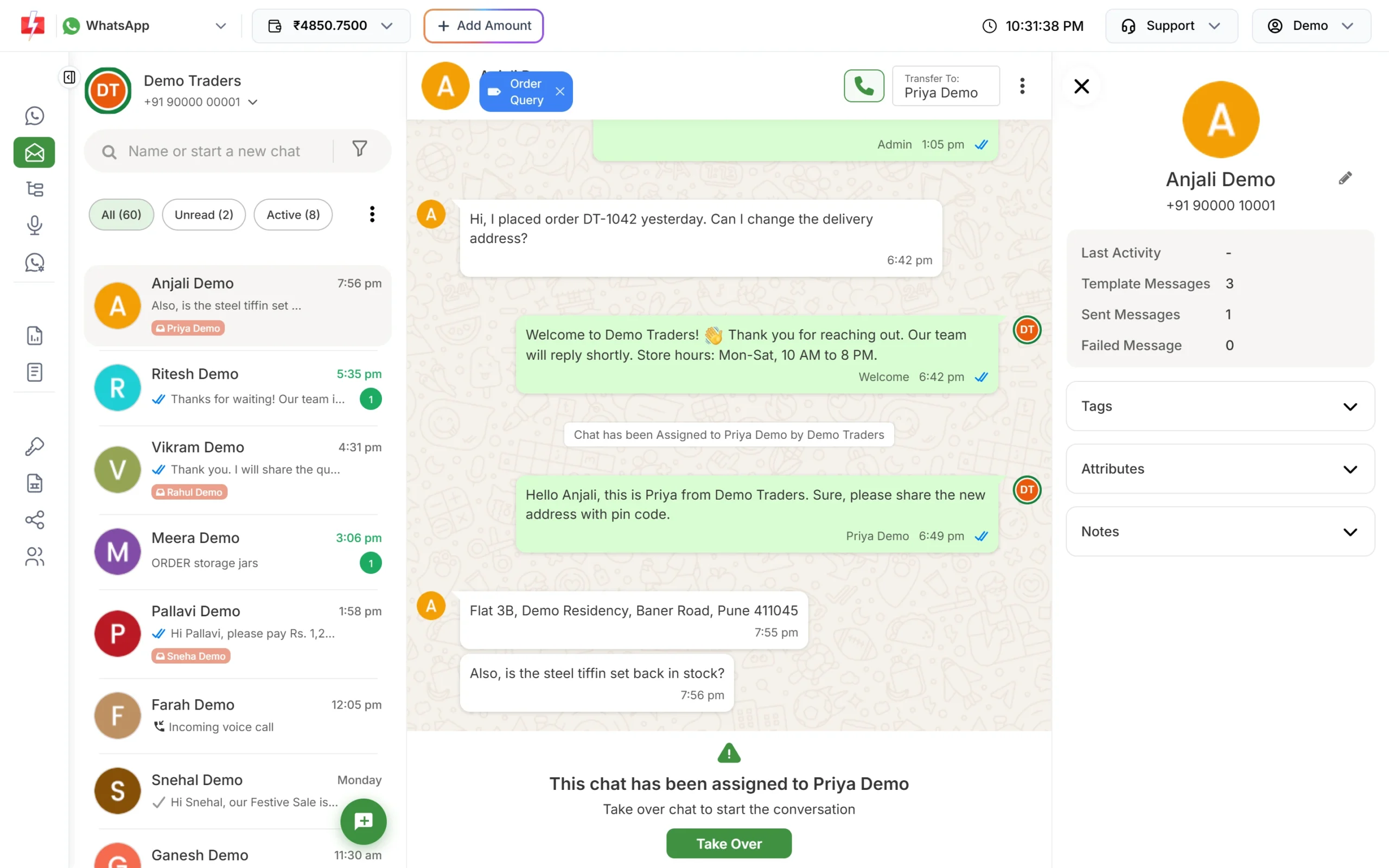
Contact info: tags, attributes and private notes for your team. -
Save quick replies
For answers you type again and again, like your address or UPI details, use predefined messages. In the reply box, click the predefined message icon. The Predefined Messages pop-up opens with a search box. Click a message to put it in the reply box, edit it if needed, and send. Click Add Message to create new ones. They are saved per business number.
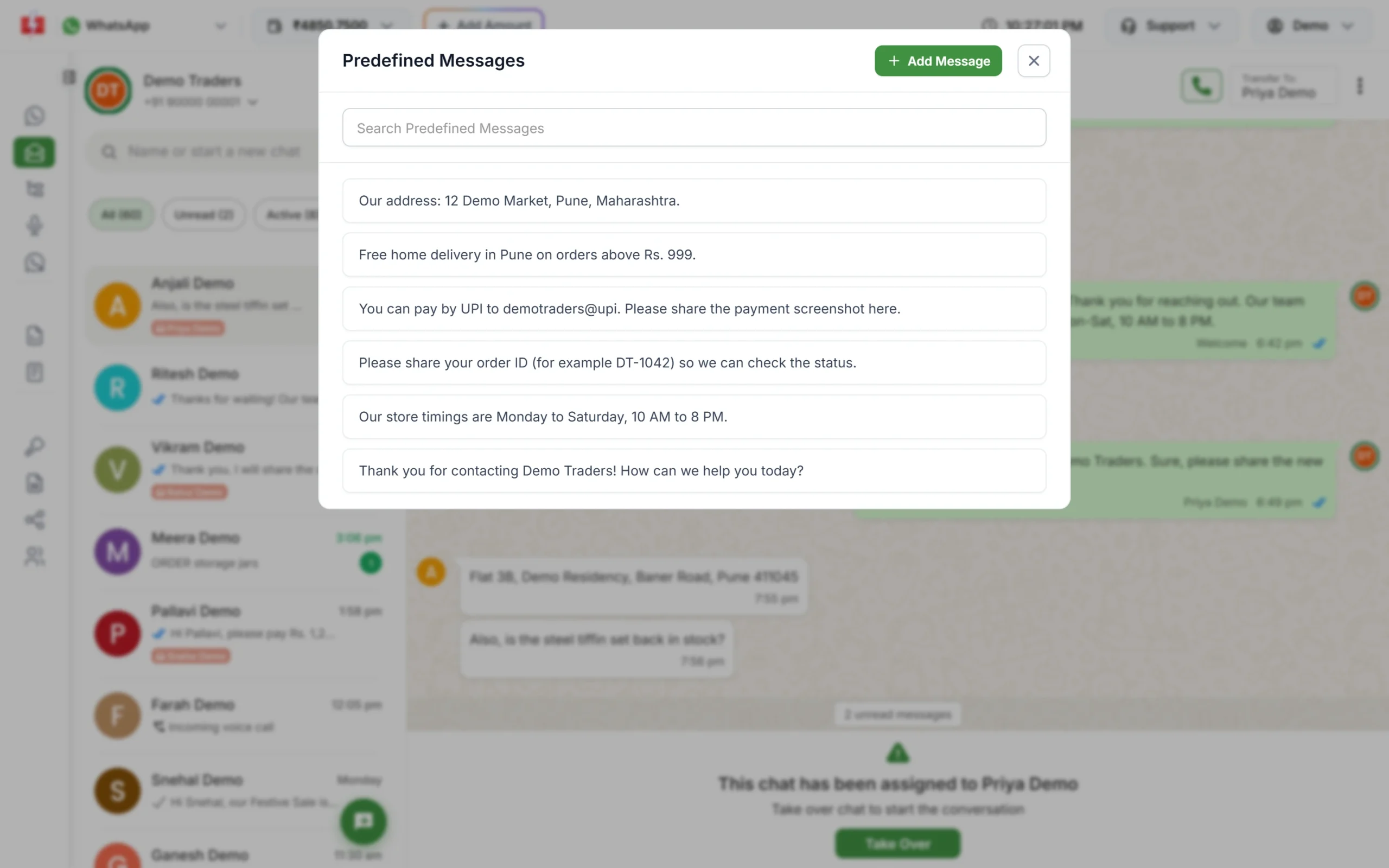
Quick replies save typing on common questions.
The 24-hour window and what to do when it is closed
WhatsApp lets you send normal messages only within 24 hours of the customer’s last message. Every new message from the customer opens the window again for another 24 hours.
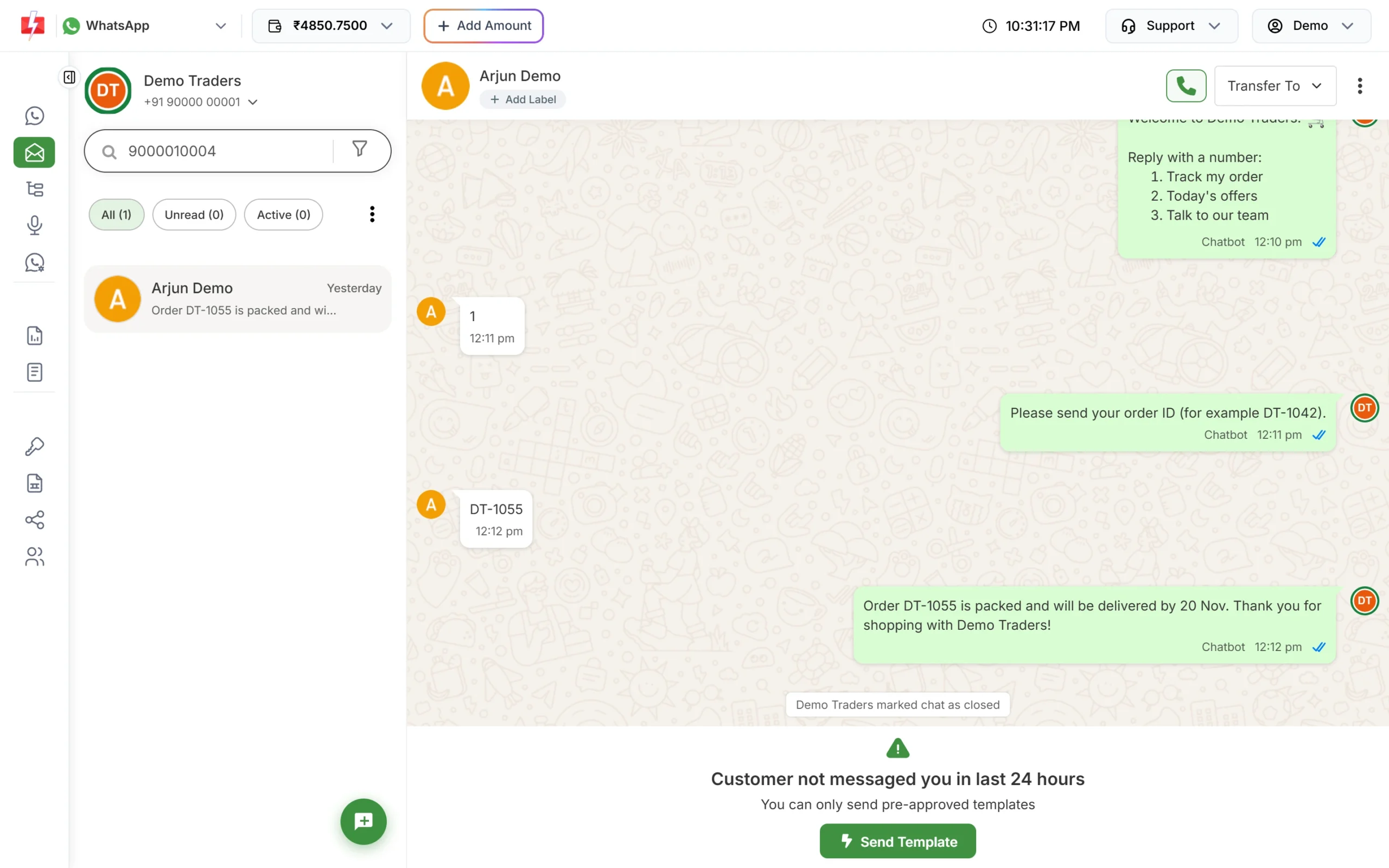
When the window is closed, the reply box is replaced by “Customer not messaged you in last 24 hours” and “You can only send pre-approved templates”. Click Send Template, pick an approved template in Select Template, fill its variables, and click Confirm & Send. Once the customer replies, the window opens again and you can chat normally.
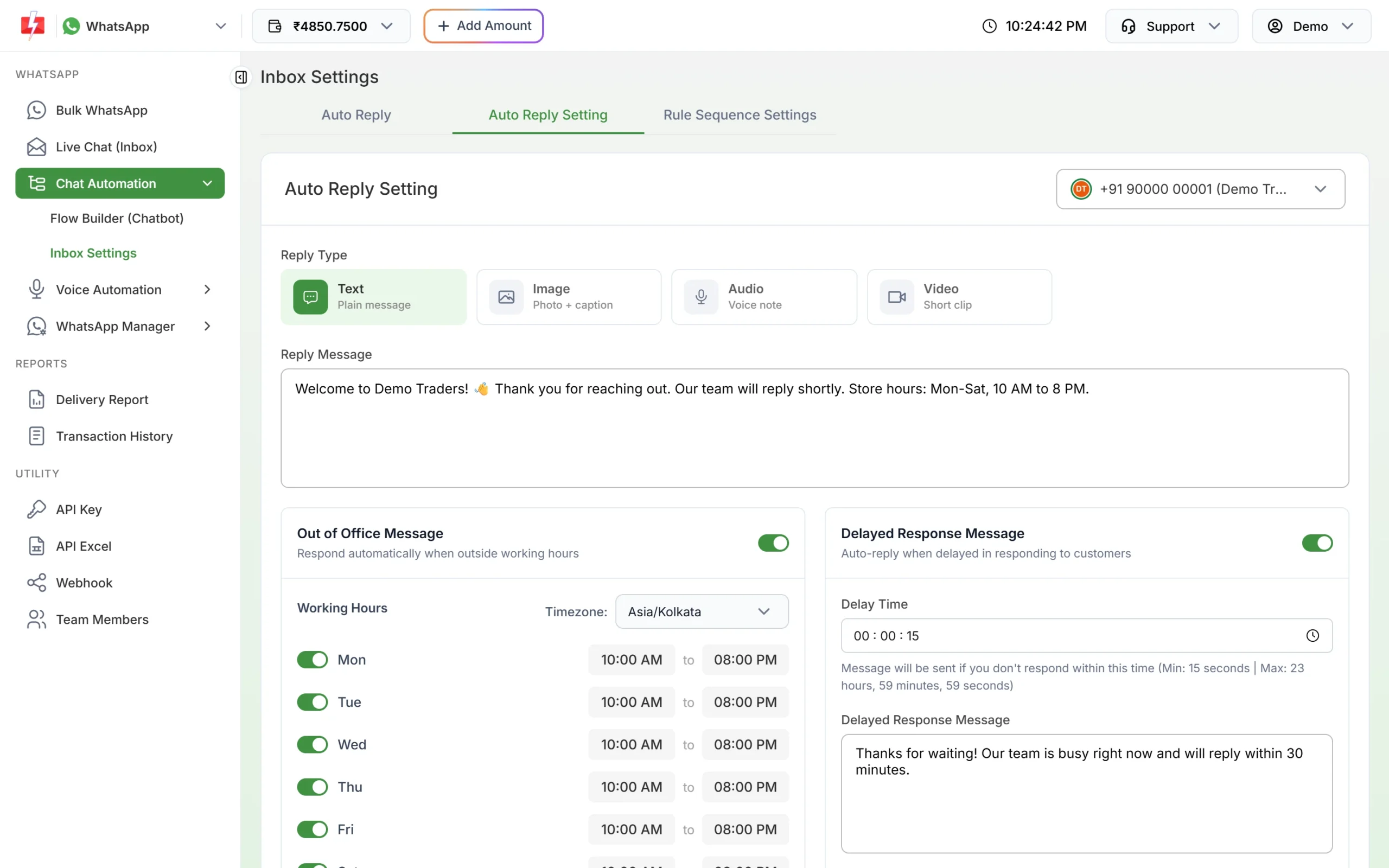
Automatic replies: welcome, out of office and delayed response
Go to Chat Automation > Inbox Settings. Choose the number at the top right, because settings are saved per number. The Auto Reply Setting tab has three parts:
- Welcome message: sent when a customer writes for the first time, or after more than 24 hours of silence. Pick Text, Image, Audio or Video and write your message. For images, use JPG, PNG or WebP under 5 MB.
- Out of Office Message: switch it on, choose the timezone and the working hours for each day, and write the message. It is sent when someone writes outside those hours, at most once per chat in 24 hours.
- Delayed Response Message: switch it on, set the Delay Time and write the message. It is sent if nobody replies within that time. It is cancelled if an agent replies or the customer writes again first.
Click Save Settings when you are done.
Keyword auto replies
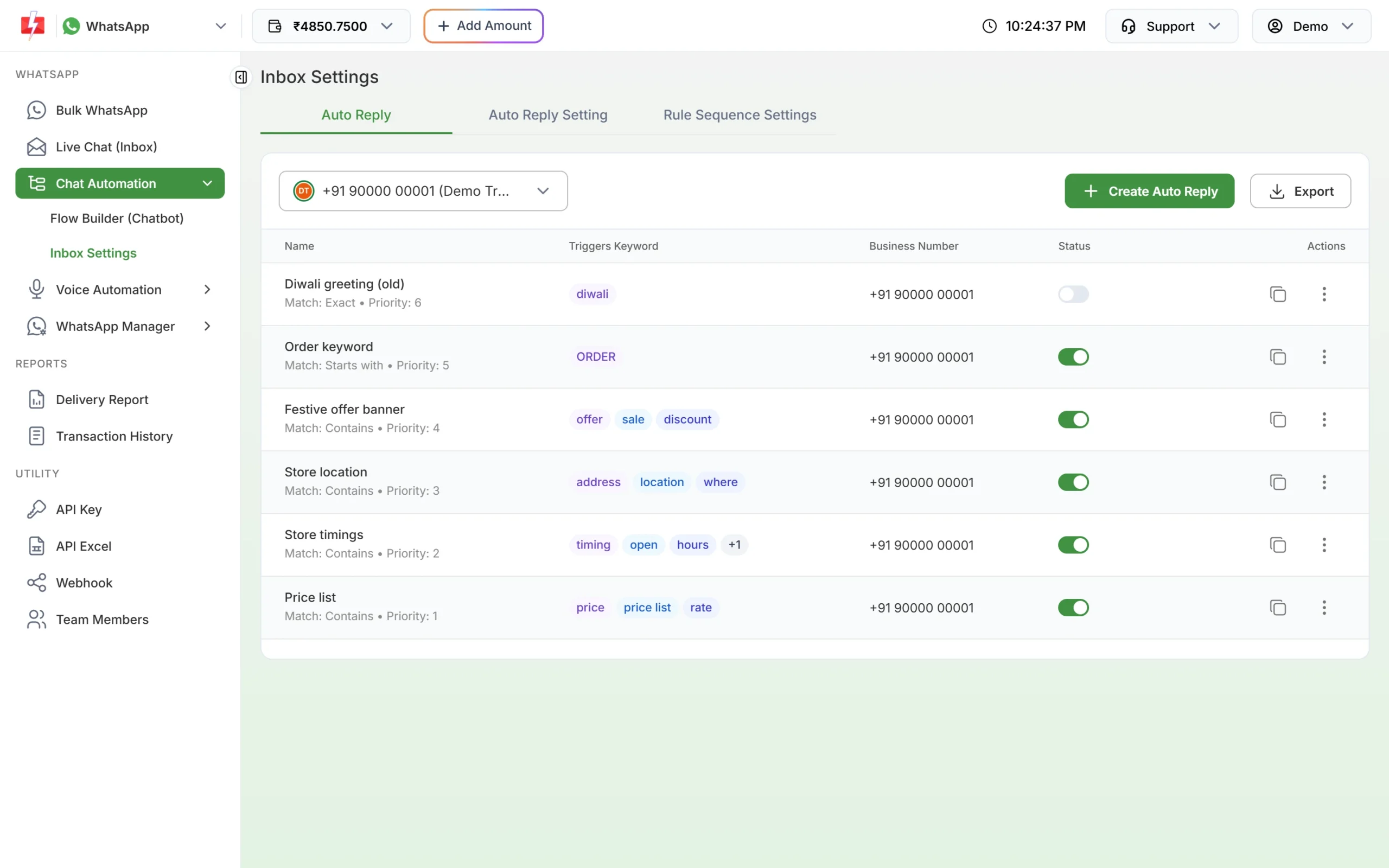
The Auto Reply tab answers common questions by keyword, like “price” or “address”. Click Create Auto Reply and fill in:
- Auto Reply Name and Priority Level (0-100, higher runs first)
- Enter Keywords, with Add more keywords for more
- Match Type: Contains, Exact Match, Starts With or Ends With, and whether it is case sensitive
- The reply: text, audio, image or video
Only text messages and button or list replies trigger a keyword auto reply, not photos or files. If several rules match, only the one with the highest priority replies. Keyword auto replies work even when a chat is assigned to an agent.
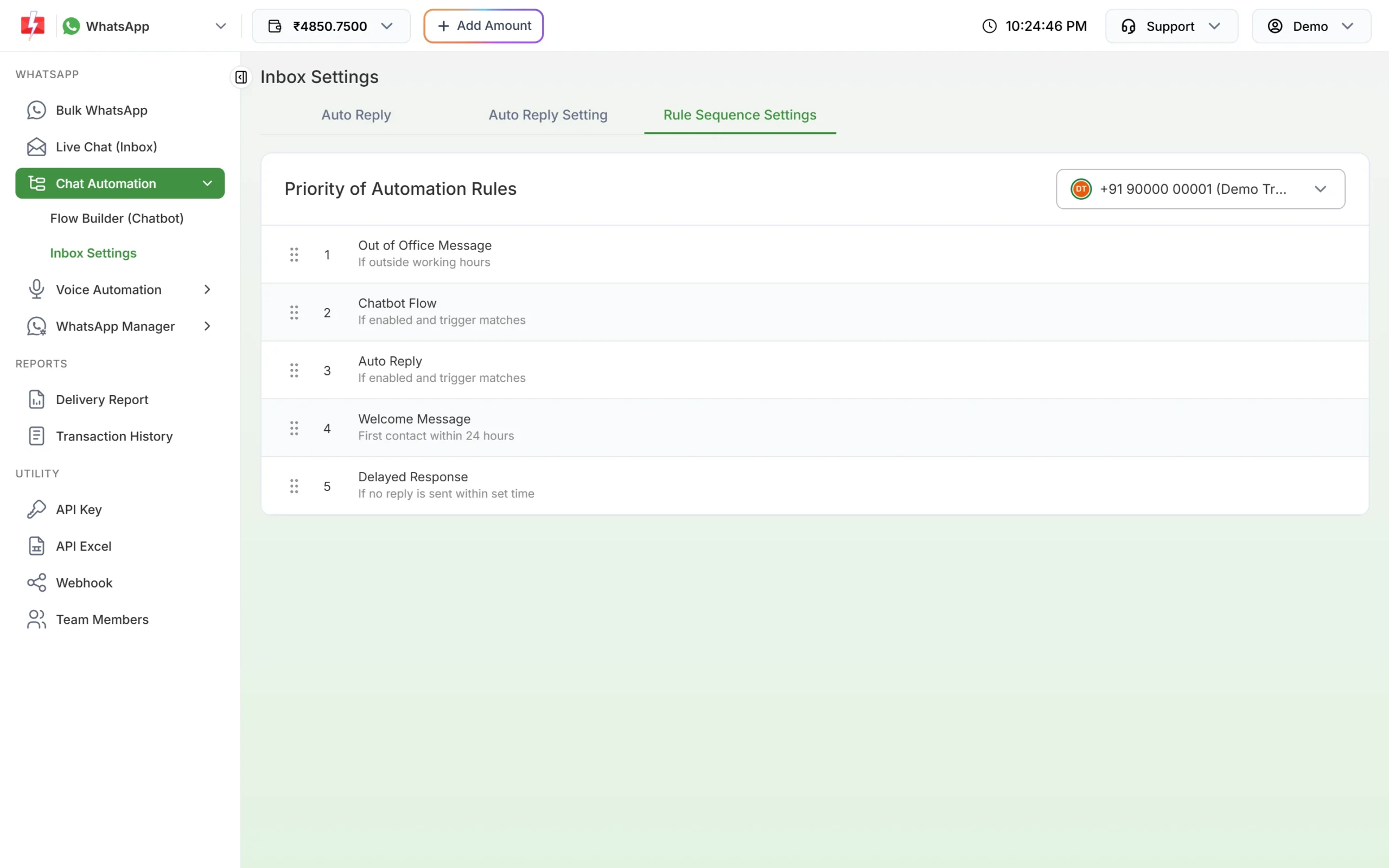
Which automatic reply runs first
Each customer message gets at most one automatic reply. In the Rule Sequence Settings tab, drag the rules into the order you want: Out of Office Message, Chatbot Flow, Auto Reply, Welcome Message and Delayed Response. The first rule that sends a message stops the rest.
Chatbot flows and AI agents
For menus and multi-step answers, build a chatbot in Chat Automation > Flow Builder (Chatbot). A flow starts when a customer sends one of its keywords. It can send messages, media, lists, buttons and templates, wait for answers, and hand the chat to an agent with the Assign Conversation step. You can make up to 20 flows per number, and only flows switched on reply. Chatbot replies appear in Live Chat tagged “Chatbot”, so your team sees the whole conversation. Read more in our WhatsApp chatbot guide.
Voice Automation > AI Agents is for WhatsApp voice calls. An AI agent can answer calls to your number, and calls it handles appear in the chat tagged “Bot Agent”.
Common problems and fixes
| Problem | What to do |
|---|---|
| Live Chat is greyed out in the menu | No WhatsApp number is connected yet. Connect one first. |
| The inbox stays empty or does not load | Reload the page. Turn off browser extensions that block scripts for the panel, then try again. |
| “Message failed to send because more than 24 hours have passed…” | The window is closed. Click Send Template and send an approved template. |
| “Insufficient wallet balance” in place of the reply box | Click Add Amount and recharge. Agents use the owner’s wallet. |
| Agent cannot log in: “No WhatsApp or RCS access assigned” | Edit the agent in Team Members, tick WhatsApp and select at least one number. |
| Agent does not see a chat | Chat Agents see only chats assigned to them. Assign it with Transfer To, or make them Admin. |
| Welcome message is not sent | It is skipped when the chat is assigned or an agent replied in the last 24 hours, or when an earlier rule already replied. |
Frequently asked questions
Is the Fast2SMS WhatsApp inbox free?
There is no fee for the inbox or for agents. Incoming messages are free, and you pay per reply at the session rate, plus the template rate when you send a template.
Can more than one person use Live Chat?
Yes. You can add team members (agents) to your account, as Chat Agents or Admins.
Can I reply to a customer after 24 hours?
Only with an approved template. Once the customer replies, you can send normal messages again for 24 hours.
Can agents use the inbox on their phone?
Yes. Agents get a mobile layout in the browser, and there is a Fast2SMS Agent Login app for Android.
Do customers see labels, tags or notes?
No. They are only visible to you and your team.
Can I set different auto replies for different numbers?
Yes. Inbox Settings, auto replies and quick replies are saved per business number.