
A delayed response message is an automatic WhatsApp reply that Fast2SMS sends when a customer’s message has not been answered within a time you choose, for example 15 minutes. To set it up, go to Chat Automation > Inbox Settings > Auto Reply Setting, turn on Delayed Response Message, set the Delay Time, write your message and click Save Settings.
It tells waiting customers that you have seen their message, so they do not give up or write again and again on busy days.
Before you start
- A WhatsApp number connected to Fast2SMS with the status Connected.
- Some wallet balance, because each automatic message is charged as a session message.
How to set up a delayed response message
-
Open Auto Reply Setting
In the sidebar, click Chat Automation > Inbox Settings and open the Auto Reply Setting tab. Choose the WhatsApp number in the number dropdown. Settings are saved separately for each number.
-
Turn on Delayed Response Message and set the time
Scroll down to the Delayed Response Message box and switch it on. In Delay Time, enter hours, minutes and seconds. The default is 15 minutes, and the panel suggests anything from 15 seconds up to 23 hours, 59 minutes and 59 seconds.
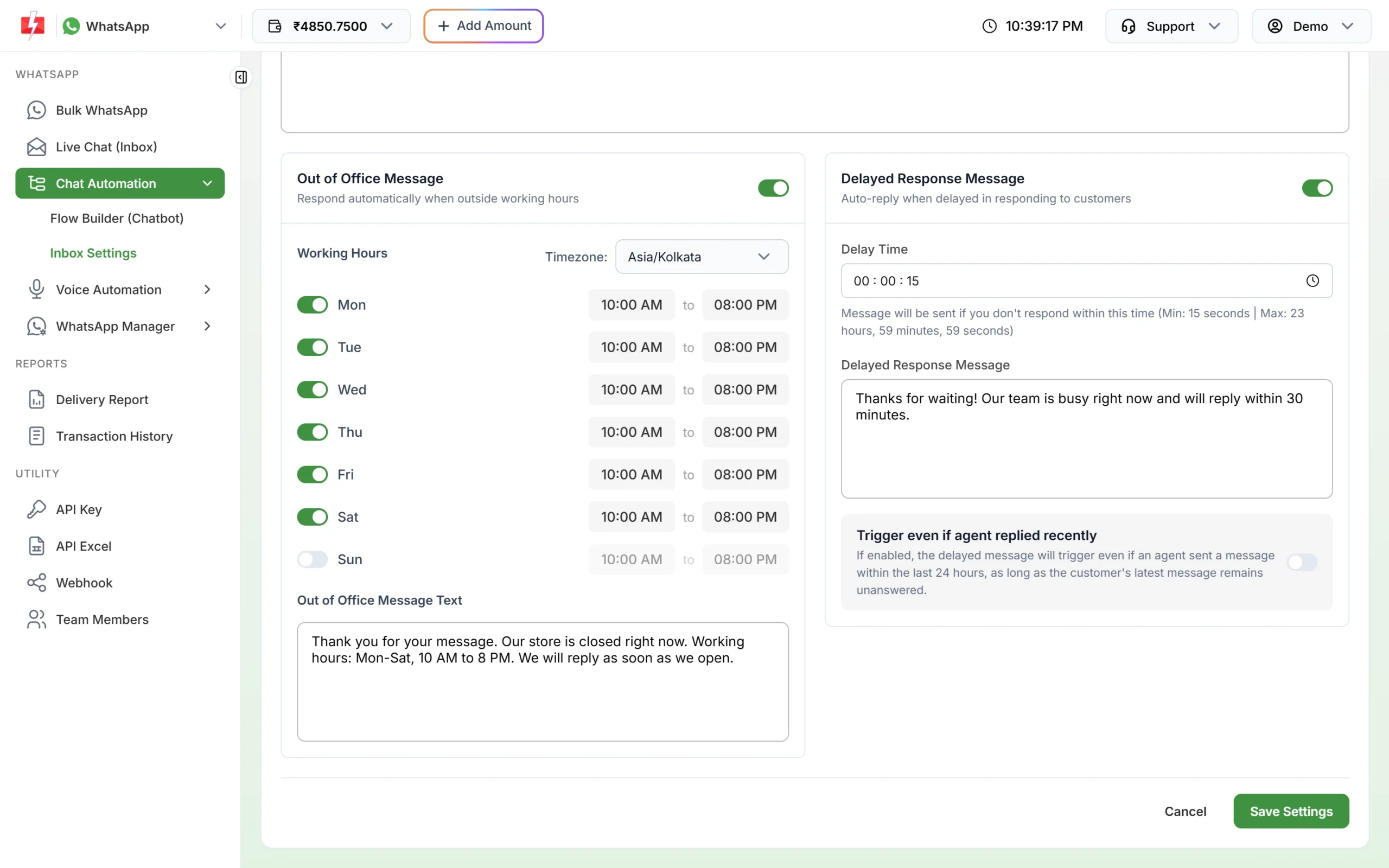
The delayed response box sits next to the out of office settings. -
Write the message
Type the text in Delayed Response Message. Keep it short and honest, for example “Thanks for waiting. Our team is busy right now and will reply within 30 minutes.” This message is text only.
-
Decide about recent agent replies
By default the delayed message is skipped if an agent already replied to this customer in the last 24 hours. Turn on Trigger even if agent replied recently if you want it to go out whenever the customer’s latest message is still unanswered.
-
Save and check it in Live Chat
Click Save Settings. You will see “Settings saved successfully”. When the message goes out, it shows in Live Chat (Inbox) with the tag “Delay” under the bubble.
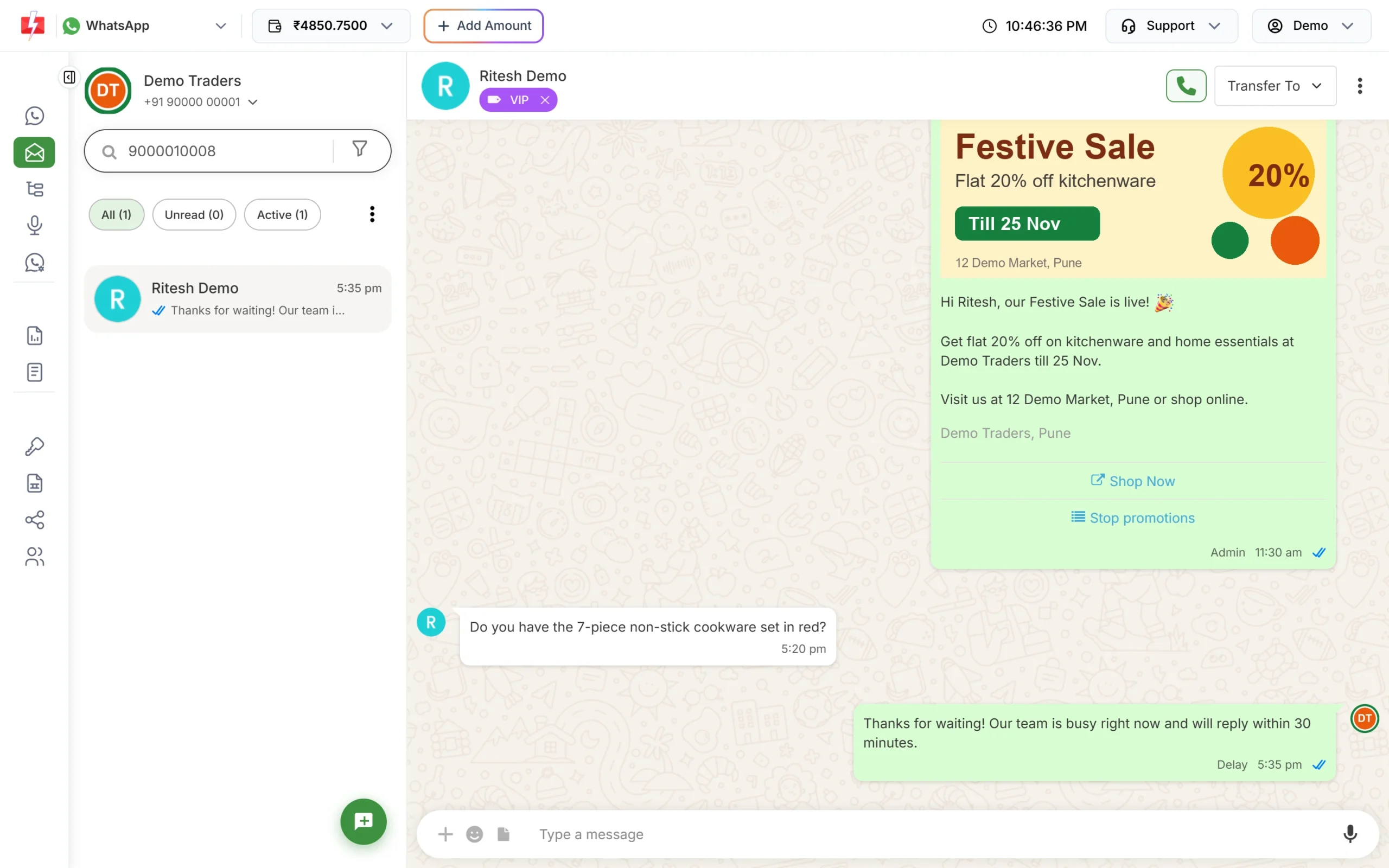
The delayed message in the chat, tagged “Delay”.
When the delayed message is not sent
- An agent replies, or the customer writes again, before the delay time is over. The waiting message is cancelled.
- The chat is assigned to an agent.
- Another automatic reply (welcome, keyword auto reply, chatbot or out of office) already answered that message. Only one automatic reply is sent per customer message, in the order set on Rule Sequence Settings.
- The wallet balance is too low to pay for the message.
What it costs
Each delayed response is charged like any other automatic reply, at the session message rate (13 paise per message at the time of writing, as shown in Live Chat). It appears in your transactions as “1 WhatsApp (Auto Reply)”.
Sending in bulk? For high WhatsApp volumes our team offers discounted rates. Talk to our team or see WhatsApp pricing.
Frequently asked questions
What is the shortest delay I can set?
The panel suggests a minimum of 15 seconds. For most businesses 10 to 30 minutes works better, so your team gets a chance to reply first.
Can I send an image in the delayed response?
No. The delayed response is text only. Use the welcome message if you want to send an image, audio or video.
Is this the same as the out of office message?
No. The out of office message goes out when someone writes outside your working hours. The delayed response goes out at any time of day when nobody has replied within the delay you set.
Will the customer get a delayed message for every message they send?
No. A new message from the customer cancels the one that was waiting, so they do not get a pile of the same text.