
WhatsApp error 2388012 means the phone number you are trying to add is already in the list of numbers of that WhatsApp Business Account. Meta does not add the same number twice. You usually see it while connecting a number, when the number was added to the account before, for example in an earlier attempt that did not finish.
Here is how to tell whether you really need to add the number, and how to finish connecting it to Fast2SMS.
What WhatsApp error 2388012 means
Meta’s short meaning is “this phone number already exists in your list of phone numbers”. Meta’s fix is to retry with a number that is not already in the account. In practice, it often means the number is already there and you only need to select it, not add it again.
Why it happens
- An earlier connection attempt added the number to your WhatsApp Business Account, but you closed the pop-up before it finished.
- The number was added to the account in Meta’s WhatsApp Manager directly.
- Someone else in your team already added it while setting up.
How to fix error 2388012 in Fast2SMS
-
Check your Numbers list first
Open WhatsApp Manager and click Numbers, then Sync Details. If the number is listed as Connected, it is ready and you do not need to add it again. If it is listed as Pending, the setup at Meta is not complete yet.
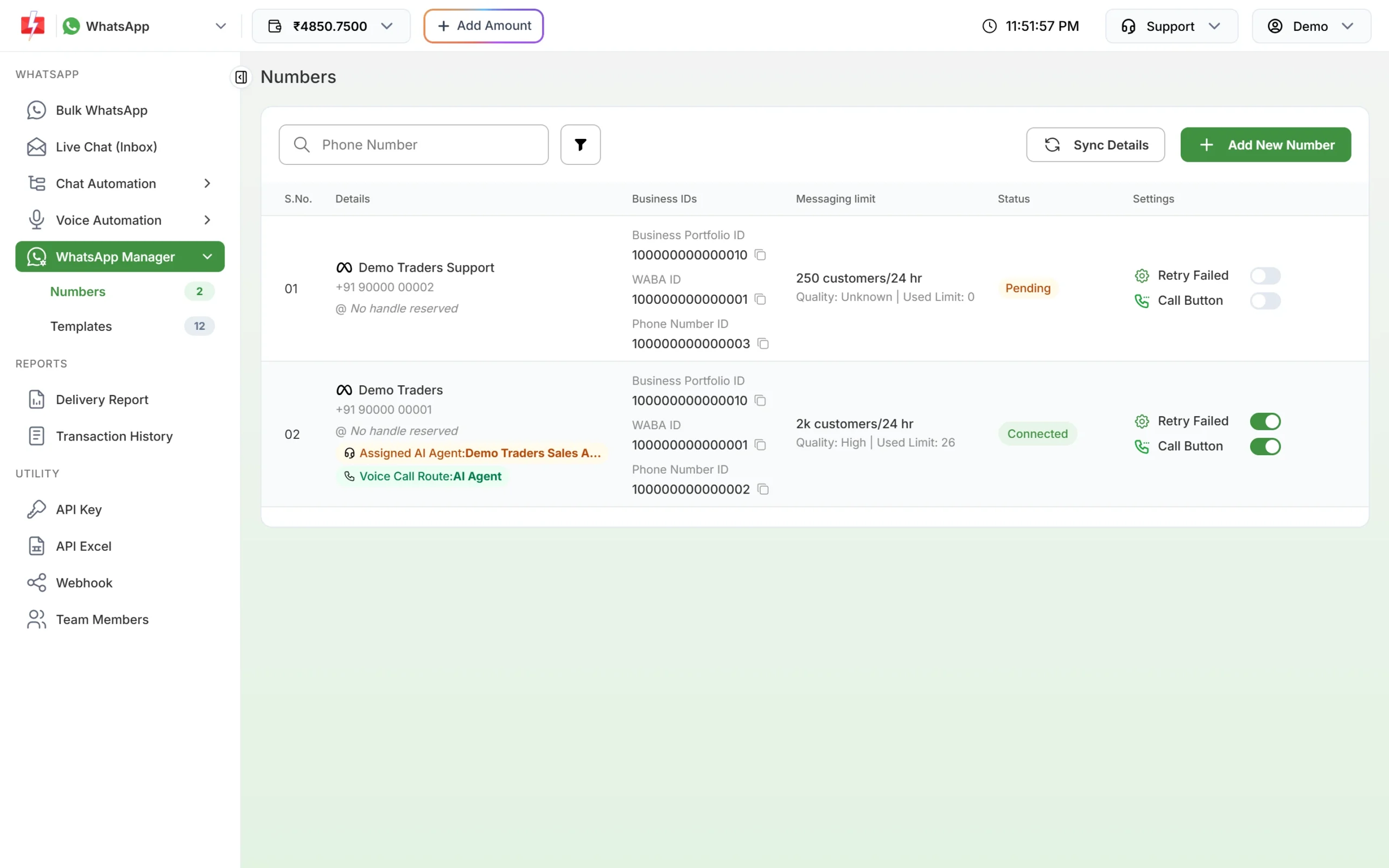
Check whether the number is already listed. -
Run Login with Facebook again and pick the existing number
Click Add New Number and then Login with Facebook. Use the same Facebook account and choose the same business and WhatsApp Business Account as before. When Meta shows the phone number step, select the number from the list of existing numbers instead of typing it in as new.
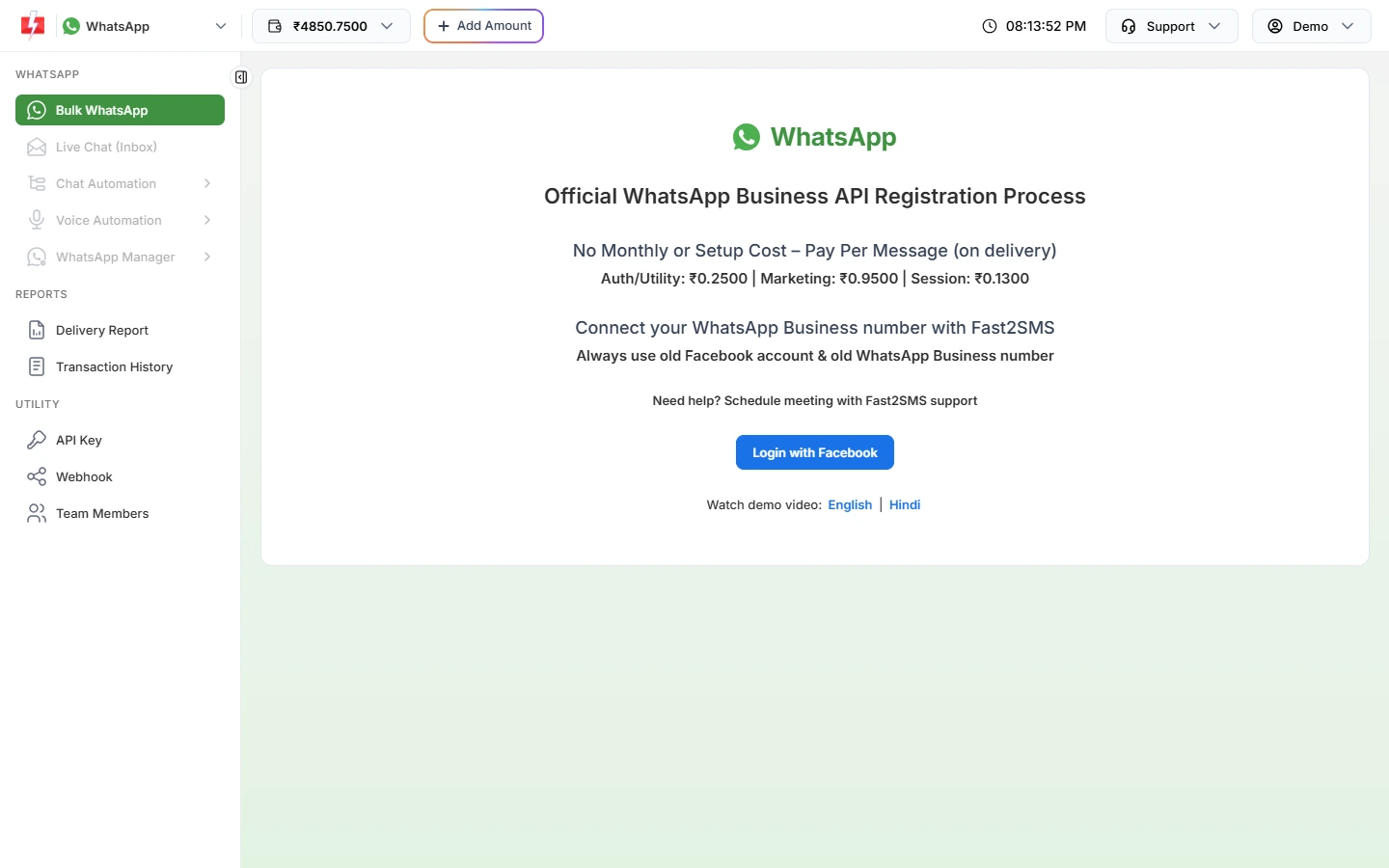
Connect again through Login with Facebook. -
Use a different number if you meant a new one
If you wanted to add a second number but typed one that is already in the account, enter the correct new number instead.
-
Wait a few minutes before sending
Once the number is connected, campaigns open about 10 minutes after onboarding. Until then the panel shows “Messaging will be available 10 minutes after onboarding.”
How to avoid it
- Finish the Facebook pop-up in one go, and do not close it while it says “Connecting…”.
- Use your old Facebook account and the same business every time, as the connect page advises.
- Before adding a number, check the Numbers list in WhatsApp Manager.
Frequently asked questions
Does error 2388012 mean my number is blocked?
No. It only means the number is already in that WhatsApp Business Account.
Can one number be in two WhatsApp Business Accounts?
No. A number belongs to one WhatsApp Business Account at a time.
My number shows Pending in Fast2SMS. What should I do?
The setup at Meta is not complete. Run Login with Facebook again with the same Facebook account and pick that number, or book a call with support.
Can the same number be on two Fast2SMS accounts?
No. While a number is connected on one Fast2SMS account, another account cannot connect it.
Does deleting the number in Fast2SMS remove it from Meta?
No. Delete Number only removes it, and its templates, from your Fast2SMS panel. The number stays in your WhatsApp Business Account at Meta.