
WhatsApp error 2388039 means the template you are trying to edit cannot be changed right now. Meta locks a template while it is in review, and also limits how often an approved template can be edited. While the lock is on, you can only create new templates or delete old ones. The fix is to wait for Meta’s decision, or for the edit limit to reset, and then edit.
What WhatsApp error 2388039 means
Meta’s short meaning is “message template status can’t be changed”. Meta’s advice is to wait until the template is approved or rejected before editing, and to keep in mind that edits are limited per day.
When a template can be edited
| Template status | Can you edit it? (at the time of writing) |
|---|---|
| PENDING (in review) | No. Wait for Meta to approve or reject it. |
| APPROVED | Yes, but only once in 24 hours and up to 10 times in 30 days |
| REJECTED | Yes, any number of times |
| PAUSED | Yes, any number of times |
| DISABLED | No. Create a new template instead. |
Why it happens
- You clicked Edit on a template that still shows PENDING, for example right after submitting it or right after a previous edit.
- You already edited an approved template in the last 24 hours, or 10 times in the last 30 days.
- The status in your panel is old. The template may have changed at Meta since your last sync.
How to fix error 2388039 in Fast2SMS
-
Refresh template statuses
Go to WhatsApp Manager > Templates and click Sync Template. Each card shows the latest status from Meta in the top corner, such as APPROVED or PENDING.
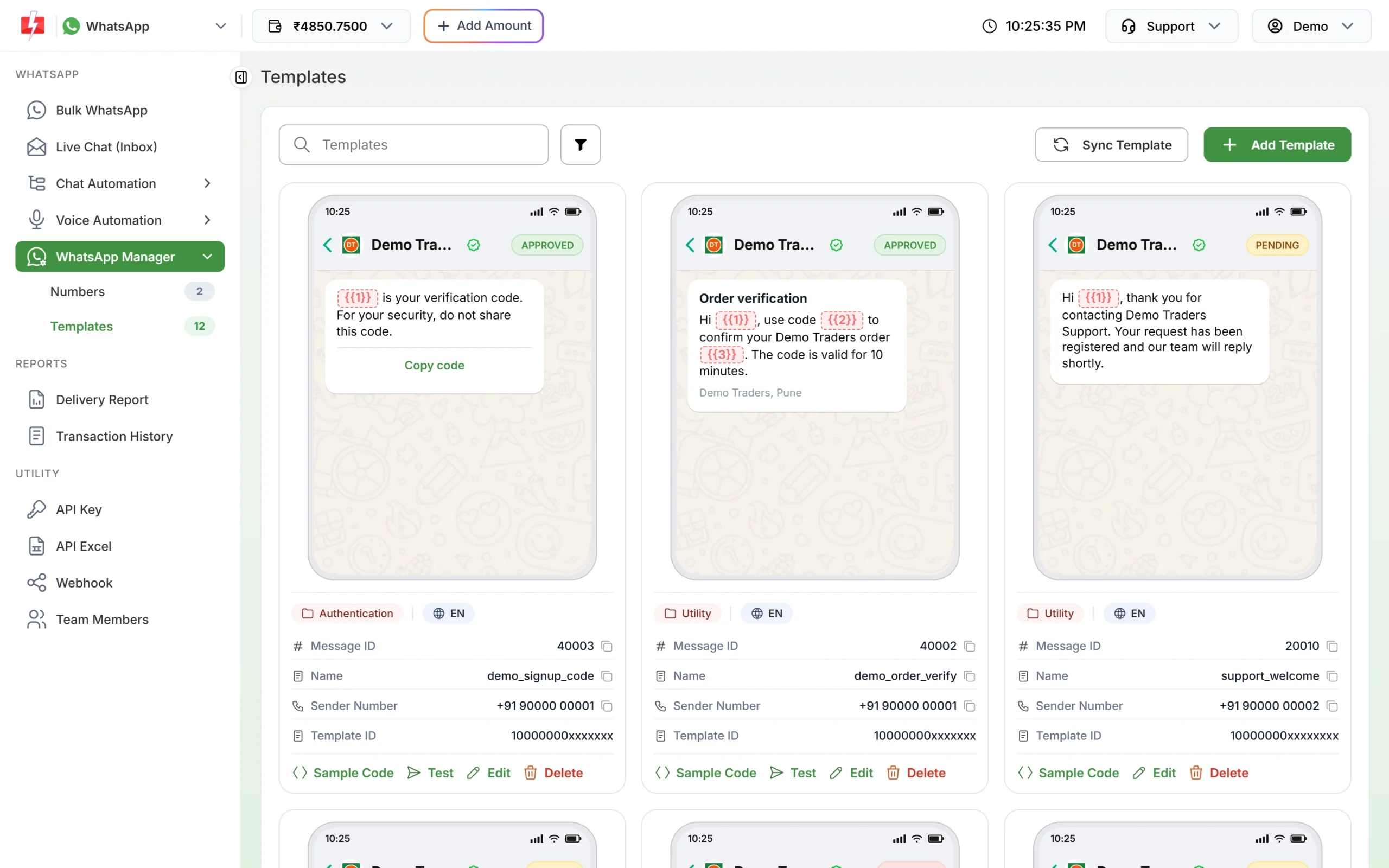
The status shows on each template card. -
If it is PENDING, wait
Do not edit a PENDING template. Wait for Meta’s review result, then sync again. To see all templates still in review, click the filter button and choose PENDING under Status.
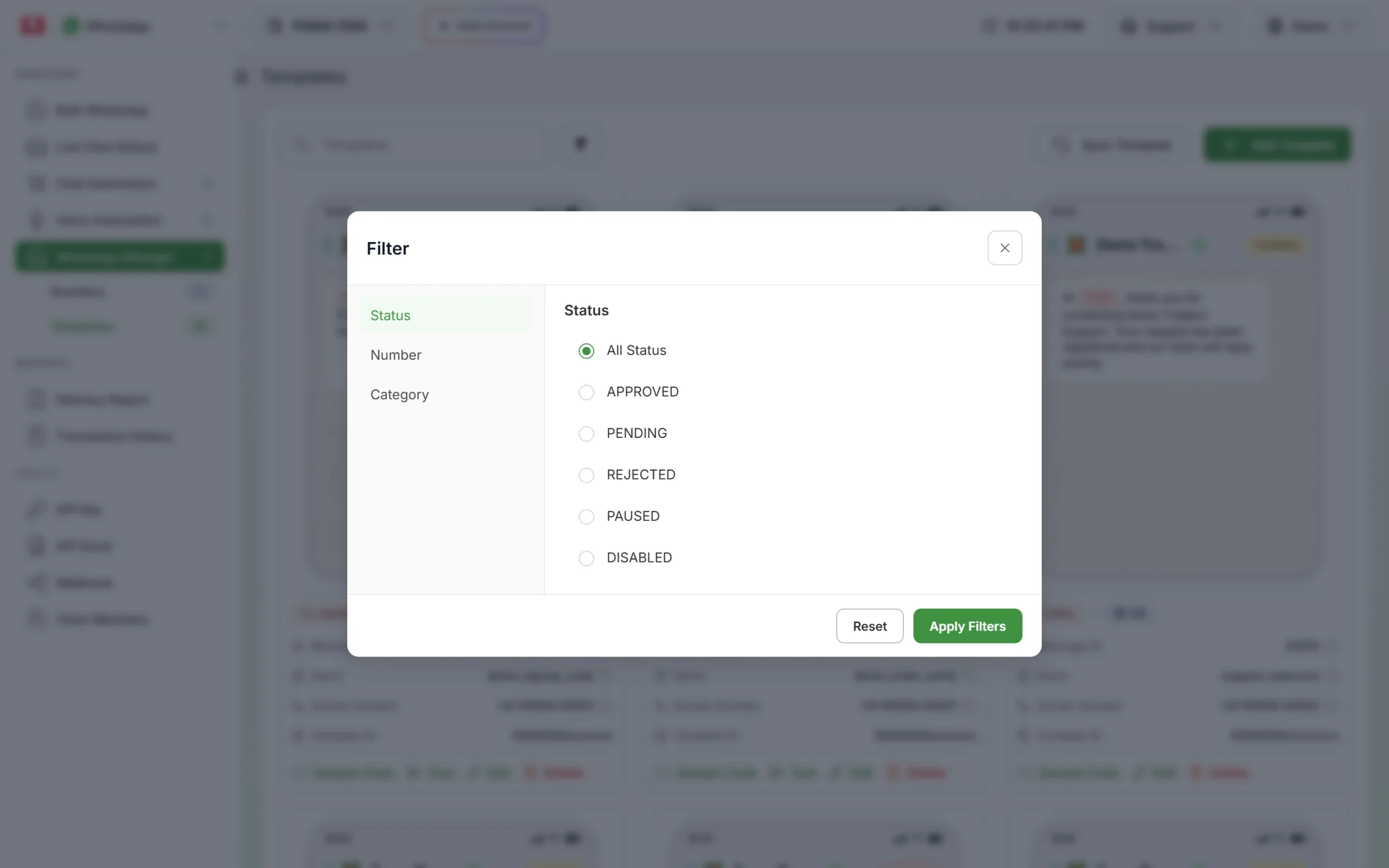
Filter templates by status. -
If it is APPROVED, check when you last edited it
If you edited it in the last 24 hours, try again after that. If you need the change today, create a new template with Add Template and a new name. That is allowed even while the old one is locked.
-
Edit and resubmit
When the template can be edited, click Edit. The name and language stay locked, as Meta does not allow them to change. Update the content and click Update Template. You see “Template updated and submitted for Meta review.” and the template shows PENDING again until Meta decides.
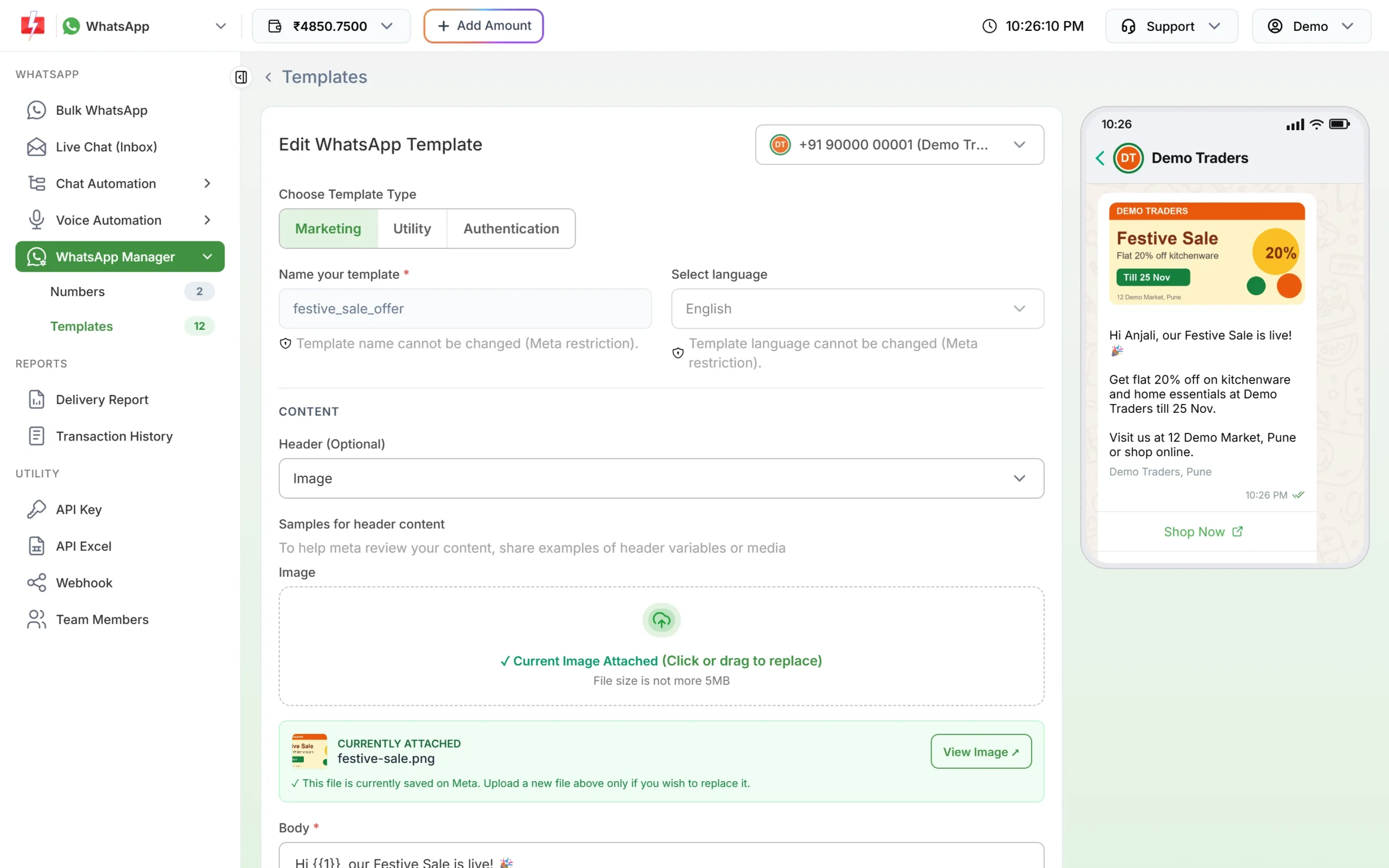
Name and language are locked when you edit.
How to avoid it
- Check the preview carefully before you submit, so you do not need quick re-edits.
- Make all changes to an approved template in one edit, not several small ones.
- For time-sensitive campaigns, create a new template instead of editing a busy one.
Frequently asked questions
Can I edit a WhatsApp template while it is pending?
No. Meta locks a template while it is in review. Wait for approval or rejection first.
How many times can I edit an approved WhatsApp template?
At the time of writing, once in 24 hours and up to 10 times in 30 days. Rejected and paused templates can be edited without limit.
Can I change the template name or language?
No. Meta does not allow it. Create a new template with the new name or language.
Can I still send the template while my edit is in review?
No. After an edit the template shows PENDING and only approved templates can be sent.
Can I delete a template instead?
Yes, from the Delete link on its card, with your password. Meta does not let you reuse the name of a deleted approved template for 30 days.