
WhatsApp error 2388293 and error 2388299 are both about variables in a template. 2388293 means the template has too many variables for the amount of fixed text. 2388299 means the template starts or ends with a variable. Meta rejects the template at submission, so you fix the wording and submit again.
This page shows what Meta expects, with before and after examples, and how to fix it in the Fast2SMS template form.
What the two errors mean
| Code | Meta’s meaning | Fix |
|---|---|---|
| 2388293 | Parameters to words ratio is over the limit: too many variables for the length of the message | Use fewer variables or add more fixed text |
| 2388299 | Leading or trailing parameters are not allowed: a variable is at the very start or end of the template | Put fixed words before the first and after the last variable |
Variables are the {{1}}, {{2}} placeholders that you fill with each customer’s name, order number or amount when you send.
Why it happens
Meta reviews a template by its fixed text and the sample values you give. A template that is mostly placeholders, or that opens or closes with one, does not show clearly what will be sent, and Meta rejects it with one of these codes. Meta does not publish an exact ratio in its error list, so aim for clearly more fixed words than variables.
Examples
| Rejected | Why | Accepted version |
|---|---|---|
| {{1}}, your order is ready. | Starts with a variable (2388299) | Hi {{1}}, your order is ready. |
| Your bill amount is {{1}} | Ends with a variable (2388299) | Your bill amount is {{1}}. Please pay by the due date. |
| Hi {{1}}, {{2}} {{3}} {{4}} on {{5}}. | Almost all variables (2388293) | Hi {{1}}, your order {{2}} for {{3}} will be delivered on {{4}}. Thank you for shopping with us. |
How to fix it in Fast2SMS
-
Open the template form
Go to WhatsApp Manager > Templates. For a new template click Add Template. For a rejected one, click Edit on its card.
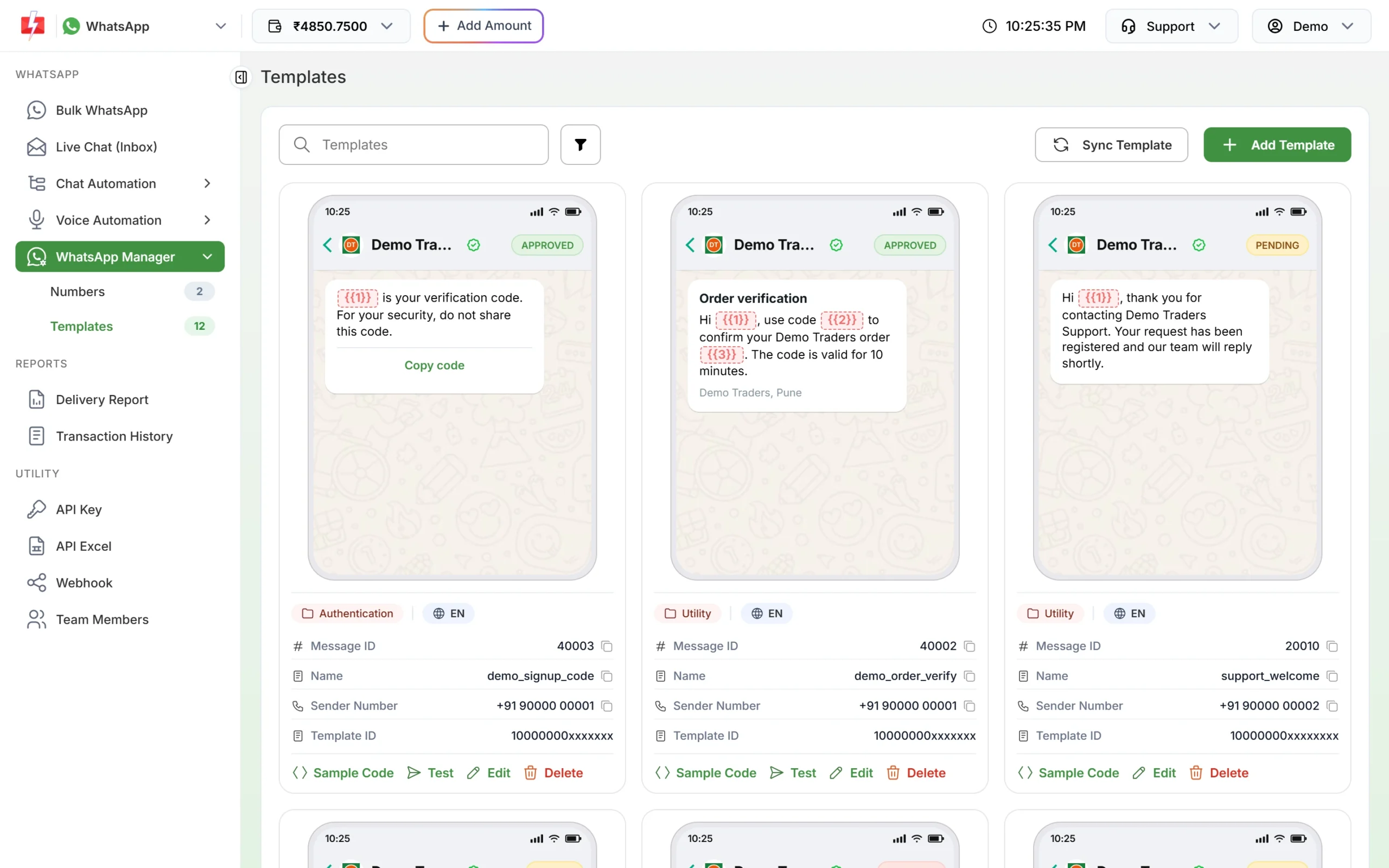
Templates tab with Add Template and Edit. -
Rewrite the body around the variables
In Body, start with a fixed word such as “Hi” or “Dear customer”, and end with a fixed sentence such as “Thank you.” Use + Add Variable to insert each placeholder in the middle of a sentence. Merge details you do not need as separate variables into fixed text.
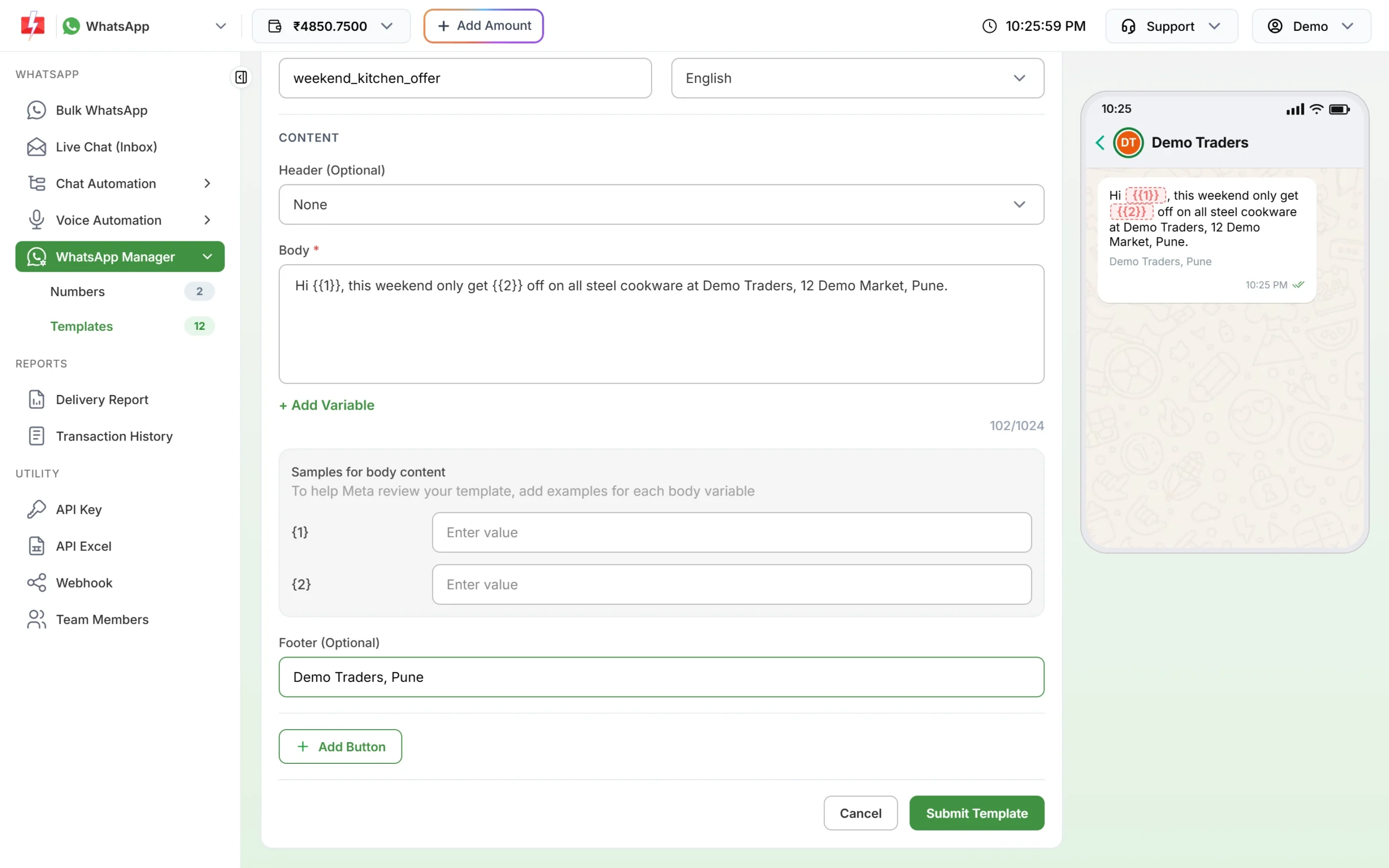
Variables sit inside the sentence, with fixed text on both sides. -
Fill in the sample values
Under Samples for body content, type a realistic example for each variable, such as a name or an amount. The form needs a sample for every variable before it lets you submit.
-
Submit again
Click Submit Template (or Update Template when editing) and confirm. Meta reviews the new version.
How to avoid it
- Never start or end a template with
{{n}}. - Do not place two variables side by side with nothing between them.
- Use a variable only for what really changes per customer.
- A text header can have only one variable, so keep extra details in the body.
Frequently asked questions
How many variables can a WhatsApp template have?
Meta sets no fixed number, but the variables must not outweigh the fixed text. Keep plenty of fixed words around them.
Can a WhatsApp template end with a variable?
No. Meta rejects templates that start or end with a variable. Add a fixed word or sentence after the last one.
What is the exact parameter to word ratio?
Meta does not publish one in its error list. If you see 2388293, add fixed text or remove variables until it passes.
Why does the form ask for sample values?
Meta uses the samples to understand what the variables will hold when it reviews the template.
Do these errors affect messages already sent?
No. They only happen when you create or edit a template. Your approved templates keep working.