
WhatsApp ice breakers are tappable questions that a customer sees the first time they open a chat with your business, such as “Track my order” or “See today’s offers”. Commands are short slash words, like /track, that customers see when they type “/” in your chat. This guide shows how to set both up for your number in Fast2SMS and how to reply to them automatically.
Before you start
- A WhatsApp number connected to Fast2SMS. Ice breakers and commands are set per number. See how to connect your number to the WhatsApp Business API.
- A plan for the reply. An ice breaker or command only sends text to you. To answer it straight away you need an auto reply or a chatbot flow (step 3 below).
Ice breakers and commands at a glance
| Ice breakers | Commands | |
|---|---|---|
| Where the customer sees them | As a menu in a new chat with your business | When they type “/” in your chat |
| How many | Up to 4 per number | Up to 30 per number |
| Length | Up to 80 characters each | Name up to 32 characters, description up to 256 characters |
| Emojis | Not supported | Not supported |
| What you receive | The ice breaker text as a normal message | The command (and anything typed after it) as a normal message |
These limits are set by WhatsApp and are correct at the time of writing.
How to add ice breakers and commands
-
Open the number’s menu in WhatsApp Manager
Go to WhatsApp Manager and click Numbers. Find your number and click the three dots in its row. The first items in the menu are Icebreakers, Commands and Call Setting.
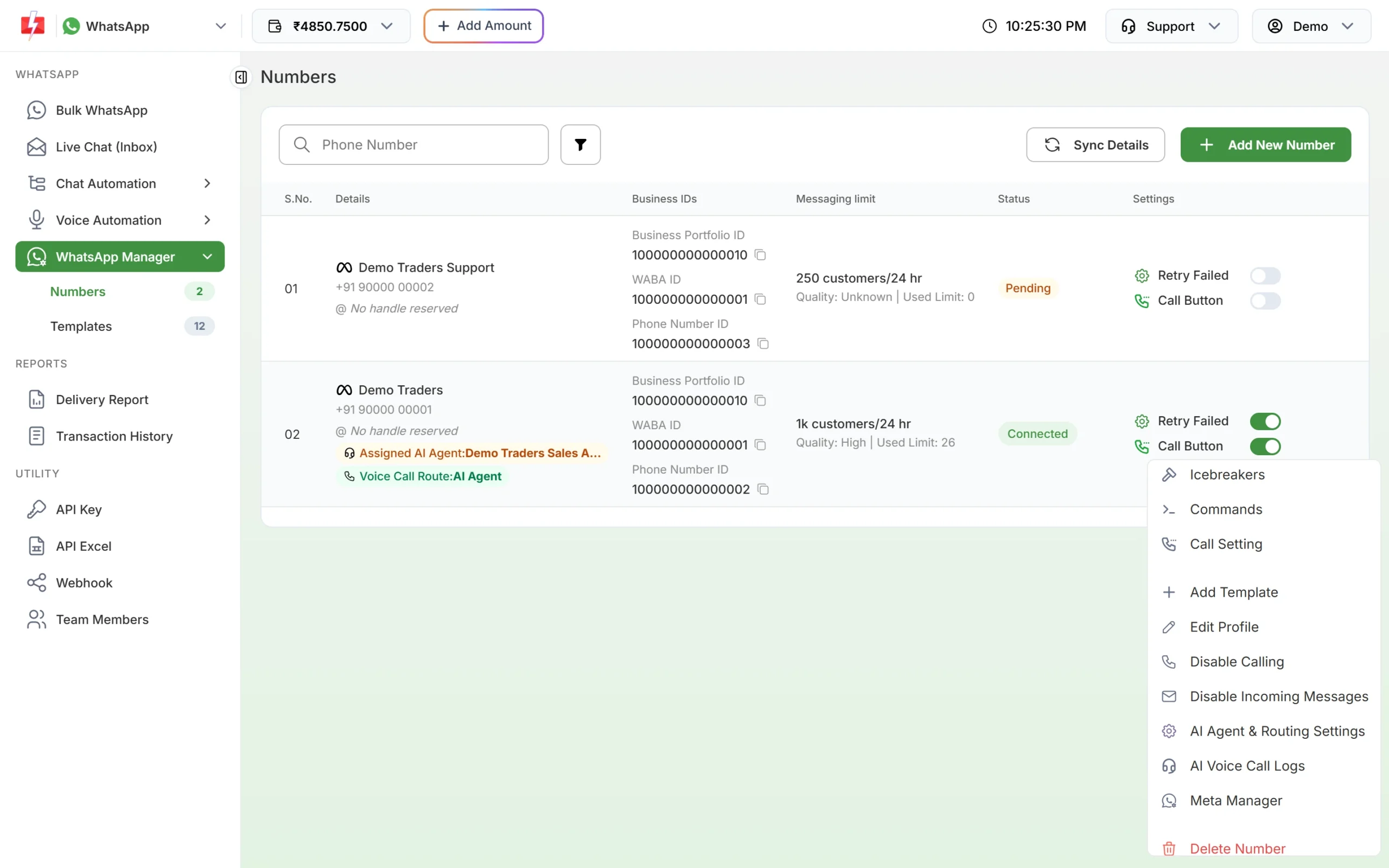
Icebreakers and Commands are at the top of each number’s menu. -
Add your ice breakers
Click Icebreakers. Type the first one in Icebreakers 1. Click Add Icebreakers for the next, up to 4. Drag the dots on the left to change the order and use the bin icon to remove one. The phone on the right shows a preview. Click Save.
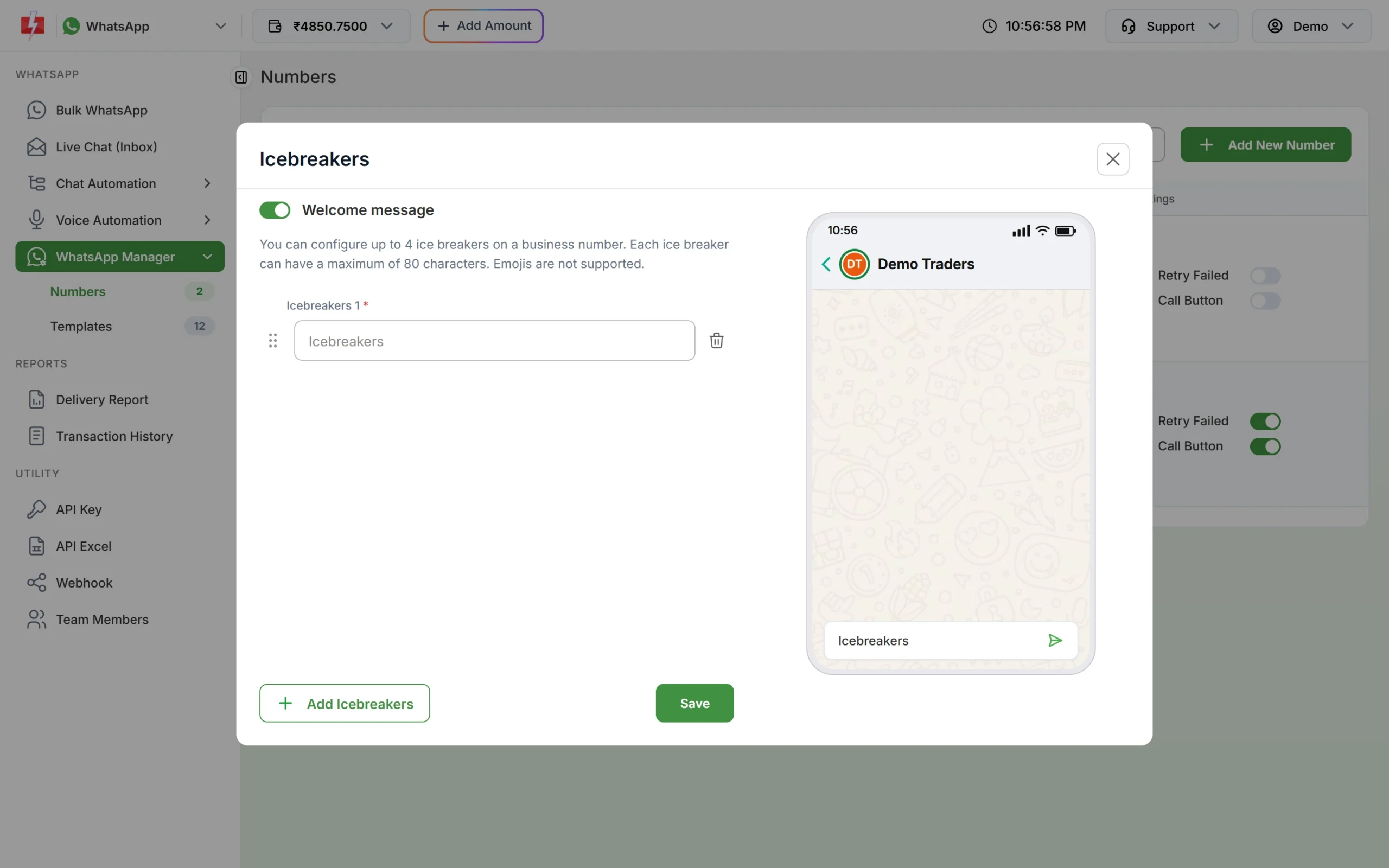
Up to 4 ice breakers, 80 characters each, no emojis. If you go over a limit, the window tells you: “Maximum 4 icebreakers allowed.”, “Icebreaker prompt cannot exceed 80 characters.” or “Emojis are not supported in icebreaker prompts.”
The Welcome message switch at the top of this window is not the same as the Welcome Message in Inbox Settings. The text your customers get when they first write to you is set in Inbox Settings.
-
Add your commands
From the same menu, click Commands. For each command, enter a name and a short description of what it does, for example “track” with “Track your order”. Names can use letters, numbers, underscores and hyphens only, with no spaces. You can add up to 30 commands. Save when you are done.
Your saved ice breakers and commands are read from WhatsApp each time you open these windows, so what you see there is what customers get.
-
Set up the reply
When a customer taps an ice breaker or picks a command, you only receive the text. Nothing is sent back unless you set it up. You have three choices:
- Auto reply: in Chat Automation > Inbox Settings, click Create Auto Reply, paste the exact ice breaker text as the keyword, set Match Type to Exact Match and write the answer. Keywords can be up to 255 characters, so even a full 80-character ice breaker fits.
- Chatbot flow: in Flow Builder (Chatbot), add the text as a keyword on the Start node. Flow keywords are up to 32 characters and must match the whole message, so they suit commands and short ice breakers. For a command with text after it, such as “/track DT-1055”, use the regex field, for example
^/track. - A person: leave it for your team in Live Chat (Inbox), where the text shows up like any other customer message.
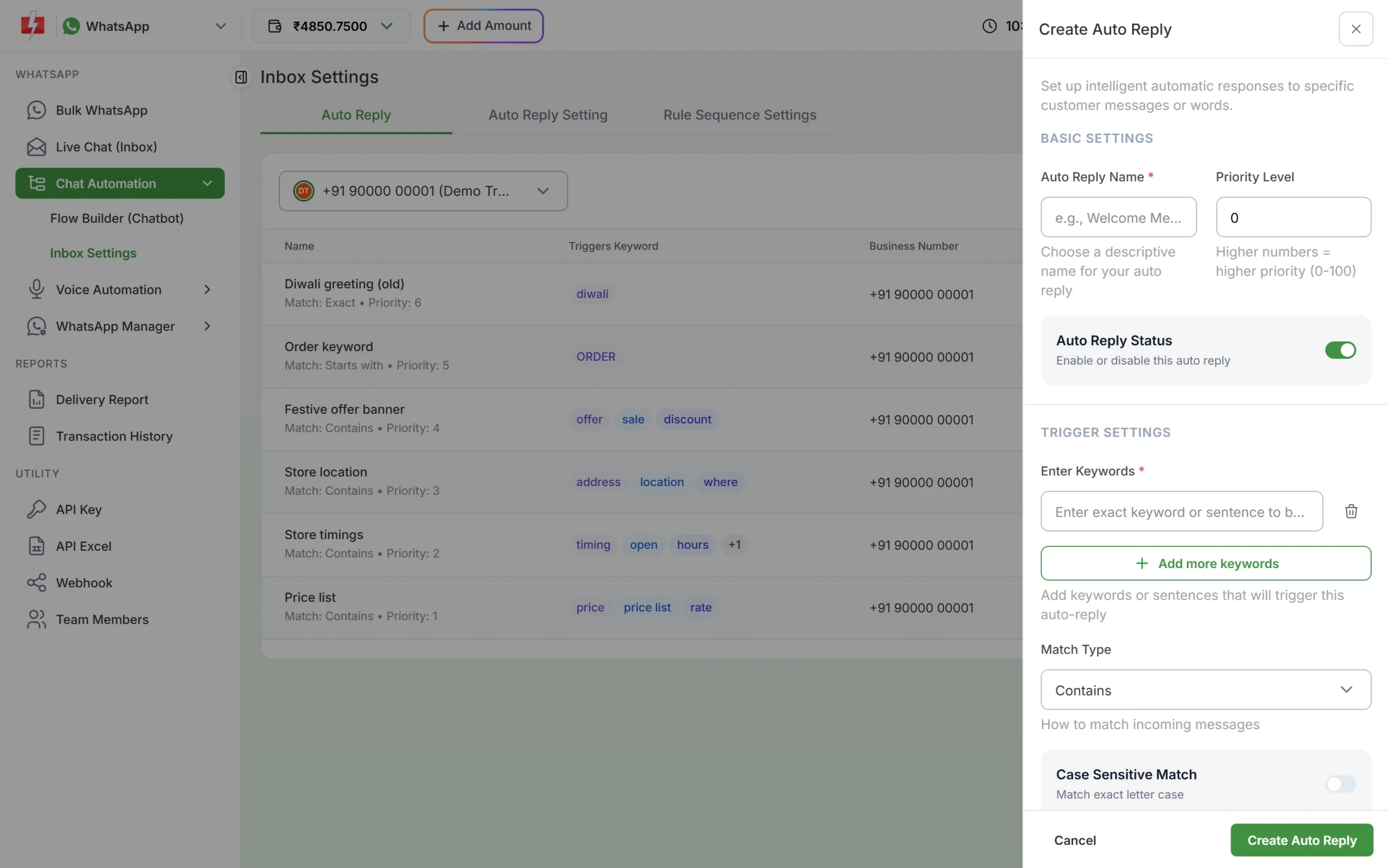
An auto reply that answers one ice breaker. -
Test it on your phone
Open a chat with your business number from a phone that has never chatted with it. Ice breakers appear only in a new chat. If you have chatted before, clear and delete that chat on the phone, then open it again. Type “/” to check your commands. Auto replies are charged at the session message rate.
Good ice breakers and commands
- Write them as the customer would say it: “Track my order”, “Talk to the team”, “Store timings”.
- Keep one job per ice breaker, and make each one lead somewhere useful.
- Keep command names short and easy to type: /track, /offers, /help, /agent.
- Use the description to explain the command, because customers see it in the list.
- If you change the text of an ice breaker, update the auto reply keyword or flow keyword too, or the match will stop working.
Common problems and fixes
| Problem | Fix |
|---|---|
| Ice breakers do not show on my phone | They show only in a new chat. Delete the chat on your phone and open it again. They are also hidden when a customer arrives from a wa.me link that has pre-filled text. |
| Customer tapped an ice breaker but got no reply | Create an auto reply or flow keyword with the same text. Check the rule is switched on and set for the same number. |
| Flow keyword does not match a long ice breaker | Flow keywords are limited to 32 characters. Use an auto reply with Exact Match instead, or a regex. |
| “Emojis are not supported in icebreaker prompts.” | Remove emojis. WhatsApp does not allow them in ice breakers or commands. |
| “Command Name can only contain letters, numbers, and underscores/hyphens (no spaces).” | Remove spaces and other symbols from the command name. |
Frequently asked questions
What is an ice breaker on WhatsApp?
A short question a customer can tap when they open a new chat with your business. Tapping it sends that text to you as a message.
How many ice breakers can I add?
Up to 4 per WhatsApp number, each up to 80 characters, without emojis.
Are ice breakers and commands free?
Setting them up costs nothing. The customer’s message is free to receive. Your replies from Live Chat and your auto replies are charged at the session message rate. See the WhatsApp pricing page.
Do ice breakers reply by themselves?
No. They only send the text to you. Use an auto reply or a chatbot flow to answer.
Can each of my numbers have different ice breakers?
Yes. They are saved per number in WhatsApp Manager.
Can I use commands to start a chatbot?
Yes. Add the command, for example “/menu”, as a keyword on the Start node of your flow.