
To add a team member in Fast2SMS, go to Account Setting, open Team Members, click Add Agent, fill in the name, mobile, email and password, choose a role and tick WhatsApp or RCS access. Your staff then log in with their own email and password and handle customer chats in Live Chat, without seeing your wallet, settings or API key. You can add team members (agents) as your team grows.
What can a team member do?
Team members (also called agents) are made for customer chat. After login they see only Live Chat (WhatsApp), Live Chat (RCS) and Logout, depending on the access you give.
| Account owner | Admin agent | Chat Agent | |
|---|---|---|---|
| Chats shown in Live Chat | All | All chats on the numbers or bots assigned to them | Only chats assigned to them |
| Bulk actions and extra filters in Live Chat | Yes | Yes | No |
| Start a chat from the Address Book | Yes | Only if Show Owner Contacts is on | Only if Show Owner Contacts is on |
| Delete a chat | Yes | No | No |
| Wallet, recharge, transactions, settings, API key | Yes | No | No |
| Send campaigns, manage templates or DLT | Yes | No | No |
Messages sent by team members are charged to your wallet, the same as messages you send yourself.
Before you start
- Log in as the account owner. Only the owner can open Team Members.
- A connected WhatsApp Business number or an approved RCS bot, because each agent needs at least one of them assigned.
- A different email address for each team member. The same email cannot be used for two agents.
How to add a team member
-
Open Team Members
On the dashboard, click Account Setting, then Team Members under MEMBER in the left menu. The table shows each agent’s name, email and mobile, role, access (WhatsApp or RCS), date added, and the Show Contacts and Status switches.
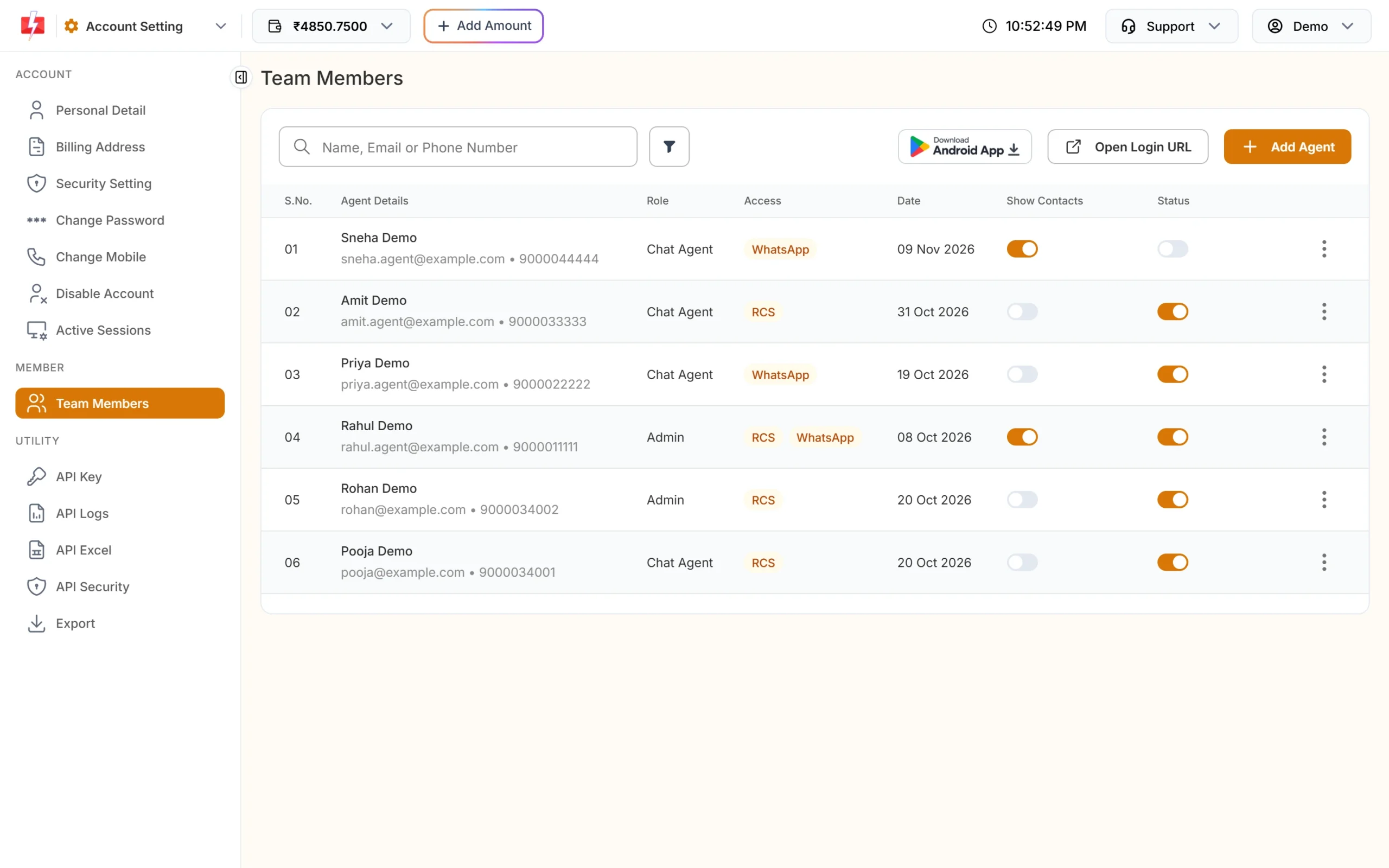
Team Members in Account Setting. -
Click Add Agent and fill in basic details
Click Add Agent. The Make New Agent panel opens. Enter the Agent Name, a 10-digit Mobile Number and the Email the agent will log in with.
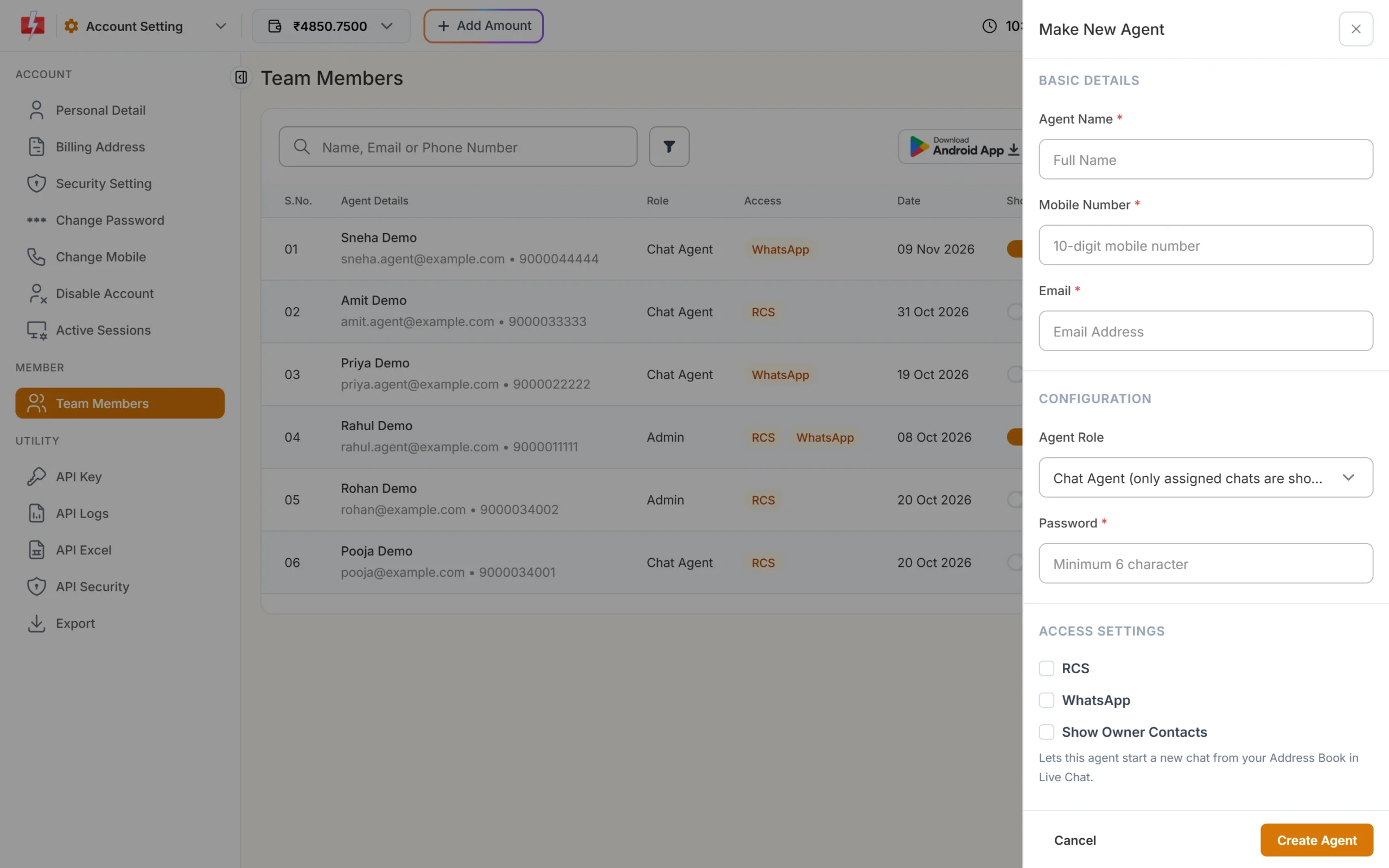
The Make New Agent form. -
Choose the role and set a password
In Agent Role, pick Chat Agent (only assigned chats are shown) for staff who should see only the chats you give them, or Admin (all chats are shown) for a supervisor. Set a Password of at least 6 characters and share it with the agent privately.
-
Give WhatsApp or RCS access
Under ACCESS SETTINGS, tick WhatsApp and choose the business numbers, and/or tick RCS and choose the bots. Tick Show Owner Contacts if the agent should be able to start new chats from your Address Book. Click Create Agent. You see “Agent created successfully”.
-
Share the login link
Click Open Login URL. It copies the agent login link (your Fast2SMS address followed by
/agent) so you can send it to your team. Agents can also use the Fast2SMS Agent Login app for Android from the badge on the same page.
If you tick WhatsApp but do not choose any number, the agent cannot log in. They see “No WhatsApp or RCS access assigned. Please contact your admin.”
Edit, pause or remove a team member
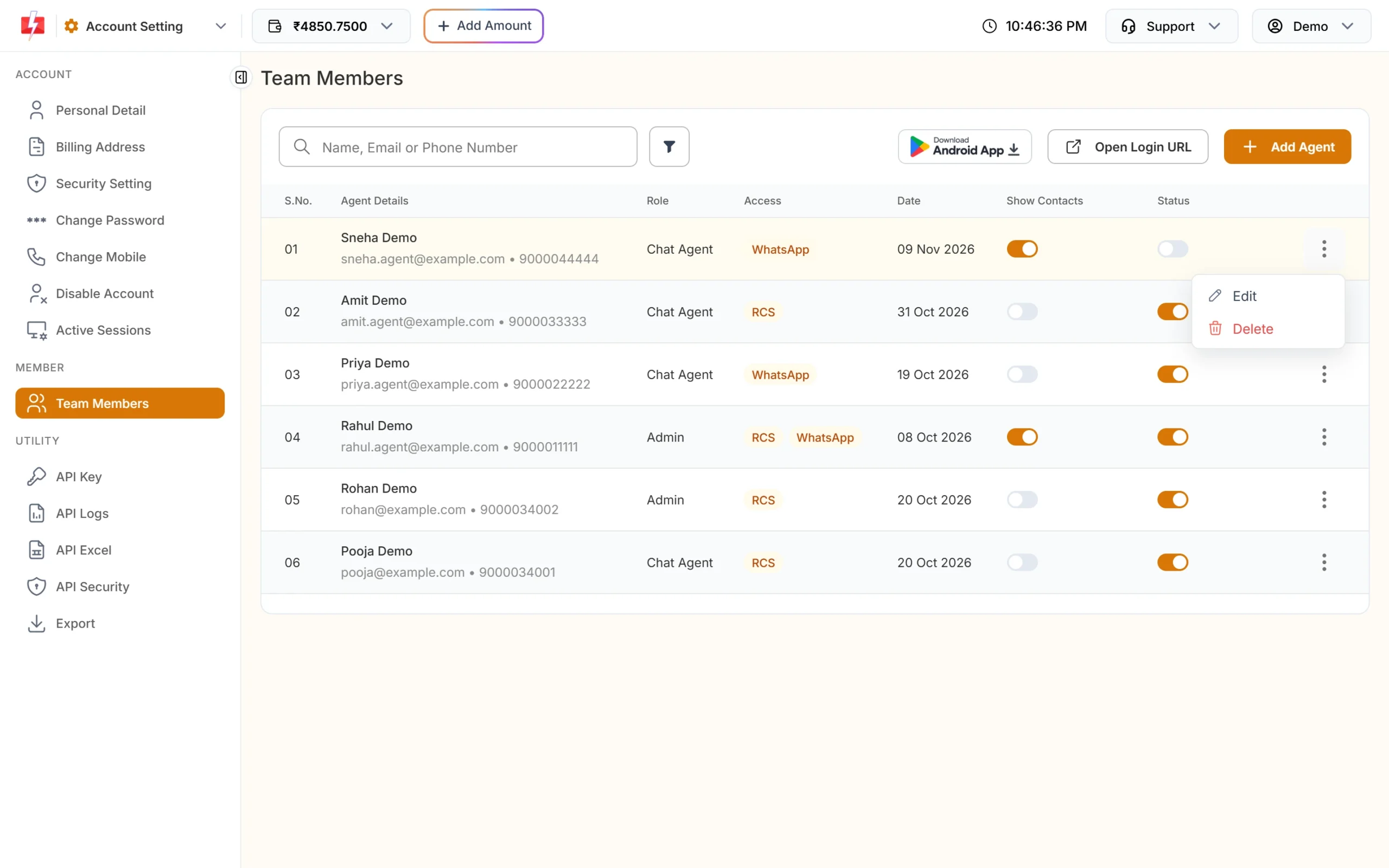
- Edit: click the three dots on the row and choose Edit. Change the role, access or details and click Save Agent. Leave the password blank to keep the current one. If you set a new password, the agent is logged out and must log in again.
- Pause: turn off the Status switch and confirm with Yes, Update. The agent is logged out on their next action and cannot log in until you turn it back on. Use this for staff on leave.
- Show Contacts: switch it on or off at any time to allow or stop Address Book access in Live Chat. It saves at once.
- Delete: choose Delete from the row menu. This cannot be undone. The email becomes free to use again for a new agent.
The 5-agent limit counts active and inactive agents. Deleted agents do not count, so delete old staff to make room for new ones.
How team members log in
Agents open the agent login page (/agent) and sign in with the email and password you set. The login stays active for 30 days on that device. After login they land in Live Chat. They do not use the owner’s login page or the owner’s mobile OTP.
Common problems and fixes
“You can add a maximum of … agents only.”
Your account has reached its agent limit, and inactive agents count too. Delete an agent you no longer need, then add the new one. If you need more agents, contact Fast2SMS support.
“Please select at least one access type.”
Tick WhatsApp or RCS (or both) before you click Create Agent.
The agent says “Invalid credentials or account inactive.”
Check the email and password, and make sure the agent’s Status switch is on. You can set a new password with Edit.
The agent sees “You do not have any WhatsApp Business Numbers assigned to your account.”
Edit the agent and pick at least one number under WhatsApp. A Chat Agent also sees a number only once at least one chat on it is assigned to them.
The agent gets “This page is only available to the account owner.”
Agents cannot open settings, wallet or transaction pages. This is expected.
Frequently asked questions
How many team members can I add in Fast2SMS?
Up to 5 per account. Active and inactive agents count; deleted agents do not.
What is the difference between Chat Agent and Admin?
A Chat Agent sees only the chats assigned to them. An Admin sees all chats on the numbers or bots you give them and can use bulk actions.
Can a team member send bulk campaigns?
No. Team members work only in Live Chat. Campaigns, templates and settings stay with the account owner.
Can a team member see my wallet balance or API key?
No. Wallet, transactions, settings and the API key are only for the owner.
Is there an app for team members?
Yes. The Fast2SMS Agent Login app for Android is linked from the Team Members page.
Can I use the same email for two agents?
No. Each agent needs a different email. After you delete an agent, their email can be used again.