
CleverTap Webhook Integration: Delivery Reports for SMS, WhatsApp and RCS
CleverTap decides who gets which campaign and when. Fast2SMS delivers it, over DLT SMS, WhatsApp or RCS. Connecting the two properly needs both directions working: CleverTap sending messages through Fast2SMS, and delivery statuses flowing back into CleverTap so your journeys and analytics know what actually happened. This guide covers both, including the ready-made CleverTap webhook format that makes the return path a two-minute job.
The two connections you are building
- Outbound: CleverTap fires its campaigns through the Fast2SMS API as a custom provider.
- Inbound: Fast2SMS pushes delivery statuses (delivered, failed) back to CleverTap through a webhook, in the exact payload shape CleverTap expects.
Part 1: Send CleverTap campaigns through Fast2SMS
In the CleverTap dashboard, go to Settings, open the SMS tab and click Add Provider, then pick Other (Generic).
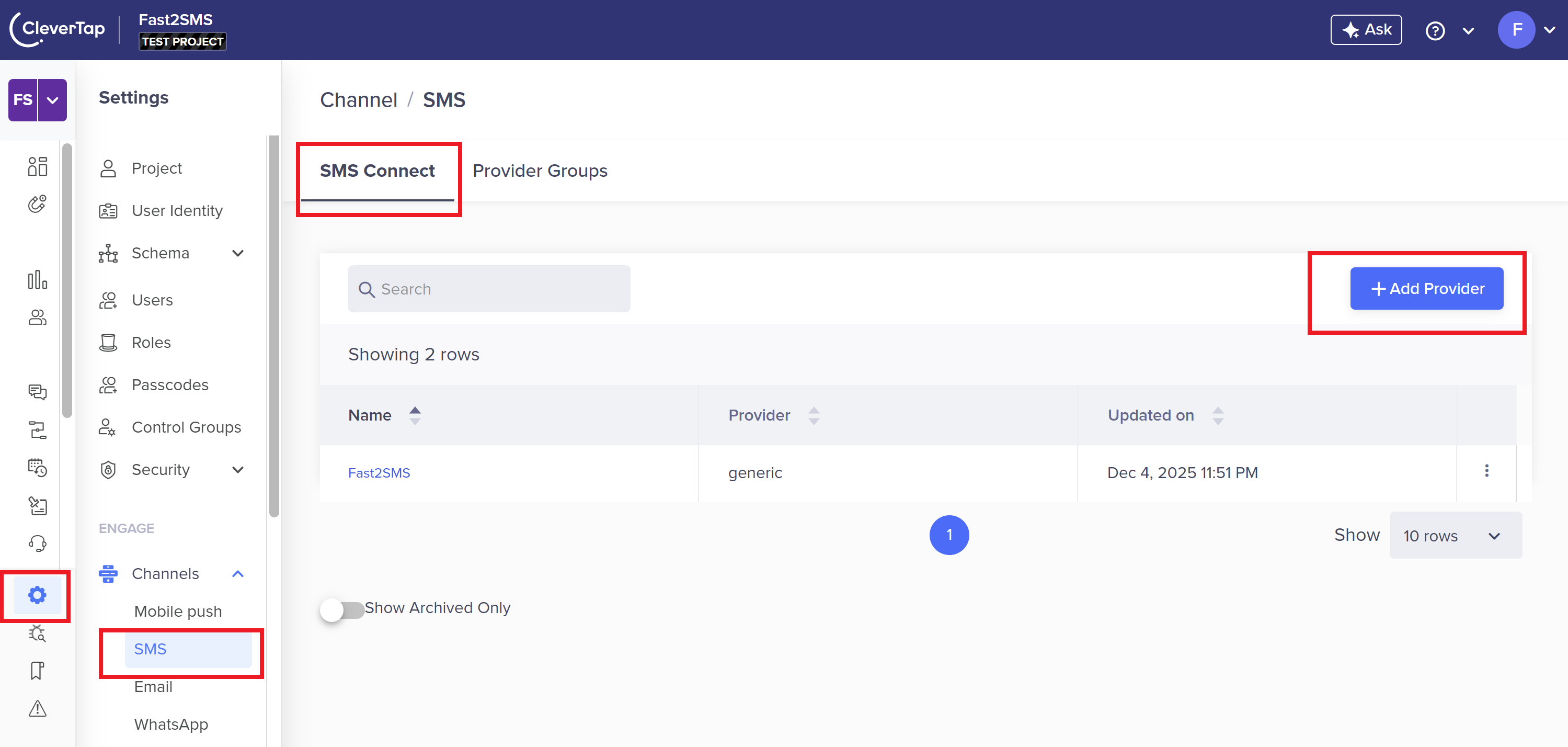
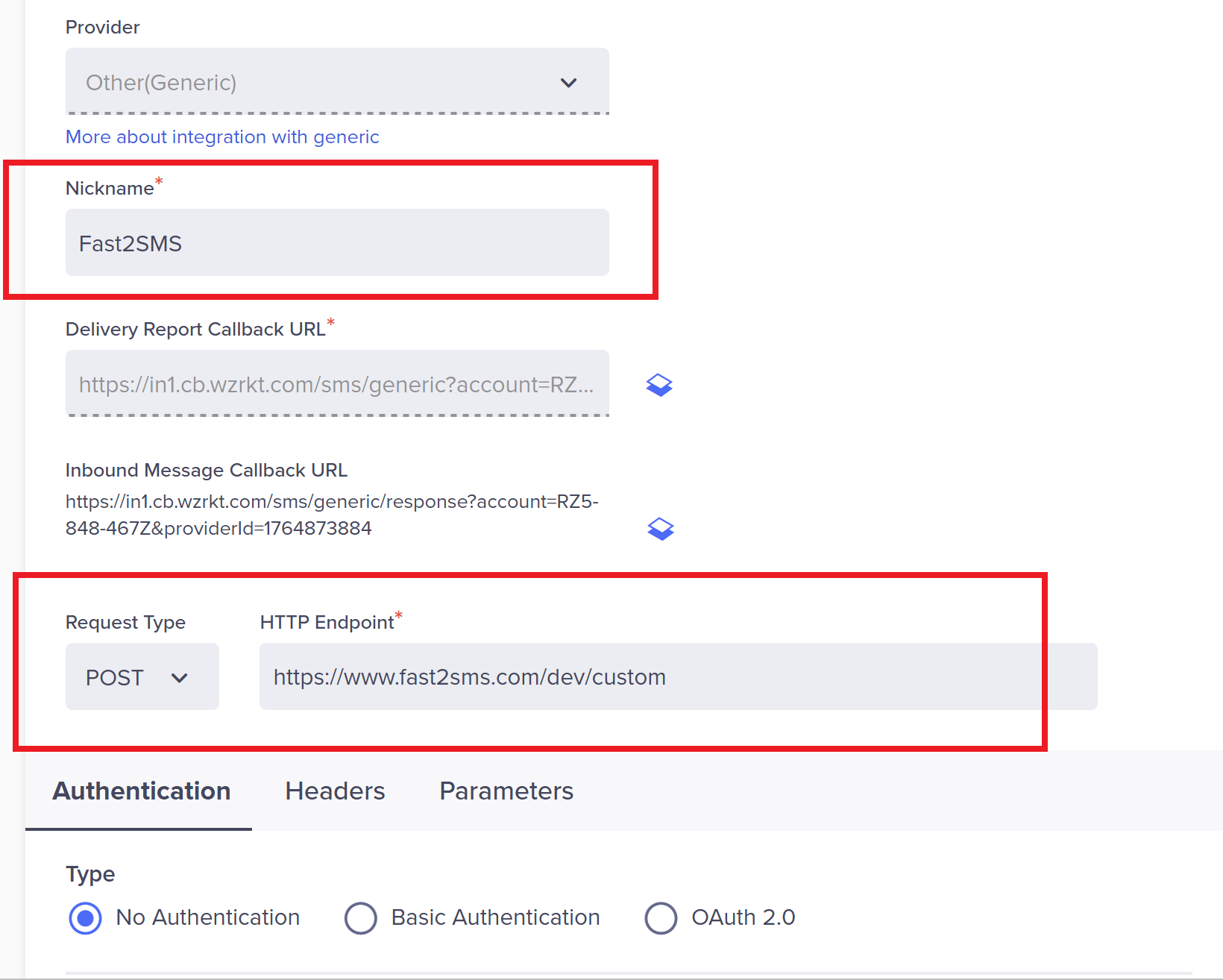
Configure the provider:
- Nickname: Fast2SMS
- Request Type: POST
- HTTP Endpoint: https://www.fast2sms.com/dev/custom
- Headers: authorization = your API key (Dev API section), content-type = application/json
Running a white label reseller panel? Your clients use your own whitelisted endpoint instead, like https://yourdomain.com/dev/custom, so even their CleverTap setup never shows Fast2SMS.
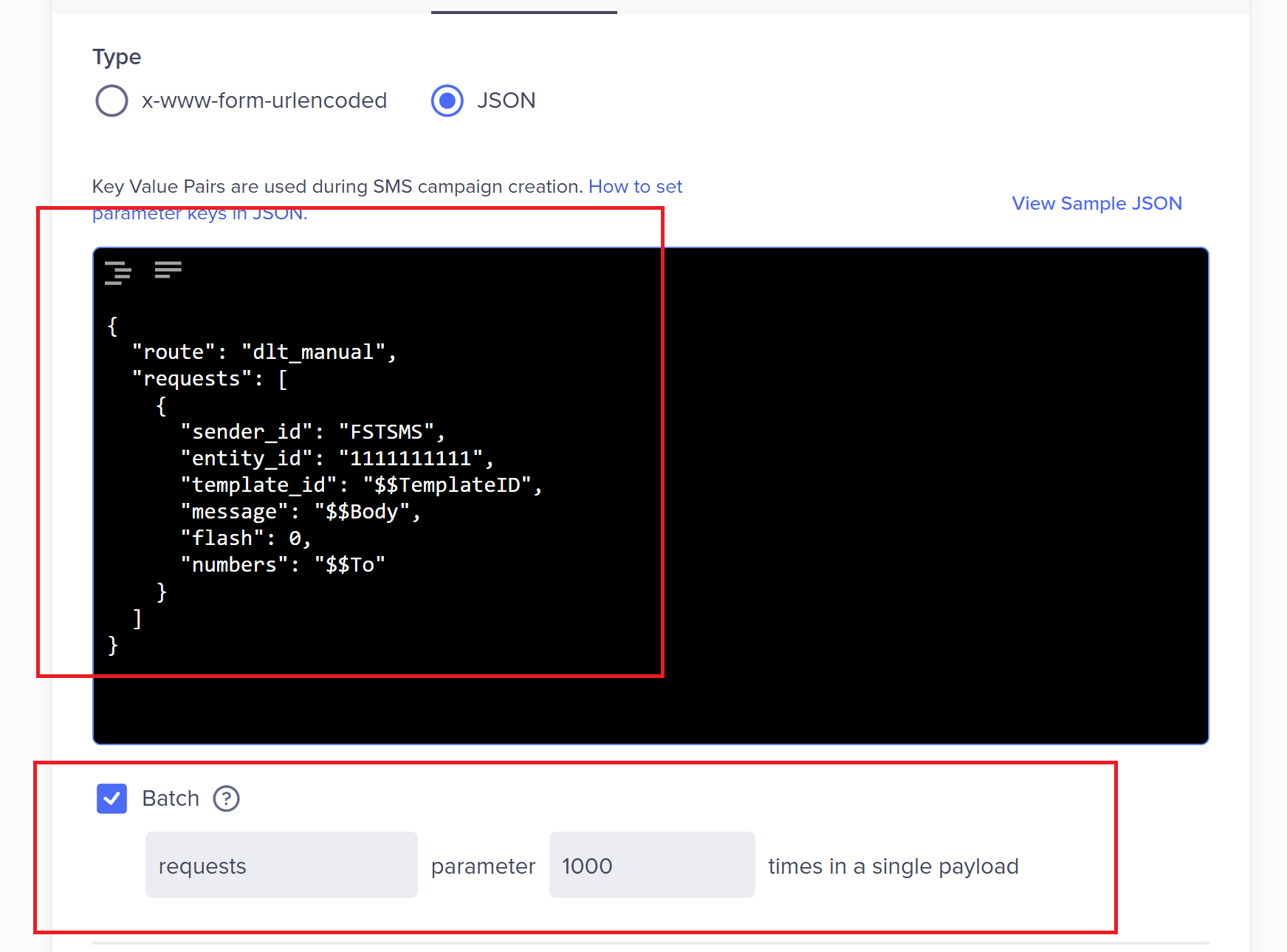
In the Parameters tab, choose type JSON and paste:
{
  "route": "dlt_manual",
  "requests": [
    {
      "sender_id": "FSTSMS",
      "entity_id": "1111111111",
      "template_id": "$$TemplateID",
      "message": "$$Body",
      "flash": 0,
      "numbers": "$$To"
    }
  ]
}
Change only two values: FSTSMS to your DLT sender ID and 1111111111 to your DLT entity ID. The $$ macros are CleverTap’s own placeholders and must stay exactly as written. Then tick Batch with parameter name requests and value 1000, send a test with your DLT-approved template ID and full message text, and save.
The original setup walkthrough with every screen is in the CleverTap integration guide. Test fails? Check the Fast2SMS delivery report for the reason; it is usually a template, entity or sender mismatch with the approved DLT content.
Part 2: Push delivery statuses back with the CleverTap webhook format
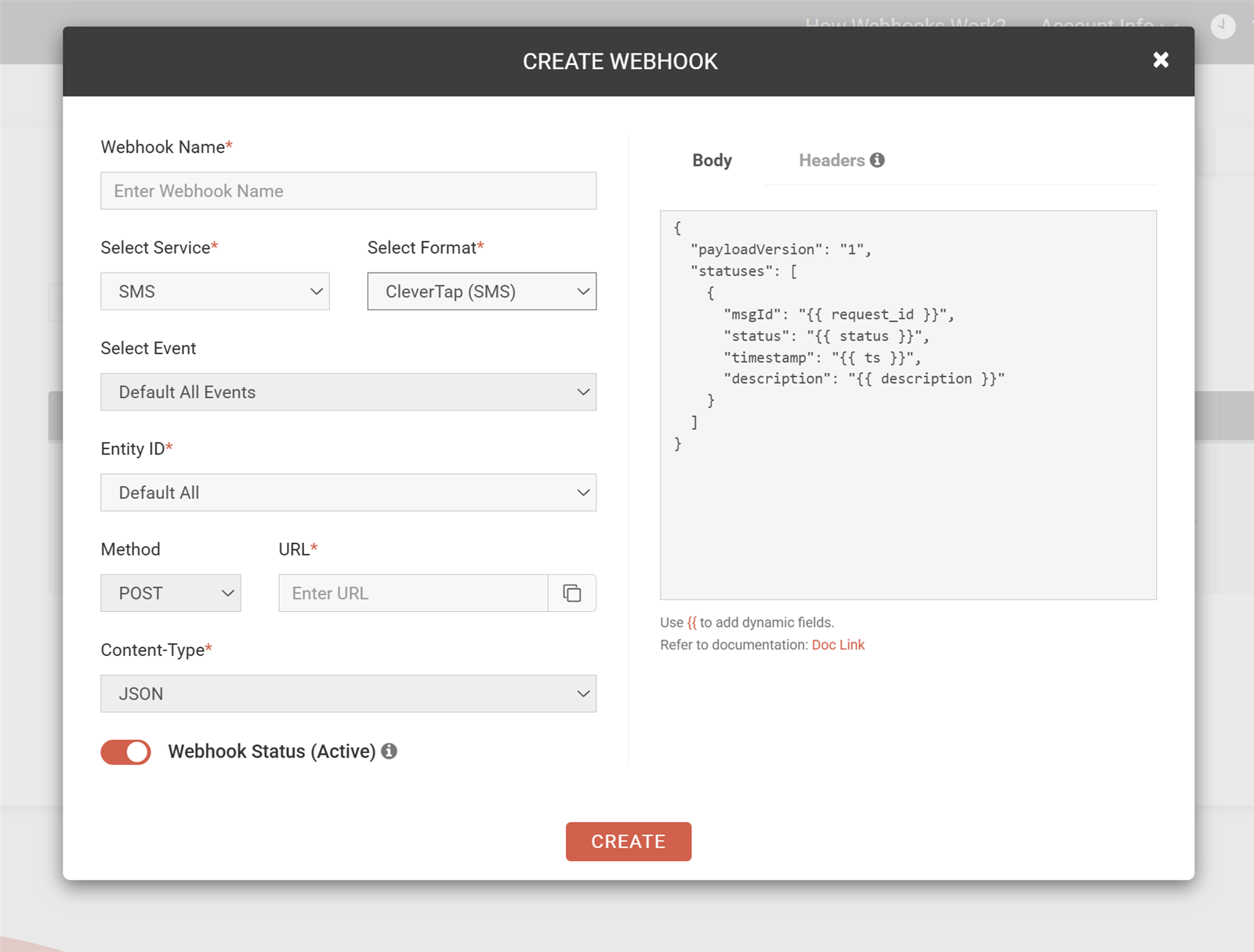
This is the step most integrations skip, and then campaign reports show messages as sent forever. Fast2SMS webhooks have a ready-made CleverTap format: when creating a webhook, pick your channel under Select Service and choose CleverTap under Select Format. The payload template fills itself with exactly the body CleverTap’s delivery status endpoint expects:
{
  "payloadVersion": "1",
  "statuses": [
    {
      "msgId": "{{ request_id }}",
      "status": "{{ status }}",
      "timestamp": "{{ ts }}",
      "description": "{{ description }}"
    }
  ]
}
How the fields map:
| CleverTap field | Filled from | Meaning |
|---|---|---|
msgId |
{{request_id}} |
The message ID, so CleverTap matches the status to its send |
status |
{{status}} |
delivered or failed (plus sent, read on WhatsApp and RCS) |
timestamp |
{{ts}} |
Unix timestamp of the event |
description |
{{description}} |
Human-readable status or failure reason |
Setup takes four fields: name the webhook, keep event on All (or pick delivered/failed), paste the callback URL from your CleverTap provider settings as the URL, keep POST with JSON, and Create. Send a test from the Action menu and check the log shows a 2xx response from CleverTap.
The same trick for WhatsApp and RCS
The format dropdown follows the service you pick. Select WhatsApp or RCS as the service, choose the CleverTap format, and the same statuses payload reports those channels’ events too, including read receipts. One webhook per channel (you can run up to 10 per channel), and your CleverTap journeys see the full delivery picture across WhatsApp, DLT SMS and RCS.
Everything about how webhooks behave (retries, logs, the test button, signing) is in how webhooks work.
Frequently asked questions
What does the CleverTap webhook format do?
It pre-builds the delivery-status payload in the structure CleverTap’s endpoint expects (payloadVersion and a statuses array), so you skip manual payload mapping entirely. Pick the format, paste CleverTap’s URL, done.
Where do I get the callback URL to paste?
From your provider configuration inside CleverTap, which exposes an endpoint for delivery status updates. Paste it as the webhook URL in Fast2SMS.
Does this work for WhatsApp and RCS campaigns too?
Yes. Create a webhook per channel and select the CleverTap format for each. WhatsApp and RCS also report sent and read, not just delivered and failed.
Why do my CleverTap reports show sent but never delivered?
The return path is missing. Sending works without webhooks, but delivery statuses only reach CleverTap once the webhook from Part 2 is active.
Can resellers offer this to their clients?
Yes. Bulk9 resellers use their own whitelisted domain in the CleverTap endpoint (yourdomain.com/dev/custom), keeping the integration fully white label. See the white label panel guide.
What if the test send fails?
Check the delivery report in your Fast2SMS panel for the exact reason. Most failures are a template ID, entity ID, sender ID or message text that does not match the approved DLT content. Free DLT support can review your setup: [email protected].
Close the loop on your campaigns
Create your free account, connect CleverTap in Part 1, switch on the return path in Part 2, and every campaign report tells the truth.
Questions? Write to [email protected].