
A small team can run a cloud call centre with one virtual number, an IVR menu, a call group and agents who answer from a web browser. There is no hardware to buy. For outbound work, such as calling a lead list, you add Bulk Voice Call campaigns with Call Patch, which connect interested customers straight to your agents.
This guide walks a shop, clinic, coaching centre or small sales team through setting up a cloud call centre in Fast2SMS, step by step, with costs.
Before you start
- A Fast2SMS account with business KYC done (company details, PAN or GST, and address proof).
- Wallet balance for the number and any extra agents.
- For each agent: a computer with Chrome, Edge or Firefox, microphone permission and a headset.
- Your greeting and menu recorded as MP3 or WAV, in English, Hindi or your customers’ language.
How to set up a cloud call centre
-
Take a virtual number
Choose a number in Numbers and give it a line label such as “Sales helpline”. You can take one number per department, city or ad campaign. Turn on recording for the number if you want every call saved.
-
Add your agents
Each agent gets their own login. You need extra agents only when several people take calls on the same number at the same time.
-
Create call groups
Put agents into groups, for example Sales and Support, and pick how calls ring:
Strategy What it does Good for Ring-all All agents ring at once Very small teams, fastest pickup Round-robin Calls are shared evenly Sales teams sharing leads fairly Linear Agents ring in a set order A senior person first, then backup Least recent The agent idle longest rings first Busy support desks Sticky agent Repeat callers go to the agent they spoke to before Account managers, clinics Set a ring timeout so the call moves on if nobody picks up.
-
Build the IVR and office hours
In the IVR Flow Builder, drag in blocks: a Playback greeting, a Menu (“Press 1 for sales, 2 for support”), Ring group blocks for each team, and Time conditions for office hours and holidays. After hours, play a message and end the call, or ring a mobile. Point your number to the flow. Changes apply from the next call.
-
Answer and make calls from the web phone
Agents log in and use the browser dialer (keypad, hold, mute, end). Incoming calls pop up with the caller’s number and the IVR option they chose. For outgoing calls, agents can show your business number as caller ID, so their personal mobiles stay private.
-
Watch calls and listen to recordings
The live call monitor shows active calls, registered agents and today’s total calls. Call logs show direction, numbers, status and time, with the recording in the details. Filter by date, number or status and download the logs.
Add outbound campaigns with Call Patch
To call a list of customers, use Bulk Voice Call with the Call Patch type. Everyone hears your recorded message, and those who press a key are connected to an agent group. You only talk to people who are interested.
-
Create an agent group
Open Agent Groups and click Create Group. Add 1 to 50 agents with their name and 10-digit mobile number. The operator never sees agent names.
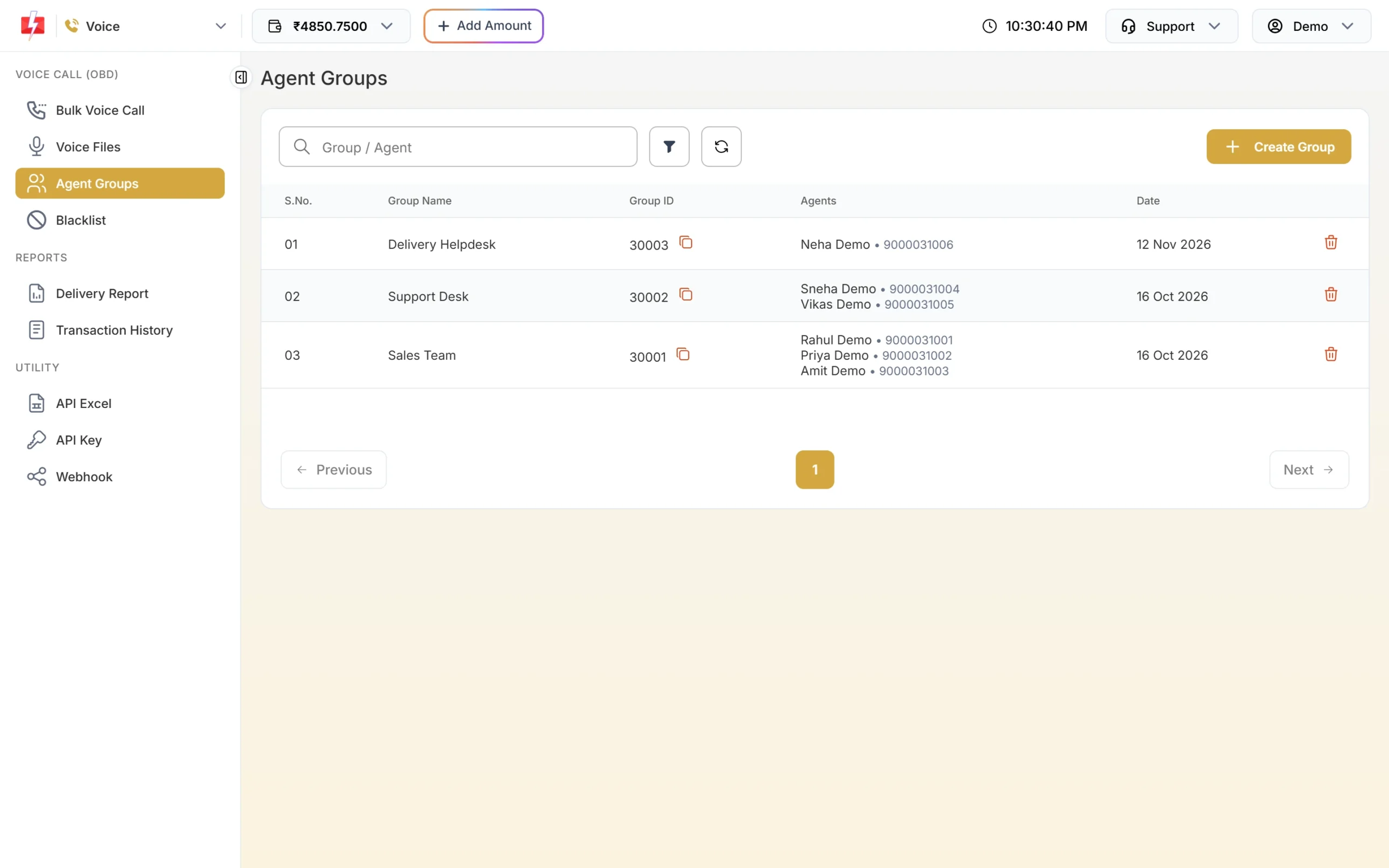
Agent groups receive the patched calls. -
Set up the Call Patch campaign
In Bulk Voice Call, choose Call Patch, add your numbers, pick the voice file the caller hears first, and set Press [key] connect to [agent group]. Add a file for when no agent picks up, then send or schedule.
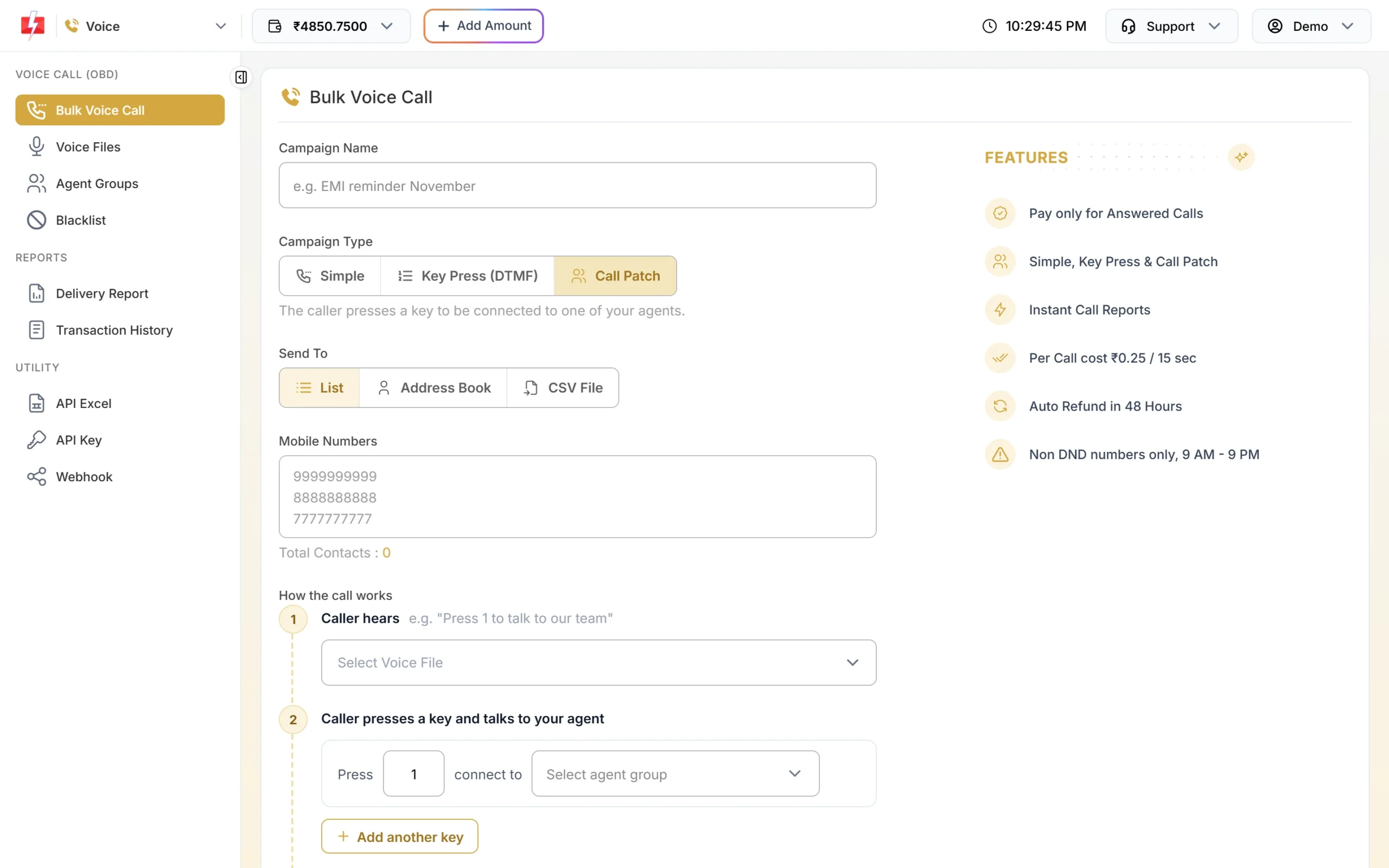
Map a key to the agent group that should take the call.
Call Patch calls go out only between 10 AM and 9 PM to non-DND numbers, and recordings are kept for 30 days.
What it costs
At the time of writing, cloud telephony costs ₹1,000 per number per month with a 12-month minimum, plus ₹500 per extra agent per month. Calls, IVR and recording have no per-minute charge. For example, 1 number with 3 agents is ₹2,500 a month, and 1 number with 5 agents is ₹3,500 a month. Prices exclude GST.
Bulk Voice Call is billed separately at ₹0.25 per 15-second pulse, only for answered calls. For Call Patch, both the customer’s leg and the agent’s leg are charged. Unanswered and failed calls are refunded automatically about 1 hour after the campaign finishes.
Sending in bulk? For high voice call volumes our team offers discounted rates. Talk to our team or see voice call pricing.
Frequently asked questions
How many agents do I need to start?
One number works for one person answering at a time. Add agents only when several people need to take calls on the same number together.
Can agents work from home?
Yes. Agents need only a browser, microphone permission, a headset and internet.
Can I connect calls to my CRM?
Yes, through webhooks. Call events can be sent to your system in real time, and the IVR Webhook block can look up data during a call.
Can callers reach us after office hours?
You decide. Use Time conditions in the IVR to play an after-hours message, take a callback number, or ring a mobile.
Are calls recorded?
Cloud telephony calls are recorded when recording is on for that number. Call Patch campaign calls are recorded and kept for 30 days.
Is there a mobile app for agents?
Agents use the web phone in a browser. No app or desk phone is needed.