
Webhooks in Fast2SMS send the delivery report of each message to your own URL, so your website, CRM or app knows when an SMS, OTP, WhatsApp, RCS or voice message is delivered or failed. This guide is for developers and business owners who send through the API. You will create a webhook, choose the data it sends, secure it and fix it when it stops working.
Before you start
- You send messages through the Fast2SMS API. Webhooks fire only for API sends, not for campaigns sent from the panel.
- A public
https://orhttp://URL on your server that accepts the request and answers with an HTTP 2xx code. Localhost and internal addresses are not allowed. - For SMS: your DLT Entity ID in DLT Manager. For WhatsApp: a connected number.
Create a webhook
-
Open the Webhook page for your channel
Click Webhook under UTILITY in any app, or open the Webhook menu. The left menu has SMS, WhatsApp, OTP, RCS, Voice, Webhook Logs and Export. Each channel has its own list. You can add up to 10 webhooks per channel.
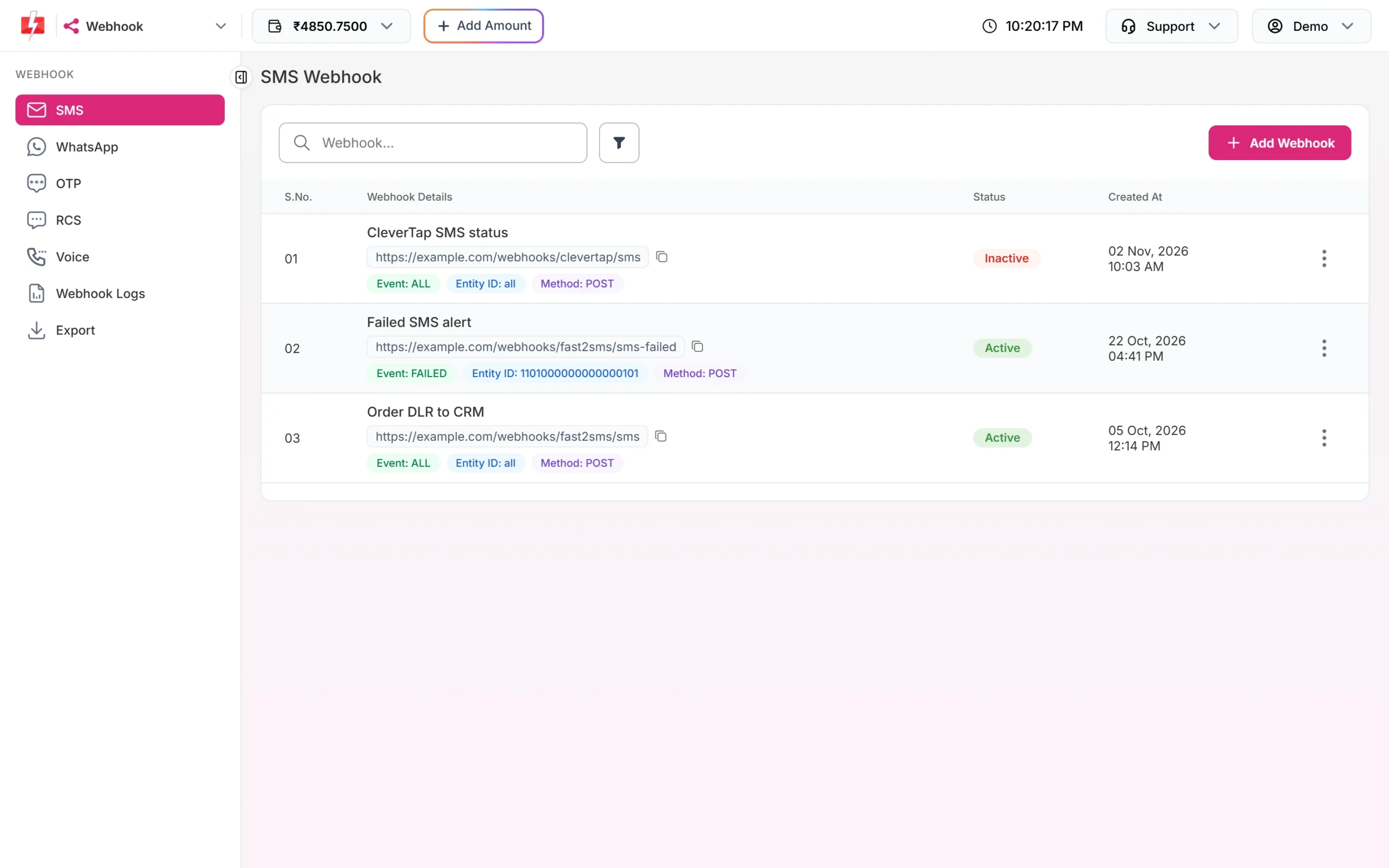
SMS webhooks with their event, entity and method. -
Fill in name, format and URL
Click Add Webhook. Enter a Webhook Name. Select Service is fixed to the page you are on. In Select Format, keep Standard Webhook to build your own body. CleverTap formats fill a fixed body for CleverTap, and WhatsApp also has META DIRECT, which forwards Meta’s original webhook data. Choose the Method (POST, GET or PUT), paste your URL and pick the Content-Type: JSON, Form URL Encoded or XML.
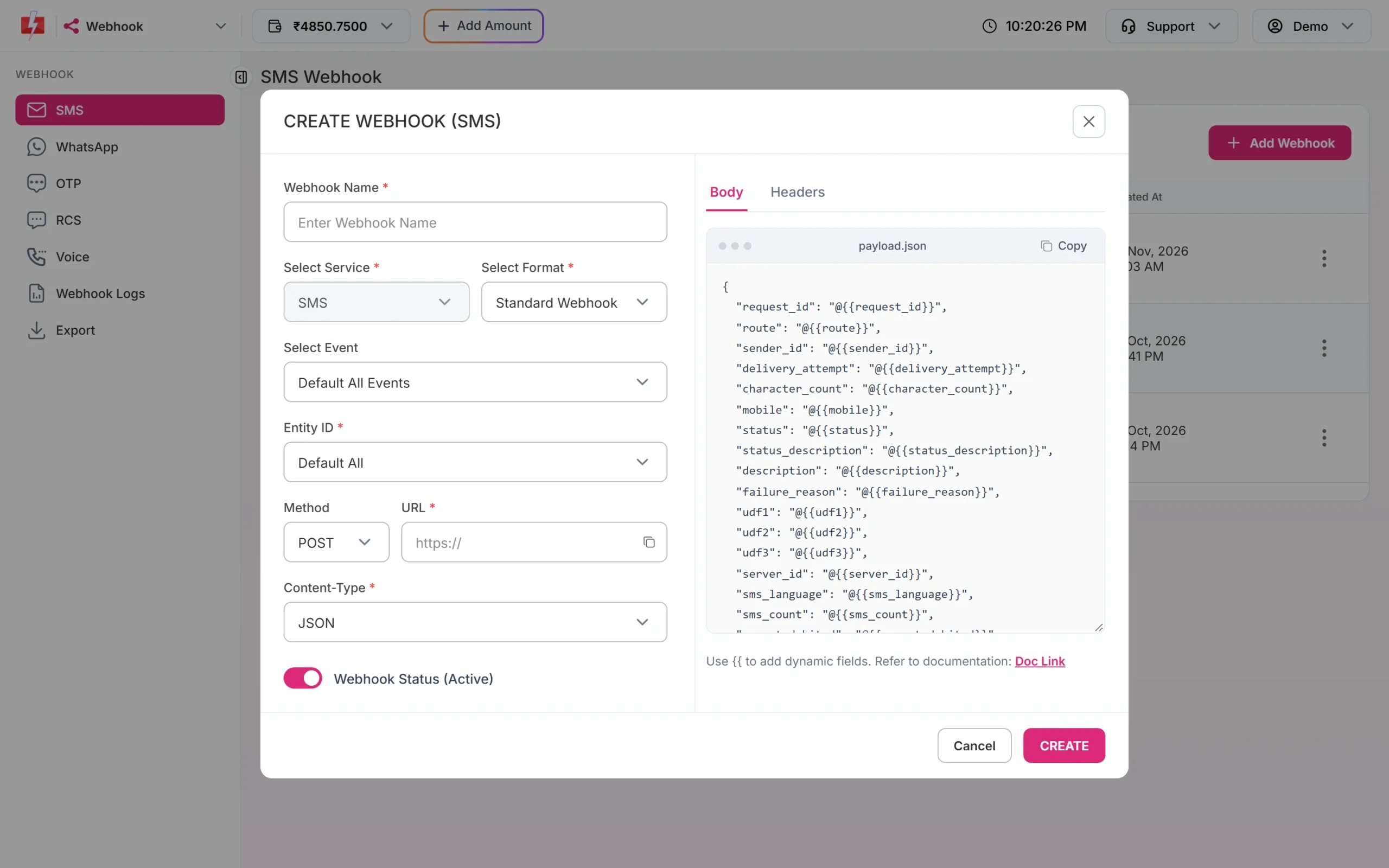
The body on the right is filled for you with every SMS field. -
Choose the event and identity
Select Event decides which reports are sent. For SMS and OTP: Default All Events, On Delivered or On Failed. WhatsApp and RCS add On Sent, On Read and Incoming Messages. Voice has On Answered, On Not Answered, On Busy and On Failed. The identity field limits the webhook to one Entity ID (SMS), one WhatsApp number or one RCS bot. Keep Default All to cover all of them.
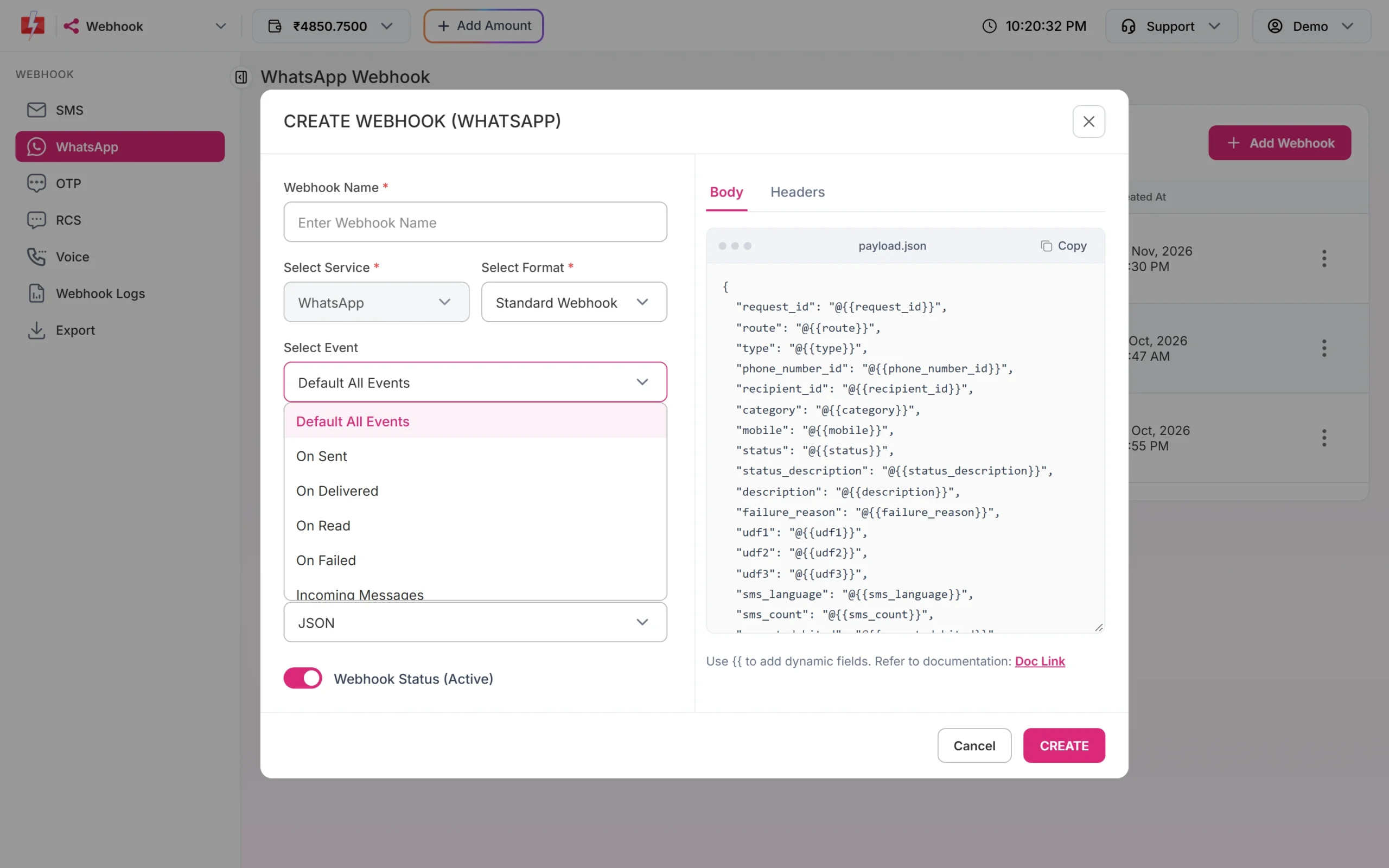
WhatsApp events, including incoming messages. -
Edit the body and add headers
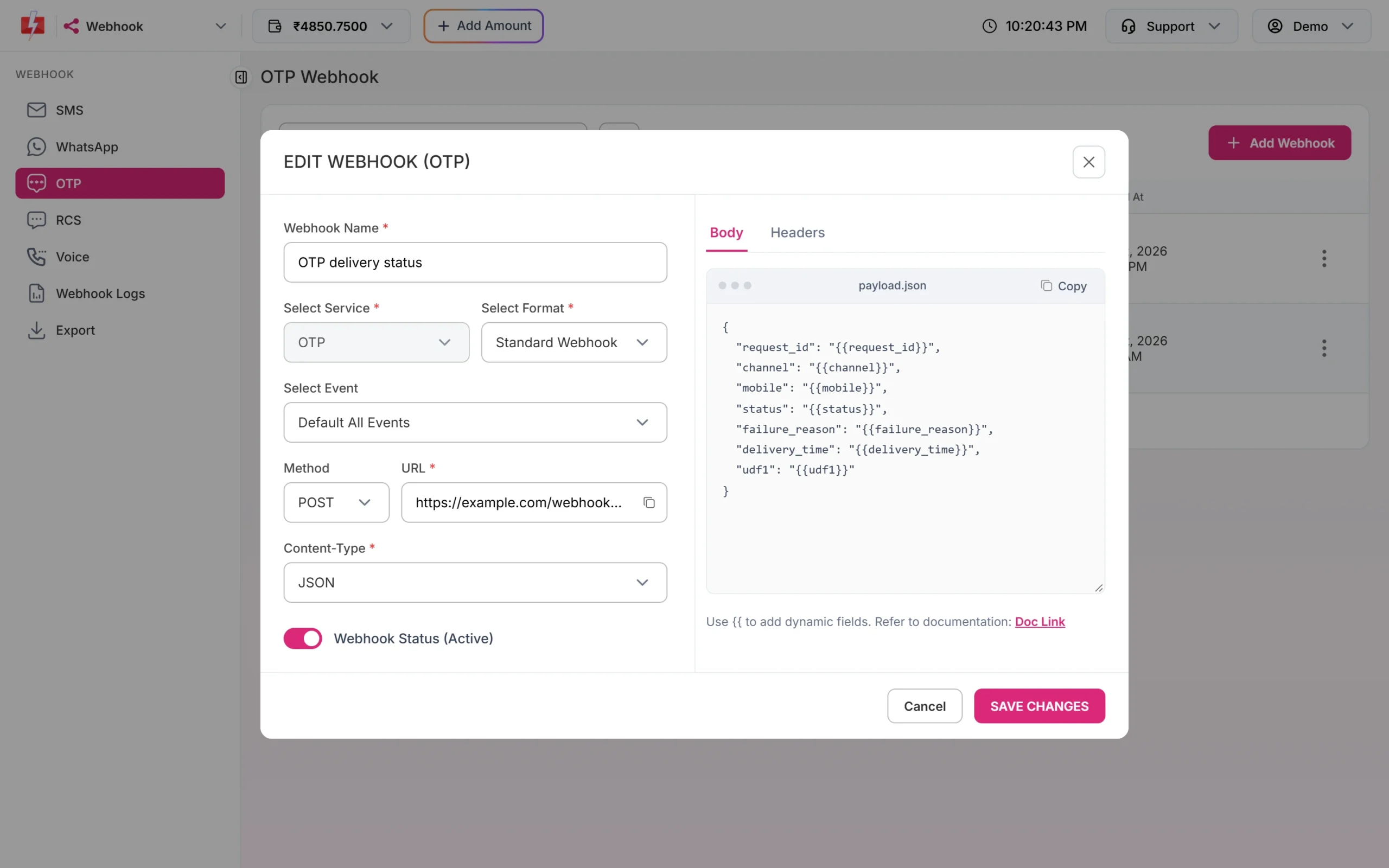
The Body tab holds the data we send. Remove fields you do not need or rename the keys to match your system. Type
{{to add a dynamic field. In the Headers tab, click + Add Header to send your own headers, for example a token your server checks. Keep Webhook Status (Active) on and click CREATE.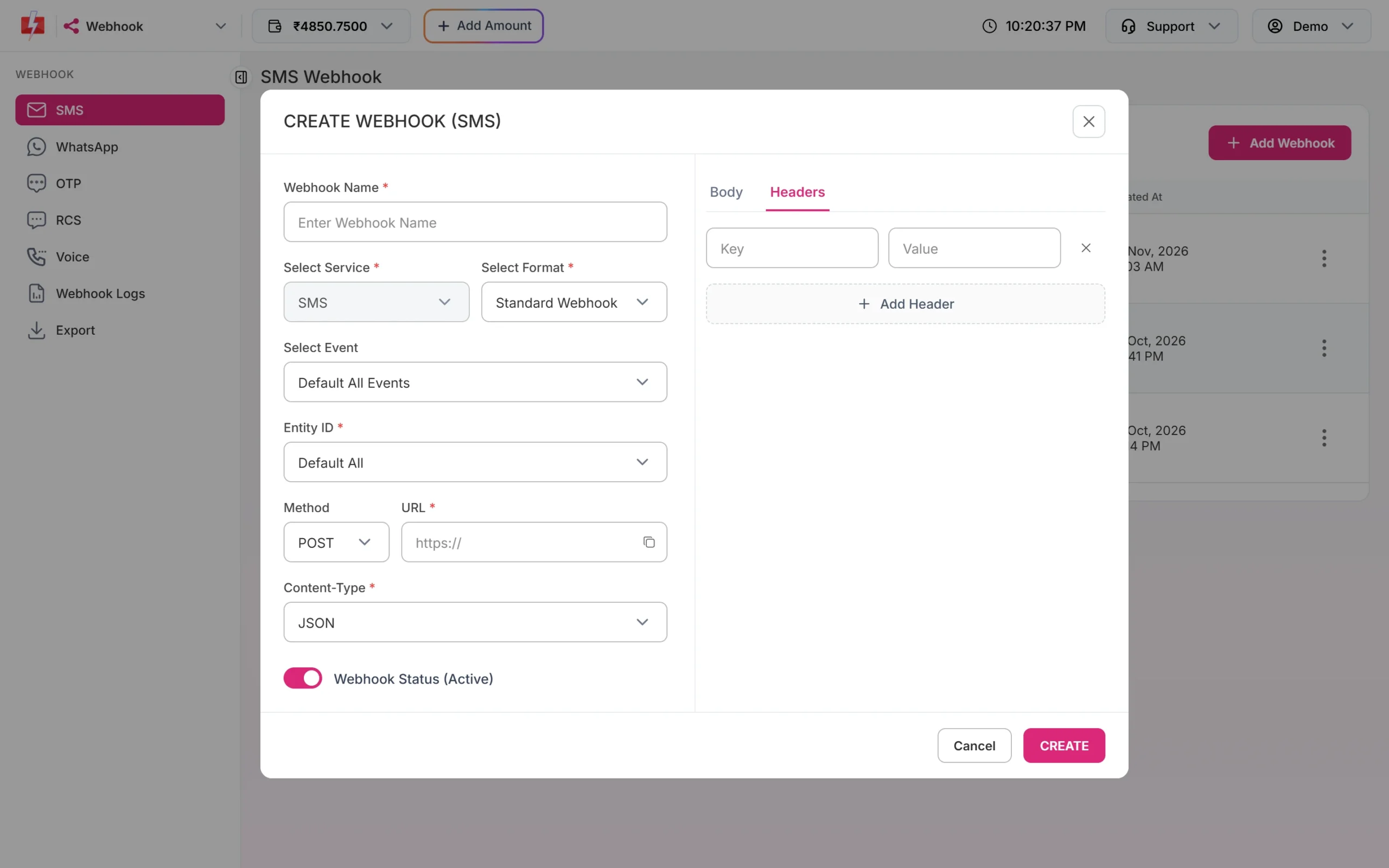
Add your own headers as key and value.
What the webhook sends
Each {{field}} in your body is replaced with the real value of that message. Here is a short OTP body as an example:
| Channel | Fields you can use |
|---|---|
| SMS | request_id, route, sender_id, delivery_attempt, character_count, mobile, status, status_description, description, failure_reason, udf1, udf2, udf3, server_id, sms_language, sms_count, amount_debited, sent_timestamp, sent_time, delivery_timestamp, delivery_time |
| OTP | All SMS fields, plus type, phone_number_id, recipient_id, category, channel |
| request_id, route, type, phone_number_id, recipient_id, category, mobile, status, status_description, description, failure_reason, udf1-3, sms_language, sms_count, amount_debited, sent and delivery times, display_phone_number, waba_id, webhook_type, message_id, from, message_type, body, mime_type, media_url, caption, timestamp, post_attempt, errors | |
| RCS | request_id, mobile, status, udf1-3, timestamp, error_message, ts, description, failure_reason, webhook_type, message_id, from, message_type, body, mime_type, media_url, caption |
| Voice | request_id, campaign_name, mobile, status, description, duration, agent_duration, pulses, amount_debited, dtmf, agent_number, start_time, end_time, reason, udf1, timestamp |
Use request_id to match the report with the request ID you got from the send API, and udf1 to udf3 to carry your own order or user ID. With GET, the values go in the query string.
The webhook_secret_key header
If the signature setting is on for your account, every webhook request carries a header named webhook_secret_key with your secret. It is the plain secret, not a hash, so compare it with the value you saved and reject requests that do not match. The new Webhook pages have no switch for this setting. Ask support to help you turn it on, or add your own secret header in the Headers tab.
Test, edit and delete
Click the three dots on a webhook row for Edit Webhook, Test Webhook and Delete Webhook.
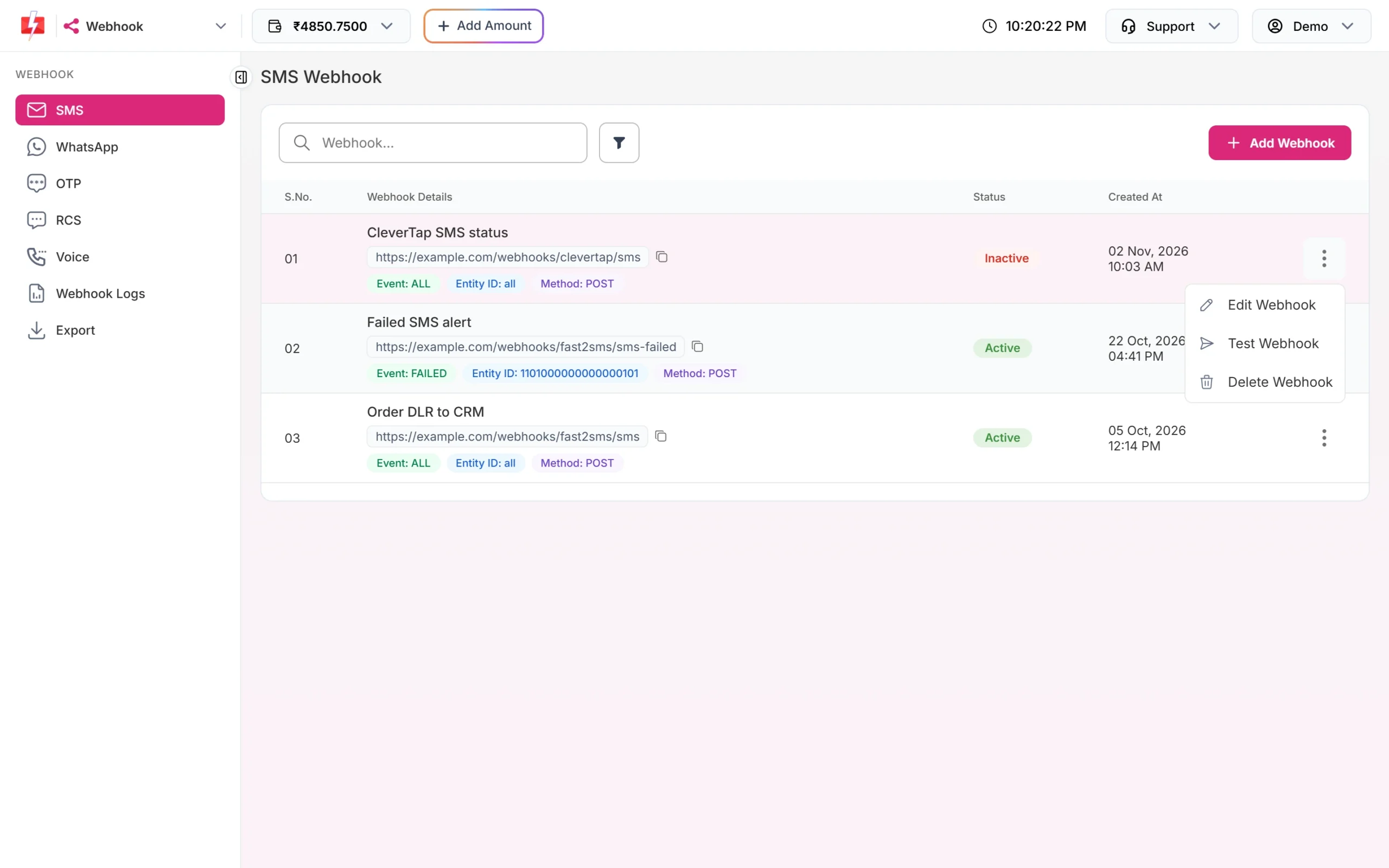
Test Webhook sends one real request from our server to your URL right away, with your saved method, content type and headers. The fields are filled with sample values (for example “Test error message”), so your system should not treat a test as a real report. You see “Test webhook sent successfully! HTTP 200” or “Test failed!” with the HTTP code and error. The test also shows in Webhook Logs.
Webhook Logs and execution details
Click Webhook Logs to see every attempt for all channels: channel, method, event, URL, response time, HTTP code and Success or Failed. Logs are kept for 7 days. Use the filter for channel, date, status, event or HTTP code.
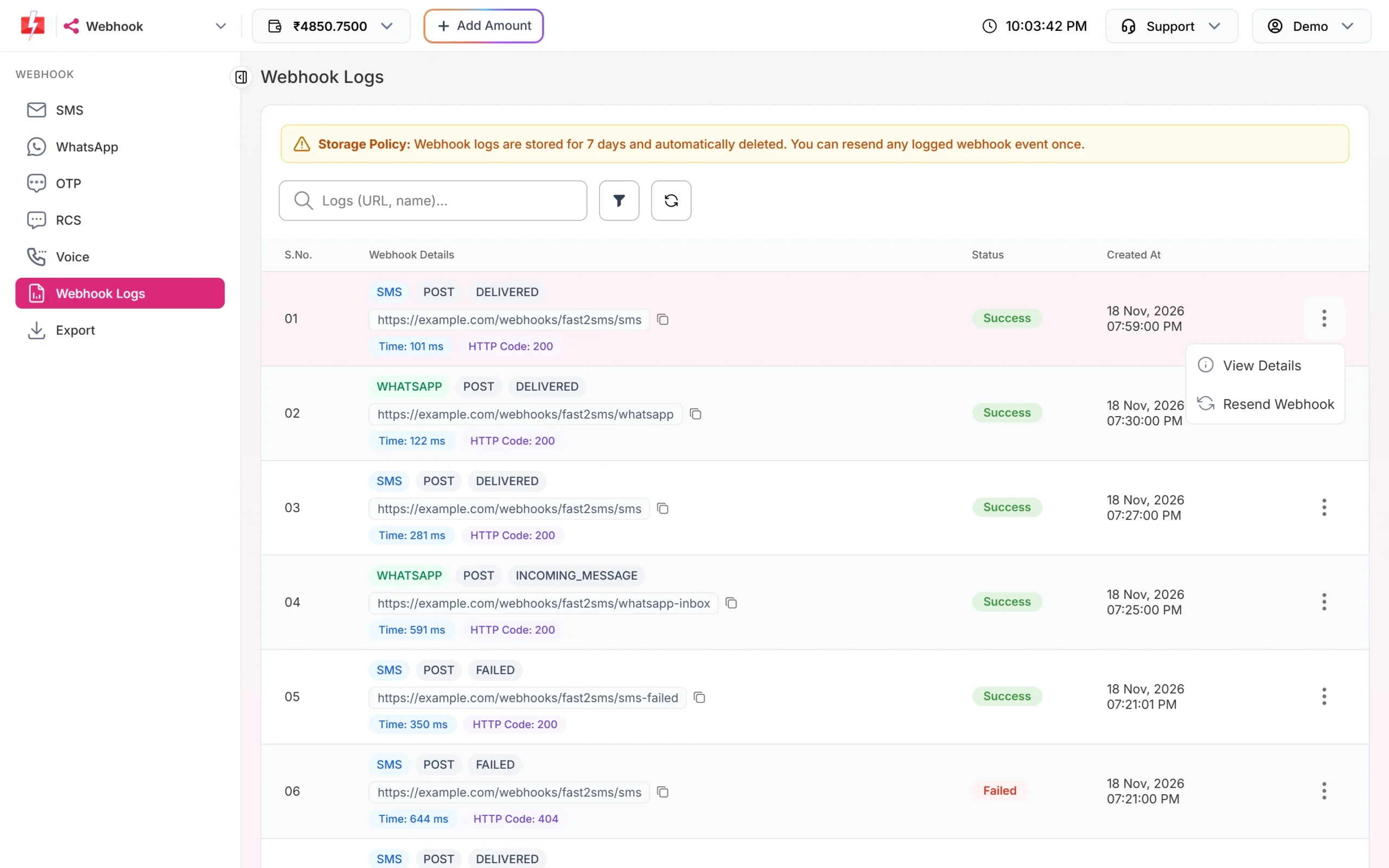
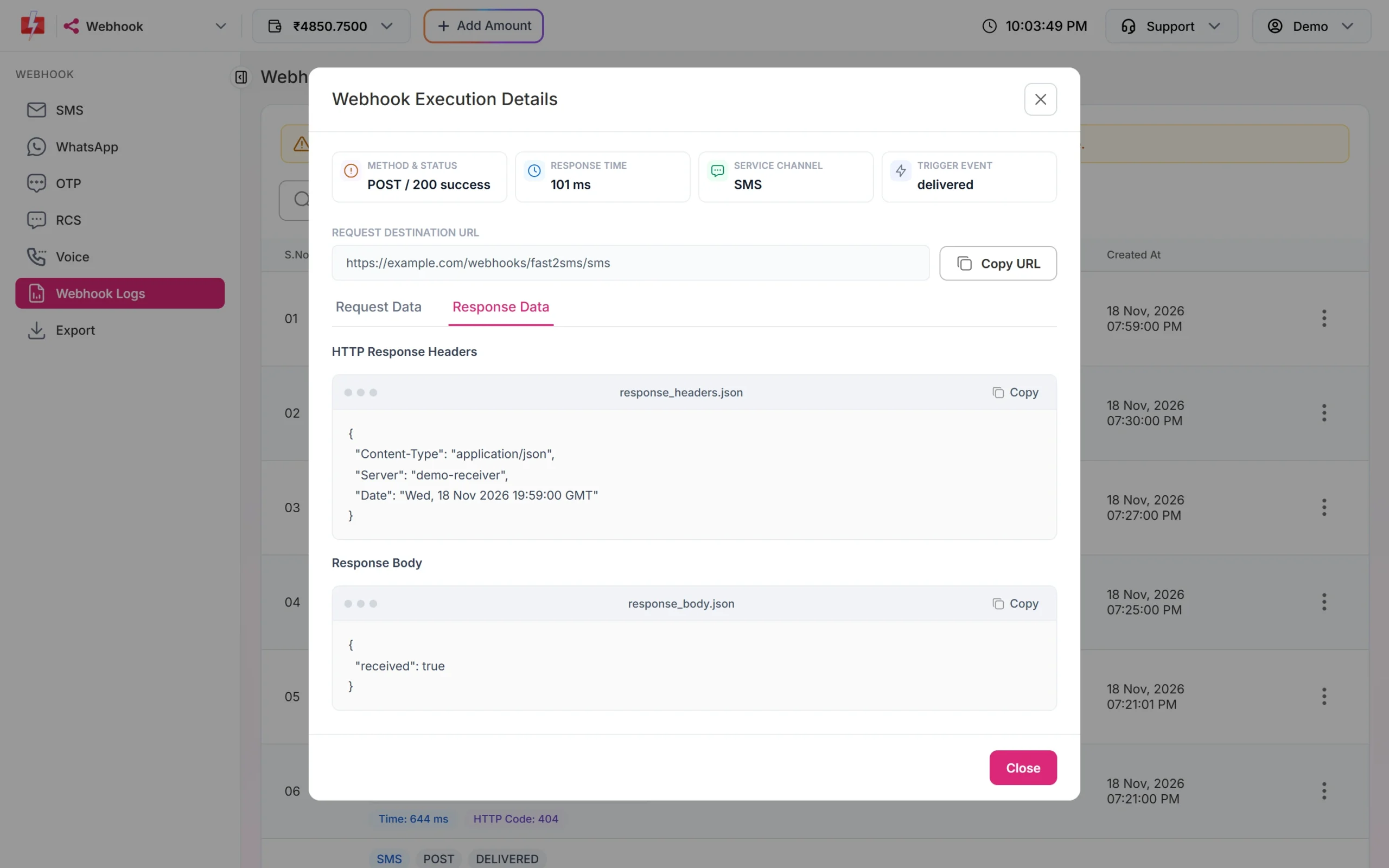
View Details opens Webhook Execution Details. Request Data shows the headers and body we sent. Response Data shows what your server answered.
Resend Webhook sends the same stored data again. You can resend each log row only once. The row is updated with the new result and the event gets “(Resent)”.
Export webhook logs
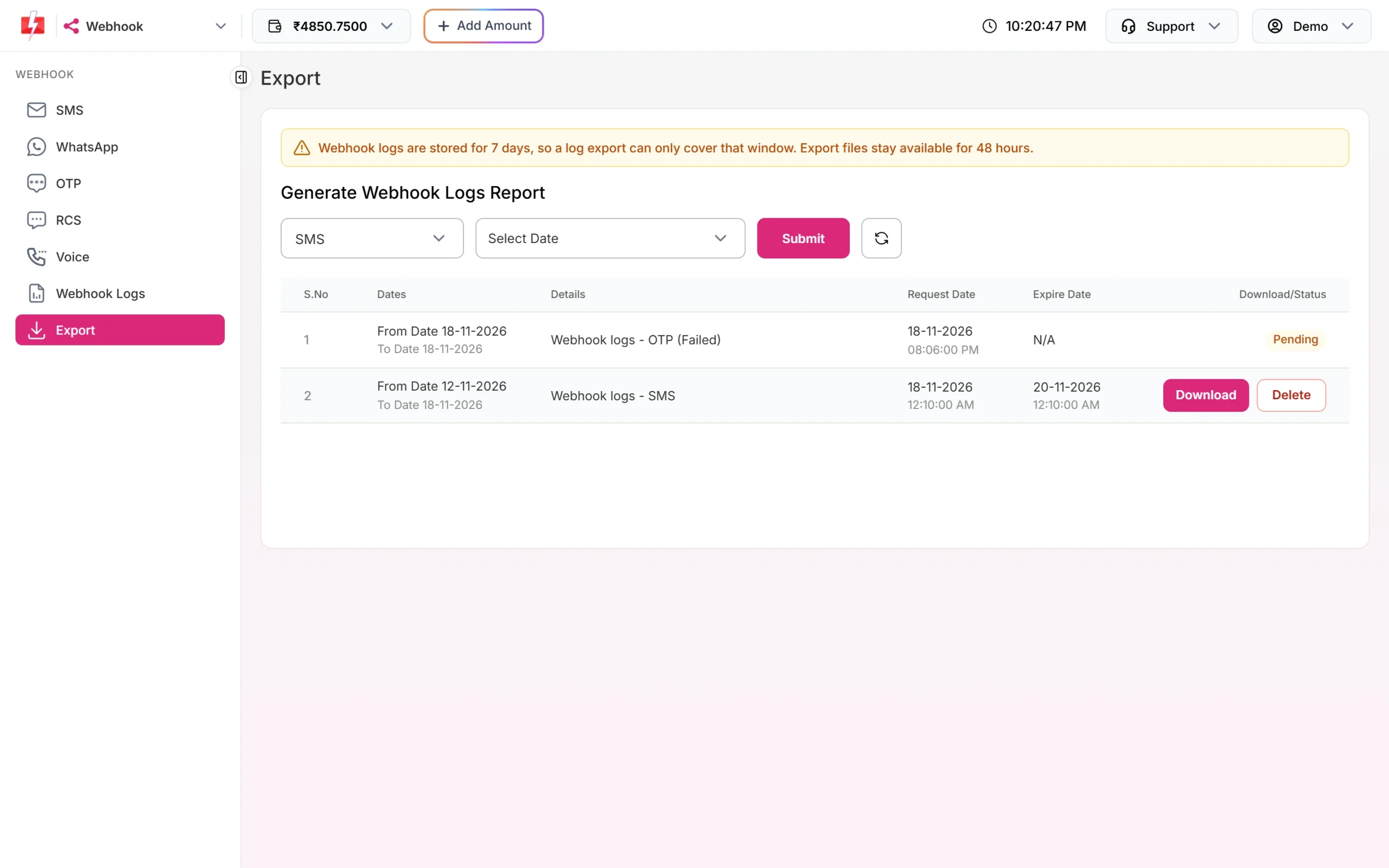
Click Export in the Webhook menu. Pick the channel and the dates, then click Submit. When the file is ready, click Download. Because logs are kept 7 days, an export can only cover that window. Files stay available for 48 hours.
Important limits
| Which messages | Only messages sent through the API. Panel campaigns do not trigger webhooks. |
| Time window | Messages from the last 24 hours that have a delivery report. |
| Webhooks per channel | 10 |
| Timeout | 3 seconds to connect, 10 seconds in total |
| Success | Any HTTP 2xx answer |
| Retries | Up to 3 tries, 60 seconds apart, only for network errors, timeouts, HTTP 408, 429 or 5xx |
| Log storage | 7 days |
Common problems and fixes
Webhook not firing
Check that the message was sent by API, not from the panel. Check that the webhook is Active, and that its event and identity match the message. A webhook for On Failed does not send delivered reports, and a webhook for one Entity ID ignores the others. If you also fetch the same messages with the delivery report API, the webhook may skip them, so use one method for each message.
HTTP 0 or “Operation timed out”
Your server did not answer within 10 seconds. Reply with 200 first and do the heavy work after that. Make sure your firewall allows our requests.
HTTP 404, 401 or other 4xx
These are not retried. Check the URL path and any login or token your endpoint needs. Open the log row and read Response Data to see what your server said. After fixing, use Resend Webhook on the failed rows.
HTTP 5xx
Your server had an error. We retry up to 3 times, 60 seconds apart. If all tries fail, fix your server and resend from Webhook Logs.
Test works but real reports do not arrive
The test is sent at once, whatever the event or identity. Real reports follow the rules above, so check the send method, event and identity.
“Webhook URL must be a public http(s) endpoint”
Use a public address. Localhost, internal IPs and non-http links are not allowed.
Frequently asked questions
Do webhooks work for campaigns sent from the panel?
No. Webhooks fire only for messages sent through the API. For panel campaigns, use the delivery report pages.
Can I get incoming WhatsApp replies by webhook?
Yes. Create a WhatsApp webhook with the event Incoming Messages.
Is webhook_secret_key an HMAC signature?
No. It is the plain secret in a header. Compare it with your saved value.
How many times do you retry a failed webhook?
Up to 3 tries, 60 seconds apart, for timeouts, network errors, HTTP 408, 429 and 5xx. Other errors are not retried.
Can I resend a webhook?
Yes, once per log row, from Webhook Logs within 7 days.
Can I have different URLs for delivered and failed reports?
Yes. Create two webhooks, one with On Delivered and one with On Failed.
Can I manage webhooks by API?
Yes. Use /dev/webhook/v2/{service} with GET to list, POST to create, PUT to update and DELETE to remove. See docs.fast2sms.com.