
A cloud PBX (also called a hosted PBX or virtual PBX) is a business phone system that runs online instead of in a box in your office. It gives a small business what an office exchange gives: a business number, extensions for each person, call transfer, hold music, an IVR menu, ring groups and call recording. With Fast2SMS Cloud Telephony you set all of this up in a web panel, and your team makes and takes calls from a browser, with no hardware to buy.
This guide explains what a cloud PBX is, which PBX features you get in Fast2SMS, how to set one up for a small team, and what it costs.
What is a PBX, and what makes it a cloud PBX?
PBX stands for private branch exchange. It is the system that connects your business phone lines to the people in your company. It lets callers reach the right person, lets staff call each other with short extension numbers, and lets anyone transfer or hold a call.
A traditional PBX (often called EPABX in India) is a box on the office wall, wired to desk phones. A cloud PBX does the same work on the provider’s side. The names hosted PBX, virtual PBX and cloud PBX all mean the same idea: someone else runs the exchange, and you control it from a website. If you are choosing between a box and the cloud, read cloud telephony vs EPABX.
PBX features you get in Fast2SMS Cloud Telephony
| PBX feature | Where it is in the Fast2SMS panel |
|---|---|
| Business number | My Numbers: virtual numbers you buy for a year |
| Extensions | Team Members: owner is 100, team members get 101, 102 and so on |
| Internal calls | Dial a team member’s extension on the Web Phone |
| Auto attendant (IVR) | Call Menu (IVR) > IVR Flows: “Press 1 for sales, 2 for support” |
| Ring group / hunt group | Call Menu (IVR) > Call Groups: Ring-All, Round-Robin, Linear, Least Recent |
| Office hours | Time Conditions inside the IVR |
| Call transfer and park | Web Phone Transfer menu: Transfer now, Talk first then transfer, Park |
| Hold music | Configure Route > Hold music for each number |
| Calls on your mobile | Forward to External Mobile, “Not online? Ring their mobile number”, Move to my mobile |
| Call recording | Recording switch per number; recordings kept for 3 months |
| Call logs | Call History with filters and export |
| Caller block list | Blocked Numbers |
| CRM link | Webhook > Cloud Telephony: call events to your URL |
How to set up a cloud PBX for a small business
Before you start: a Fast2SMS account, completed KYC (Account Setting > KYC; telecom rules require it before buying a number) and enough wallet balance for the yearly plan.
-
Buy your business number
Open Cloud Telephony > My Numbers and click Buy a Number. Pick a number, give the line a name such as “Main Line”, and click Pay ₹18,000 & Activate. The Your number is ready guide opens and shows the next steps. By default, new calls ring your own Web Phone and recording is on.
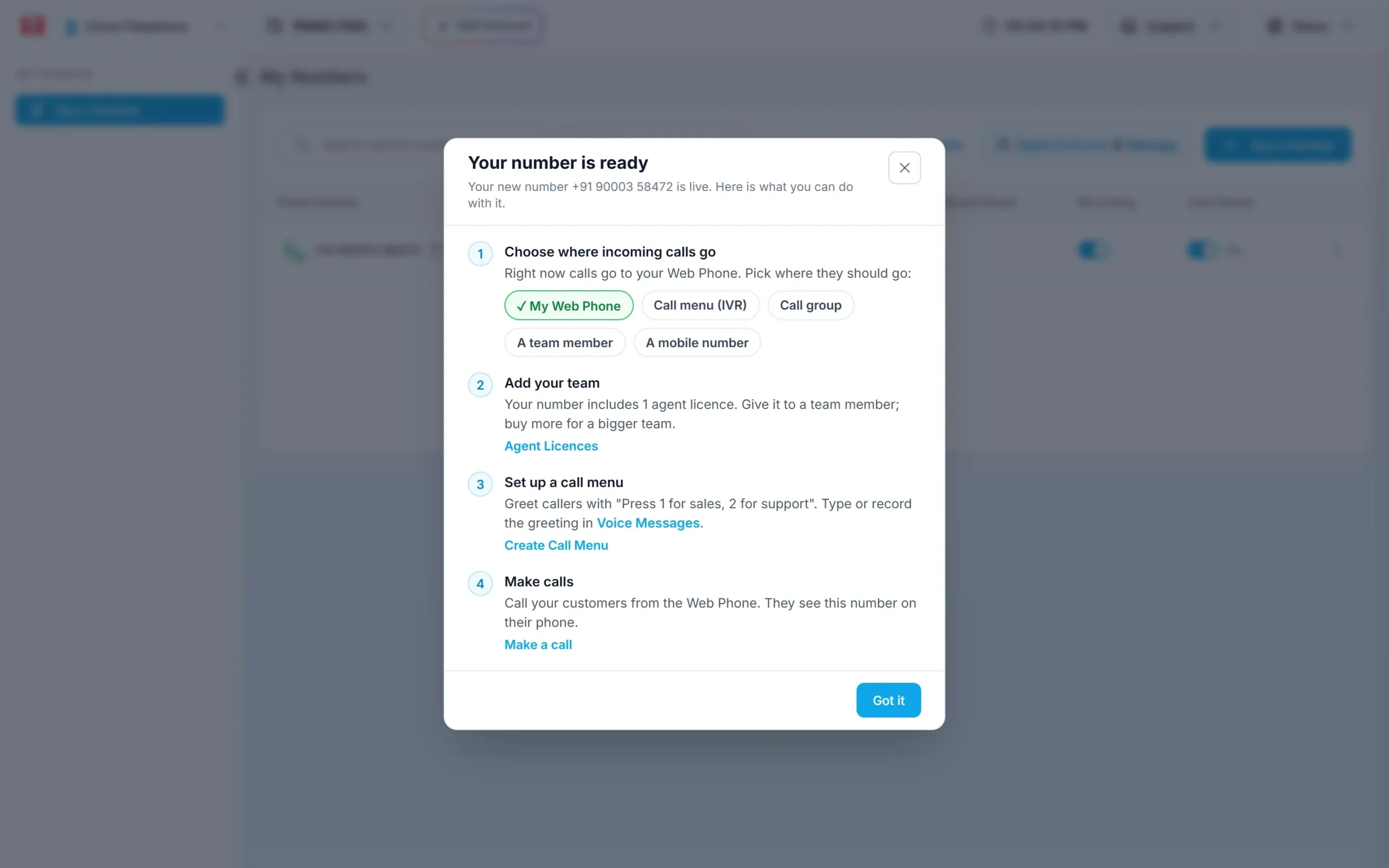
The setup guide after buying the first number. -
Give each person an extension
Each number includes 1 agent licence. Buy more in Agents > Licences if you need them. Then go to Team Members, open a member, tick Cloud Telephony and set the Extension. Leave it blank to get the next free number. Here you also choose the member’s numbers, the number customers see on outgoing calls, and options like Record calls and Call waiting. Read more in team extensions and internal calls.
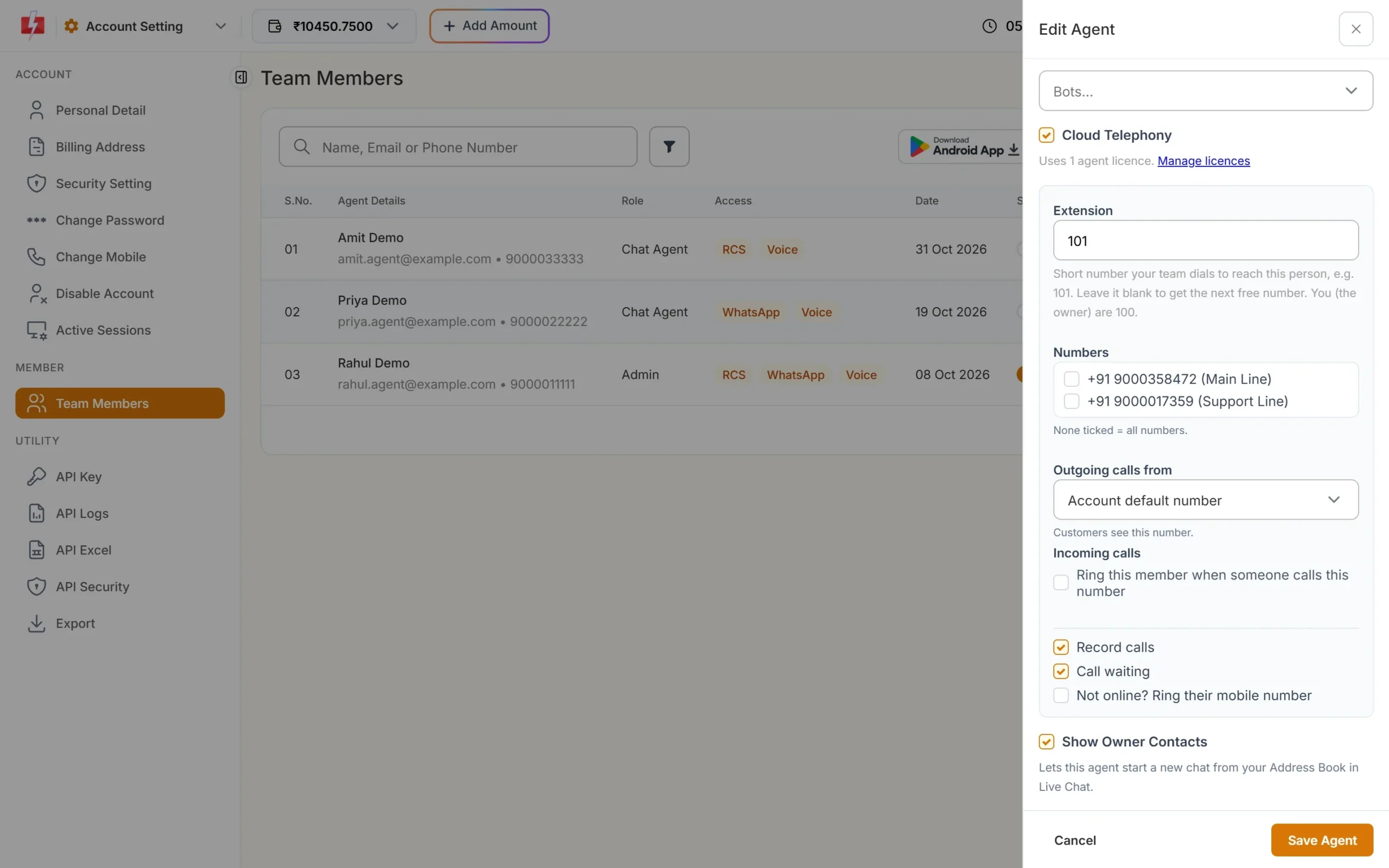
A team member with Cloud Telephony on and extension 101. -
Create a ring group for each team
Open Call Menu (IVR) > Call Groups and click Create Call Group. Name it (for example Sales Team), choose how calls are shared, tick the members and click Create Group. The call groups guide explains each option.
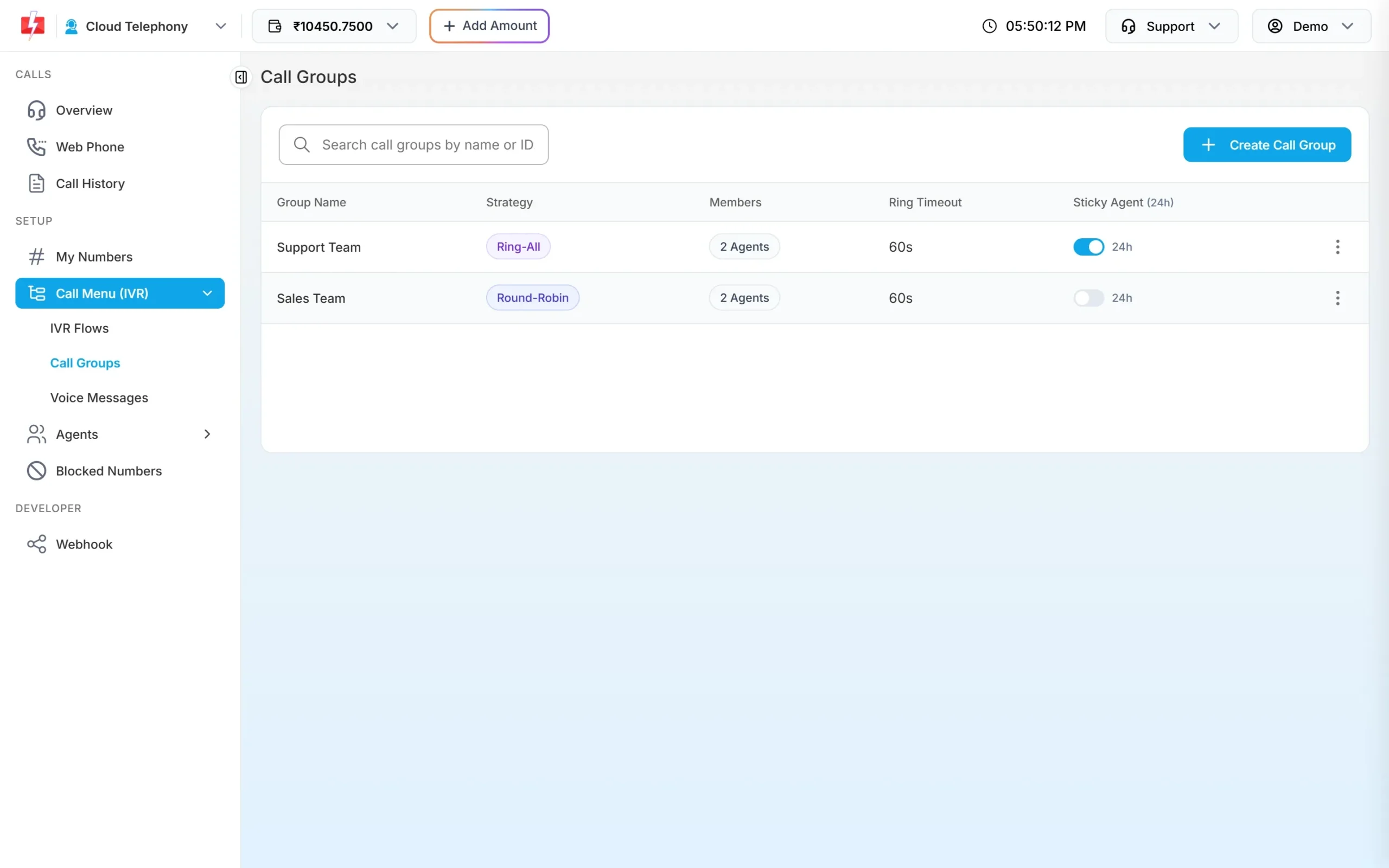
Two ring groups: Support Team (Ring-All) and Sales Team (Round-Robin). -
Add an auto attendant (IVR)
Open Call Menu (IVR) > IVR Flows, create a flow and build it with boxes: office hours, a greeting with “Press 1 for sales, 2 for support”, and the ring group for each key. After hours, play an “office closed” message. Click Save Changes to make it live. Full steps: IVR setup step by step.
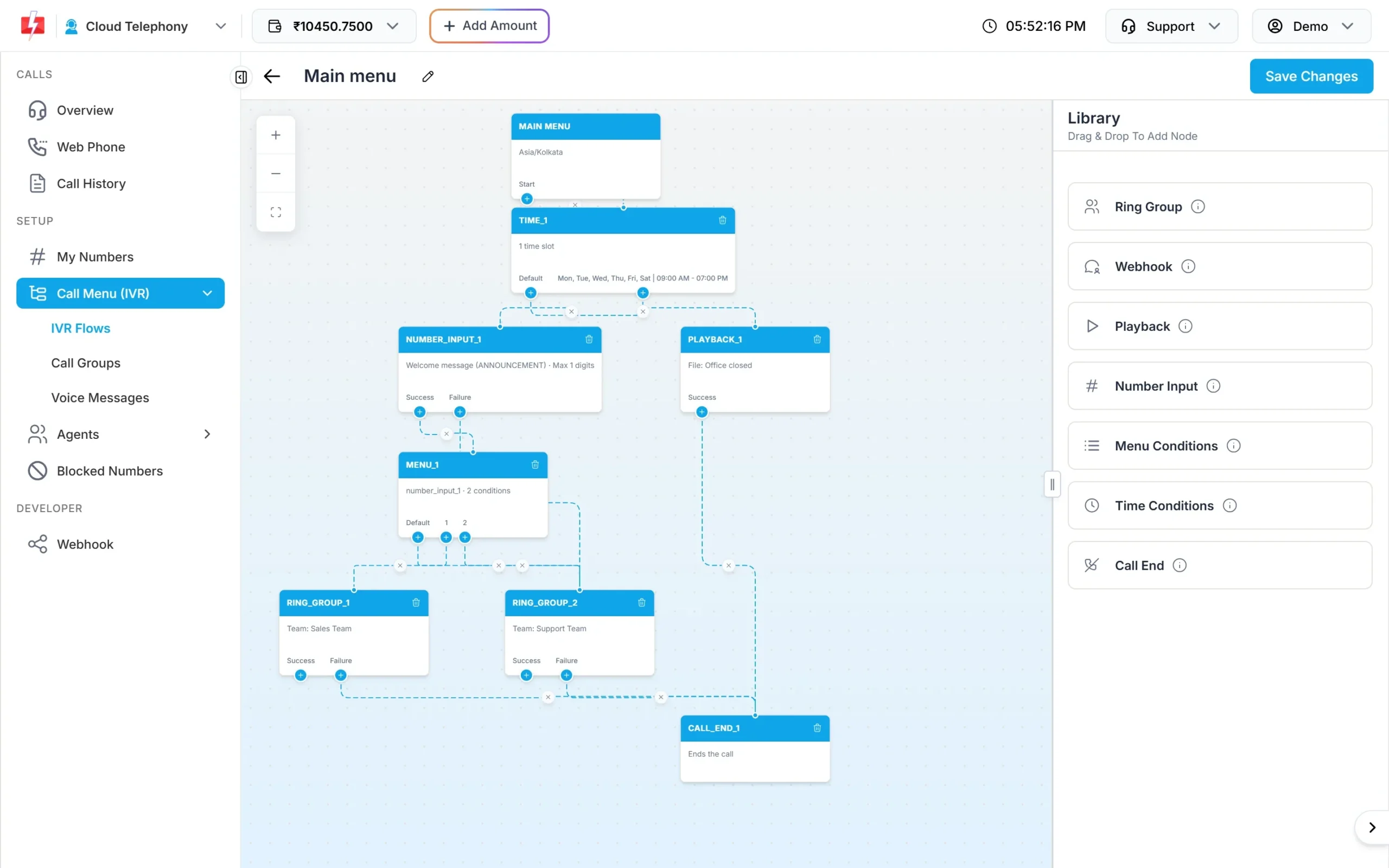
A simple auto attendant built in the IVR builder. -
Point the number to the IVR and pick hold music
Back in My Numbers, open the row menu, click Configure Route, set Routing Destination to IVR Flow and choose your flow. Under Hold music, keep “Default music” or pick one of your voice messages. Keep Record all incoming/outgoing calls ticked if you want recordings. Click Save Changes.
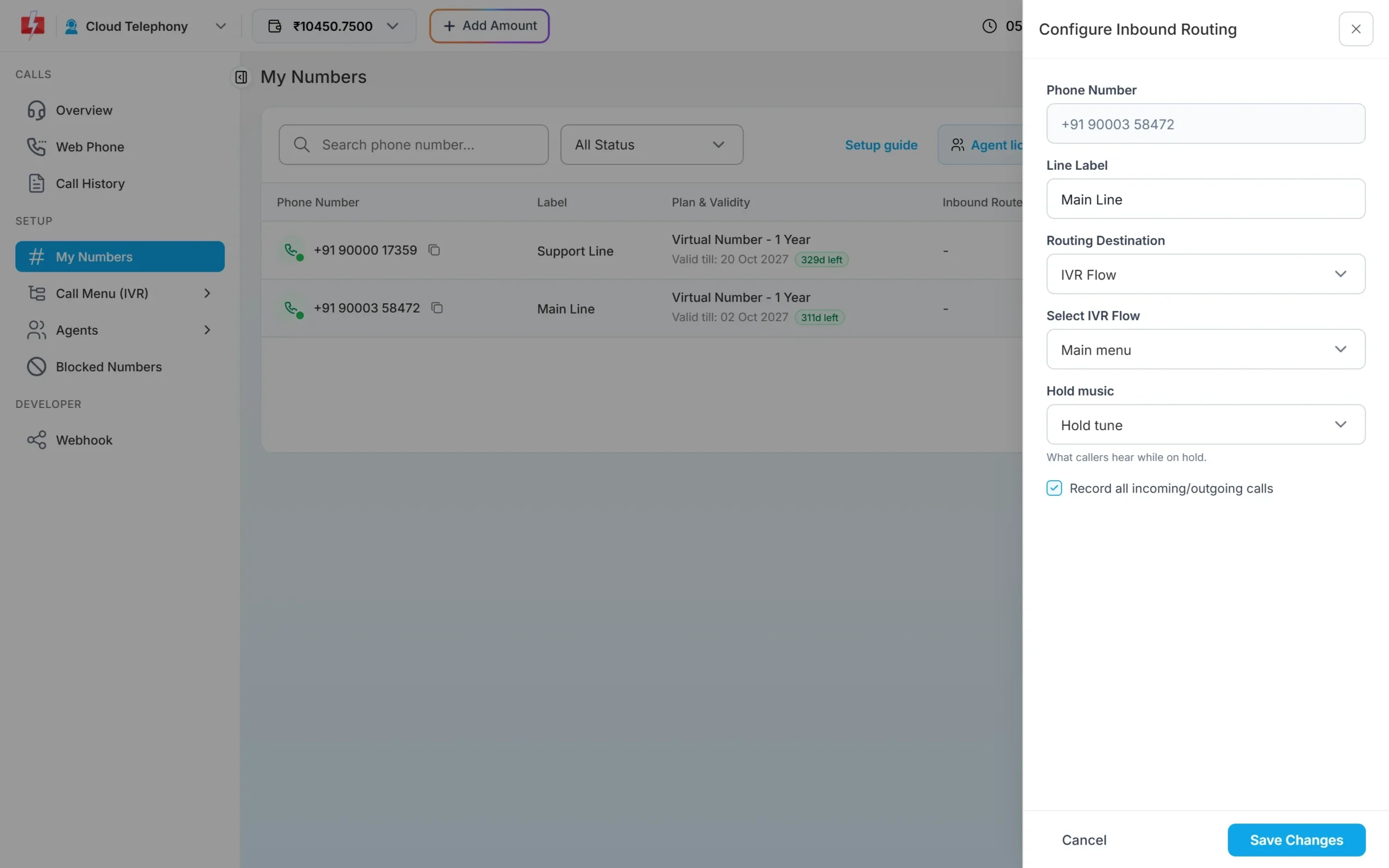
Routing the number to the IVR and choosing hold music. -
Transfer, park and move calls
During a call on the Web Phone, click Transfer. Transfer now sends the call to a team member or another number. Talk first, then transfer lets you speak to the person before handing over. Park puts the call on hold so anyone in your team can pick it up. Move to my mobile continues the call on your own mobile, and you can close the browser.
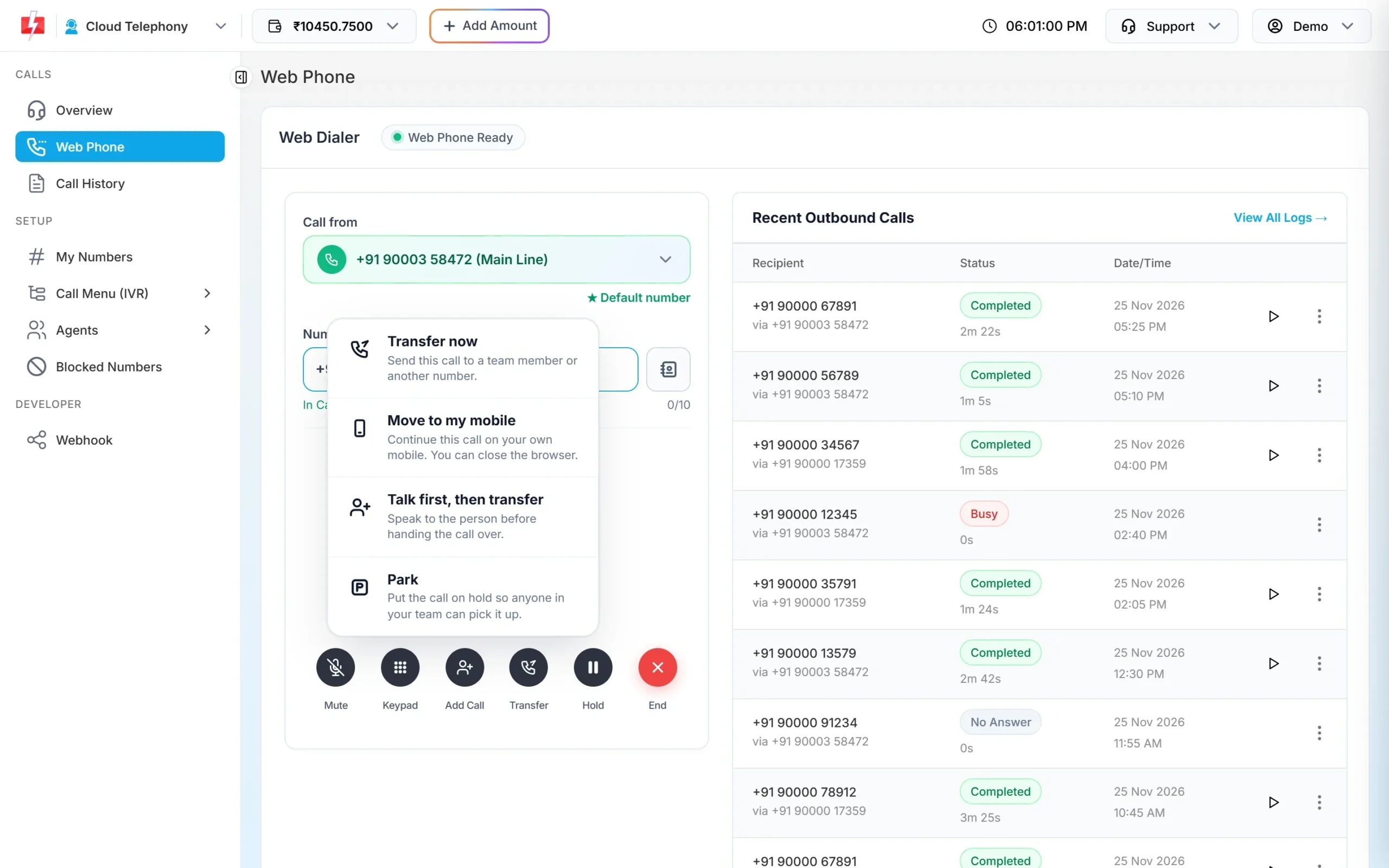
Transfer options during a call.
When you are done, My Numbers shows each number with its route, recording and auto renew status.
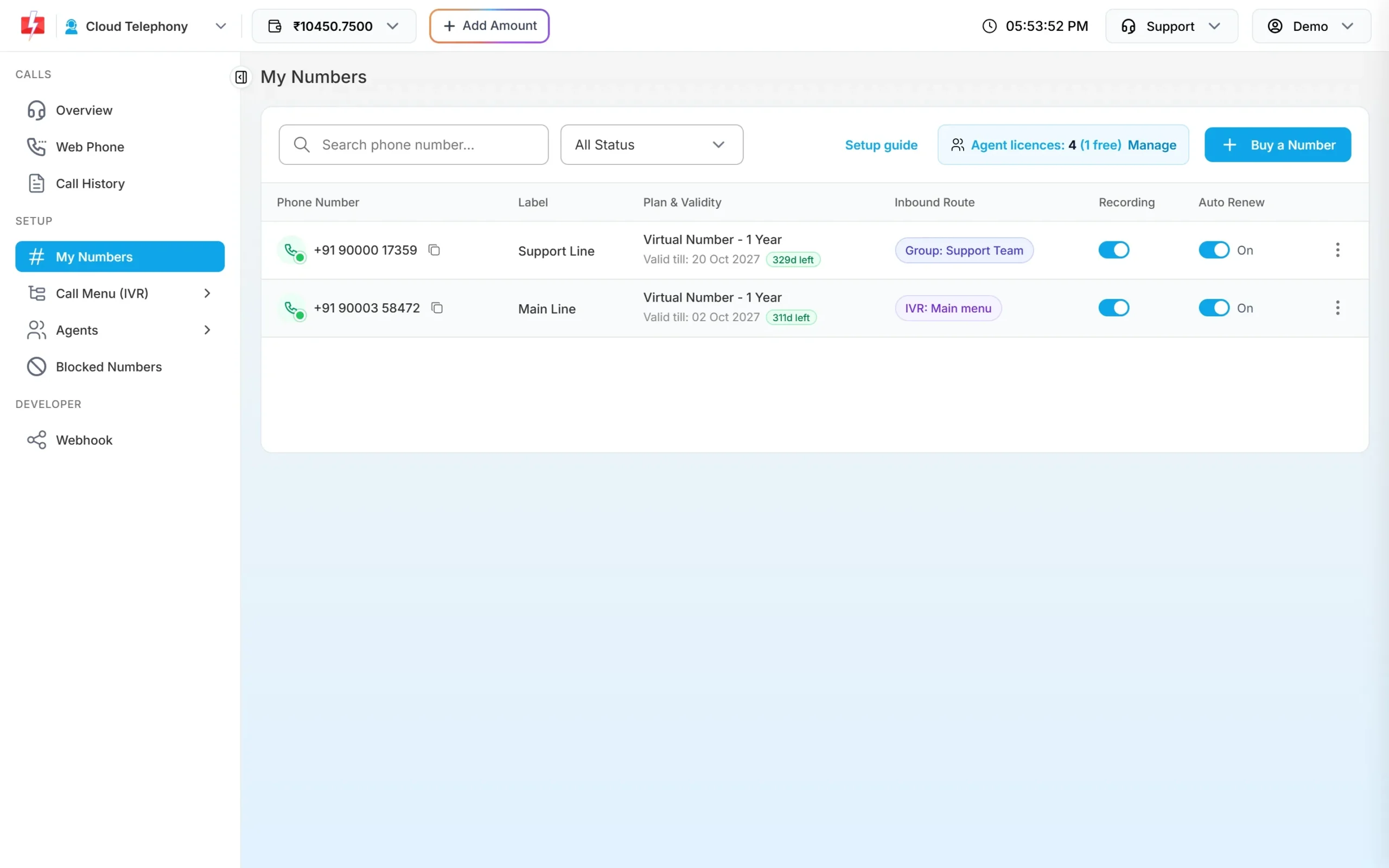
What a cloud PBX costs with Fast2SMS
At the time of writing, each virtual number costs ₹1,500 per month, billed yearly (₹18,000 a year), and includes 1 agent licence. Extra agent licences cost ₹600 per month, billed yearly (₹7,200 a year). The account owner’s own Web Phone does not use a licence. There is no setup fee and no per-minute charge for calls, IVR or recording. Everything is paid from your Fast2SMS wallet. Check the pricing page for current rates.
| Example setup | Per year | Works out per month |
|---|---|---|
| 1 number, owner + 1 team member | ₹18,000 | ₹1,500 |
| 1 number, owner + 3 team members | ₹32,400 | ₹2,700 |
| 2 numbers, owner + 4 team members | ₹50,400 | ₹4,200 |
Compare this with a box PBX, where you pay for the exchange, desk phones, wiring and an installer before the first call.
Who is a cloud PBX good for?
- Shops and service businesses where staff are not always at one desk.
- Clinics, coaching centres and real estate teams that need “Press 1, Press 2” menus.
- Online sellers whose support team works from home.
- Any small team that wants every call recorded and logged.
Running a support or sales desk? See inbound call center setup for queue settings and daily tips.
Frequently asked questions
Is a cloud PBX the same as a virtual PBX or hosted PBX?
Yes. All three names describe a phone system run by a provider online, which you control from a website instead of a box in your office.
Do I need desk phones or an app?
No. Fast2SMS Cloud Telephony works in the browser Web Phone on a laptop, desktop or phone. A headset makes calls clearer.
Can my staff call each other?
Yes. Each team member with Cloud Telephony has a short extension (owner 100, then 101, 102 and so on). They dial it on the Web Phone.
Can calls ring my mobile when I am out?
Yes. Route the number to a mobile, tick “Not online? Ring their mobile number” for a team member, or use Move to my mobile during a live call.
Can I keep my existing number?
Cloud Telephony gives you a new virtual number from the available list. Share it on your website and listings once it is live.
How long are call recordings kept?
Recordings are kept for 3 months. You can download the ones you need before that from Call History.