
To set up an inbound call center for a small business, you need five things: one business number customers can call, a licence for each agent, a call group that shares incoming calls between agents, a queue rule for when everyone is busy, and a way to follow up missed calls. With Fast2SMS Cloud Telephony, all five are set up in one web panel and your agents answer in the browser, so you can start with two or three people and no hardware.
This guide is the practical setup for an inbound support or sales desk: planning, queue settings, how agents answer, and how to track missed calls. For a shorter overview that also covers outbound campaigns, see cloud call centre for a small team.
What inbound call center software needs to do
- Give customers one number to call, and ring the right people behind it.
- Share calls fairly between agents (in call centres this is called ACD, automatic call distribution).
- Hold callers in a queue with music, and tell them their place in line.
- Send the call somewhere useful when nobody picks up: another team, a manager or a mobile.
- Record calls and keep a log for training and disputes.
- Flag missed calls so someone calls back.
Fast2SMS Cloud Telephony does each of these. The steps below show where.
Plan before you buy
- Hours: when will the desk answer? Write down days and times.
- Teams: one queue (just “Support”) or a menu with options (Sales, Support, Accounts)?
- Agents: who answers, and who is the backup when they are busy?
- After hours: a closed message, or calls to a manager’s mobile?
Before you buy a number, complete KYC in Account Setting > KYC. Telecom rules require it, and our team usually reviews it within 1 working day.
Step-by-step inbound call center setup
-
Buy a number and agent licences
In Cloud Telephony > My Numbers, click Buy a Number, choose a number and pay from your wallet. Each number includes 1 agent licence. For more agents, open Agents > Licences, click Buy Licences and choose how many. Then use Assign to Member on each licence. In the Assign Licence popup you choose the member, which numbers they work on (none ticked means all numbers), and the number customers see when they call out.
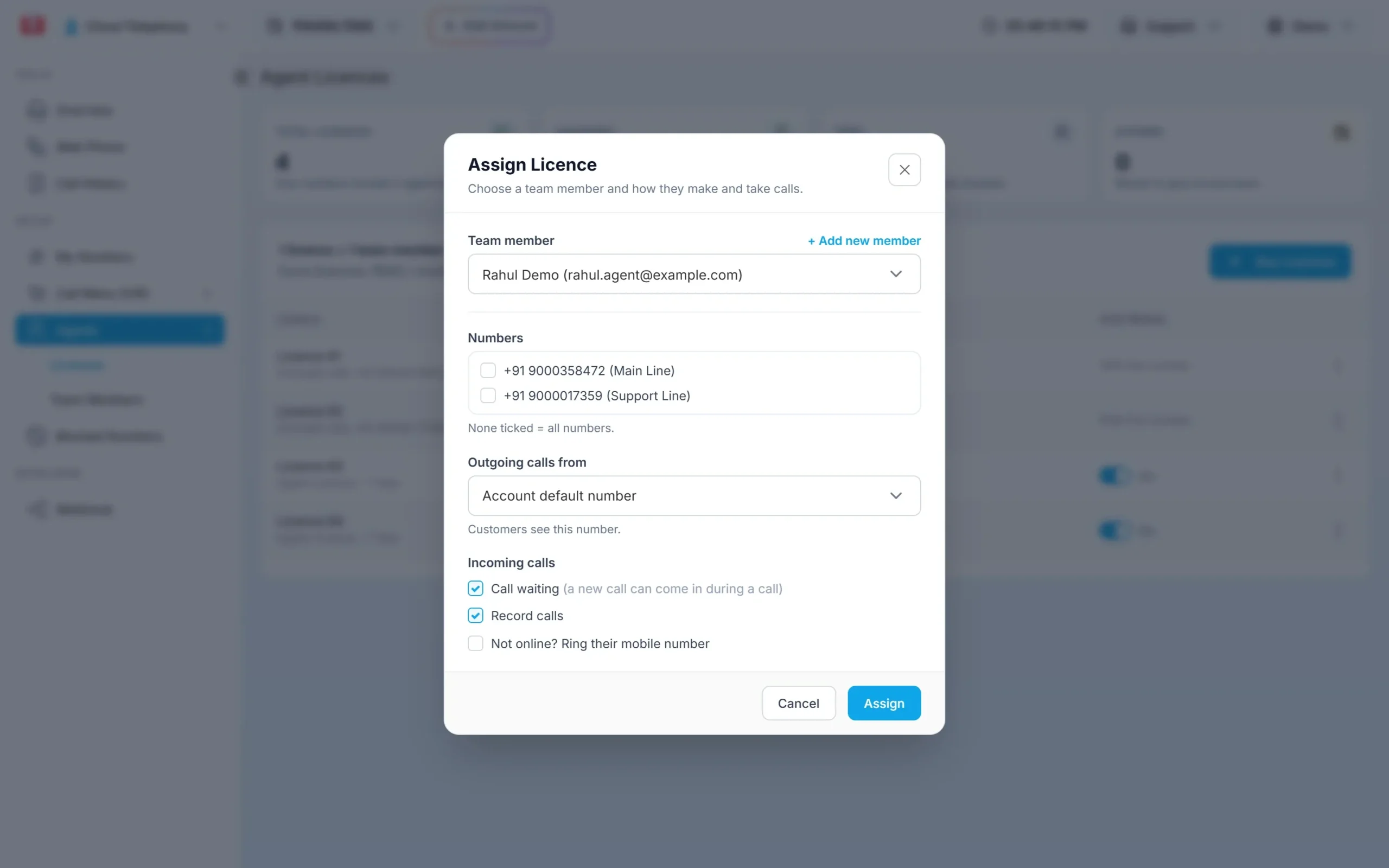
Assigning a licence to an agent. -
Set each agent’s call options
In Team Members, open an agent. With Cloud Telephony ticked you can set their Extension (101, 102 and so on), Record calls, Call waiting (a new call can come in during a call) and Not online? Ring their mobile number. That last option is useful for field staff: when their Web Phone is not open, the call rings their mobile instead. More in adding agents and licences.
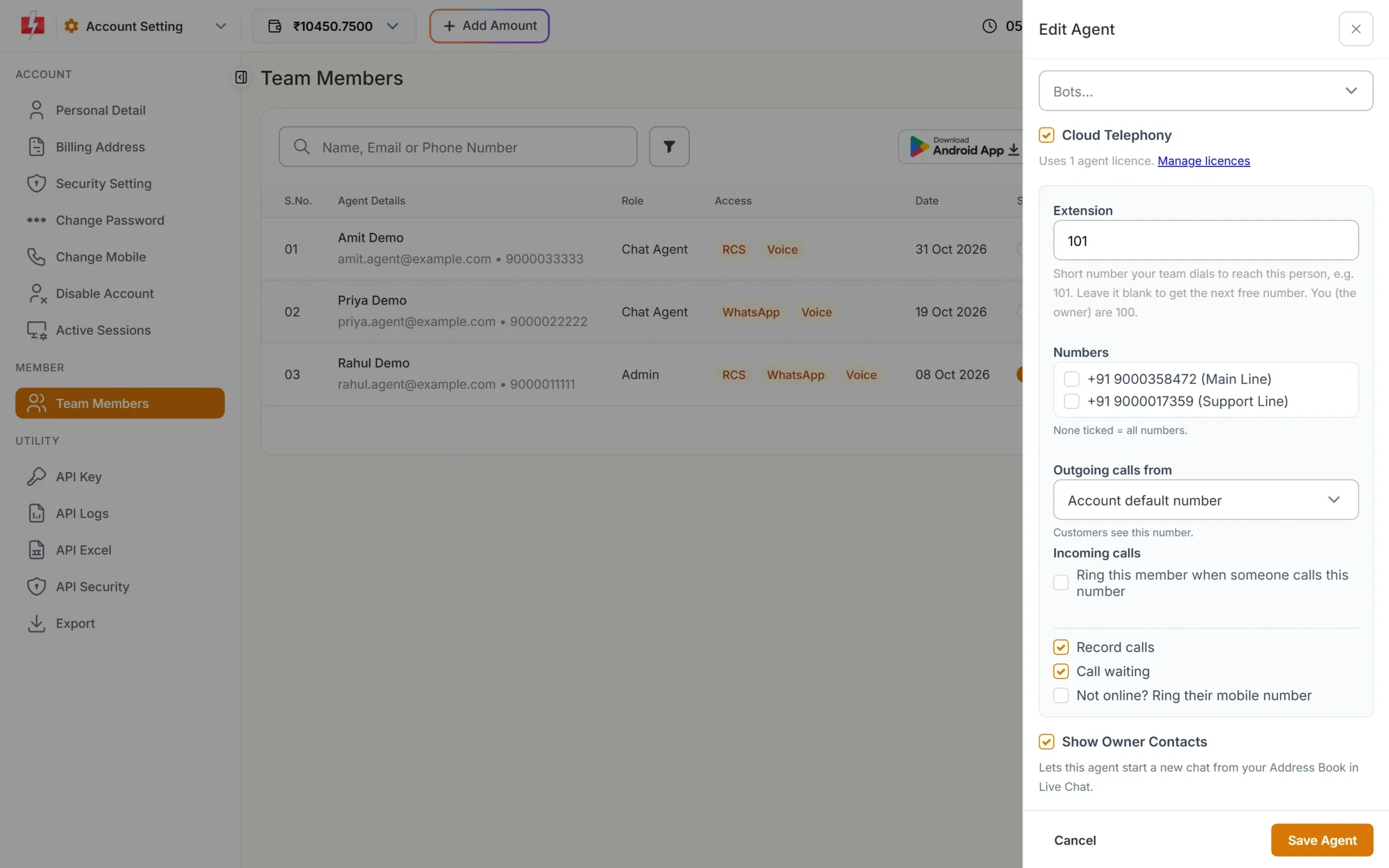
Agent settings: extension, recording, call waiting and mobile backup. -
Create the queue (call group)
Open Call Menu (IVR) > Call Groups and click Create Call Group. Give it a Group Name, choose a Distribution Strategy and tick the agents. For a support desk, Round-Robin spreads calls evenly; for a small sales desk where speed matters, Ring-All rings everyone at once. Turn on Sticky Agent Routing (24h) if repeat callers should reach the agent who answered them last. The call groups guide compares all four strategies.
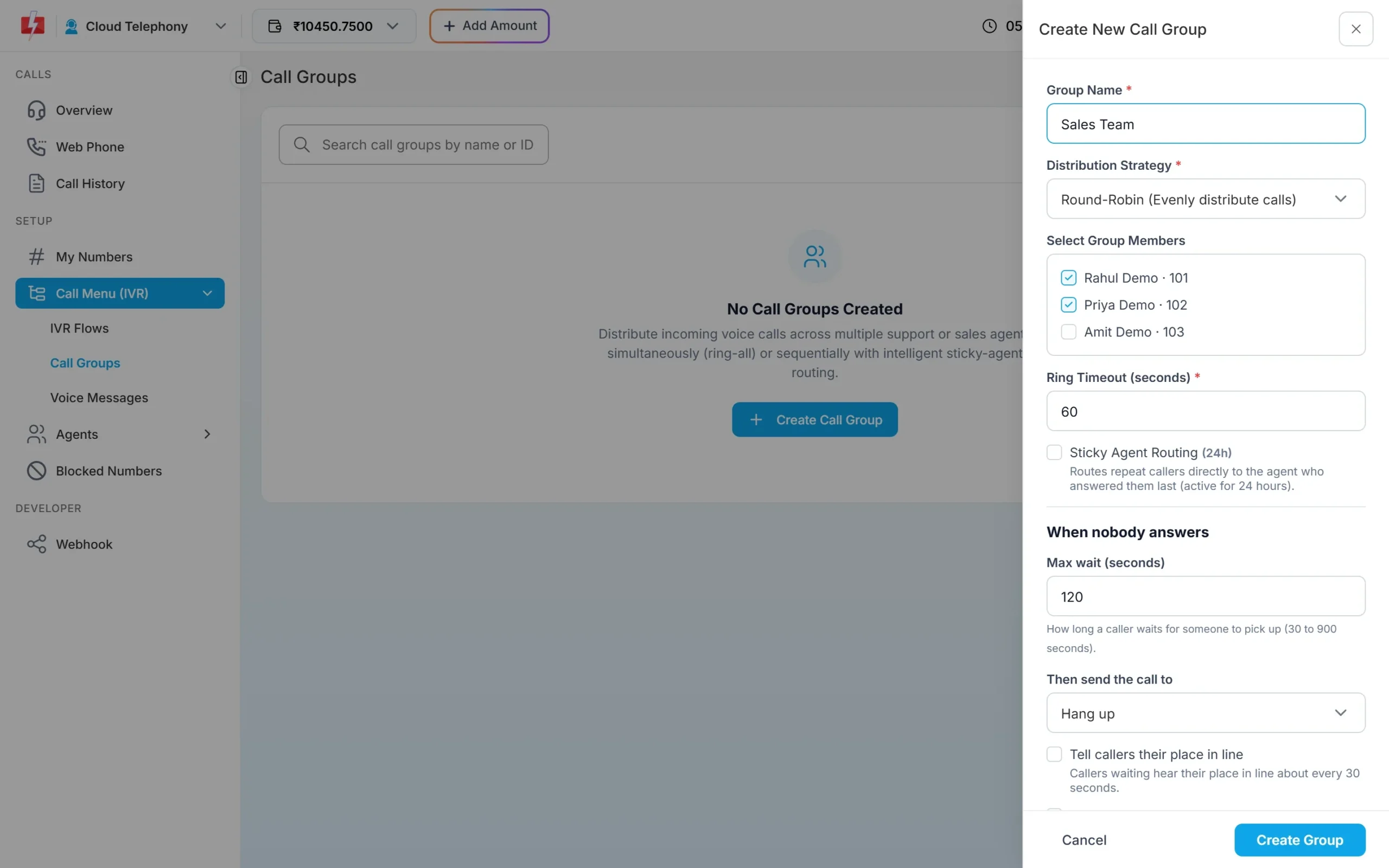
A Round-Robin queue with two agents. -
Decide what happens when nobody answers
Scroll to When nobody answers. Set Max wait (seconds), which is how long a caller waits for someone to pick up (30 to 900 seconds, 120 by default). In Then send the call to, choose Hang up, An IVR flow, Another call group, A team member or An outside number. Tick Tell callers their place in line so waiting callers hear their position about every 30 seconds, and Break between calls to give agents a short pause after each call. Click Create Group.
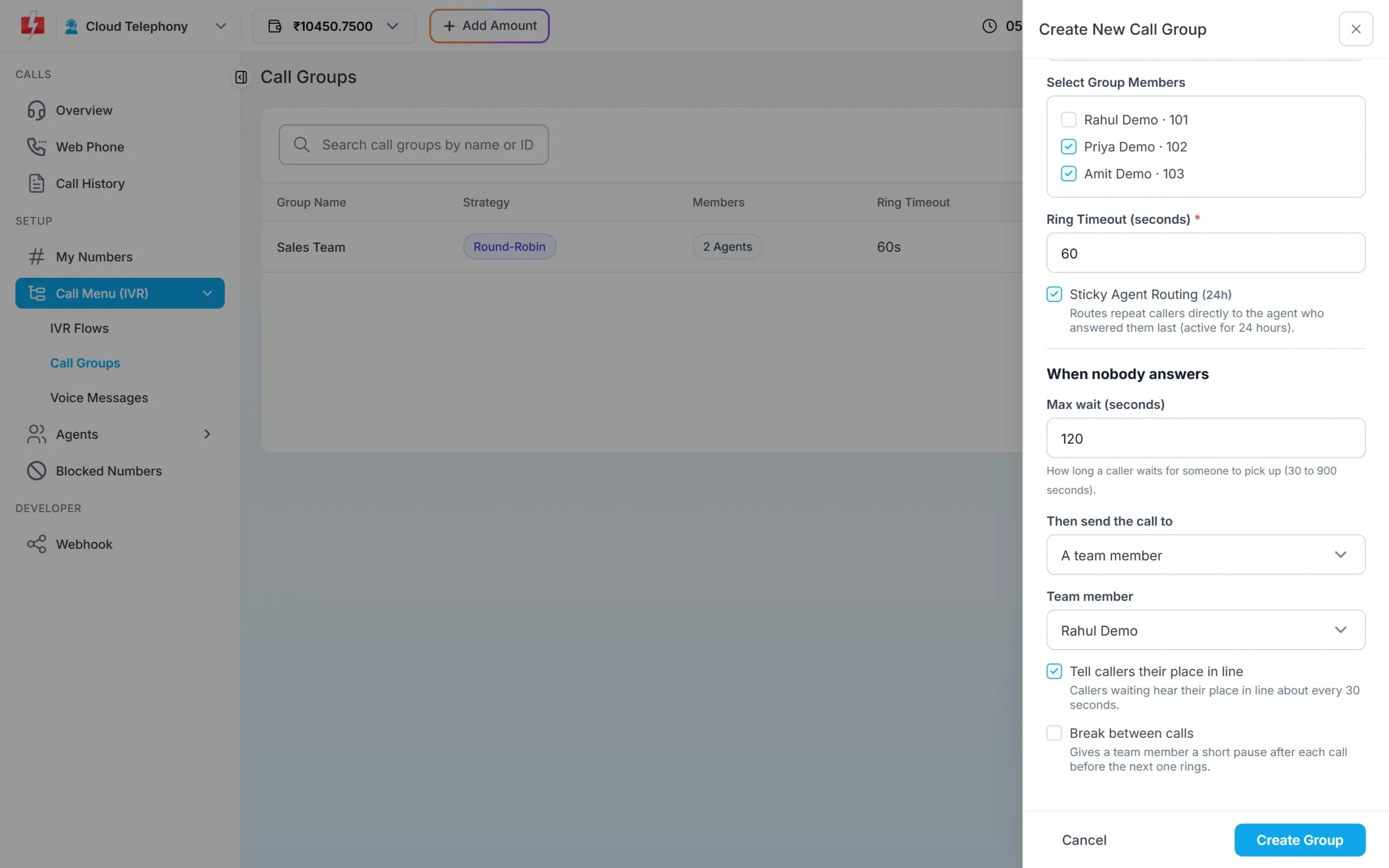
Overflow to a backup agent after 120 seconds. -
Send the number’s calls to the queue
In My Numbers, open the row menu and click Configure Route. Choose Call Group (Queue) and select your group. If you have more than one team, choose IVR Flow instead and build a menu that rings a different group for each key (see IVR setup step by step). Pick the Hold music callers hear, keep recording on, and click Save Changes.
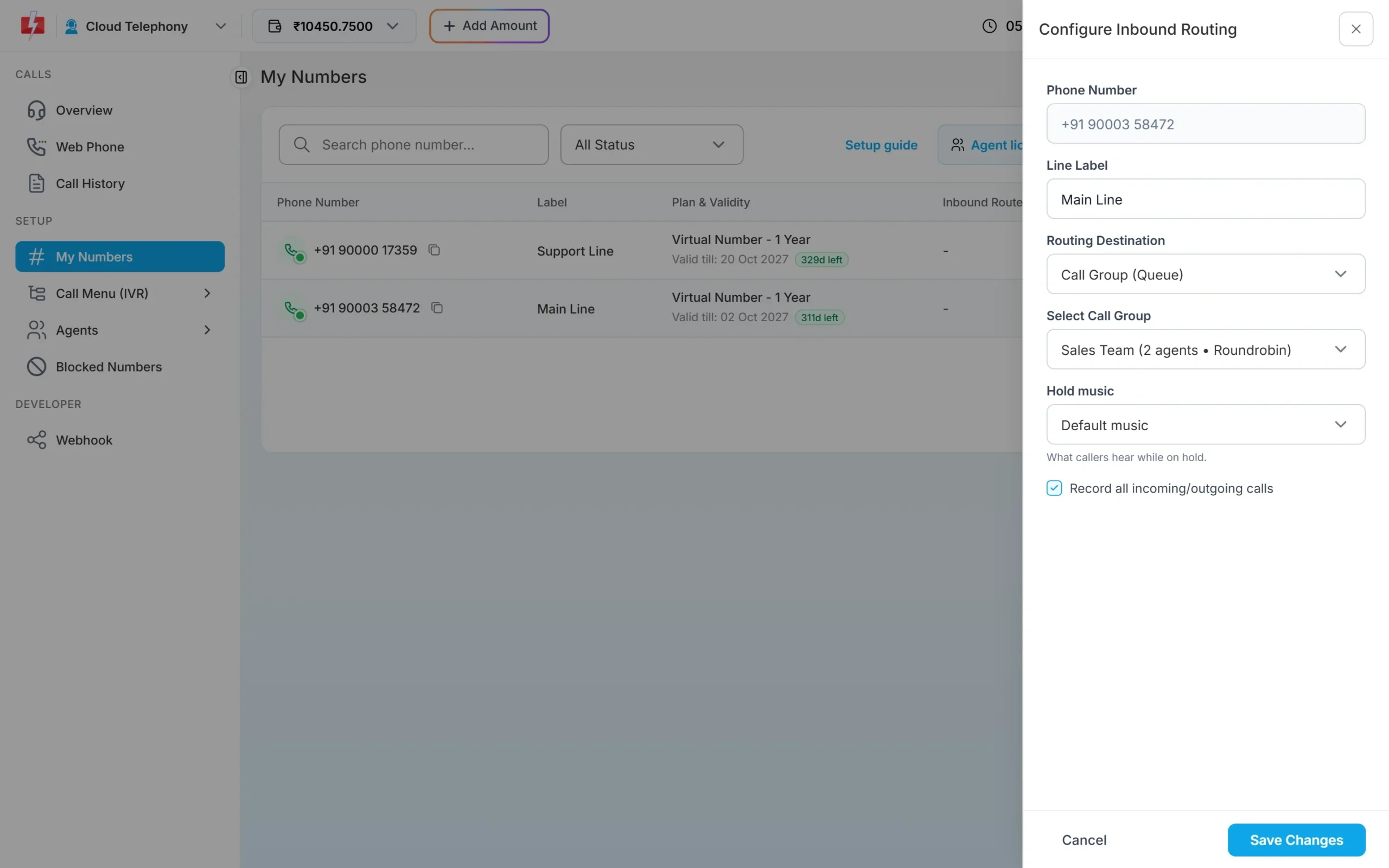
Routing incoming calls to the Sales Team queue. -
Agents answer in the browser
Agents log in to Fast2SMS and open Web Phone. An incoming call shows the caller’s number and which of your numbers they dialled, with Answer and Decline. Agents do not have to stay on the Web Phone page: on any panel page a black call bar appears at the top with Answer, Decline and Mute Ring. During a call they can mute, hold, use the keypad, transfer or end the call.
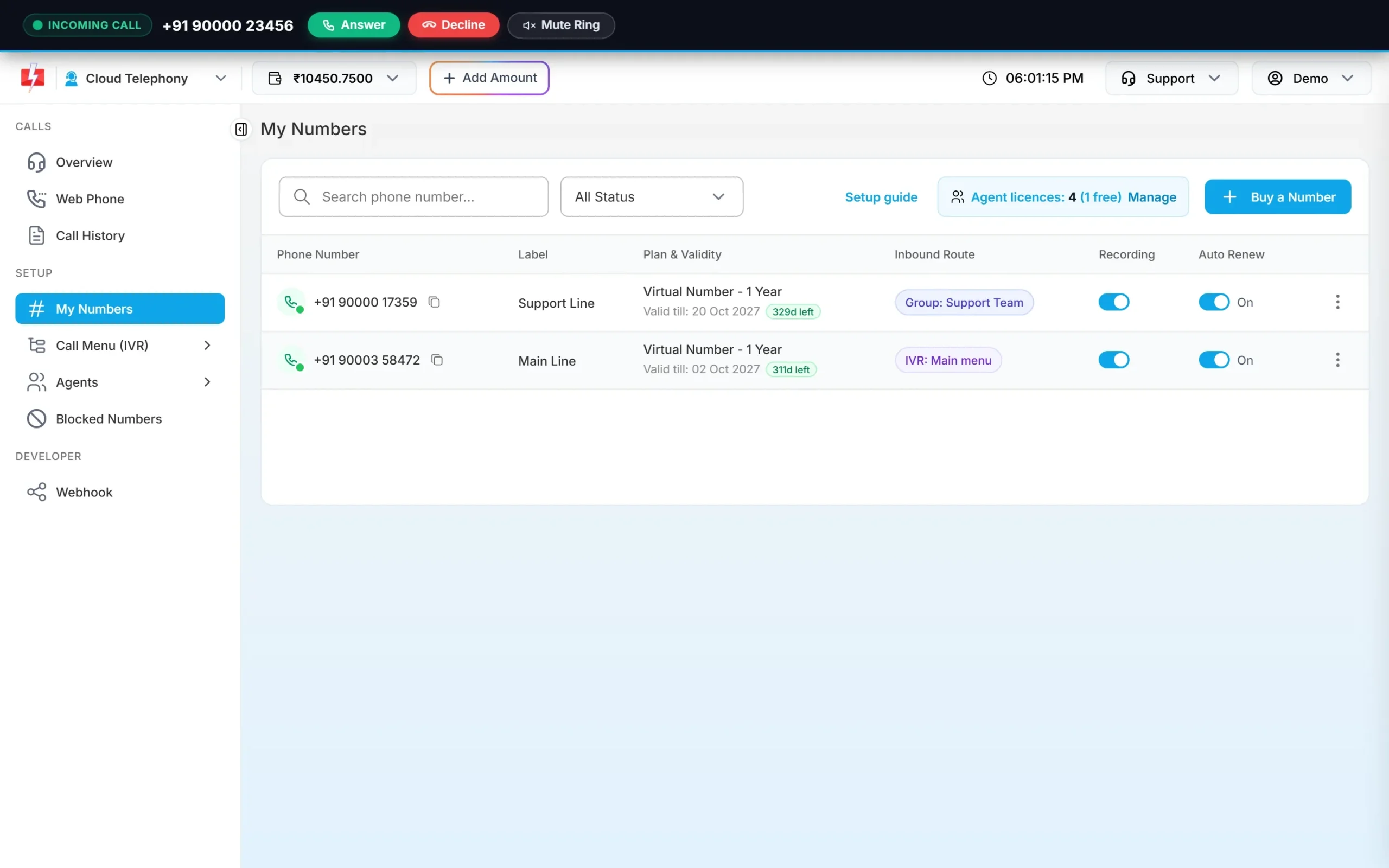
The call bar shows incoming calls on every panel page. -
Track calls, missed calls and recordings
Open Call History. Each row shows the time, the customer with Incoming or Outgoing, your number, the agent, the status, the duration and the recording. Filter by Call Status and Direction to list missed incoming calls (No Answer, Busy, Cancelled) and call them back. The Overview page also shows a Missed incoming count with “Call them back”. The owner can play and download recordings; agents see only their own calls. Details in call recording and call history reports.
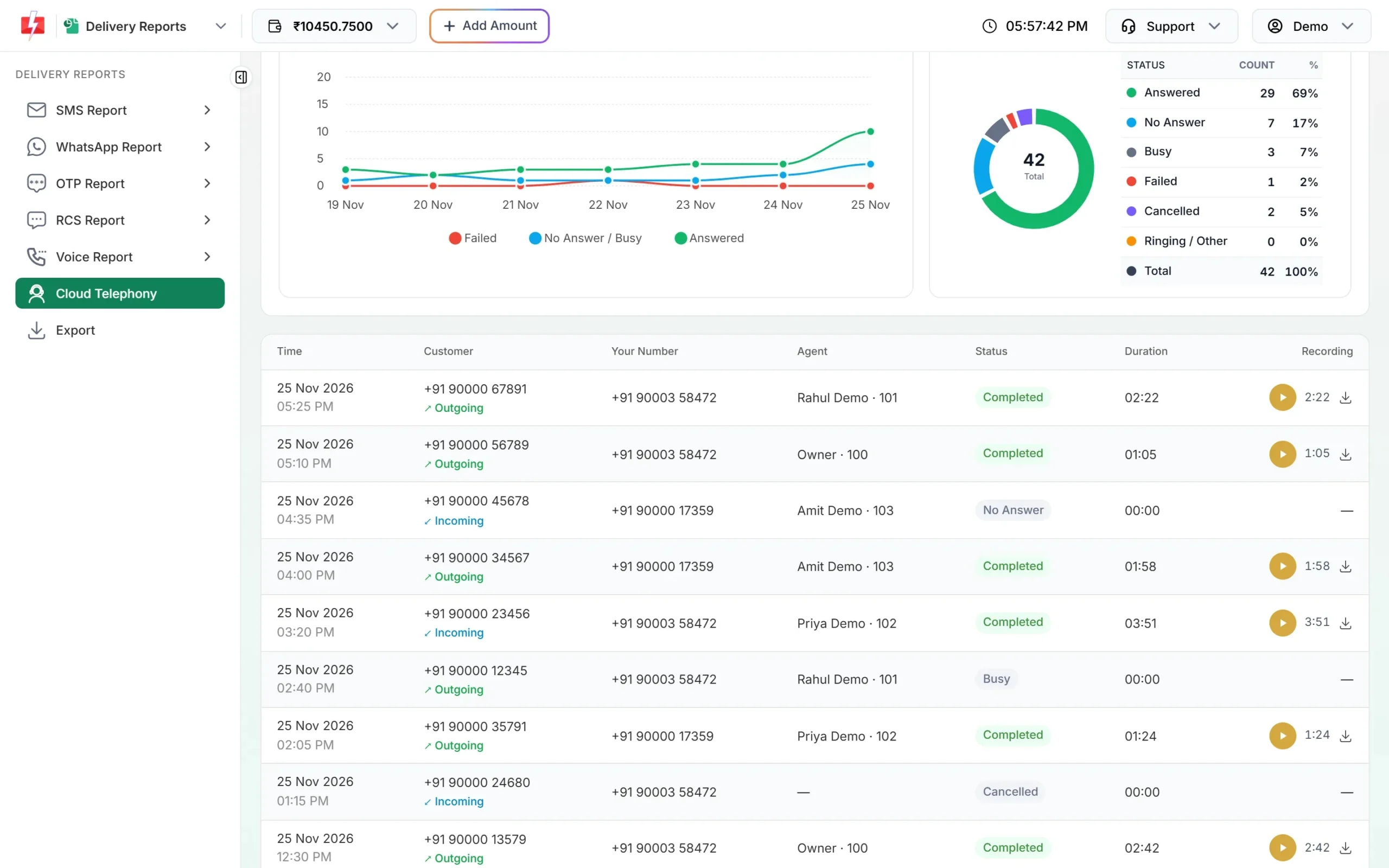
Call History: every call with its agent and recording.
Tips for running the desk every day
- Open the Web Phone at the start of the shift. Agents should see Web Phone Ready before taking calls. A headset gives clearer audio than laptop speakers.
- Use a backup for every queue. Set Then send the call to a senior agent, a second group or a manager’s mobile, so no call simply ends.
- Keep the wait short. If callers often drop before an answer, lower Max wait and send them to a backup sooner.
- Call back missed calls the same day. Check the missed calls filter twice a day, or get alerts on your own system with call webhooks (event “On Missed”).
- Listen to a few recordings each week. Use them to train new agents. Recordings are kept for 3 months.
- Block abusive callers. Add their numbers in Blocked Numbers; they can no longer reach your numbers.
- Transfer instead of asking customers to call again. Use Transfer or Park on the Web Phone to hand a call to the right person.
What an inbound call center costs
At the time of writing, a number costs ₹1,500 per month, billed yearly (₹18,000 a year), including 1 agent licence. Each extra agent licence costs ₹600 per month, billed yearly (₹7,200 a year). There is no setup fee and no per-minute charge for calls, IVR or recording. For example, one number with three agents costs ₹32,400 a year. Paid from your Fast2SMS wallet; see the pricing page.
Frequently asked questions
How many agents do I need to start an inbound call center?
Start with the people who already answer calls, often two or three, plus a backup. You can buy more agent licences any time from Agents > Licences.
Can agents work from home?
Yes. Agents answer in the browser Web Phone from anywhere with internet. There is no desk phone or app to install.
What do callers hear while they wait?
They hear the hold music you chose for the number. If you tick Tell callers their place in line, they also hear their position about every 30 seconds.
What happens if an agent is not at the laptop?
If “Not online? Ring their mobile number” is on, the call rings their mobile. Otherwise the call group moves on as per your strategy and queue settings.
Can managers listen to calls later?
Yes. The account owner can play and download recordings in Call History. Agents see only their own calls and cannot play recordings.
Can I send call details to my CRM?
Yes. Create a webhook in Webhook > Cloud Telephony and choose events like On Incoming Call, On Answered, On Completed or On Missed.