
To stop calling a number in Fast2SMS bulk voice campaigns, add it to your voice Blacklist. Open Blacklist in the Voice menu, click Add Numbers, paste the numbers or upload a file, and save. Blacklisted numbers are never called in any later campaign, even if they are in your list, and they cost nothing.
This guide is for anyone who gets “please don’t call me” requests, keeps a do-not-call list, or wants to keep staff, test or complaint numbers out of campaigns. It also shows a simple way to let customers opt out with a key press.
Why keep a voice blacklist
- Respect opt-outs. When a customer asks you to stop calling, they should not hear from you again by voice.
- Fewer complaints. Calling people who said no leads to complaints and spam reports.
- No wasted money. Blacklisted numbers are removed before calling and charged ₹0.
- Clean lists. You can keep your full customer list in one Excel file and still be sure blacklisted numbers are skipped.
The voice blacklist is separate from the national DND registry. DND numbers are skipped by the operator anyway; your blacklist covers people who are not on DND but asked you, specifically, to stop.
How to add numbers to the voice blacklist
-
Open Blacklist
Switch to Voice in the app menu and click Blacklist under VOICE CALL (OBD). The list shows S.No., Mobile Number, Source (Manual or Import) and Date, 50 numbers per page. Use the search box to find a number.
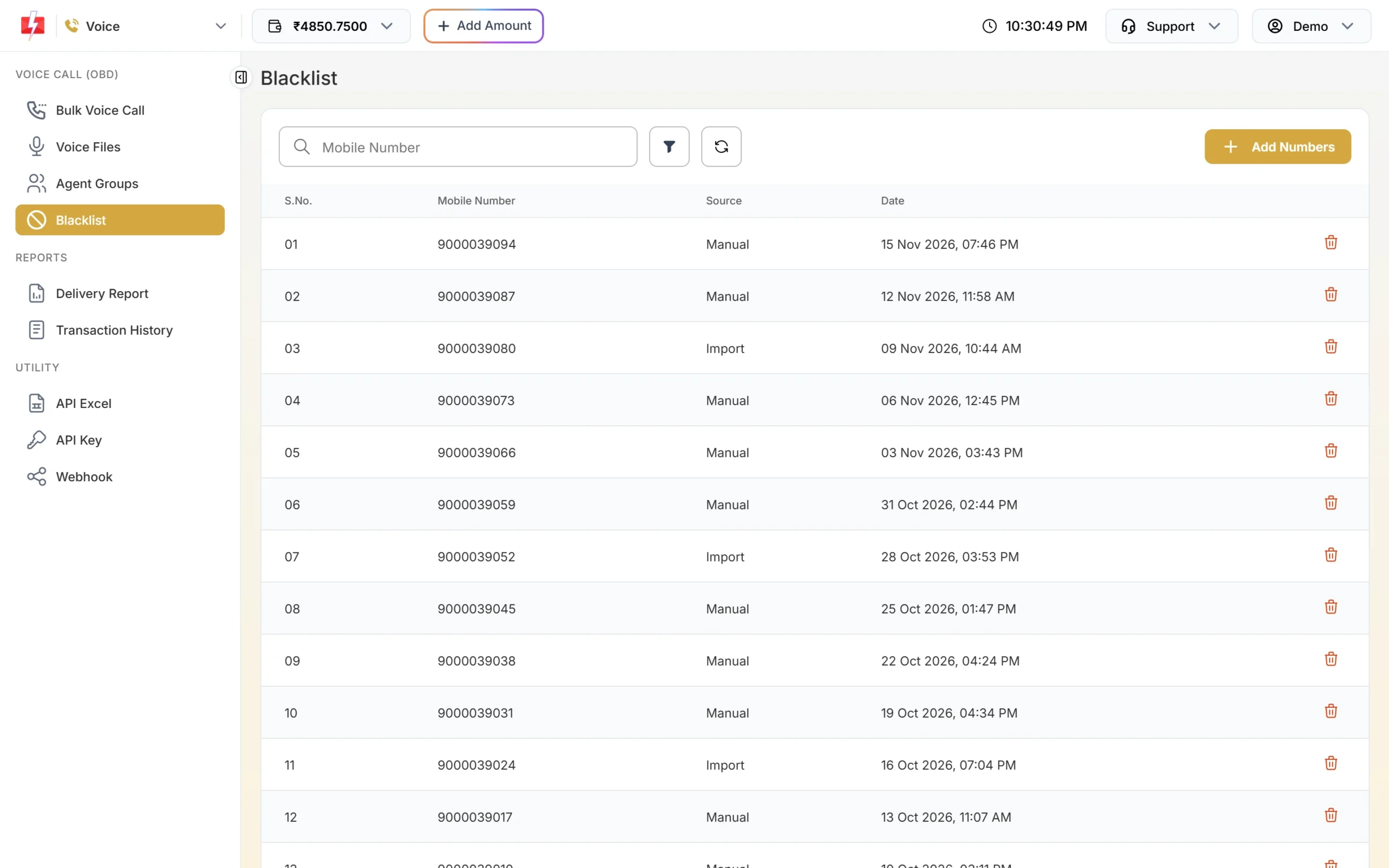
Every blacklisted number with where it came from and when. -
Click Add Numbers
The Add to Blacklist drawer opens. Under Paste Numbers, enter one 10-digit number per line. Or use Or Upload File to upload a CSV, TXT or Excel file with the numbers in the first column, up to 10 MB.
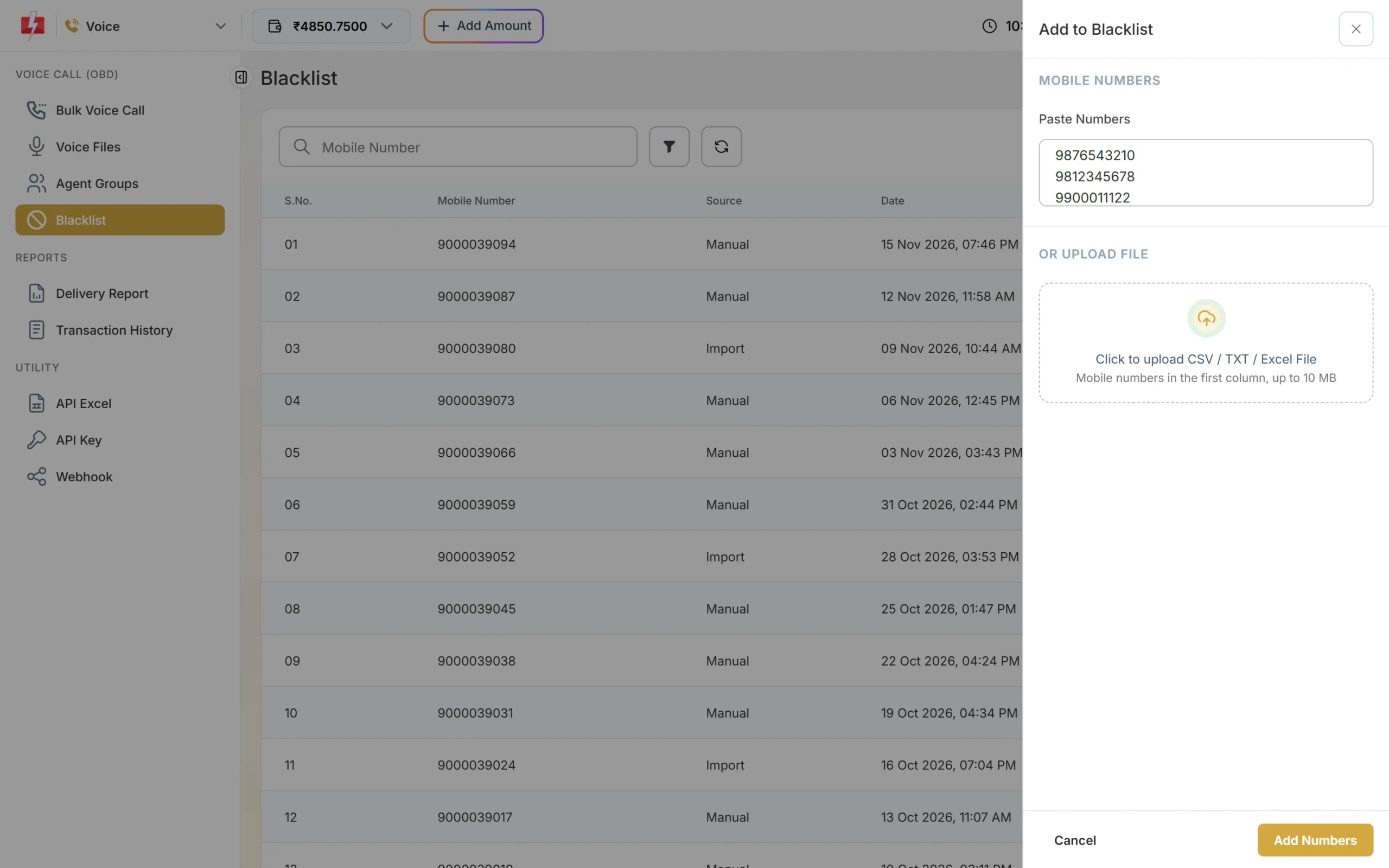
Paste a few numbers, or upload a file for a long list. -
Save
Click Add Numbers. You see “N number(s) added to the voice blacklist”. Numbers that are already on the list are ignored, so you can upload the same file again safely. If nothing valid was found, you see “No valid 10-digit numbers found”.
-
Check it in your next campaign
When you send a campaign, the Campaign Preview & Confirmation popup shows Blacklisted Numbers separately. They are not counted in Valid Numbers and are not charged.
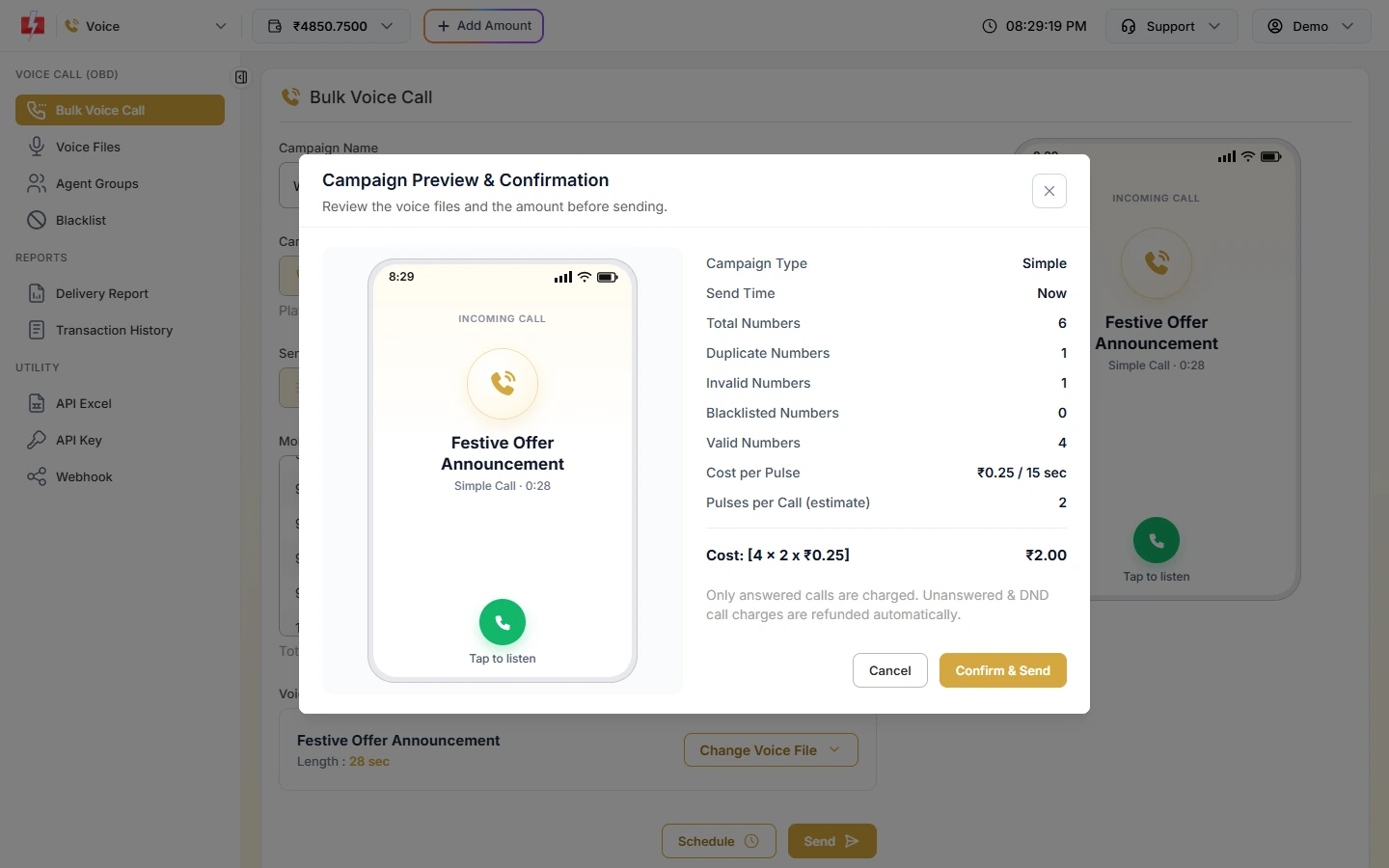
Blacklisted numbers are left out of the cost.
What happens to blacklisted numbers
| Situation | Result |
|---|---|
| Number is in your blacklist when you send | Not called. Counted as Blacklisted in the popup. ₹0. |
| Number added to the blacklist after you scheduled a campaign | Skipped when the campaign starts. The report shows “Added to your voice blacklist”. |
| Every number in the list is blacklisted | The campaign is not created: “All numbers are in your voice blacklist.” |
| Voice webhook | No webhook request is sent for blacklisted numbers. |
The voice blacklist applies to voice calls only. If the person also asked you to stop SMS or WhatsApp messages, update those lists as well.
Let customers opt out with a key press
You can give people an easy way to say “do not call me again” inside a Key Press (DTMF) campaign:
- Add a line to your menu recording, for example “To stop receiving these calls, press 9.”
- Allow key 9 on the keypad, together with your other answer keys.
- After the campaign, open it in Voice Report and click Download. Filter the Key Pressed column for 9.
- Copy those numbers and add them to Blacklist with Add Numbers.
Fast2SMS does not add numbers to the blacklist automatically when a key is pressed, so make step 4 part of your routine after every campaign.
How to remove a number from the blacklist
Click the delete icon at the end of the row. The panel asks: “Remove [number] from the blacklist? Campaigns will call this number again.” Confirm to remove it. You see “Number removed from the blacklist”. Only do this if the number was added by mistake or the customer asked to hear from you again.
Frequently asked questions
How do I stop voice calls to a customer who asked not to be called?
Add their number to Blacklist in the Voice menu. It is skipped in every future voice campaign.
Is the voice blacklist the same as DND?
No. DND is the national registry managed through telecom operators. Your voice blacklist is your own do-not-call list inside Fast2SMS.
Am I charged for blacklisted numbers?
No. They are removed before calling and charged ₹0.
Can I upload my do-not-call list from Excel?
Yes. Upload a CSV, TXT or Excel file with the numbers in the first column, up to 10 MB.
Does the voice blacklist stop SMS too?
No. It applies only to bulk voice calls.
Can I see where a blacklisted number came from?
Yes. The Source column shows Manual for pasted numbers and Import for numbers from a file, with the date added.