
To convert an Excel file to CSV, open it in Excel, click File > Save As and choose CSV UTF-8 (Comma delimited). The CSV File option on the Fast2SMS DLT SMS and Quick SMS pages takes a .csv file, so this one step is usually all you need before you upload your number list.
Below are the steps for Excel and Google Sheets, and the two mistakes that break mobile numbers when you save.
How to save Excel as CSV for bulk SMS
-
Clean the sheet first
Keep one header row (for example Name, Mobile, Amount) and one customer per row. Put the mobile numbers in one column as plain 10-digit numbers. If your file has many sheets, open the sheet with the numbers. A CSV file keeps only the sheet you are on.
-
Fix the number format
Select the mobile number column, right-click, choose Format Cells > Number and set decimal places to 0. Without this, Excel can show long numbers such as 919876543210 as 9.19877E+11, and that is what gets saved in the CSV.
-
Save as CSV UTF-8
Click File > Save As, pick CSV UTF-8 (Comma delimited) (*.csv) and save. If Excel warns that some features will be lost, that is fine: formulas, colours and other sheets are dropped, the values stay. UTF-8 keeps Hindi and other regional-language text readable.
In Google Sheets, use File > Download > Comma-separated values (.csv). In Numbers on a Mac, use File > Export To > CSV.
-
Upload the CSV in Fast2SMS
Open DLT SMS, choose your Sender ID, and under Send To click CSV File. Click Click to upload and pick your file (up to 20 MB). Then choose the column that has the mobile numbers. If your template has variables, you can fill each one from a column of the file, such as Name or Amount. Use Sample CSV if you want to see the expected layout.
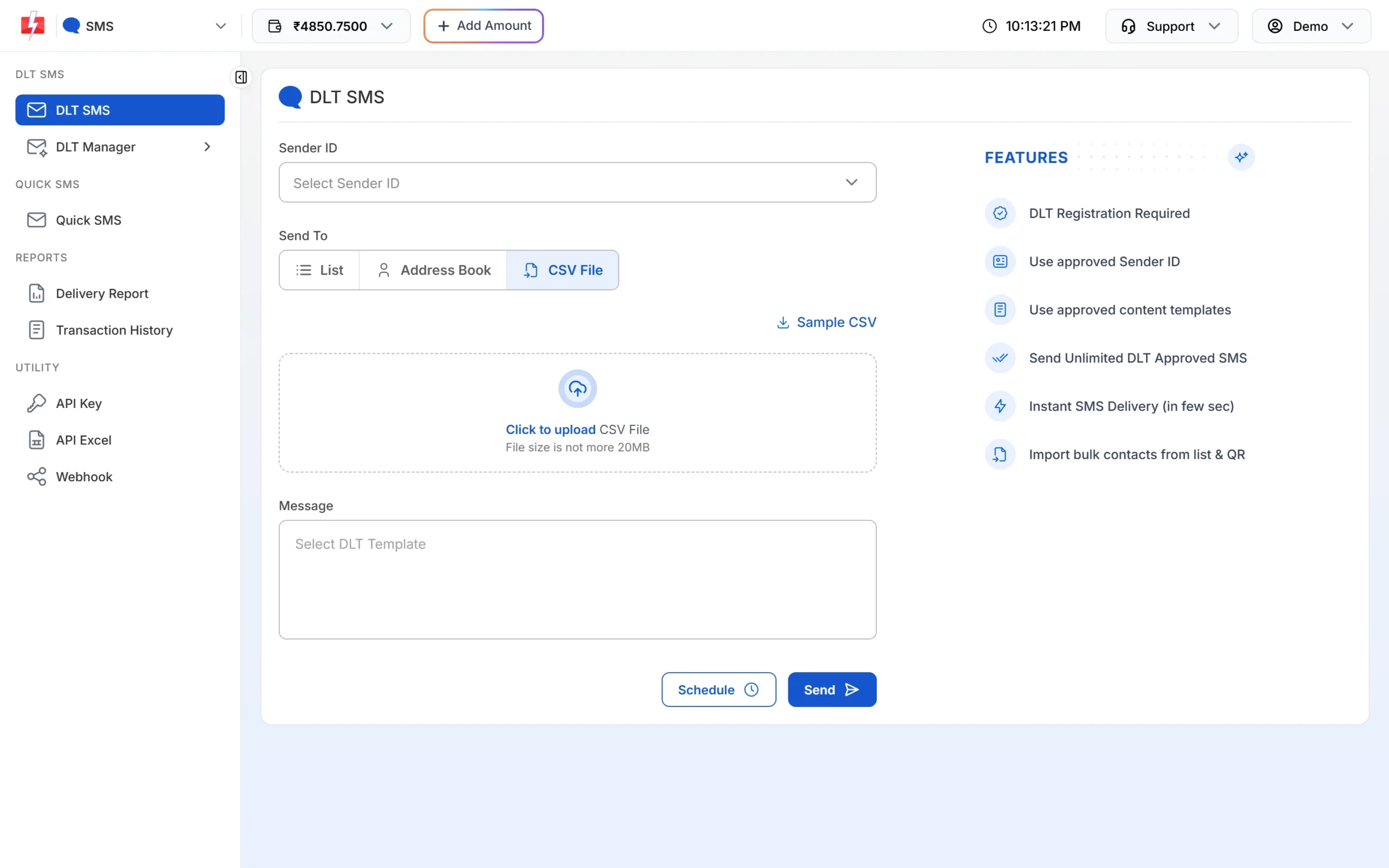
The CSV File option on the DLT SMS page.
Common problems after converting
| Problem | Fix |
|---|---|
| Numbers show as 9.19E+11 | Format the column as Number with 0 decimals in the .xlsx file, then save as CSV again. |
| Hindi text shows as ??? or strange symbols | Save as CSV UTF-8, not plain “CSV (Comma delimited)”. |
| Many numbers marked invalid | Remove spaces, dashes and +91 signs, and check for empty or short numbers. |
| Wrong column picked | Upload again and pick the column that holds the mobile numbers. |
Frequently asked questions
Can I upload an .xlsx file directly for bulk SMS?
The CSV File option on the DLT SMS page takes .csv files. The Address Book import accepts Excel files, so you can also import contacts there and send to a group without converting.
Why did my mobile numbers lose digits?
Excel stored them in scientific format. Change the column to Number with 0 decimals and save the CSV again from the original Excel file.
What is the maximum CSV size?
The DLT SMS page accepts a CSV file of up to 20 MB.
Can I add names and other details in the CSV?
Yes. Add one column per detail. After the upload, you can fill each template variable from a column.