
This guide explains how bulk SMS works in Fast2SMS, from the day you create your account to the moment you read the delivery report. It is for shop owners, schools, clinics and any business in India that wants to send SMS to many customers. You will see what DLT is, what you must set up once, how sending and charges work, and what each report status means.
यह गाइड हिंदी में पढ़ें: Bulk SMS क्या है और कैसे भेजें (bulk SMS kya hai, kaise bheje): DLT के साथ पूरा तरीका
How bulk SMS works: the short version
To send bulk SMS in India you need three things: money in your Fast2SMS wallet, DLT approval for your business, and a list of numbers. Once DLT is done, you pick an approved Sender ID and template, add numbers, check the cost and send. The amount is taken from your wallet and you can follow every number in the Delivery Report.
Step 1: Your account and wallet
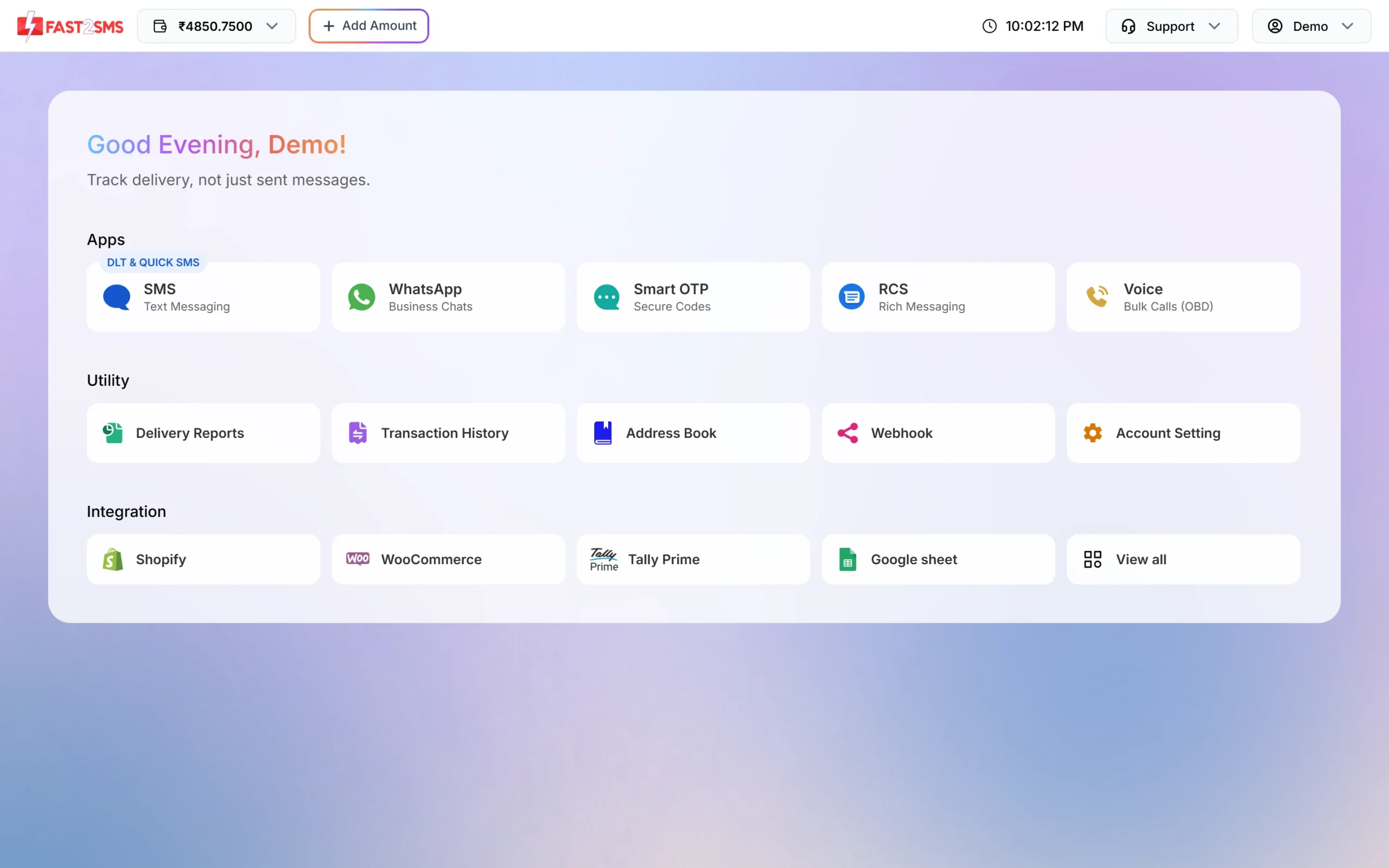
Fast2SMS works on a prepaid wallet. You add money once and every SMS you send is taken from that balance. Your current balance is always shown at the top of the panel, next to the Add Amount button.
After you log in, the home screen shows all apps. Bulk SMS lives in the SMS app (marked “DLT & QUICK SMS”). Click it to open the SMS menu with DLT SMS, DLT Manager, Quick SMS, Delivery Report and Transaction History.
At the time of writing, the pricing page says new accounts get ₹50 free credit on sign-up, the minimum recharge is ₹100, and 18% GST is added to the recharge amount. The wallet balance does not expire. For the current per-SMS rates, see the bulk SMS pricing page.
Sending in bulk? For high SMS volumes our team offers discounted rates. Talk to our team or see SMS pricing.
Step 2: Why DLT is needed in India
In India, TRAI rules say every business that sends commercial SMS must register on a DLT (Distributed Ledger Technology) platform run by the telecom operators. DLT is how operators know who is sending, from which name, and with what text. If a message does not match what is registered, operators can block it.
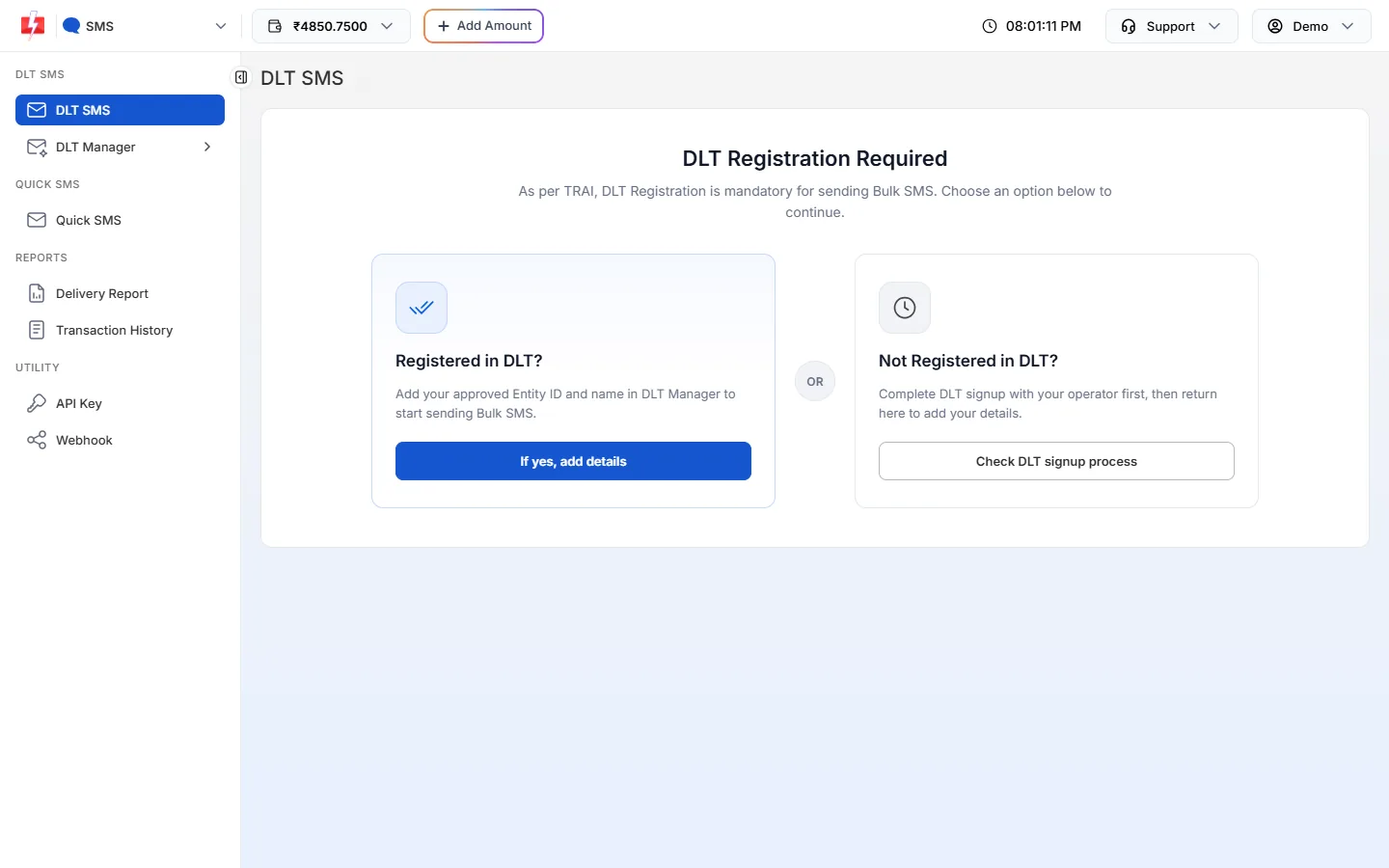
Until you add your DLT details, the DLT SMS page shows “DLT Registration Required” with two choices. If you are already registered, click If yes, add details. If not, click Check DLT signup process, finish registration with an operator, then come back.
The four DLT pieces you set up once
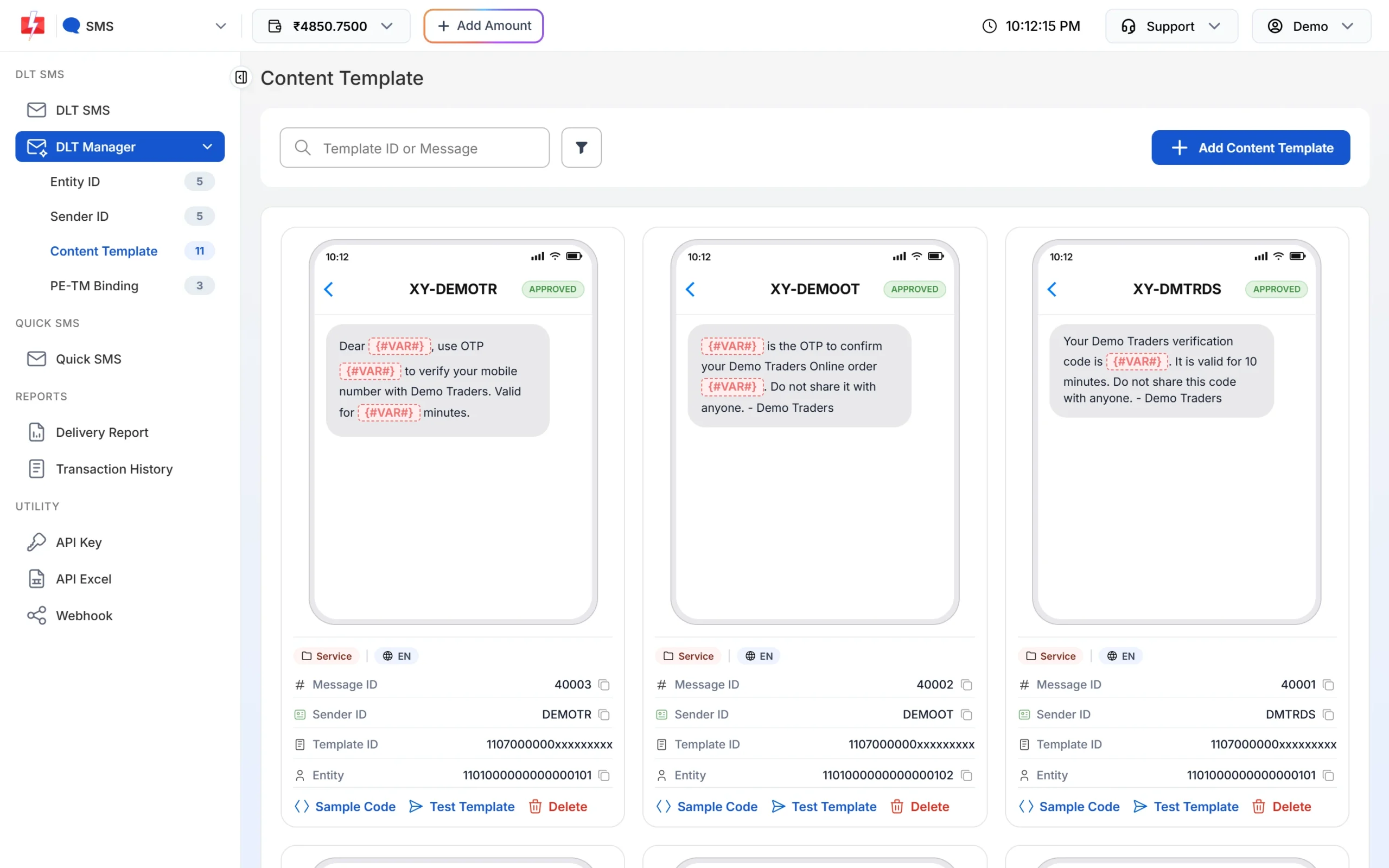
You register these on your operator’s DLT portal first, then add the same details in Fast2SMS under DLT Manager. Each one has its own tab with a count badge in the menu.
| DLT piece | What it is | What Fast2SMS checks |
|---|---|---|
| Entity ID | Your business ID on DLT (also called PE ID). | The panel checks the ID with the DLT platform. If it is found, the entity is approved straight away. If not, you upload a screenshot and it waits for a manual check. |
| Sender ID (header) | The name your customers see, for example DEMOTR. | 3 to 6 characters, must be approved on DLT. Added manually with a screenshot or in bulk from the DLT panel Excel. Goes to Pending until checked. |
| Content Template | The exact approved message text, with {#var#} places for the parts that change. | Template ID, linked Sender ID(s), type (Service Implicit or Service Explicit/Promotional) and the approved text. Goes to Pending until checked. |
| PE-TM Binding | The link between your entity (PE) and Fast2SMS as your telemarketer (TM). | You send the request from your DLT portal, then upload the screenshot and documents here. |
Each record shows a status: Approved, Pending or Rejected. Rejected records show the reason in red under the status. For the full walkthrough with every field, read DLT Manager guide: add Entity ID, Sender ID and templates.
PE-TM binding in short
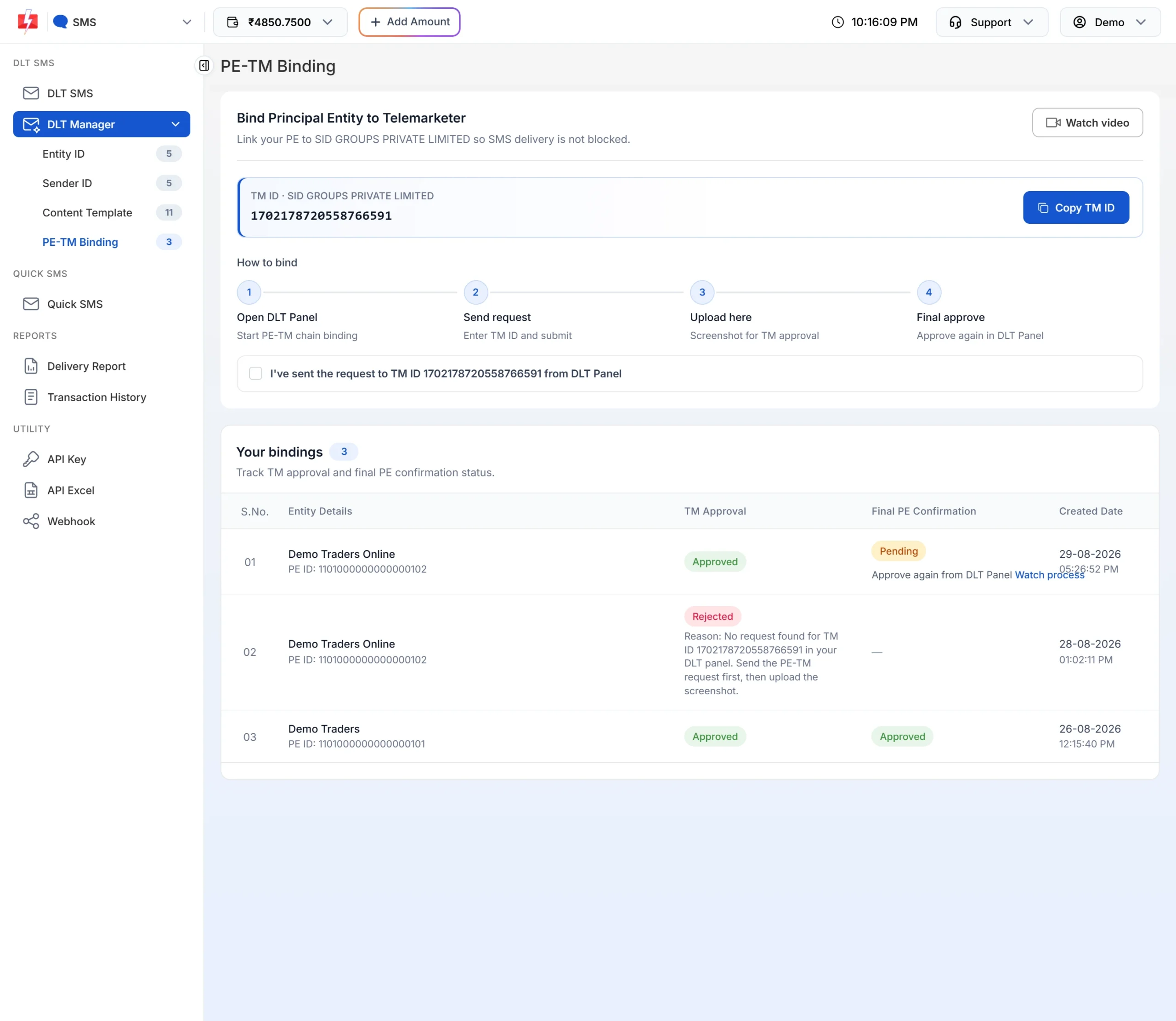
TRAI requires your entity to be chained to the telemarketer that sends your SMS. Open DLT Manager > PE-TM Binding. The page shows the TM ID to use (SID GROUPS PRIVATE LIMITED, 1702178720558766591) with a Copy TM ID button and four steps: Open DLT Panel, Send request, Upload here, Final approve.
After you send the request on your DLT portal, tick “I’ve sent the request to TM ID … from DLT Panel”, choose the entity and upload the binding screenshot plus the company and authorised person documents. Under Your bindings you can follow two columns: TM Approval and Final PE Confirmation. If TM Approval is Approved but the final step is Pending, you still need to approve it again on your DLT portal.
More help: PE-TM chain status explained.
Step 3: DLT SMS vs Quick SMS
Fast2SMS has two ways to send bulk SMS from the SMS menu. Most businesses use DLT SMS. Quick SMS is for people who have not finished DLT yet.
| DLT SMS | Quick SMS | |
|---|---|---|
| DLT needed | Yes: approved Sender ID and template | No: open text, no DLT approval |
| Sender name | Your own approved Sender ID | Random sender (reports show “RANDOM”) |
| Message text | Only your approved template, with variables | Free text (personal or spam content not allowed) |
| Price | DLT rate from your recharge slab | Its own higher rate, shown in the panel before you confirm |
| Before first use | DLT setup in DLT Manager | One recharge of ₹100 or more |
| Review | Sent once checks pass | Messages may be held for manual approval (see Pending SMS) |
| Timing | Promotional templates are held at night (see below) | 24×7 |
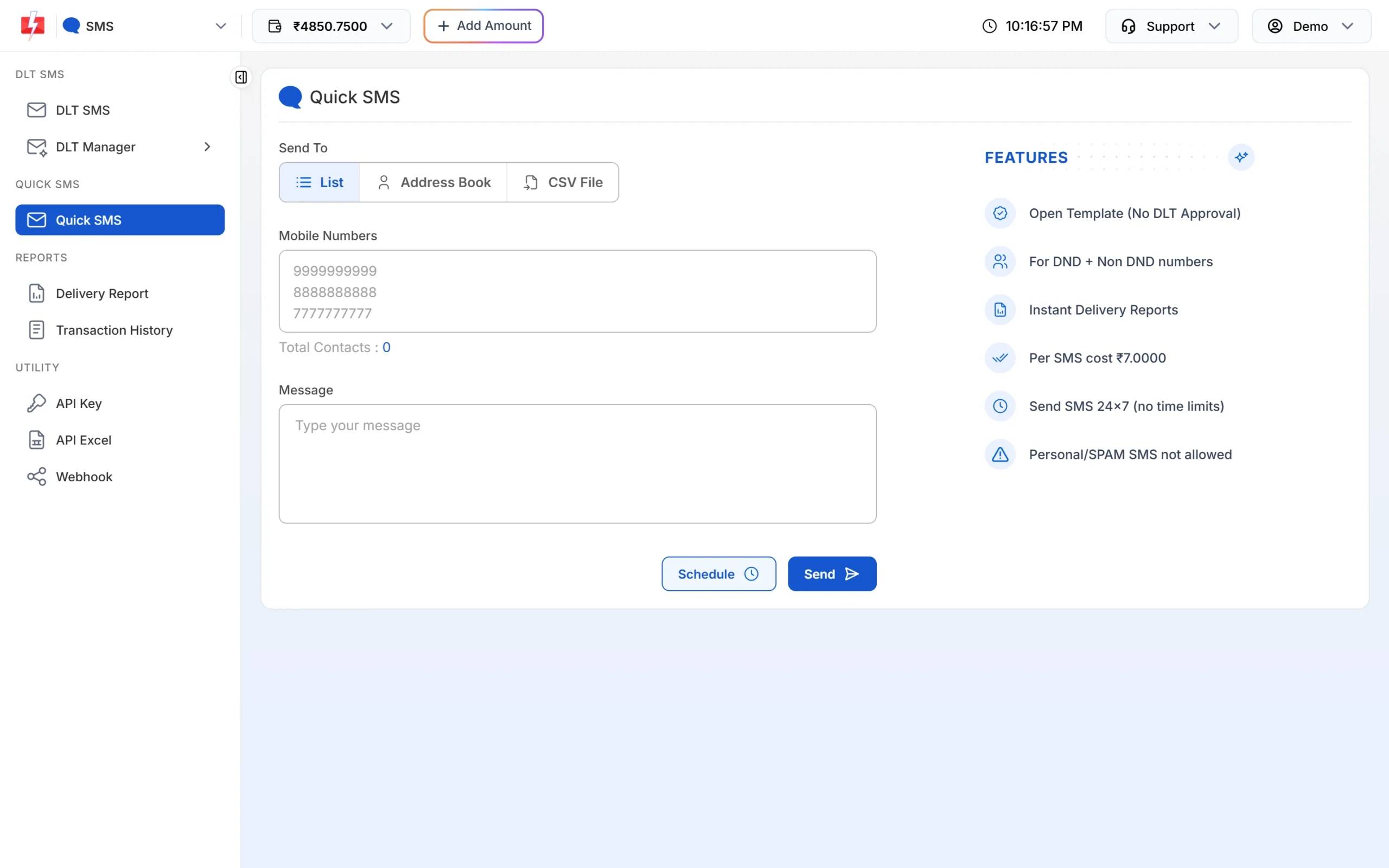
Read more in Quick SMS in Fast2SMS: how to send it.
Step 4: Sending bulk SMS from the panel
Open SMS > DLT SMS. The form has three parts:
- Sender ID: a list of your approved senders only.
- Send To: List (type or paste numbers, one per line), Address Book (pick contacts or groups) or CSV File (upload a .csv up to 20 MB and choose the column with mobile numbers).
- Message: click “Select DLT Template” to pick one of the approved templates linked to that sender, then type a value for each variable. A live phone preview and SMS counter appear on the right.
Click Send (or Schedule). Nothing goes out yet. First you see the Message Preview & Confirmation popup with the cost per SMS, total numbers, duplicate and invalid numbers, and the total cost. Click Confirm & Send to send, or Cancel to go back and change something.
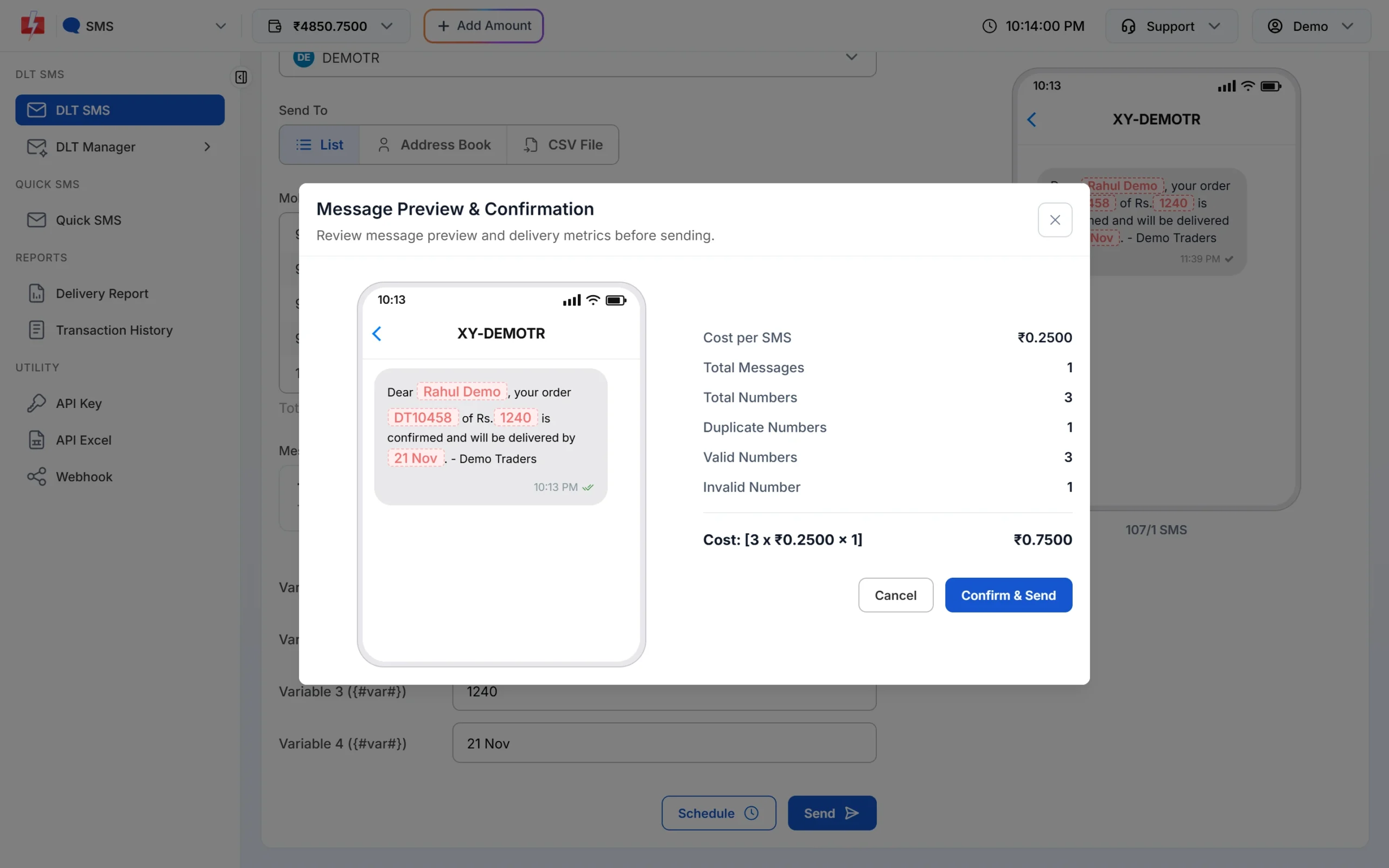
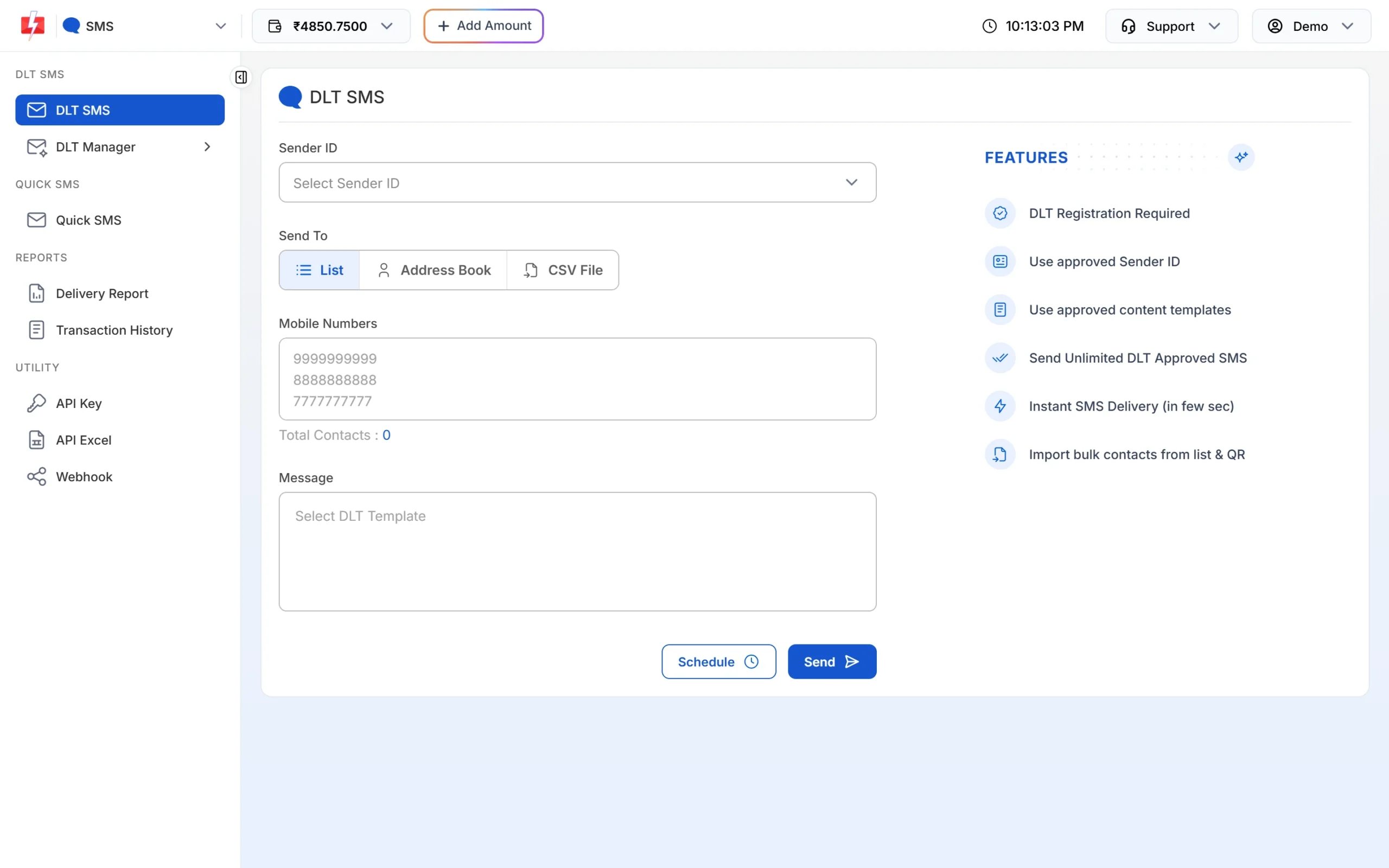
Every click is explained in How to send DLT SMS from the Fast2SMS panel (step by step).
Step 5: Sending bulk SMS by API
If you want your website, app or software to send SMS on its own, use the API. Your key is under UTILITY > API Key in the SMS menu.
The fastest way to get working code is the Sample Code button on any template card in DLT Manager > Content Template. It gives a ready request in cURL, PHP, Node.js or Python for https://www.fast2sms.com/dev/bulkV2 with these values:
route=dltsender_id: your approved Sender IDmessage: the template’s Message ID from the card (not the long DLT Template ID)variables_values: the variable values in order, separated by|numbers: the mobile numbers
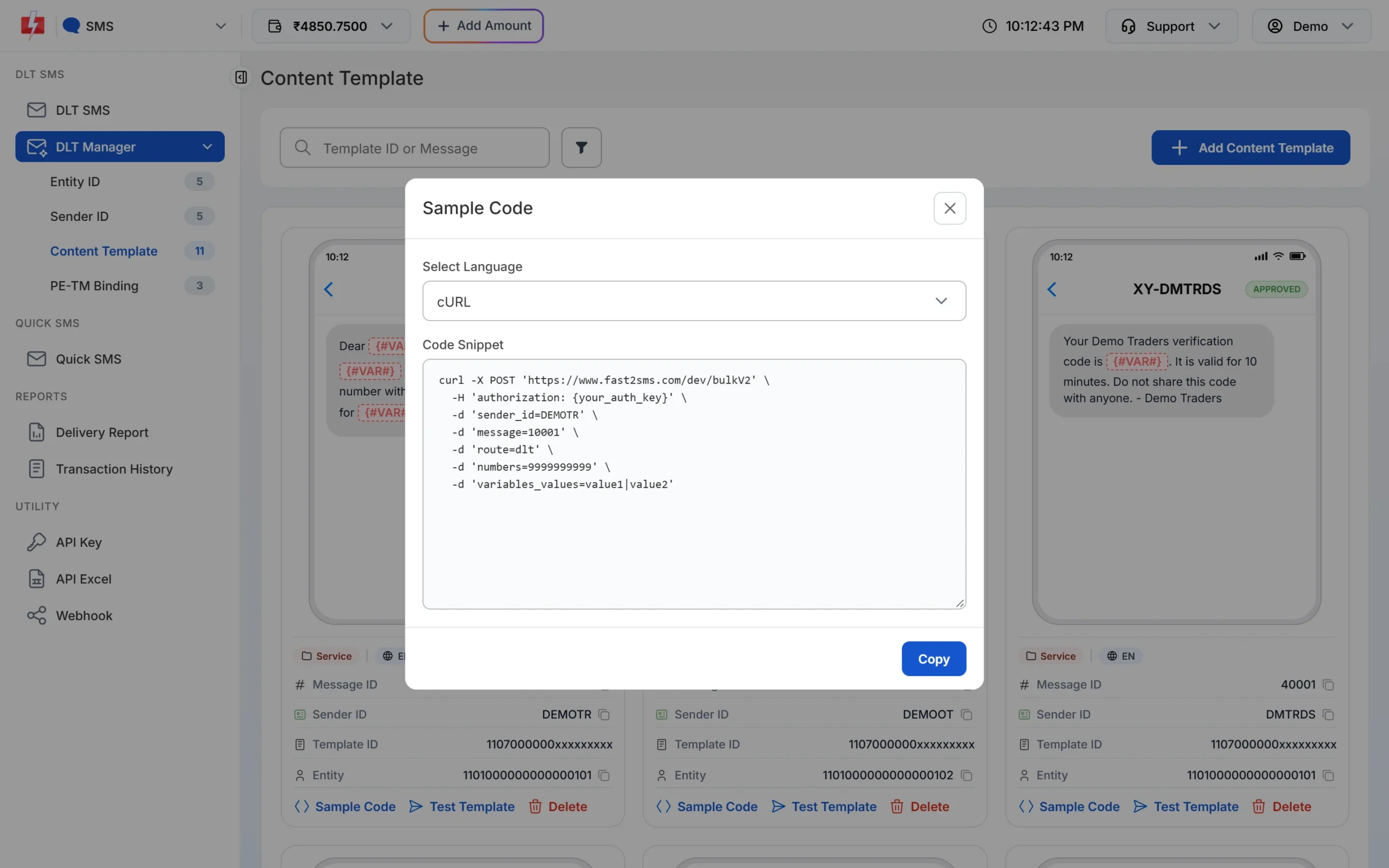
API SMS show up in the same Delivery Report as panel SMS, marked as API. If you want delivery updates pushed to your server, set up a Webhook from the same menu. Developer details: Bulk SMS API for India.
Step 6: How charges work
For DLT SMS, Fast2SMS takes the amount from your wallet when the campaign is created. The formula is simple:
Cost = valid numbers x SMS parts x your per-SMS rate
- Rate: depends on your recharge slab. At the time of writing, DLT SMS start at ₹0.25 per SMS and get cheaper with bigger recharges. See the pricing page for the current slabs.
- Duplicate and invalid numbers are removed and not charged. The confirmation popup shows how many.
- Scheduled over several days: the cost is multiplied by the number of days.
How SMS parts are counted
| Message type | 1 SMS | 2 SMS | 3 SMS | Maximum |
|---|---|---|---|---|
| English | up to 160 characters | up to 306 | up to 459 | 10 parts (1,530 characters) |
| Unicode (Hindi and other languages) | up to 70 characters | up to 133 | up to 199 | 13 parts (859 characters) |
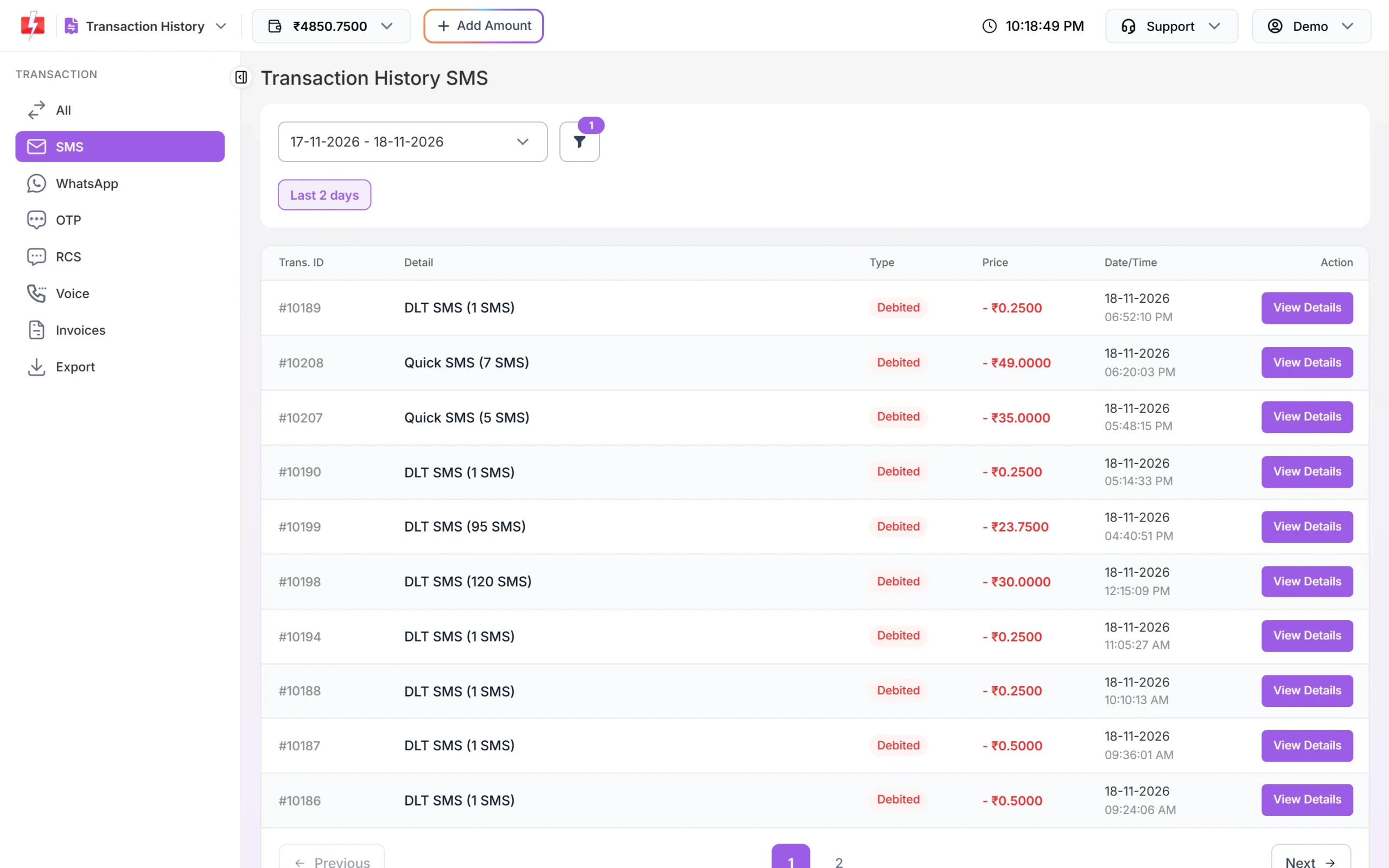
Each campaign appears in Transaction History > SMS as a debit such as “DLT SMS (120 SMS)” or “Quick SMS (5 SMS)”.
Refunds
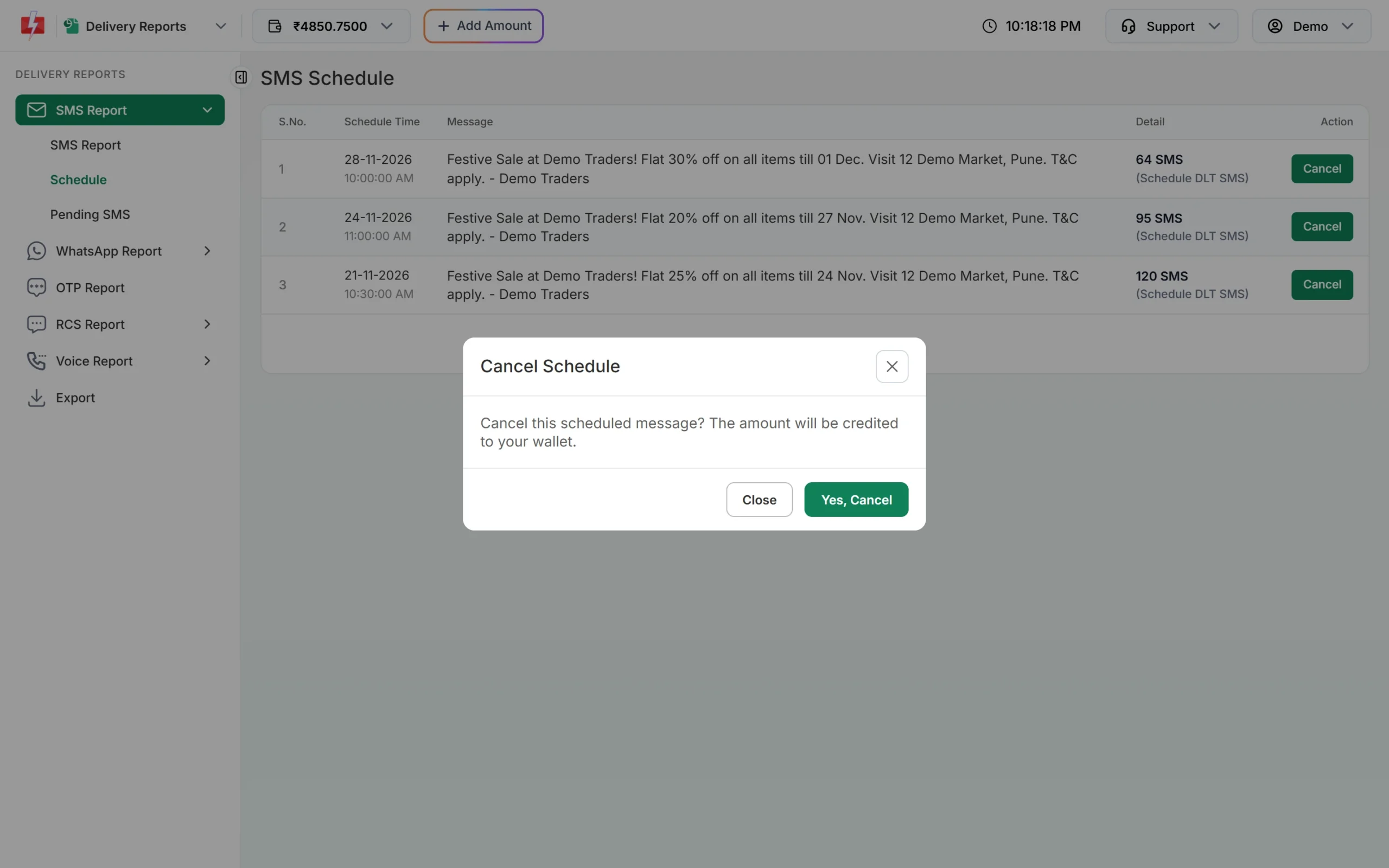
- Cancelled schedule: if you cancel a scheduled campaign before it is sent, the full amount goes back to your wallet as “Schedule SMS Cancelled”.
- Failed numbers: DLT SMS are charged for each valid number when the campaign is created. To see what happened to each number, open the campaign in the Delivery Report. Any credit to your wallet shows in Transaction History. If you have a question about a charge, contact Fast2SMS support with the request ID from Delivery Details.
- Quick SMS rejected in review: the rejection and its reason show in Delivery Report > Pending SMS. Contact support if you have a question about a rejected Quick SMS.
Step 7: Scheduling
Click Schedule instead of Send to choose a date and time. Pick one date to send once, or a date range to send the same campaign every day at the same time. The time must be at least one minute ahead.
Scheduled campaigns wait in Delivery Report > Schedule. Click Cancel on a row and confirm with Yes, Cancel to stop it and get the money back in your wallet. This works only while the campaign has not been sent.
Step 8: Reading the delivery report
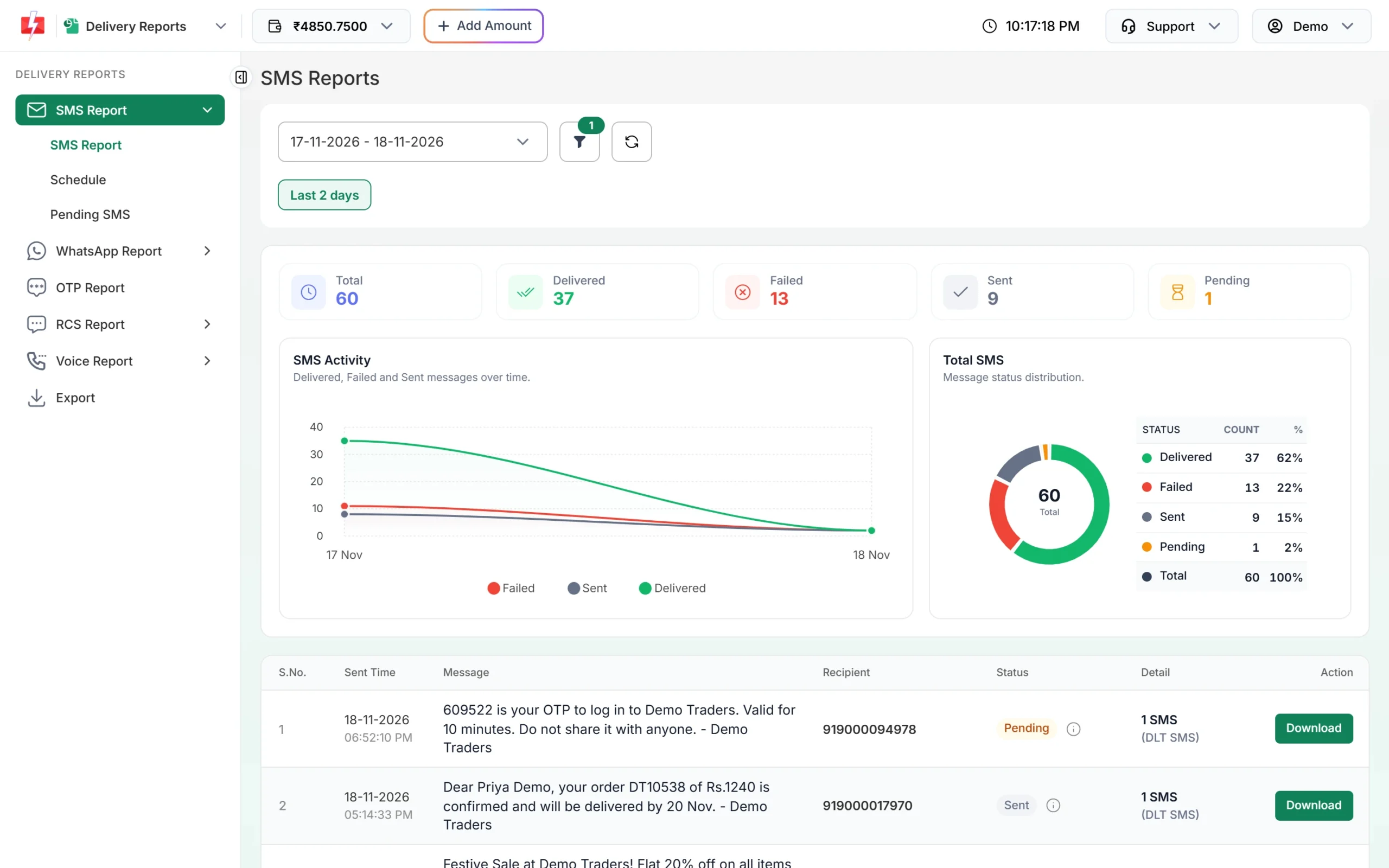
Open Delivery Report from the SMS menu. The SMS Report page shows the last 2 days by default. You can switch to Today, Yesterday, Last 1 week, Last 2 week, Last 30 days, Last 3 months or a custom date. The filter button lets you narrow by route (DLT, Quick SMS, Web, API), status, mobile number, request ID, Sender ID or Entity ID.
What each status means
| Status | What it means |
|---|---|
| Delivered | The operator confirmed the SMS reached the phone (“Delivered successfully”). |
| Sent | The SMS left Fast2SMS but the operator has not sent the delivery report yet (“Report pending”). |
| Pending | The message is still being processed (“Message pending”). |
| Failed | The operator could not deliver it. The reason is shown, for example “Number switch off or low signal”, “Number not exist” or “Operator rejected”. |
| DND | The number has DND activated. |
| Blocked | The number is blocked. |
| Invalid | The number is not a valid mobile number. |
The Failed card at the top adds up Failed, Blocked, DND and Invalid together. In the list, a campaign row shows one overall status. Hover the small info icon next to it to see the count for each status.
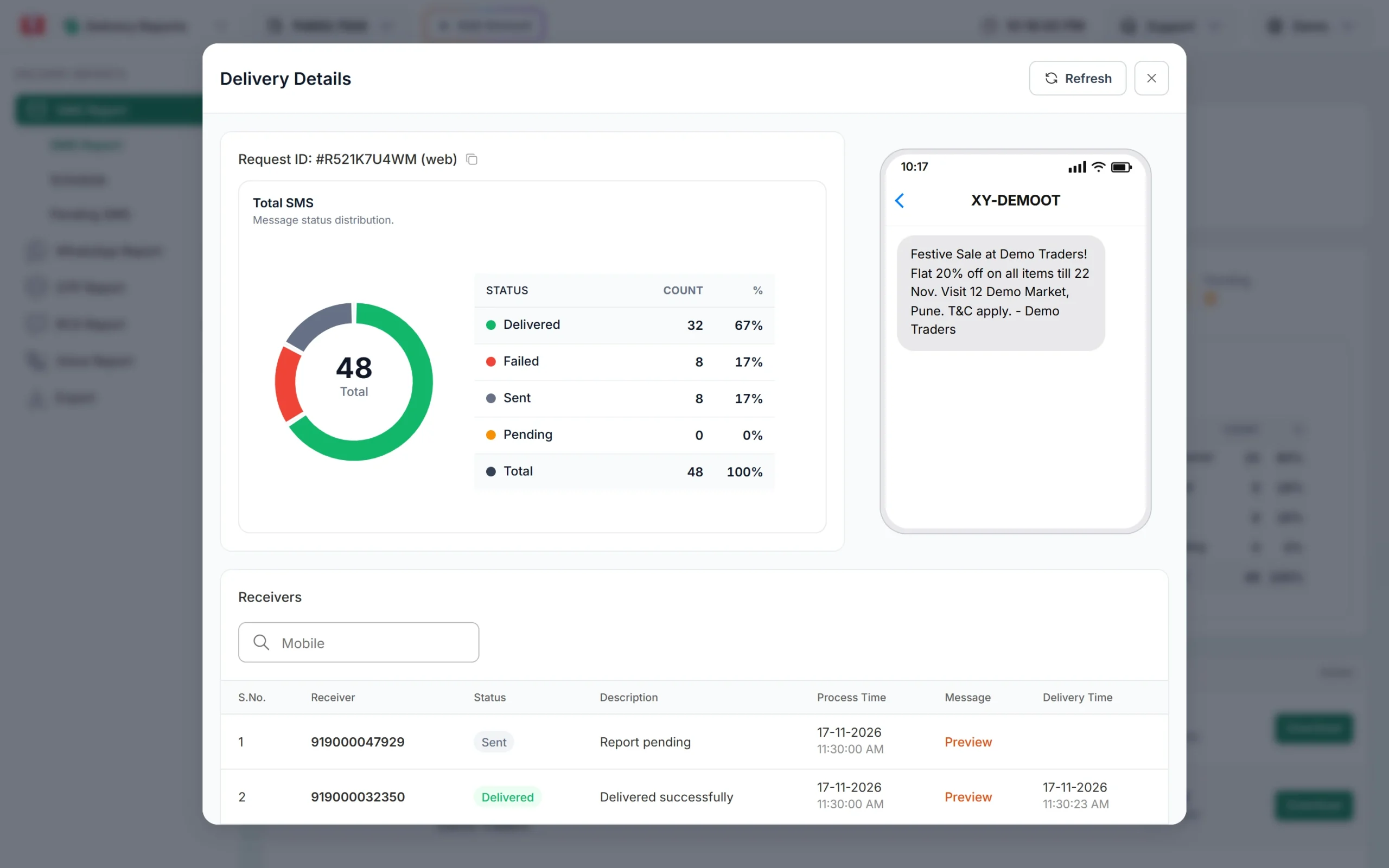
Click a message in the list to open Delivery Details: the request ID, a status chart for that campaign, a preview of the SMS with your sender name, and a Receivers table with the status, reason, process time and delivery time for every number. Use Download on a row for an Excel file of that campaign, or Export for a date range (export files stay for 48 hours).
For every status and failure reason in detail, read SMS delivery report status meanings.
Common problems and fixes
| Problem | Why it happens | Fix |
|---|---|---|
| DLT SMS page shows “DLT Registration Required” | No Entity ID added yet. | Click If yes, add details and add your Entity ID in DLT Manager. |
| Entity, Sender ID or template stuck on Pending | It is waiting for a manual check. Entities found on the DLT platform are approved at once. | Make sure the screenshot clearly shows the approved record from your DLT portal. Rejected records show the reason. |
| Template not in the list when sending | Only Approved templates linked to the chosen Sender ID appear. | Check the template and sender are both Approved, and that the template is linked to that sender. |
| “Sender ID is not valid.” | Sender is not approved in your account or the case does not match. | Use the Sender ID exactly as approved in DLT Manager. |
| “Message is not valid.” | Template is not approved or not linked to the chosen sender. | Pick a template from the list for that sender. |
| “Insufficient wallet balance…” | The wallet has less than the campaign cost. | Click Add Amount and recharge, then send again. |
| Promotional SMS not sent at night | Promotional traffic sent after about 9 PM is held. | It is sent the next morning after 10 AM. Use a Service Implicit template for transactional messages. |
| Report shows Sent for a long time | The operator has not returned the delivery report yet. | Click refresh later. Sent does not mean failed. |
| Quick SMS stuck in Pending SMS | It is held for manual approval. | Wait for approval. Rejected ones show the reason in Pending SMS. |
| Can’t pick older dates in the report | The earliest date is the day your account was created. | Use a custom date from that day onwards, or Export. |
If many numbers fail, also see SMS not delivered? Every DLT and delivery error explained.
Frequently asked questions
Can I send bulk SMS in India without DLT registration?
For DLT SMS, no. You need an approved Entity ID, Sender ID and template. Without DLT you can use Quick SMS, which sends open text from a random sender at a higher rate after a first recharge of ₹100 or more.
How long does DLT approval take in Fast2SMS?
If your Entity ID is found on the DLT platform when you add it, it is approved straight away. Sender IDs, templates and entities that cannot be checked automatically go to Pending until our team checks the screenshot you uploaded.
What is the difference between Message ID and Template ID?
The Template ID is the long ID from your DLT portal. The Message ID is a short Fast2SMS number shown on each template card. Use the Message ID as the message value in the API.
Am I charged for failed or DND numbers?
DLT SMS are charged for every valid number you submit, when the campaign is created. Duplicate and invalid numbers are removed before charging. Check the Delivery Report for each number’s status and Transaction History for every debit and credit. For a question about a charge, contact support.
How much does one bulk SMS cost?
At the time of writing, DLT SMS start at ₹0.25 per SMS and get cheaper with larger recharges. Long messages use more than one SMS part. See the pricing page for current slabs.
Can I send SMS in Hindi?
Yes, if your DLT template is registered in Hindi. Hindi and other non-English text is sent as Unicode, which fits 70 characters in one SMS part.
Can I cancel a campaign after I click Send?
A campaign sent right away cannot be cancelled. A scheduled campaign can be cancelled from Delivery Report > Schedule before it is sent, and the amount goes back to your wallet.
Why does my promotional SMS go out next morning?
Promotional (Service Explicit) traffic sent after about 9 PM is held and sent the next morning after 10 AM. Transactional (Service Implicit) templates are not held.