
Smartping DLT registration is done on the Smartping portal at smartping.live, also known as Pingconnect and, in older guides, as Videocon DLT. As on every DLT portal, you register your business once as a Principal Entity and then add headers (Sender IDs), content templates and your telemarketer. This guide explains the Smartping steps, the fee the portal shows, and how to add your Smartping DLT IDs in Fast2SMS.
What is the Smartping DLT portal?
Smartping runs one of the six DLT portals businesses can use to meet TRAI’s commercial SMS rules. The enterprise login is at smartping.live/entity. Many businesses that registered through “Videocon DLT” in the past manage their entity, headers and templates here today.
You need only one DLT registration. Operator DLT FAQs state that the Entity ID is unique across all access providers and that a business registers once, with any one of them. A Smartping registration lets your SMS reach Jio, Airtel, Vi and BSNL numbers.
Who should use Smartping DLT
- Businesses already registered on Smartping (or earlier on Videocon DLT). Add new headers and templates under the same entity.
- New businesses that choose Smartping for their first DLT registration.
- If your entity is already registered on Jio, Airtel, Vi, BSNL or Tata, you do not need Smartping.
Smartping DLT registration fee and approval time
| Portal | smartping.live/entity |
|---|---|
| Registration fee | ₹5,900 per year including GST (at the time of writing), the same on every DLT portal. The fee is non-refundable. |
| When you pay | After your KYC is approved. The portal says you receive a payment link on your registered email ID and mobile number. |
| Renewal | The fee is charged per year. Check the renewal terms in your account after login. |
| Approval time | Not published on Smartping’s public pages. |
Sending in bulk? For high SMS volumes our team offers discounted rates. Talk to our team or see SMS pricing.
Documents for Smartping DLT registration
Smartping asks for KYC of the business and of the authorised person. Keep these ready:
- Business PAN.
- Proof of business and address, such as a GST certificate, certificate of incorporation or another registration certificate.
- Authorised person’s name, mobile number, email and identity proof.
- Government bodies: letter of intent or agreement from the government. SEBI-registered businesses: SEBI registration certificate.
- Letter of Authorisation (LoA), only if a telemarketer registers on your behalf.
How to register on Smartping: step by step
We describe the steps in words. Follow the labels on the Smartping portal; screenshots of the portal will be added later.
-
Sign up as a Principal Entity
Open smartping.live and sign up as an enterprise (Principal Entity). Enter business details, line of business and the authorised person, and upload your KYC documents.
-
Wait for KYC approval and pay
Once Smartping approves your KYC, you get a payment link on your registered email ID and mobile number. Pay the fee through that link. Then note your Entity ID.
-
Register your headers
Register each Sender ID with a name that relates to your business or brand. Pick the type that matches your messages: promotional, or transactional and service. More help: header registration on Videocon (Smartping) DLT.
-
Register your content templates
Add each message as a template, choose its category, link it to an approved header, mark the changing parts as {#var#} and include your brand name. Only the variable parts can change after approval. See content template approval at Videocon (Smartping).
-
Register consent templates if you need them
Only for collecting customer consent for promotional or service explicit messages. OTPs and order or payment alerts do not need one.
-
Add Fast2SMS as your telemarketer
Send the PE-TM chain request to our TM ID, take a screenshot, and approve the chain again when the portal asks. Detailed steps: add a telemarketer in Smartping or Pingconnect.
Telemarketer (TM) name SID GROUPS PRIVATE LIMITED TM ID 1702178720558766591 -
Whitelist your links and numbers
URLs and call-back numbers in your SMS must be whitelisted first. See CTA whitelisting for Videocon (Smartping) DLT.
Add your Smartping DLT details in Fast2SMS
Once Smartping has approved your entity, headers and templates, copy the IDs into Fast2SMS. Everything is in the SMS app under DLT Manager. Only approved items can be used for sending.
-
Add your Entity ID
Go to DLT Manager > Entity ID and click Add New Entity. Enter the Entity ID exactly as Smartping shows it and your entity name. If Fast2SMS finds the ID on the DLT platform, the name fills in and the entity is approved straight away. If not, you are asked to upload a screenshot of the approved entity from Smartping, and our team checks it.
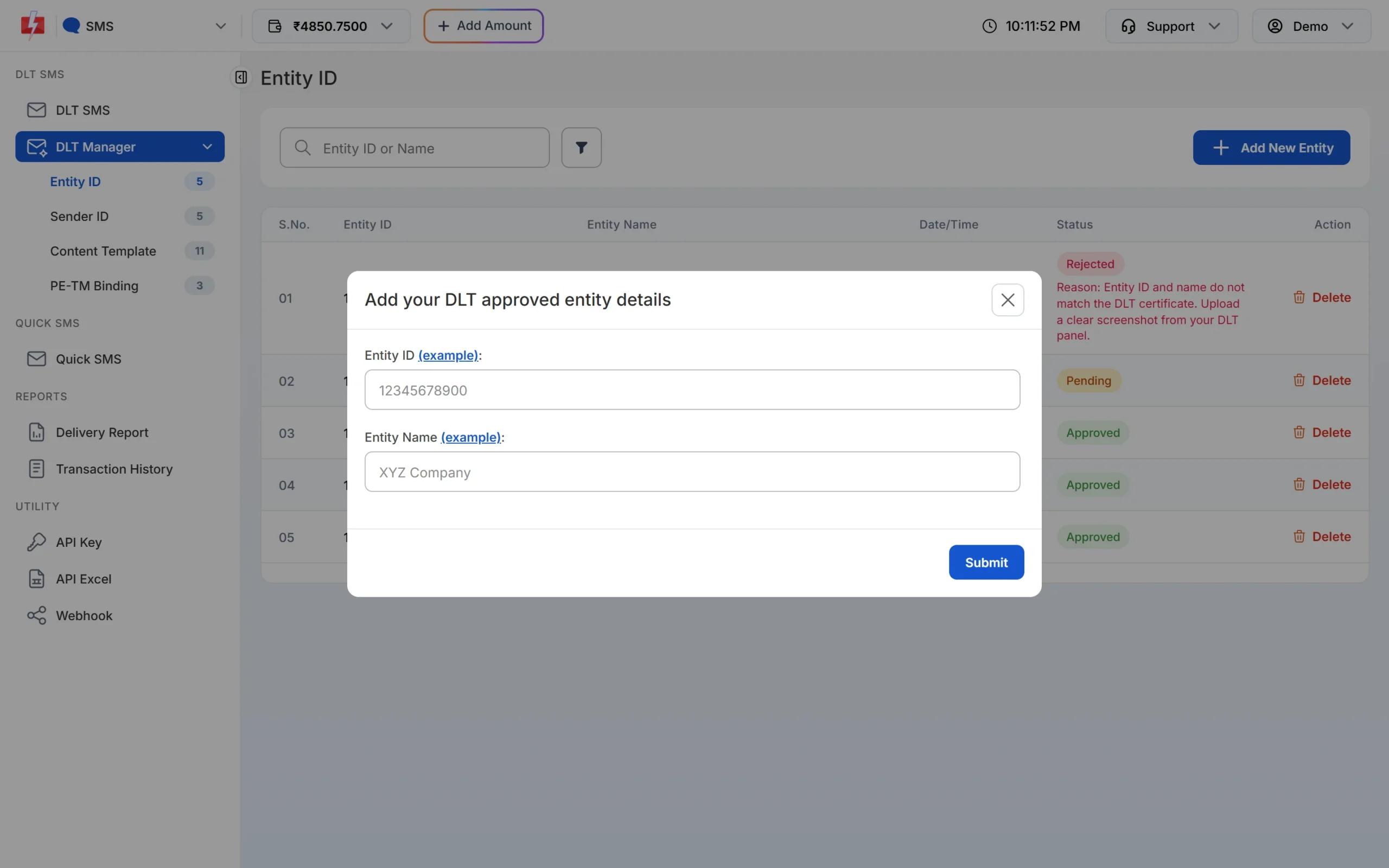
Adding the Entity ID you got from Smartping. -
Add your Sender IDs (headers)
Open Sender ID and click Add New Sender ID. Select your entity, keep Type Manually, enter the approved header (3 to 6 characters) and upload a screenshot that shows it approved on Smartping.
There is also an Upload Excel option for header lists exported from DLT portals (.xlsx or .csv). If your Smartping export is not accepted, type the headers manually.
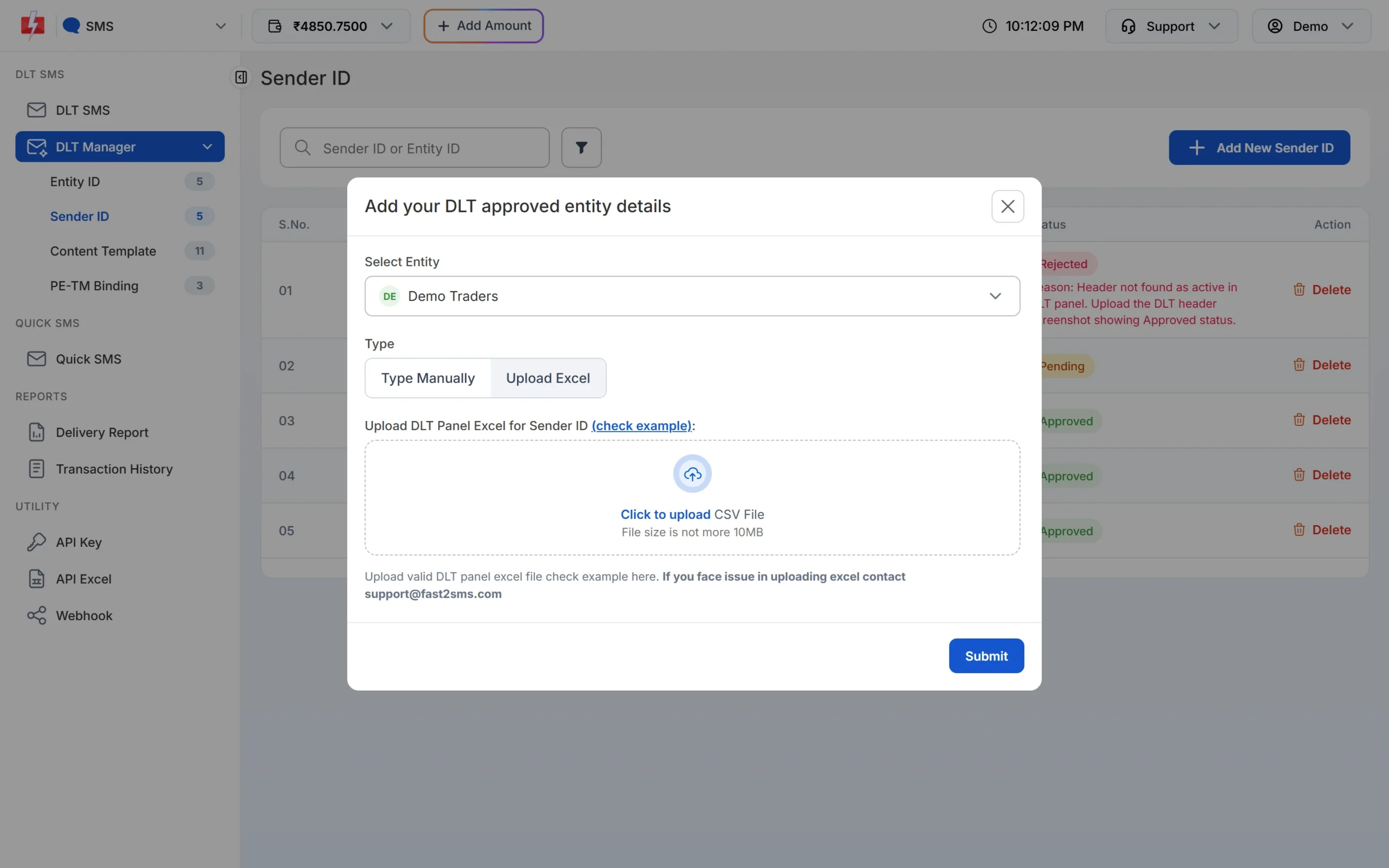
Headers can be typed one by one or uploaded from the DLT panel export. -
Add your content templates
Open Content Template and click Add Content Template. Select the entity, tick the Sender IDs the template is linked to, enter the Content Template ID, choose Service Implicit or Service Explicit or Promotional, paste the approved text exactly as registered (with every {#var#}) and upload the approval screenshot.
Have many templates? Choose Upload Excel and upload the template export you download from Smartping. Fast2SMS reads the common export formats of the DLT portals and imports only the rows marked approved or active. If a Sender ID in the file is not in your account yet, it is added as Pending.
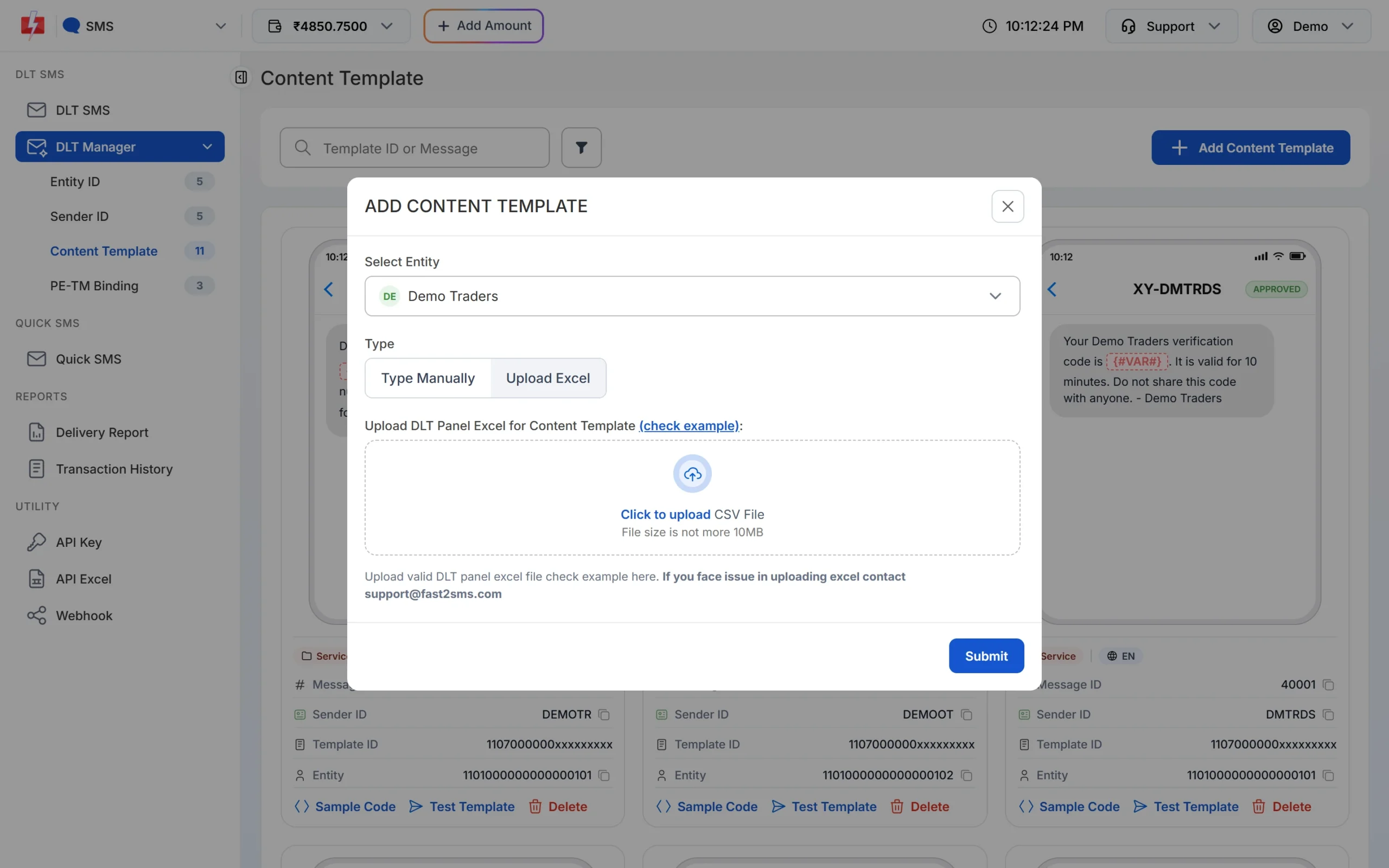
Templates can be added by hand or from the DLT export. -
Submit your PE-TM binding
Open PE-TM Binding. After you have sent the chain request to TM ID 1702178720558766591 on Smartping, tick I’ve sent the request to TM ID 1702178720558766591 from DLT Panel. Select the entity, upload the screenshot of the request, choose a company document type, upload the document and click Submit Request. The authorised person’s name, PAN card and Aadhaar or Voter ID are asked for after the company document. Each file can be up to 10 MB.
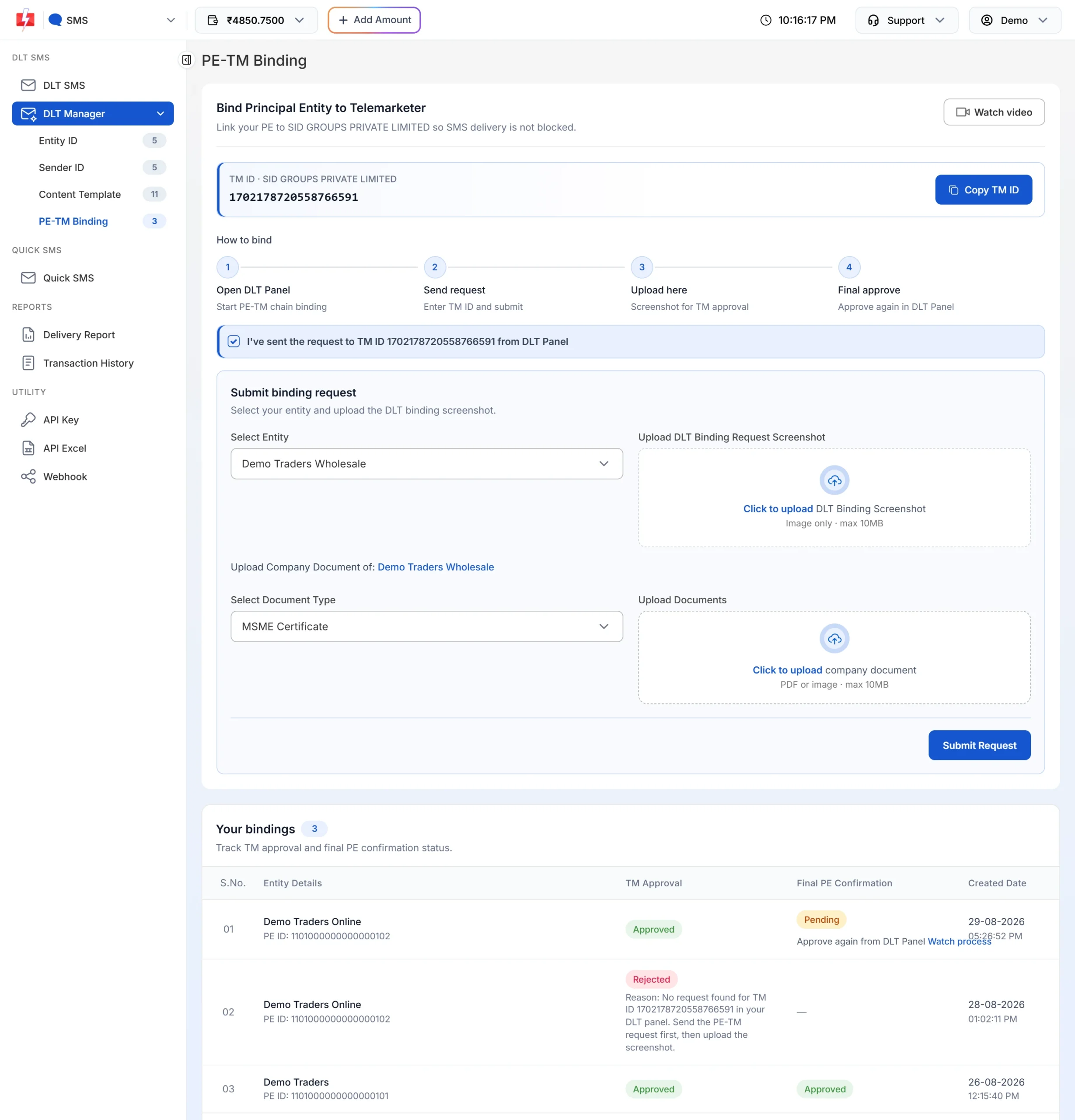
The binding form opens after you tick the confirmation box. -
Give the final approval on Smartping
When Fast2SMS accepts the chain, TM Approval turns Approved. If Final PE Confirmation still says Pending with “Approve again from DLT Panel”, log in to Smartping and approve the request once more. Use the Watch process link if you are not sure where to do it. When both columns say Approved, your chain is complete and you can send DLT SMS.
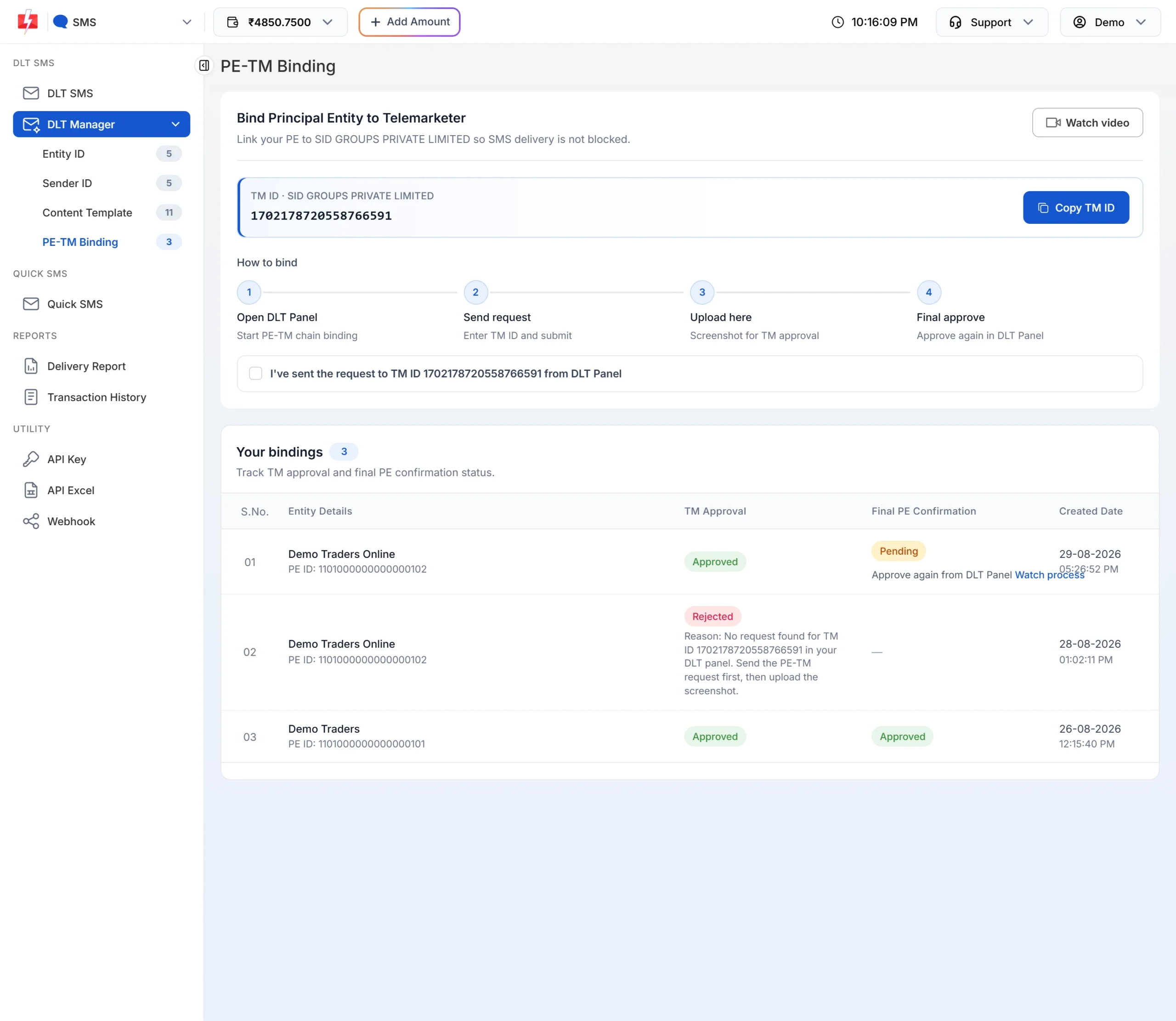
Both columns must show Approved.
For more detail on each screen, see DLT Manager in Fast2SMS and PE-TM binding in Fast2SMS.
Common Smartping DLT rejection reasons and fixes
Smartping does not publish a rejection list on its public pages. These are the reasons operator DLT FAQs give, plus the issues we see when IDs are added in Fast2SMS.
| Problem | Why it happens | Fix |
|---|---|---|
| KYC not approved | Missing or unclear document, or a name that does not match the PAN. | Re-upload clear documents with the exact business name. |
| No payment link received | KYC is still under review, or the link went to spam. | Check the KYC status and your spam folder. |
| Header rejected | Not related to your business, or a restricted header (celebrity or politician names, other brands or trademarks, generic words, government-style headers). | Apply for a header based on your own business or brand name. |
| Template rejected | Brand name missing, wrong category, or content outside your line of business. | Add the brand name and choose the right category. |
| Entity rejected in Fast2SMS | The ID or name typed in Fast2SMS is different from the DLT record, or the screenshot is unclear. | Copy the ID and name exactly from the portal and upload a clear screenshot of the approved entity. |
| Sender ID rejected in Fast2SMS | The header is not approved or not active on the portal yet. | Wait for approval on the portal, then add it again with a screenshot that shows the approved status. |
| PE-TM binding rejected in Fast2SMS | The chain request was not sent on the portal, or it went to a different TM ID. | Send the request to TM ID 1702178720558766591 first, then submit the binding again with the screenshot. |
Frequently asked questions
Is Smartping the same as Videocon DLT?
The portal older guides call Videocon DLT is the Smartping portal (smartping.live, also known as Pingconnect). Entities registered there log in at smartping.live/entity.
How much is the Smartping DLT registration fee?
₹5,900 per year including GST at the time of writing, the same as on every other DLT portal. It is non-refundable. Check the payment link for the current amount.
When do I pay on Smartping?
After your KYC is approved. You receive a payment link on your registered email and mobile number.
Do I need to renew my Smartping registration?
Yes. The fee is per year. Check the renewal terms in your account after login, and keep your contact email up to date so you get reminders.
If I register on Smartping, will my SMS reach Jio and Airtel users?
Yes. The Entity ID is unique across all operators, so one registration covers every network.
What TM ID do I add on Smartping for Fast2SMS?
1702178720558766591, under the name SID GROUPS PRIVATE LIMITED.
Can I upload my Smartping template export into Fast2SMS?
Yes. Use Upload Excel under DLT Manager > Content Template. Fast2SMS reads the Smartping export format and imports approved rows.