
When you switch SMS provider in India, your DLT registration does not move, because it was never the provider’s. Your Entity ID, your headers (sender IDs), your content templates and your whitelisted links are registered under your business on your DLT portal, and they stay there. What changes is the telemarketer in your PE-TM chain, the setup in the new provider’s panel and, if you use the API, a few lines of code.
This checklist is for businesses that already send DLT SMS through another provider and want to move to Fast2SMS without a gap in delivery.
What stays yours and what changes
| Item | When you switch provider |
|---|---|
| DLT entity registration (PE ID) | Stays. It is registered in your business name on one DLT portal and works for all operators. |
| Headers (sender IDs) | Stay. Your customers see the same header as before. |
| Content templates and their Template IDs | Stay. No new DLT approval is needed. |
| Consent templates and whitelisted links, numbers (CTA) | Stay under your entity on the portal. |
| PE-TM chain | Changes. The new provider’s telemarketer (TM) ID must be added to your chain on your DLT portal. |
| Provider panel setup | Changes. You add your entity, headers and templates in the new provider’s panel. |
| API code | Changes. Endpoint, API key and parameters are different for each provider. |
Why the PE-TM chain is the step that matters
TRAI’s direction of 20 August 2024 asks operators to get from each business (Principal Entity, PE) the complete chain of telemarketers it uses, and to reject messages where the chain is not defined or does not match. This has applied since 1 November 2024. So until the new provider’s TM is in your chain and approved, SMS you send through the new provider can be rejected, even with the right header and template.
The chain is set up on the one portal where your business registered. You do not need to repeat it on every operator’s portal.
Before you start
- Your DLT portal login. If your old provider registered your business on DLT for you, ask them for the login details. The entity is in your name, so you should have access.
- An export of your headers and templates from the DLT portal (Excel or CSV). Most portals have a download option on the header and template lists.
- A Fast2SMS account with some wallet balance for the test SMS.
- A plan for the API change if your website, app or software sends SMS by API.
How to move your DLT SMS to Fast2SMS
-
Add your Entity ID
In the SMS app, open DLT Manager > Entity ID and click Add New Entity. Enter your Entity ID and entity name exactly as on your DLT portal and click Submit. If the ID is found on DLT, it is approved straight away. If not, you are asked for a screenshot from your DLT portal and the entity waits as Pending until our team checks it.
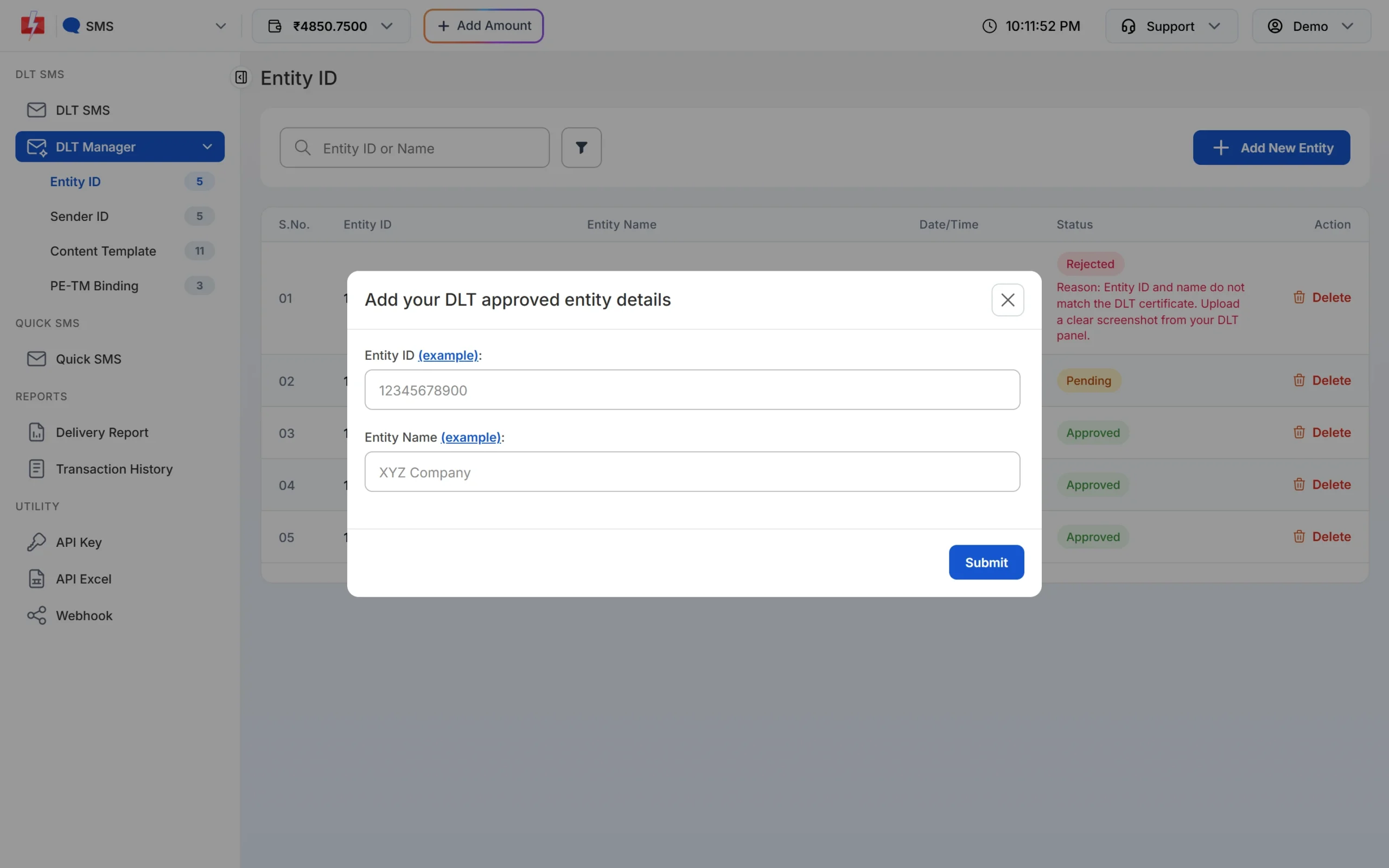
Use the same Entity ID you already use with your old provider. -
Upload your headers and templates
Go to DLT Manager > Sender ID, click Add New Sender ID, choose Upload Excel and upload the header file from your portal. Then go to Content Template, click Add Content Template, select your entity, choose Upload Excel and upload the template file. Do not edit the files. Only rows the portal marks as approved or active are imported, and they show Pending until our team checks them.
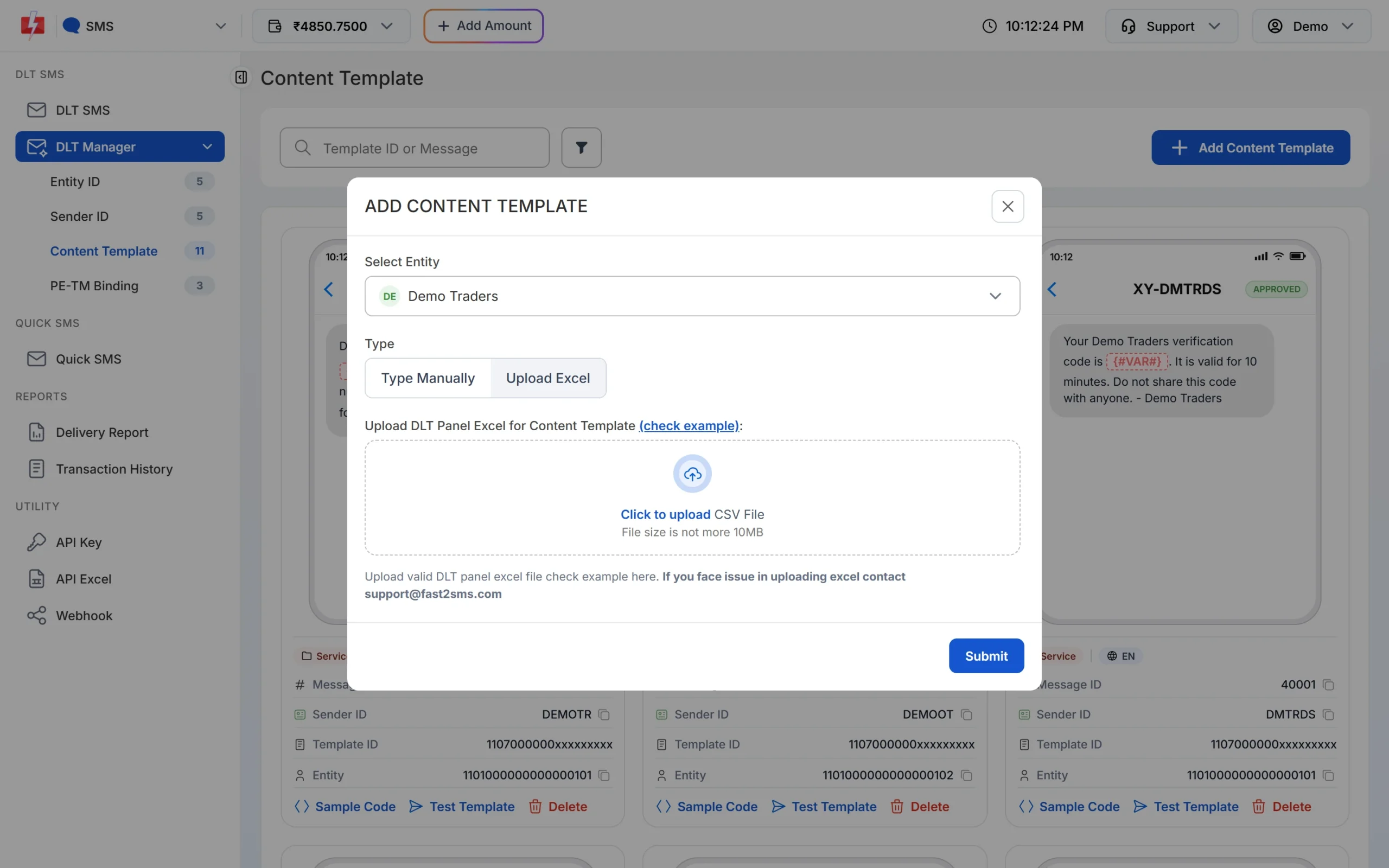
Upload the template list exported from your DLT portal. -
Add Fast2SMS to your PE-TM chain
Open DLT Manager > PE-TM Binding and copy the TM ID (SID GROUPS PRIVATE LIMITED, 1702178720558766591). On your DLT portal, send a chain request to that TM ID and take a screenshot. Back in Fast2SMS, tick the confirmation, fill the form and submit it. When TM Approval shows Approved, approve the request once more on your DLT portal so that Final PE Confirmation also turns Approved.
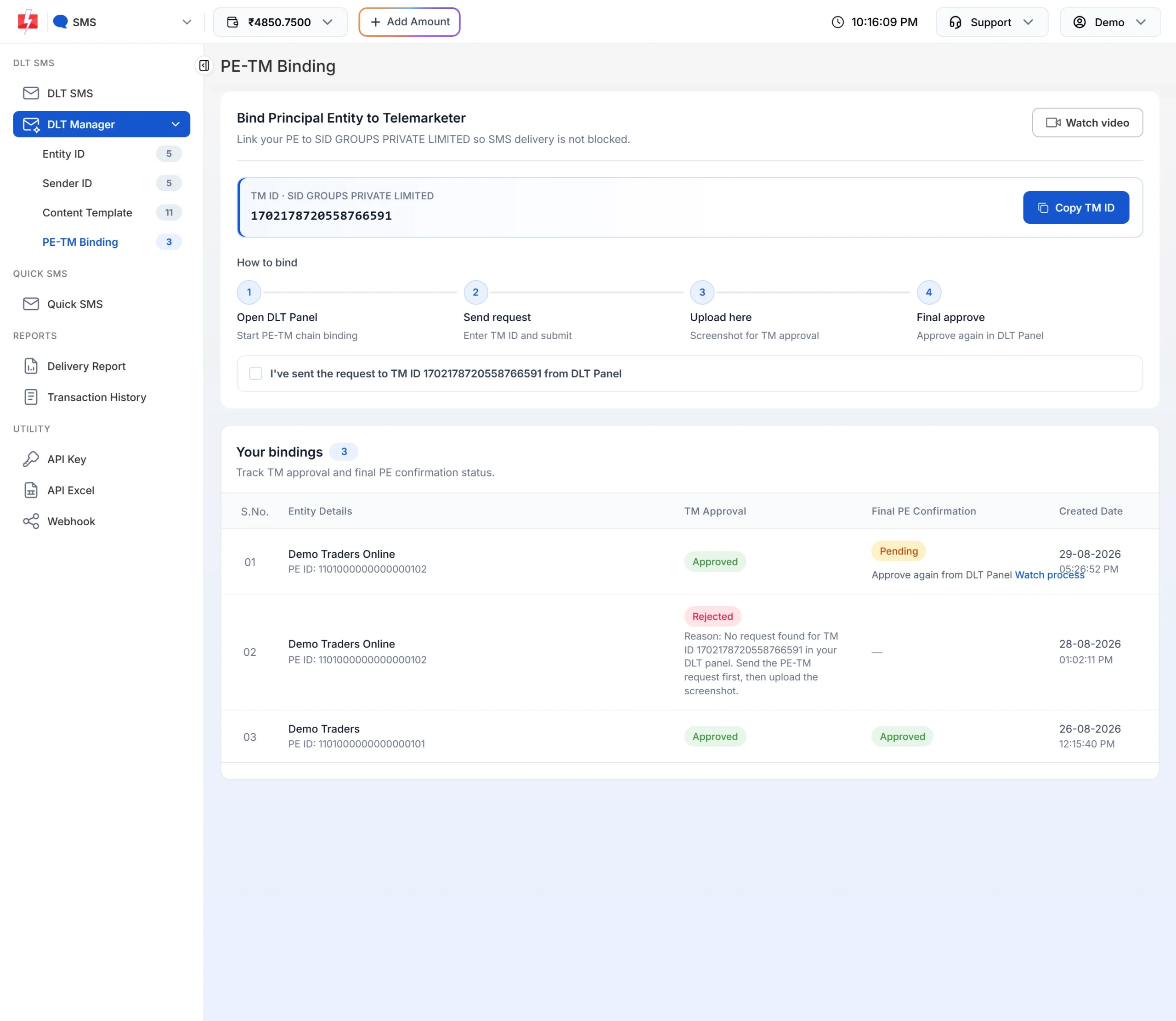
Both columns must show Approved before you move live traffic. -
Send a test SMS to your own number
In DLT Manager > Content Template, click Test Template on an approved template, enter your own mobile number and real variable values, and click Send Test SMS. The window checks the delivery report for you. Test at least one template of each type you use (service and promotional) before you switch over.
-
Update your API code
The Fast2SMS DLT SMS API takes the template’s Message ID from the template card, not the 19-digit DLT Template ID. If your code already builds the full SMS text and sends the DLT Template ID, the DLT Manual route lets you keep that pattern: you send the full text with
entity_idandtemplate_id. Send the sender ID in exactly the same case as approved. See Message ID vs DLT Template ID and DLT SMS vs DLT Manual API. -
Move traffic in stages
Start with one kind of message, for example order updates, and check the delivery report for a day. Then move OTPs and the rest. Keep your old provider in the chain until all your sending has moved, so nothing is rejected during the change. After that, check on your DLT portal whether you can remove or deactivate the old telemarketer, if you no longer use it.
What switching costs on the DLT side
Switching does not need a new DLT registration, so there is no new registration fee. The yearly DLT fee is paid to the DLT portal, not to the SMS provider. It is ₹5,900 per year including GST on every portal, at the time of writing. For SMS rates, see the bulk SMS pricing page.
Sending in bulk? For high SMS volumes our team offers discounted rates. Talk to our team or see SMS pricing.
Common problems after a switch
Test SMS fails with a chain error. The Fast2SMS TM ID is not yet in your chain, or the final approval on your DLT portal is missing. Check the Final PE Confirmation column on the PE-TM Binding page.
A template does not show when you send. Only approved templates linked to an approved sender ID appear. Check that the header and the template are both Approved in DLT Manager and that the template is linked to that header.
Imported templates are still Pending. Every imported row is checked by our team before it can be used. Templates you typed by hand need the DLT approval screenshot.
Some templates were not imported. Rows that the portal shows as rejected, inactive or pending are skipped. If a template is inactive on DLT, reactivate it on your portal first.
OTPs stopped after the move. If you send OTPs with Smart OTP, create an OTP template in Fast2SMS from your approved DLT OTP template, and update your code to the Smart OTP API.
Frequently asked questions
Do I need to register on DLT again when I change SMS provider?
No. Your DLT registration belongs to your business. You add the new provider’s telemarketer to your PE-TM chain and add your existing entity, headers and templates in the new provider’s panel.
Will my sender ID change after switching?
No. Your approved headers stay the same, so customers keep seeing the same sender name.
Do my DLT templates need to be approved again?
Not on DLT. They keep their Template IDs. In Fast2SMS they are checked once by our team after you add or upload them.
Can I use two SMS providers at the same time?
TRAI’s rules talk about the complete chain of telemarketers a business uses, so a chain can include more than one telemarketer. Each one has to be added and approved on your DLT portal.
What is the Fast2SMS TM ID for the PE-TM chain?
SID GROUPS PRIVATE LIMITED, TM ID 1702178720558766591. You can also copy it from the PE-TM Binding page.
My old provider registered DLT for me. Is the entity still mine?
The entity is registered in your business name with your documents. Ask the old provider for the portal login so you can manage your chain and download your templates.
Do I need to change my API code?
Yes. The API URL, key and parameters are different. With Fast2SMS you pass the Message ID for the DLT SMS API, or the full text with entity_id and template_id for the DLT Manual API.