
PE-TM binding (also called chain binding) links your business, the Principal Entity (PE), to Fast2SMS as your telemarketer (TM) on your DLT portal. TRAI requires this chain, and without it operators can block your SMS. This guide shows how to send the request from your DLT portal, submit it in the Fast2SMS PE-TM Binding page, and read each status.
यह गाइड हिंदी में पढ़ें: PE-TM चेन क्या है (PE-TM chain kya hai) और कैसे बनाएं: Telemarketer जोड़ने का तरीका
Before you start
- An approved Entity ID in Fast2SMS DLT Manager. See how to add your Entity ID, Sender ID and templates.
- Login access to your operator’s DLT portal (Jio, Airtel, Vi, BSNL, Smartping or any other).
- A company document (for example an MSME certificate, GST certificate or PAN) and the PAN card and Aadhaar or Voter ID of the authorised person. Each file must be under 10 MB.
Fast2SMS telemarketer details
| Telemarketer (TM) name | SID GROUPS PRIVATE LIMITED |
|---|---|
| TM ID | 1702178720558766591 |
You will also find this on the PE-TM Binding page with a Copy TM ID button.
How to do PE-TM binding in Fast2SMS
-
Open PE-TM Binding and copy the TM ID
In the SMS app, go to DLT Manager > PE-TM Binding. At the top you see the TM ID card for SID GROUPS PRIVATE LIMITED. Click Copy TM ID. The page also shows the four steps (Open DLT Panel, Send request, Upload here, Final approve) and a Watch video button.
If you see “No unbound approved Entity IDs found”, you either have no approved entity yet or every approved entity already has a binding. Add or fix your entity in DLT Manager first.
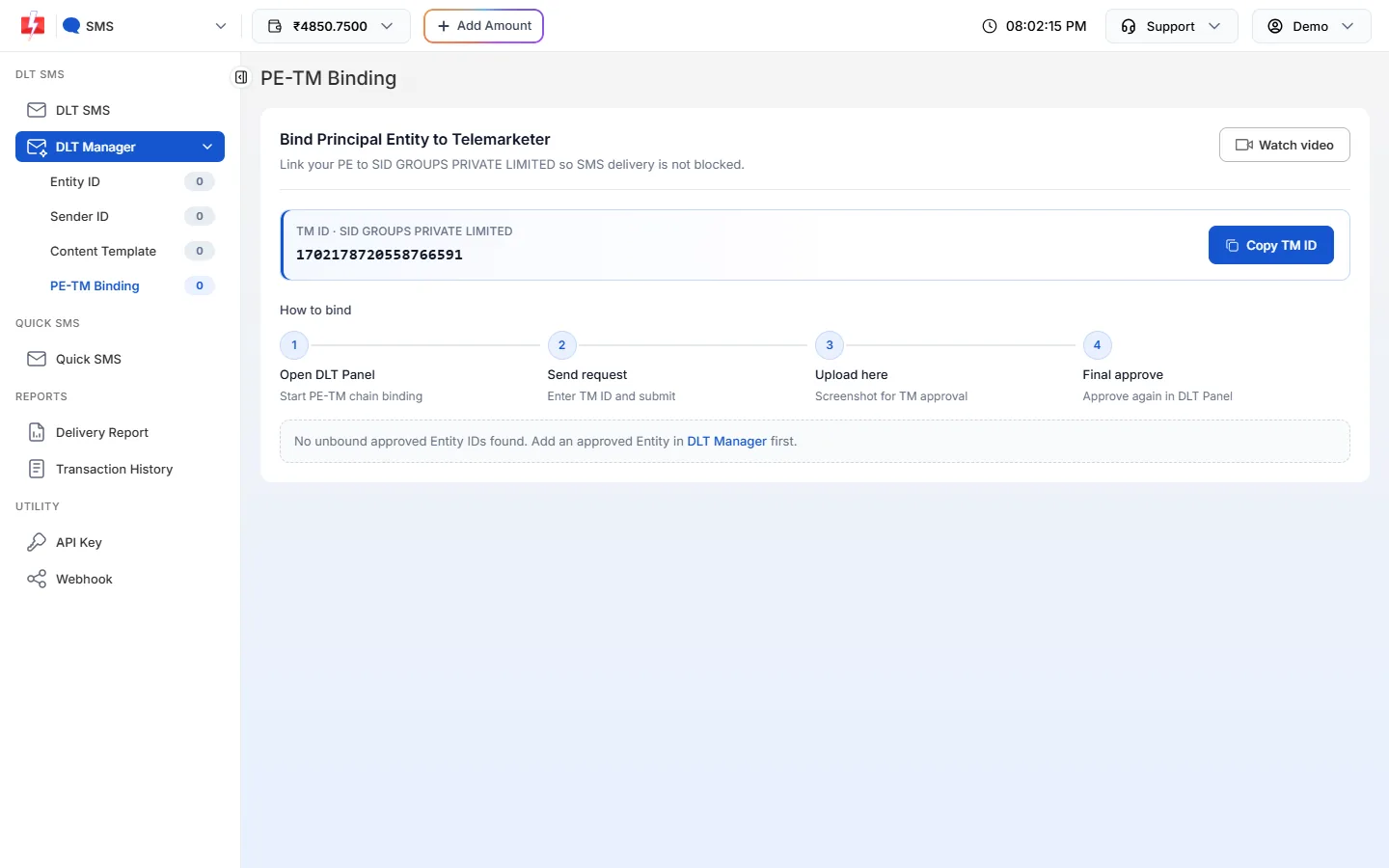
PE-TM Binding page before an approved entity is added. -
Send the chain request from your DLT portal
Log in to your operator’s DLT portal, open the PE-TM chain or telemarketer section, enter TM ID 1702178720558766591 and submit the request. Take a screenshot of the request after you submit it. Each portal looks different. We have step-by-step guides for Jio, Airtel, Vi (Vilpower) and BSNL.
-
Tick the confirmation and fill the form
Back on the Fast2SMS page, tick I’ve sent the request to TM ID 1702178720558766591 from DLT Panel. The Submit binding request form opens. Fill it in:
- Select Entity: only approved entities without a binding are listed.
- Upload DLT Binding Request Screenshot: image only, up to 10 MB.
- Select Document Type: PAN, TAN, GST Certificate, Trade License, Shop & Establishment Certificate, MSME Certificate, Certificate of Incorporation or Other. Then upload the document in Upload Documents (PDF or image, up to 10 MB).
- After the company document is uploaded, more fields appear: Authorized Person Name, Upload PAN Card of Authorized Person and Upload Aadhaar/Voter ID of Authorized Person.
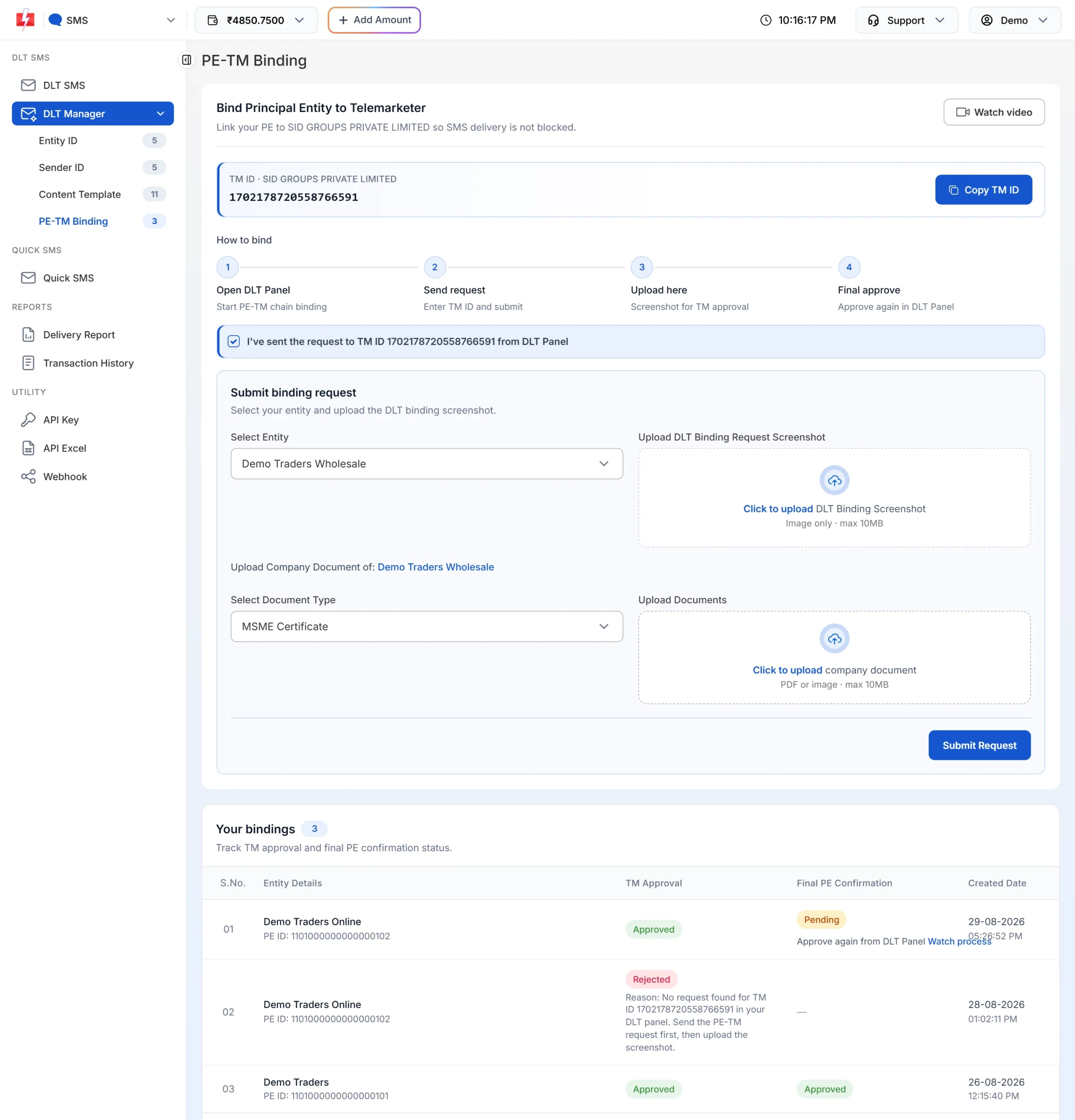
The binding form. The authorised person fields show after you upload the company document. -
Submit the request
Click Submit Request. You will see “PE-TM Binding created successfully and documents uploaded for verification”, and you get an SMS confirming the request. The new row appears under Your bindings with TM Approval as Pending.
If the same Entity ID already has an approved chain with Fast2SMS, the new binding is approved straight away.
-
Give the final approval on your DLT portal
Once Fast2SMS approves the chain, TM Approval turns Approved. Then you must approve it once more on your DLT portal. Until you do, Final PE Confirmation shows Pending with the text “Approve again from DLT Panel” and a Watch process link that shows how to do it on your portal. When you have approved it there, Final PE Confirmation turns Approved and the chain is complete.
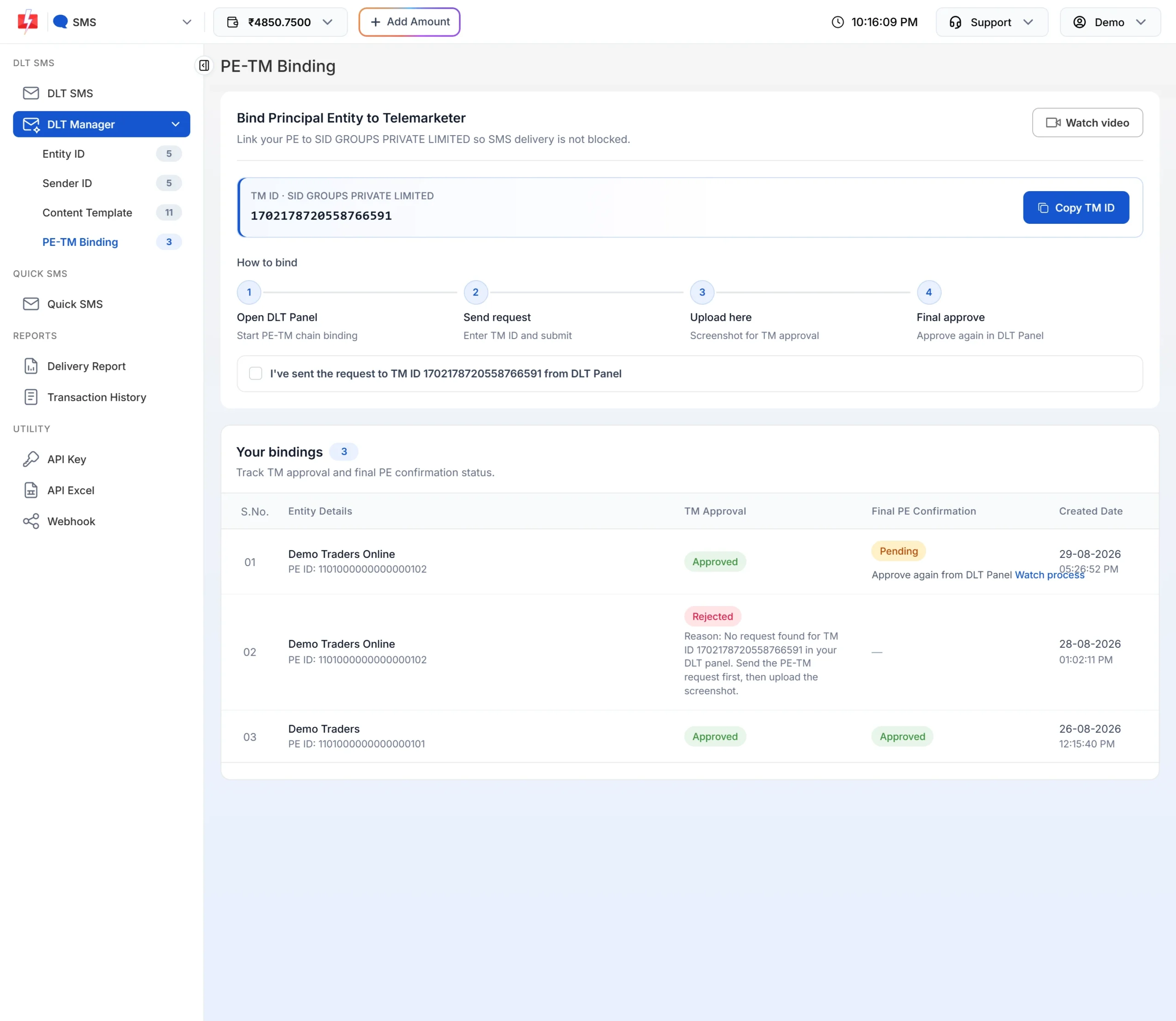
Your bindings: TM Approval and Final PE Confirmation for each entity.
PE-TM binding statuses
Each binding has two statuses. TM Approval is the Fast2SMS side. Final PE Confirmation is your final approval on the DLT portal.
| TM Approval | Final PE Confirmation | What it means | What to do |
|---|---|---|---|
| Pending | Pending | Your request is waiting for Fast2SMS to check it. | Wait. Make sure you really sent the request on the DLT portal. |
| Approved | Pending | Fast2SMS accepted the chain. Your last approval on the DLT portal is missing. | Log in to the DLT portal and approve the request again. Use Watch process if you are unsure. |
| Approved | Approved | The chain is complete. | Nothing. |
| Rejected (with reason) | – | The request could not be verified. The reason is shown under the status. | Fix the issue in the reason and submit a new request for the same entity. |
| Migration Required | Pending | Your chain must be sent again to SID GROUPS PRIVATE LIMITED. | Click Migration Required and upload a new binding screenshot (see below). |
Migration Required: what to do
Our company name is now SID GROUPS PRIVATE LIMITED. Some older chains have to be created again with this TM ID so your SMS traffic is not disrupted. When this applies to your entity:
- The TM Approval column shows a Migration Required button.
- The DLT SMS page opens a popup “PE-TM Chain Migration” marked ACTION REQUIRED, with the TM ID, the next steps and a Complete Migration button.
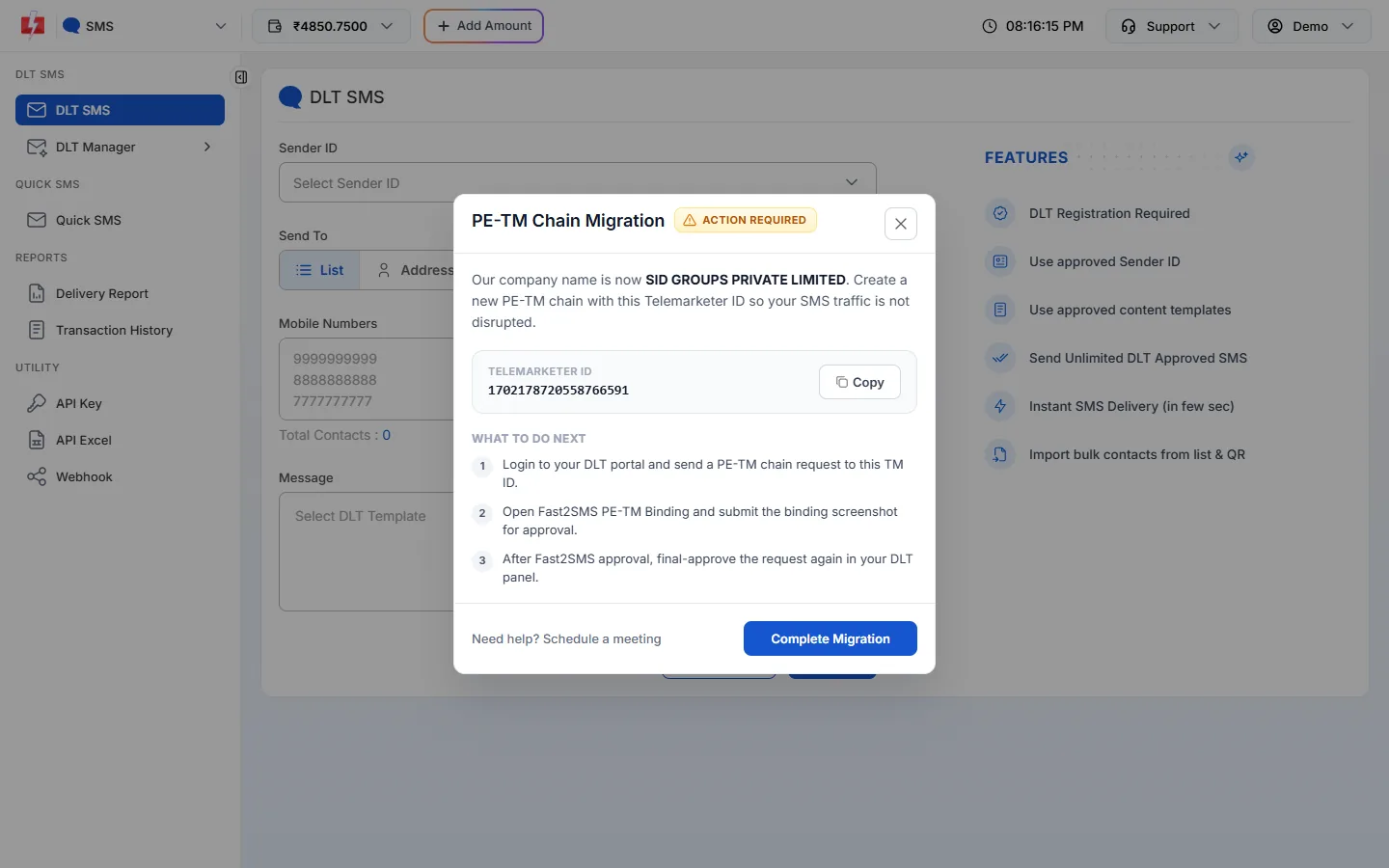
To complete it:
- Log in to your DLT portal and send a new PE-TM chain request to TM ID 1702178720558766591. Take a screenshot.
- In Fast2SMS, open PE-TM Binding and click Migration Required on that entity’s row.
- In the PE-TM Chain Migration window, upload the screenshot in Upload DLT Binding Screenshot (image only, up to 10 MB) and click Submit. You will see “PE-TM Migration screenshot submitted successfully for TMD verification” and the status goes back to Pending.
- After Fast2SMS approves it, approve the request once more on your DLT portal.
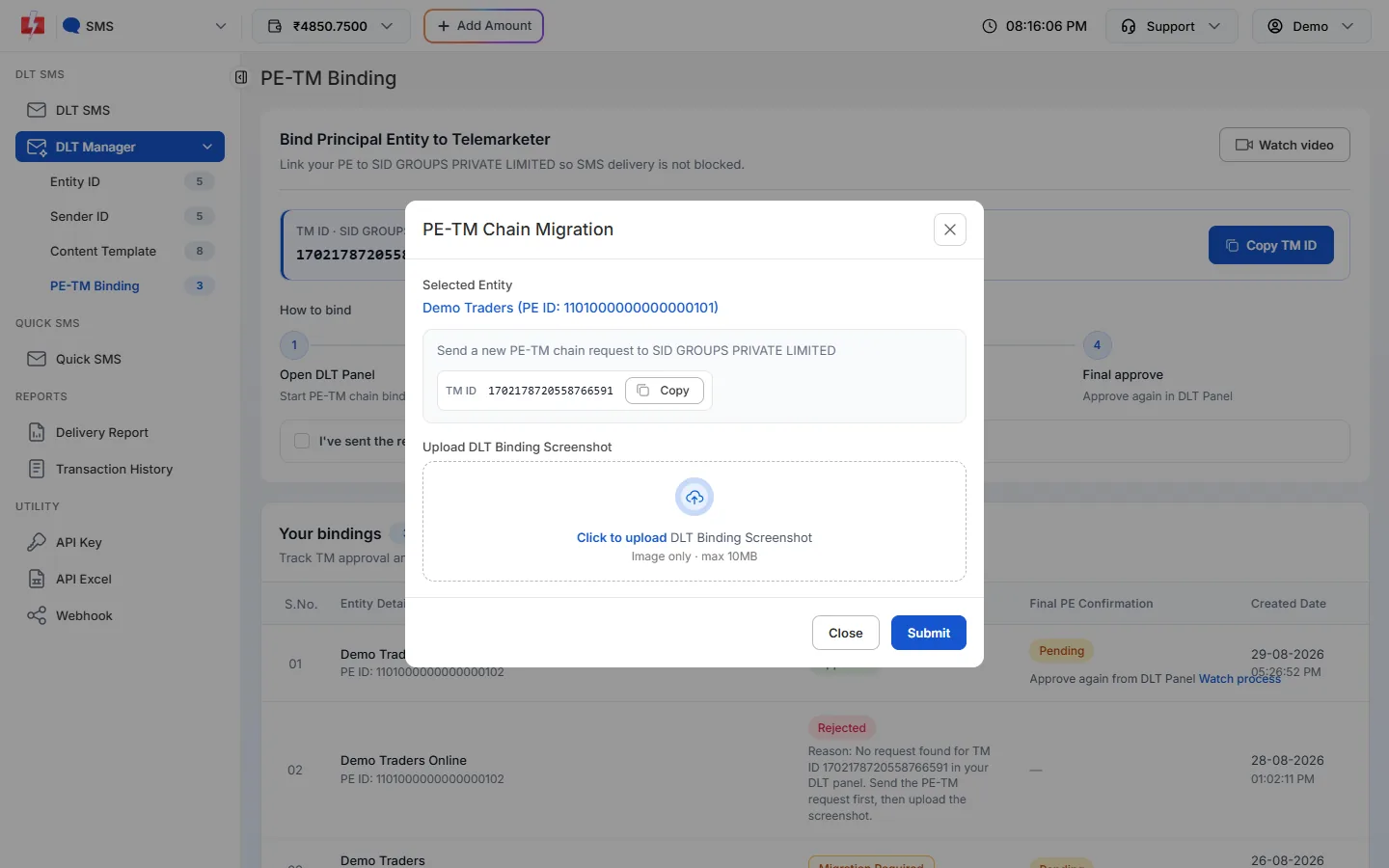
If you need help, the popup has a Need help? Schedule a meeting link.
Common errors and fixes
| Message or problem | Why it happens | Fix |
|---|---|---|
| No unbound approved Entity IDs found | No approved entity, or every approved entity already has a binding. | Add your entity in DLT Manager and wait for approval. For an existing chain, use its row in Your bindings. |
| Invalid entity. | The entity is not approved or is not in your account. | Check the entity status in DLT Manager > Entity ID. |
| This entity already has a PE-TM binding. Use Migration Required to re-submit if needed. | A pending or approved binding already exists for this entity. | Check Your bindings. You only need a new request if the old one was rejected. |
| Rejected: no request found for the TM ID in your DLT panel | The request was not sent on the DLT portal, or it was sent to a different TM ID. | Send the request to TM ID 1702178720558766591 first, then submit again with the screenshot. |
| File not accepted | File over 10 MB, or a blocked type such as .zip, .exe, .php or a video or audio file. | Upload a JPG, PNG or PDF under 10 MB. |
| Stuck on “Approve again from DLT Panel” | The final approval on the DLT portal was not done. | Approve the chain request on your DLT portal. Click Watch process for the steps. |
Frequently asked questions
What is PE-TM chain binding?
It is the link on DLT between your business (Principal Entity) and the telemarketer that sends your SMS. TRAI requires this chain so operators can check who sends each message.
What is the Fast2SMS TM ID?
1702178720558766591, under the name SID GROUPS PRIVATE LIMITED.
Do I need to bind each Entity ID separately?
Yes. Each entity needs its own binding. The entity list in the form only shows approved entities that do not have one yet.
Why does Final PE Confirmation still say Pending after TM approval?
The last approval has to be done by you on your DLT portal. Approve the request there and the status will update.
Why am I asked to migrate my PE-TM chain?
Our company name is now SID GROUPS PRIVATE LIMITED, so some older chains need a new request to this TM ID. Follow the Migration Required steps above.
My binding was rejected. Can I try again?
Yes. Fix the reason shown under Rejected and submit a new request for the same entity.
Which documents are needed?
The DLT binding request screenshot, one company document, the authorised person’s name, and their PAN card and Aadhaar or Voter ID.