
WhatsApp Business Calling lets customers call your business number from the WhatsApp chat, the same way they call a friend, and lets your team answer from Fast2SMS. You can also hand calls to an AI voice agent. This guide shows how to switch calling on, set your call hours, see calls in Live Chat and what calls cost.
Before you start
- A number connected to the WhatsApp Business API in Fast2SMS. Calling settings are not offered for numbers that also run on the WhatsApp Business app.
- Meta asks for a daily messaging limit of at least 2,000 customers before calling can be used on a number, at the time of writing. Your limit is shown in WhatsApp Manager under Messaging limit.
- Wallet balance. Call charges are taken from the same wallet as your messages.
How WhatsApp calling works
- Customer calls you: when calling is on, a call icon shows in the customer’s chat with your business. They tap it and the call reaches you over the internet, with no phone number dialled.
- You call the customer: WhatsApp only allows a business to call a customer who has agreed to receive calls from it. Meta limits how often you can ask for that permission and removes it after several unanswered calls.
- Voice only: WhatsApp Business Calling is voice calling at the time of writing.
How to set up WhatsApp calling in Fast2SMS
-
Turn on the Call Button
Go to WhatsApp Manager > Numbers. In the Settings column of your number, switch on Call Button. A “Confirm Action” window asks “Are you sure you want to enable WhatsApp calling for this number?” and shows the calling rates: the per-minute rate for incoming calls and a View Rates link for outgoing calls. It also says “Charges will be debited from your wallet balance.” Click CONFIRM.
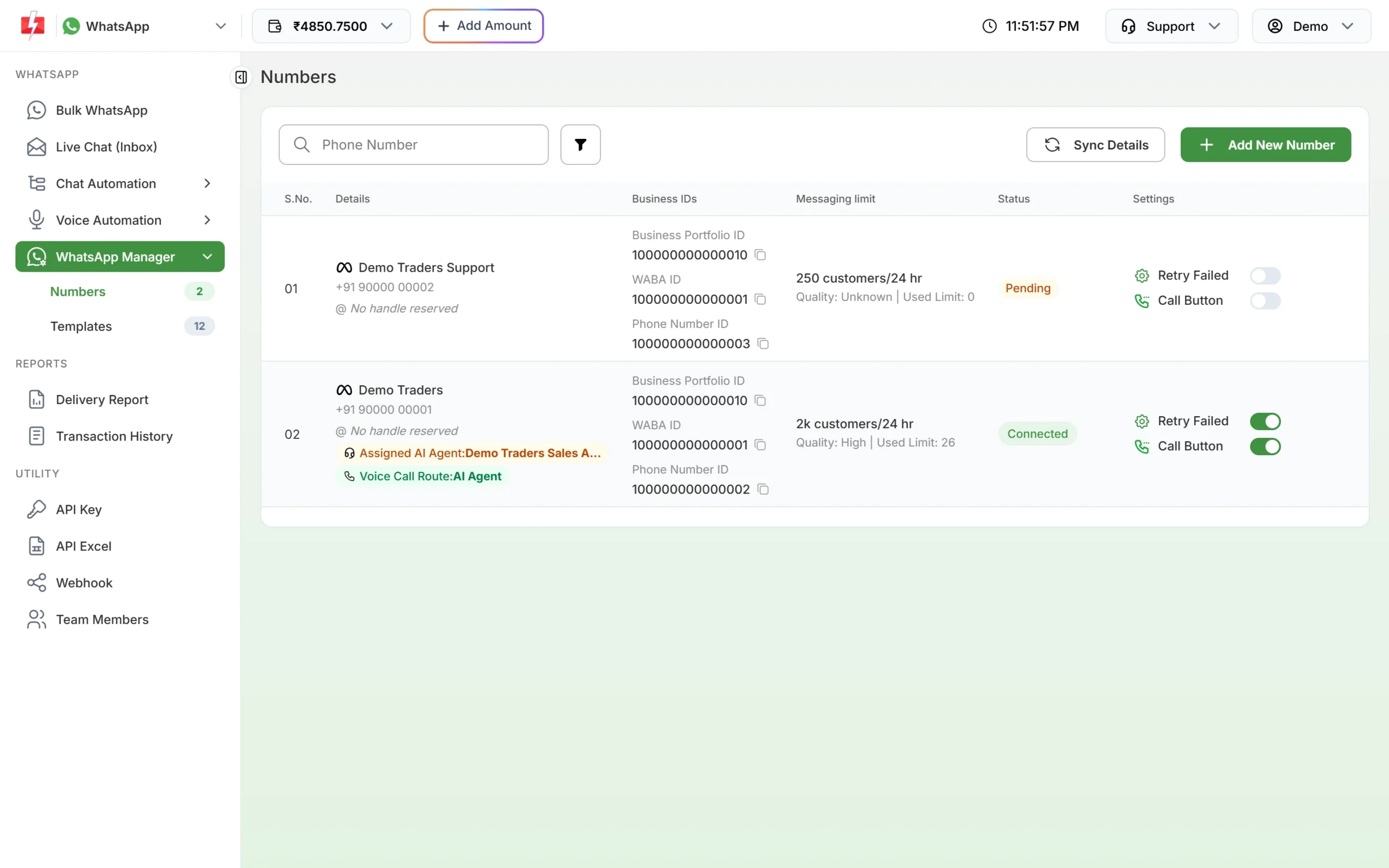
The Call Button switch is in the Settings column of each number. You can also use Enable Calling or Disable Calling in the number’s three-dot menu.
-
Set call hours and the call icon
From the number’s three-dot menu, click Call Setting. Here you can:
- Switch Call Settings on or off.
- Set Call Icon Visibility to DEFAULT (customers see the call icon) or DISABLED (the icon is hidden).
- Switch on Enable Call Hours and add your Weekly Operating Hours (up to 14 time slots) and a Holiday Schedule (up to 20 dates). Outside these hours customers are guided to send a message instead.
Click Save. The window loads your current settings from WhatsApp each time you open it.
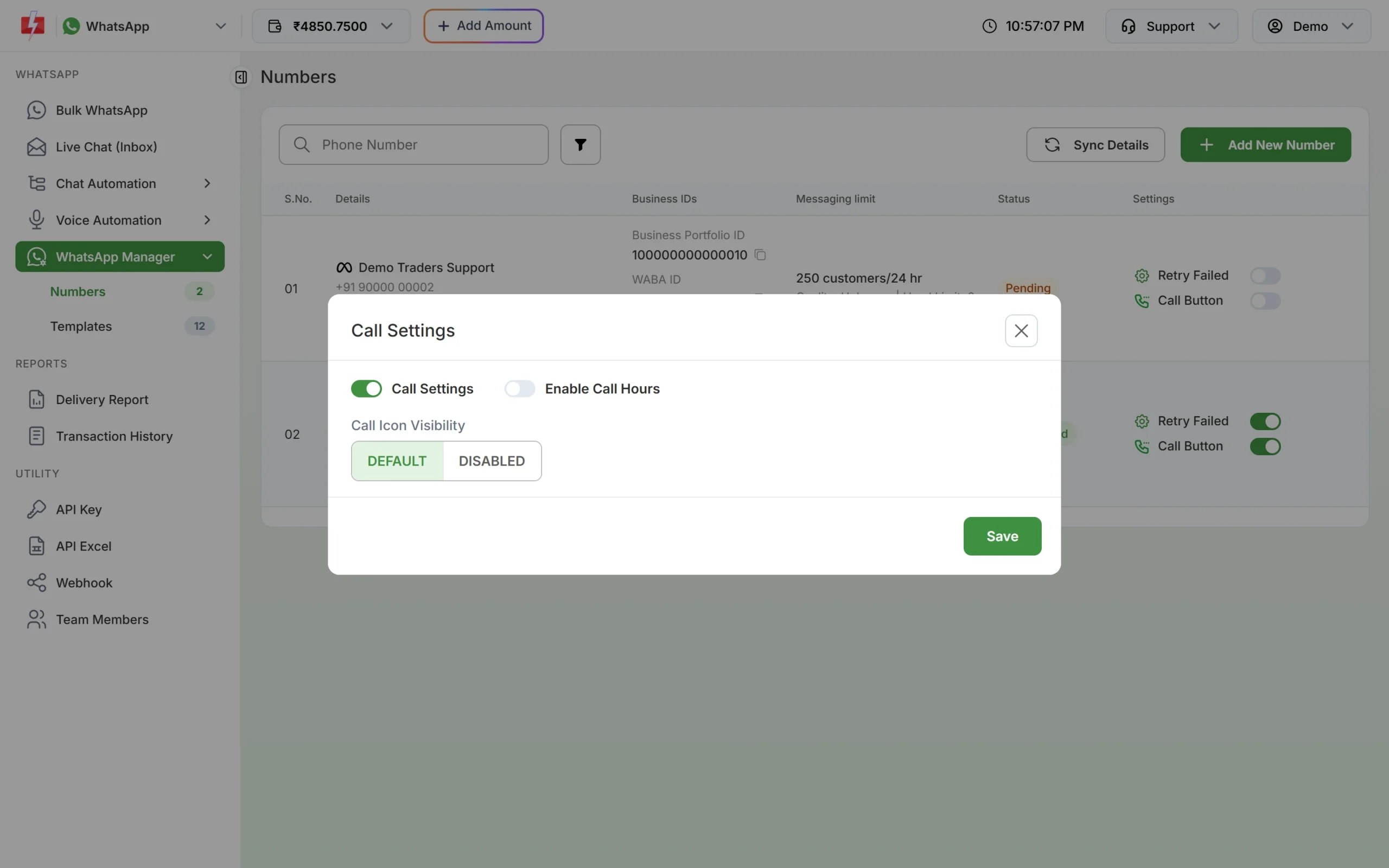
Call Settings: call icon and call hours for one number. -
Choose who answers: your team or an AI agent
By default, calls go to your team. To let an AI voice agent answer, open AI Agent & Routing Settings from the number’s menu, choose the agent in Select AI Agent, tick Enable AI Voice Call Route and click SAVE SETTINGS. Ticked means calls go to the AI agent; unticked means they go to a human agent. The number then shows “Voice Call Route: AI Agent” in WhatsApp Manager.
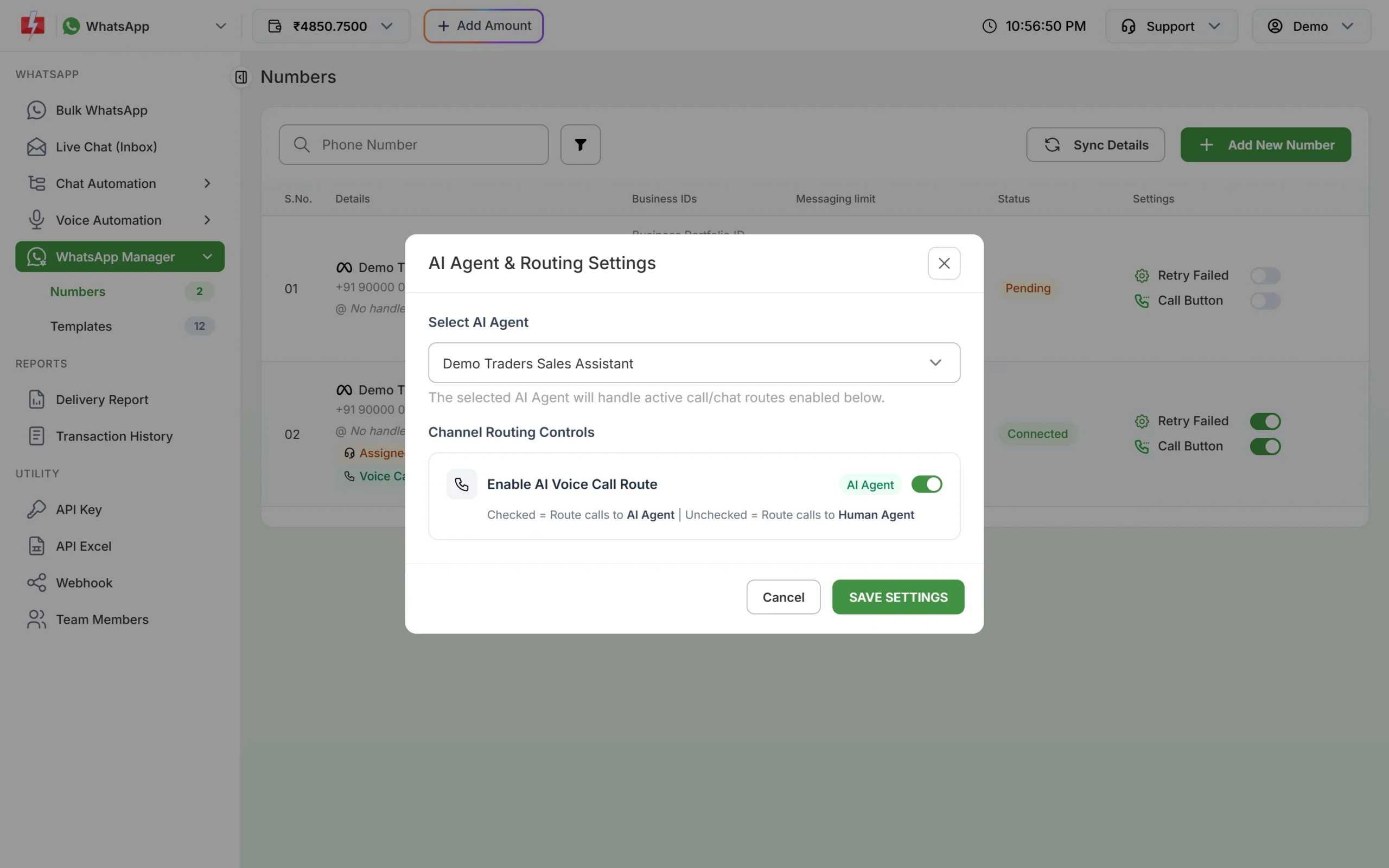
Route calls on a number to an AI voice agent. You create the agent itself, and give it your business knowledge, under Voice Automation > AI Agents and AI Knowledge Base.
-
See calls in Live Chat
Calls show up in the customer’s chat in Live Chat (Inbox), next to your messages. You see lines such as “Incoming voice call” or “Missed voice call”, with the length of the call and a recording when there is one. A call answered by the AI agent is marked “Answered by AI agent” and tagged “Bot Agent”.
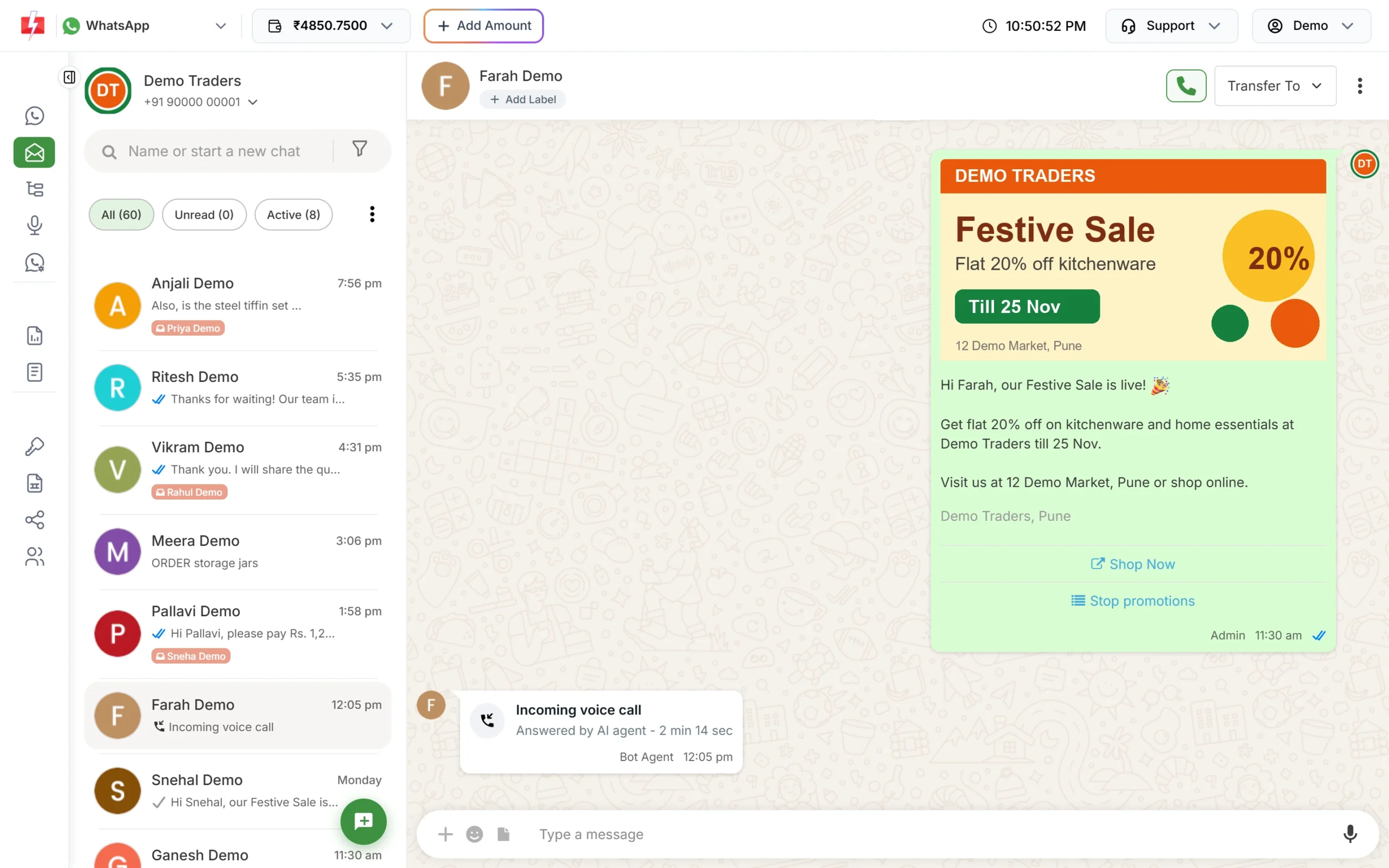
A call answered by the AI agent, shown in the chat history. When calling is on for the number, a green phone button appears at the top of the chat. Use it to call the customer back when they have allowed calls from your business.
What WhatsApp calls cost
Calls are charged per minute from your Fast2SMS wallet. The Enable Calling window shows the current incoming call rate, and View Rates opens the outgoing call rates. Calls answered by an AI voice agent are also charged per minute. Rates change, so check them in the panel before you switch calling on. Messages in the same chat are charged as usual; see the WhatsApp pricing page.
Tips
- Set call hours that match when someone can really pick up. Unanswered calls make customers unhappy, and for calls you make, repeated missed calls can cost you the customer’s permission.
- Hide the call icon (DISABLED) on numbers used only for campaigns or OTPs, so customers message instead.
- Pair calling with an AI agent for after-hours calls, and keep a human for complaints and sales.
Common problems and fixes
| Problem | Fix |
|---|---|
| No Call Button or calling menu for my number | The number also runs on the WhatsApp Business app. Calling settings are shown only for numbers on the API alone. |
| Customers do not see the call icon | Check Call Icon Visibility is DEFAULT, Call Settings is on, and the time is inside your call hours. |
| Calling cannot be switched on | Check your messaging limit in WhatsApp Manager. Meta needs at least 2,000 customers per day for calling. |
| No phone button in the chat header | The button shows only when calling is enabled for that number. |
| “Please select an AI Agent to enable AI routing.” | Choose an agent in Select AI Agent before ticking Enable AI Voice Call Route. |
Frequently asked questions
Can customers call my WhatsApp Business API number?
Yes, once you switch on the Call Button and Call Settings for that number. They tap the call icon in your chat.
Can I call customers on WhatsApp from Fast2SMS?
Only customers who have agreed to receive calls from your business, as WhatsApp requires. Use the phone button at the top of their chat.
Is WhatsApp calling free for my customers?
Yes. The customer uses their internet data. Your business pays the per-minute call rate from the wallet.
Can an AI answer my WhatsApp calls?
Yes. Create an AI agent under Voice Automation and route the number’s calls to it in AI Agent & Routing Settings.
Are calls recorded?
AI agent calls can be recorded; Record Calls is on by default in the agent’s call settings. Recordings appear in the call line in Live Chat and in AI Voice Call Logs.
Can I stop calls on weekends or holidays?
Yes. Turn on Enable Call Hours and add your weekly hours and holiday dates in Call Setting.