
This guide shows you how to add money to your Fast2SMS wallet, how GST is added to a recharge, and where to download your GST invoice. Fast2SMS is prepaid: you recharge the wallet once, and every SMS, WhatsApp, RCS, OTP or voice call you send is paid from that balance. Only the account owner can open the recharge and billing pages.
Before you start
- Log in to the Fast2SMS panel as the account owner.
- Keep your billing address ready. If you want your GST number on the invoice, keep your 15-character GSTIN ready too.
- The minimum recharge is ₹100, before GST.
Check your balance and current rate
Your balance is shown at the top of the panel, next to Add Amount. Click it to see your rate for each channel, how many messages your balance covers (“Volume”) and the DLT SMS Cost Validity.
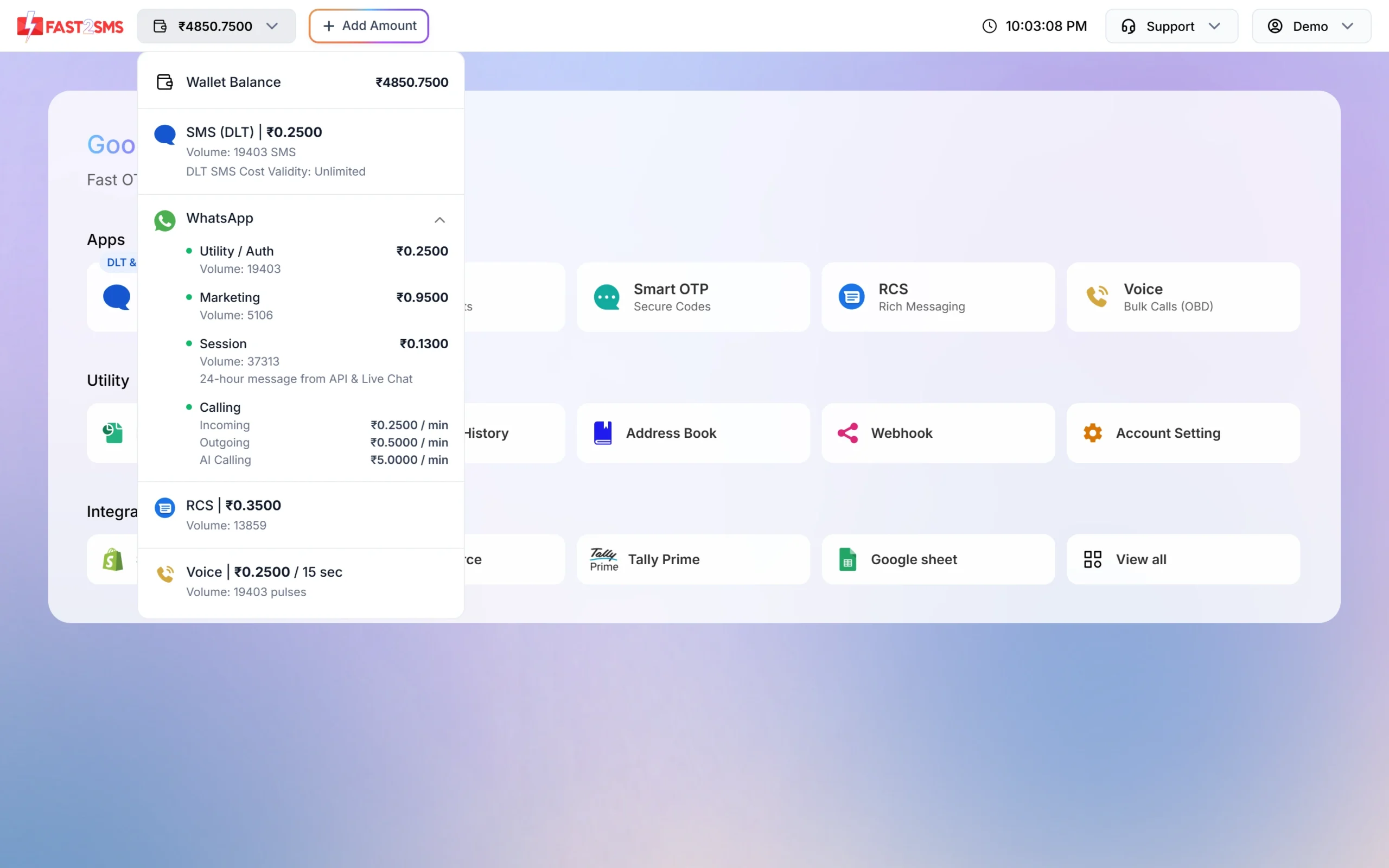
How to add money to your Fast2SMS wallet
-
Click Add Amount
Click Add Amount in the top bar. The recharge page opens on the Add Credits tab, at the Top up Wallet step.
-
Enter the amount
Type the amount you want in your wallet. The box starts at 1000 and takes digits only. As you type, the summary below updates: Amount, GST (18%) and You pay. For example, ₹1,000 plus ₹180 GST means you pay ₹1,180.
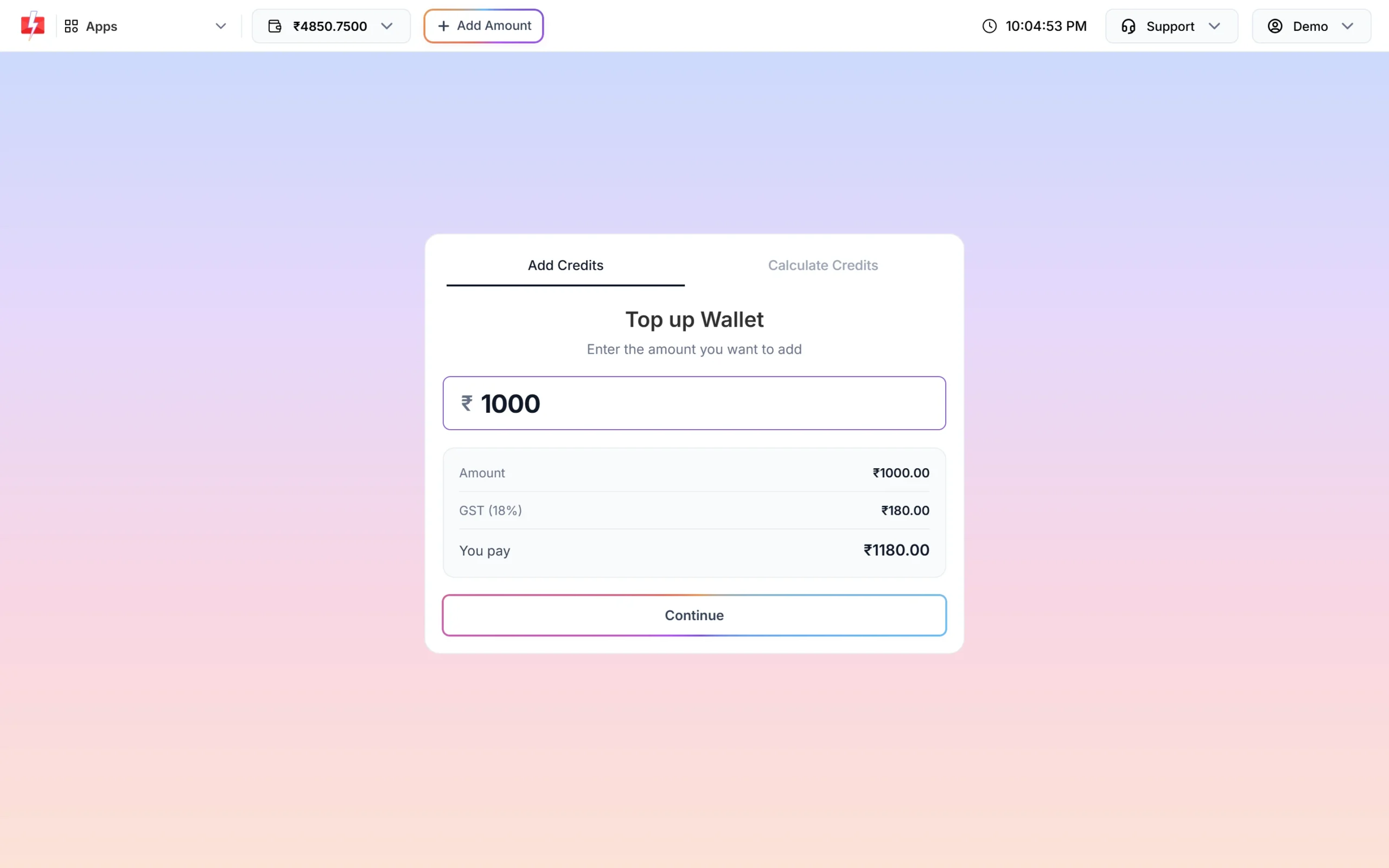
The amount you enter goes to your wallet. GST is added on top. If the amount is below the minimum, you will see “Enter an amount of ₹100 or more” under the button.
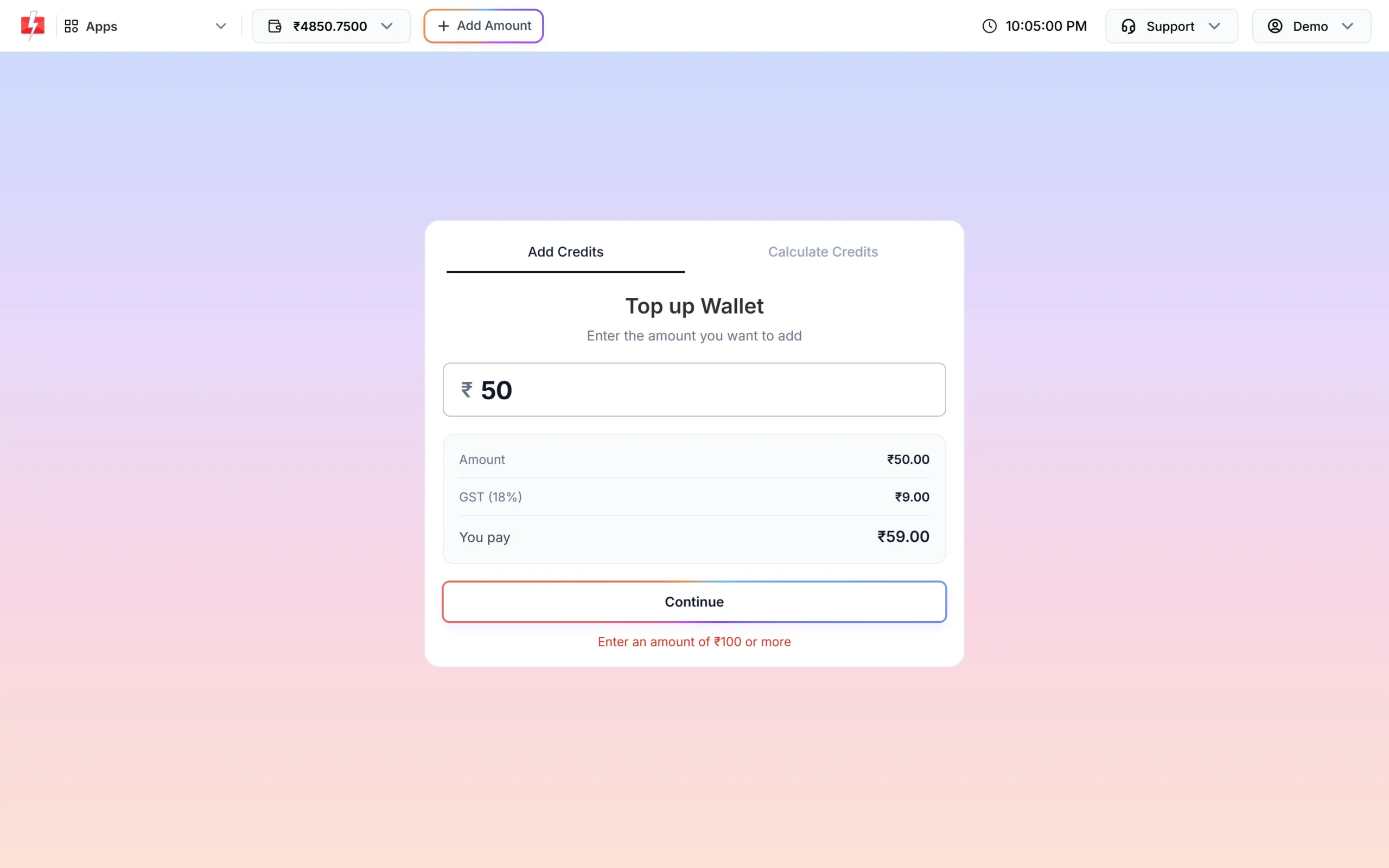
Recharges below ₹100 are not accepted. Click Continue.
-
Check your billing details
The Billing Details step opens. These details are printed on your invoice, so check them before you pay:
- GST No. (optional). If a GST number is already saved, it is locked and a Change button asks for your password before you can edit it.
- Company (optional)
- Address, Country (India), State, City and Pin Code (6 digits). These are required.
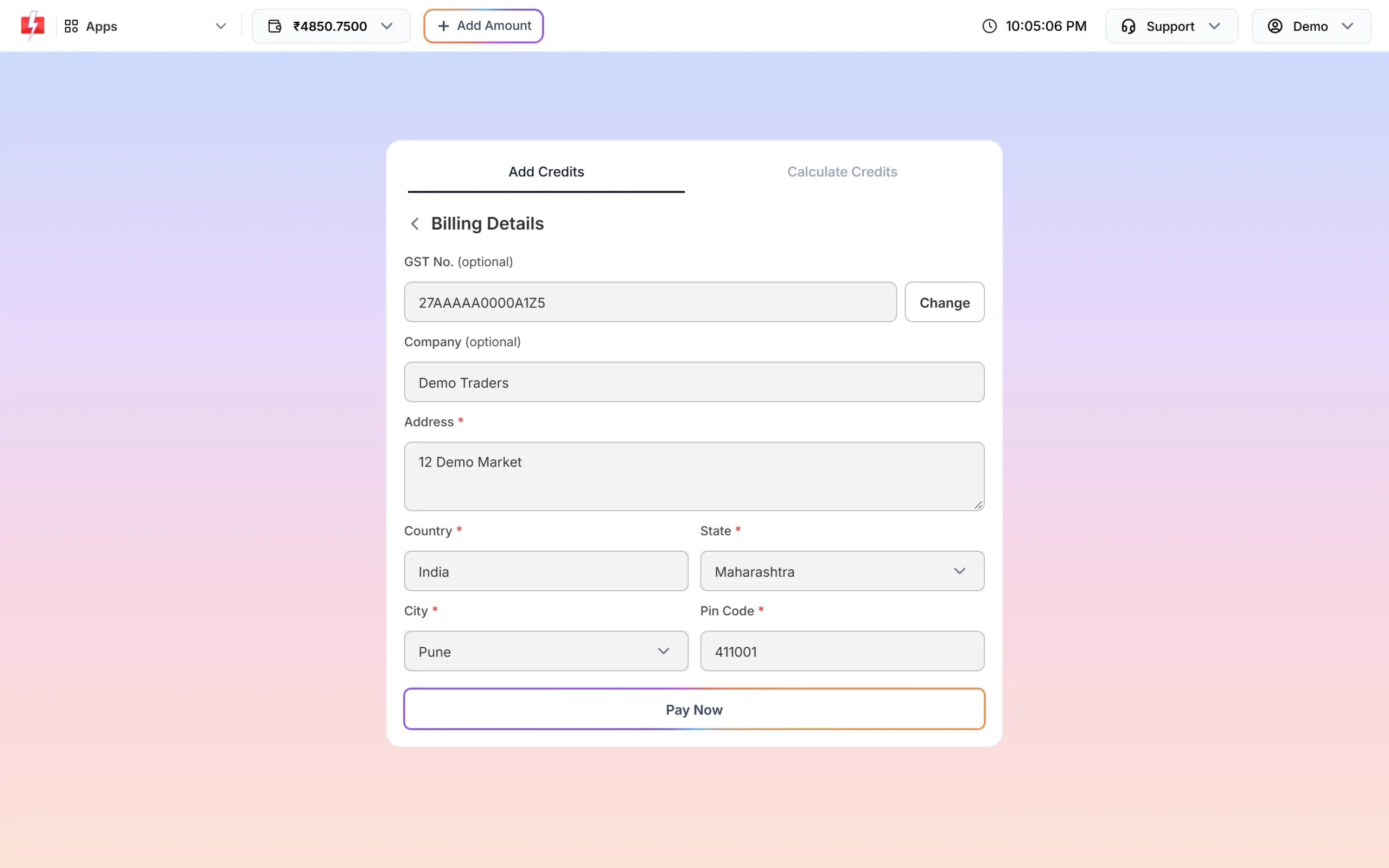
Billing details are saved to your account and used on the invoice. Click Pay Now. Your billing details are saved, and the payment window opens.
-
Choose how to pay
The Select Payment Gateway window lists the payment options available to you. At the time of writing these were:
- Razorpay: UPI, debit card or credit card
- Razorpay Net Banking: net banking
- CCAvenue: credit card, debit card or net banking
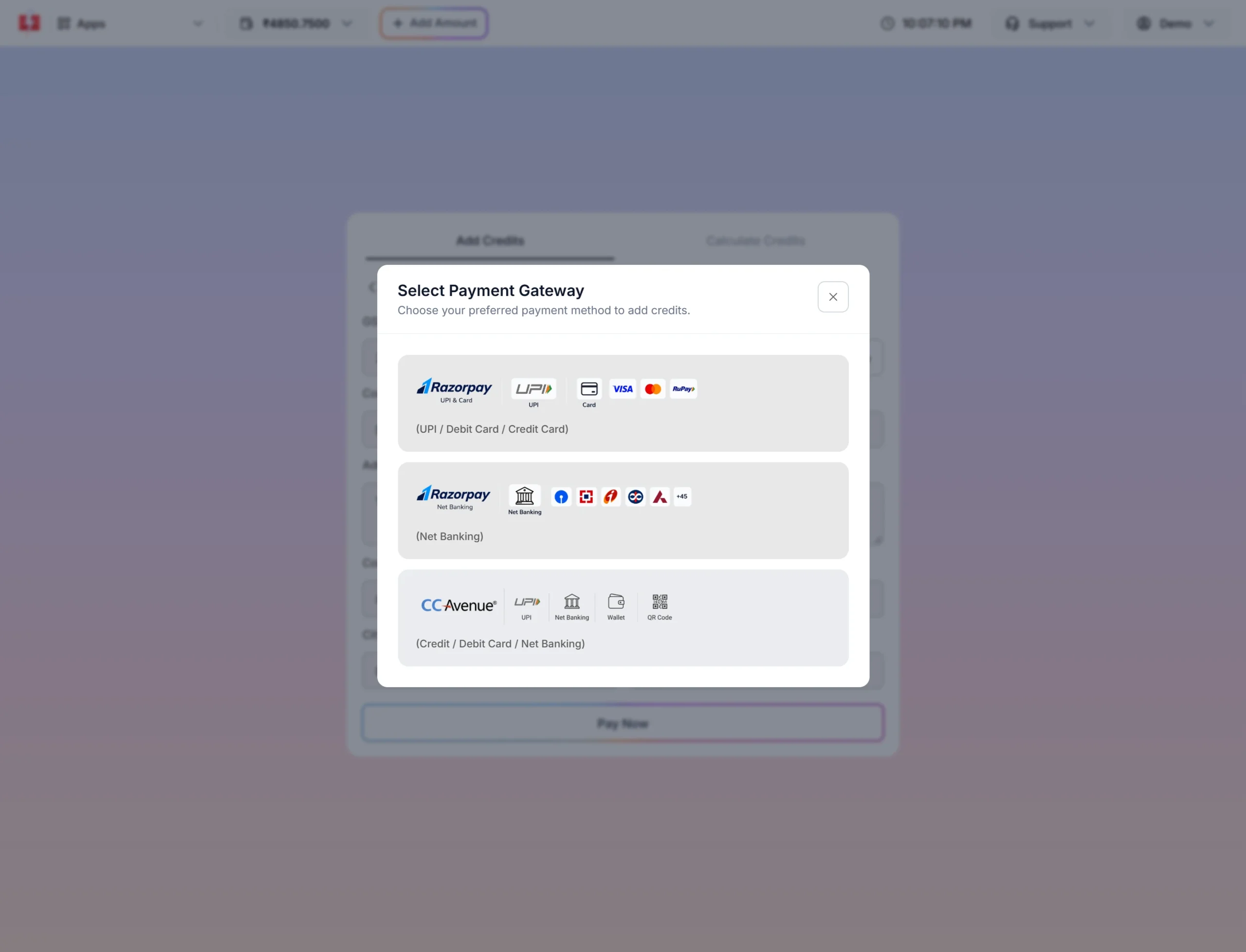
Pick the option that suits you and complete the payment. Pick one and complete the payment. Do not close the window until you are back on Fast2SMS.
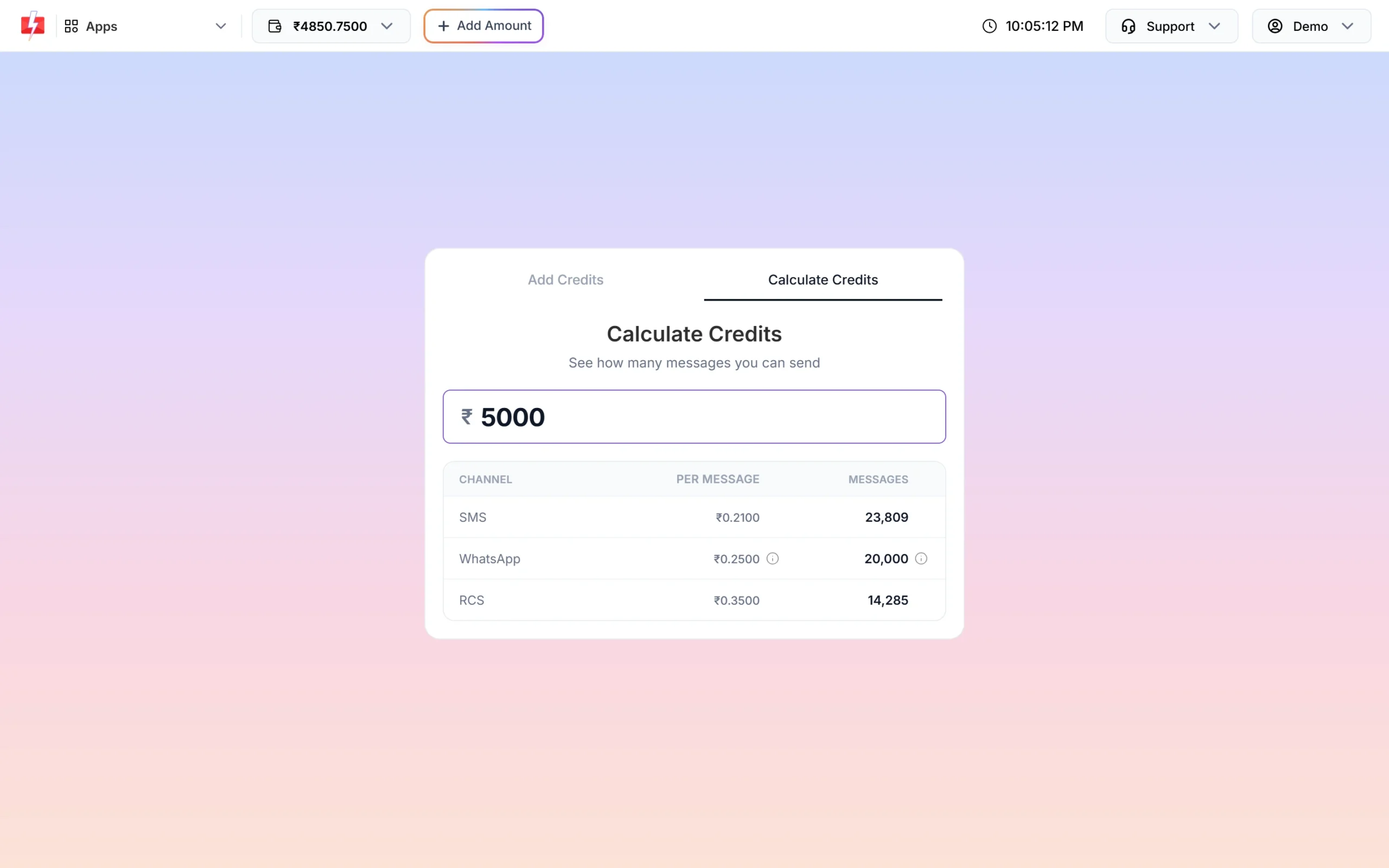
GST on a wallet recharge
18% GST is added on top of the amount you enter. Your wallet is credited with the amount you entered, not the GST. So if you recharge ₹5,000, you pay ₹5,900 and ₹5,000 goes to your wallet.
On the invoice, the tax is split by your billing state:
| Billing state on your account | Tax on the invoice |
|---|---|
| Madhya Pradesh | CGST 9% + SGST 9% |
| Any other state | IGST 18% |
Bigger recharge, lower SMS price
Your per-SMS price depends on how much you recharge in one payment. At the time of writing the rates were:
| Recharge (before GST) | Per SMS | Rate validity |
|---|---|---|
| ₹100 to ₹3,999 | ₹0.25 | Unlimited |
| ₹4,000 to ₹7,999 | ₹0.21 | 6 months |
| ₹8,000 to ₹13,999 | ₹0.19 | 6 months |
| ₹14,000 to ₹59,999 | ₹0.17 | 12 months |
| ₹60,000 to ₹1,29,999 | ₹0.15 | 12 months |
| ₹1,30,000 to ₹5,99,999 | ₹0.13 | 12 months |
| ₹6,00,000 or more | ₹0.11 | 24 months |
Sending in bulk? For high SMS volumes our team offers discounted rates. Talk to our team or see SMS pricing.
The validity is for the rate, not the money. Your wallet balance does not expire. After the rate validity ends, the default rate applies to the remaining balance. If you recharge again with the same or a bigger amount, the validity is extended. You get an SMS with your new per-SMS cost and its validity date. Always check the latest rates on the bulk SMS pricing page.
What happens after you pay
Payment successful
You land on the Payment successful page with the message “The amount has been credited to your Fast2SMS wallet.” It shows the Transaction ID, Amount Credited, Transaction Status, Per SMS Cost and Cost Validity. From here you can click Download Invoice, Go to Dashboard or Transaction History.
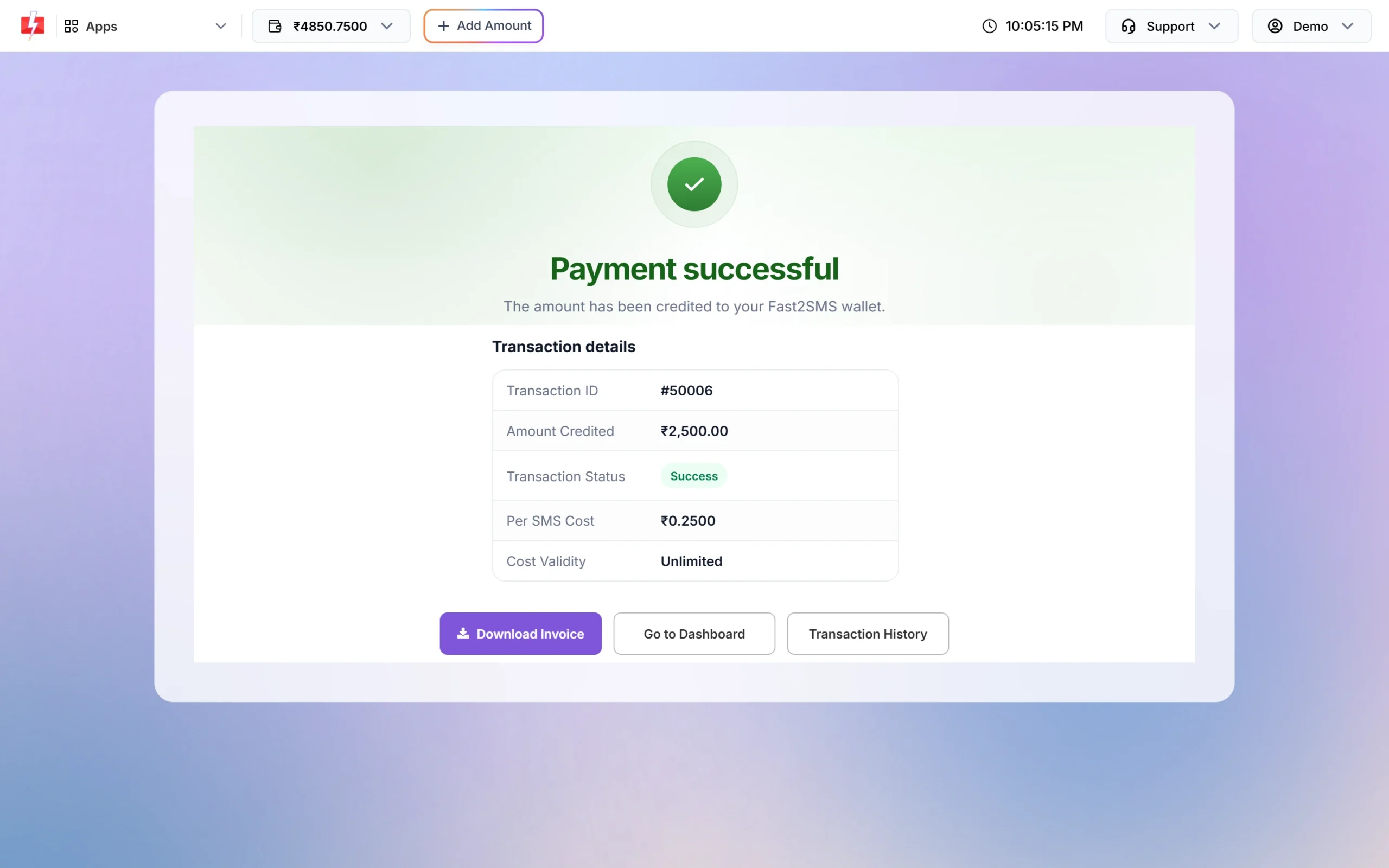
At the same time:
- your wallet balance goes up by the recharge amount;
- you get an SMS confirming the amount credited and your new balance;
- the recharge appears in Transaction History as “Via Payment Gateway”;
- the invoice is emailed to you if your email address is verified.
Payment failed
If the payment does not go through, you see the Payment failed page with the reason, for example “Your payment could not be completed. Please try again.” The page also shows this note: “If any amount was debited from your account, it will be refunded within 3-5 working days.” Click Try Again to start a new payment.
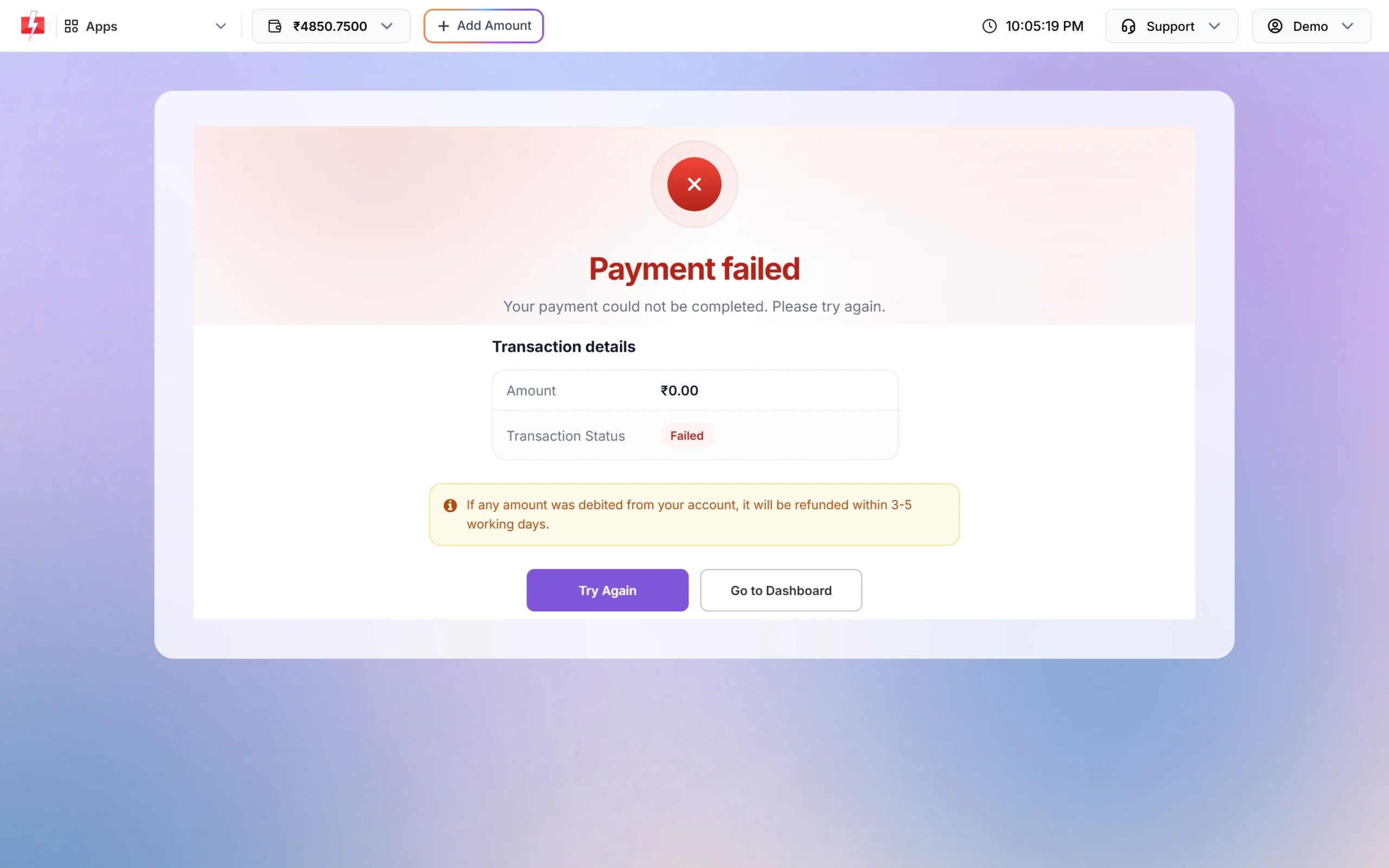
A failed payment is not listed in your Transaction History. You also get one SMS saying the transaction failed.
Billing address and GST number in Account Settings
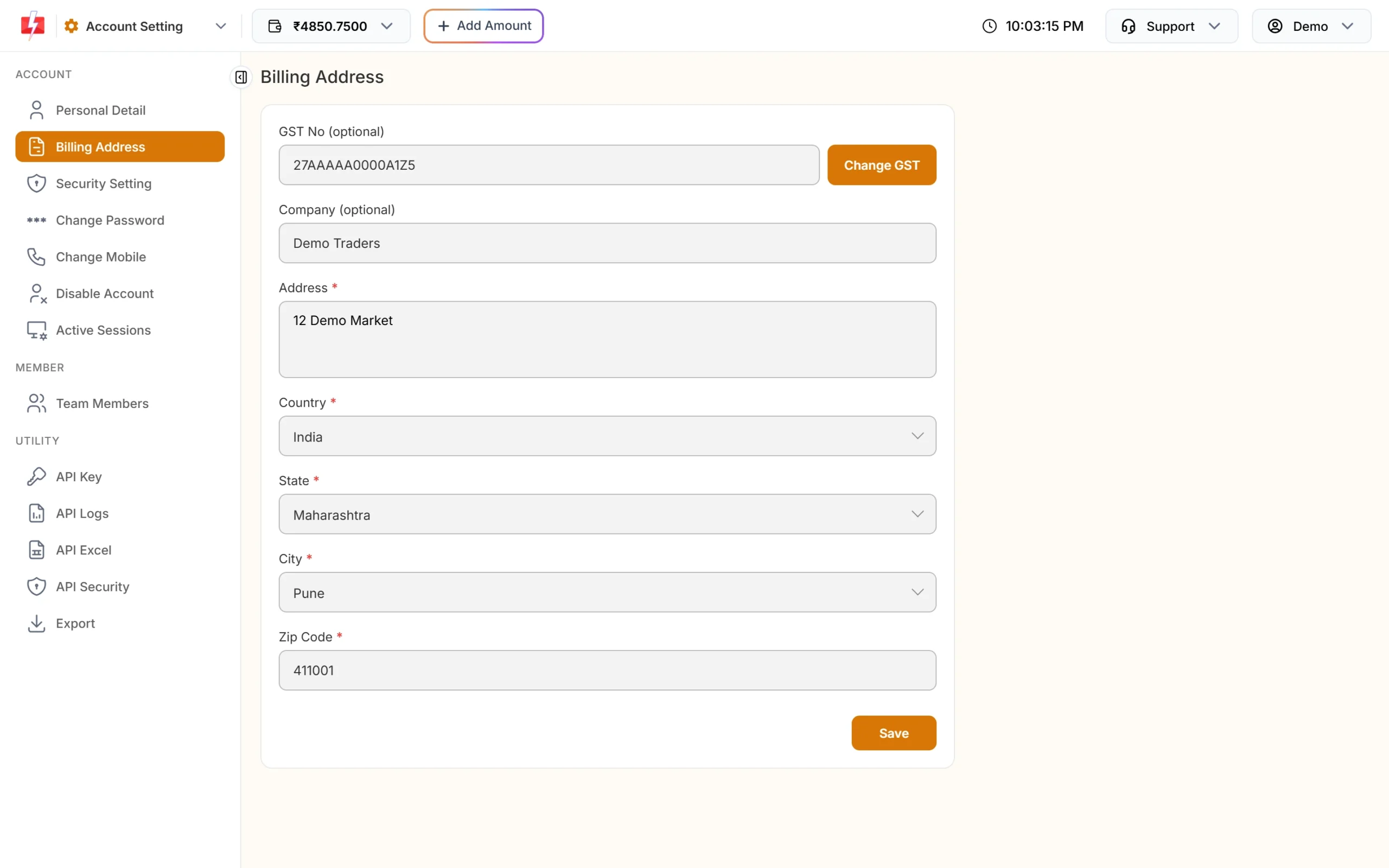
You can add or update your billing details any time, not only during a recharge. Go to Account Setting > Billing Address.
- GST No (optional): when you type all 15 characters, the panel looks up the GSTIN and fills in the company, address, state, city and pin code for you. You will see “GST details verified.” You can do up to 5 new lookups a day.
- Company (optional): up to 80 characters, in English letters.
- Address, Country, State, City and Zip Code are required.
Click Save. You will see “Billing Details Saved Successfully.” Once a GST number is saved, the fields are locked. To change it, click Change GST and enter your password.
Where to find your GST invoice
There are two places:
- The Download Invoice button on the Payment successful page.
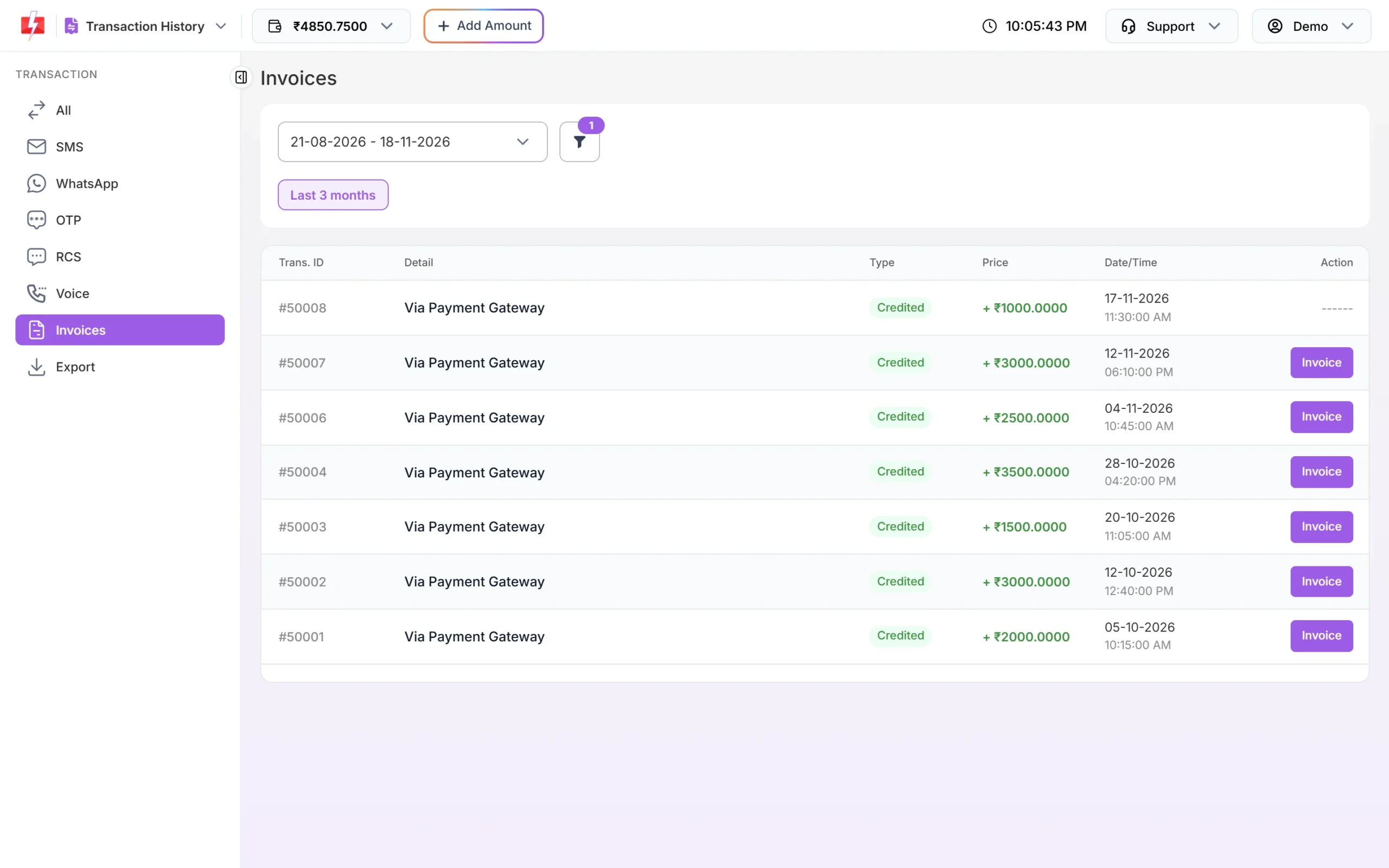
- Transaction History > Invoices. Every recharge is listed with an Invoice button. This tab shows the last 3 months by default. Use the filter to pick another date range.
The invoice downloads as a PDF named “Fast2SMS Invoice – <invoice number>.pdf”. It shows your billing details and GSTIN (if given), the line “Prepaid Bulk SMS” with HSN 998413, and the tax split.
Invoice shows “——” instead of a button
If you gave a GST number, your invoice is a B2B invoice and needs an e-invoice before it can be downloaded. Until the e-invoice is generated, the Action column shows “——” and the Invoice Status filter lists it as Pending. Once it is ready, the Invoice button appears and the PDF carries the IRN and the e-invoice QR code. Invoices without a GST number can be downloaded straight away. For more on these tabs, see Transaction history in Fast2SMS.
Common problems and fixes
| Problem | What the panel shows | What to do |
|---|---|---|
| Money debited but wallet not updated | The Payment failed page, or no new “Via Payment Gateway” row in Transaction History | Check your balance and Transaction History again after some time. If your bank confirms the payment late, the amount is added once confirmed. If it is still missing, contact support with the details below. |
| Charged more than the amount entered | GST (18%) and You pay on the Top up Wallet step | This is GST. Your wallet gets the amount you entered. |
| “Enter an amount of ₹100 or more” | Error under Continue | Enter ₹100 or more. |
| “GST details could not be verified. Please check the GST number.” | Error on Billing Details | Check the GSTIN for typing mistakes, or leave the field empty. |
| Invoice button missing | “——” in the Action column, Invoice Status Pending | The e-invoice for your GST invoice is not ready yet. Check again later. |
| Invoice shows IGST, not CGST + SGST | Tax lines on the PDF | IGST is used for every billing state except Madhya Pradesh. |
How to contact support about a payment
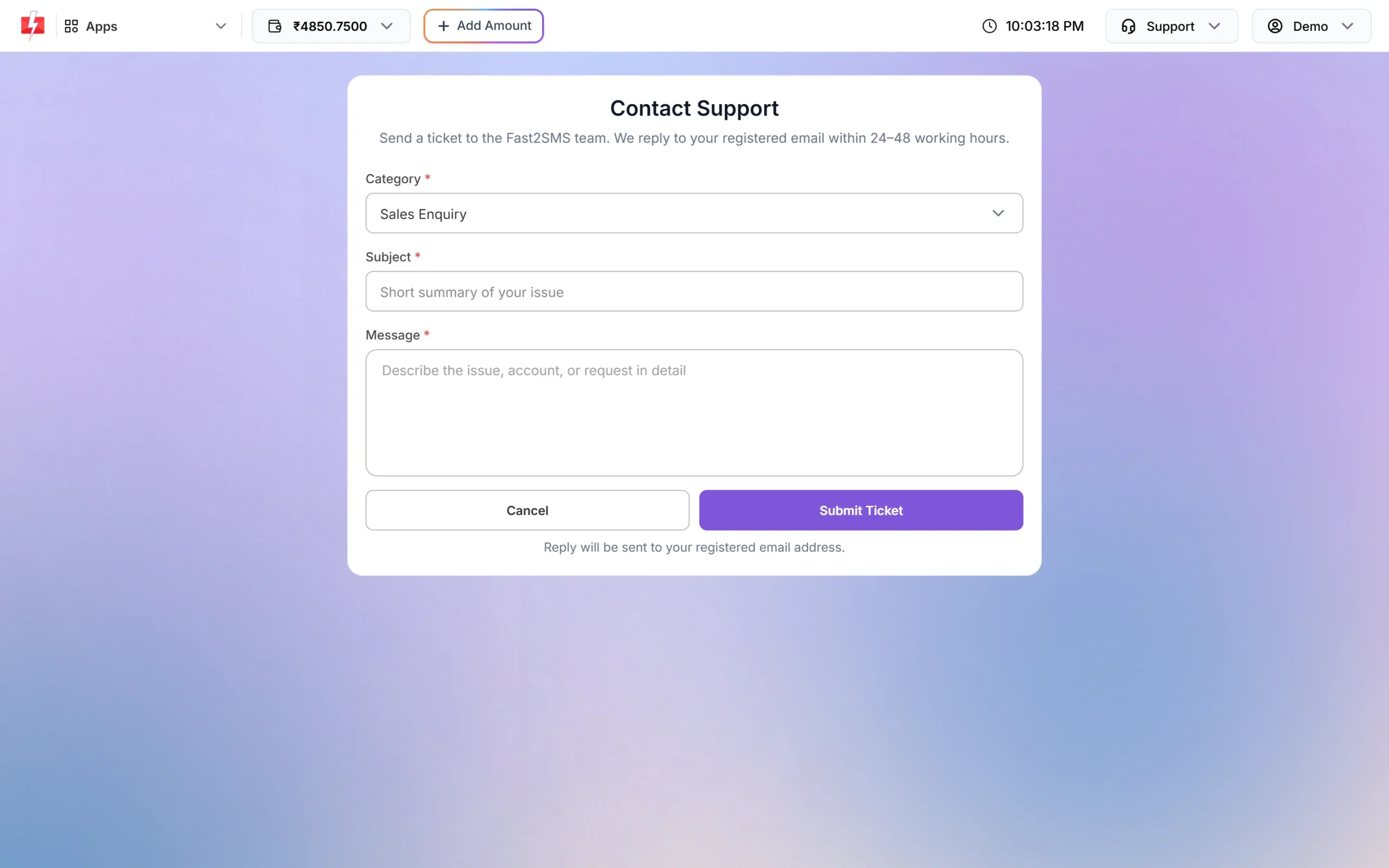
Open Support > Contact Support in the top bar. Choose a category, write a subject and message, and click Submit Ticket. Replies go to your registered email within 24 to 48 working hours. You can also email [email protected].
Include these details so the team can trace your payment quickly:
- your registered mobile number;
- the amount paid (including GST), and the date and time;
- the payment option you used;
- the bank or UPI reference number from your bank statement or UPI app;
- the Transaction ID, if the result page showed one.
Do not paste links in the message. Messages with links are not accepted. Never share your card number, CVV, UPI PIN or OTP with anyone.
Frequently asked questions
What is the minimum recharge in Fast2SMS?
₹100, before GST. With 18% GST you pay ₹118.
Which payment methods can I use?
UPI, debit card, credit card and net banking, through the options shown in the Select Payment Gateway window.
Is GST included in the amount I enter?
No. 18% GST is added on top. Your wallet is credited with the amount you entered.
Does my wallet balance expire?
No. Only the lower per-SMS rate from a bigger recharge has a validity date. After that, the default rate applies to your remaining balance.
How do I get my GST number on the invoice?
Add it in Account Setting > Billing Address, or in the Billing Details step, before you pay. Each invoice uses the details saved at the time of payment.
Why can’t I download my invoice yet?
For a GST invoice, the e-invoice must be generated first. Until then the row shows “——” and the status is Pending.