
A WhatsApp chatbot for a small business does not need to be clever. It needs to answer the five or six questions your staff hear every day: price, timings, address, order status, offers and “can I talk to someone”. Below are 12 WhatsApp chatbot ideas for small businesses, each with the exact Fast2SMS tool to build it (Flow Builder, Auto Reply or Inbox Settings) and no coding for most of them.
The tools you will use
| Tool in Fast2SMS | Best for | Where |
|---|---|---|
| Flow Builder (Chatbot) | Menus, buttons, lists, multi-step conversations, handing over to staff | Chat Automation > Flow Builder (Chatbot) |
| Auto Reply | One answer for a keyword, such as “price”, “address” or “timing” | Chat Automation > Inbox Settings > Auto Reply |
| Welcome, Out of Office, Delayed Response | First-time greeting, after-hours reply, “we are busy” note | Chat Automation > Inbox Settings > Auto Reply Setting |
| Icebreakers | Up to 4 ready questions a new customer can tap | WhatsApp Manager > Numbers > number menu |
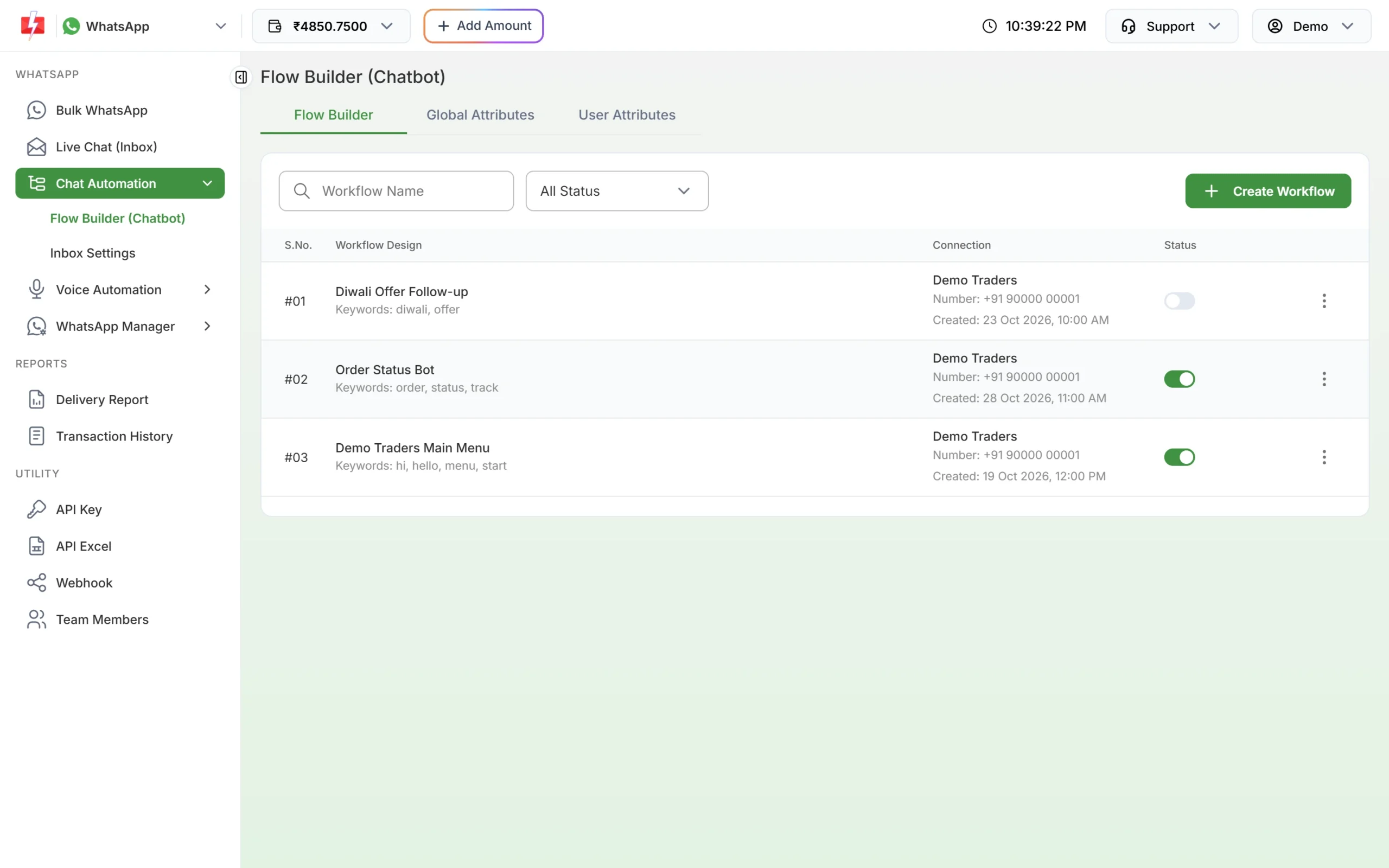
A Flow Builder workflow starts when a customer’s message matches one of its keywords (up to 32 characters each) or a regex. Keyword matching ignores capital letters but must match the whole message. You can have up to 20 workflows per WhatsApp number, and each one can be switched on or off with its status toggle.
12 WhatsApp chatbot ideas for small businesses
1. A main menu for every “Hi”
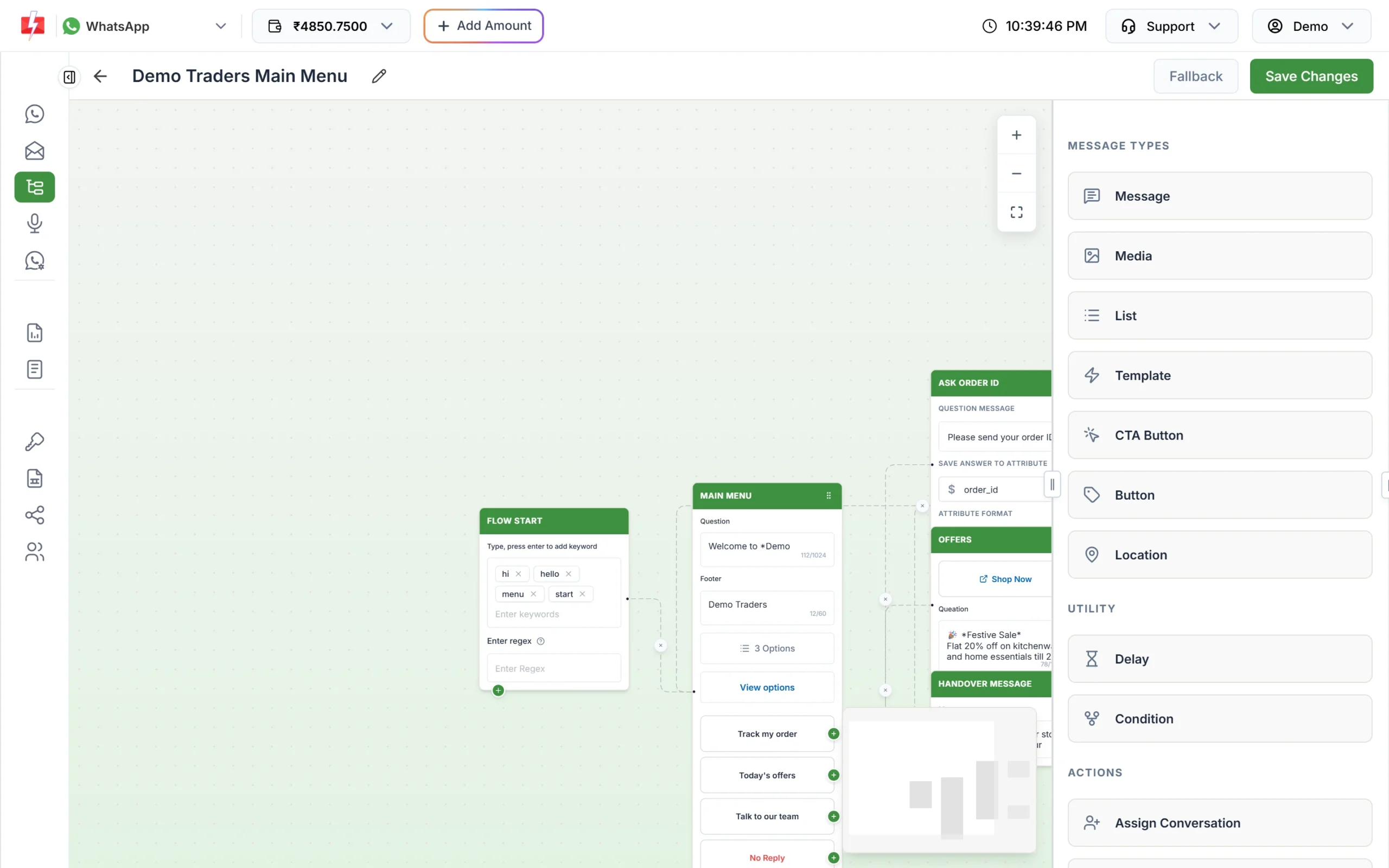
Most customers open with “hi” or “hello”. Make a workflow with the keywords hi, hello, menu and start. Use a List step (up to 10 options) or a Button step (up to 3 buttons) with choices such as Track my order, Today’s offers and Talk to our team. Each option leads to its own next step.
2. Price list on request
Create an Auto Reply with keywords price, rate and price list, Match Type Contains, and reply with your current prices. For a PDF price list or catalogue, use a Media step in a workflow instead, because it can send a document (up to 16 MB).
3. Shop address and timings
Auto Replies for “address”, “location”, “where” and “timing”, “open”, “hours” save your staff dozens of replies a day. In a workflow, the Location step sends a map pin customers can open in their maps app.
4. After-hours reply
Turn on Out of Office Message with your working hours for each day. Customers who write at night get a reply saying when you will answer. It goes at most once per chat in 24 hours, so it does not repeat on every message.
5. “We are busy” reply
Turn on Delayed Response Message and set a delay, for example 15 minutes. If nobody from your team replies in that time, the customer gets a short note. It is cancelled if an agent answers first.
6. Order status lookup
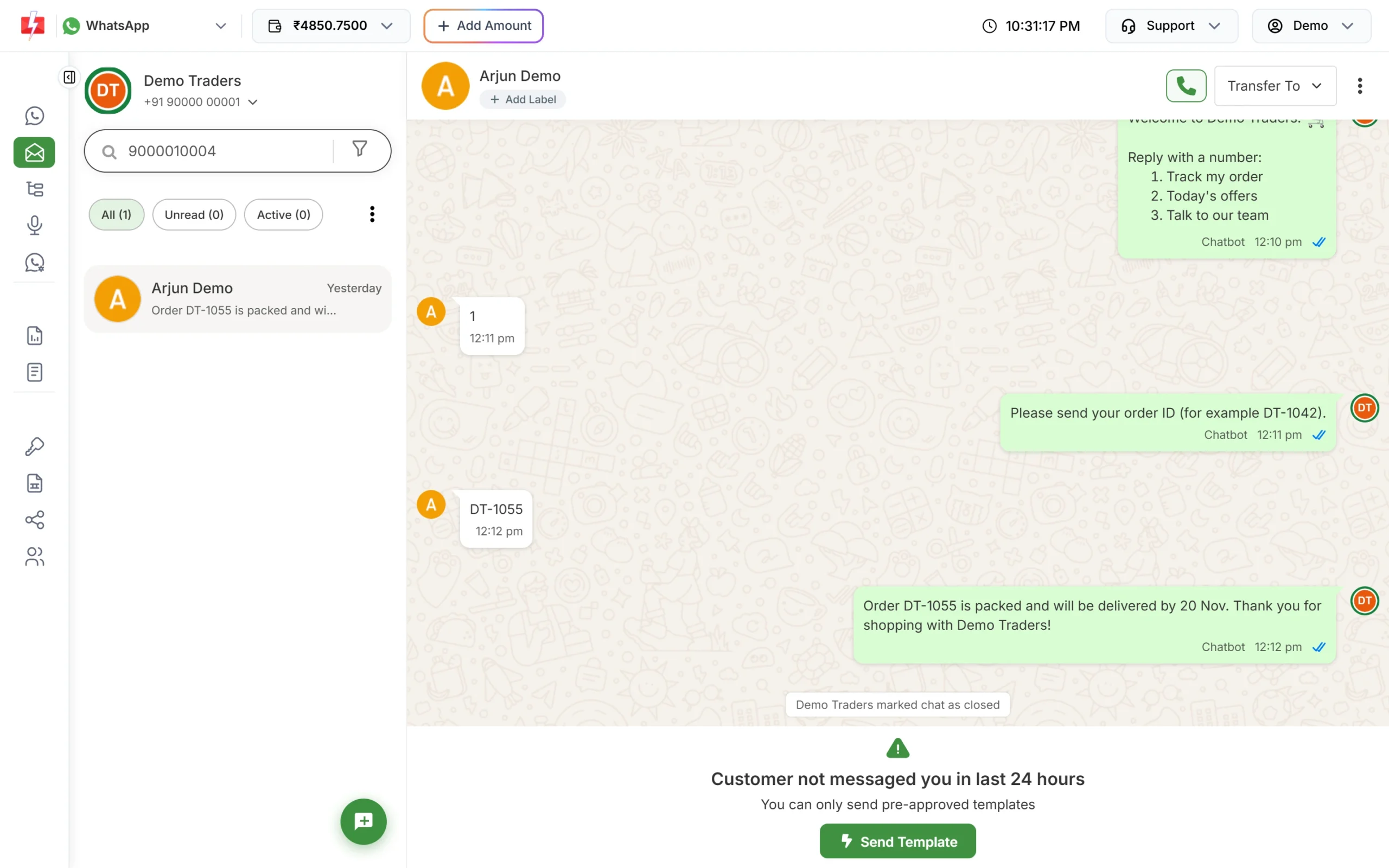
Ask the customer for their order number, then use an API Request step to call your own order system with that number and send back the status. A Condition step can check the reply first (for example length or letters and numbers) and ask again if it looks wrong. This one needs a developer to give you the API address of your order system.
7. Talk to a human
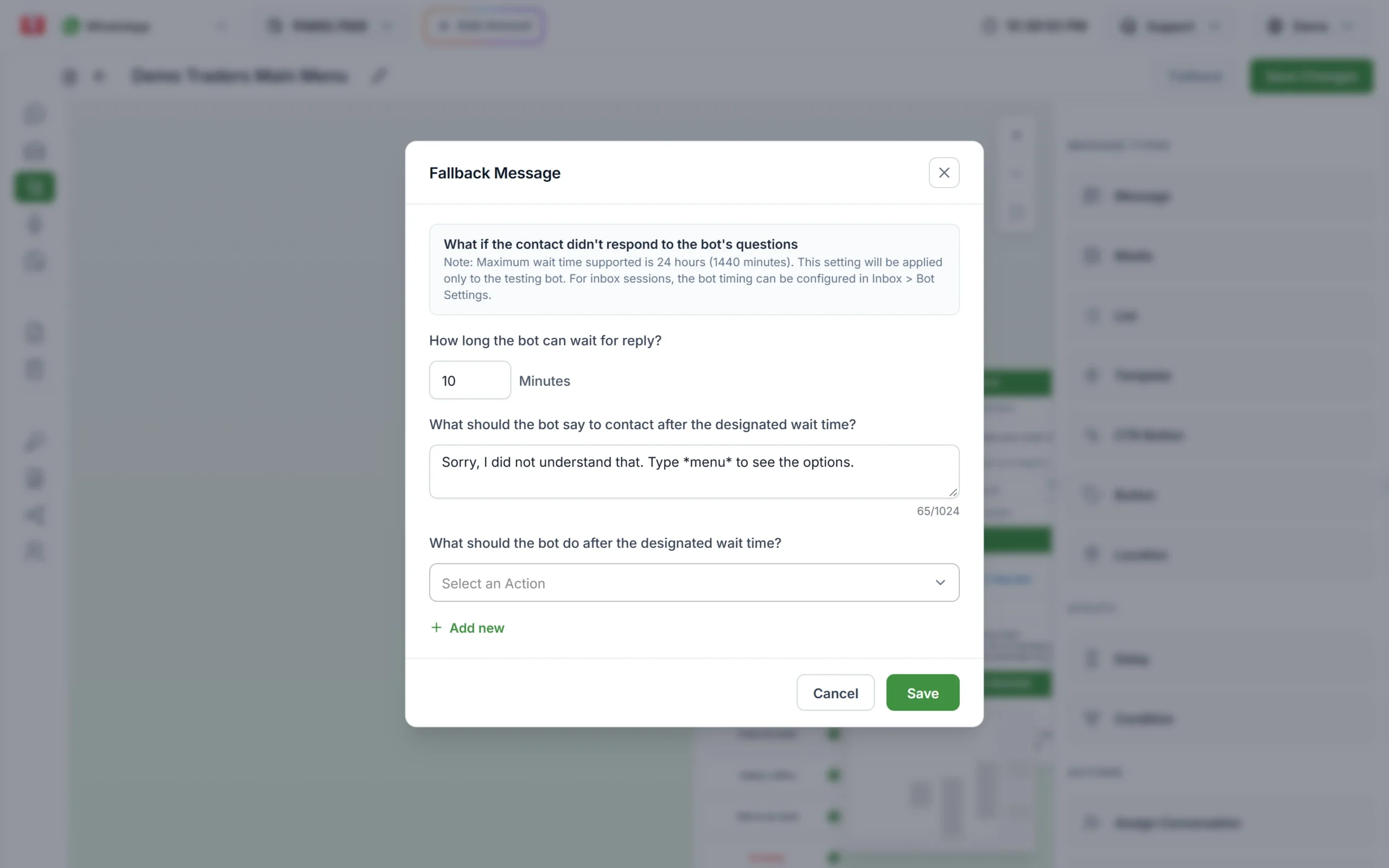
Every bot needs an exit. Add an Assign Conversation step to the “Talk to our team” option so the chat goes to a team member in Live Chat. Set a Fallback message for customers who stop replying, such as “Type menu to see the options”, with the action Assign to Agent or End Flow.
8. Offer follow-up from a campaign
When you send a marketing template with a quick reply button such as “Interested”, the customer’s tap arrives as a message. An Auto Reply with that button text as the keyword can send the full offer details straight away, while the lead is warm.
9. Appointment and booking requests
Clinics, salons and coaching centres can use Buttons for “Morning”, “Afternoon”, “Evening”, then assign the chat to the front desk to confirm a time. The customer gets an instant reply, and your staff see the preference in the chat.
10. Lead questions for sales
For real estate, insurance or courses, use a List of options (budget, location, course) and send each answer to the right branch. Then assign the chat to the sales person for that product. Your team starts the call already knowing what the customer wants.
11. Feedback after a visit
A Button step with “Loved it”, “It was okay” and “Not happy” collects feedback in one tap. Use a Condition step so “Not happy” goes straight to a team member to fix the problem before the customer posts a bad review.
12. Opt-out handler
Create an Auto Reply for STOP, unsubscribe and “Stop promotions” with Match Type Exact Match and a high Priority Level. The reply confirms they will not get offers. Then tag the chat so your team removes the number from the next campaign list.
How to build your first menu bot
-
Create the workflow
Go to Chat Automation > Flow Builder (Chatbot) and click Create Workflow. Enter a Workflow Name, keep Channel as WHATSAPP, pick your number in From Id (WABA) and click Save Flow.
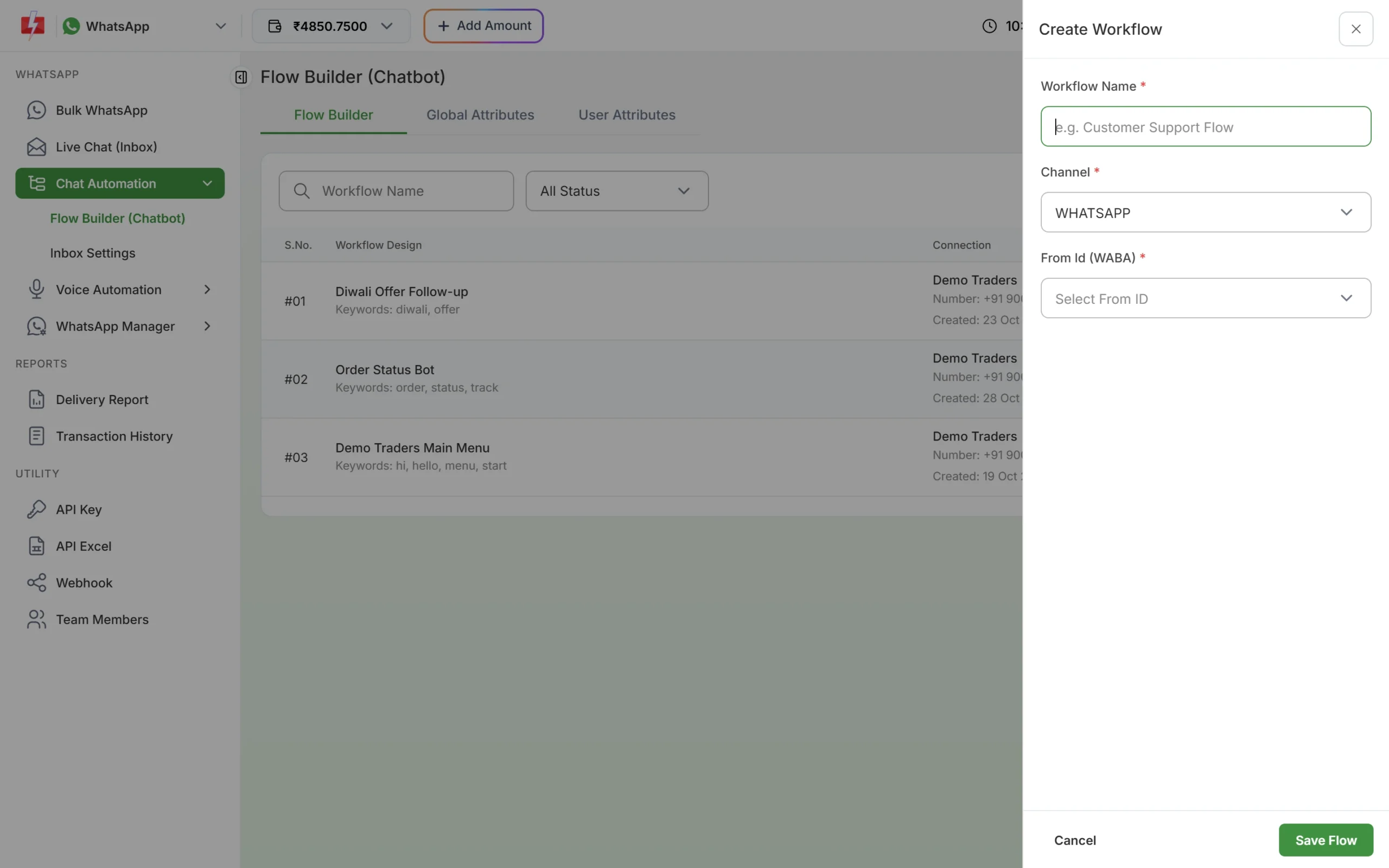
Name the workflow and choose the WhatsApp number it answers on. -
Add the keywords
Open the workflow. In the Flow Start step, type each keyword and press Enter: hi, hello, menu, start. You need at least one keyword or a regex before you can save.
-
Add the menu and answers
Drag a List or Button step from the right panel, write the question and the options, and join each option to its answer: a Message, Media or Location step, or Assign Conversation for “Talk to our team”.
-
Save and switch it on
Set a Fallback, click Save Changes and make sure the status toggle in the workflow list is on. Send “hi” to your business number from another phone to test it.
Which reply runs first
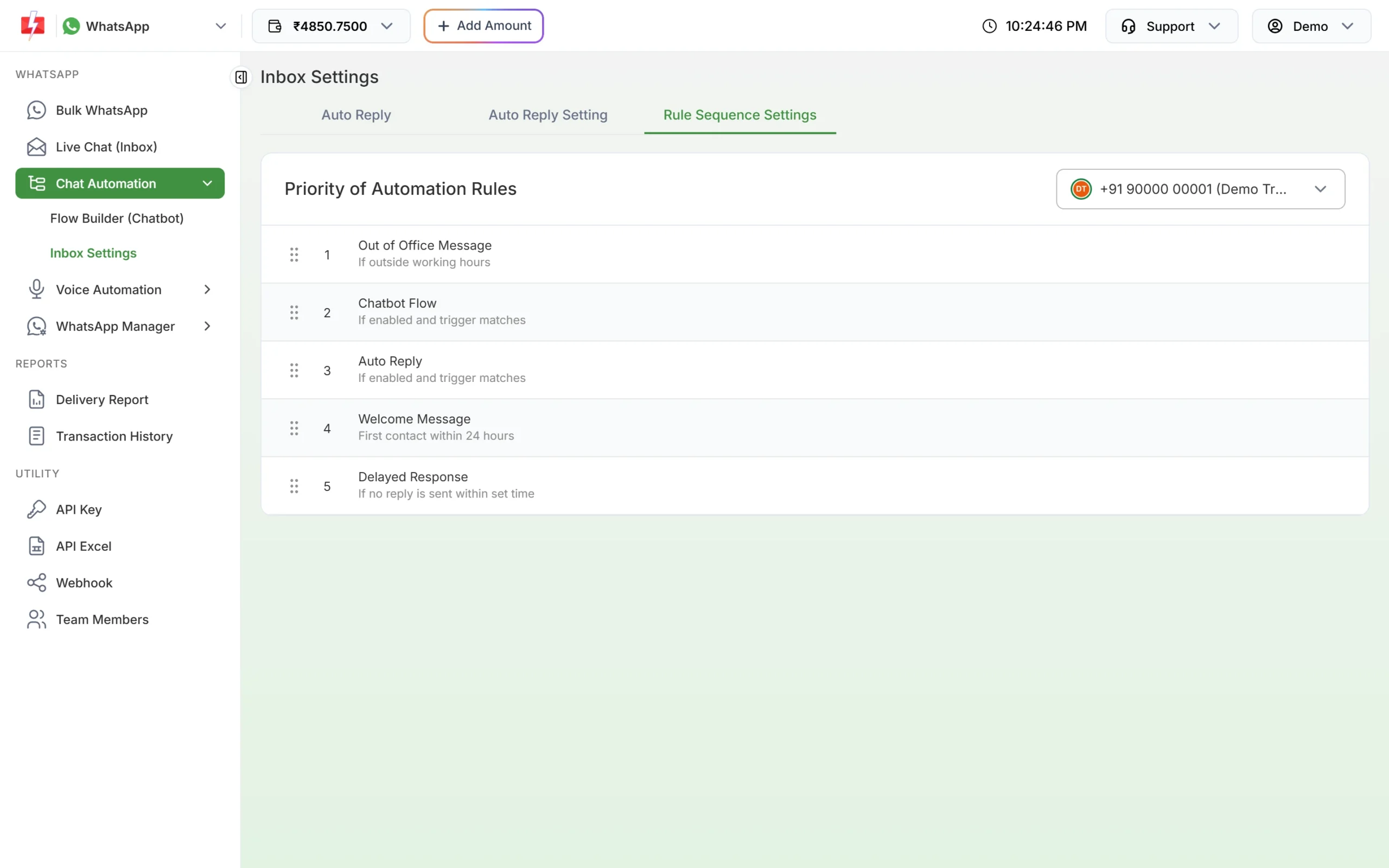
A customer message gets only one automatic reply. In Inbox Settings > Rule Sequence Settings you drag the rules into the order you want: Out of Office Message, Chatbot Flow, Auto Reply, Welcome Message and Delayed Response. The first rule that sends a message stops the rest. A keyword that matches a chatbot will not also get an auto reply if the chatbot comes first.
Limits to keep in mind
| Item | Limit |
|---|---|
| Workflows per WhatsApp number | 20 |
| Keyword length in Flow Start | 32 characters |
| Buttons in a Button step | 3, with labels up to 20 characters |
| Options in a List step | 10 across all sections |
| Message text in a step | 1,024 characters |
| Media file in a workflow | 16 MB |
| Fallback wait | Up to 24 hours (1,440 minutes). 60 minutes if you do not set one. |
| Chatbot session | Ends 24 hours after the last activity |
What it costs
There is no monthly fee for Flow Builder or Inbox Settings. Messages customers send you are free. Automatic replies (welcome, auto reply, out of office and delayed response) are charged at the session rate, ₹0.13 per message at the time of writing, and are not sent if your wallet balance is too low. Keep your bot’s answers short so one message does the job. See the WhatsApp pricing page for current rates.
Sending in bulk? For high WhatsApp volumes our team offers discounted rates. Talk to our team or see WhatsApp pricing.
Common problems and fixes
| Problem | Fix |
|---|---|
| Chatbot does not reply to “Hi there” | Flow keywords must match the whole message. Add more keywords or a regex such as ^hi. |
| Workflow shows “Number disconnected” | The number was removed or reconnected. Use Change number in the row menu. |
| Bot is not answering at all | Check that the workflow’s status toggle is on. There is no separate publish step. |
| Auto reply fires on normal sentences | Change Match Type from Contains to Exact Match. |
| A photo from the customer gets no auto reply | Only text, button replies and list replies trigger auto replies. Media never does. |
Frequently asked questions
Can I make a WhatsApp chatbot without coding?
Yes. Flow Builder works by dragging steps onto a canvas and joining them. Only steps that call your own software (API Request) need a developer.
Do I need the WhatsApp Business API for a chatbot?
Yes. Chatbots and automation in Fast2SMS run on numbers connected to the WhatsApp Business API.
How many chatbots can I make?
Up to 20 workflows per WhatsApp number, each with its own keywords.
Can the chatbot hand over to my staff?
Yes. The Assign Conversation step gives the chat to a team member, who continues in Live Chat (Inbox).
Can the chatbot send images and PDFs?
Yes. The Media step sends audio, images, video or documents up to 16 MB.
Does the chatbot work at night?
Yes. Active workflows and auto replies answer 24 hours a day, as long as your wallet has balance.