
WhatsApp list messages and reply buttons let customers answer your chatbot with one tap instead of typing. A reply-button message shows up to 3 buttons, and a list message opens a menu of up to 10 options. This guide shows how to add both in the Fast2SMS Flow Builder, plus CTA buttons that open a link, start a call or write an email.
Before you start
- A WhatsApp number with the status Connected in Fast2SMS. Flow Builder is greyed out until you connect one.
- A workflow in Chat Automation > Flow Builder (Chatbot). Click Create Workflow, give it a name, pick the number in From Id (WABA) and click Save Flow. You can have up to 20 workflows per number.
- Interactive messages are session messages. The bot sends them as a reply to a customer who wrote to you, so they work inside the 24-hour window. To start a chat yourself, you need an approved template instead.
Which message type to use
| Node in Flow Builder | What the customer sees | Limits | Use it for |
|---|---|---|---|
| Button | A message with up to 3 tap buttons below it | Max 3 buttons, button text up to 20 characters | Yes or no questions, 2 or 3 choices |
| List | A message with one button that opens a menu | Button name up to 20 characters; up to 10 options in total; section and option titles up to 24 characters; option description up to 72 characters | Main menus, product categories, store branches, time slots |
| CTA Button | A message with one button that opens a link, dials a phone number or starts an email | Button text up to 20 characters; phone 7-15 digits; URL up to 2,048 characters; email up to 256 characters | “View collection”, “Call us”, “Pay now” page links |
| Message | Plain text, with optional header and footer | Body up to 1,024 characters; header and footer up to 60 | Answers and confirmations |
The text limits come from WhatsApp and are correct at the time of writing.
How to add reply buttons and list menus
-
Open the workflow and set the trigger
In Flow Builder (Chatbot), click the workflow name or choose Edit from its three-dot menu. Every flow begins with the Flow Start node. Type the words that should start the bot, such as “hi”, “menu” or “offer”, and press Enter after each. Keywords can be up to 32 characters and must match the customer’s whole message (capital letters do not matter). For other patterns, use Enter regex.
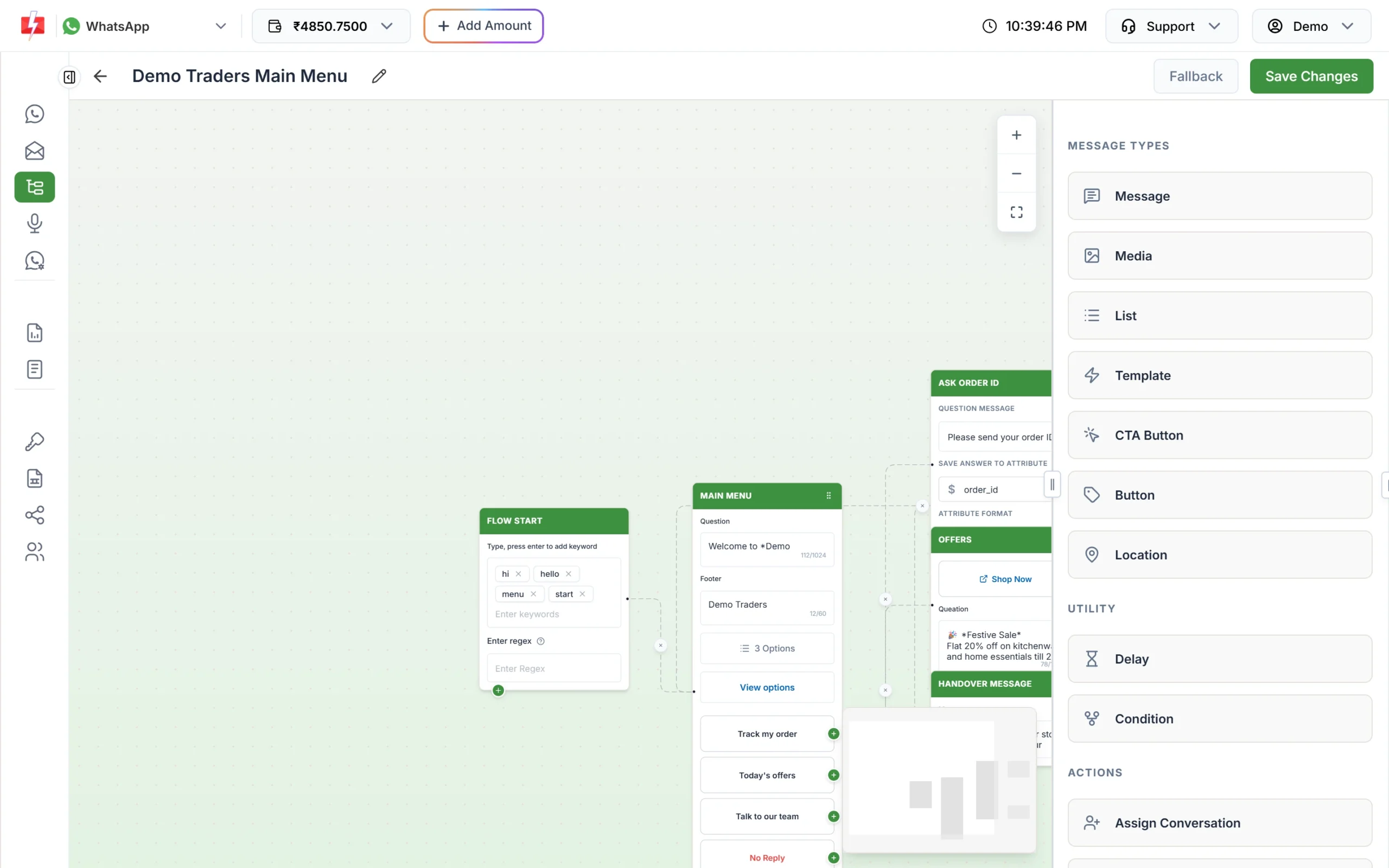
A main menu built with a List node. Each option has its own output. -
Add a List node for a menu
Drag List from Message Types on the right onto the canvas. Write the question, an optional footer and the Button Name, for example “View options”. Then add your options. Choose Static Option to type them yourself. You can group options into sections, but the total across all sections is 10.
Each option gets its own green connector. Drag from an option’s connector to the node that should answer it. In the example above, “Track my order”, “Today’s offers” and “Talk to our team” each lead to a different step.
-
Add a Button node for quick choices
Drag Button onto the canvas, write the question and add up to 3 buttons, each with a Button Text of up to 20 characters. Like the list, each button has its own output. Connect “Yes” to one path and “No thanks” to another.
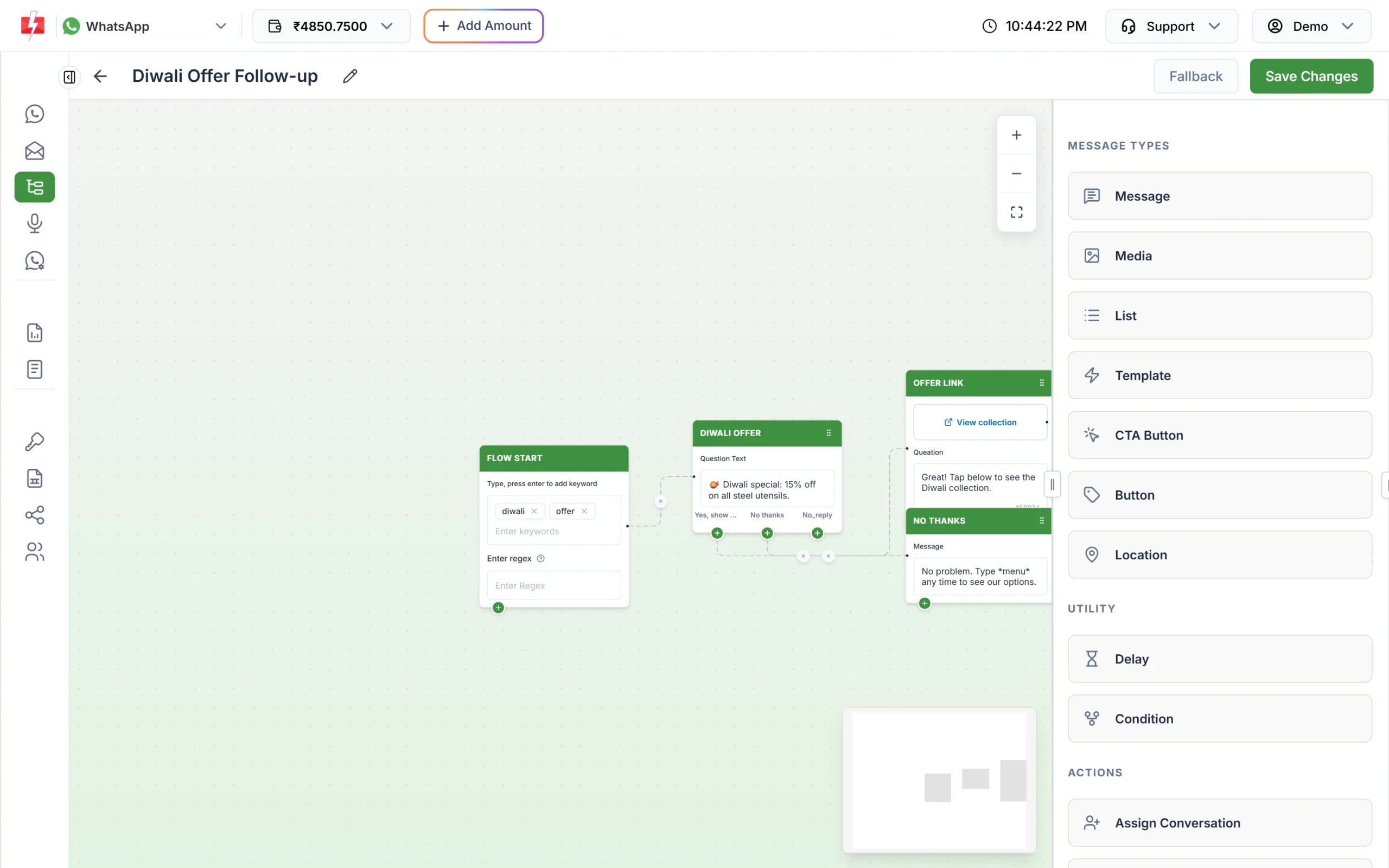
A Button node with two choices. “Yes” leads to a CTA button that opens the collection page. -
Add a CTA Button for links and calls
Reply buttons send an answer back to you. A CTA button does something on the customer’s phone instead. Drag CTA Button onto the canvas, pick an optional header (Text, Image, Video or Document), write the message and choose the button type: Link, Phone or Mail. Enter the button text and the URL, number or email address.
-
Handle “No Reply”
Questions also have a No Reply output for customers who do not answer. Connect it to a reminder, or leave it and set a flow-wide rule with Fallback at the top of the editor: how many minutes the bot waits (up to 1,440 minutes, which is 24 hours), what it says, and whether it then assigns the chat to an agent or ends the flow.
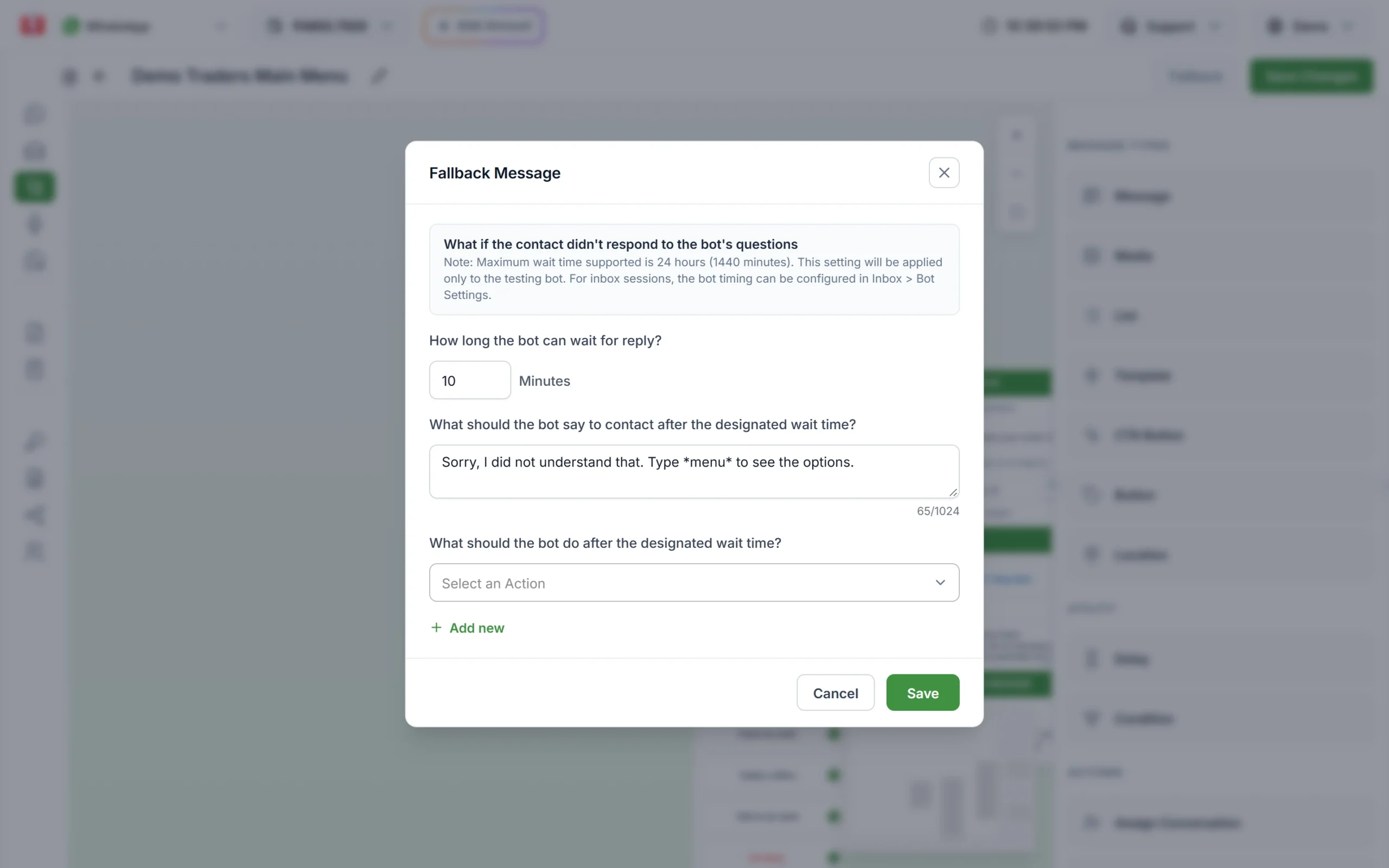
Fallback decides what happens when a customer stops replying. -
Save, switch on and test
Click Save Changes. The flow needs at least one keyword or a regex, otherwise you see “Please add at least one keyword or regex to the Flow Start”. Back on the list, make sure the Status switch is on, because only active flows reply. Then send the keyword to your business number from your own phone and tap through every button and option.
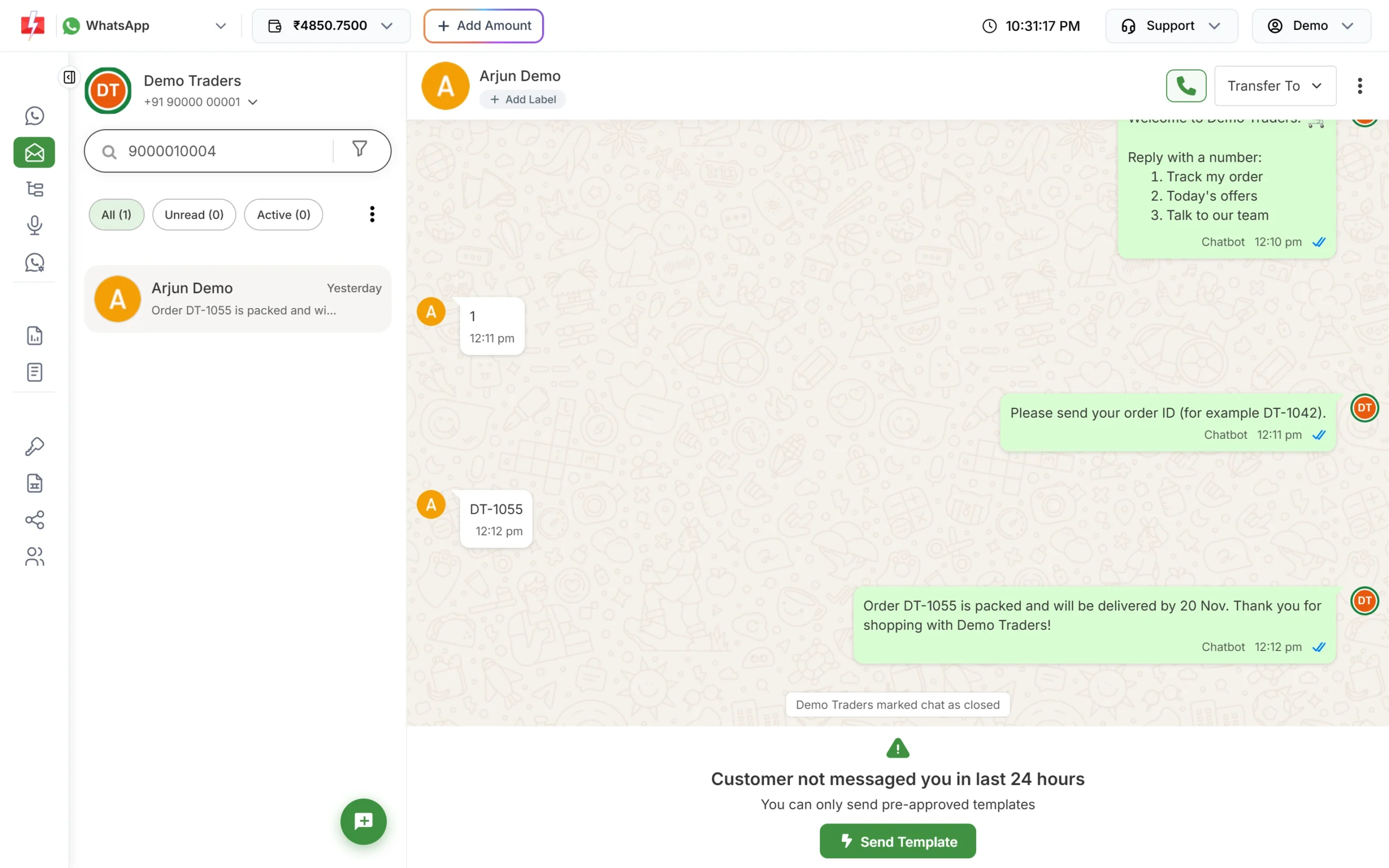
Bot replies appear in Live Chat tagged “Chatbot”.
Tips for buttons and lists that work
- Keep button text short and clear. 20 characters is the limit, and short text is easier to tap.
- Use a list once you have more than 3 choices. Do not split one menu into two button messages.
- Always give a way to reach a person, for example a “Talk to our team” option connected to Assign Conversation.
- Add “menu” as a keyword so customers can return to the start at any time. A matching keyword always restarts the flow.
- Write option descriptions for lists (up to 72 characters) when the title alone is not clear.
Common problems and fixes
| Problem | Fix |
|---|---|
| The bot does not reply at all | Check the flow’s Status switch is on and the keyword matches the whole message. “hi there” does not match the keyword “hi”; use a regex such as ^hi. |
| “Number disconnected” in the Connection column | The number was removed or reconnected. Use Change number from the row menu. |
| Cannot add a fourth button | WhatsApp allows 3 reply buttons. Use a List node instead. |
| Cannot add an eleventh list option | A list allows 10 options in total, across all sections. Split the menu into two steps. |
| Nothing happens when the customer taps an option | That option’s output is not connected. Drag its connector to the next node and save. |
| “You can create a maximum of 20 workflows for this WABA ID.” | Delete or reuse an old workflow. Duplicates count too. |
Frequently asked questions
How many buttons can a WhatsApp message have?
Up to 3 reply buttons, or one CTA button in a CTA Button node. For more choices, use a list with up to 10 options.
What is a WhatsApp list message?
A message with one button that opens a menu of options. The customer picks one, and that choice is sent back to your bot.
Do I need template approval for buttons in a chatbot?
No. Buttons and lists sent by the bot are replies inside the 24-hour window, so no approval is needed. Buttons in a template you send first must be part of the approved template.
Can a button open my website?
Yes. Use the CTA Button node with the Link type. Reply buttons cannot open links.
Can the bot hand over to a person?
Yes. Connect an option to the Assign Conversation action and pick the agent. The chat then shows up in that agent’s Live Chat.
Do keyword auto replies react to button taps?
Yes. Auto replies match typed text, button replies and list replies, so a tap can also trigger a keyword auto reply.