
The WhatsApp delivery report in Fast2SMS shows how each campaign did: how many messages were delivered, read, sent, pending or failed, and why a number failed. This guide shows you how to open the report, filter it, check every number in a campaign, cancel a scheduled campaign, see refunds and download the data as a file.
Before you start
- You need a Fast2SMS account with at least one WhatsApp campaign sent from the panel or the API.
- The report opens on “Last 2 days”. If you sent the campaign earlier, change the date range first.
- Live Chat replies and incoming customer messages are not counted on this page. It covers template messages only.
How to read the WhatsApp delivery report
-
Open WhatsApp Report
Go to Delivery Report in the sidebar and click WhatsApp Report. The page “WhatsApp Reports” opens with six cards at the top: Total, Delivered, Read, Failed, Sent and Pending. Below them are the “WhatsApp Activity” line chart and the “Total WhatsApp” donut with the count and percentage of each status.
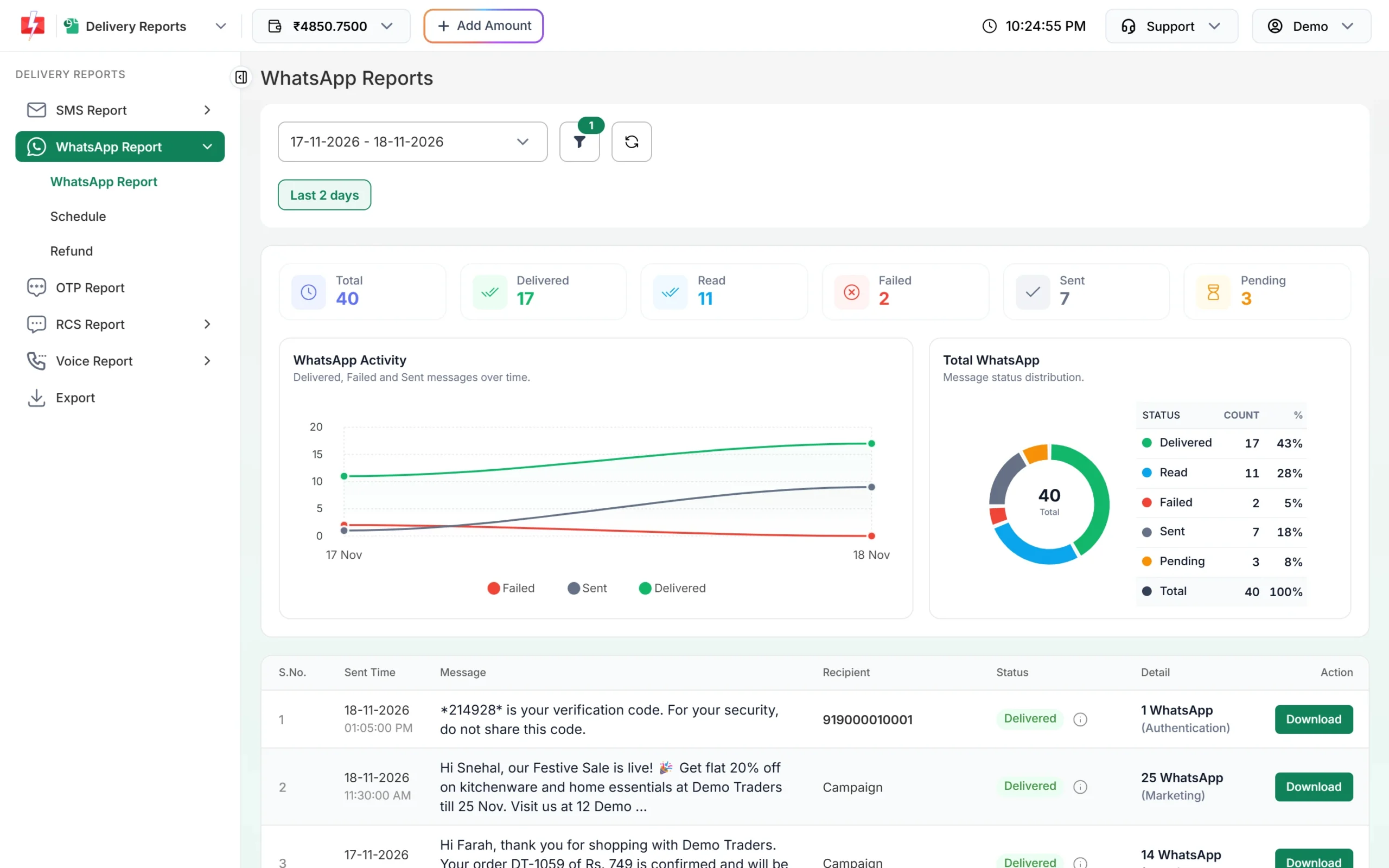
The WhatsApp Reports page for the last 2 days. Two points to keep in mind when you read the cards. Delivered does not include Read, so a message that was read is counted only under Read. Failed also includes numbers that are blocked or not on WhatsApp.
-
Pick the date range and filters
Click the date box or the filter icon to open Filter Reports. On the Date Range tab choose Today, Yesterday, Last 2 days, Last 1 week, Last 2 week, Last 30 days, Last 3 months or Custom Date. The other tabs let you narrow the list:
- Source: All, Web (sent from the panel) or API.
- Delivery Status: shows campaigns that have at least one message in that status.
- Mobile Number: enter at least 6 digits. The number matches with or without +91, 91 or 0.
- Request ID: the campaign ID that starts with W.
- WABA Number: one or more of your WhatsApp numbers.
- Template Type: Marketing, Utility or Authentication.
Click Apply Filters. Reset clears them.
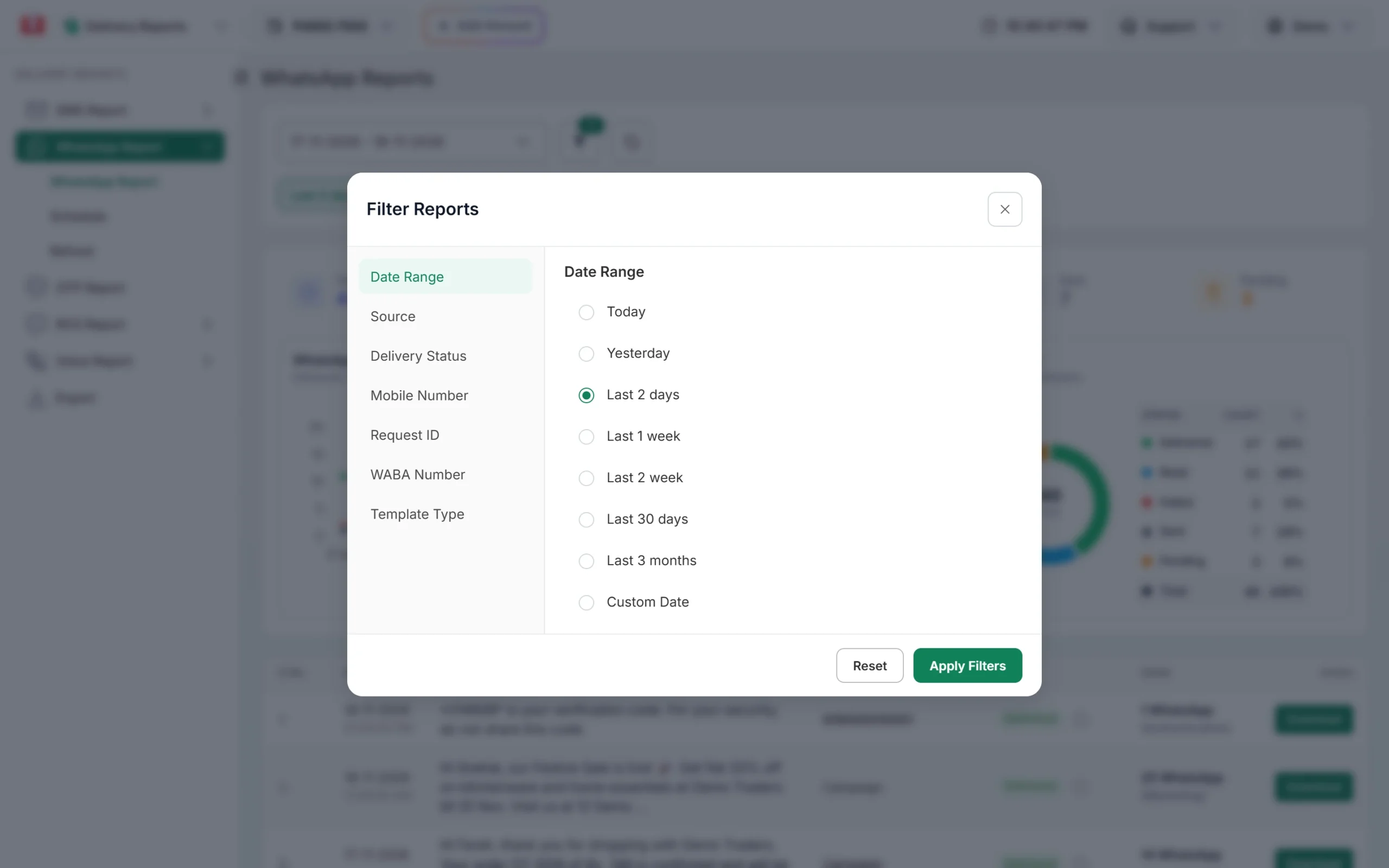
Filter Reports. Date presets are on the first tab. -
Read the campaign list
Each row is one campaign or one API request. You see the Sent Time, the start of the Message, the Recipient (the number for a single message, “Campaign” for many), the Status and the Detail, for example “25 WhatsApp (Marketing)”.
The status label is a summary. A campaign shows “Delivered” when delivered plus read messages make up at least 30% of it; otherwise it shows the most common result. Hover over the small info icon next to the status to see the real count of each status.
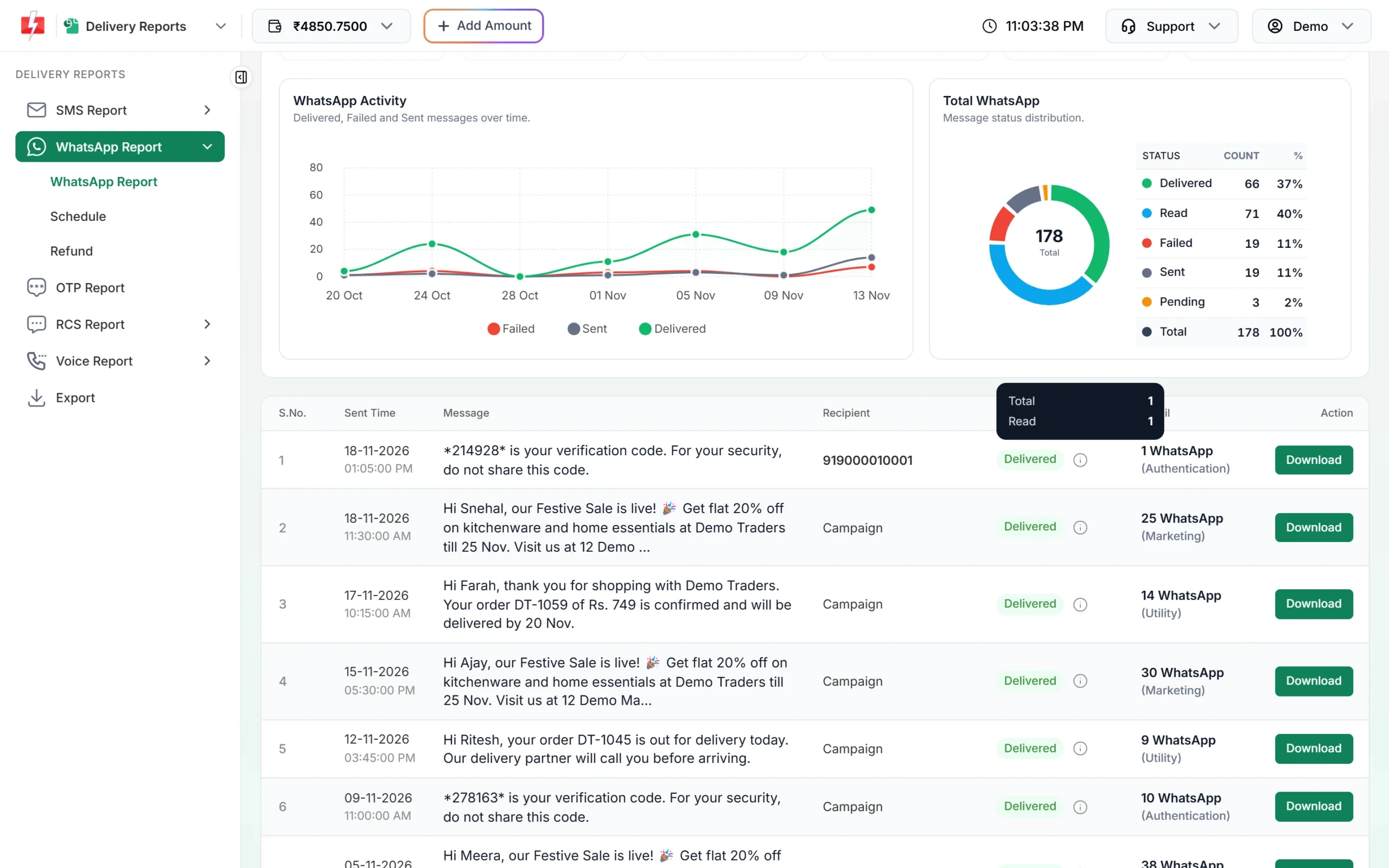
The info icon shows the count behind the status label. -
Open Delivery Details for one campaign
Click the message text of a row. Delivery Details opens with the Request ID (ending in “(web)” or “(api)”), a donut for this campaign and a phone preview of the template exactly as it was sent. Click Refresh to load new statuses.
The Receivers table lists every number with its Status, Description, Process Time and Delivery Time. Search for one number with the Mobile box. If you use Retry Failed, the “All (Retry)” menu lets you show only retried or non-retried messages.
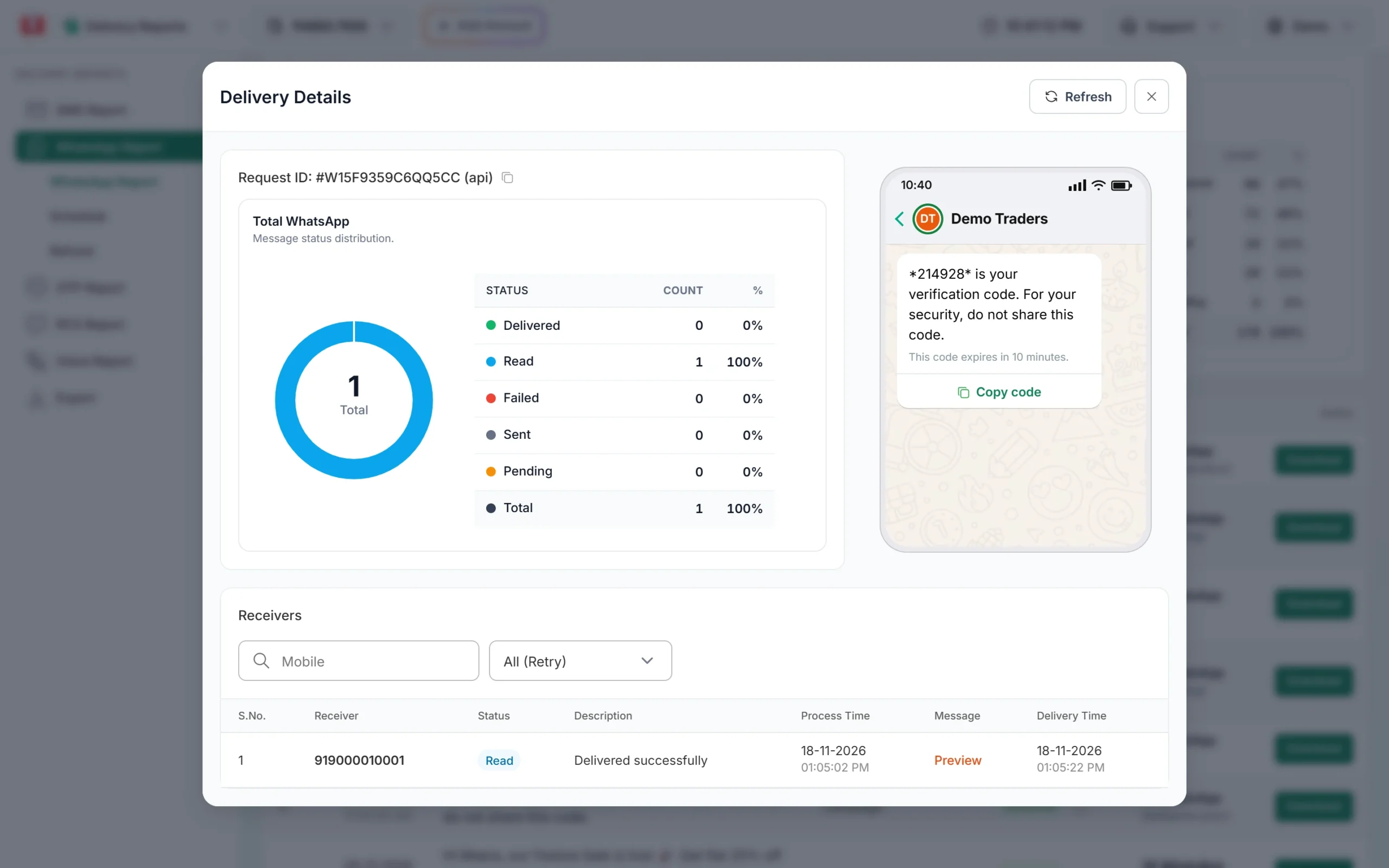
Delivery Details for a single message that was read. -
Find out why messages failed
For failed numbers, the Description column shows the reason Meta or the system gave, such as “Message Undeliverable” or a Meta error with its code. Delivered and read messages show “Delivered successfully”. To see only failed campaigns, set Delivery Status to Failed in the filter.
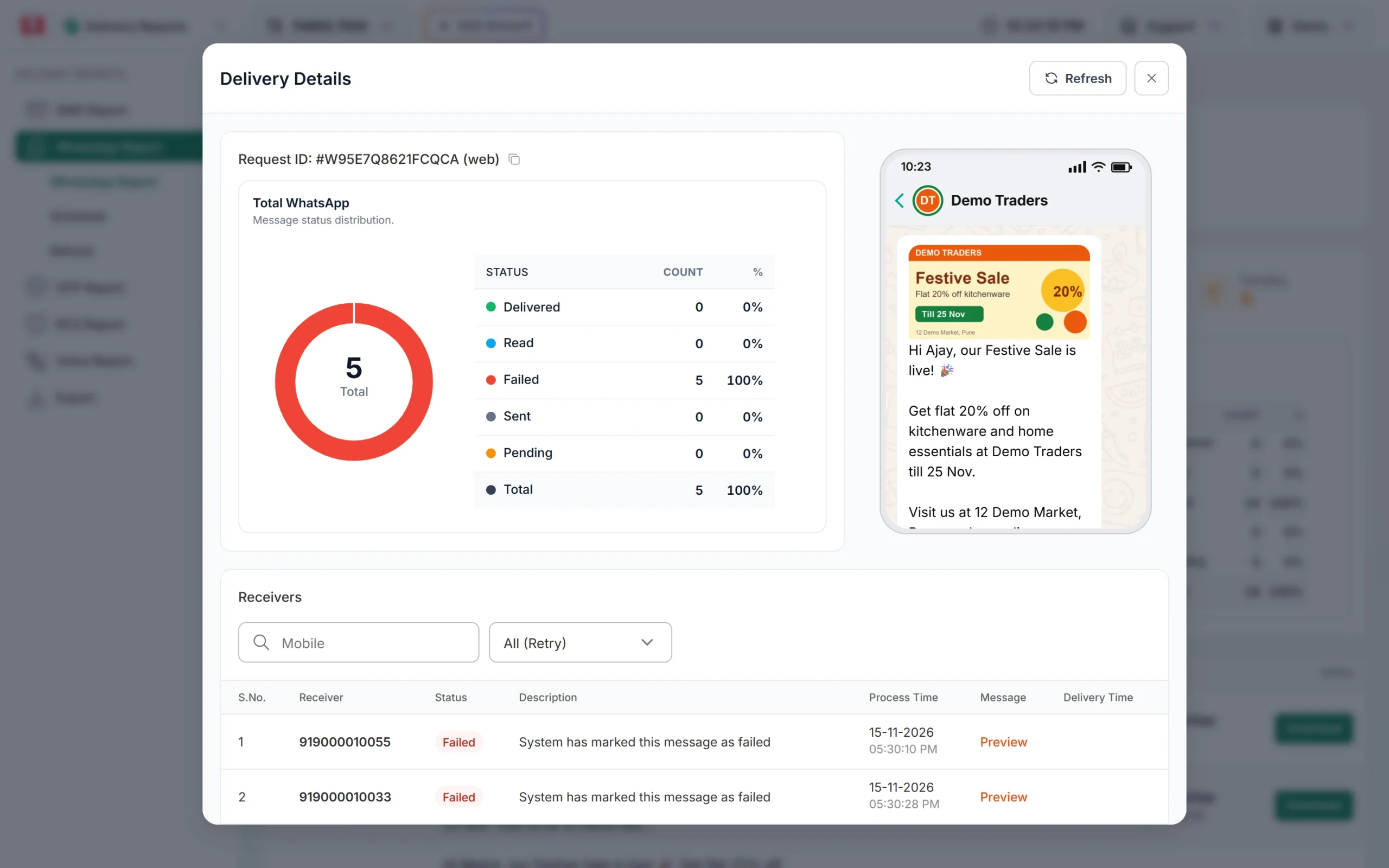
Failed numbers with the reason in the Description column. Fix the cause first (for example a wrong number, a paused template or a customer who stopped marketing messages), then send again to the failed numbers only. Sending the same campaign again to everyone charges you for every number again.
-
Download the report as a file
Click Export under Delivery Reports. Choose WhatsApp, pick the dates and click Submit. The file is made in the background. When it is ready, the row shows Download. The file is a .zip of CSV files with the request ID, receiver, template name, sending number, message, category, sent time, status, reason, delivery time and media link for each message.
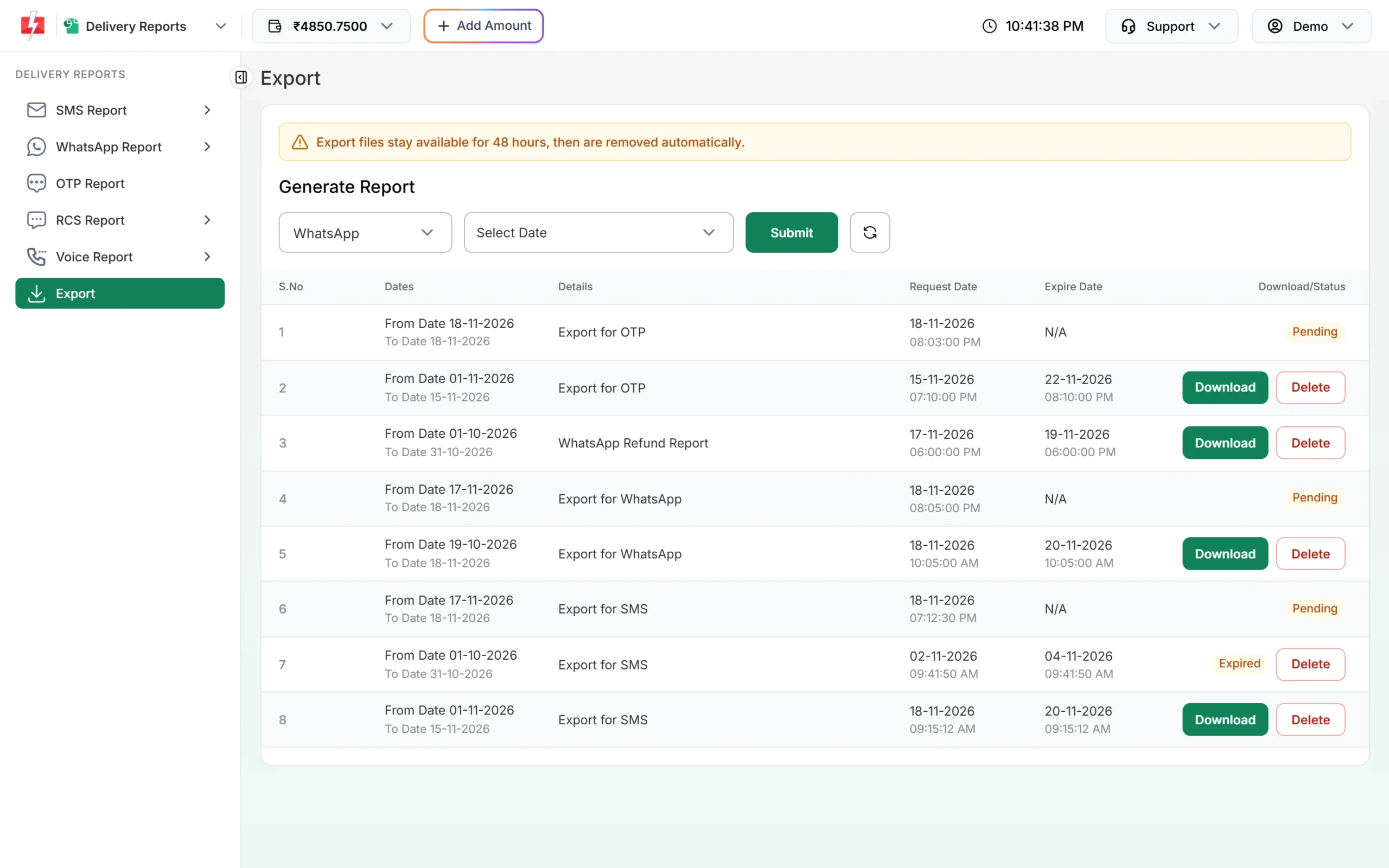
Export requests. Files are removed after 48 hours. Export files stay for 48 hours. You can have up to 5 files at a time and up to 2 requests pending. Each campaign row in the report also has a Download button, but campaigns above 5,000 numbers must be taken from Export.
What each WhatsApp status means
| Status | What it means |
|---|---|
| Pending | The message is queued or still being processed. |
| Sent | WhatsApp accepted the message but the phone has not confirmed it yet. The phone may be off or offline. |
| Delivered | The message reached the customer’s phone. |
| Read | The customer opened it. Customers who turned off read receipts stay at Delivered. |
| Failed | The message was not delivered. This includes numbers not on WhatsApp and blocked numbers. The Description column gives the reason. |
A later status never goes backwards. Once a message shows Read, a late “delivered” update does not change it, and a delivered message is never changed to failed.
Scheduled campaigns and refunds
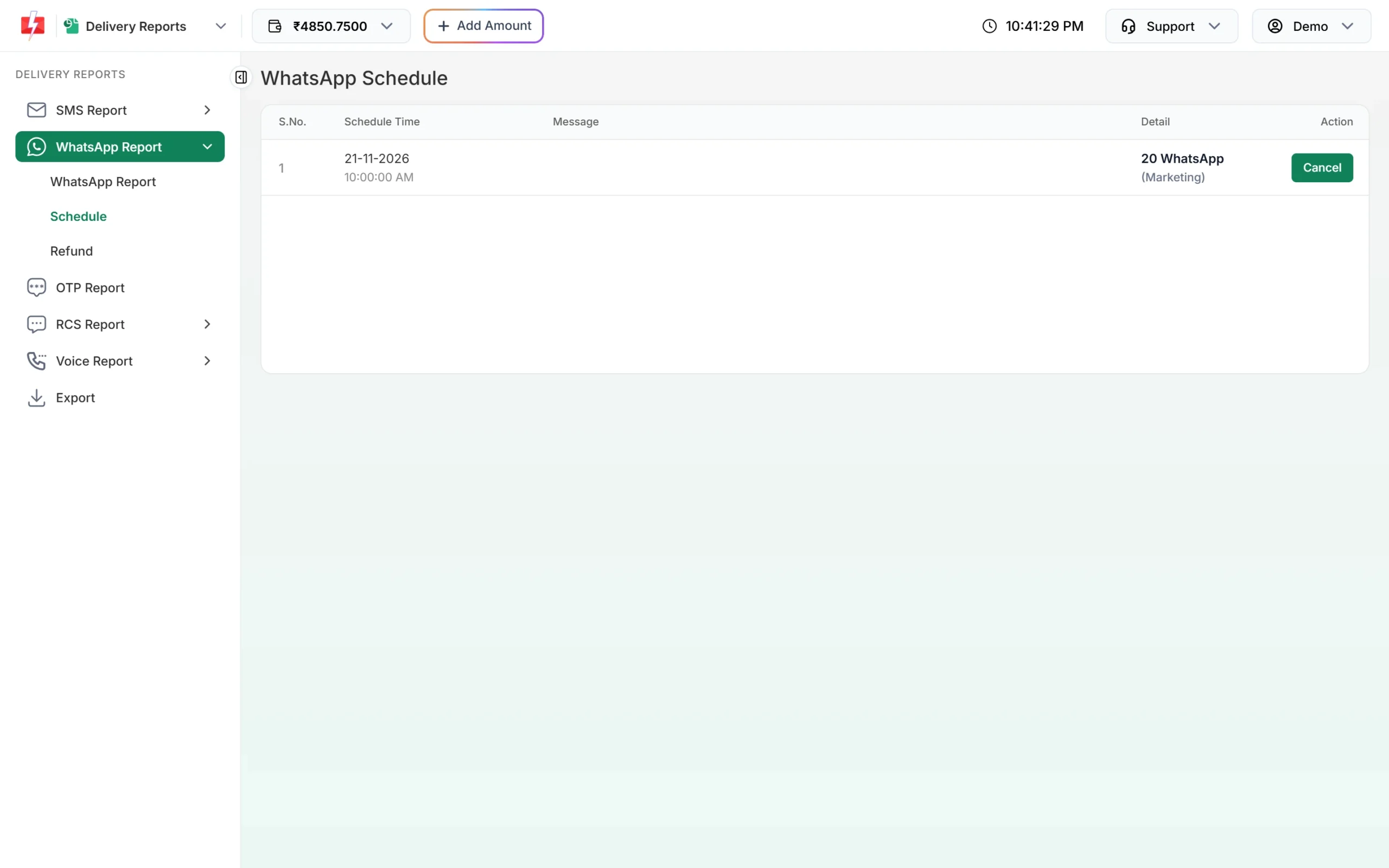
Schedule (under WhatsApp Report) lists campaigns set for a future time. Click Cancel and confirm “Yes, Cancel” before the scheduled time to stop one. The full amount goes back to your wallet.
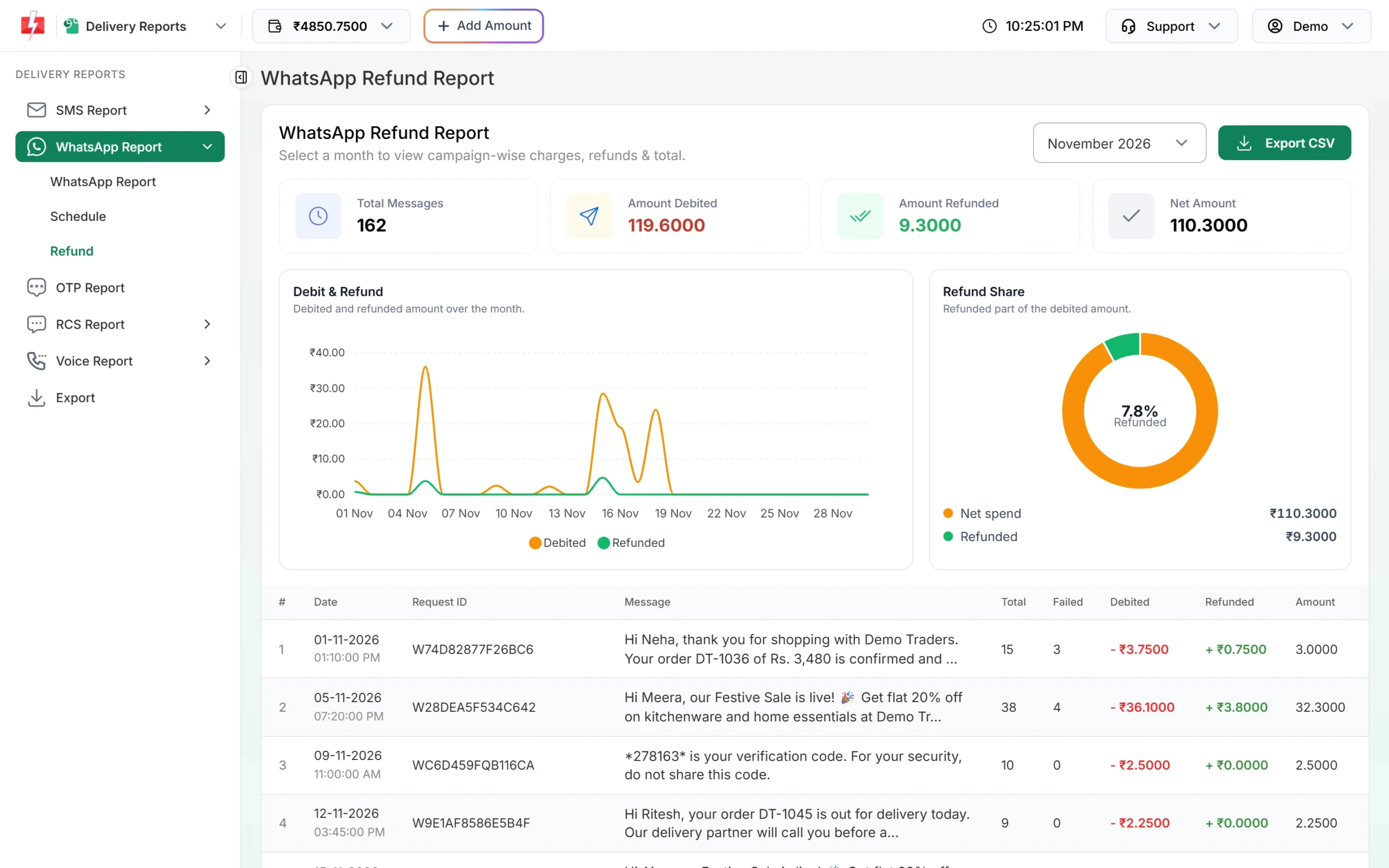
Refund shows the “WhatsApp Refund Report” for a month: Total Messages, Amount Debited, Amount Refunded and Net Amount, and one row per campaign. Failed and pending messages are refunded to the wallet automatically about two days after sending. Months before January 2026 are not available here. Export CSV sends the refund report to the Export page.
Common problems and fixes
| Problem | Fix |
|---|---|
| “No reports found” | The default range is the last 2 days. Choose Last 30 days or a custom date, and clear other filters. |
| My Live Chat replies are not in the report | This report counts template campaigns only. Session replies are in Live Chat and in Transaction History. |
| “Use EXPORT section to download excel file for more than 5000 numbers” | Use the Export page for big campaigns. |
| “You cannot export more than 5 reports, wait until old reports expires.” | Delete an old export file or wait until one expires after 48 hours. |
| “You already have more than 2 pending export request.” | Wait for a pending export to finish, then try again. |
| “This schedule cannot be cancelled.” | The schedule time has passed and the campaign is already sending. |
Frequently asked questions
Where can I see who read my WhatsApp message?
Open the campaign in Delivery Details. Every number that opened it shows the status Read.
Why is a message stuck on Sent?
WhatsApp has accepted it but the customer’s phone has not come online yet. It changes to Delivered when the phone connects.
Are failed WhatsApp messages refunded?
Yes. Failed and pending messages are refunded to your wallet automatically, about two days after the campaign. You can check them on the Refund tab and in Transaction History.
Can I see the cost of each campaign in the report?
The report shows counts, not money. For costs, use the Refund tab or Transaction History, where each campaign debit and refund is listed.
Does the report include messages sent through the API?
Yes. Use the Source filter to show only API or only Web campaigns.
How long are export files kept?
48 hours. After that they show as Expired and you need to export again.
Can I filter by template category?
Yes. The Template Type tab in Filter Reports has Marketing, Utility and Authentication.