
A Request ID is the unique ID Fast2SMS gives to every SMS send, whether it is one number or a whole campaign. You see it at the top of Delivery Details in the panel, and you get it in the API response as request_id. Use it to find a send in your report, to check its delivery status by API, and to get quick help from support.
This guide explains where to find the Request ID, how to search with it, and how it differs from the Message ID and the DLT Template ID.
Request ID, Message ID and Template ID: what is the difference?
| ID | What it identifies | Where you see it | Used for |
|---|---|---|---|
| Request ID | One send (one number or one campaign) | Delivery Details, API response, webhooks, export file | Finding a send, checking its status, support questions |
| Message ID | One approved DLT template in your Fast2SMS account | Template card in DLT Manager > Content Template | The message value in the DLT SMS API |
| Template ID | The same template on the DLT platform (19 digits) | Your operator’s DLT portal, and partly hidden on the template card | DLT scrubbing by the operator, and the DLT Manual API |
In short: the Message ID and Template ID tell you which template. The Request ID tells you which send.
How to find the Request ID in the panel
-
Open the send in Delivery Report
Click Delivery Report in the SMS menu, find your send in the SMS Report list and click the message text.
-
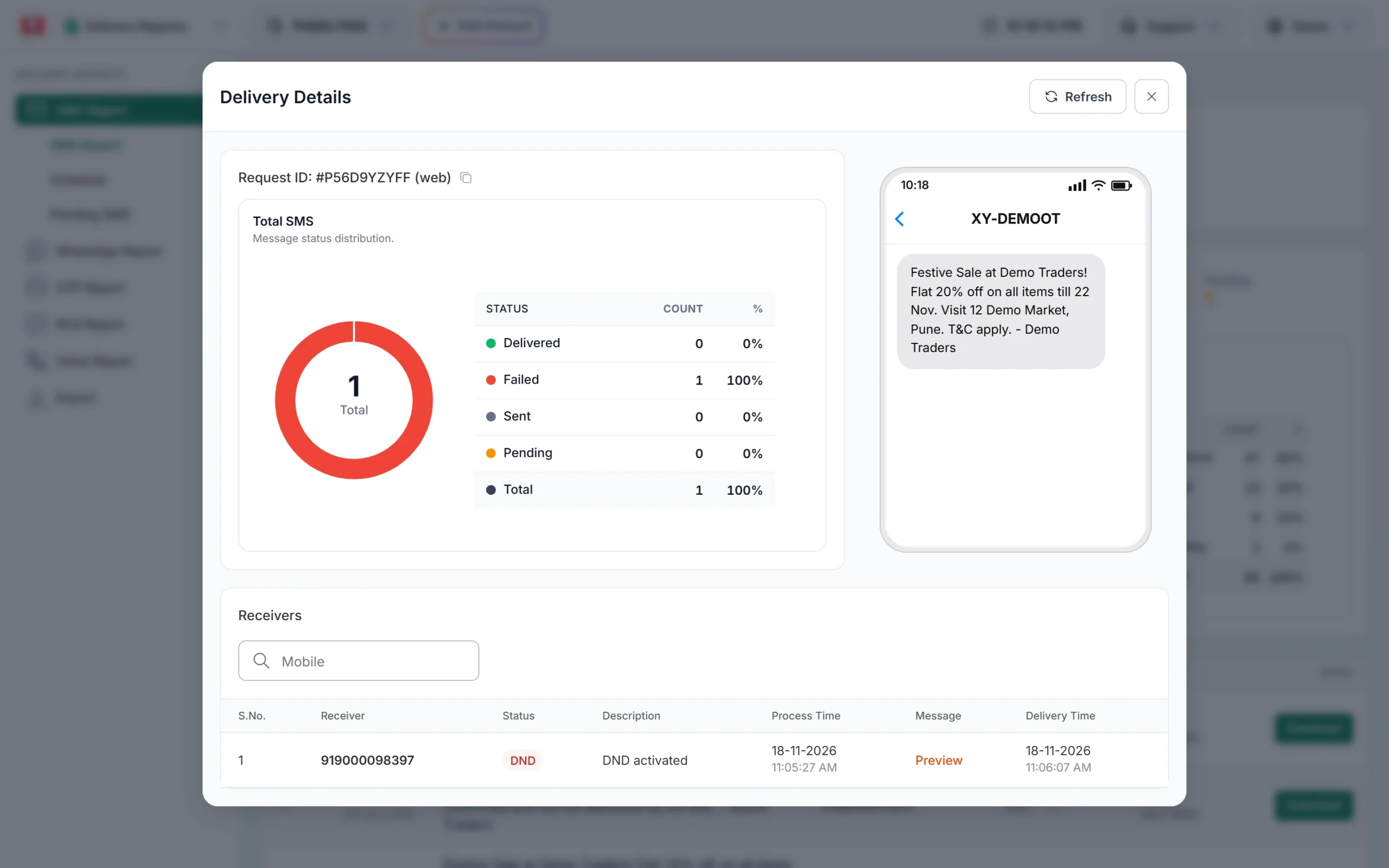
Copy the Request ID from Delivery Details
At the top of the Delivery Details window you see Request ID, followed by where the SMS was sent from: (web) for the panel or (api) for the API. Click the copy icon next to it.
The Request ID is at the top of Delivery Details, with a copy icon. -
Search the report by Request ID
To jump to a send later, click the filter button on the SMS Report page, open the Request ID tab, paste the ID and click Apply Filters. The same window lets you search by Mobile Number, Sender ID and Entity ID.
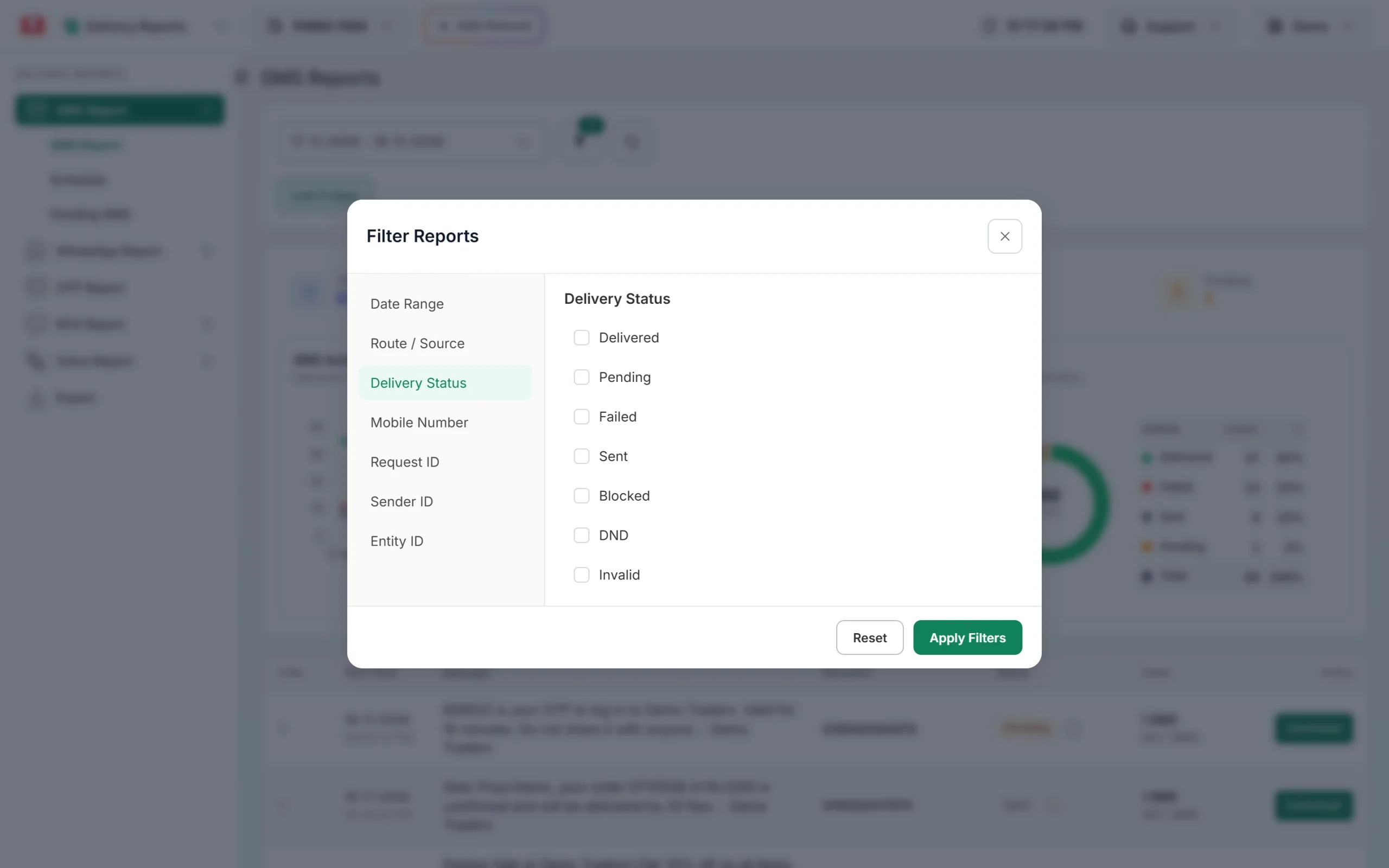
Request ID is one of the tabs in Filter Reports. Make sure the date range covers the day of the send. The report only searches inside the dates you picked.
Where to find the Message ID
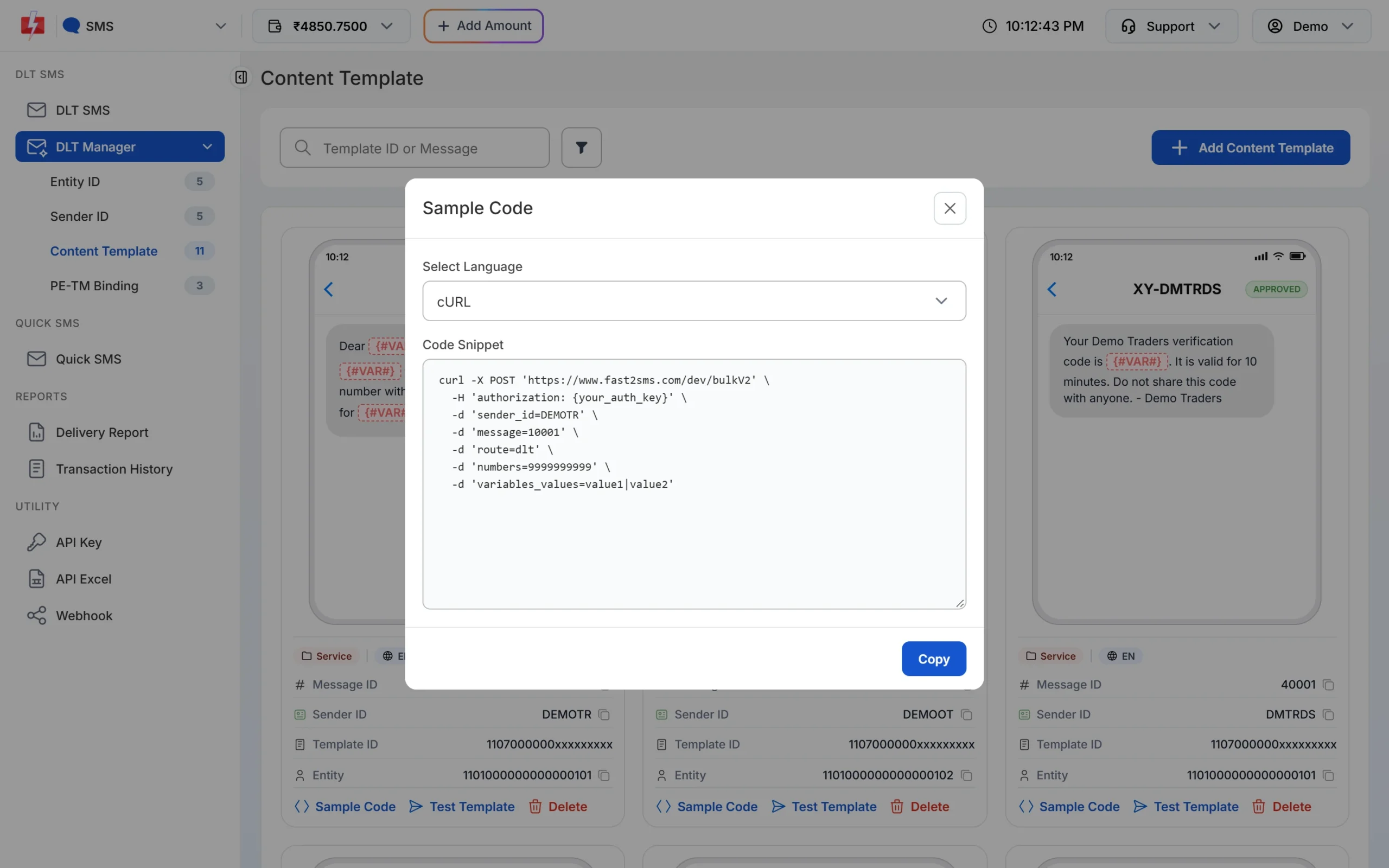
Open DLT Manager > Content Template. Each approved template card shows the Message ID with a copy icon. Click Sample Code on the card to see a ready API request that already uses that Message ID.
Using the Request ID with the API
1. Save it from the send response
When you send a DLT SMS by API, a successful reply looks like this. Store the request_id with your own order or user record.
{"return":true,"request_id":"Sa1B2c3D4e5F6g7","message":["SMS sent successfully."]}2. Check the delivery status later
Call the SMS delivery report API with the Request ID. It looks back 7 days.
curl "https://www.fast2sms.com/dev/dlr/Sa1B2c3D4e5F6g7" \
  -H "authorization: YOUR_API_KEY"
The reply lists each number with its status (Delivered, Failed or Sent) and a status_description. If nothing is found you get “No DLR found for the given request_id or only invalid numbers were present.”
3. Or receive it by webhook
If you set up an SMS webhook, every delivery update for your API sends includes the request_id, so you can match it to your saved record. Use either the DLR API or webhooks for the same sends, not both: checking a send through the DLR API can stop the webhook for those numbers.
udf1, udf2 or udf3 (for example your order number) in the send request. They are saved with the send and returned in webhooks.When to share the Request ID with support
- A campaign shows many failures and you want the operator’s exact reason.
- Numbers stay in Sent or Pending for a long time.
- You have a question about the amount charged for a send.
Send the Request ID, plus one or two example mobile numbers. This lets the team find the exact send without asking you for more details.
Frequently asked questions
What is a Request ID in SMS?
It is the unique ID of one SMS send in Fast2SMS. One campaign to many numbers has one Request ID.
Where do I find the Request ID of an SMS?
In Delivery Report, click the message to open Delivery Details. The Request ID is at the top. For API sends, it is also in the API response as request_id.
Is the Message ID the same as the DLT Template ID?
No. The Template ID is the 19-digit ID from the DLT portal. The Message ID is Fast2SMS’s short ID for that template, used in the API.
Can I search the SMS report by mobile number?
Yes. Open the filter on the SMS Report page, choose Mobile Number, enter the number and apply. You can also search inside one campaign with the Mobile box in Delivery Details.
How long can I check a Request ID by API?
The SMS delivery report API looks back 7 days. For older sends, use the SMS Report in the panel or an export.
Does the export file include the Request ID?
Yes. The SMS export has an SMS Request ID column for every row.