
WhatsApp error 131000 “Something went wrong” and error 131016 “Service unavailable” are general errors from Meta. They do not point to a problem with your template, your number or the customer. Most of the time they are temporary and the message works when sent again later. This page explains these two codes, the related codes 1 and 2, and when to ask for help.
What these errors mean
| Code | Meta’s meaning (at the time of writing) | Meta’s advice |
|---|---|---|
| 131000 | Message failed to send because of an unknown error | Try again. If it keeps happening, open a support ticket |
| 131016 | A service is temporarily unavailable | Check the WhatsApp Business API status page, then retry |
| 1 | Invalid request or possible server error | Check the status page; if there is no outage, check the request format |
| 2 | Temporary problem because of downtime or overload | Check the status page, then retry |
Meta’s public status page for the WhatsApp Business API is metastatus.com/whatsapp-business-api. If it shows an incident, wait until it is resolved before sending again.
How to find these errors in Fast2SMS
-
Filter failed messages
Go to Delivery Report > WhatsApp Report, open the filter, choose the date range and set Delivery Status to Failed.
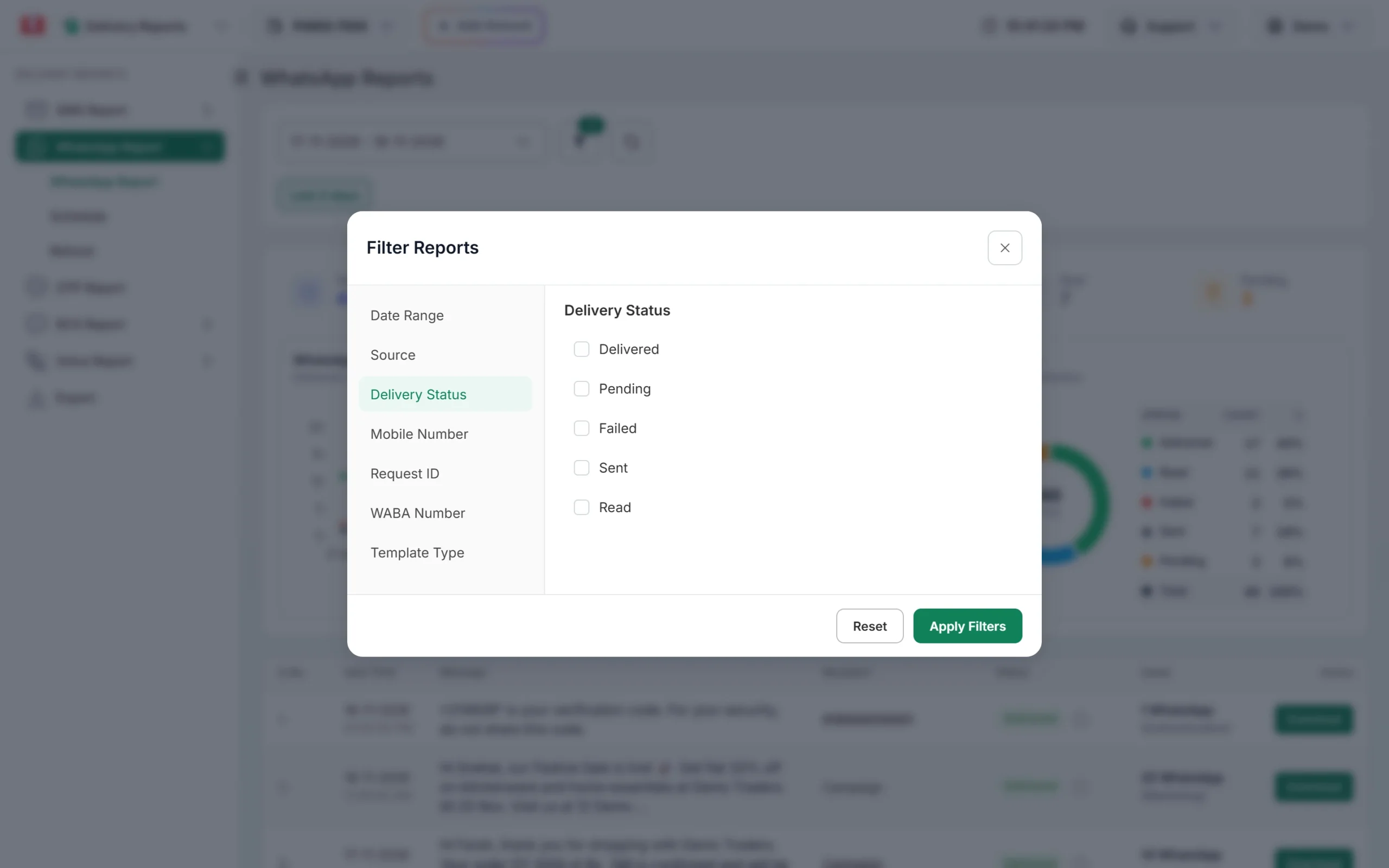
Filter the WhatsApp Report by delivery status. -
Read the Description
Click the campaign message to open Delivery Details. The Description column shows Meta’s text with “(Error: 131000)” or “(Error: 131016)”.
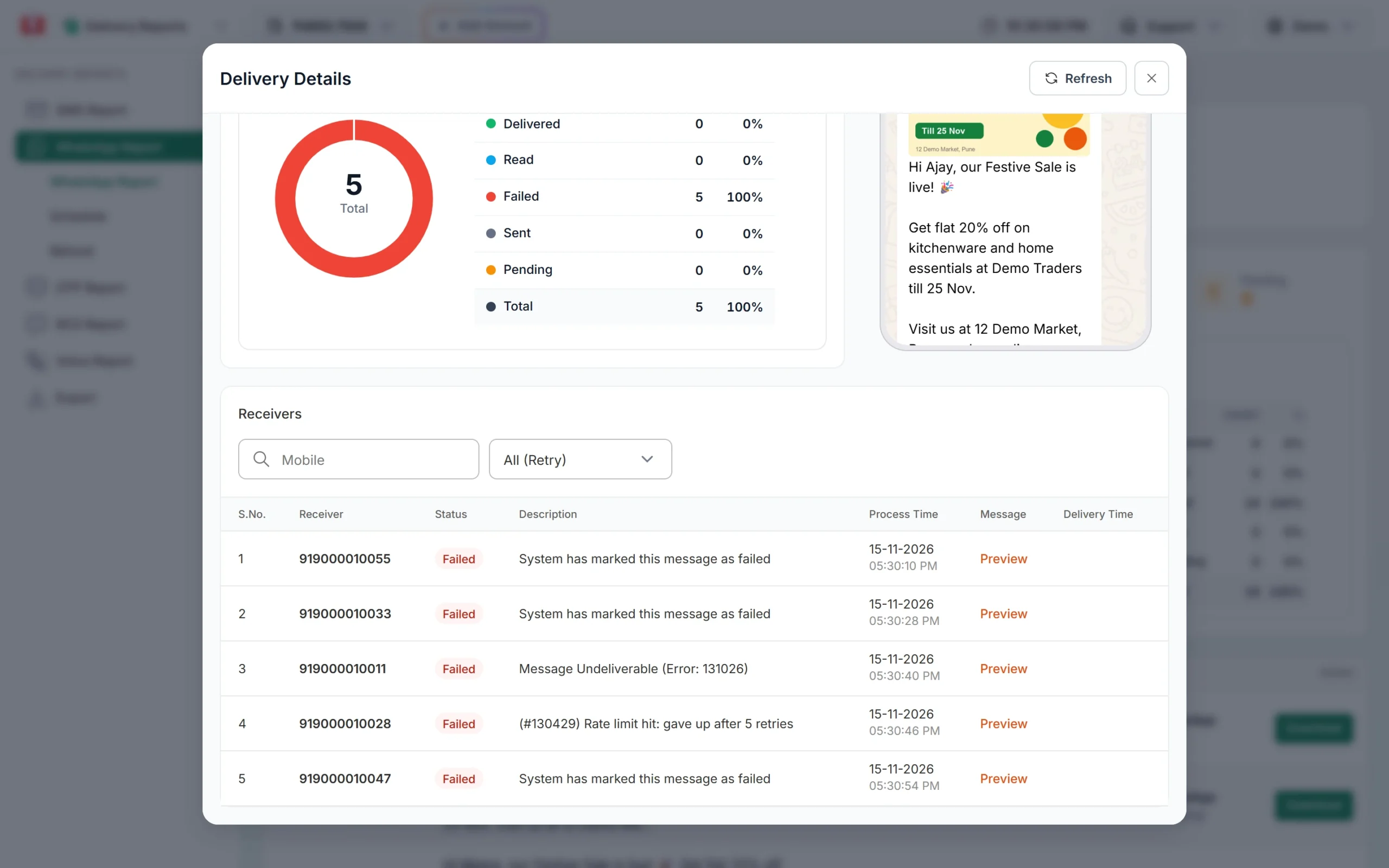
Each failed number shows its reason. -
Check how many numbers are affected
If only a few numbers out of thousands have this error, it was a short glitch. If a whole campaign failed with it, check the Meta status page and wait before sending again.
-
Send the failed numbers again
After some time, send the same template to the failed numbers as a new campaign. Usually they go through.
When to contact support
Contact Fast2SMS support from the Support menu if:
- 131000 keeps coming back for the same template over several hours while Meta’s status page shows no problem.
- Every message from one number fails with 131000 or 131016.
- You send through the API and get error 1 even though your request matches the documentation.
Share the Request ID from the Delivery Details window (it starts with “W”), the sender number and the time. This helps the team find the exact request.
Other unclear failure texts in Fast2SMS
| Description text | What it means |
|---|---|
| System has marked this message as failed | Meta accepted the message but sent no delivery update within 24 hours, so Fast2SMS closed it as failed |
| Unknown reason | The message failed and Meta gave no text for the reason |
| Template is PAUSED / Template is REJECTED | The template’s status changed after the campaign was queued |
| You can not send message to your own number | The receiver is the same as the sender number |
All of these, like every other failure, are refunded to your wallet automatically about two days after sending.
Frequently asked questions
Is error 131000 caused by my template?
Usually not. Template problems have their own codes, such as 132000 or 132001. 131000 is Meta’s general “unknown error”.
Should I retry 131016 straight away?
Check Meta’s status page first. If there is an outage, wait until it is fixed, then send again.
Am I charged for messages that failed with 131000?
No. Fast2SMS refunds every failed WhatsApp message to your wallet automatically.
Can Fast2SMS see more detail than the error code?
Fast2SMS shows the text Meta sends. For a 131000 that keeps coming back, share your Request ID with support so the team can look into it.
Does Retry Failed resend 131000 messages?
No. The Retry Failed toggle in WhatsApp Manager resends only messages that failed with 131026 or 131049. Send other failures again yourself.