
To message a WhatsApp customer after 24 hours, you must send an approved template message. Normal free-text replies work only within 24 hours of the customer’s last message. Once the customer replies to your template, the 24-hour window opens again and you can chat normally. This guide shows how to do it in Fast2SMS Live Chat, in Bulk WhatsApp and through the API, and explains error 131047.
Why you cannot send a normal message after 24 hours
WhatsApp has two kinds of conversations:
- User-initiated: the customer writes to you (or calls you). This starts a 24-hour customer service window. Inside it you can send any reply: text, images, documents, voice notes.
- Business-initiated: you write first, or you write after the window has closed. These must use a message template that Meta has approved.
Every new message from the customer resets the 24-hour clock. If the customer last wrote at 3 PM on Monday, you can reply freely until 3 PM on Tuesday. After that, only a template will go through. This rule comes from WhatsApp’s Business Messaging Policy, and it applies to every provider.
What error 131047 means
If a free-form message is sent after the window has closed, Meta rejects it with error 131047 (re-engagement message). In Fast2SMS this shows in the Delivery Report description with “(Error: 131047)”. In Live Chat, Fast2SMS stops you before sending, with the message “Message failed to send because more than 24 hours have passed since the customer last replied to this number.” The fix is the same in both cases: send a template.
How to message a customer after 24 hours in Live Chat
-
Open the chat in Live Chat (Inbox)
Click Live Chat (Inbox) in the WhatsApp sidebar and open the customer’s conversation. If the customer has not written in the last 24 hours, the message box is replaced by “Customer not messaged you in last 24 hours” and “You can only send pre-approved templates”, with a Send Template button.
-
Click Send Template and pick a template
The Select Template window lists only APPROVED templates for that WhatsApp number. Filter by category (Authentication, Marketing, Utility) or search by name. Pick the template that fits the reason for your message.
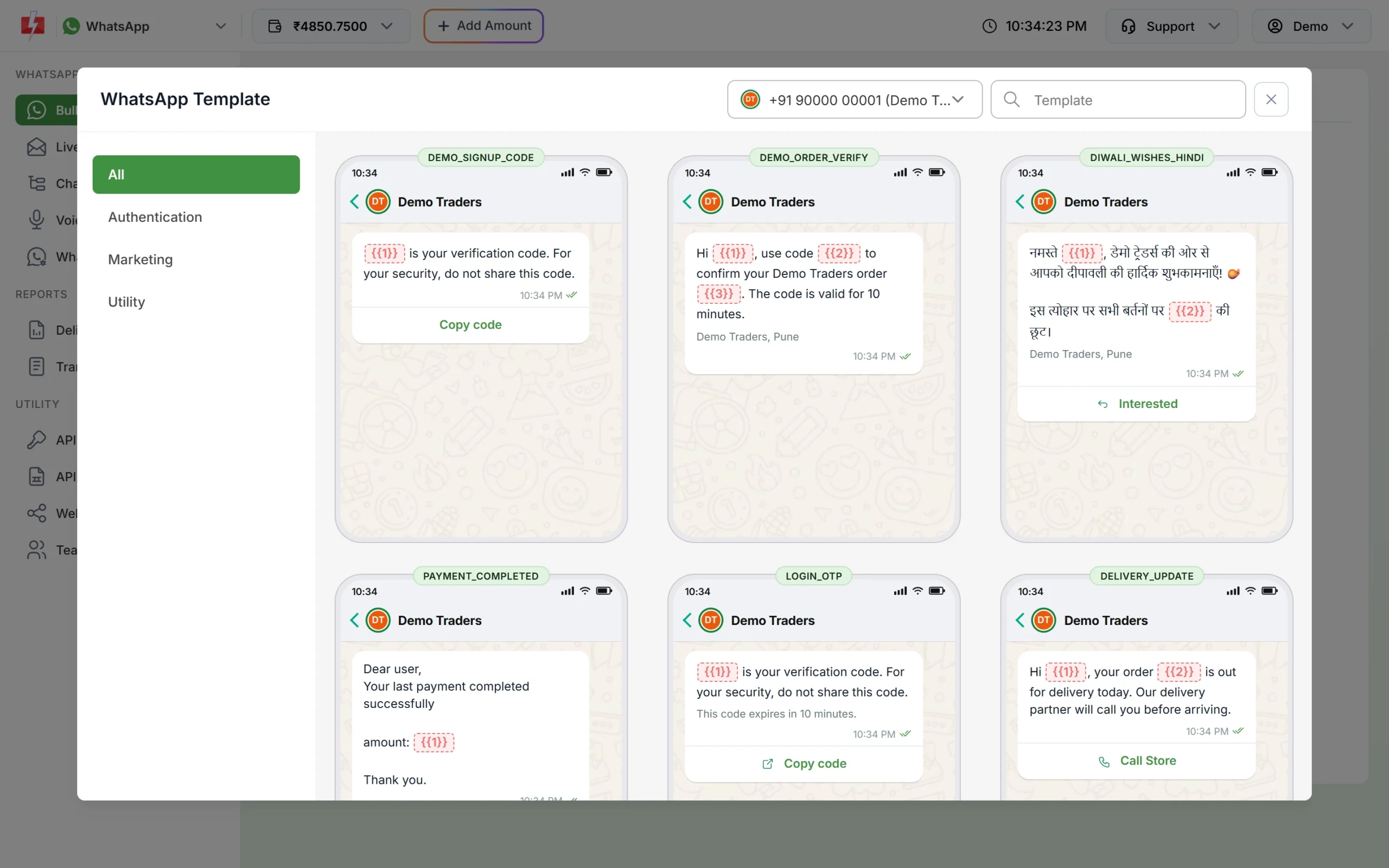
Only approved templates can be sent outside the 24-hour window. -
Fill the variables and confirm
Type a value for each variable, such as the customer’s name or order number. The Message Preview & Confirmation window shows the message and, for the account owner, the cost. Click Confirm & Send.
-
Wait for the customer to reply
When the customer replies, the window opens again for 24 hours and the normal message box comes back. Now you can send text, files and voice notes.
Starting a chat with a new number
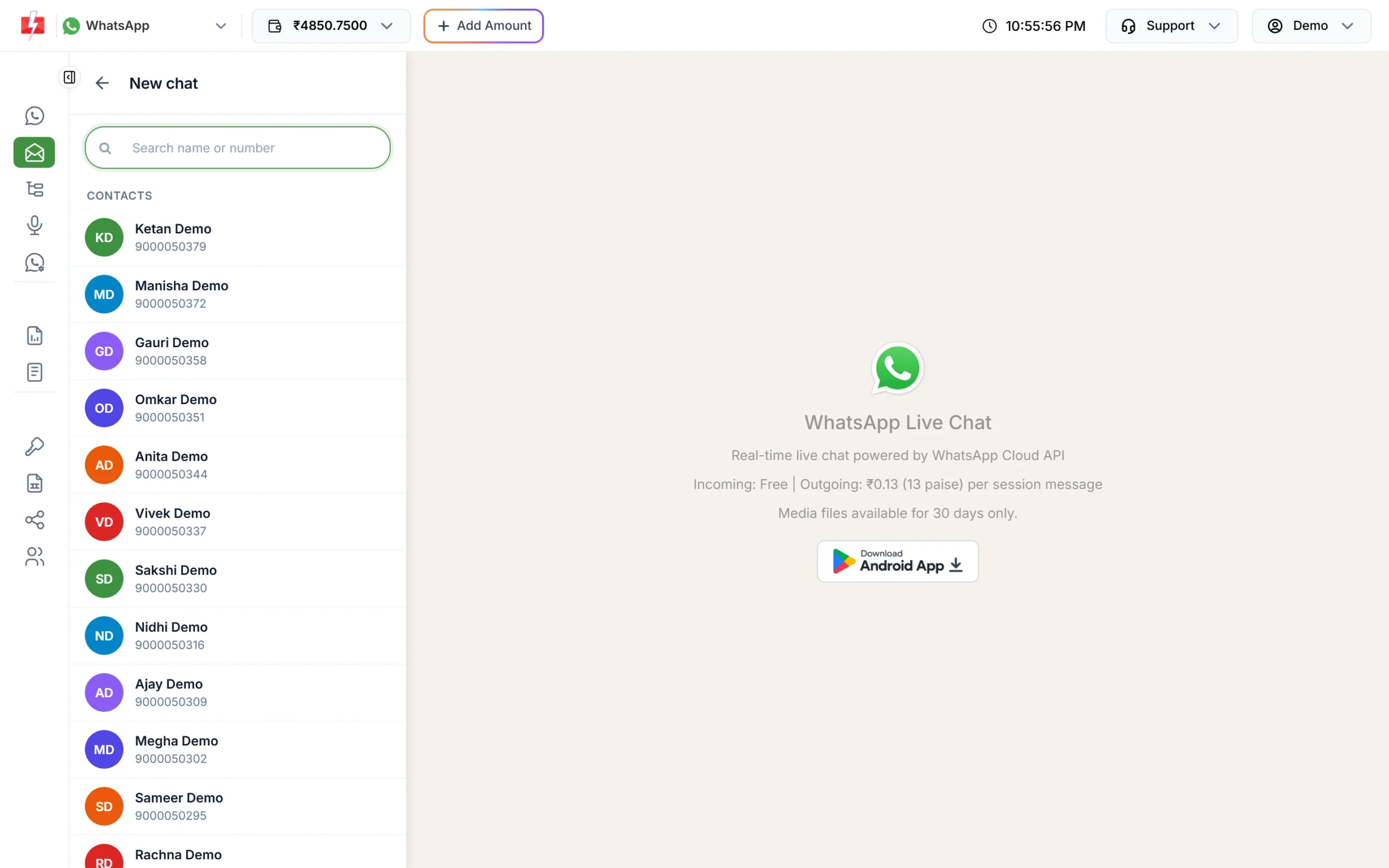
To message someone who has never written to you, click the floating New chat button in Live Chat. Search your Address Book or type a mobile number, then choose “Chat with +number”. The chat opens, but because the customer has not written yet, the window is closed. Your first message must be a template.
Messaging many customers after 24 hours
To follow up with a list of customers, use Bulk WhatsApp. Bulk campaigns always use templates, so the 24-hour rule is never a problem there. Choose your sender number, add the numbers or upload a file, pick the template and send. See how to send bulk WhatsApp messages.
Using the API after 24 hours
Developers should use the template message API (/dev/whatsapp) with the template’s Message ID from WhatsApp Manager > Templates. The session message API (/dev/whatsapp-session) sends free-form messages and only works while the customer’s window is open. The Sample Code button on each template card shows a ready request.
Which template category should I use?
| Reason for the message | Category |
|---|---|
| Order, delivery, payment, appointment or account update | Utility |
| Login or verification code | Authentication |
| Offer, new product, “we miss you”, feedback request with a promotion | Marketing |
The category also sets the price. At the time of writing, Fast2SMS rates are ₹0.25 for Utility and Authentication and ₹0.95 for Marketing, and ₹0.13 for each reply you send inside the 24-hour window. Messages customers send you are free. See the WhatsApp pricing page for current rates.
Sending in bulk? For high WhatsApp volumes our team offers discounted rates. Talk to our team or see WhatsApp pricing.
Common problems and fixes
| Problem | Fix |
|---|---|
| No message box, only “Send Template” | The customer’s window has closed. Send a template. |
| Template list is empty | You have no APPROVED template for this number. Create one in WhatsApp Manager > Templates. |
| Delivery Report shows Error 131047 | A free-form message was sent after 24 hours, usually by an API integration. Send a template instead. |
| Customer replied but box still locked | Refresh the chat. The window opens from the customer’s latest message. |
| “Insufficient wallet balance” | Add money with Add Amount, then send again. |
Frequently asked questions
Can I send a WhatsApp message to a customer after 24 hours?
Yes, but only with an approved template message. Free text, images or files without a template are blocked after 24 hours.
When does the 24-hour window start?
It starts when the customer messages or calls your business number, and resets with each new customer message.
Does my reply restart the 24-hour window?
No. Only a message from the customer opens or resets the window.
What is a business-initiated message?
Any message you send first, or after the customer’s window has closed. It must be an approved template and counts towards your messaging limit.
Is error 131047 refunded?
Yes. Fast2SMS refunds every failed WhatsApp message to your wallet automatically, whatever the error code.
Can I send an image after 24 hours?
Yes, if the image is the header of an approved template. A plain image without a template needs an open window.