
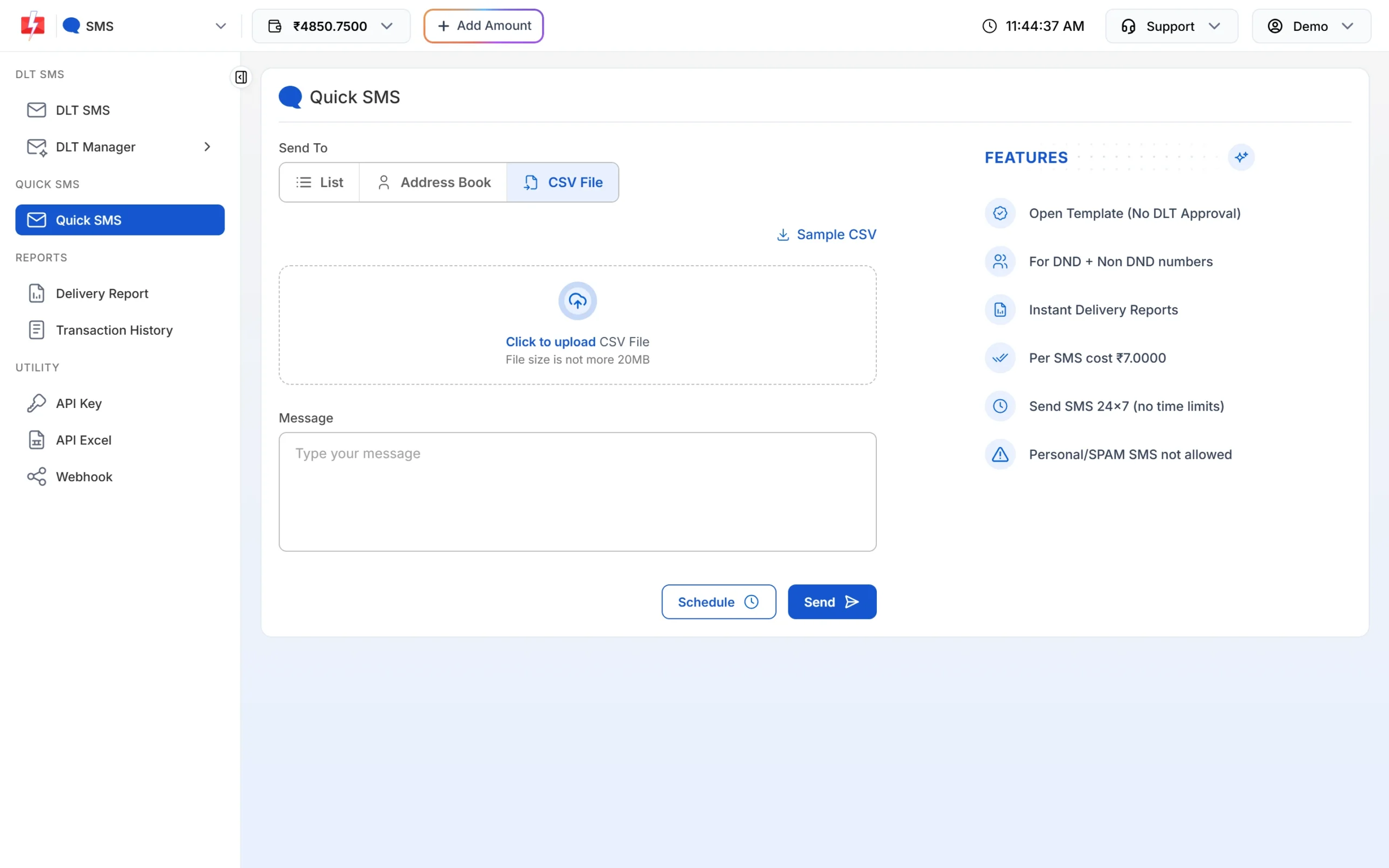
To send SMS to a contact list from a file, choose CSV File under Send To on the Quick SMS or DLT SMS page and upload your file. Then pick the column that has the mobile numbers. If your list is in Excel, save it as a CSV file first.
This page shows how to prepare the file, upload it, and use other columns (like name or result) inside the message.
Before you start
- A Fast2SMS account with wallet balance.
- For DLT SMS: an approved Sender ID and content template in DLT Manager.
- A file with one row per person and one column with 10-digit mobile numbers.
How to prepare a CSV file from Excel
Keep the first row as column names, for example name, number and result. Put one contact on each row below it. In Excel, click File > Save As and choose CSV UTF-8 (Comma delimited). The UTF-8 option keeps Hindi and other regional language text readable. The panel accepts CSV files up to 20 MB.
Steps to upload a CSV file and send SMS
1. Open the SMS app and go to Quick SMS (or DLT SMS). Under Send To, choose CSV File. The old Excel checkbox in the Mobile Number field is no longer there.
2. Upload your CSV file. The panel shows a preview of the rows. In the example below, the file has three columns: name, mobile and amount.
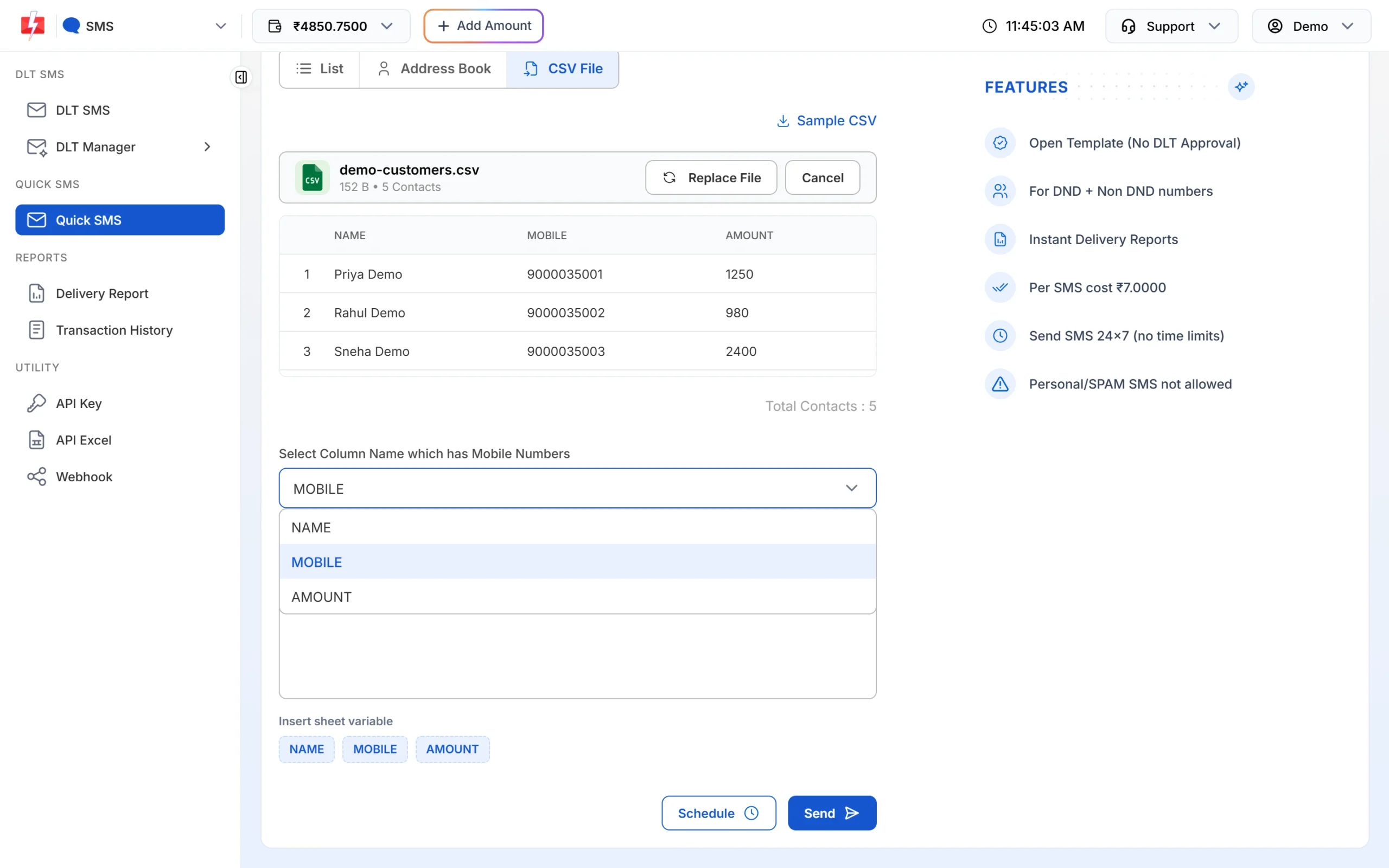
3. In Select Column Name which has Mobile Numbers, pick the column with the numbers.
Note: The first column (here, name) may be selected by default. Open the dropdown and choose the number column.
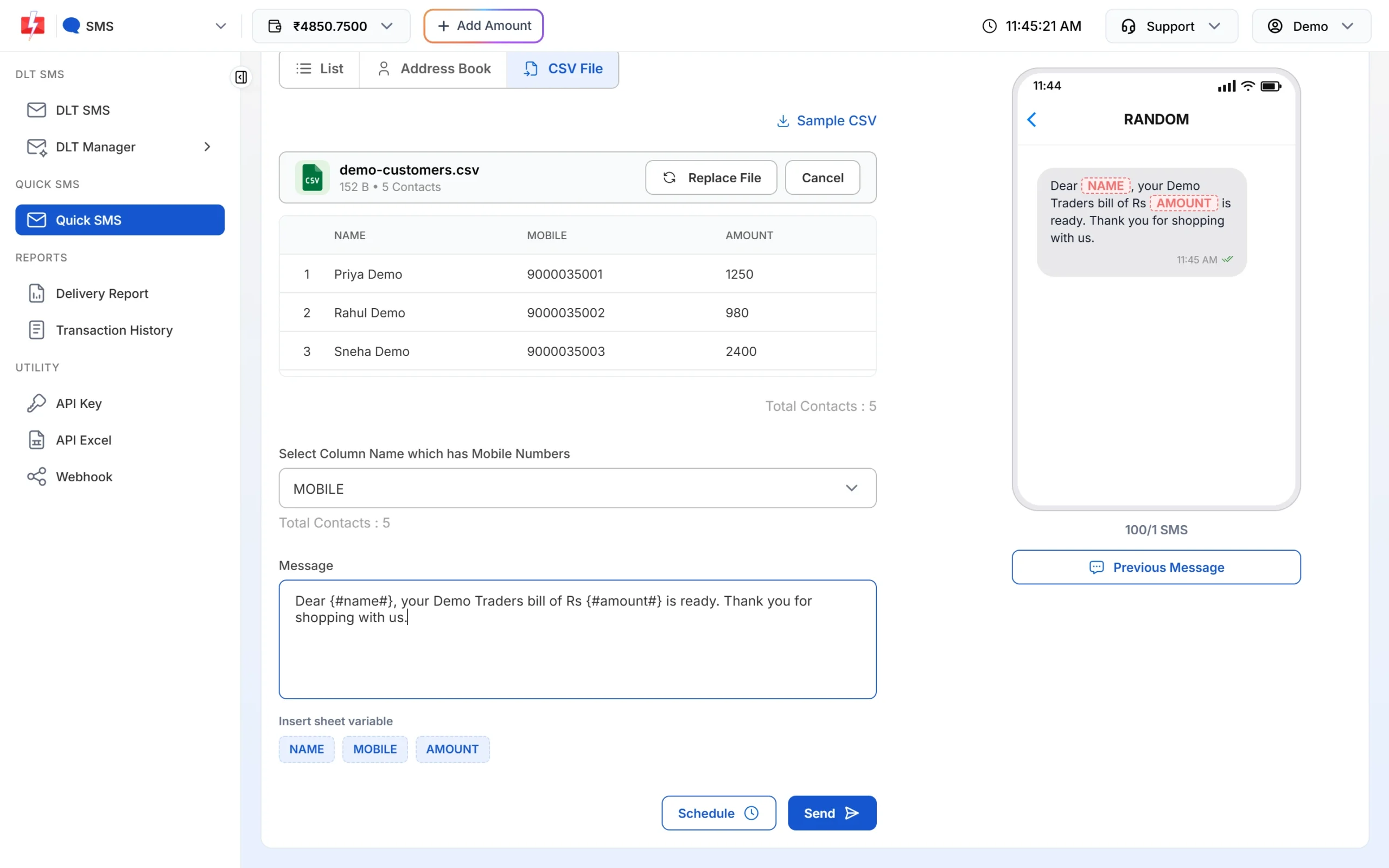
4. Write your message and add columns from the file as variables. Click a column under Insert sheet variable to add it to the message. For example, the message “Dear (name), your result is (result).” uses the name and result columns. Each person gets their own values. On the DLT SMS page, you map each template variable to a column instead.
With the sample file, the three people receive these messages:
- Dear A, your result is Pass
- Dear B, your result is Fail
- Dear C, your result is Pass
In the screenshot below, the message uses the name and amount columns in the same way.
5. Click Send. Check the cost and number count in the confirmation pop-up, then confirm. Duplicate and invalid numbers are not counted or charged.
Common problems and fixes
| Problem | Fix |
|---|---|
| “Please upload CSV file.” | Your file is in .xlsx or .xls format. Save it as CSV and upload again. |
| “Select Column Name which has Mobile Numbers.” | Pick the column with the numbers in the dropdown. |
| Hindi text shows as ??? or strange symbols | Save the file as CSV UTF-8, not plain CSV. |
| Fewer numbers than rows | Numbers with missing digits or a wrong format, and repeated numbers, are removed before sending. |
Frequently asked questions
Can I upload an Excel (.xlsx) file directly?
Save it as a CSV file first. The upload box takes CSV files.
Should numbers include +91?
Use plain 10-digit Indian mobile numbers, without spaces or symbols.
Can I use the same file for DLT SMS?
Yes. On the DLT SMS page, choose CSV File under Send To and map each template variable to a column.
How big can the file be?
The panel accepts CSV files up to 20 MB.