
To import contacts from Excel or CSV into Fast2SMS, open Address Book, click Add Contact, choose the Upload CSV tab, upload your file, pick the Name and Number columns and click Extract Contact. Fast2SMS cleans the numbers, skips duplicates and invalid numbers, and can put everyone into a group in the same step. This guide shows each step, the file format that works, and what to do when some numbers are skipped.
Before you start
- A Fast2SMS account.
- Your file in .csv, .xlsx, .xls or .txt format. Keep it under 10 MB, as the upload box says.
- The first row must be a header row, for example
Name,Number. - Indian mobile numbers. Only 10-digit numbers that start with 6, 7, 8 or 9 are kept.
How to import contacts from Excel or CSV
-
Open Address Book and click Add Contact
From the dashboard, click Address Book in the Utility row. The Contact page lists your saved contacts. Click Add Contact at the top right.
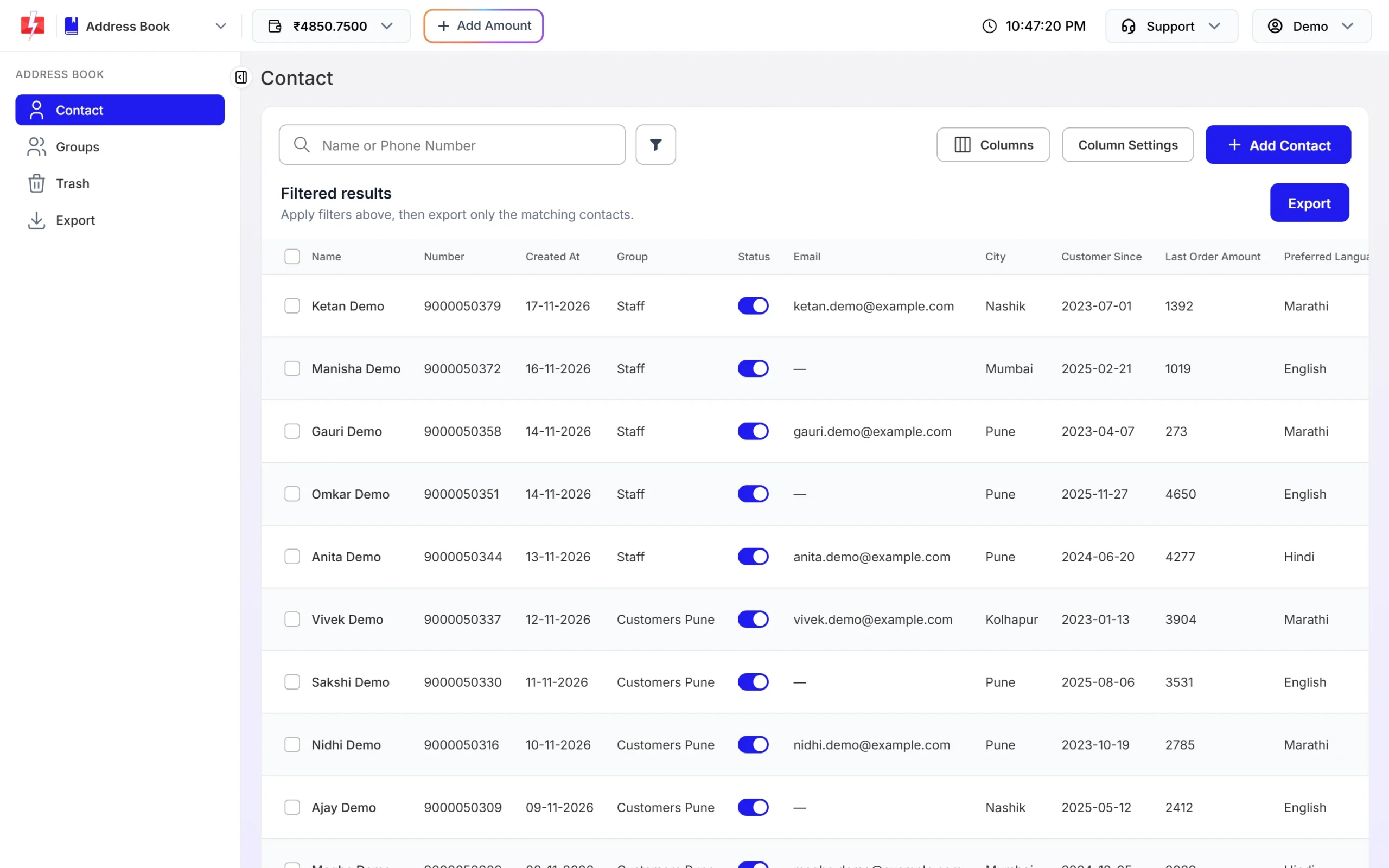
The Contact page in Address Book. -
Choose the Upload CSV tab and select your file
The Add Contact panel opens on the Manually tab. Switch to Upload CSV and click Click to upload CSV File. Excel files work here too, even though the label says CSV. If you are not sure about the layout, click Download sample CSV and copy your data into it.
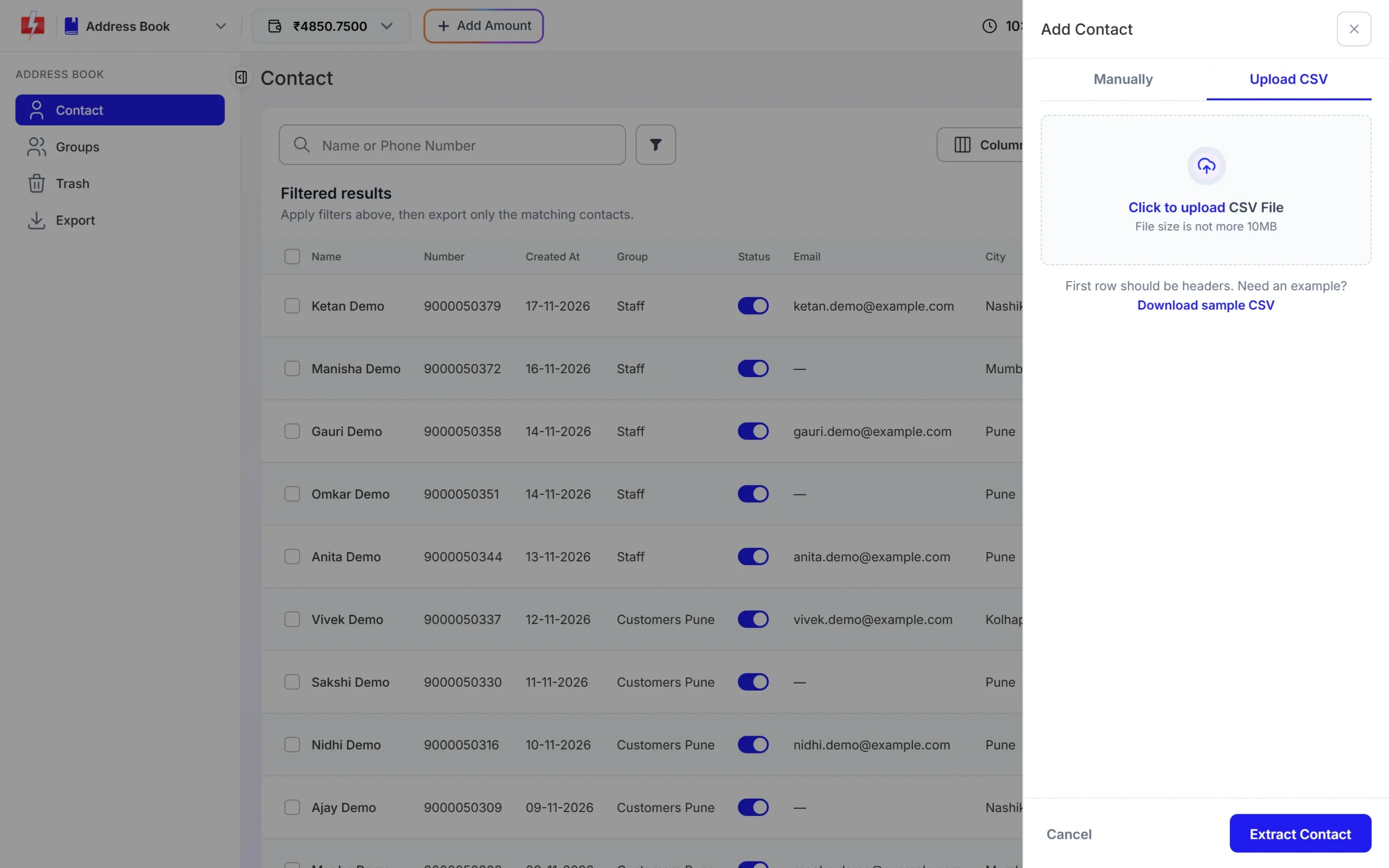
Upload CSV tab with the sample file link. -
Map the Name and Number columns
After the upload you see a message like “5 rows found. Map the columns, then extract.” Check three boxes:
- Name column: the column that has the contact’s name.
- Number column: the column that has the mobile number.
- Add to group: pick a group to put all these contacts in, or keep No group.
Columns with headers such as “Name” or “Contact”, and “Number”, “Mobile” or “Phone”, are picked for you. Change them if the guess is wrong.
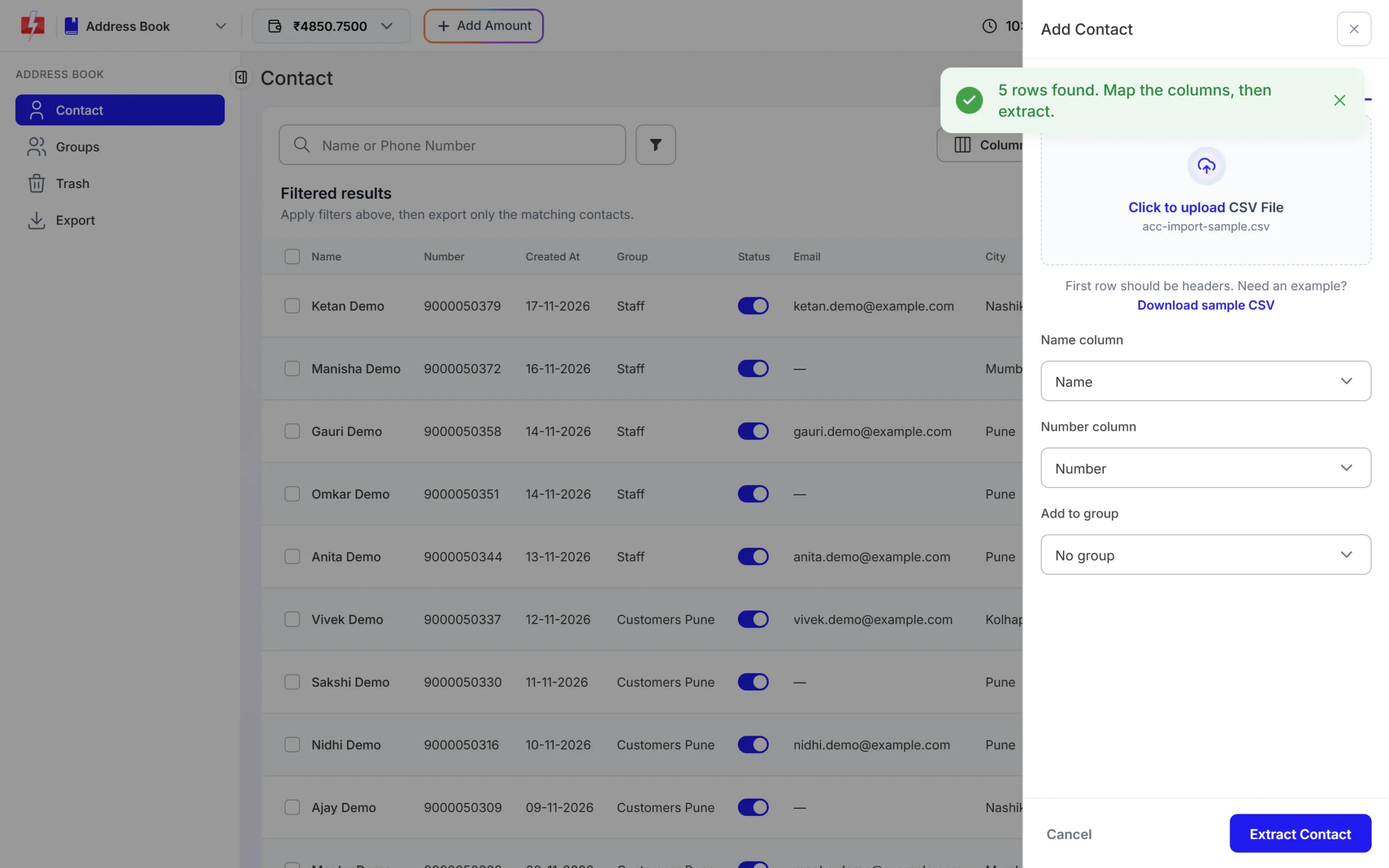
Pick the Name and Number columns and an optional group. -
Click Extract Contact and read the result
Click Extract Contact. A message tells you what happened, for example “120 contacts imported”, “8 existing contacts added to the group”, “3 invalid numbers ignored” or “2 duplicates in file ignored”. If nothing could be added, you see “No new valid contacts found in the sheet.”
What your file should look like
Keep it simple: one header row, one contact per row. Only the name and the number are imported.
| Name | Number |
|---|---|
| Ravi Kumar | 9000000001 |
| Priya Shah | +91 90000 00002 |
| Amit Verma | 09000000003 |
All three numbers above are accepted. Spaces, dashes and the + sign are removed. If a number is longer than 10 digits, the last 10 digits are kept, so a 91 or 0 in front is fine. For CSV files, commas, semicolons, tabs and the | sign all work as separators.
Which numbers are skipped and why
| Case | What happens |
|---|---|
| Number does not start with 6, 7, 8 or 9 after cleaning | Skipped as an invalid number |
| Number has fewer than 10 digits | Skipped as an invalid number |
| Same number twice in the file | Only the first one is kept; the rest count as duplicates in file |
| Number is already in your address book | Not added again. If you chose a group, the existing contact is added to that group |
| Name cell is empty | The contact is still added, with a short name made from a random letter and the first 5 digits of the number |
| Name longer than 50 characters | Cut to 50 characters |
| Extra columns such as email, city or order amount | Ignored during import |
There is no limit on the number of rows. A large file just takes a little longer.
Want to keep email, city or other details? Add them as columns in Column Settings, then fill them for each contact with Edit. The file import only saves the name and number.
How to send messages to imported contacts
On the DLT SMS, Bulk WhatsApp or Bulk Voice Call page, go to Send To and choose Address Book. A panel opens with Contact and Group tabs. Pick a whole group, or tick single contacts, and continue with your campaign as usual. This is why the Add to group box during import is useful: one import, one group, one click when you send.
If you only need a list for one campaign, you can also upload the file straight on the send page using the CSV File option. It does not save the contacts in your address book.
Common problems and fixes
“Please upload a CSV or Excel file.”
The file type is not supported. Save it from Excel as .xlsx or CSV (Comma delimited) and upload again.
“No data found in sheet.”
The file has no header row or no data under it. Add a first row such as Name,Number and make sure the data starts in row 2.
Many numbers were “invalid numbers ignored”
Open the file and check the number column. Numbers saved by Excel in scientific format (for example 9.00E+09) lose digits. Format the column as Text or Number with no decimals and save again. Landline numbers and numbers from other countries are not accepted.
The wrong column was imported as the name
Delete the wrong contacts (they go to Trash), upload again and check the Name column and Number column boxes before you click Extract Contact.
My contacts did not get added to the group
Check that you picked the group in Add to group before clicking Extract Contact. You can also add contacts to a group later by editing each contact.
Frequently asked questions
Can I import contacts from Excel into Fast2SMS?
Yes. The Upload CSV tab accepts .xlsx and .xls files as well as .csv and .txt. The first row must be the header.
How many contacts can I import at once?
There is no row limit. Keep the file under 10 MB, as shown in the upload box.
Do I need to add +91 before each number?
No. Plain 10-digit numbers work best, but +91, 91 or 0 in front is removed automatically.
Will duplicate numbers be imported twice?
No. Duplicates in the file are skipped, and numbers already in your address book are not added again.
Are custom columns like city or email imported?
No. Only the Name and Number columns are imported. Other columns are ignored.
Can I import international numbers?
No. The address book takes Indian mobile numbers only: 10 digits starting with 6, 7, 8 or 9.
Can I undo an import?
There is no undo button. Select the contacts you want to remove and delete them. They move to Trash, where you can restore them or delete them for good.