Every Fast2SMS campaign run has its own report that shows how each step did, where every contact is right now and the full journey of any number. This guide explains the run report, the per-step and per-number views, the result statuses and failure reasons, the Campaign Report list of all runs, the Schedule tab and how to export a CSV.
Before you start
- At least one campaign run (a test run counts). See launch a campaign.
- Note: campaign messages appear only in the Campaign report, not in the SMS, WhatsApp, RCS or Voice delivery reports.
How to read a campaign report
-
Open the run report
Open a run from Campaign Report (click Report), or in the builder from the last-run chip or the Report icon in the header. The header shows the campaign name, the status (for example Running, Paused, Completed, Stopped or Failed), the start and finish times and the run ID, which starts with C. Back to builder opens the journey.

Quote the ID (C7xpyLTxCEND36Z here) when you ask support about a run; it is also the request_id in the API and webhooks. -
Read the Steps card
Each row is one step: the step name and channel, Sent to (how many contacts reached that step) and Outcome: a bar with the delivered count and percentage, the failed count and the top 5 failure reasons. Click a step to see its numbers. The “Sent to” of a fallback step tells you how many people the first channel missed.
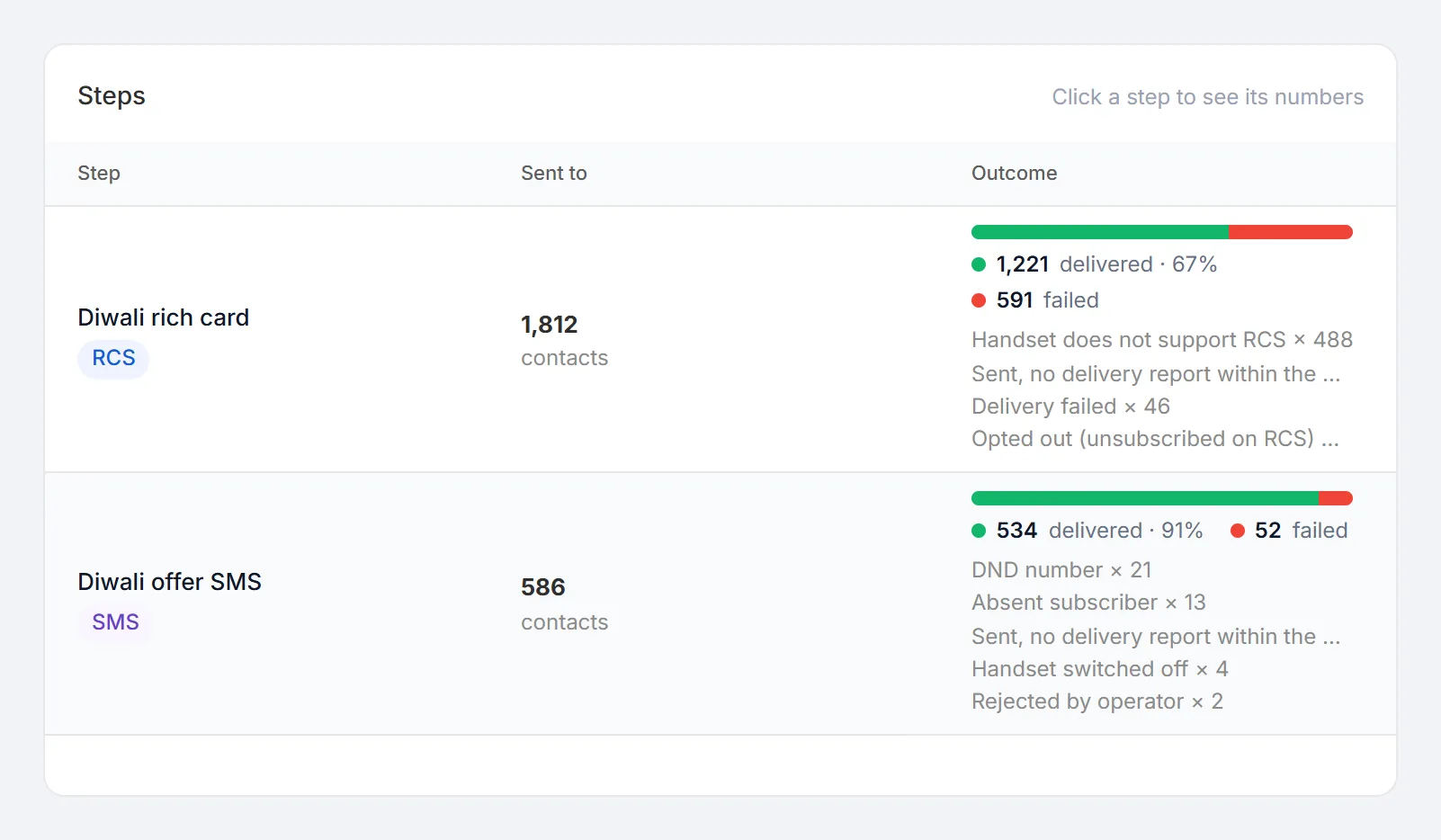
In the failed count, “Failed” and “Not delivered” are counted together; the reasons below the bar tell them apart. -
Read the Contacts card
“Where the contacts are right now”: Reached (the journey ended after Delivered, Read or Answered, or after Sent with no next step), Unreached (the journey ended without one of those, for example failed with nothing connected, opted out, or past the 30-day limit), In progress (still waiting or in a step) and, if you stopped the run, Stopped.
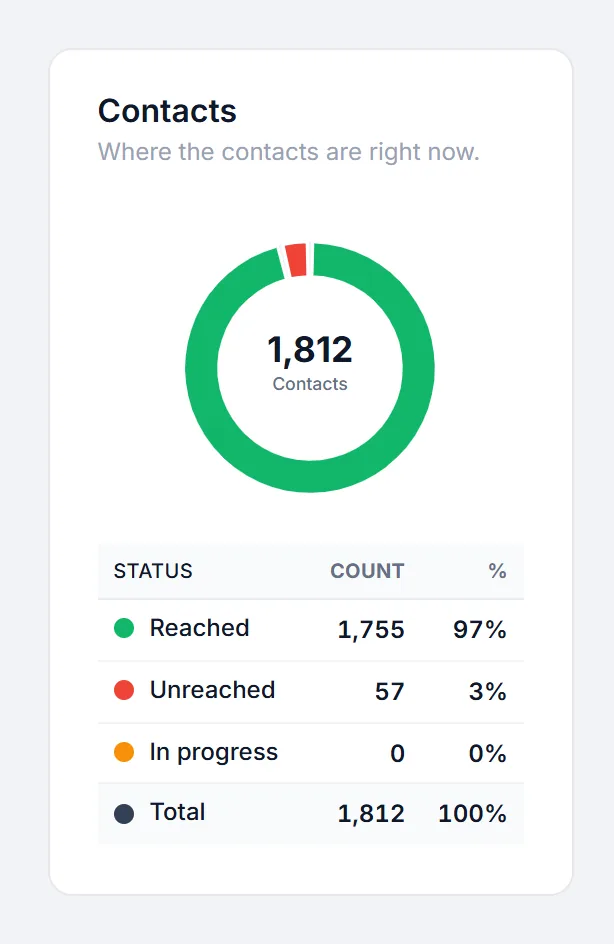
1,755 reached = 1,221 on RCS + 534 by the SMS fallback; the 57 unreached are the 52 failed SMS plus 5 who unsubscribed on RCS. -
Check every number
The Numbers table has one row per number per step: Mobile, Step, Result, Reason, Time and Next step. Search a mobile, pick a step to see only that step’s numbers, or pick a result: All results, Reached, Sent, Delivered, Read, Answered, Failed, Not delivered, Not answered or Pending. For big runs the count stops at “10,000+”.
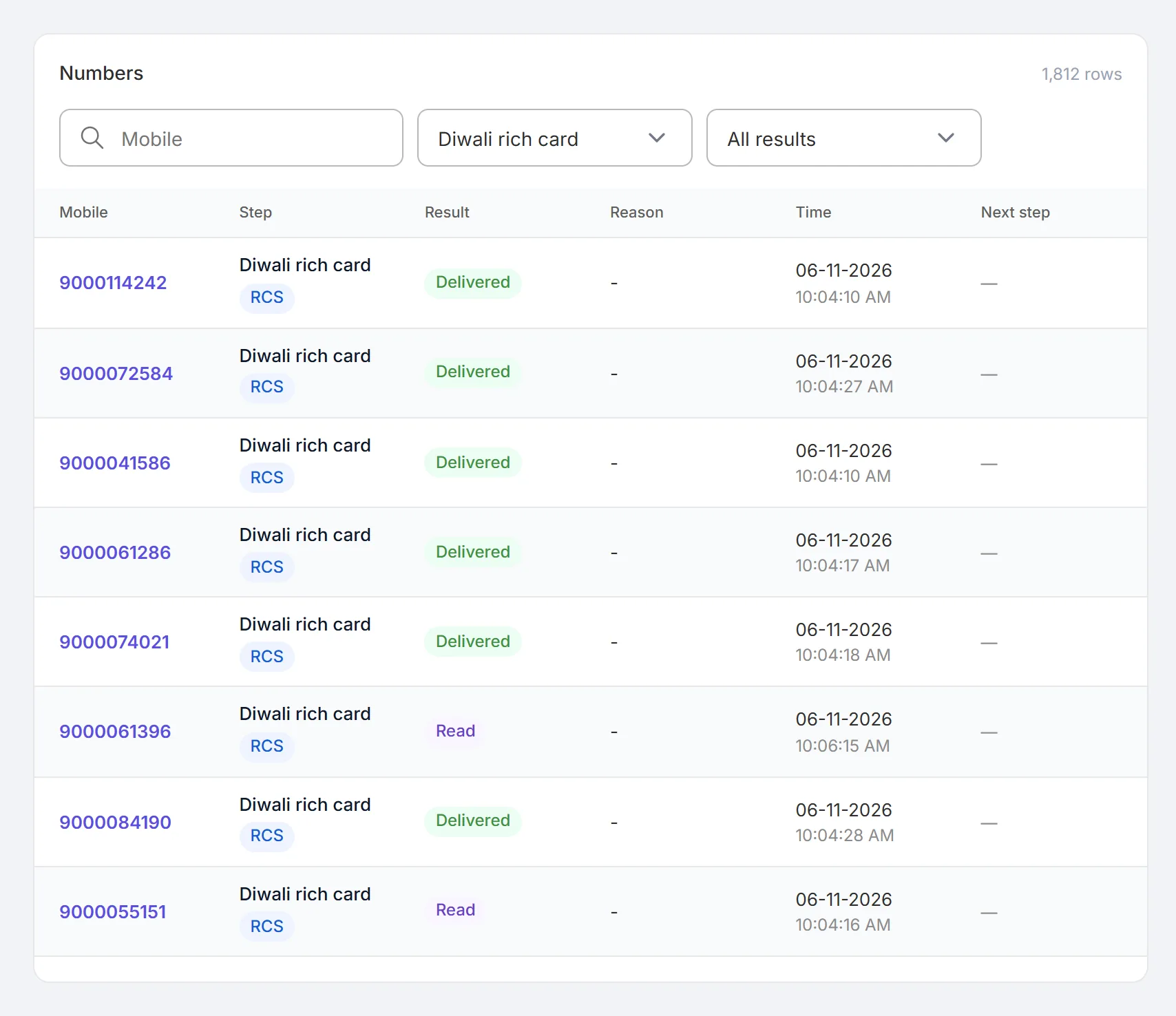
Delivered and Read rows show “—” under Next step because those results were not connected to anything in this journey. -
Open one number’s journey
Click a mobile number. The Journey popup shows every step that number went through, with channel, result, reason, sent and result times, the number’s status, and the variables used for it. Use it to answer a customer who says “I did not get the message”.
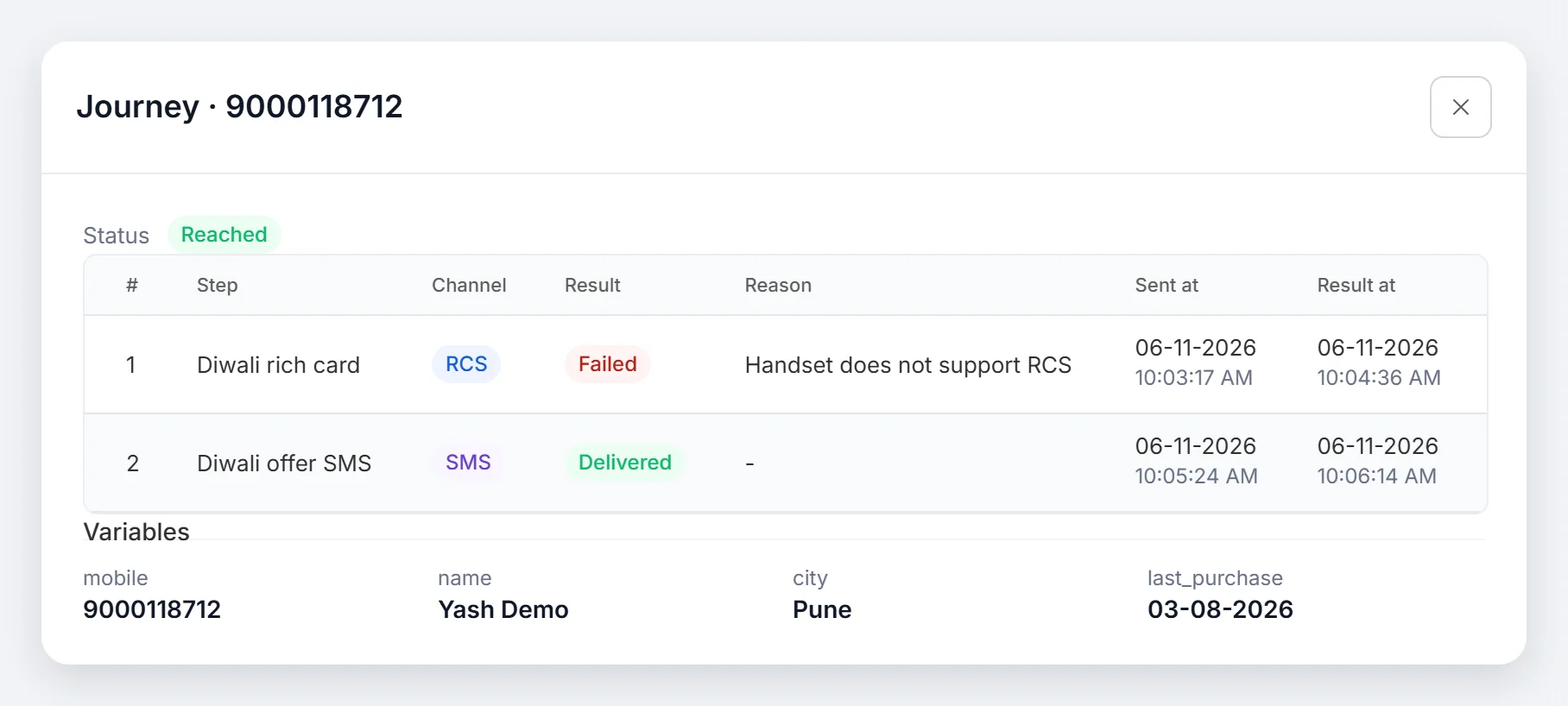
This number’s phone could not show RCS, so the SMS went 48 seconds after the RCS result and was delivered: the contact counts as Reached. -
See all runs in Campaign Report
Go to Campaign Report in the left menu. Cards show Runs, Contacts, Reached, Unreached and In progress for the chosen dates, with a Campaign Activity chart and a Run Status donut. It opens on the last 2 days.
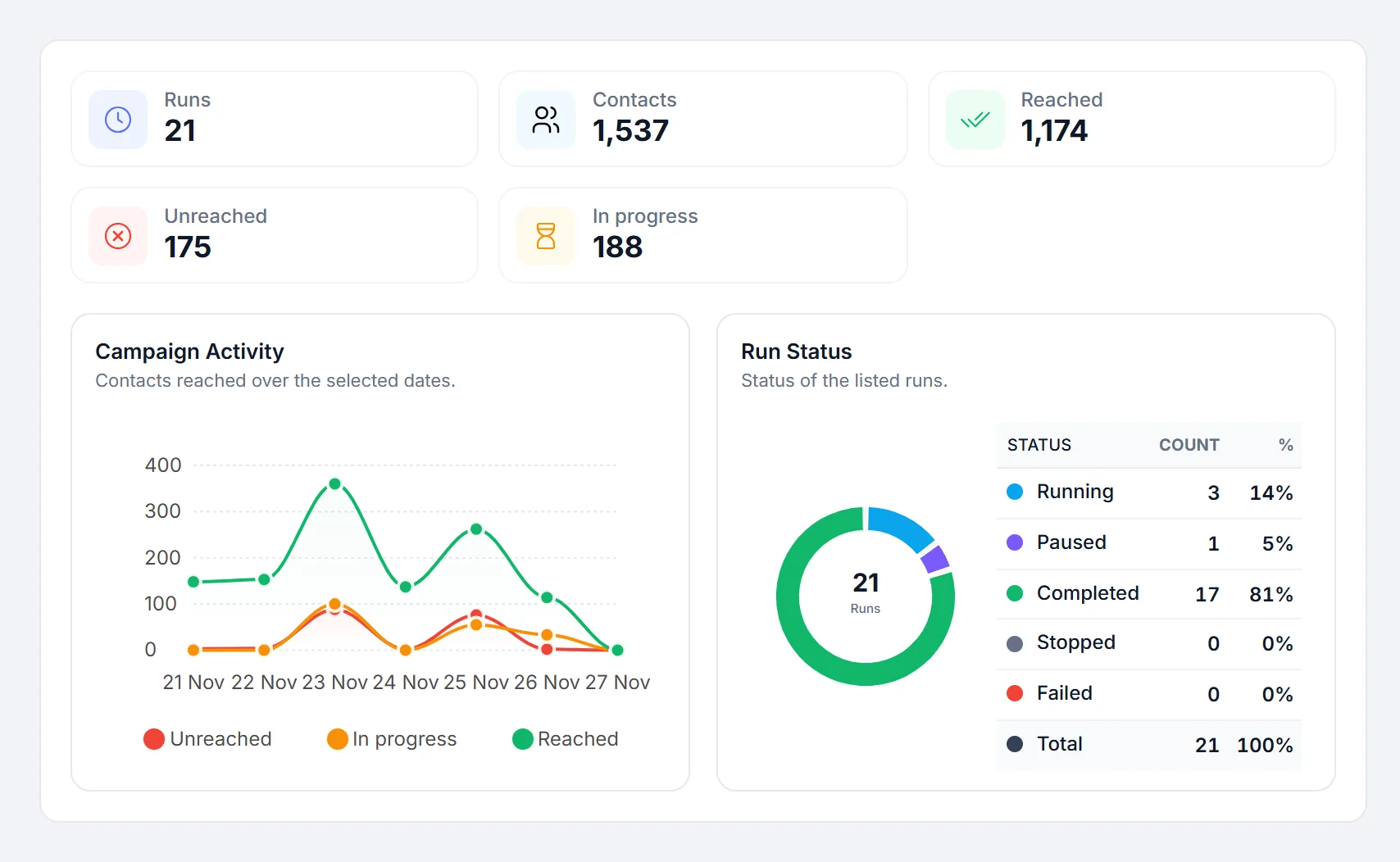
For the last week: 1,174 + 175 + 188 = 1,537 contacts, split by where they are now. -
Use the run list
Below the cards, each run has its name and ID, start time, contacts, reached, unreached, status and a Report button. Open runs also get Pause (or Resume) and Stop buttons. Runs of a repeating campaign show the repeat line with the campaign’s on/off switch.
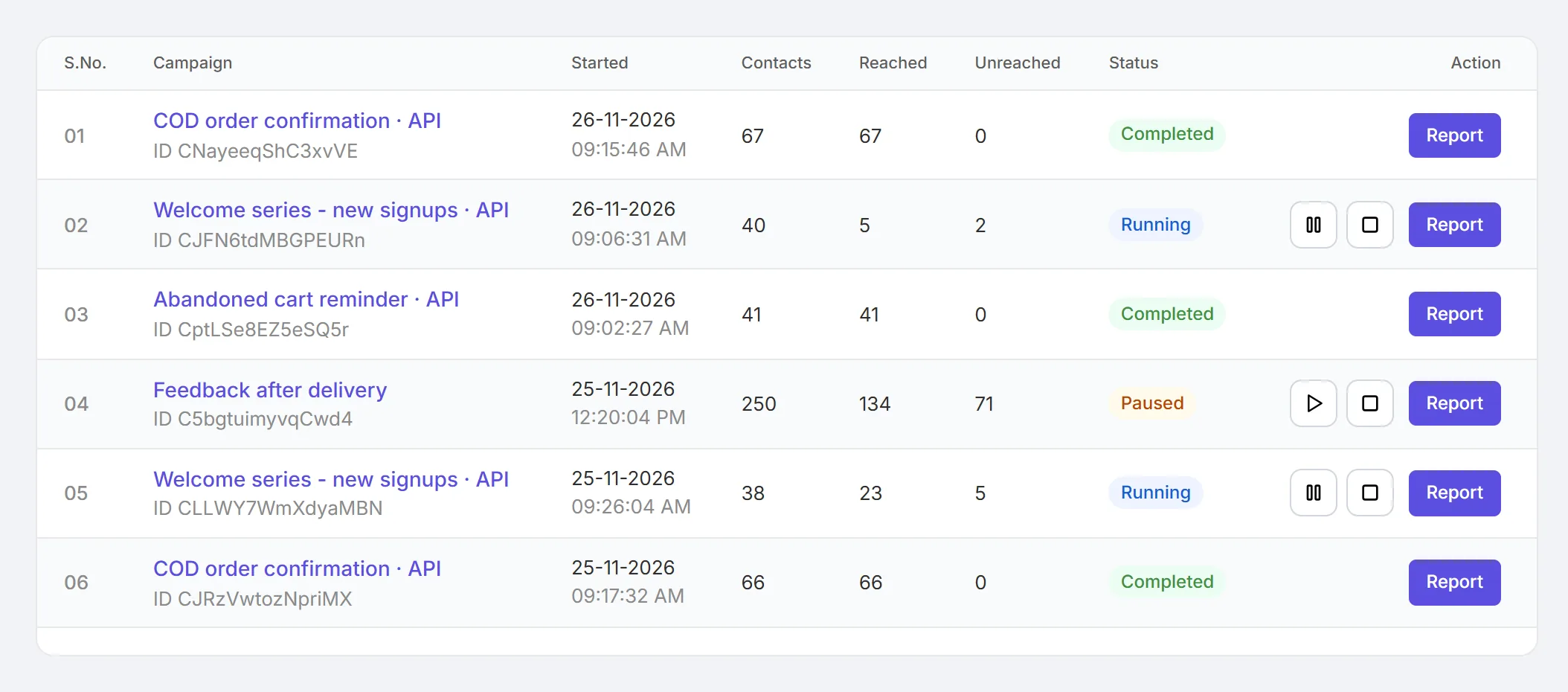
Running runs show Pause and Stop, the paused one shows Resume (the play icon) and Stop, and completed runs only Report. -
Filter the runs
Click the filter icon. Choose a Date Range (All Time, Today, Yesterday, Last 2 days, Last 1 week, Last 2 week, Last 30 days, Last 3 months or Custom Date), Campaign Status, Run type (Campaigns or Test runs), Channel or Campaign Name, then Apply Filters.
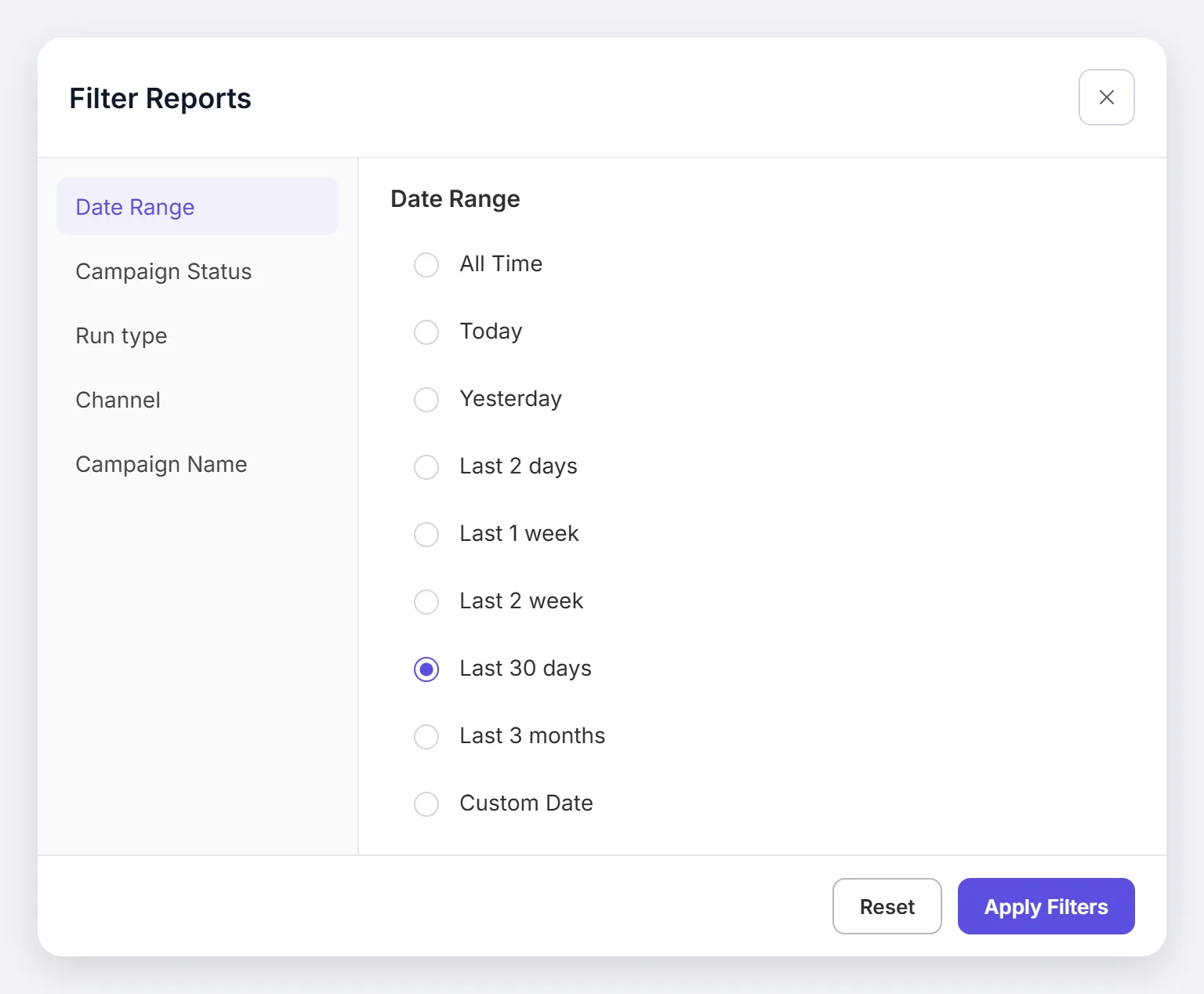
Use Run type to see only your test runs, or only real campaign runs. -
See scheduled runs
Open Campaign Report > Schedule to see runs waiting to start with the time, campaign, steps, contacts and channels. Click Cancel to cancel one before it starts. Nothing is sent or charged.

A cancelled schedule then shows as Cancelled in the run list, with no messages and no charge. -
Export a CSV
Open Delivery Reports > Export, choose Campaign in the first list, pick the dates and click Submit. When it is ready, download the zipped CSV “CampaignReport”. Export files stay for 48 hours. There is no export button on the run report itself.
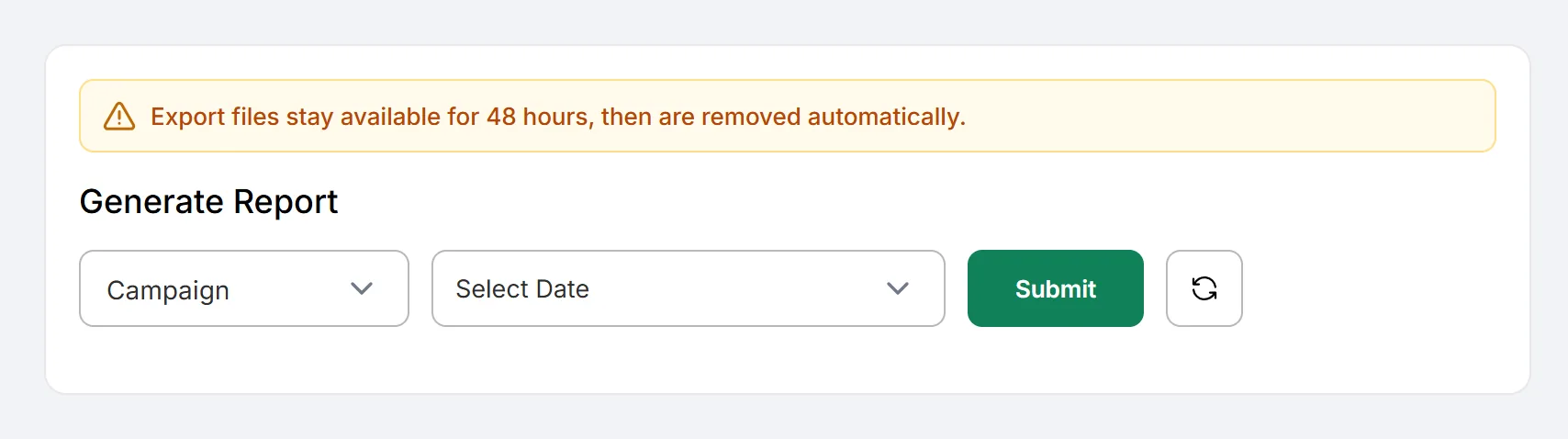
Choose Campaign in the first list; the other choices export the normal SMS, WhatsApp, OTP, RCS, Voice or Cloud Telephony reports.
Results and what they mean
| Result | Meaning |
|---|---|
| Pending | Waiting to be sent or for the channel to pick it up |
| Sent | Accepted by the operator, WhatsApp or the RCS network; no final report yet |
| Delivered | Reached the phone |
| Read | Opened (WhatsApp and RCS), if the read receipt came before the step’s result was taken |
| Answered / Not answered | Voice call picked up or not |
| Failed | Could not be delivered; the Reason column says why |
| Not delivered | No delivery report within the step’s wait for result time |
Common failure reasons
| Reason | What to do |
|---|---|
| Handset does not support RCS | Normal for some phones. Add an SMS or WhatsApp fallback. |
| DND number | See DND numbers and SMS delivery. |
| Absent subscriber / Handset switched off | Phone out of reach at that time. A later retry or a call may work. |
| Rejected by operator | Check the DLT template and sender. |
| Sent, no delivery report within the wait time | Counted as Not delivered. Increase Wait for result if reports come late. |
| Opted out (blocked on WhatsApp) / Opted out (unsubscribed on RCS) | The journey ended for that number. Do not resend. |
| Variable longer than 30 characters (DLT rule) | Shorten that column’s value. |
| Send interrupted, check the wallet and the channel report | Check your balance and the channel report. |
CSV export columns
One row per step: S.No., Campaign, Campaign ID, Campaign Status, Started, Mobile, Step, Channel, Status, Channel Status, Reason, Sent Time, Status Time, Message ID, Next Step. You can keep up to 5 ready exports and 2 pending requests at a time.
Frequently asked questions
Why are my campaign messages not in the SMS report?
Campaign messages are shown only in the Campaign report, so each run’s results stay together across channels.
What is the difference between Failed and Not delivered?
Failed means the channel reported that the message could not be delivered, with a reason. Not delivered means no delivery report came within the step’s wait for result time.
What does Reached mean?
The contact’s journey ended after a Delivered, Read or Answered result, or after Sent when that step had no next step.
How do I download the report?
Use Delivery Reports > Export and choose Campaign. You get a zipped CSV with one row per step.
Can I see test runs?
Yes. Choose Run type: Test runs in the Campaign Report filter. Test run reports are marked “Test run”.
Does the report update live?
Yes, every 15 seconds while the run is open.