Fast2SMS Campaign lets you send one message to a list of customers across SMS, WhatsApp, RCS and Voice, where the next channel takes over only for people the last one did not reach. You build the journey once (for example “WhatsApp first, SMS if not delivered”), choose your contacts and launch it. This guide explains what Campaign is, how it works, what it costs and when to use it instead of a normal one-time send.
What is Fast2SMS Campaign?
Campaign is the journey builder inside your Fast2SMS panel. On the dashboard it is the Campaign tile (Automated Journeys). In one campaign you can use four channels:
- SMS: a DLT SMS with your approved sender ID and an approved DLT template linked to it.
- WhatsApp: an approved WhatsApp template from your connected number (or Direct Send (Utility) on numbers with a messaging limit of 100K or more).
- RCS: a Plain, Rich, Carousel or Media message from your approved RCS bot.
- Voice: a recorded voice call. It can play a message (Simple), ask the customer to press a key (Key Press), or connect them to your agents (Call Patch).
Between the channels you can add three control steps: Wait (pause before the next step), Condition (go on only if, for example, the customer replied on WhatsApp or RCS, or your system reported a payment) and Frequency (send only on chosen days and times).
The main idea is simple. Every channel step ends with a result such as Delivered, Read, Failed or Not delivered, and you decide what happens after each result. A customer whose WhatsApp was delivered does not get the SMS. If WhatsApp reports Failed, the SMS goes out at the next check, usually within a minute or two. If no delivery report comes within the step’s result wait (30 minutes by default for WhatsApp), the step counts as Not delivered and the SMS goes then. You do not have to download failed numbers and send again by hand.
Before you start
- Log in with the main (owner) account. Campaign spends your wallet, so team members (agents) cannot open it.
- Wallet balance that covers at least the first step for all your contacts. See how to add money.
- For each channel you plan to use: an approved DLT sender ID and template (SMS), a connected WhatsApp number with approved templates, an approved RCS bot, or bulk voice calling switched on for your account with approved voice files.
- Your contacts as a CSV or Excel sheet, an Address Book group, or a pasted list of numbers. Only Indian mobile numbers are accepted.
How Fast2SMS Campaign works, step by step
-
Open Campaign from the dashboard
On your panel home, click the Campaign tile under Apps. You can also switch to it from the app menu at the top left of any app.
Look for this tile under Apps; the NEW badge marks it as one of the newest apps. -
See your campaigns in Campaign List
The Campaign List shows every saved journey with its channels, number of channel steps, the status of its last run (for example Scheduled, Running, Paused, Completed or Stopped) and an on/off switch. The Reached column counts contacts whose journey has ended with a delivered, read or answered message, out of all contacts in the last run; “waiting” means contacts still inside the journey. The left menu also has Launch Campaign, Campaign Report, Transaction History, API Key and Webhook.
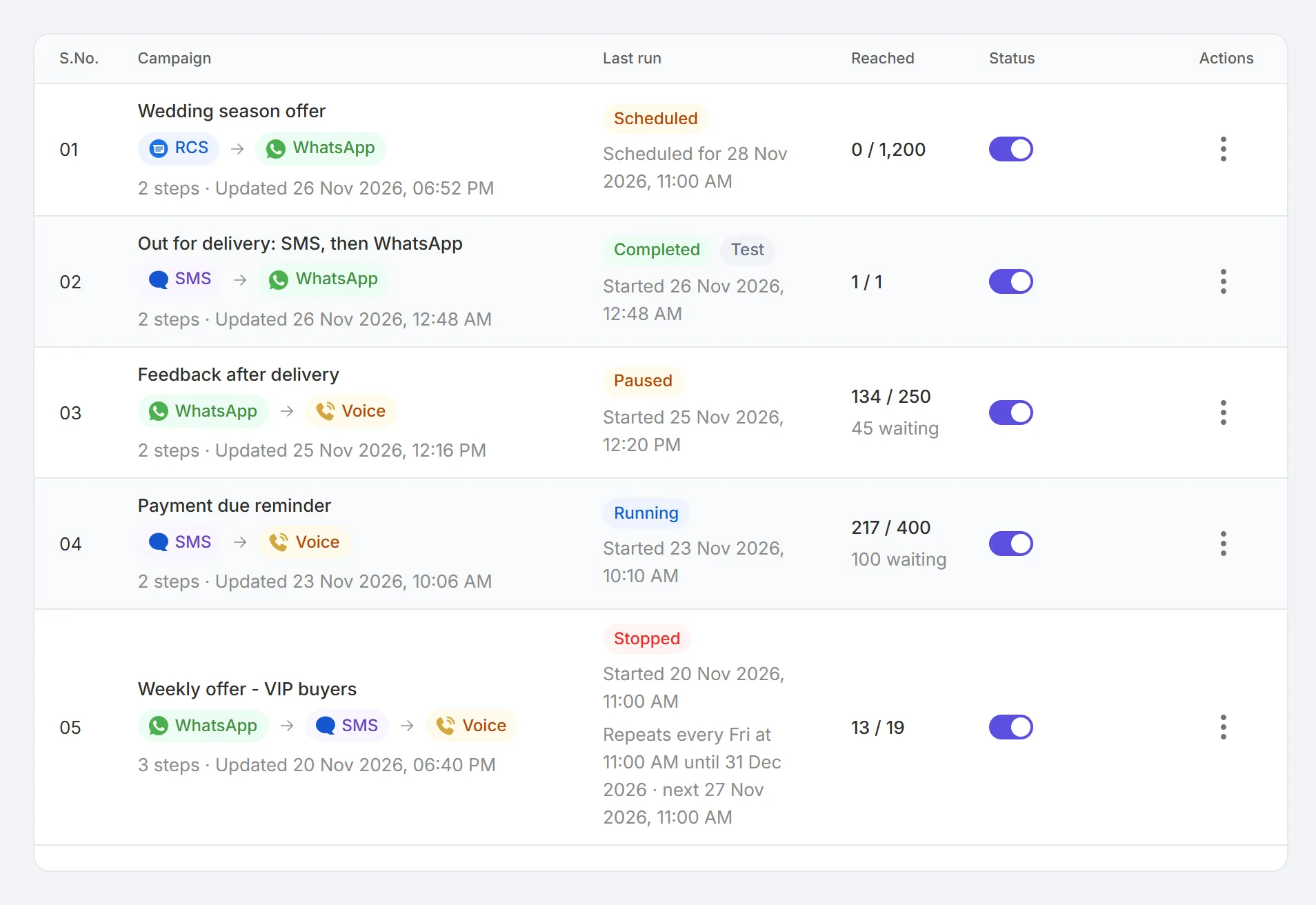
Payment due reminder is still running: 217 of its 400 contacts are reached and 100 are waiting for their next step. -
Create a campaign
Click Create Campaign. Choose Use a ready journey (16 ready journeys for goals like offers, payment reminders, lead follow-up and feedback) or Build my own to start from an empty canvas. See ready journeys.
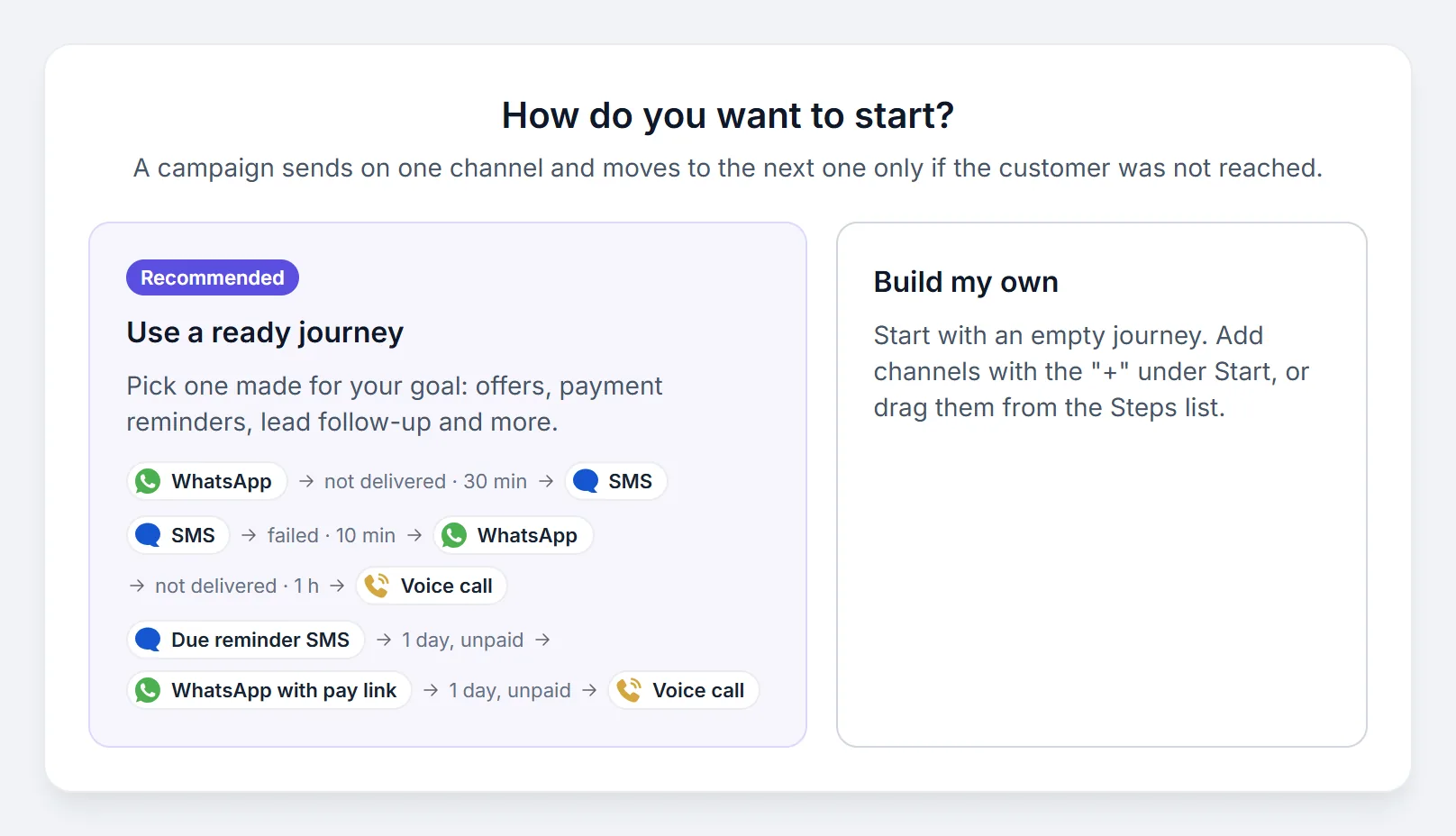
The ready journey card shows example chains; pick Build my own if you already know your steps. -
Build the journey and save it
Add channel steps under Start, pick the sender and template in each one, and connect each result you care about to the next step. In this example the order confirmation goes on WhatsApp. If WhatsApp reports Failed, or there is no delivery report within the 10-minute result wait set on this step, the same confirmation goes by SMS. Delivered and Read are left unconnected, so those customers get nothing more. Click Save Changes when you are done. Full steps: create a campaign journey.
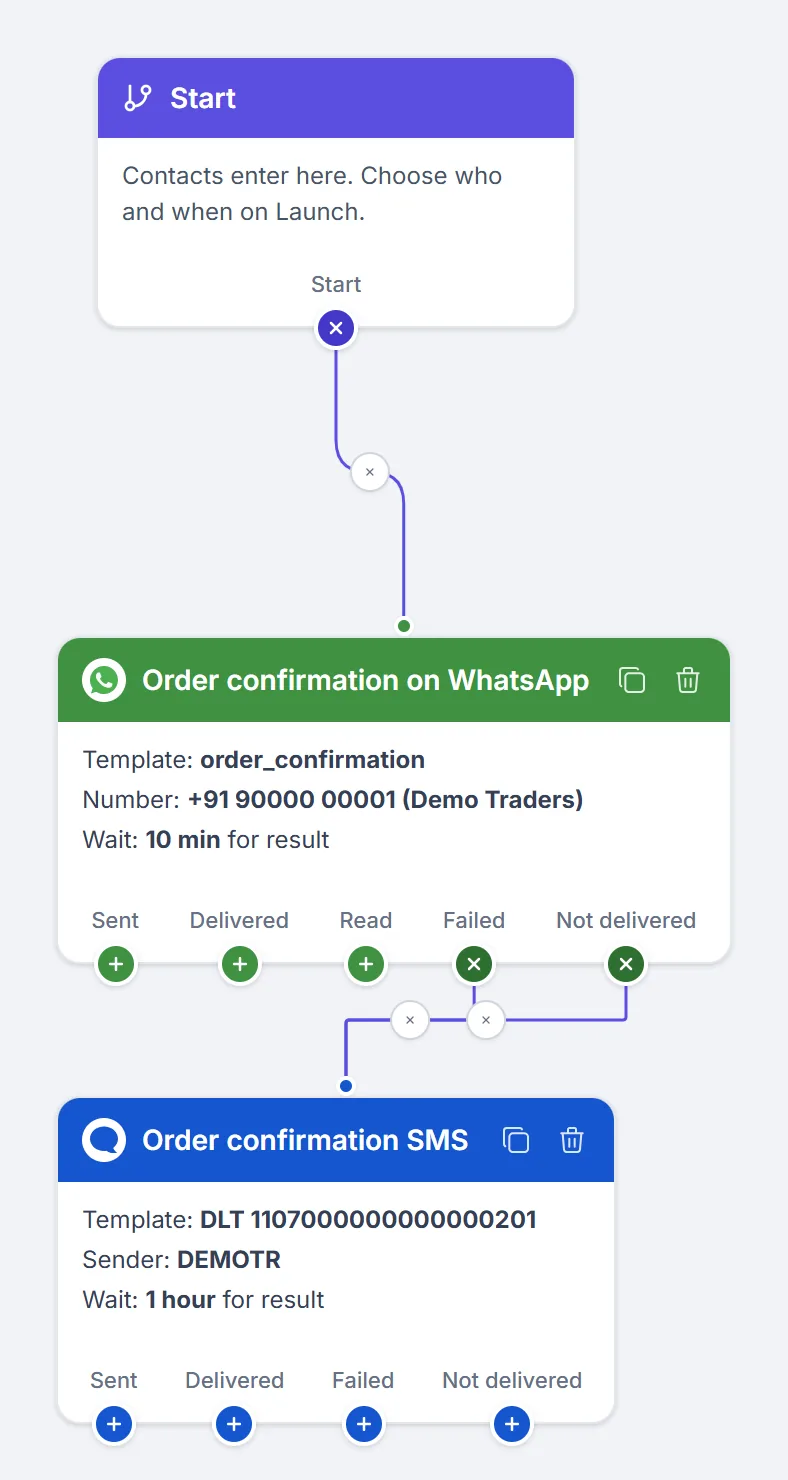
Only the Failed and Not delivered dots of the WhatsApp step are connected, so only those customers get the SMS. -
Launch it to your contacts
Go to Launch Campaign, pick the campaign, choose who gets it (List, Address Book or CSV File), match the template variables to your sheet columns and choose Send now, Schedule or Repeat. The right side shows the price of each step, your wallet balance and the Max cost. Full steps: launch a campaign.
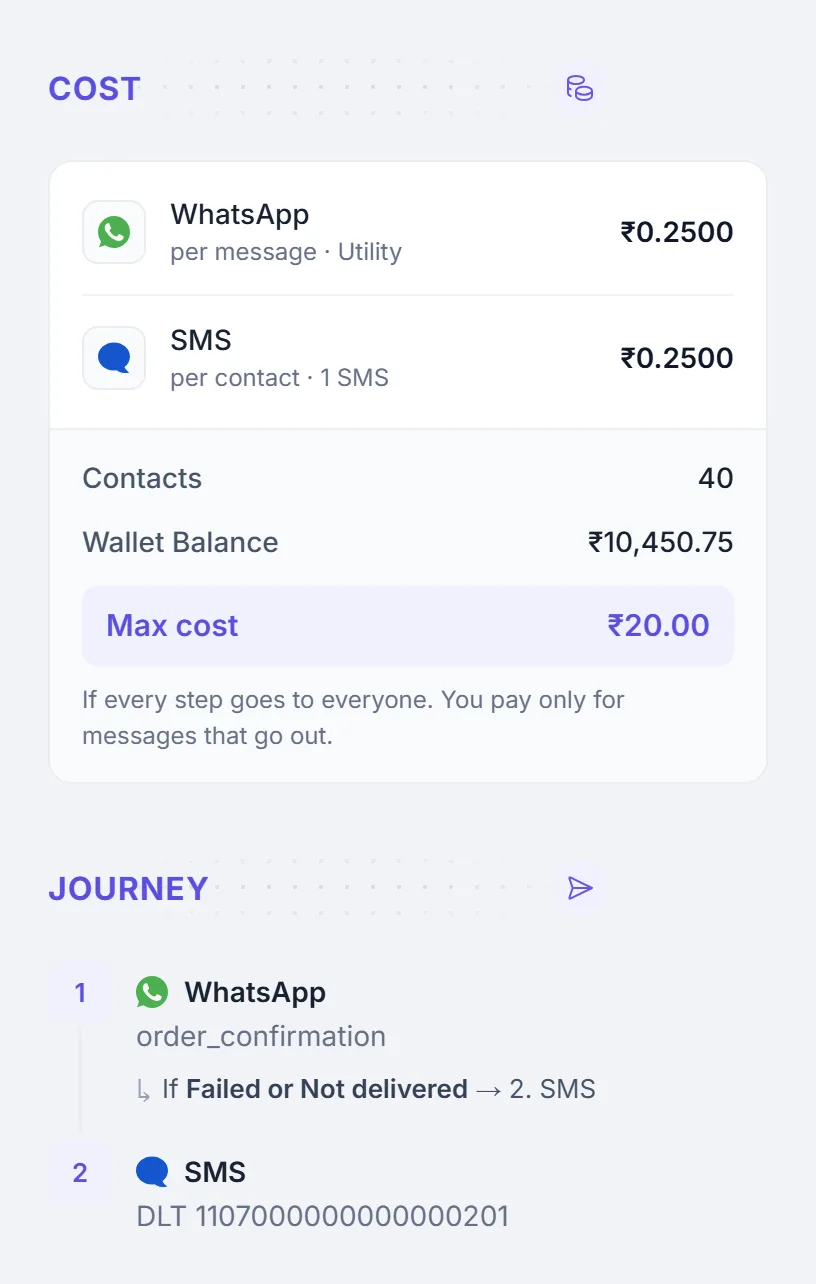
Max cost (₹20.00 here) assumes both steps go to all 40 contacts; you pay only for messages that actually go out. -
Check the report
Every run has its own report: how many contacts each step was sent to, how many were delivered and failed, the top failure reasons, and where every contact is right now. Click any number to see its full journey. See campaign report explained.
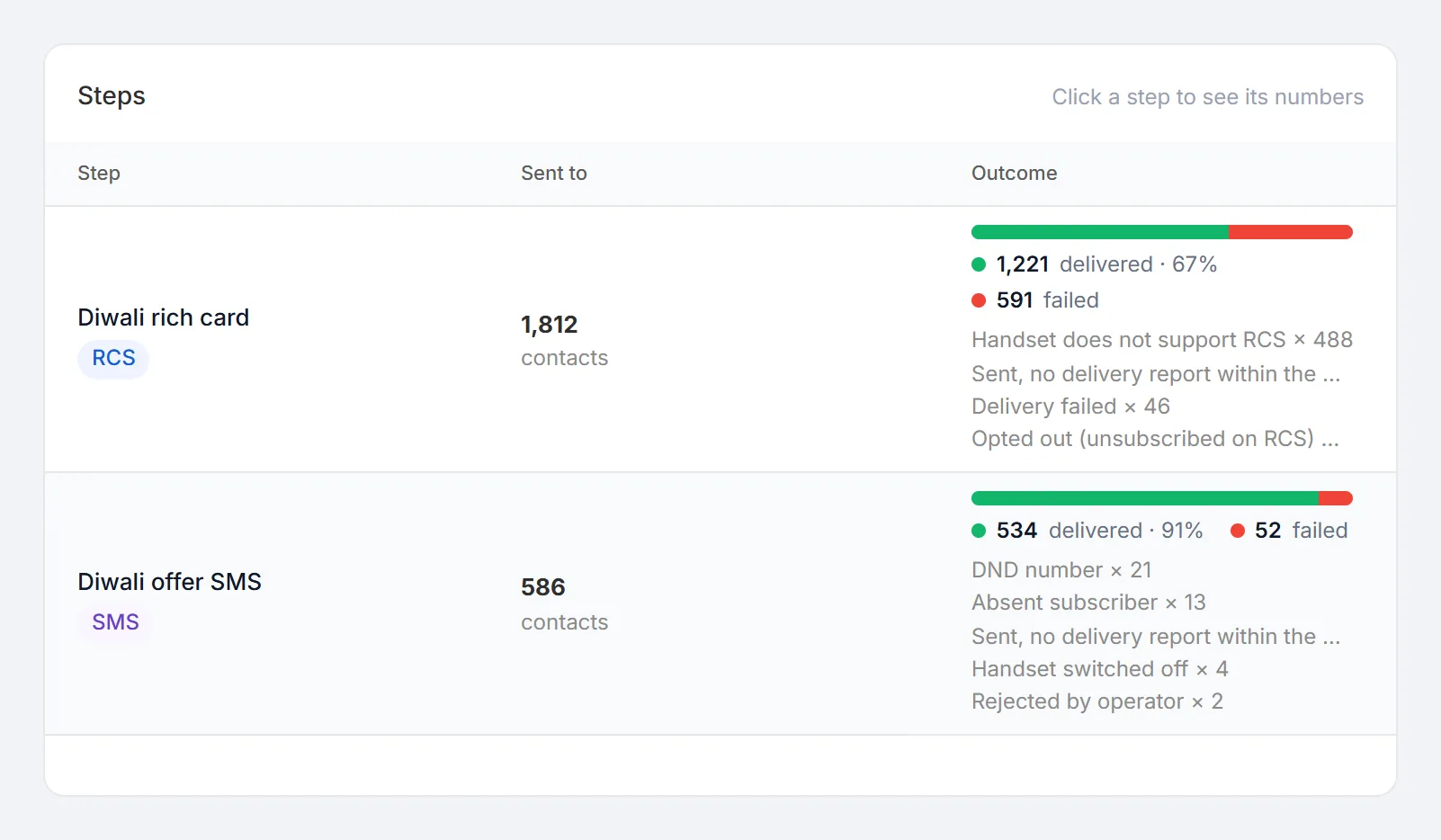
The 591 contacts RCS missed went to the SMS step, except 5 who had unsubscribed on RCS, which is why the SMS row shows 586.
What each step can do
| Step | What you choose | Results you can connect |
|---|---|---|
| SMS | DLT sender ID, DLT template linked to it, wait for result | Sent, Delivered, Failed, Not delivered |
| Sender number, Template Message or Direct Send (Utility), template, wait for result | Sent, Delivered, Read, Failed, Not delivered | |
| RCS | RCS bot, type (Plain, Rich, Carousel, Media), text, media, buttons, wait for result | Sent, Delivered, Read, Failed, Not delivered |
| Voice | Simple, Key Press (DTMF) or Call Patch, voice files, retries, wait for result | Answered, Not answered, Failed |
| Wait | 1 minute to 30 days | Goto |
| Condition | Result of an earlier step, reply received (WhatsApp / RCS), link clicked or your own event, counted in a time window | Yes, No |
| Frequency | Days of the week and a From/To time | Goto |
Each channel step waits for a result before it takes the Not delivered path (Not answered for Voice). The default result wait is 2 hours for SMS, 30 minutes for WhatsApp and RCS, and 15 minutes for Voice. In the step settings you can choose from 5 minutes to 24 hours. A result you leave unconnected ends the journey for that contact.
When to use Campaign and when to use a normal send
A one-time send from the SMS, WhatsApp, RCS or Voice app is still the right choice for many jobs. Use this table to decide.
| Use a normal send when | Use Campaign when |
|---|---|
| You send one message on one channel and are happy with its delivery rate. | The message must reach as many people as possible, so failed numbers should get another channel. |
| You do not need a follow-up. | You want a follow-up later (after 6 hours, the next day, after 3 days). |
| Everyone gets the same message once. | The next message depends on what the customer did (did not reply, did not pay, did not answer the call). |
| You send an OTP. | You send offers, reminders, order or booking updates, invites or feedback requests. |
| You send from your own code once per event. | Your website or app should start a whole series for each new customer with one API call. |
Good uses of Campaign:
- Offers and sales: rich RCS card first, SMS for phones that do not support RCS or did not get it.
- Order and delivery updates: WhatsApp utility message, SMS if it fails or is not delivered.
- Payment and EMI reminders: SMS, then a call after a few days only to customers your system has not reported as paid.
- Lead follow-up: WhatsApp first, a call only to people who did not reply.
- Welcome series: a welcome now, an offer after a few hours and a reminder the next day, started from your website by API. See start a journey by API and welcome message automation.
Three ways to start a campaign
- Send now or Schedule from the Launch Campaign page. A schedule can be up to 90 days ahead, in your account time zone.
- Repeat every day or on chosen weekdays at a set time, with optional From and Until dates. Good for weekly offers to a group. See pause, stop and repeat.
- By API from your website, app, CRM or store backend: one call puts numbers into the journey, up to 1,000 numbers per call. See event-triggered messaging.
What Campaign costs
There is no campaign fee, no builder fee and no monthly fee. Every step is charged at that channel’s normal rate from the same wallet, the same as a normal send. At the time of writing, the public rates are:
| Channel | Price at the time of writing |
|---|---|
| SMS | ₹0.25 per SMS from a ₹100 recharge, down to ₹0.11 on bigger recharges (SMS pricing) |
| ₹0.95 per marketing message, ₹0.25 per utility message (WhatsApp pricing) | |
| RCS | ₹0.35 per message (RCS pricing) |
| Voice | ₹0.25 per 15-second pulse, answered calls only (voice call pricing) |
Before you launch, the panel shows the price per step and a Max cost (as if every step went to everyone). Your wallet must cover the first step for all contacts. Failed WhatsApp and RCS messages are refunded by the nightly refund job, about 2 days after sending. On standard billing, SMS that fail are not refunded. A voice step holds an amount for each number when the calls are placed and keeps only the answered pulses. If the balance runs out in the middle, the run shows Paused: low balance and continues by itself after you add money; after 3 days without enough balance it stops. Details: campaign charges and refunds.
Rules and limits to know
- Up to 200 campaigns per account, and up to 200 boxes and 400 connections in one journey.
- Sheets: CSV, XLSX or XLS up to 20 MB and up to 10 lakh rows. Invalid and duplicate numbers are skipped and counted. Each number gets the journey once per run.
- A contact’s journey ends at most 30 days after the run started. A contact never gets the same step twice in one run.
- One open run per campaign at a time. Stop it before launching the same campaign again.
- Promotional SMS goes out only between 10:01 AM and 8:55 PM. Outside that time the step waits and sends when the window opens. Promotional RCS bots send between 7 AM and 10 PM. Voice calls go out only between 10 AM and 9 PM.
- A run hands out at most 5,000 contacts a minute (4,800 when the step is WhatsApp, 3,000 when it is RCS). For example, 1 lakh contacts with an SMS first step take at least 20 minutes to start. You can slow it down with contact limits per minute, hour or day.
- DLT rules apply to every SMS step and approved templates to every WhatsApp template step. People who blocked you on WhatsApp, unsubscribed on RCS or are in your voice blacklist leave the journey.
Frequently asked questions
What is a multi-channel campaign in Fast2SMS?
It is one journey that can use SMS, WhatsApp, RCS and Voice. Each contact moves to the next step based on the result of the previous one, for example only if the message failed or was not delivered, or after a wait or condition you set.
Is there an extra charge for using Campaign?
No. There is no campaign or builder fee. Each message is charged at the normal rate of its channel from your wallet.
Can I send WhatsApp first and SMS only if WhatsApp fails?
Yes. Connect the Failed and Not delivered results of the WhatsApp step to an SMS step. See set up SMS fallback.
Can my website start a campaign for each new sign-up?
Yes. Copy the ready code from Get API code in the Campaign List (the ⋮ menu of the campaign) and call it from your server when someone signs up. Numbers sent on the same day join that day’s API run of the campaign.
Can team members use Campaign?
No. Campaign opens only on the main account login, because it spends the wallet.
Which numbers can I send to?
Indian mobile numbers only: 10 digits starting with 6, 7, 8 or 9. A leading 91 or 0 is removed for you.
Does Campaign track link clicks by itself?
No. A Condition step can check clicks only if your system posts a click event to the campaign event API.
Can I test a campaign before sending it to everyone?
Yes. Click Send test on the Launch Campaign page and enter up to 10 numbers. Normal charges apply to test messages.