
To launch a campaign in Fast2SMS, open Campaign, click Launch Campaign, pick a saved journey, choose your contacts, match the variables, pick Send now, Schedule or Repeat, check the cost and press Launch now. This guide walks through every part of the Launch Campaign page, including contact limits and the test send.
Before you start
- A saved campaign with at least one SMS, WhatsApp, RCS or Voice step. If you do not have one yet, see create a campaign journey or start from a ready journey.
- The campaign switched on in the Campaign List (Status switch).
- Wallet balance that covers the first step for all your contacts.
- Your contacts: a CSV, XLSX or XLS sheet (up to 20 MB, one contact per row), an Address Book group, or numbers you can paste.
How to launch a campaign
-
Open Launch Campaign and pick the campaign
In the Campaign app, click Launch Campaign in the left menu. You can also use the Launch button in the builder, or Launch in a campaign’s ⋮ menu on the Campaign List. Open the Campaign dropdown: each saved journey shows its channels and number of steps. Type in Search campaigns… to find one, or click Create new campaign. After you pick one, the Edit journey link opens it in the builder.
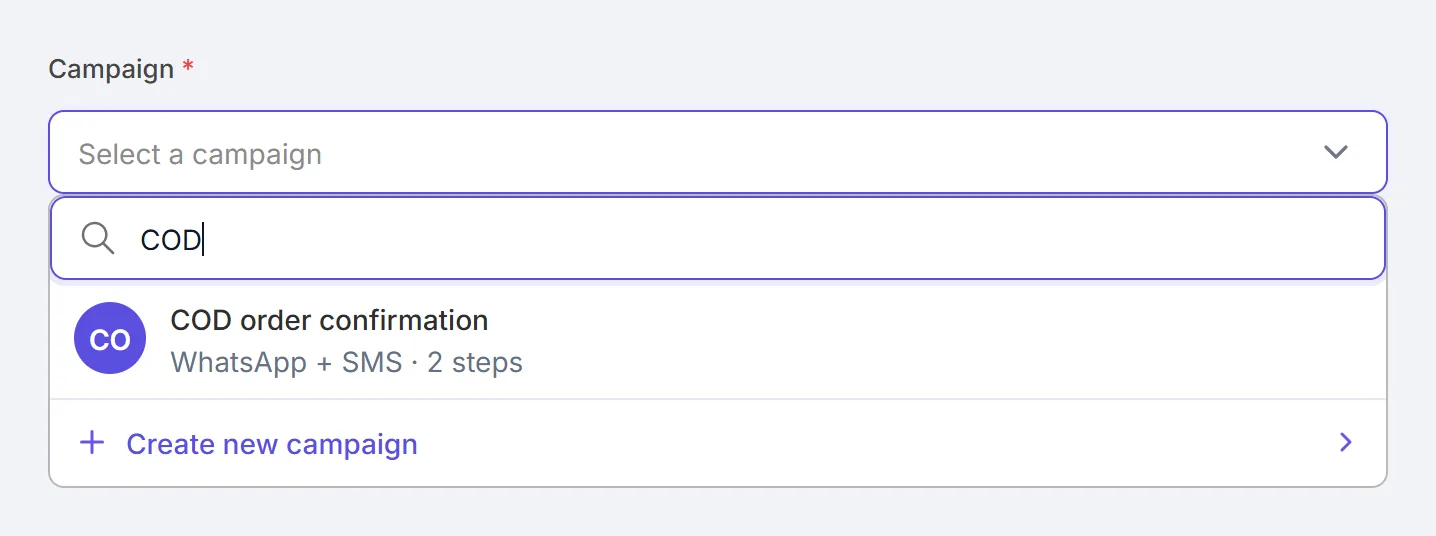
Typing part of the name narrows the list; the grey line under each name shows its channels and step count. -
Choose contacts: CSV File
Under Send To, click CSV File and upload a CSV, XLSX or XLS sheet with a header row. You see the file name and size, the first rows, the Total Contacts and the Mobile number column. The mobile column is picked for you from headers like mobile, number or phone; if the wrong one is picked, change it in the dropdown. A sheet with more than 5,000 rows shows “Counting numbers…” while it is counted in the background.
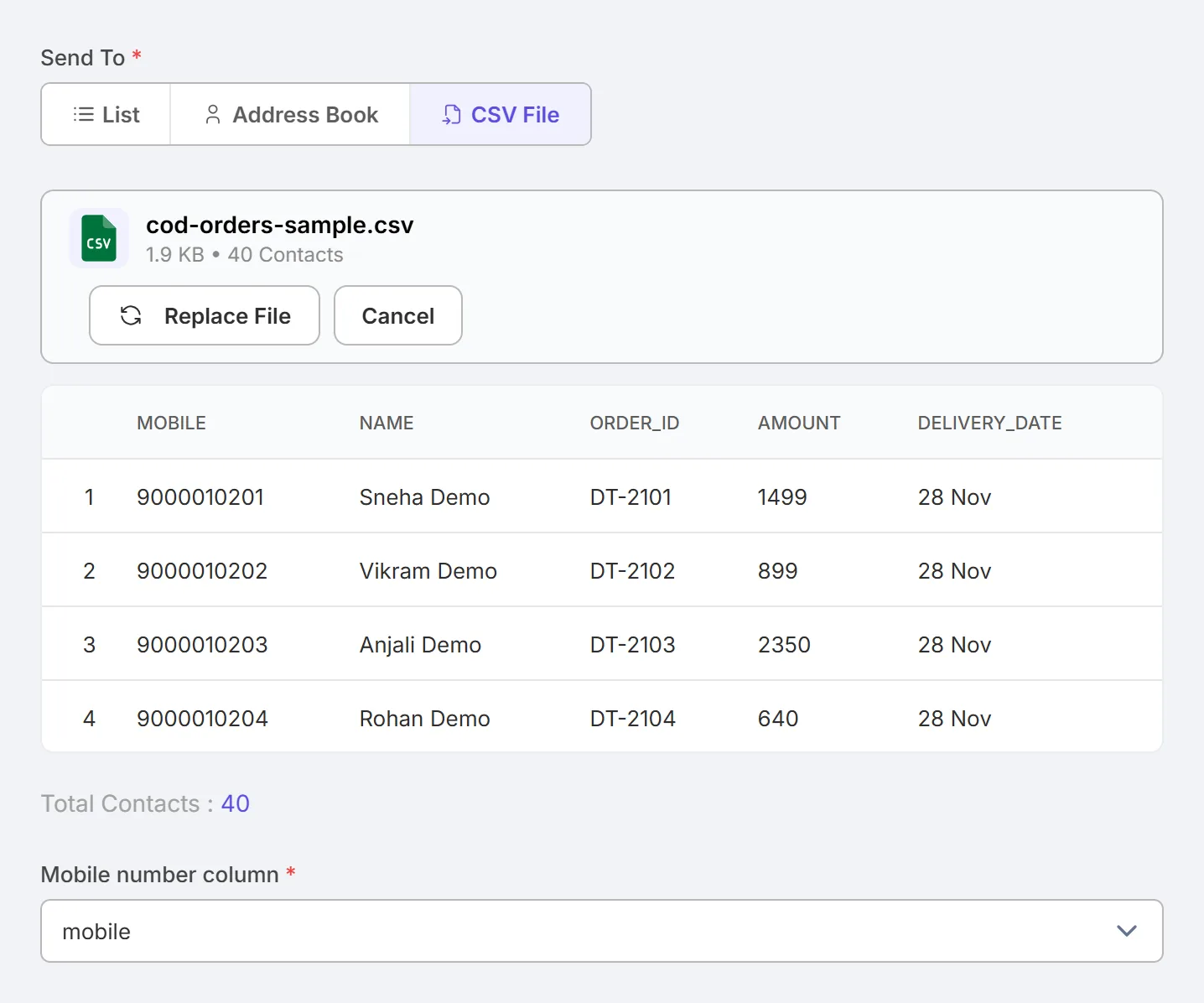
Check that Mobile number column points at the column with the phone numbers (here “mobile”), not at an order number. -
Or paste a List of numbers
Click List and paste mobile numbers into Mobile Numbers, one per line or separated by commas (up to 1,00,000). A number pasted twice is counted and sent once. Use this for a quick send when you do not need personal variables, because a pasted list has only the mobile number.
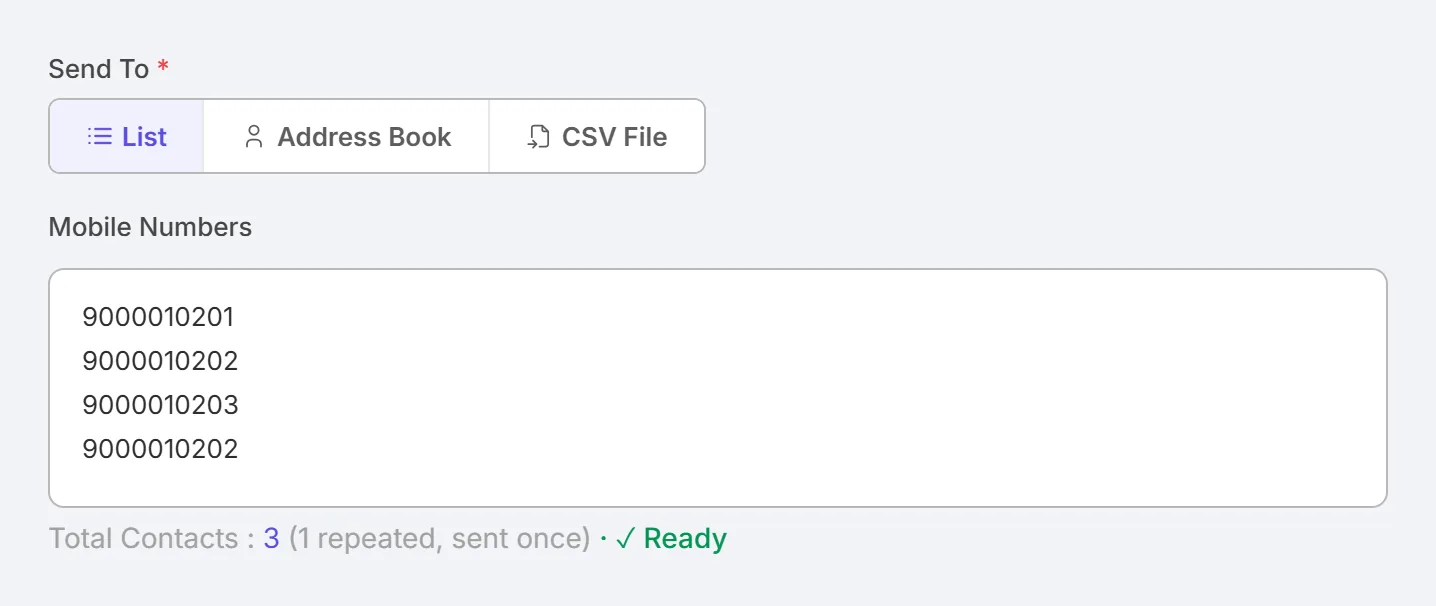
Four lines were pasted, but 9000010202 appears twice, so Total Contacts shows 3. -
Or send to Address Book groups
Click Address Book, then Choose Contacts. In the drawer, tick one or more groups and click Submit. The groups then show under Selected Recipients with their contact counts; click the x to remove one. Group contacts carry name, number, email and city (plus your custom fields), which you can use as variables.
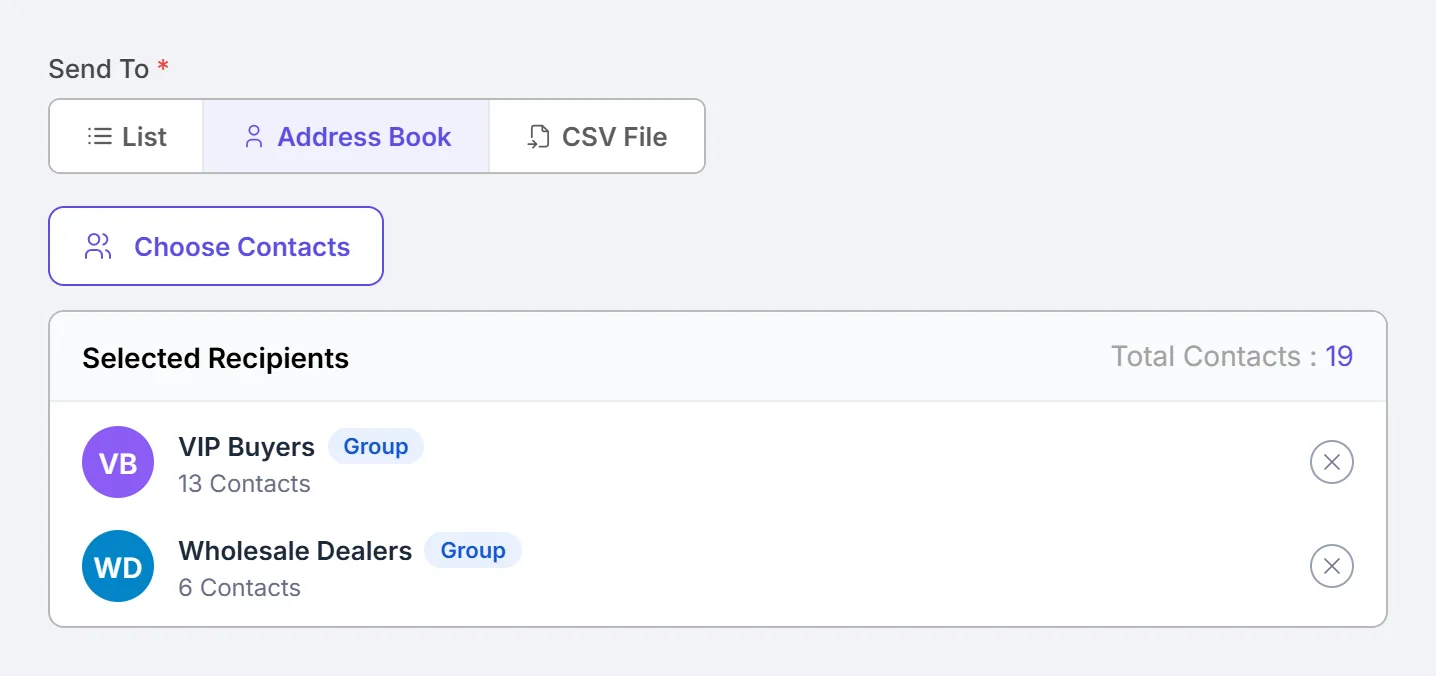
Two groups are selected: 13 + 6 = 19 contacts in Total Contacts. -
Match the variables
Under Variables every SMS
{#var#}and WhatsApp{{1}}placeholder in your steps is listed, step by step. For each one, choose a column of your contacts, or choose Fixed text and type the same value for everyone. Column names match even if the case or spaces differ (“Customer Name” matches customer_name). RCS steps use the column names written in their message, like{{name}}, so keep those columns in your sheet. Voice steps have no variables.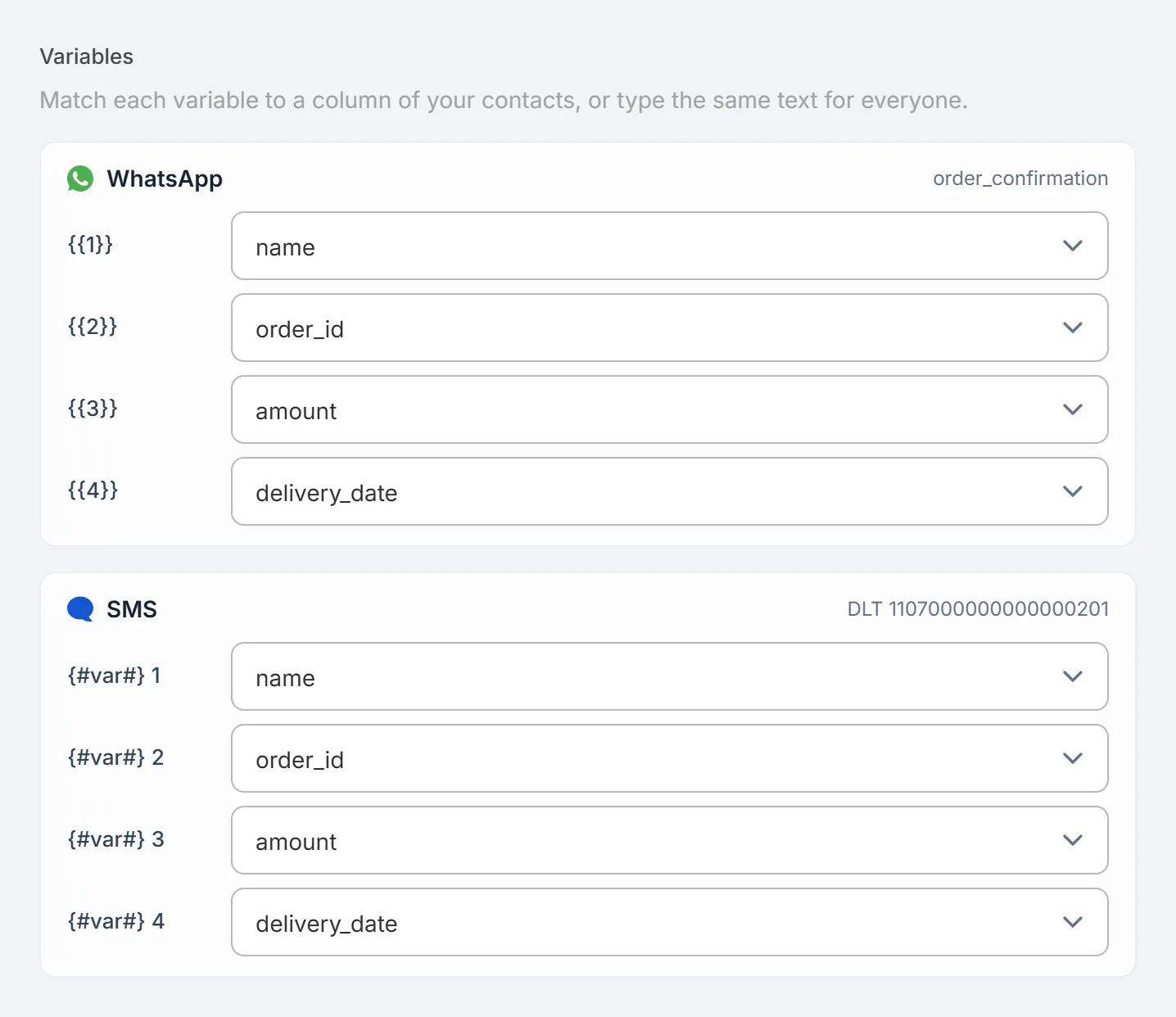
Both steps send the same order details, so the WhatsApp and SMS variables point at the same four sheet columns. DLT allows up to 30 characters per SMS variable value. If a value is longer, that number’s SMS is not sent and counts as Failed with the reason “Variable longer than 30 characters (DLT rule)”. See DLT variable limits. -
Choose when: Send now or Schedule
Under Schedule, keep Send now to start as soon as you confirm, or click Schedule and set Select Date and Enter Time. Times are in India time (IST), shown as “Your account time zone.” You can schedule up to 90 days ahead. A time in the past is refused with “Start time is in the past.”
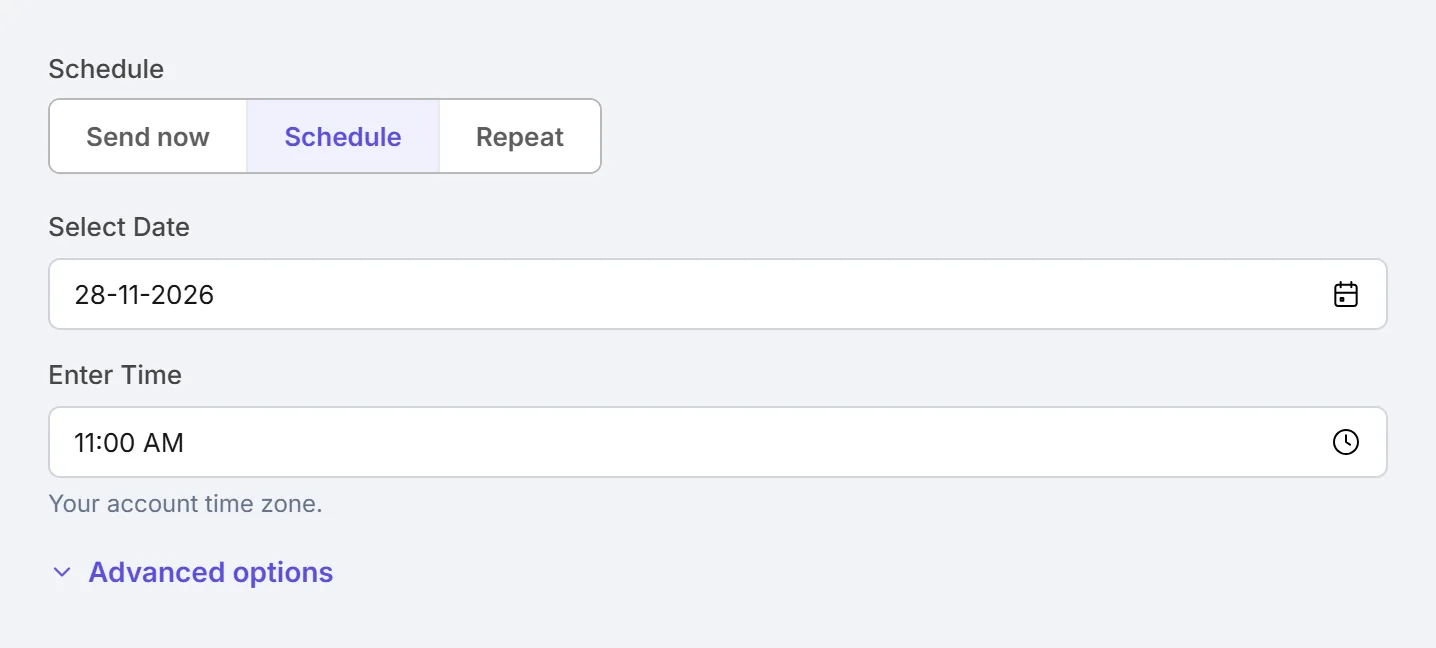
This run will start on 28 Nov 2026 at 11:00 AM; the button at the bottom changes to Schedule campaign. -
Or choose Repeat
Click Repeat to run the campaign Every day or on Chosen weekdays at a set time (At), with optional From and Until dates. The line under the dates sums it up, and the button changes to Start repeating. To stop the repeat later, switch the campaign off in the Campaign List. More in pause, stop and repeat.
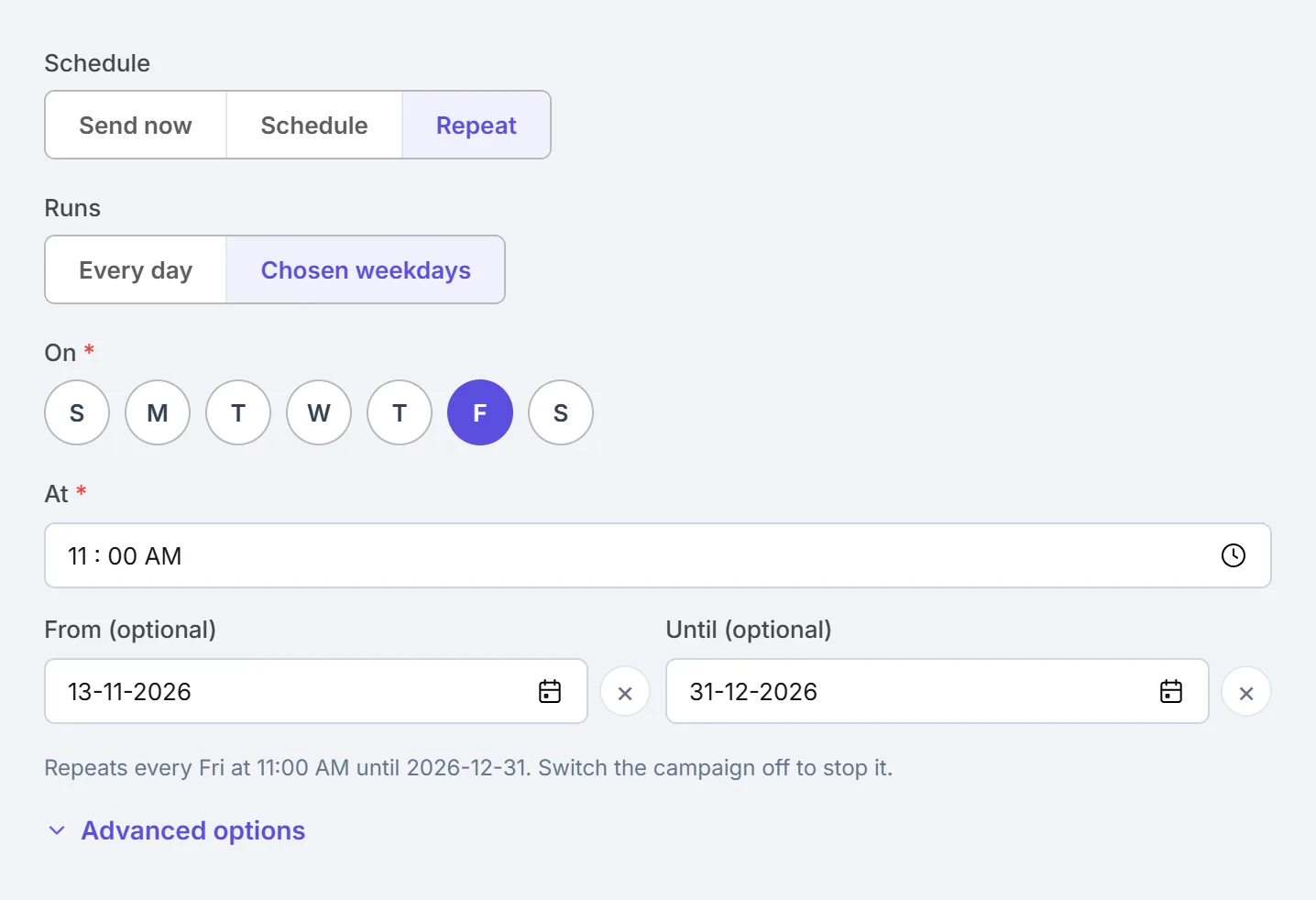
A weekly offer: only Friday is selected, so it runs every Friday at 11:00 AM until 31 Dec 2026. -
Set contact limits (optional)
Click Advanced options to see Contact limits (optional): per minute, per hour and per day. Use them to slow the sending down, for example when your call centre can handle only a few hundred calls an hour. Leave a box empty for no limit. Without your own limit, a run starts at most 5,000 contacts a minute (4,800 on a WhatsApp step, 3,000 on an RCS step).
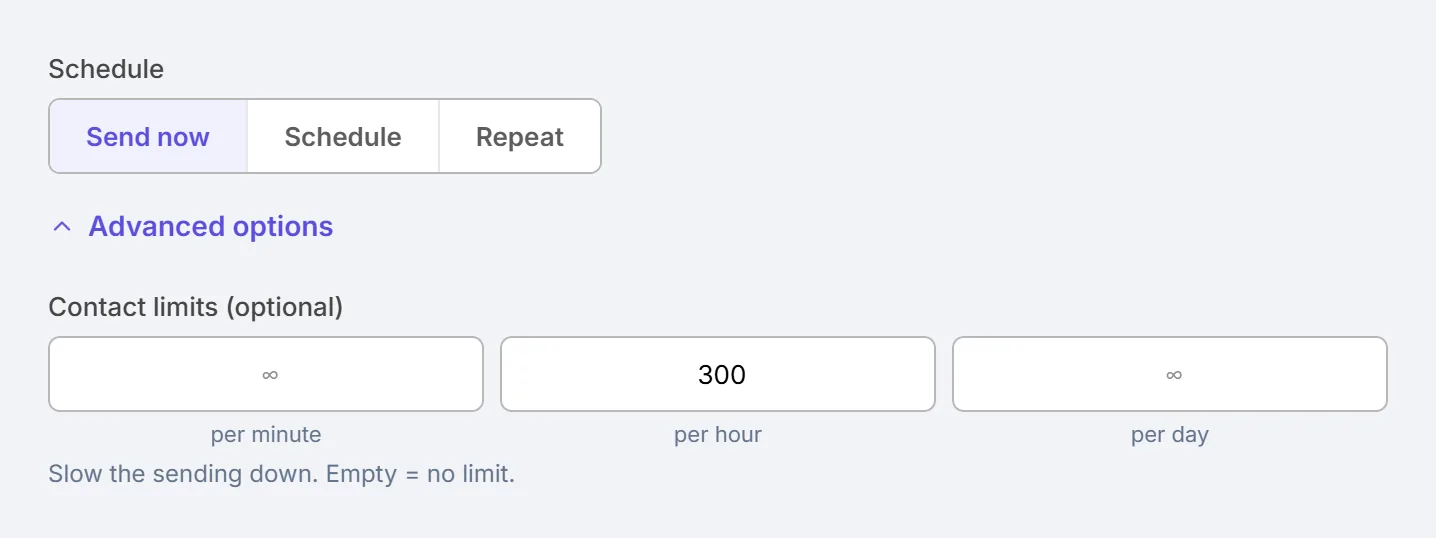
With 300 per hour, this run sends at most 300 messages or calls (all steps together) in any hour; the empty boxes mean no limit per minute or per day. -
Send a test
Click Send test, enter up to 10 numbers (comma or new line) and click Send test in the popup. Variables use the first row of your sheet, and normal charges apply. A test can run even while the campaign has a live run, and it gets its own report marked “Test run”, so you can check each step before the real launch.
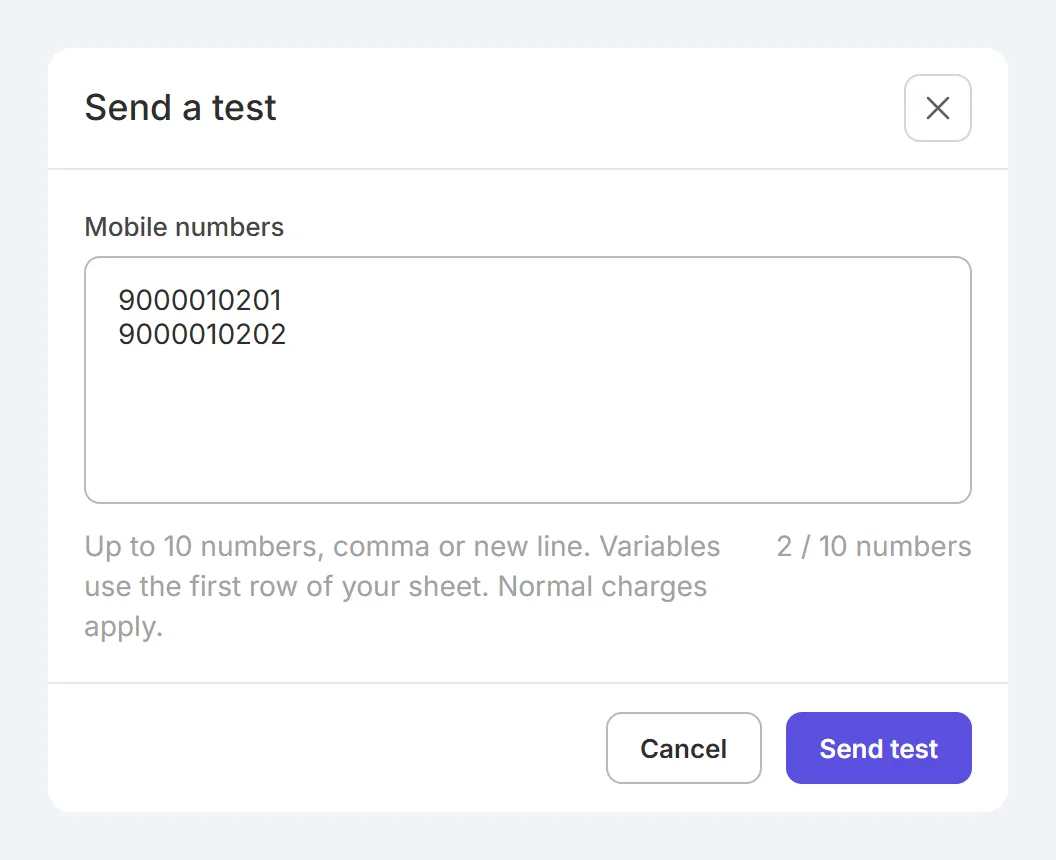
The counter shows how many of the 10 test numbers you have used. -
Check the cost and the journey
On the right, Cost shows the price of each channel step (SMS per contact with the number of SMS parts, WhatsApp per message with its category, RCS per message, Voice per answered 15 seconds), your contacts, your Wallet Balance and the Max cost. Max cost assumes every step goes to everyone, so you usually pay less. Journey lists the steps in order with the result that leads to each next step.
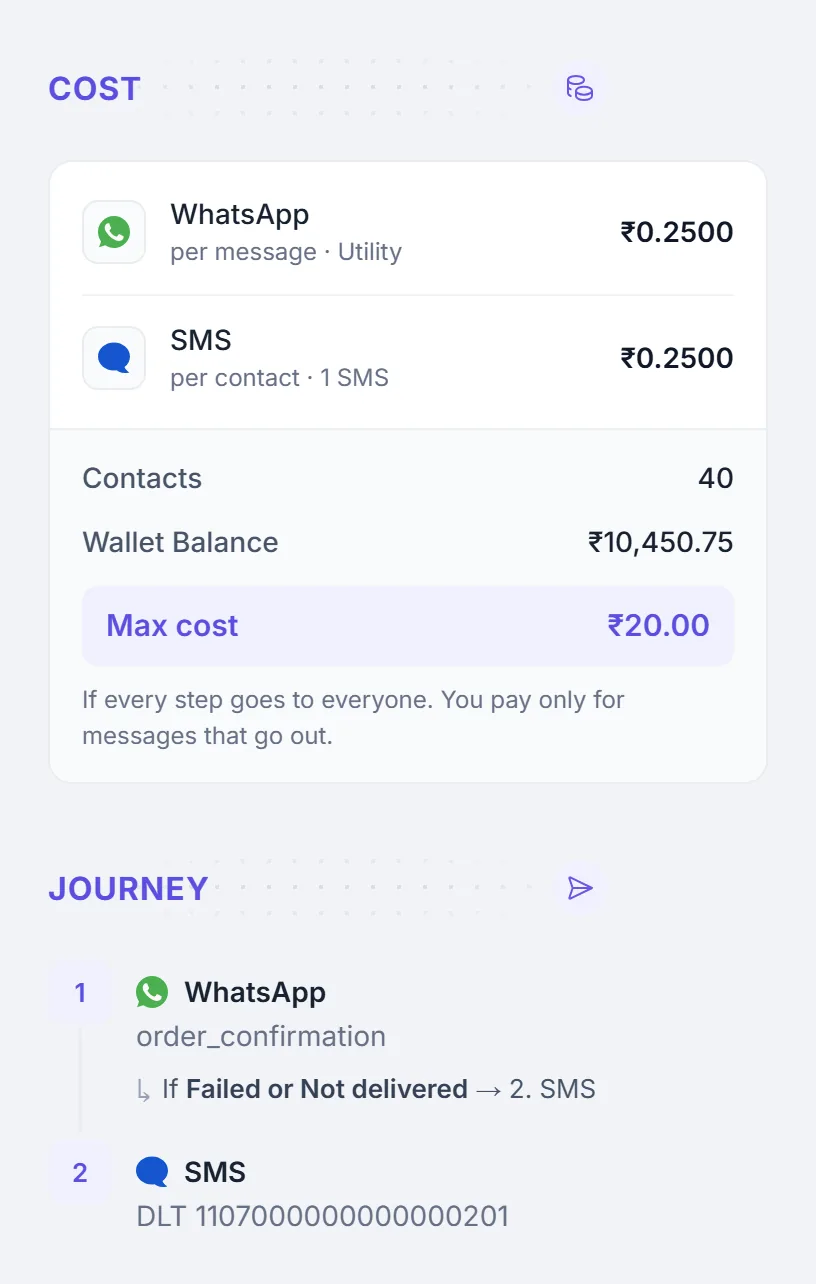
40 contacts x (₹0.25 + ₹0.25) = ₹20.00 Max cost; the SMS is charged only for contacts WhatsApp missed. -
Launch
Click Launch now (or Schedule campaign / Start repeating). The journey is checked first. If something needs fixing, a Fix these before launching box lists it. Otherwise the Ready to launch? popup shows the campaign, channels, contacts, when it starts, the price of each step, your wallet balance and the max cost. Click Launch now in the popup to start, or Cancel to go back without sending anything.
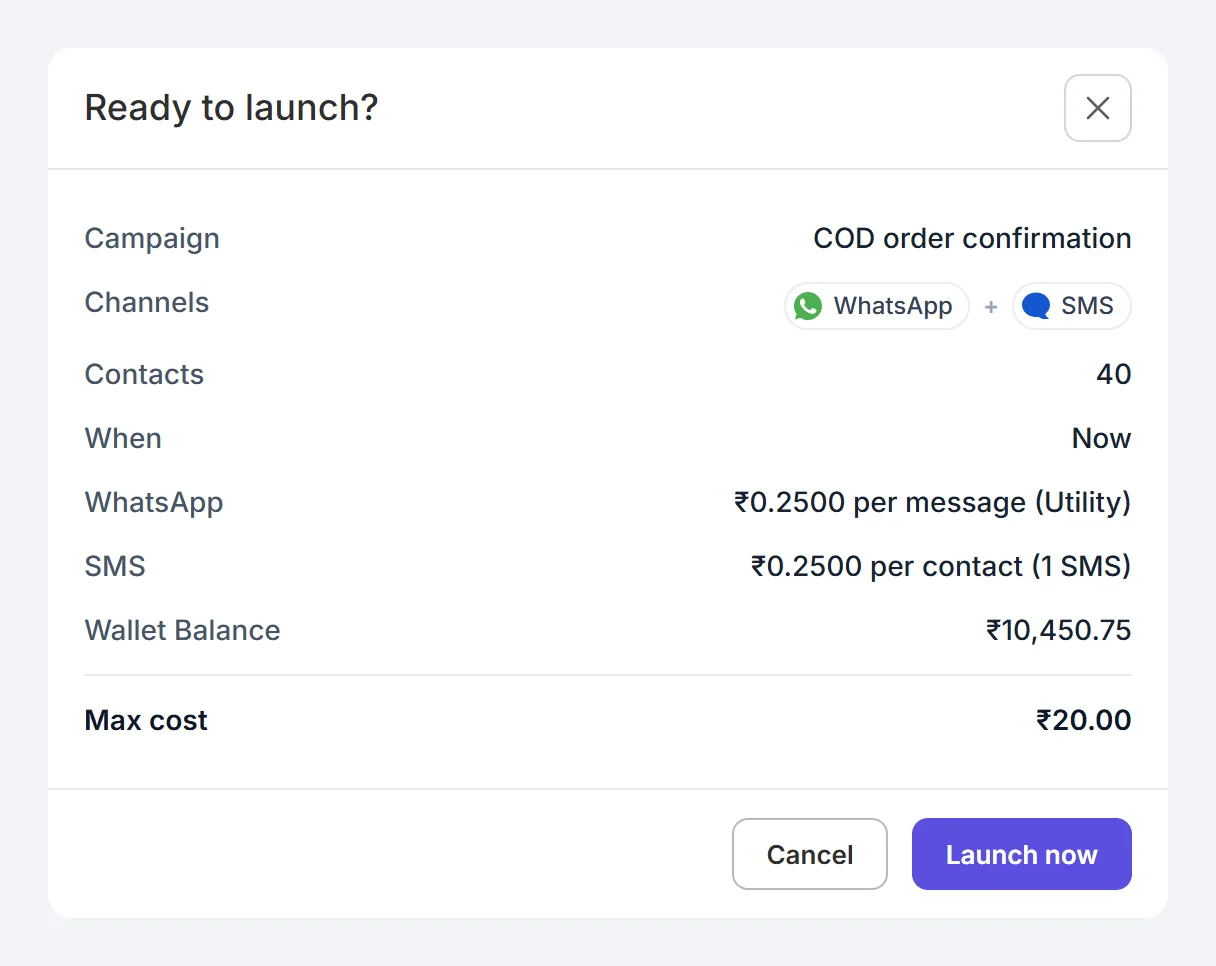
Nothing is sent until you press Launch now in this popup; Cancel leaves everything unsent.
Contact rules on the Launch page
| Rule | Limit |
|---|---|
| Sheet types | CSV, XLSX, XLS, up to 20 MB |
| Rows per sheet | Up to 10 lakh. Split bigger sheets. |
| Pasted list | Up to 1,00,000 numbers |
| Numbers accepted | Indian mobiles, 10 digits starting 6-9. A leading 91 or 0 is removed. |
| Invalid or duplicate numbers | Skipped and counted. Each number gets the journey once per run. |
| Test send | 1 to 10 numbers, normal charges |
| Schedule | Up to 90 days ahead, India time (IST) |
| Open runs | One open run per campaign. Stop it before launching again. |
Common problems and fixes
- “This campaign is switched off. Switch it on in the Campaign List, then launch.” Turn on the Status switch for that campaign.
- “This campaign is already running or scheduled. Stop it before starting it again.” Stop the open run, or Duplicate the campaign and launch the copy.
- “Wallet balance ₹X is below the cost of the first step…” Add money and launch again.
- “No valid 10-digit mobile number found in column…” Pick the right Mobile number column.
- “The contact sheet is still being counted. Try again in a moment.” Wait a few seconds and press Launch again.
More fixes: campaign errors and fixes.
Frequently asked questions
Can I launch the same campaign to two lists at the same time?
No. One campaign can have one open run. Duplicate the campaign and launch the copy to the second list.
What does Max cost mean?
It is the price if every step went to every contact. Fallback steps go only to people not reached, so the real charge is usually lower.
Are test messages free?
No. Test sends are charged like normal messages, but the wallet check before launch does not apply to them.
Can I schedule a campaign for next month?
Yes, up to 90 days ahead. Scheduled runs appear in Campaign Report > Schedule, where you can cancel them before they start.
Can I use Excel files?
Yes. XLSX and XLS work the same as CSV. Keep one contact per row and a header row with column names.
How do I send to a different list next week?
Wait for the current run to finish (or stop it), then open Launch Campaign again and choose the new contacts.
What time zone does Schedule use?
India time (IST). The panel shows it as “Your account time zone.”