
To check your DLT registration status, log in to the DLT portal where you registered your business (Jio, Airtel, Vi, BSNL, Tata or Smartping) and look at your entity, headers and templates there. The portal also emails and texts you when a request is approved or has a problem. Once you have an Entity ID, you can also check it in Fast2SMS: adding it in DLT Manager tells you straight away whether the ID exists on the DLT platform.
This guide shows where to find your DLT registration number, how to read each status, and what to do when something is stuck.
What you can check and where
| Item | On your DLT portal | In Fast2SMS |
|---|---|---|
| Entity (business) registration | Approved, pending or returned with a remark | DLT Manager > Entity ID |
| Header (Sender ID) | Status of each header you applied for | DLT Manager > Sender ID |
| Content templates | Status of each template and its Template ID | DLT Manager > Content Template |
| PE-TM chain | Your request to the telemarketer and your final approval | DLT Manager > PE-TM Binding |
The DLT portal is the source of truth. Fast2SMS shows the status of the records you added in your Fast2SMS account, which is a copy of what DLT approved.
How to find your DLT registration number (Entity ID)
Your DLT registration number is the Entity ID, also called the PE ID. It is a long number that the portal gives you once your business is approved. You can find it in:
- the approval email from the DLT portal (search your inbox and spam folder for the portal’s name),
- your profile or dashboard after you log in to the portal,
- the Excel export of your headers or templates, if your portal offers one.
Lost access to the portal login? Use the portal’s forgot password option with the email and mobile number you registered with. Only the person who registered can usually reset it, so keep those details current.
How long DLT approval takes
Each portal works on its own timelines and they can change. As one example, Vi’s DLT FAQ says, at the time of writing, that the registrar reports a successful check or a problem with your entity details within 72 hours, by email and SMS to your registered contacts, and checks content templates within 60 minutes. If you have heard nothing after that, log in and look for a remark on your request.
How to check your DLT status in Fast2SMS
-
Add your Entity ID to check it against DLT
Open the SMS app, go to DLT Manager > Entity ID and click Add New Entity. Type your Entity ID. Fast2SMS looks the ID up on the DLT platform. If it is found, you see “Entity ID is valid”, the entity name is filled in from DLT, and the entity is approved straight away. If it is not found, you are asked for the name and a screenshot from your DLT portal, and our team checks it.
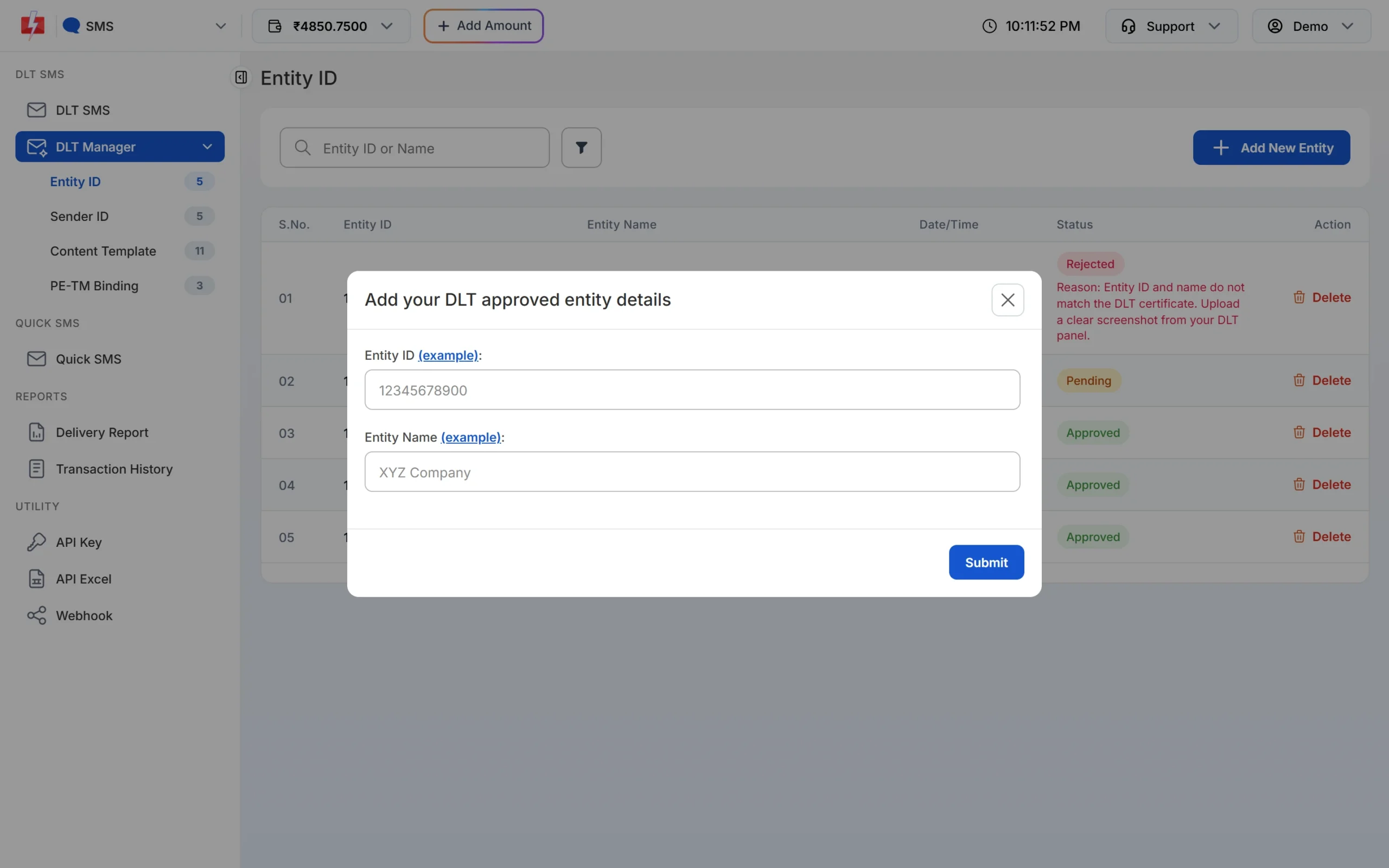
Enter the Entity ID from your DLT portal. -
Read the entity status
The Entity ID list shows each entity with its Date/Time and Status: Approved, Pending or Rejected. A rejected entity shows the reason in red, for example when the ID and name do not match the DLT certificate.
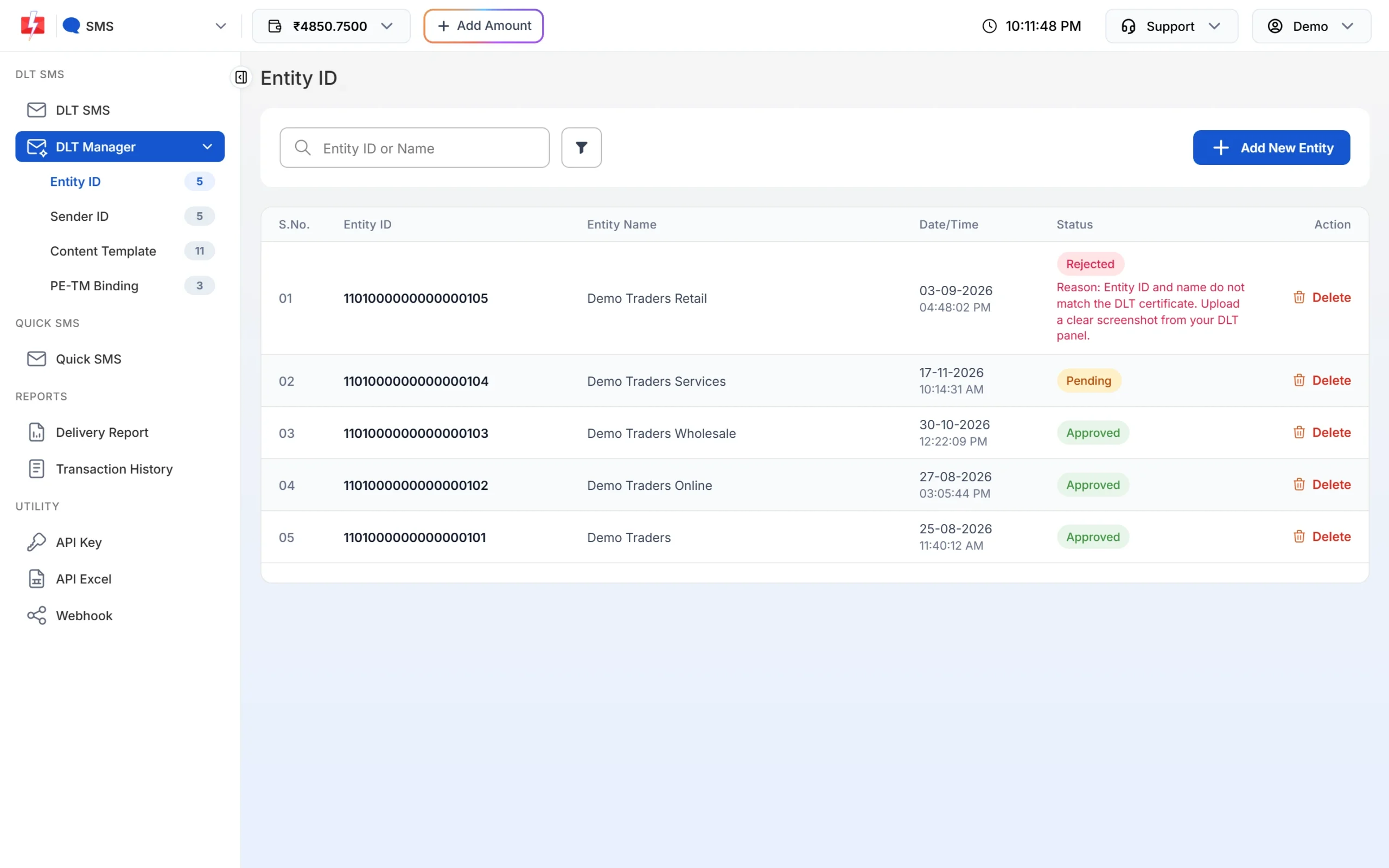
Each entity shows its status and, if rejected, the reason. -
Check your Sender IDs
Open Sender ID. Every header you added shows the entity it belongs to and its status. New headers start as Pending while our team checks your screenshot.
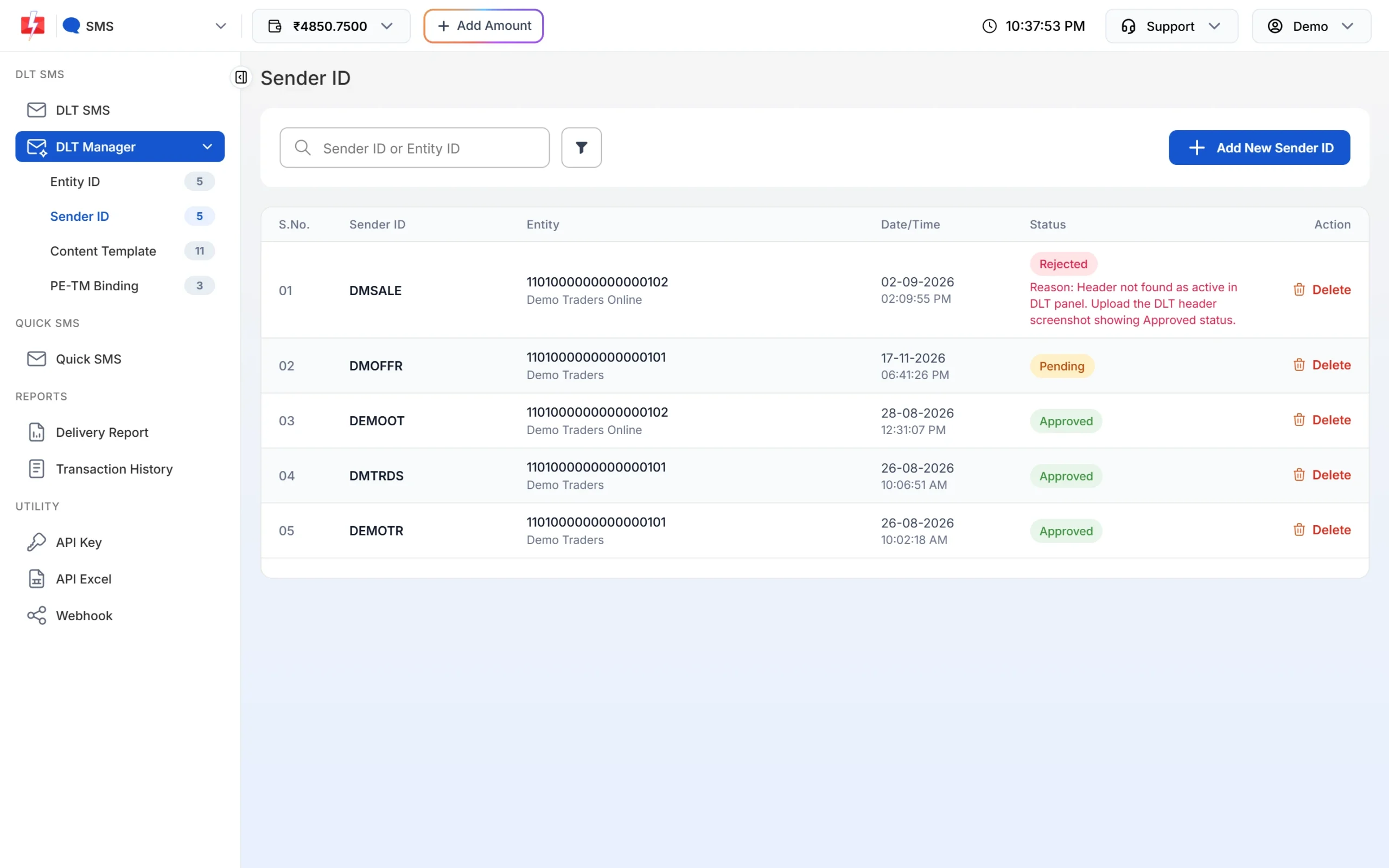
Header status in Fast2SMS, with the reason for a rejection. -
Check your templates and PE-TM chain
Open Content Template to see the APPROVED, PENDING or REJECTED badge on each template card. Then open PE-TM Binding. Both TM Approval and Final PE Confirmation must say Approved. If Final PE Confirmation is Pending with “Approve again from DLT Panel”, log in to your DLT portal and approve the chain there.
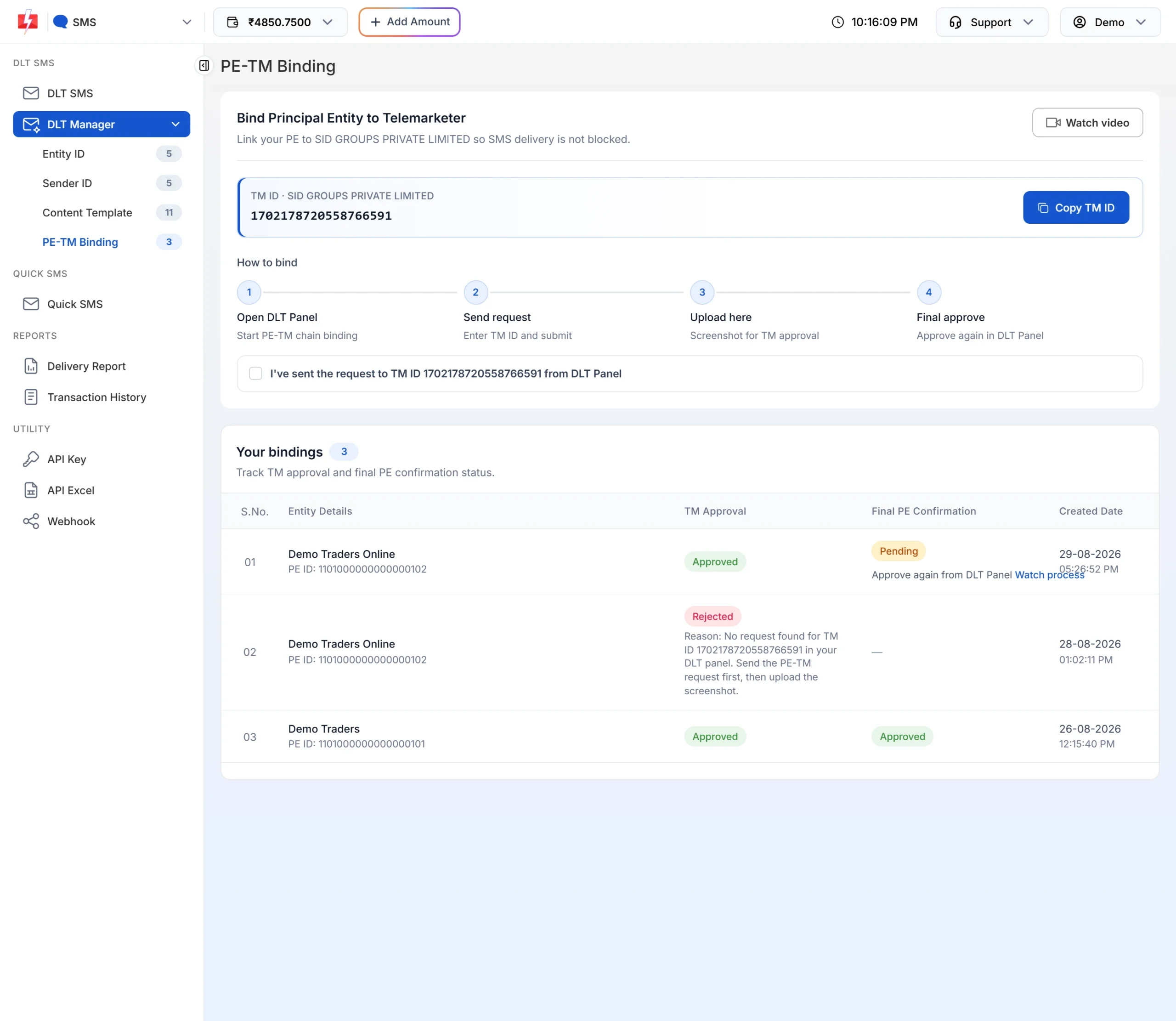
Both columns must show Approved before SMS can flow.
What each status means
| Status in Fast2SMS | Meaning | What to do |
|---|---|---|
| Approved | Ready to use for sending | Nothing. Keep it active on DLT too. |
| Pending | Waiting for a check by our team | Wait. A clear screenshot from your DLT portal speeds this up. |
| Rejected | The check failed. The reason is shown in red. | Fix the reason, click Delete and add it again. |
A header or template can stop working on DLT and still look Approved in Fast2SMS, for example after 90 days without use. If SMS start failing, check the status on your DLT portal as well.
Common problems and fixes
| Problem | Fix |
|---|---|
| “Invalid Entity ID” when adding it | Copy the full Entity ID from your portal. It must be digits only and longer than 11 digits. |
| Entity added but Pending | The ID could not be confirmed on DLT automatically. Upload a clear screenshot from your portal showing the ID, name and approved status. |
| Rejected: ID and name do not match | Type the entity name exactly as on your DLT certificate, or let the panel fill it in. |
| No email from the portal | Check spam, then log in and look for a remark on your request. |
| Template not showing when sending | The template must be Approved and linked to the Sender ID you picked. |
Frequently asked questions
How do I check my DLT registration status?
Log in to the DLT portal where you registered and look at your entity status. You can also add the Entity ID in Fast2SMS DLT Manager, which checks it against the DLT platform.
Where do I find my DLT registration number?
Your DLT registration number is the Entity ID (PE ID). It is in the approval email from the portal and in your profile on the portal.
Can I check DLT status without logging in?
Not the full details. If you only need to know whether an Entity ID exists, add it in Fast2SMS DLT Manager. Valid IDs are recognised at once.
How do I know if my header is approved?
Check its status on your DLT portal. After you add it in Fast2SMS, the Sender ID list shows its status here too.
Why is my entity Pending in Fast2SMS?
The ID could not be confirmed on the DLT platform automatically, so our team checks the screenshot you uploaded.
Do I need to check status on every operator’s portal?
No. One registration on one portal works for all operators, so check only the portal where you registered.
How often should I check my DLT status?
Before big campaigns and around your yearly renewal. Unused headers and templates can be switched off after 90 days.