
DLT template approval has two parts. First your operator’s DLT portal approves the template; how long that takes depends on the portal, and TRAI sets no fixed time. Then you add the approved template to Fast2SMS, where it stays Pending until our team checks it. An approved DLT template cannot be edited. To change the text, you register a new template and delete the old one.
This guide covers approval time, what each status means in Fast2SMS, how to add many templates at once from your DLT Excel file, and how to delete a template safely.
How long does DLT template approval take?
There is no single answer. Each portal (Jio, Airtel, Vi, BSNL, Smartping, Tata and others) has its own review queue and its own checks. A simple, clearly worded template from a business whose entity and header are already active usually moves faster than a template that is unclear, too short or full of variables. Rejected templates go back to you with a reason, and you submit a corrected one.
To keep approval quick:
- Choose the right category: Service Implicit for OTPs and order updates, Service Explicit or Promotional for offers.
- Put your brand name in the fixed text.
- Use as few variables as you need, and choose the right variable type for links, numbers and call-back numbers.
- Make sure every link and call-back number in the template is already whitelisted.
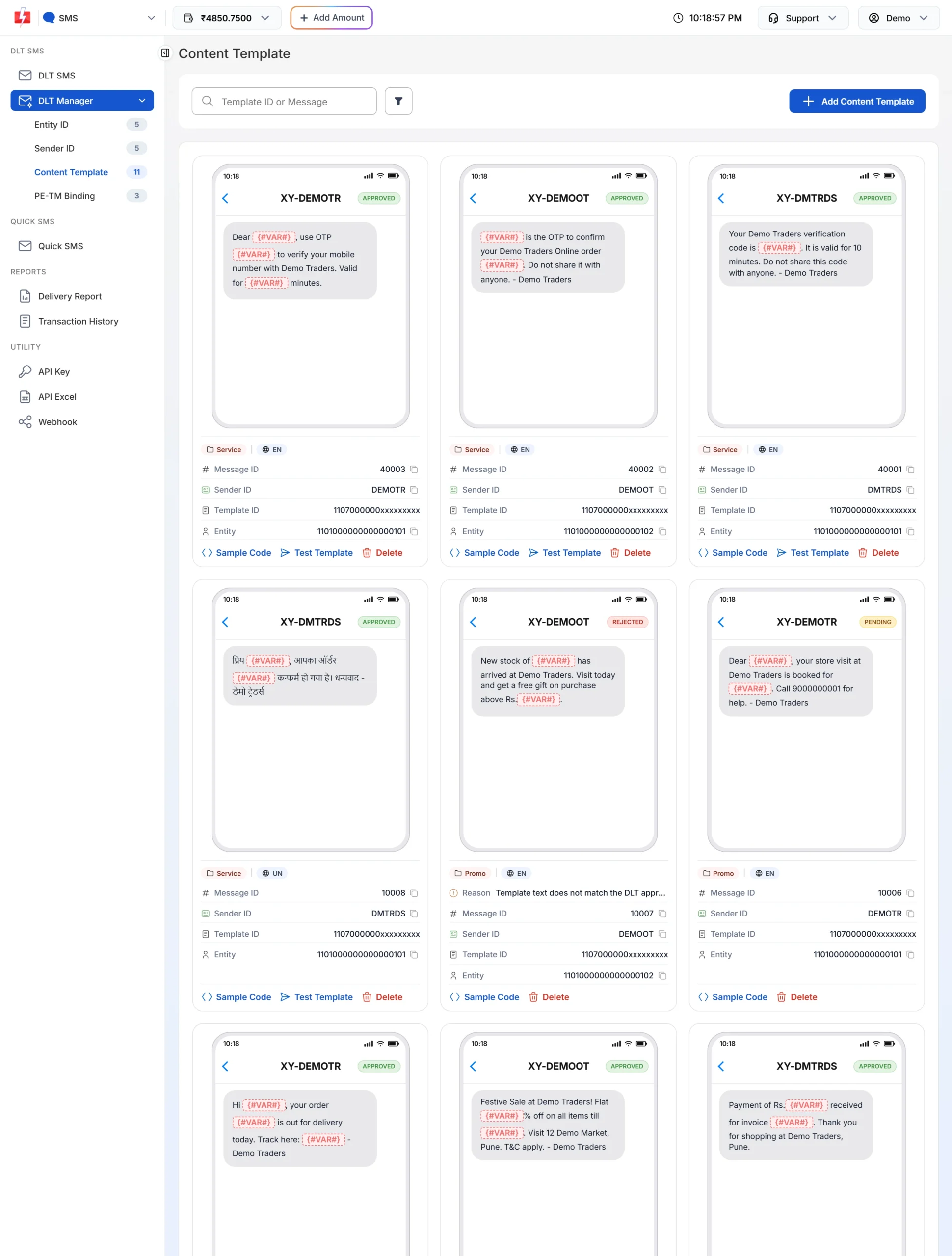
Template statuses in Fast2SMS
| Status | Meaning | Can I send with it? |
|---|---|---|
| Pending | You added the template and Fast2SMS is checking it against your DLT approval. | No. It does not appear in the template picker yet. |
| Approved | Ready to use. The card shows Sample Code, Test Template and Delete. | Yes, with the sender IDs linked to it. |
| Rejected | The template could not be verified. The card shows the Reason, for example that the text does not match the DLT approved text. | No. Fix the issue and add it again. |
How to add many templates at once from your DLT Excel file
Most DLT portals let you download your templates as an Excel or CSV file. Fast2SMS can read these files, so you do not have to type each template.
-
Download the template file from your DLT portal
Log in to your DLT portal and export your content templates. Do not change the column names.
-
Upload it in Fast2SMS
Go to DLT Manager > Content Template > Add Content Template. Select your entity, choose Upload Excel, upload the file and click Submit.
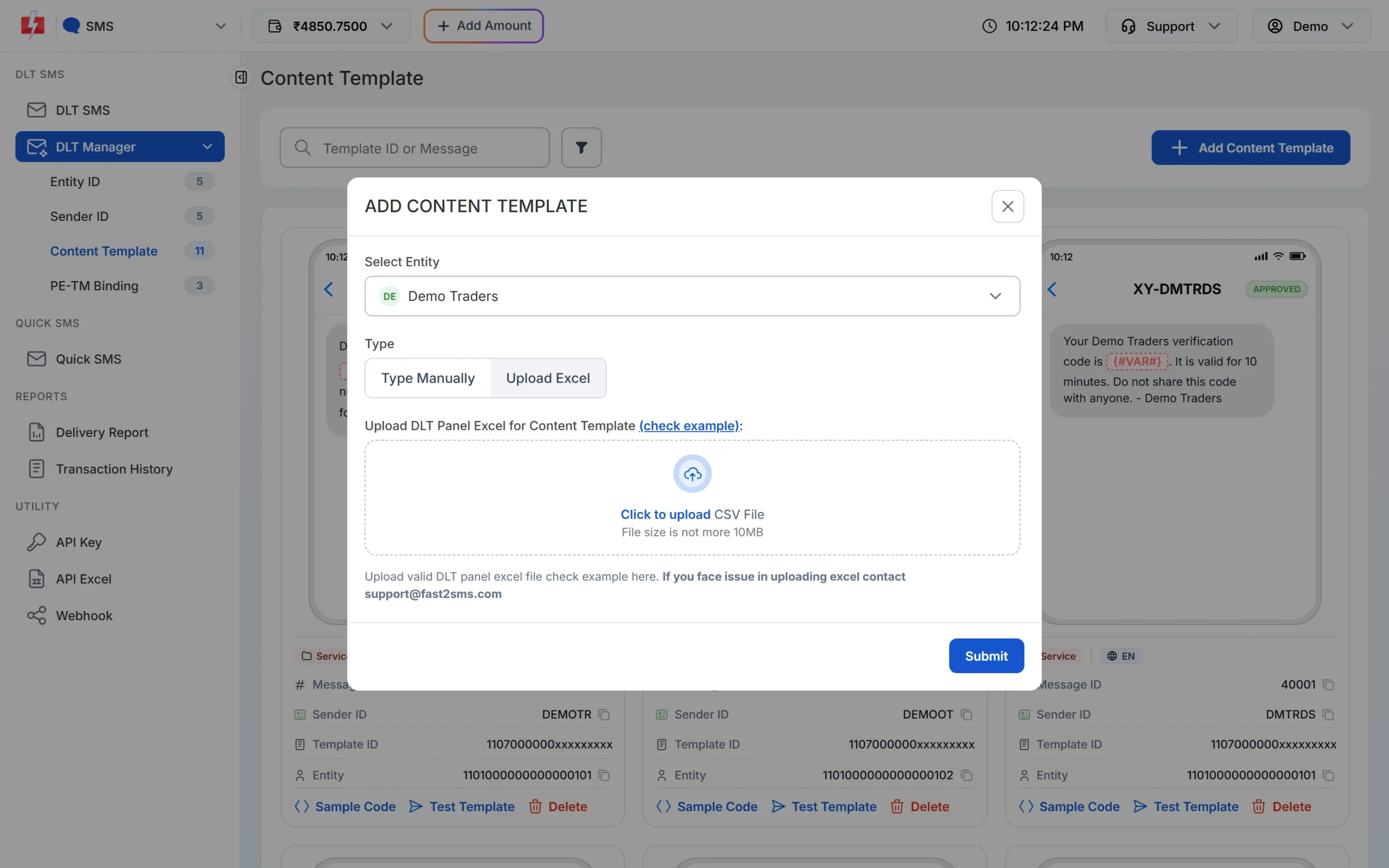
Upload the Excel or CSV file exported from your DLT portal. -
Check the result
Fast2SMS imports only templates that are approved or active in the file. Templates marked transactional or implicit are saved as Service Implicit; the rest as Service Explicit or Promotional. If the file names a sender ID you have not added yet, it is created as a pending sender ID. You will see “N Content Templates uploaded successfully (pending for approval).” All imported templates start as Pending.
If the upload fails, open the file in Excel, save it again as .xlsx and retry. If it still fails, write to [email protected] with the file.
Can I edit an approved DLT template?
No. Once a template is approved on DLT, its text is fixed. Even a small change, such as a new phone number or an extra word, needs a new template. The steps are:
- Register the new template on your DLT portal and wait for approval.
- Add it to Fast2SMS with Add Content Template.
- Switch your campaigns and API calls to the new template’s Message ID.
- Delete the old template in Fast2SMS when nothing uses it any more.
Fast2SMS has no edit button for templates for the same reason. The text must always match DLT exactly.
How to delete a template in Fast2SMS
On the template card, click Delete. The Confirm Deletion window asks for your account password and a tick on “I accept that deleting this Content Template will make it invalid for all future campaigns and API requests.” Then click Delete.
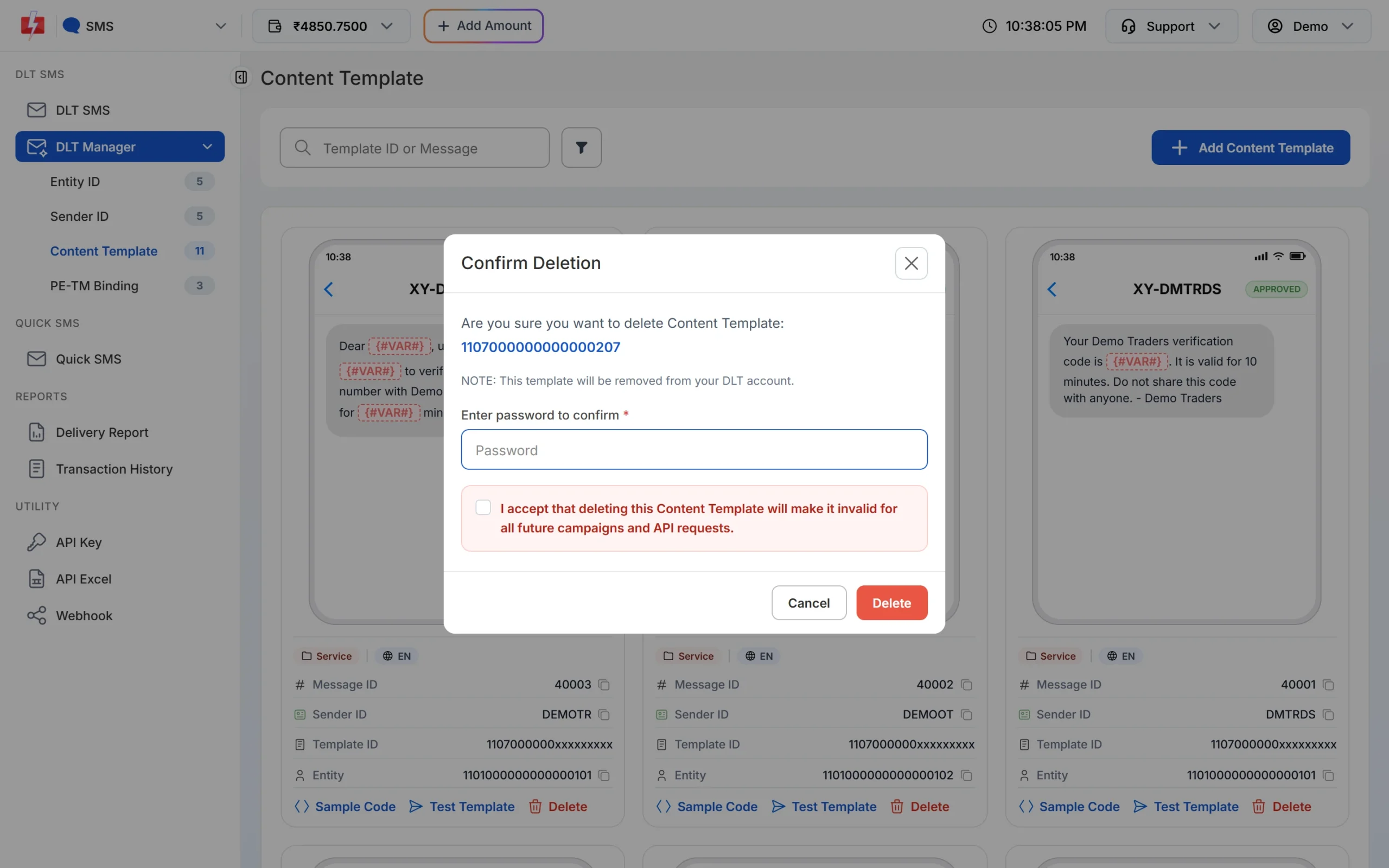
Deleting a template in Fast2SMS does not delete it from your DLT portal. If you want it gone there as well, do that on the portal.
Frequently asked questions
How long does DLT template approval take?
It depends on the DLT portal and on how clear your template is. TRAI sets no fixed time. After DLT approval, the template is checked once more in Fast2SMS before you can use it.
Why is my template still Pending in Fast2SMS?
Fast2SMS is checking it against your DLT approval. When you add a template by hand, make sure the screenshot clearly shows the template ID, the text and the approved status.
Can I change one word in an approved template?
No. Register a new template on DLT with the new text and add it to Fast2SMS.
Why don’t I see my template when sending?
Only Approved templates linked to the chosen sender ID appear in the picker. Check the template status and its sender IDs.
Can I upload templates in bulk?
Yes. Use Upload Excel in Add Content Template with the file exported from your DLT portal.
Does deleting a template in Fast2SMS remove it from DLT?
No. It is removed from your Fast2SMS account only. Your DLT portal keeps its own copy until you remove it there.