
The SMS delivery report in Fast2SMS shows what happened to every message you sent: Delivered, Sent, Pending, Failed, Blocked, DND or Invalid. This guide explains each status in plain words, how to find one campaign or one number, how charges and refunds work, and how to cancel a scheduled SMS or export your report.
Where to find the SMS delivery report
In the SMS app, click Delivery Report in the left menu. It opens the Delivery Reports section on SMS Report. Under it you have three pages: SMS Report, Schedule and Pending SMS. Export is lower in the same menu.
Read the SMS Report dashboard
-
Pick the date range
The report opens on Last 2 days (yesterday and today). Click the date box to choose Today, Yesterday, Last 2 days, Last 1 week, Last 2 week, Last 30 days, Last 3 months or Custom Date. You cannot pick a date before the day your account was created. Use the refresh button next to the filter to reload.
-
Check the summary cards and charts
The cards show Total, Delivered, Failed, Sent and Pending. These count phone numbers, not campaigns. The Failed card includes Blocked, DND and Invalid numbers too. The SMS Activity chart shows Delivered, Failed and Sent by day, and the Total SMS donut shows the share of each status.
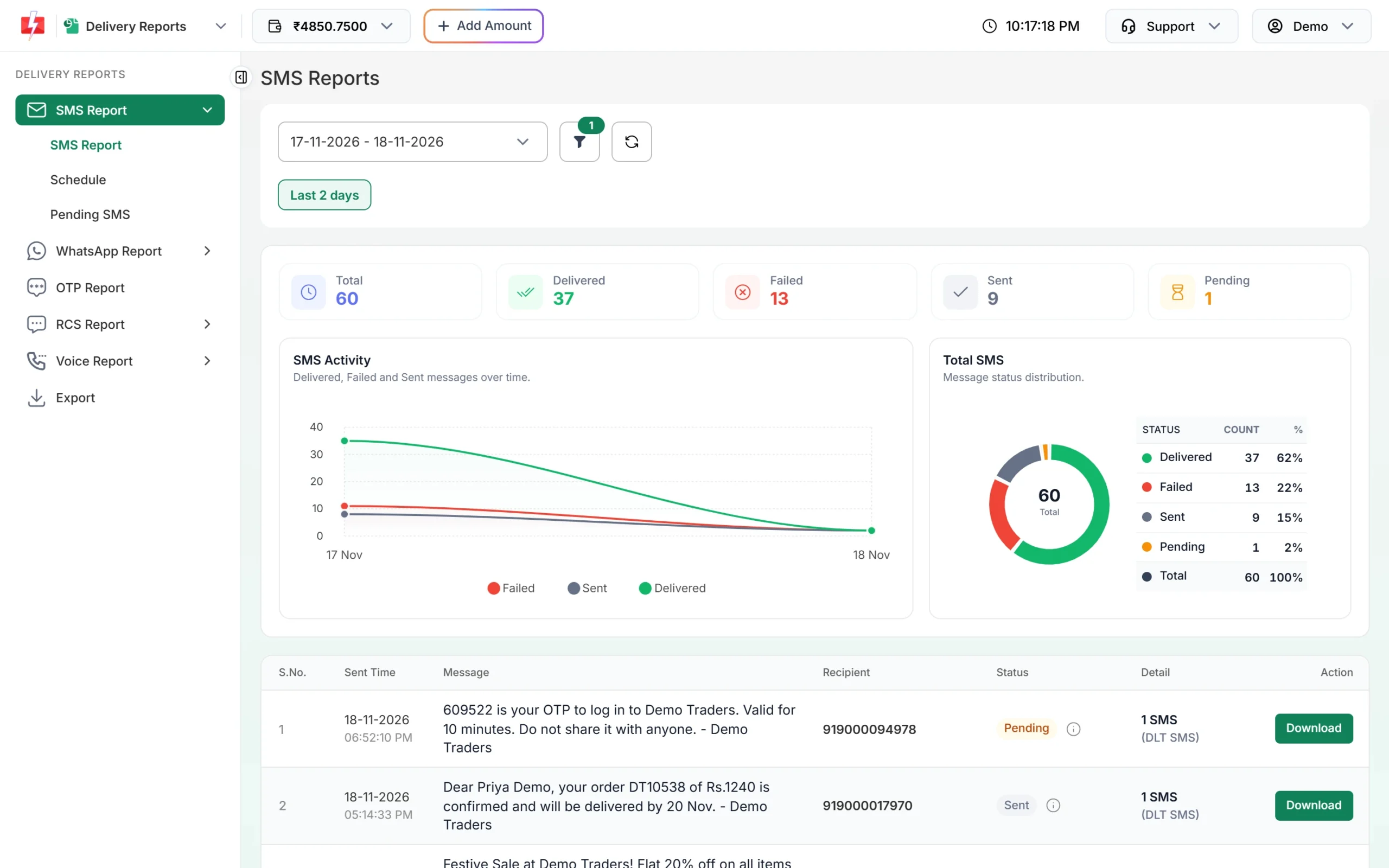
SMS Report for the last 2 days. -
Read the list
Below the charts, each row is one send. Columns are Sent Time (the scheduled time for scheduled sends), Message, Recipient (the number for a single SMS, or “Campaign” when sent to more than one number), Status, Detail (number of SMS and the route, such as DLT SMS or Quick SMS) and Download for an Excel file of that send. The list shows 10 rows per page. Use Next and Previous to move.
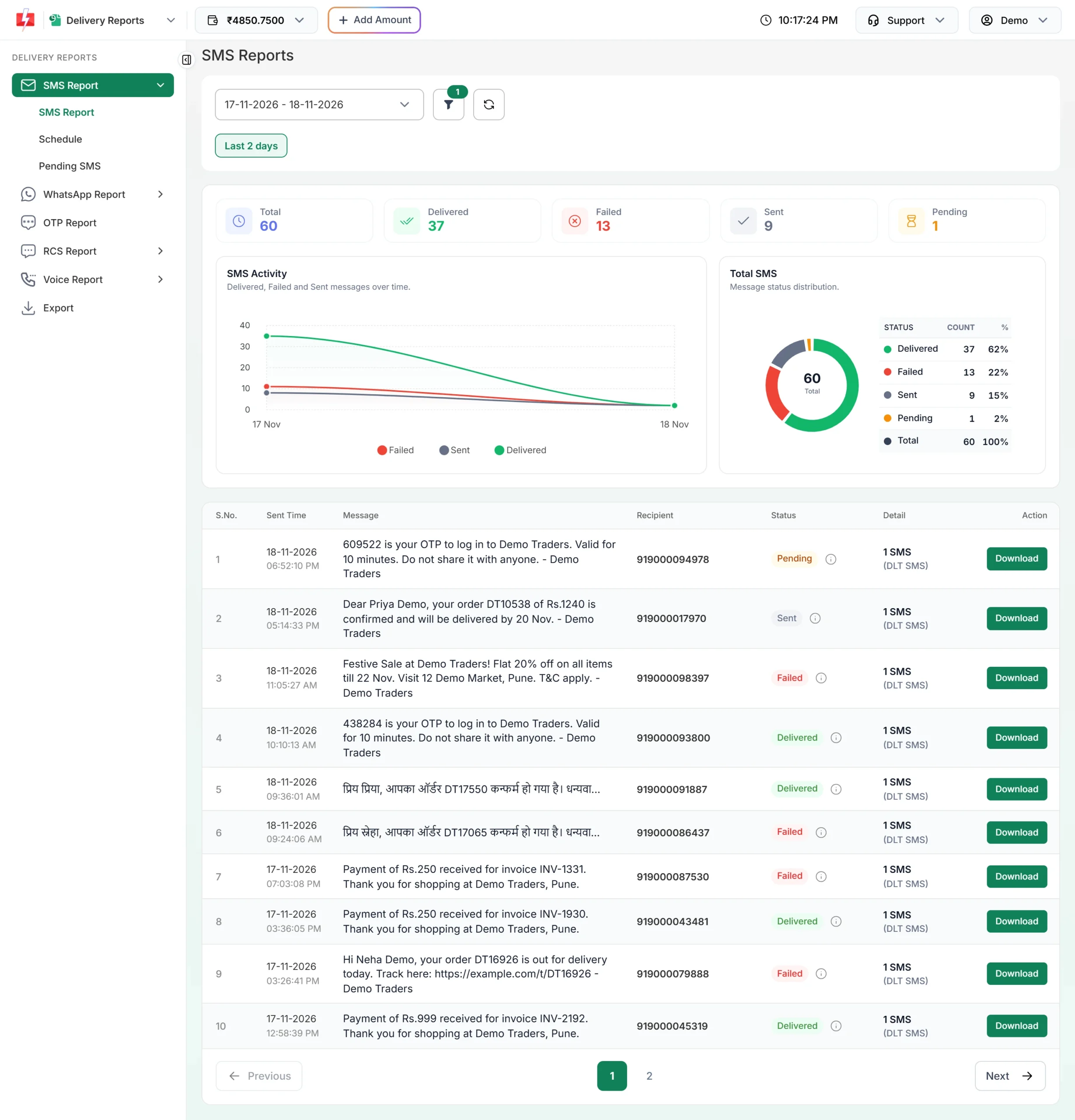
Report rows with their status and a Download button. -
Hover the info icon for the count of each status
For a campaign, one row covers many numbers. Hover the small info icon next to the status to see Total, Sent, Delivered, Failed, Pending, Blocked, DND and Invalid counts for that row.
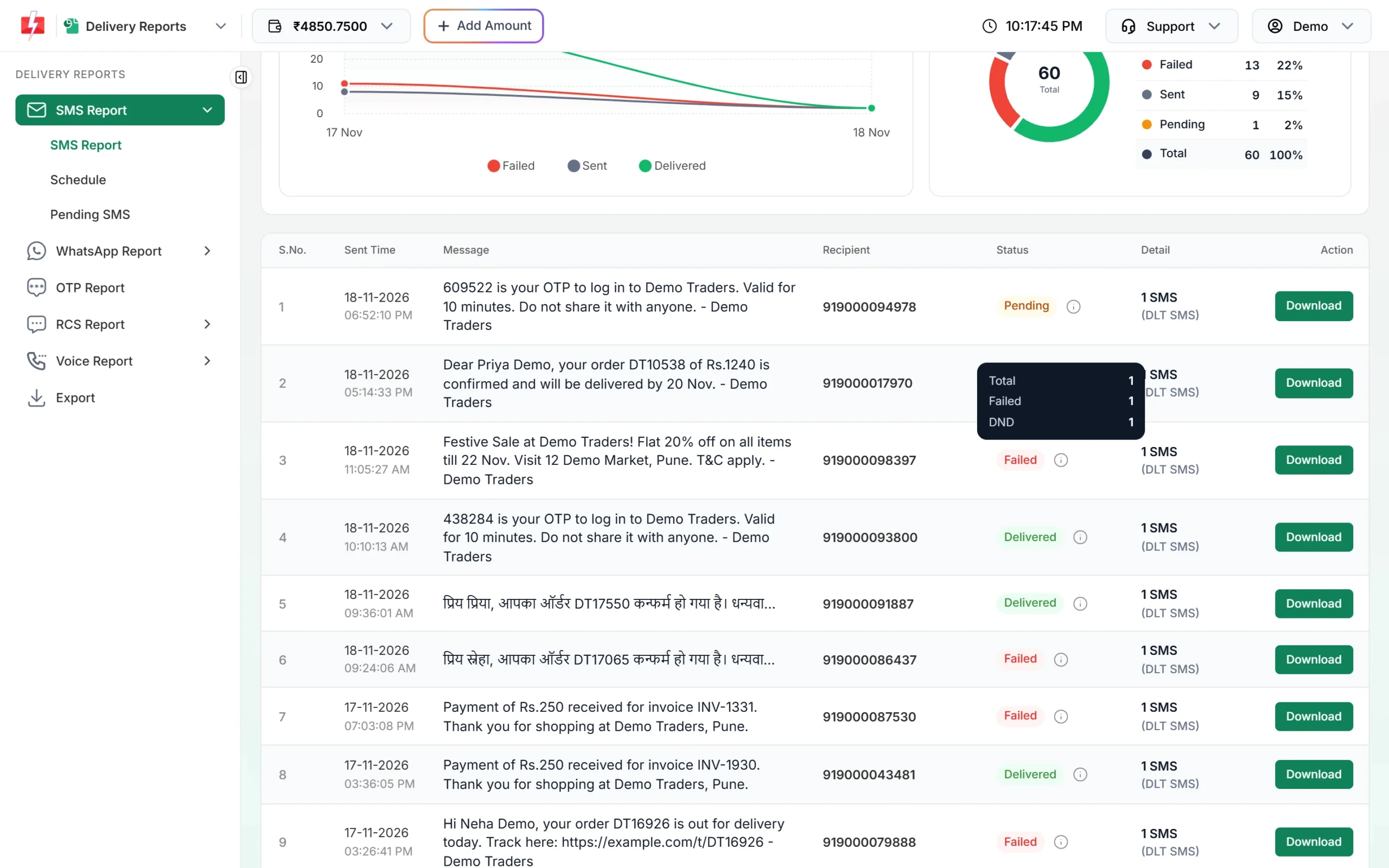
The status breakdown for one row. The status on a campaign row is a summary. A row shows Delivered when at least 30% of its numbers are delivered. Otherwise it shows the status most numbers have. Always check the breakdown or the details for the full picture. -
Open Delivery Details for one send
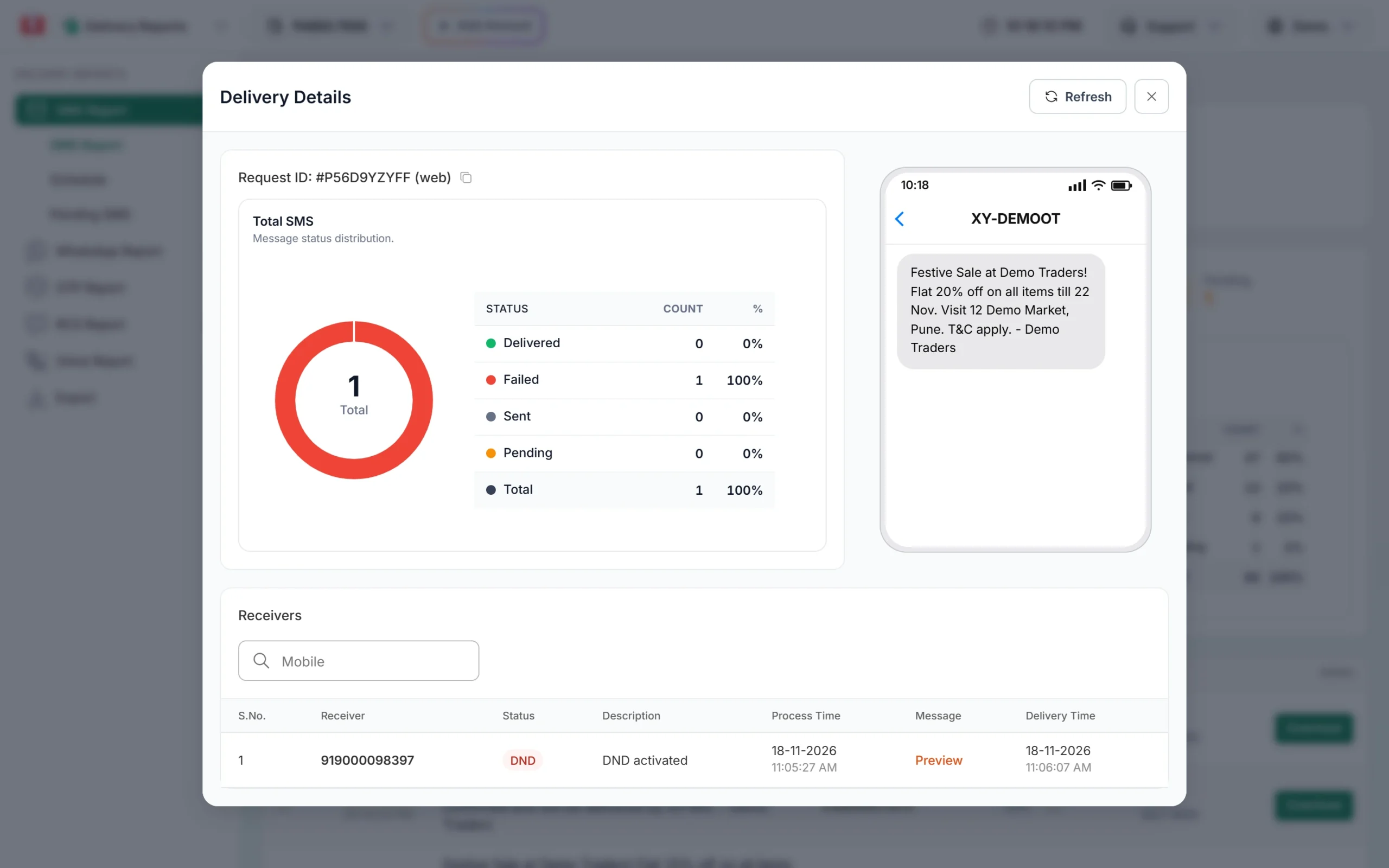
Click the message text in any row. Delivery Details opens with the Request ID and the source (web or api), a donut for that send, a phone preview with the sender header, and a Receivers table. The table shows each number with its Status, Description, Process Time, a message Preview and Delivery Time. Search one number in the Mobile box. Click Refresh to load the latest status.
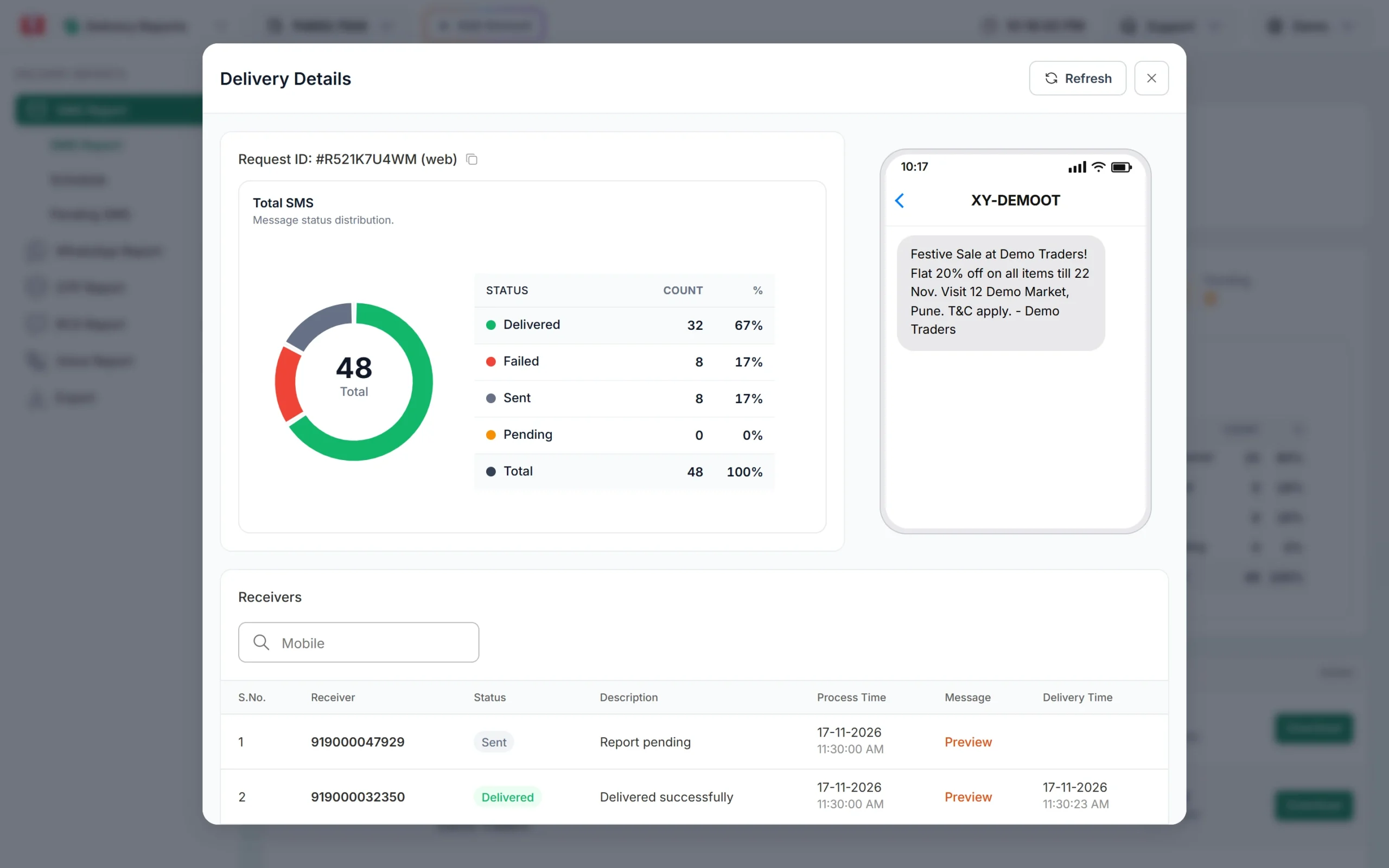
Delivery Details for a campaign.
SMS delivery status meanings
This is what each status means, the description you see in Delivery Details, and what happens to the charge.
| Status | Description shown | What it means | Charge |
|---|---|---|---|
| Delivered | Delivered successfully | The operator confirmed the SMS reached the phone. Delivery Time shows when. | Charged. |
| Sent | Report pending | The SMS went to the operator, but the operator has not sent the delivery report yet. It usually changes to Delivered or Failed later. | Charged. |
| Pending | Message pending | The SMS is still being processed and has no result yet. | Charged when the campaign was created. |
| Failed | The operator’s reason, for example “Number switch off or low signal”, “Number not reachable”, “Operator rejected”, “Number not exist”, “Handset memory full” or “Unknown reason” | The operator could not deliver the SMS. The description tells you why. | Not refunded automatically. |
| Blocked | Number blocked | The number is blocked, so the SMS was not delivered to it. | Not refunded automatically. |
| DND | DND activated | The number has Do Not Disturb active and the SMS was not delivered. Promotional (Service Explicit) messages are the ones affected. Transactional messages such as OTPs can reach DND numbers. | Not refunded automatically. |
| Invalid | Number invalid | The number is not a valid mobile number. | Not refunded automatically. |
How charges and refunds work for SMS
- A DLT SMS is charged when you confirm the campaign: number of numbers x SMS parts x your per-SMS rate. You see the full cost in the confirmation popup before you send. For current rates, see the bulk SMS pricing page.
- Duplicate numbers and numbers the panel marks as invalid in that confirmation popup are removed before sending and are not charged.
- Numbers that come back Failed, Blocked, DND or Invalid after sending are not refunded automatically. There is no refund report for SMS. (Refund reports exist only for WhatsApp and RCS.)
- A scheduled SMS that you cancel before it goes out is refunded in full to your wallet. See below.
- Every debit and credit is listed in Transaction History, for example “DLT SMS (N SMS)” or “Schedule SMS Cancelled”.
Filter the report
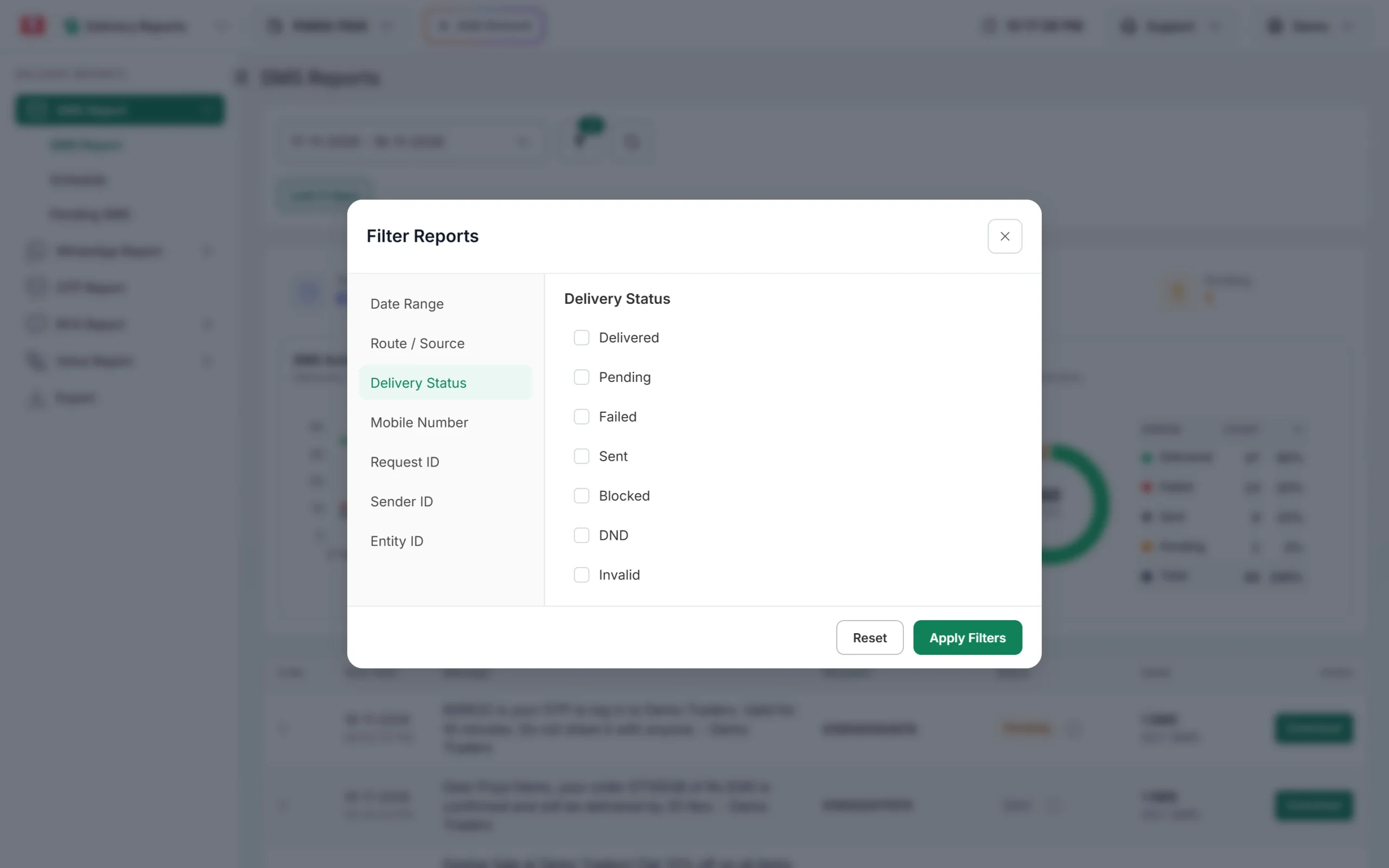
Click the filter button next to the date box. The number on it shows how many filters are on. In Filter Reports you can filter by:
- Date Range
- Route / Source: Transactional, Promotional, DLT, Quick SMS, Web or API
- Delivery Status: Delivered, Pending, Failed, Sent, Blocked, DND, Invalid (tick more than one if you like)
- Mobile Number: find every SMS sent to one number
- Request ID: find one send by its ID, for example the one returned by the API
- Sender ID and Entity ID: one or more of your approved ones
Click Apply Filters, or Reset to clear them. When one status is ticked, each row shows that status.
Scheduled SMS: view and cancel
Open Schedule to see SMS that are scheduled for later. Each row shows the Schedule Time, the message and the number of SMS. To stop one, click Cancel, then Yes, Cancel in the popup. You will see “Schedule cancelled successfully. Amount credited to your wallet.” and the full amount comes back to your wallet.
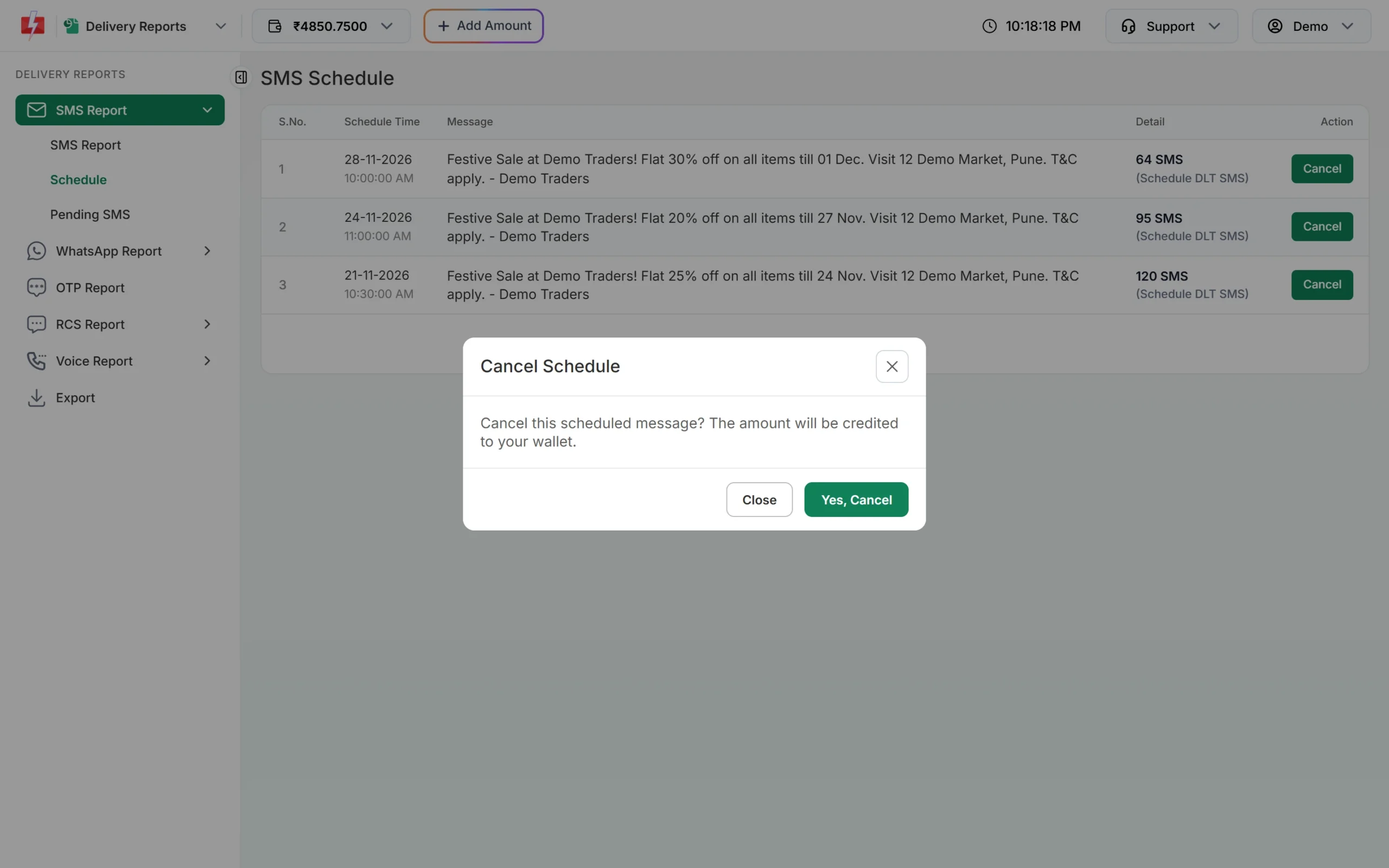
You can cancel only before the SMS goes out. After that you will see “This schedule cannot be cancelled.” Once the scheduled time passes, the send moves to the SMS Report list.
Pending SMS: messages waiting for review
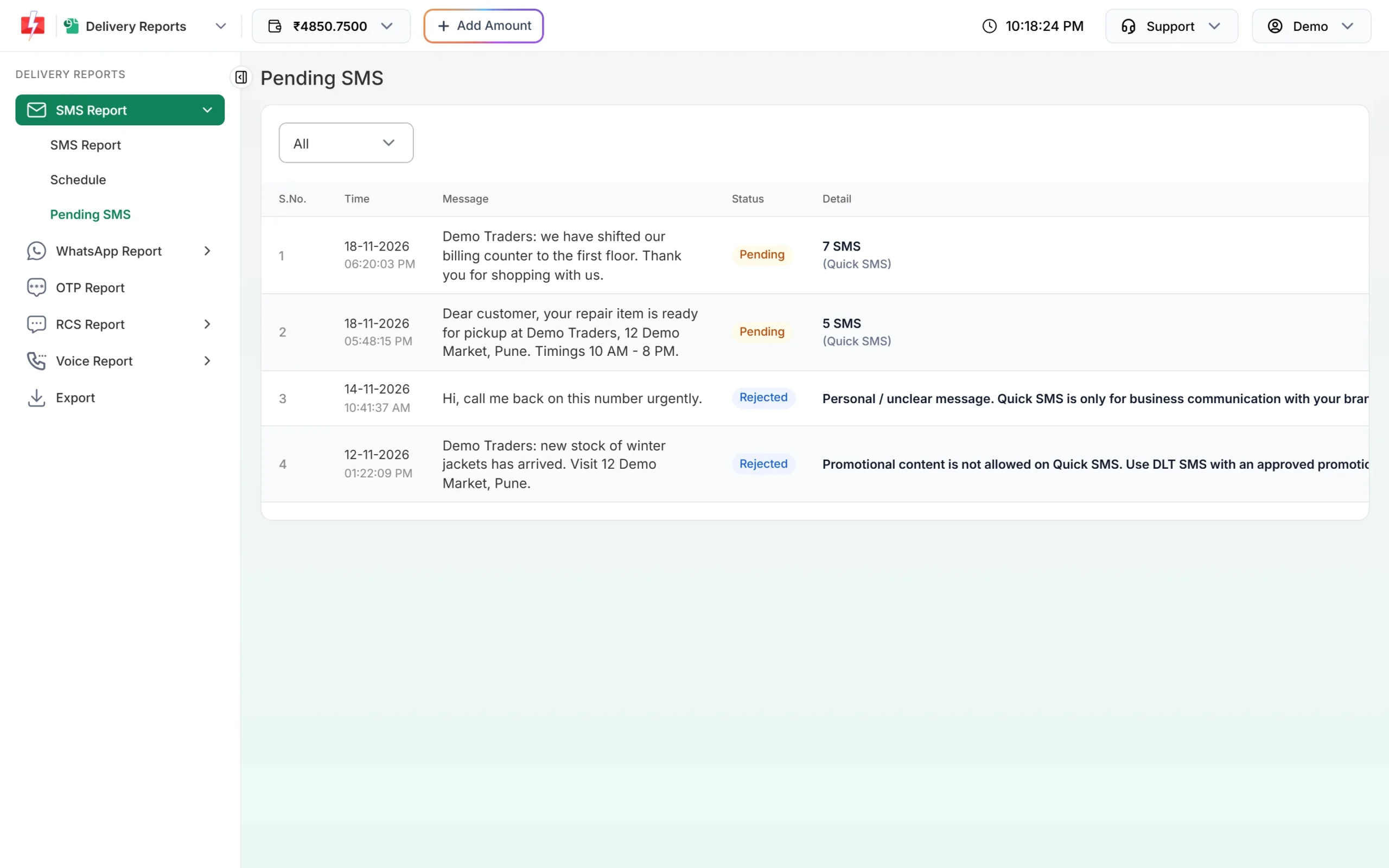
Pending SMS lists messages from the last 30 days that are held for a manual check, mostly Quick SMS. Use the dropdown to show All, Pending or Rejected. Pending messages are sent after approval. For a rejected message, the reason is shown in the Detail column. Held messages do not show in the SMS Report list until they are sent.
Download or export your SMS report
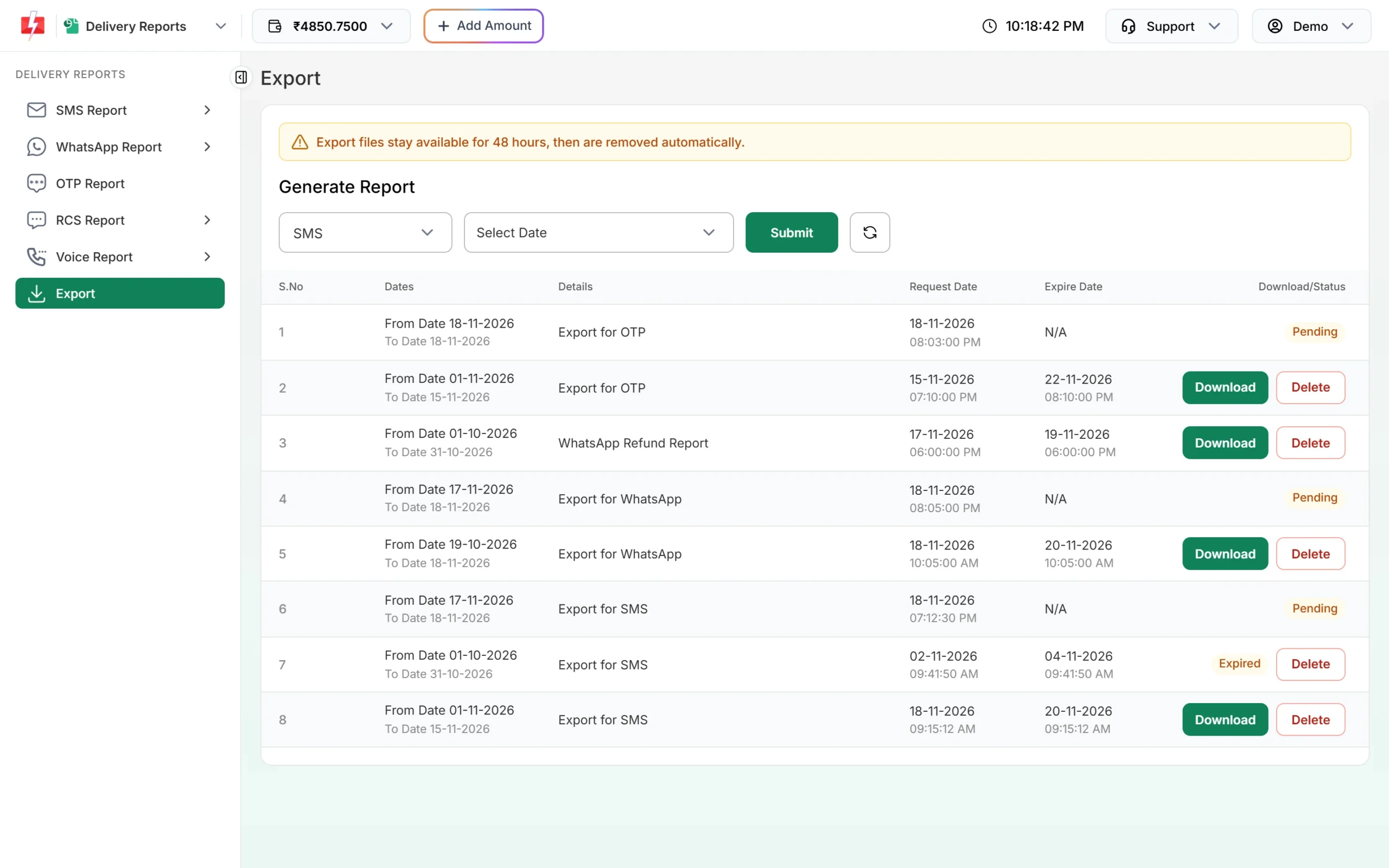
For one send, click Download on its row. For a date range, open Export, choose SMS, pick the dates and click Submit. The row shows Pending while the file is prepared. Refresh the page after some time and click Download.
Common problems and fixes
| Problem | Why | What to do |
|---|---|---|
| Status stays on Sent | The operator has not sent the delivery report yet. | Open Delivery Details later and click Refresh. |
| Many DND failures | Promotional messages are not delivered to DND numbers. | Use a Service Implicit template for service messages, and send offers only to non-DND customers. |
| Promotional SMS sent late at night arrive only the next morning | Promotional sends at night are held and go out the next morning. | Schedule promotional campaigns during the day. |
| My OTP SMS are not in the SMS Report | Smart OTP messages have their own report. | Check OTP Report in the same menu. |
| A send is missing from the list | It is still scheduled, held for review, or outside the date range. | Check Schedule, Pending SMS, and widen the dates. |
| Cannot pick older dates | The report starts from the day your account was created. | Choose a date after that day. |
For operator error messages and DLT rejections, see SMS not delivered: every DLT and delivery error explained.
Frequently asked questions
What is the difference between Sent and Delivered?
Sent means the operator received your SMS but has not confirmed delivery yet. Delivered means the operator confirmed it reached the phone.
Am I charged for failed SMS?
Yes. DLT SMS are charged per number when you confirm the campaign, and failed, DND, blocked or invalid numbers are not refunded automatically. Duplicates and numbers marked invalid before sending are not charged.
Why does a campaign show Delivered when some numbers failed?
A campaign row shows Delivered when at least 30% of its numbers are delivered. Hover the info icon or open Delivery Details to see each number.
Can I get a refund for a scheduled SMS?
Yes, if you cancel it from the Schedule page before it is sent. The full amount goes back to your wallet.
How do I find one customer’s SMS?
Use the Mobile Number filter in the SMS Report, or search the number in the Receivers table inside Delivery Details.
How can I get delivery status in my own system?
Set up a webhook in the SMS app under Webhook. See how webhooks work.
How long are export files available?
48 hours from when they are ready. After that they show Expired and you can make a new export.