
To download a WhatsApp delivery report in Fast2SMS, open Delivery Report > Export, choose WhatsApp, pick the dates and click Submit. When the file is ready, click Download to get a zip file with the report in CSV format, which opens in Excel or Google Sheets.
The file lists every number with its status, failure reason and delivery time, so you can share it with your team or clean your contact lists.
How to download the WhatsApp report
-
Open the Export page
In the panel, click Delivery Report. In the Delivery Reports menu on the left, click Export. The same page is used for SMS, WhatsApp, OTP, RCS and voice reports.
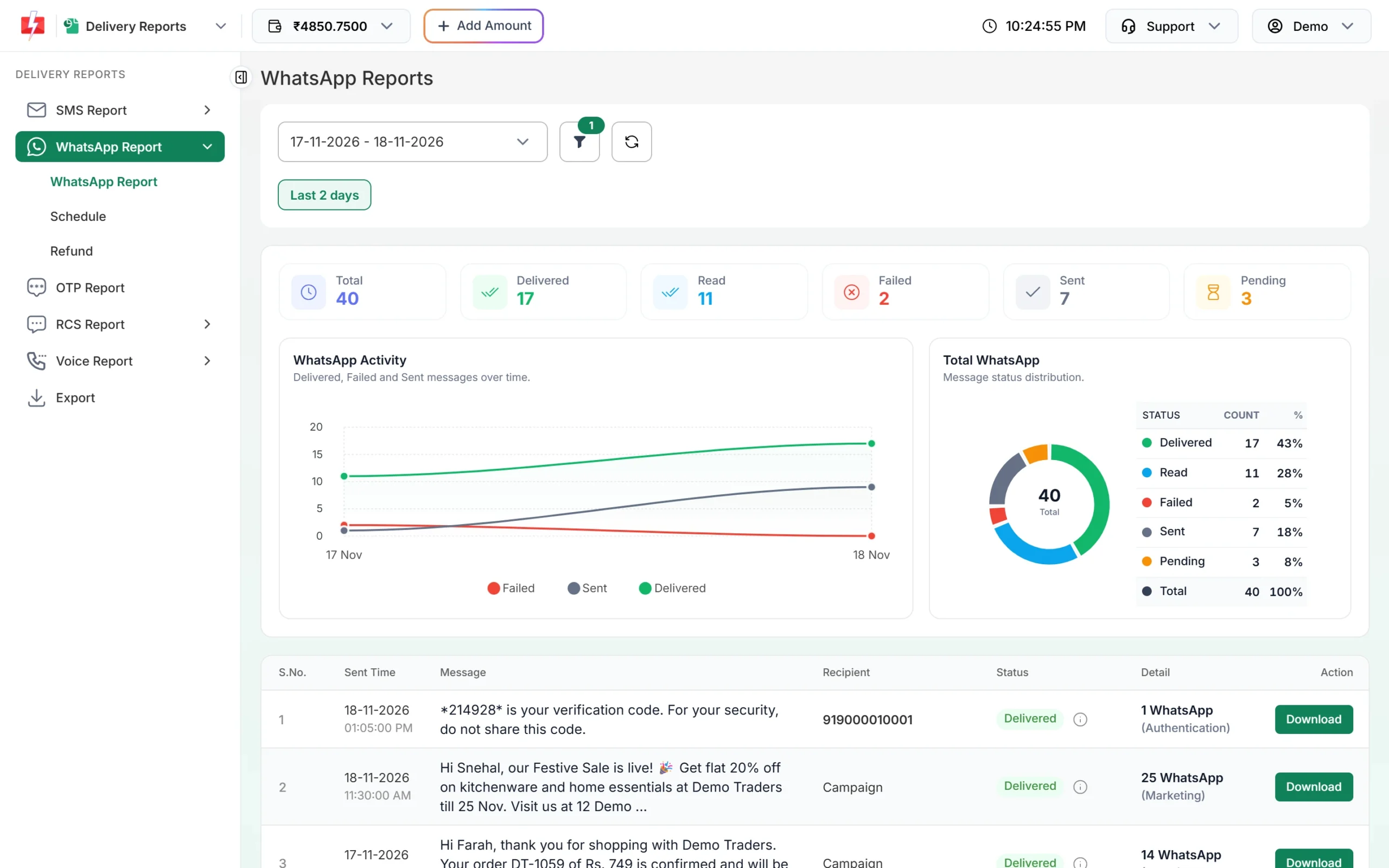
Export is the last item in the Delivery Reports menu. -
Choose WhatsApp and the dates
Under Generate Report, select WhatsApp in the first dropdown, then choose the date range in Select Date. Click Submit and confirm. Your request appears in the list as “Export for WhatsApp” with the status Pending.
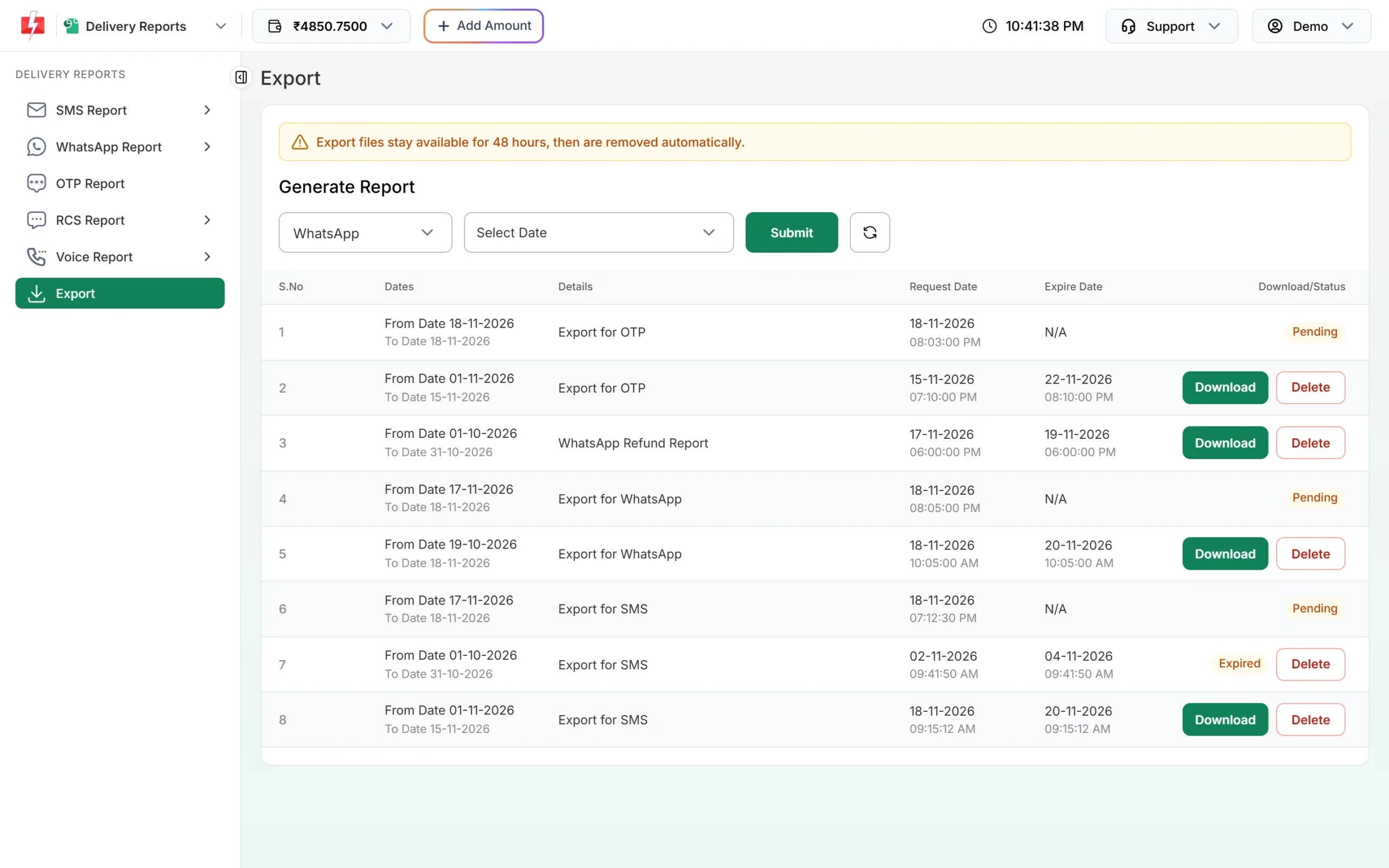
Pick WhatsApp and the dates, then wait for the Download button. -
Download the file
The file is prepared in the background. Click the refresh button next to Submit after a little while. When the status changes to Download, click it. Unzip the file and open the CSV.
What the file contains
| Column | What it shows |
|---|---|
| Request ID | The campaign or API request the message belongs to |
| Receiver | The customer’s number |
| Template Name, Category | The template used and its category. Live Chat replies show as “Session Message”. |
| Sent From, Sent Message | Your WhatsApp number and the message text |
| Sent Time, Delivery Time | When it was sent and delivered |
| Status, Reason | Delivered, read, sent, failed and so on, with WhatsApp’s reason for failures |
| Media | The media sent with the message, if any |
Very large exports are split into parts of 500,000 rows each inside the same zip.
Limits to know
- Export files stay available for 48 hours, then are removed automatically. Download them in time, or export again.
- You can keep up to 5 ready files at once. Delete old ones if you see “You cannot export more than 5 reports, wait until old reports expires.”
- Only 2 requests can be pending at the same time.
- The export uses only the channel and the dates. Filters you set on the WhatsApp Reports page, such as status or template type, are not applied. Filter the CSV in Excel instead.
- “No data found on these dates.” means nothing was sent from your account in that range.
Frequently asked questions
How do I download only failed WhatsApp messages?
Export the date range, open the CSV and filter the Status column for failed. The Reason column tells you why each one failed.
Can I download a report for older months?
Yes. There is no maximum date range for the export. Pick the dates you need.
How do I download the WhatsApp refund report?
Open WhatsApp Report > Refund, choose the month and click Export CSV. The file shows up on the Export page as “WhatsApp Refund Report”.
Can I get delivery reports automatically instead of downloading them?
Yes. Add a WhatsApp webhook under Webhook and Fast2SMS will post each status (sent, delivered, read, failed) to your URL as it happens.