
To move many DLT templates into Fast2SMS at once, download the template list from your DLT portal as an Excel or CSV file and upload it with Upload Excel in DLT Manager > Content Template. Headers (Sender IDs) work the same way from DLT Manager > Sender ID, so you do not have to type each one.
Fast2SMS reads the export formats of the Jio, Airtel, Vi, BSNL and Smartping portals and imports only the rows the portal marks as approved or active.
Before you start
- Your Entity ID is added and Approved in DLT Manager > Entity ID.
- You can log in to the DLT portal where your business is registered.
Steps
-
Download the lists from your DLT portal
Log in to your DLT portal and open the list of headers, then the list of content templates. Most portals have a download or export option on these lists. Save the files as they are. Do not rename or delete columns, because Fast2SMS finds the header name, template ID, text, type and status by the column names.
-
Upload the header file
In Fast2SMS, go to DLT Manager > Sender ID and click Add New Sender ID. Select your entity, choose Upload Excel, upload the file (.xlsx or .csv) and click Submit. You will see “N Sender ID uploaded successfully (pending for approval)”.
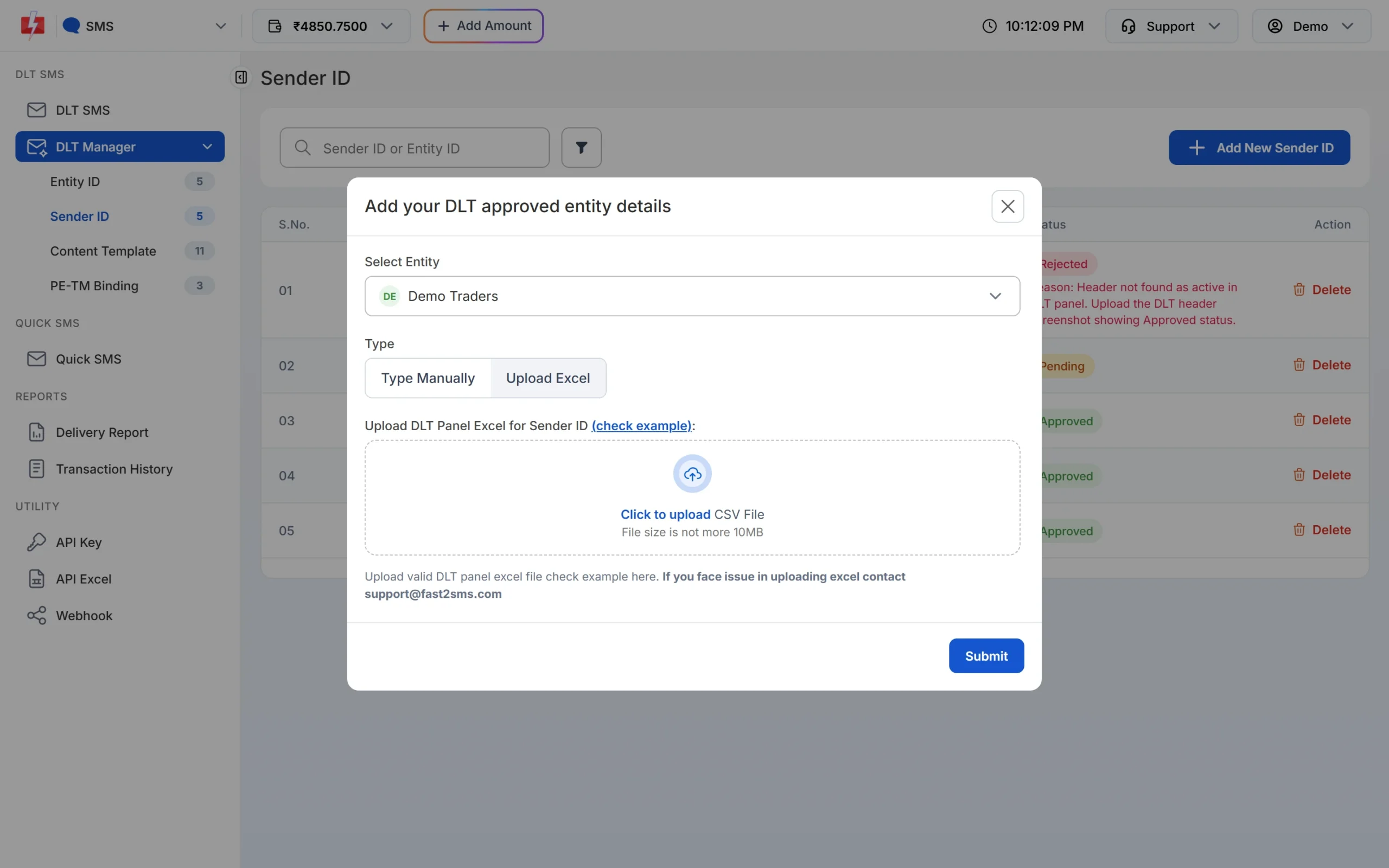
Upload your header list from the DLT portal. -
Upload the template file
Go to DLT Manager > Content Template, click Add Content Template, select the entity, choose Upload Excel and upload the template file. Templates whose type says transactional or implicit are added as Service Implicit. All others are added as Service Explicit or Promotional. If the file names a header that is not in your account yet, Fast2SMS adds that header as Pending too.
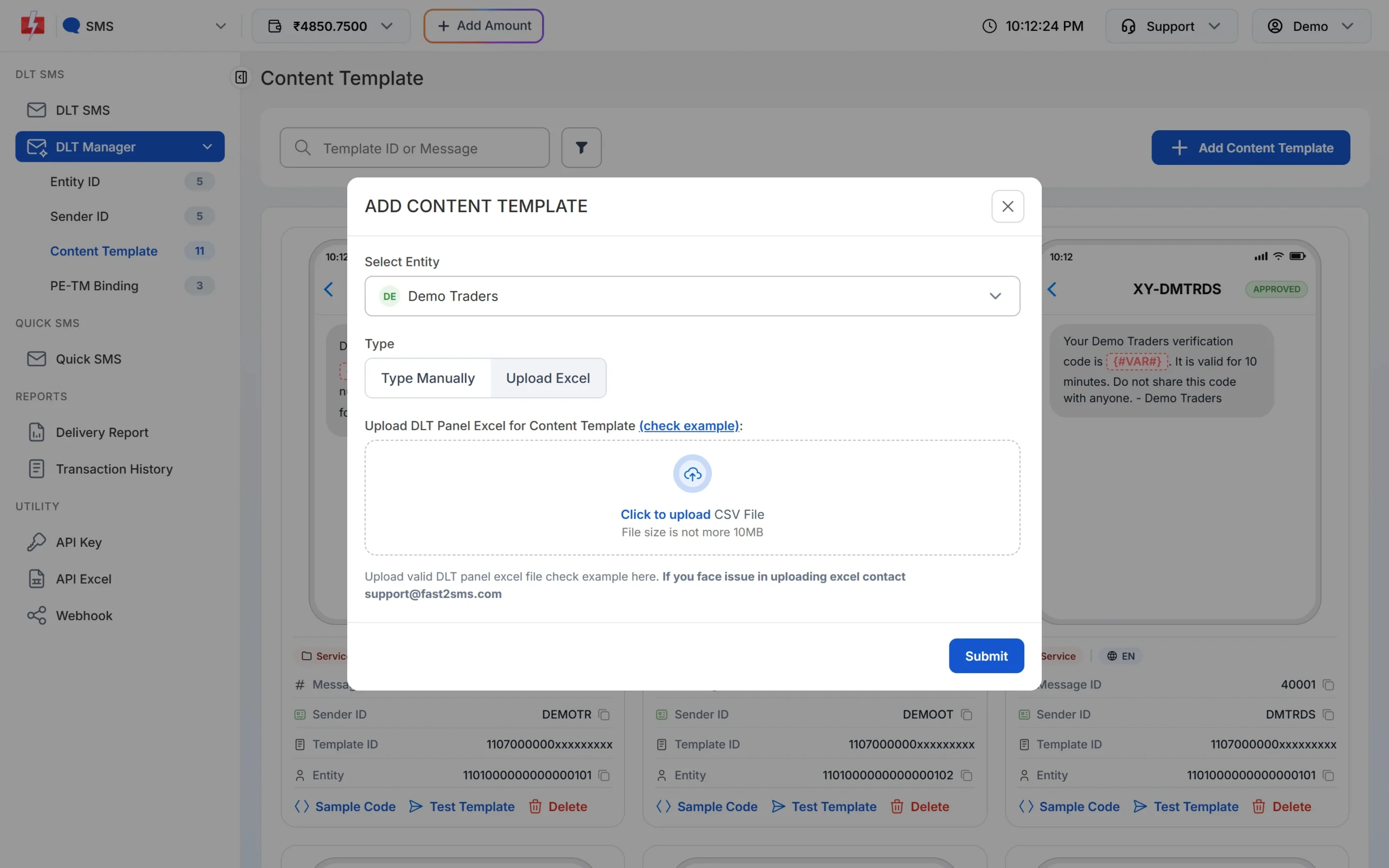
Upload Excel in Add Content Template. -
Wait for approval
Imported headers and templates show Pending until our team checks them. Once they turn Approved, they appear on the DLT SMS page under their sender ID.
Common upload errors
| Message | What to do |
|---|---|
| Please upload valid DLT excel file. | The file is in old .xls format or not a DLT export. Open it in Excel and save it as .xlsx, then upload again. |
| Upload valid DLT excel file or contact [email protected] | The columns were not recognised. Use the original export without edits, or send the file to support. |
| Content already active or pending for approval. | Every row in the file is already in your account. Nothing new was added. |
| Sender already active or pending for approval | The headers in the file are already in your account. |
Frequently asked questions
Can I edit the template text in the Excel file before uploading?
No. The text must stay exactly as approved on the DLT portal, or your SMS will fail the template match.
My portal is not in the list. What can I do?
Add the headers and templates with Type Manually, or send the export file to [email protected] so we can check it.
Why are imported templates still Pending?
Every imported row is checked by our team before it can be used. Approved templates then show on the DLT SMS page.
Do I need to upload the header file first?
It is better to, but not required. Headers named in the template file are added as Pending automatically.