
To turn on two-factor authentication in Fast2SMS, open Account Setting, go to Security Setting, switch on 2F Authentication and confirm with your password. After that, every login asks for an OTP sent to your registered mobile, so a stolen password alone is not enough to get into your account. This guide also covers the other security switches, how to see and log out the devices where your account is open, and how to change your password safely.
Before you start
- Log in as the account owner. Security pages are not open to team members.
- Keep your registered mobile number with you. Login OTPs go to that number.
- Know your current password. Every change on these pages asks for it.
How to turn on two-factor authentication (login OTP)
-
Open Security Setting
On the dashboard, click Account Setting, then Security Setting in the left menu. You see three switches: OTP Masking, 2F Authentication and Duplicate Number.
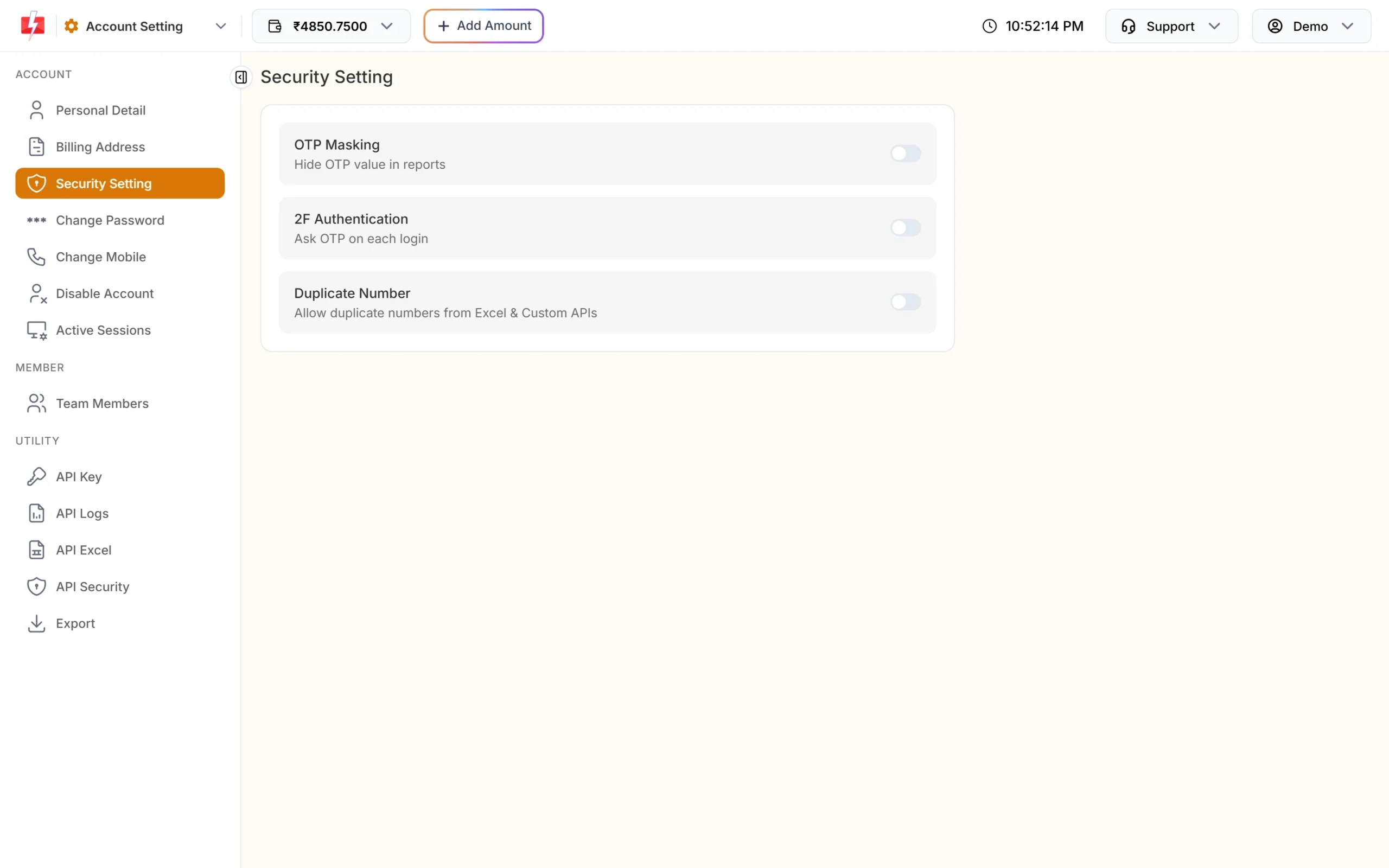
The three security switches. -
Switch on 2F Authentication
Click the 2F Authentication switch. A box “Enable 2F Authentication?” says you will be asked for an OTP on every login. Click Continue.
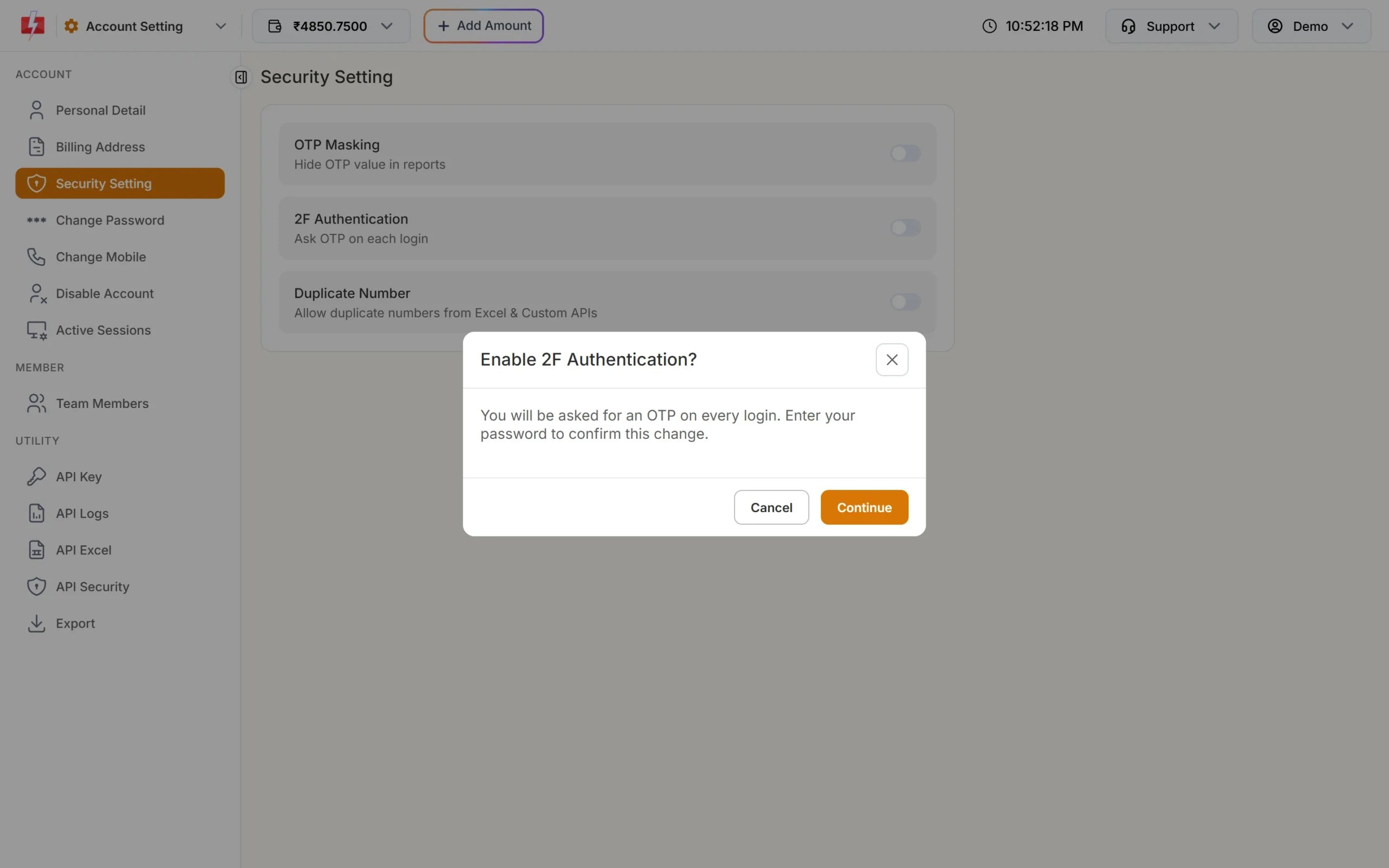
Confirm that you want an OTP on every login. -
Confirm with your password
Enter your Current Password and click Confirm. You see “Setting updated successfully.” From your next login, after your password, Fast2SMS sends an SMS OTP to your registered mobile and asks you to enter it.
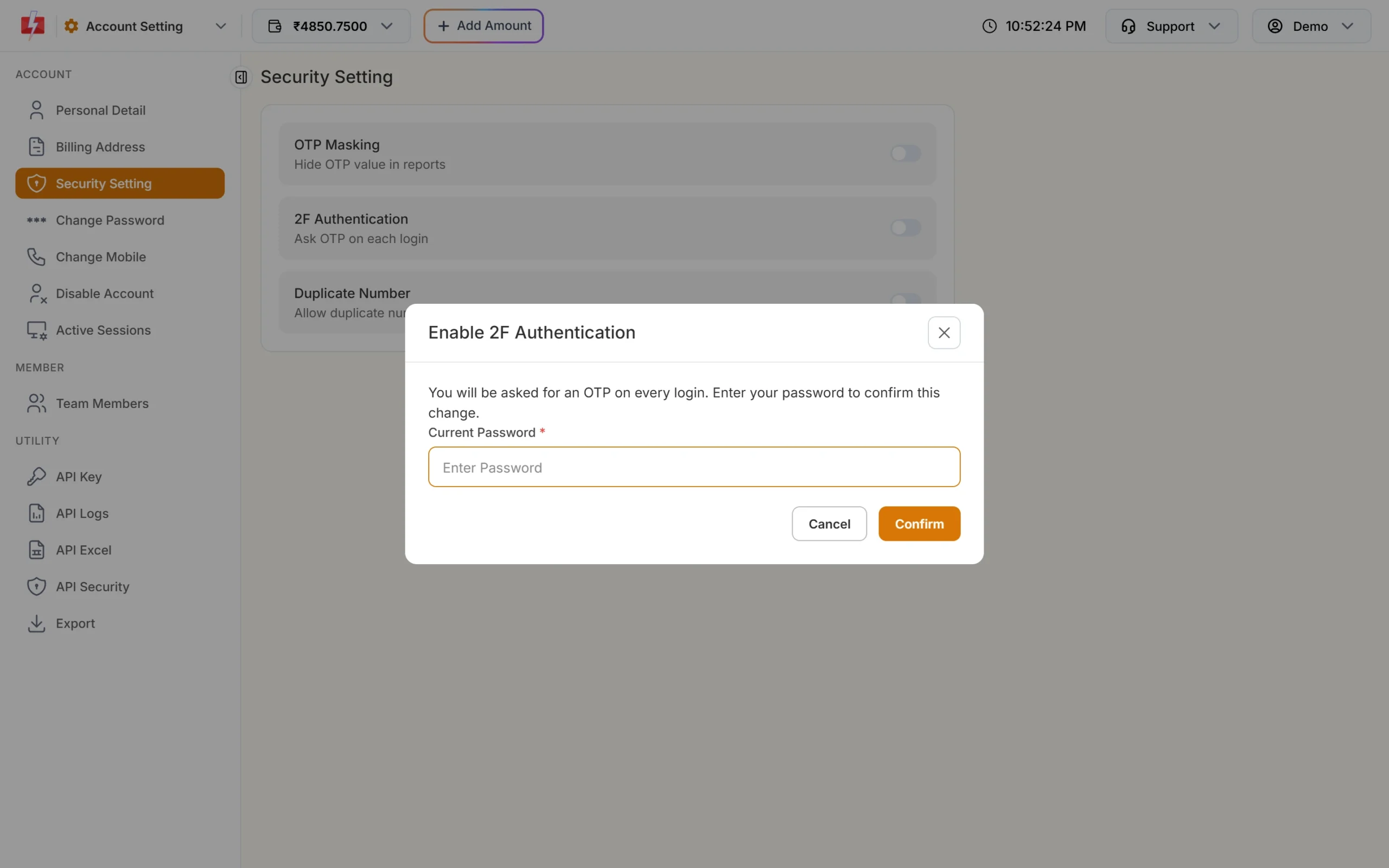
Your password confirms the change.
Even with 2F Authentication off, Fast2SMS asks for a login OTP if there has been no login on your account in the last month. Turning it on simply makes the OTP part of every login.
What the other security switches do
| Switch | When it is on |
|---|---|
| OTP Masking | Hides the OTP value in your reports, so staff who view reports cannot read the codes sent to your customers. |
| 2F Authentication | Asks for an OTP on every login. |
| Duplicate Number | Allows the same number more than once in Excel uploads and custom APIs. When it is off, duplicate numbers are removed automatically, so one person gets only one message. |
Each switch asks you to confirm and enter your password. You can change these settings up to 5 times a minute.
See where you are logged in (Active Sessions)
Open Active Sessions in the Account Setting menu. The page lists every device where your account is open, such as “Chrome on Windows” or “Safari on iPhone”, with its IP address, login time and last active time. Your current device is marked This device.
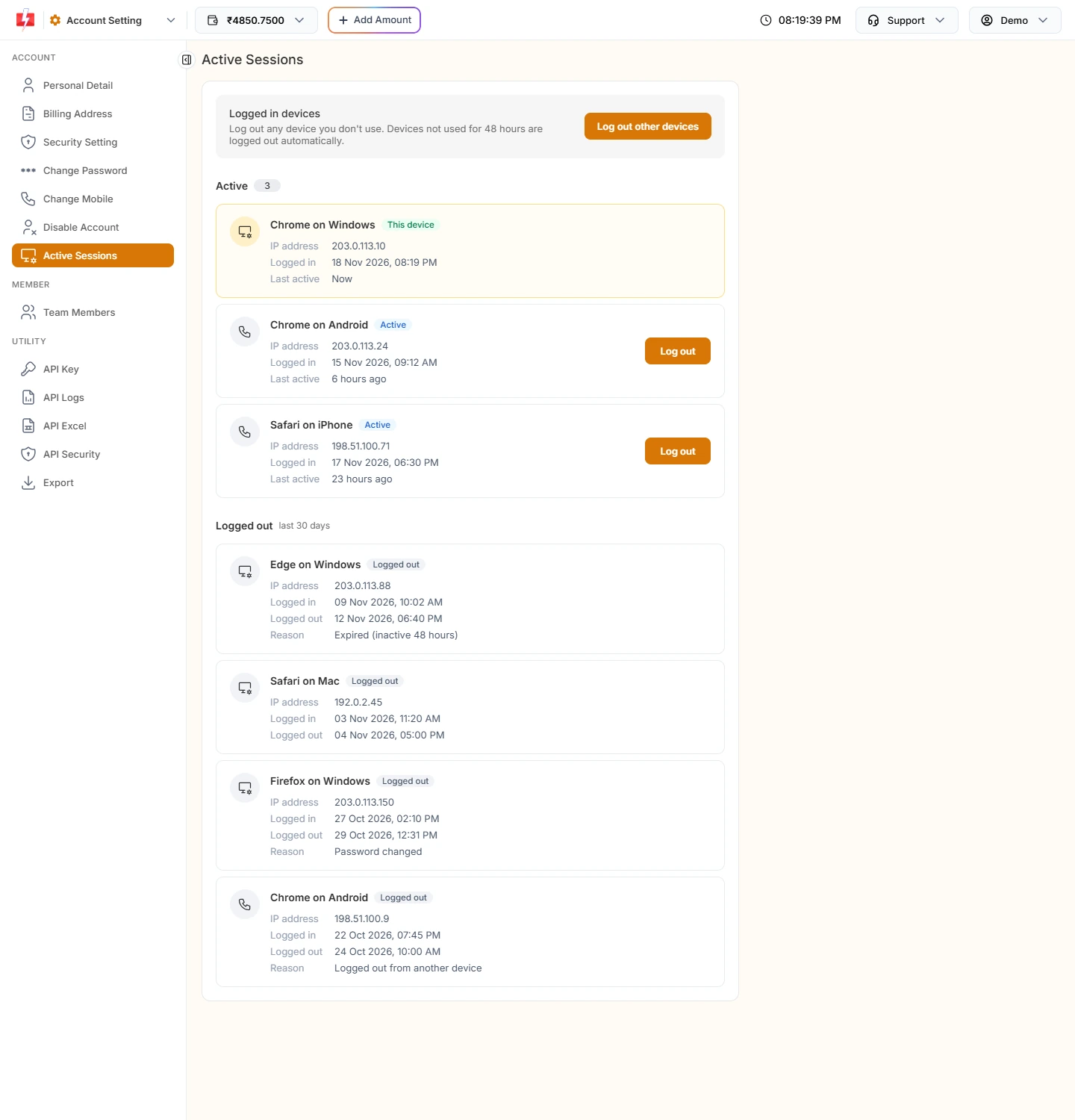
- Log out one device: click Log out on its card and enter your password. You see “Device logged out.”
- Log out everywhere else: click Log out other devices and enter your password. All devices except the one you are using are signed out.
- Automatic logout: a device not used for 48 hours is logged out on its own.
- Logged out list: shows devices from the last 30 days with the reason, for example “Expired (inactive 48 hours)”, “Password changed” or “Logged out from another device”.
If you see a device or IP you do not know, log it out, change your password and turn on 2F Authentication.
How to change your password
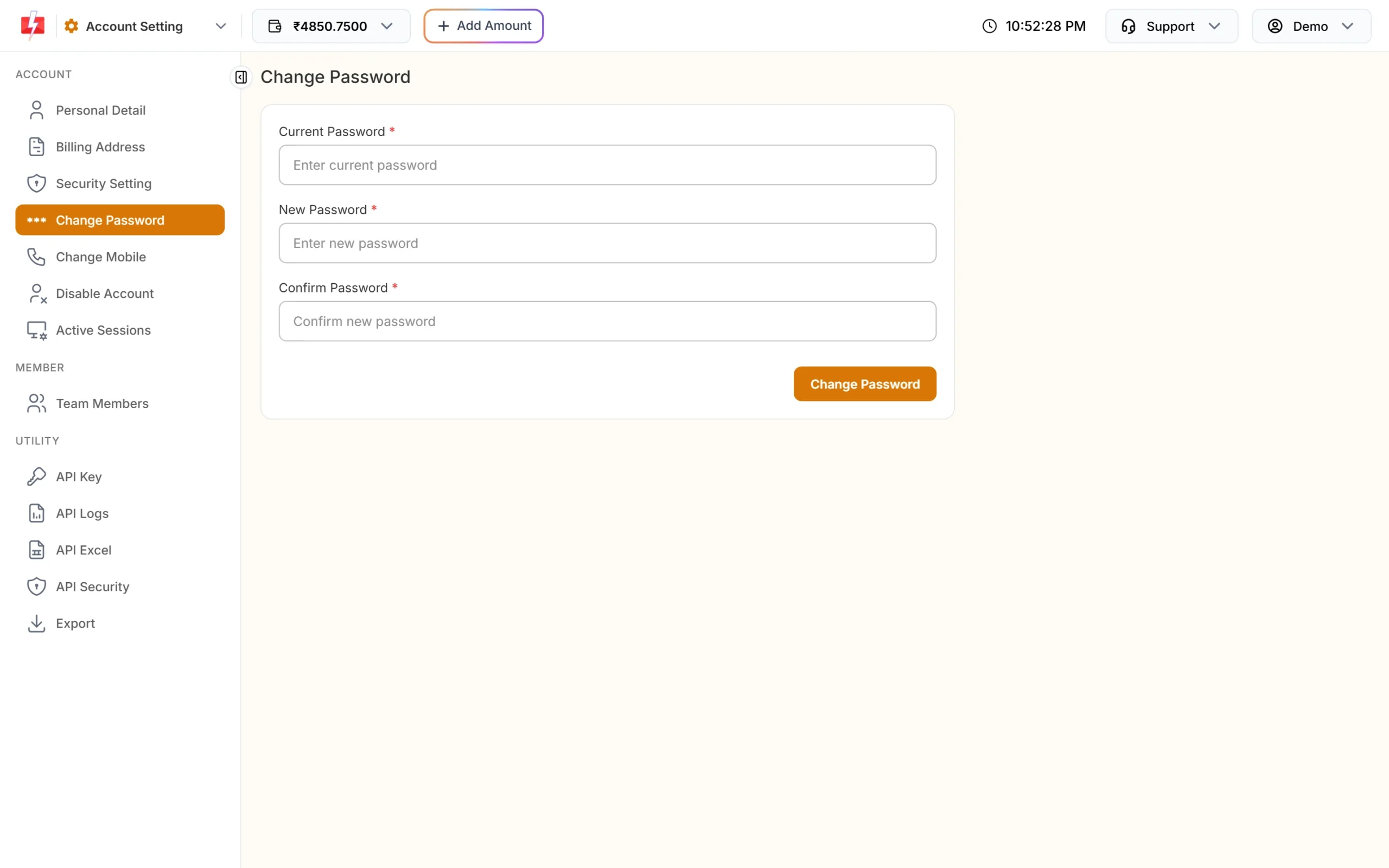
Open Change Password in the Account Setting menu. Enter your Current Password, then the New Password (at least 6 characters) twice and click Change Password. You see “Password Changed Successfully.” All your other logged-in devices are signed out at once, which is useful if you think someone else knows your old password.
Common problems and fixes
“Invalid password.” when switching a setting
Enter your current panel password, the one you log in with.
“Rate limit exceeded.”
You changed settings too many times in a short time. Wait a minute and try again.
“Password did not match.” in Change Password
The current password you typed in Change Password is wrong. If you have forgotten it, follow the forgot password guide.
I was logged out on my phone
Check the Logged out list in Active Sessions for the reason. A password change, a mobile number change, 48 hours without use or a log out from another device all end the session.
I am not getting the login OTP
The OTP goes to the mobile number registered on your account. Make sure the phone has signal and SMS space. If you no longer use that number, write to [email protected] for help.
Frequently asked questions
Does Fast2SMS have two-factor authentication?
Yes. Switch on 2F Authentication in Account Setting, Security Setting. Each login then needs an OTP sent to your registered mobile.
Where is the login OTP sent?
By SMS to the mobile number registered on your Fast2SMS account.
Why am I asked for an OTP when 2FA is off?
Fast2SMS asks for an OTP when there has been no login on the account in the last month, as an extra check.
Can I see which devices are logged in to my account?
Yes. Active Sessions in Account Setting lists each device with its IP address and last active time.
How long does a login stay active?
A device that is not used for 48 hours is logged out automatically.
What does OTP Masking do?
It hides the OTP digits in your reports, so the codes sent to your customers are not visible to people who open the reports.