
This Fast2SMS new panel tour shows you where everything is after you log in: the Apps dashboard, the header with your wallet and rates, the Support menu, and the Account Setting pages. If you used the old dashboard before, the table near the end tells you where each common task lives now.
A quick tour of the new panel, step by step
-
Fill in the “Help us serve you better” form (new accounts)
Newer accounts see a form called Help us serve you better on their first login. It opens on every page until it is filled in, and it has no skip button. The fields are:
- Company Name and Industry
- Interested In (pick all that apply): Promotional SMS, Transactional SMS, OTP SMS, WhatsApp Business API, RCS Messaging, Quick SMS (without DLT)
- Monthly Volume
- Integration Required?: Shopify, Tally, WooCommerce/WordPress, Custom API Integration, Other or Not Required. If you choose Other, also fill in Please Specify Integration.
- Your contact name and mobile are filled in from your account.
If someone else in your company should handle sales talks, tick I am not the right person for sales discussions and enter that person’s name, 10-digit mobile and email. Click Submit & Continue. You will see “Onboarding details saved successfully.” and the panel opens normally.
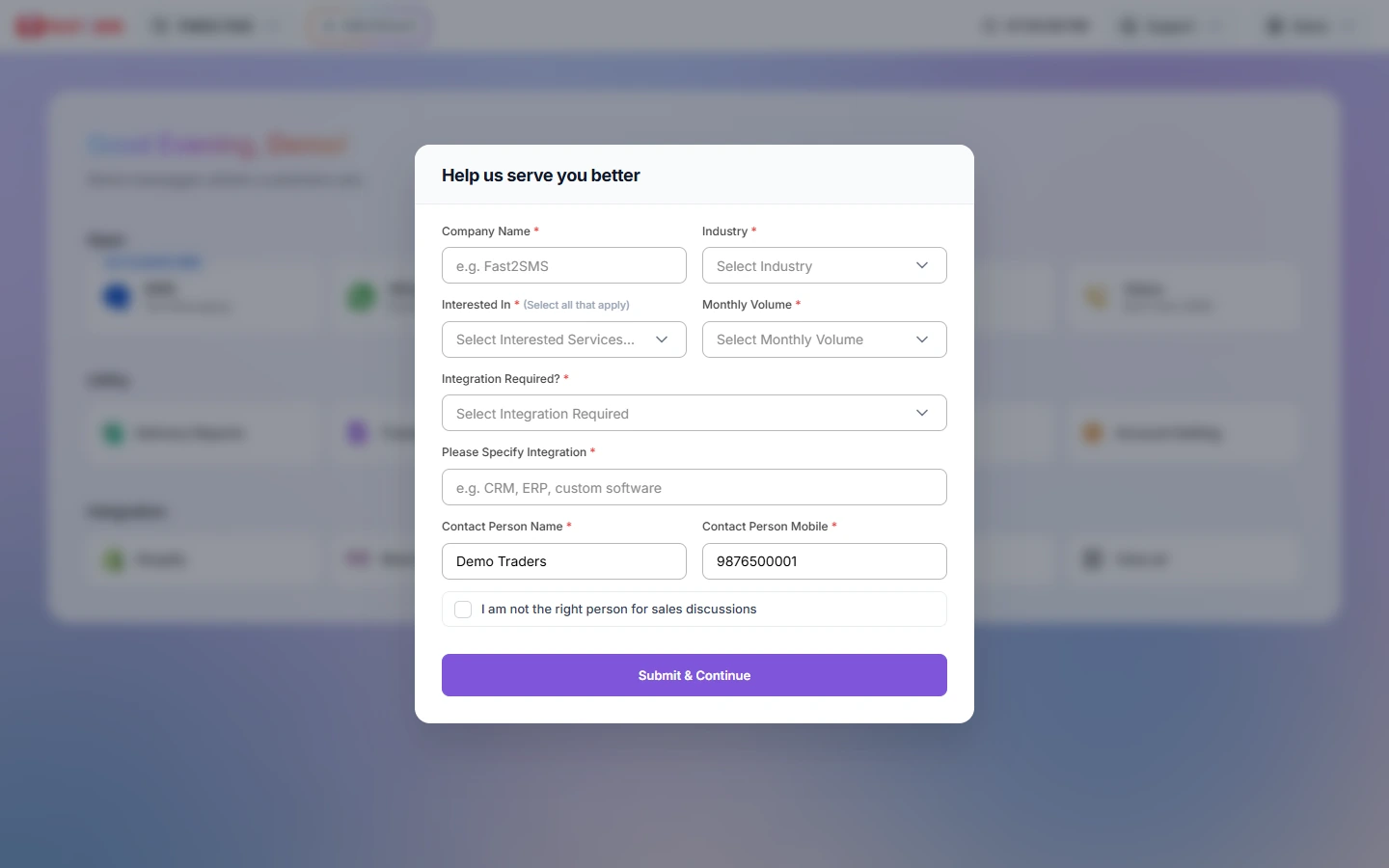
The first-login form. Every field with a star is required. -
Get to know the Apps dashboard
The dashboard is the home page of the new panel. It greets you by name and shows three rows of cards.
Row Cards What they open Apps SMS (badge “DLT & QUICK SMS”), WhatsApp, Smart OTP, RCS, Voice “Bulk Calls (OBD)” DLT SMS, Bulk WhatsApp, Smart OTP templates, Bulk RCS and bulk voice calls Utility Delivery Reports, Transaction History, Address Book, Webhook, Account Setting Reports, wallet history and invoices, contacts and groups, webhooks, and your account pages Integration Shopify, WooCommerce, Tally Prime, Google sheet, View all The plugin or app page in a new browser tab. View all opens the full integrations page. Integrations are not set up inside the panel. Each plugin connects with your API key from Account Setting > API Key, and every message it sends costs the normal price.
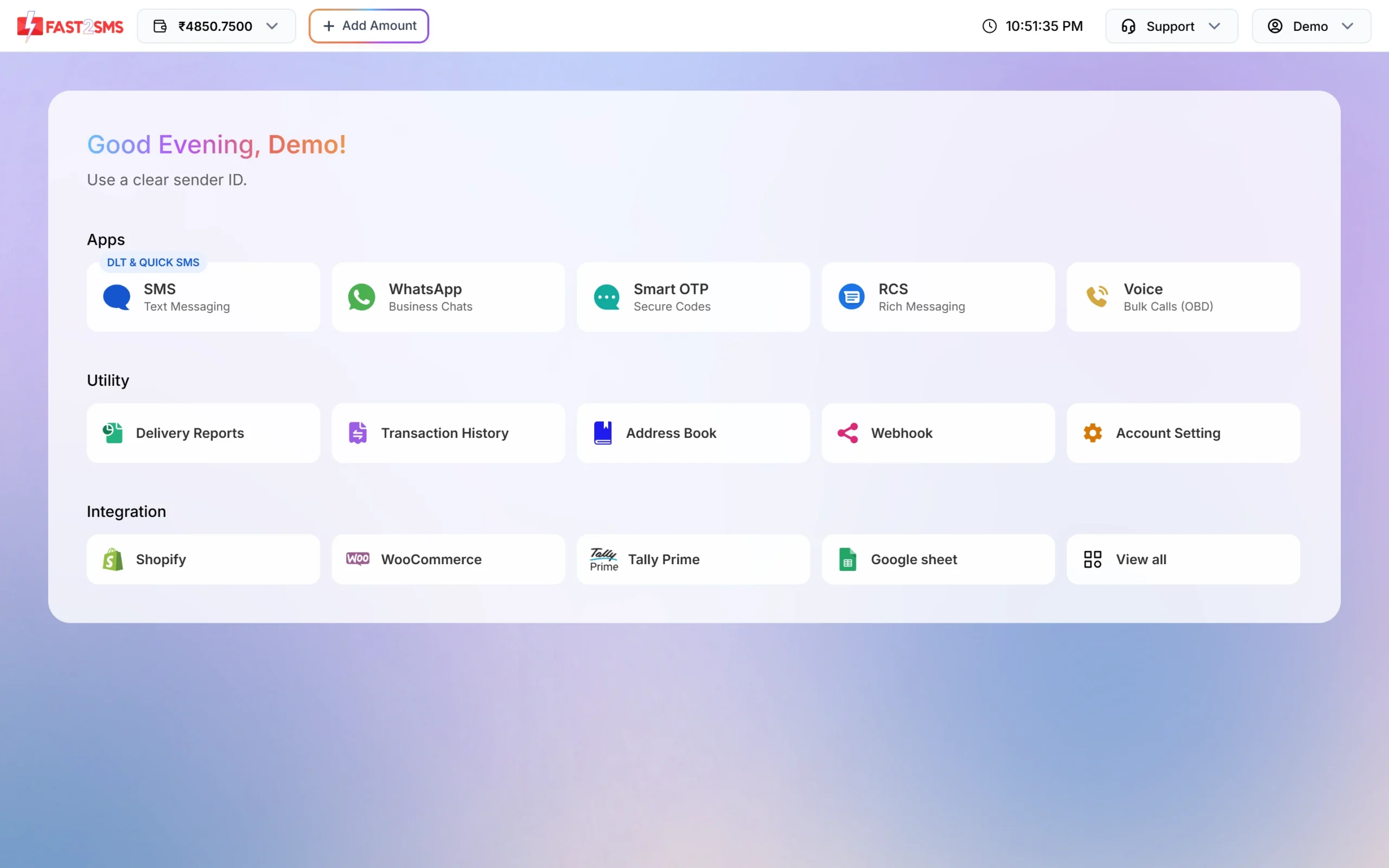
The Apps dashboard: pick an app, a utility page or an integration. -
Switch apps from the top-left menu
Inside any app, the top-left button shows the name of the app you are in. Click it to open the apps switcher. It has links to Dashboard, API Key and API Docs, then an APPS grid (SMS, WhatsApp, Smart OTP, RCS, Voice) and a UTILITY grid (Delivery Reports, Transaction History, Address Book, Webhook, Account Setting). You do not need to go back to the dashboard to change apps.
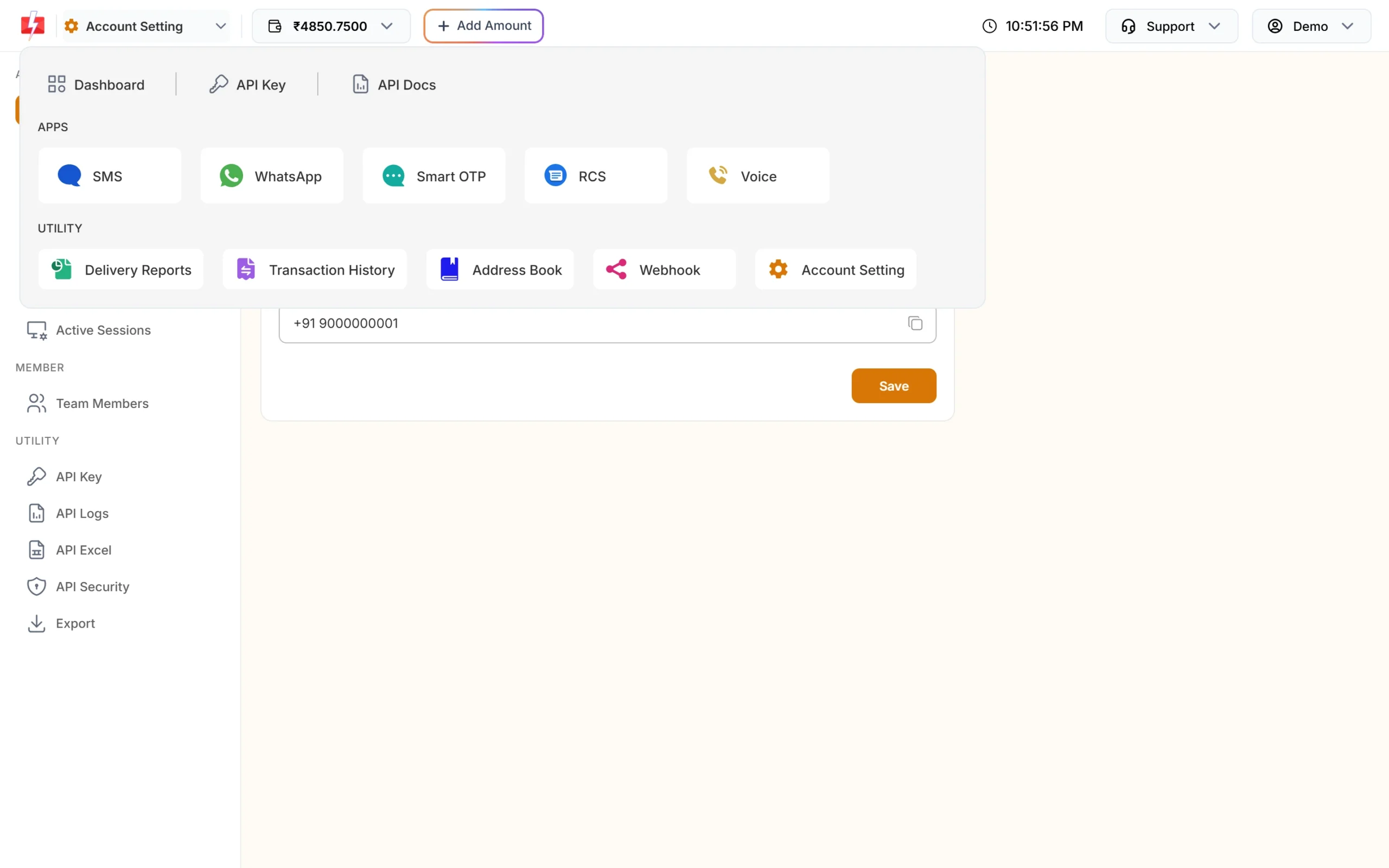
The apps switcher, opened from the Account Setting pages. -
Check your wallet and per-message rates
Next to the logo is the wallet button with your balance (shown with 4 decimals, for example ₹4850.7500). Click it to see your rate for each channel and how many messages your balance covers:
- SMS (DLT): your rate per SMS, “Volume: N SMS” and DLT SMS Cost Validity (the date your current per-SMS rate is valid till, or Unlimited).
- WhatsApp: Utility / Auth, Marketing and Session rates (“24-hour message from API & Live Chat”), plus calling rates per minute.
- RCS and Voice (rate per pulse of a set number of seconds), each with its volume.
Volume is simply your balance divided by the rate, rounded down. The rates you see are the ones set on your account at the time of writing, so check this dropdown after every recharge. For the full list of current rates, see the bulk SMS pricing page. The Add Amount button next to the wallet opens the recharge page.
Sending in bulk? For high SMS volumes our team offers discounted rates. Talk to our team or see SMS pricing.
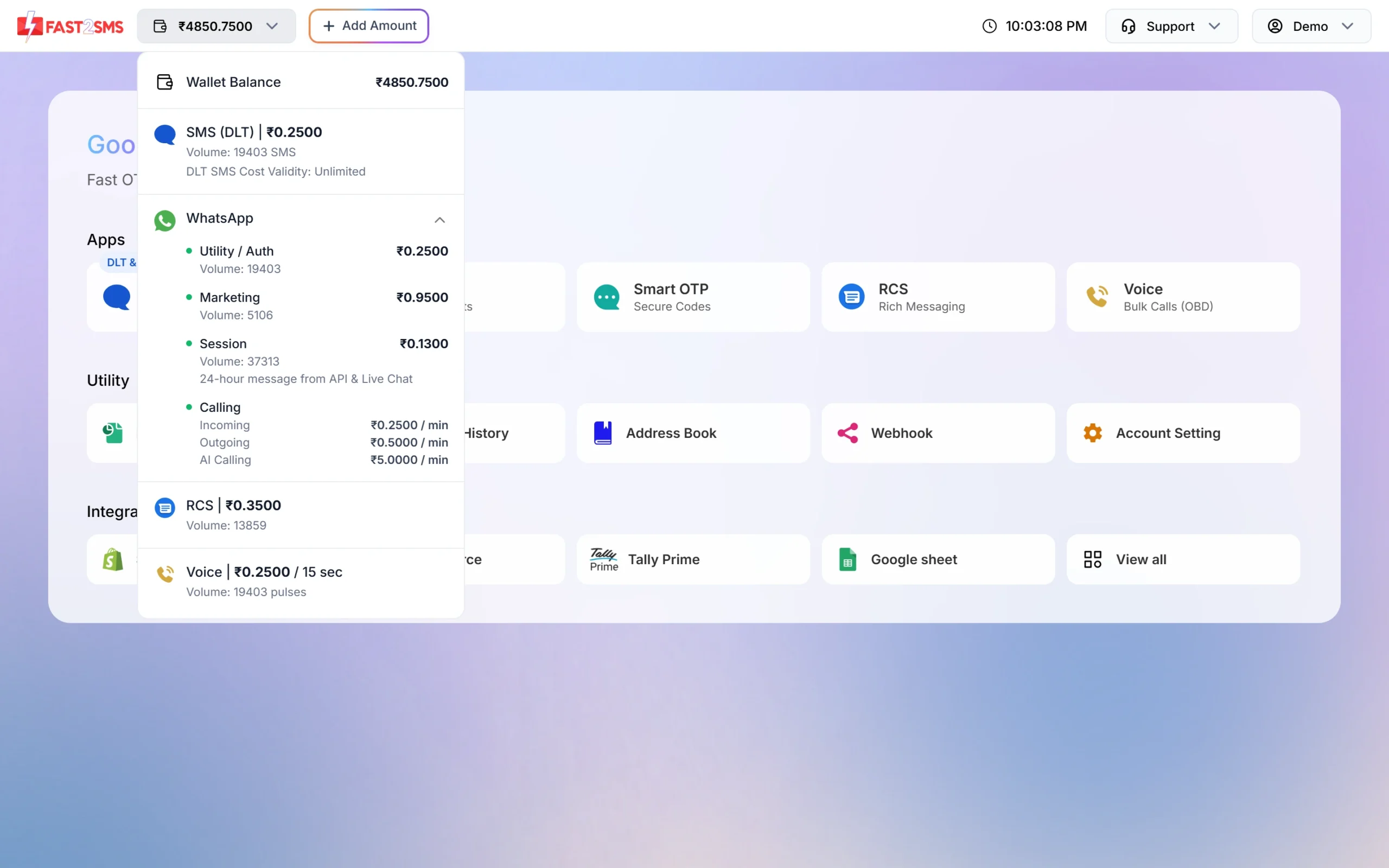
The wallet dropdown with rates and volume for each channel. -
Use the right side of the header
On the right you will find:
- Access Old Panel: opens the old Fast2SMS dashboard. Account owners see it; team members (agents) do not.
- A live clock.
- Support: Contact Support, FAQ, API Docs, Schedule a Meeting, Feature Request and the support email. See how to contact Fast2SMS support for details.
- Your name, with Log Out. On a phone this menu also repeats the Support links.
-
Find your account pages in Account Setting
Open Account Setting from the dashboard. The left menu has three groups:
- ACCOUNT: Personal Detail, Billing Address, Security Setting, Change Password, Change Mobile, Disable Account, Active Sessions
- MEMBER: Team Members
- UTILITY: API Key, API Logs, API Excel, API Security, Export
These pages are for the account owner only. A team member who opens one sees “This page is only available to the account owner.”
Where common tasks are in the new panel
| I want to… | Go to |
|---|---|
| Send DLT SMS or Quick SMS | Apps > SMS |
| Add my DLT entity, sender IDs and templates | Apps > SMS > DLT Manager |
| Send bulk WhatsApp, open the WhatsApp inbox or chatbot | Apps > WhatsApp (Bulk WhatsApp, Live Chat (Inbox), Chat Automation) |
| Set up OTP for my app or website | Apps > Smart OTP |
| Check delivery of a campaign | Utility > Delivery Reports |
| Recharge the wallet | Add Amount in the header |
| See charges, refunds or download a GST invoice | Utility > Transaction History (Invoices tab for invoices) |
| Save contacts and groups | Utility > Address Book |
| Get delivery reports on my server | Utility > Webhook |
| Find or reset my API key | Account Setting > API Key, or API Key in the apps switcher |
| See failed API calls or download API URLs | Account Setting > API Logs / API Excel |
| Add staff for Live Chat | Account Setting > Team Members |
| Change password or turn on login OTP | Account Setting > Change Password / Security Setting |
| Raise a ticket | Support > Contact Support |
Messages you may see while moving around
| Message | What it means and what to do |
|---|---|
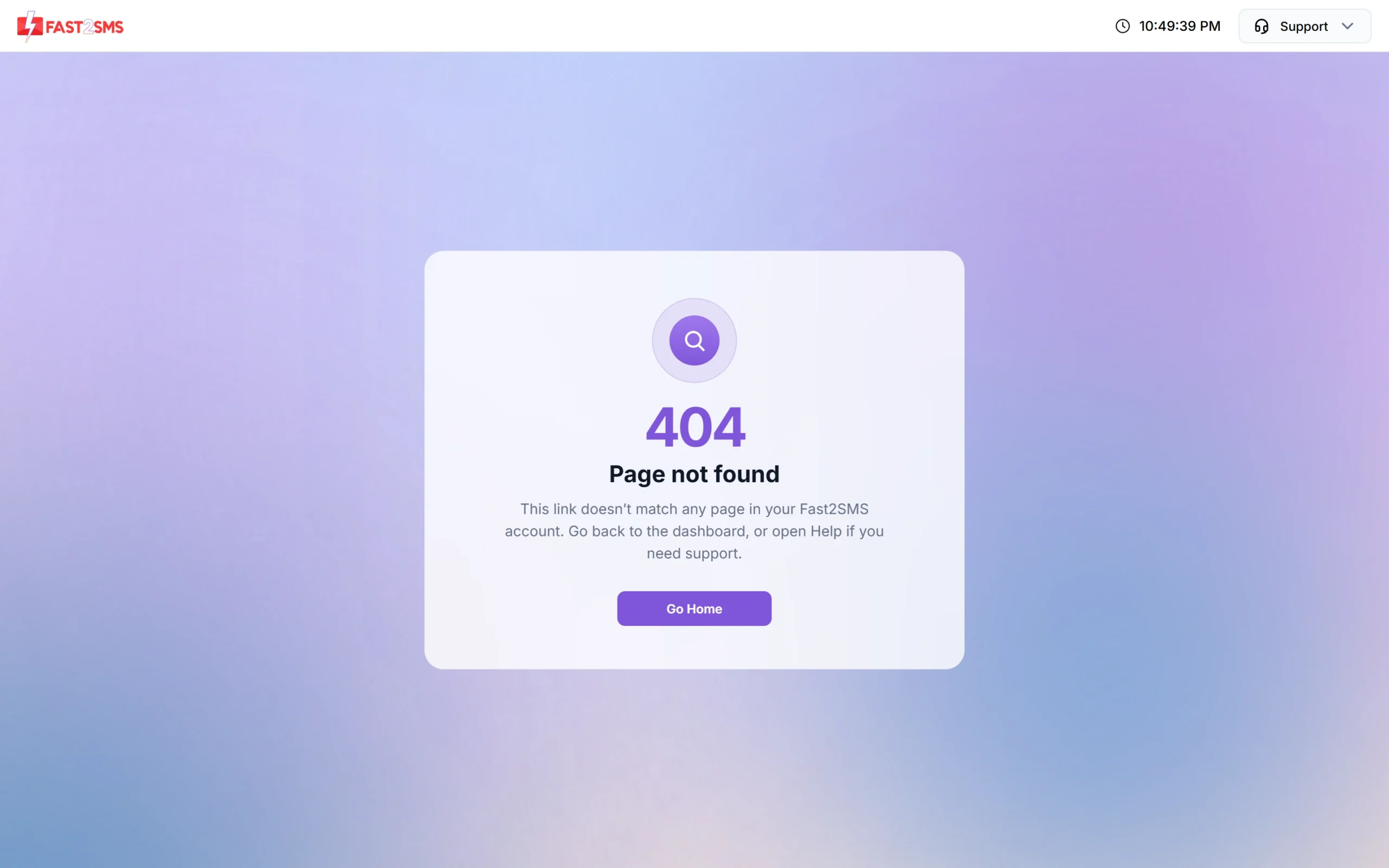
| “Page not found” (404) with a Go Home button | The link does not match any page in your account, often an old bookmark. Click Go Home to return to the dashboard and open the page from there. |
| “This page is only available to the account owner.” | You are logged in as a team member. Settings, wallet and transaction pages are for the owner only. |
| “Your session has expired. Please refresh the page and try again.” | The page was open too long. Refresh it and repeat the action. |
| “Rate limit exceeded.” | The same action was sent too many times in a short time. Wait a little and try again. |
Frequently asked questions
Can I skip the “Help us serve you better” form?
No. It has no skip button and shows on every page until you click Submit & Continue with all required fields filled in.
How do I go back to the old Fast2SMS panel?
Click Access Old Panel in the header. It is shown to the account owner, not to team members.
Where is my API key in the new panel?
Go to Account Setting > API Key, or open the apps switcher and click API Key. Viewing or resetting the key asks for an OTP.
What does “Volume” mean in the wallet dropdown?
It is how many messages (or pulses for voice) your current balance can pay for at your current rate, rounded down.
What is “DLT SMS Cost Validity”?
It shows till when your current per-SMS rate applies. It says Unlimited when you are on the base plan, otherwise it shows the expiry date of your plan.
Why can my team member not see Account Setting or the wallet?
Team members only get Live Chat for the WhatsApp numbers or RCS bots you assign. Settings, wallet and transactions stay with the account owner.
Where did my old reports go?
Open Delivery Reports from the Utility row. Each channel has its own report, and you can change the date range at the top.
Related guides
- How Fast2SMS charges your wallet: SMS, WhatsApp, Smart OTP, RCS and voice calls
- How to add money to your Fast2SMS wallet (recharge, GST and invoice)
- How to add team members (agents) in Fast2SMS and set their roles
- How to find, view and reset your Fast2SMS API key
- Transaction history in Fast2SMS: recharges, charges and exports