
Quick SMS lets you send an SMS in Fast2SMS without a DLT template. You type any business message, add numbers and click Send. Quick SMS messages can be checked by our team before they go out, so a message may first show as Pending on the Pending SMS page, and it is sent once approved. If it breaks the rules, for example personal or promotional content, it shows as Rejected with the reason.
This guide shows how to send a Quick SMS, why it can be pending or rejected, and the limits you should know before using it.
What is Quick SMS?
- No DLT approval: you write the text yourself (an open template).
- Reaches DND and non-DND numbers, 24×7 with no time limit.
- Random sender: the SMS does not come from your brand name. Reports show the sender as RANDOM.
- Higher cost per SMS than DLT SMS. The rate is shown on the Quick SMS page and in the popup before you send.
- Business messages only. Personal or spam content is not allowed, and messages may be reviewed before delivery.
For regular campaigns with your own Sender ID, use DLT SMS. Quick SMS is useful when you do not have DLT approval yet, or for a simple one-off business notice.
Before you start
- Your account needs recharges of at least ₹100 in total. Until then you see “You need to complete one transaction of ₹100.00 or more before using Quick SMS.”
- Enough wallet balance for the full cost.
How to send a Quick SMS
-
Open Quick SMS and read the cost note
In the SMS app, click Quick SMS in the left menu. The first time each day you see “Before you send Quick SMS” with the per-SMS cost and the note that messages may be reviewed. Click Got it.
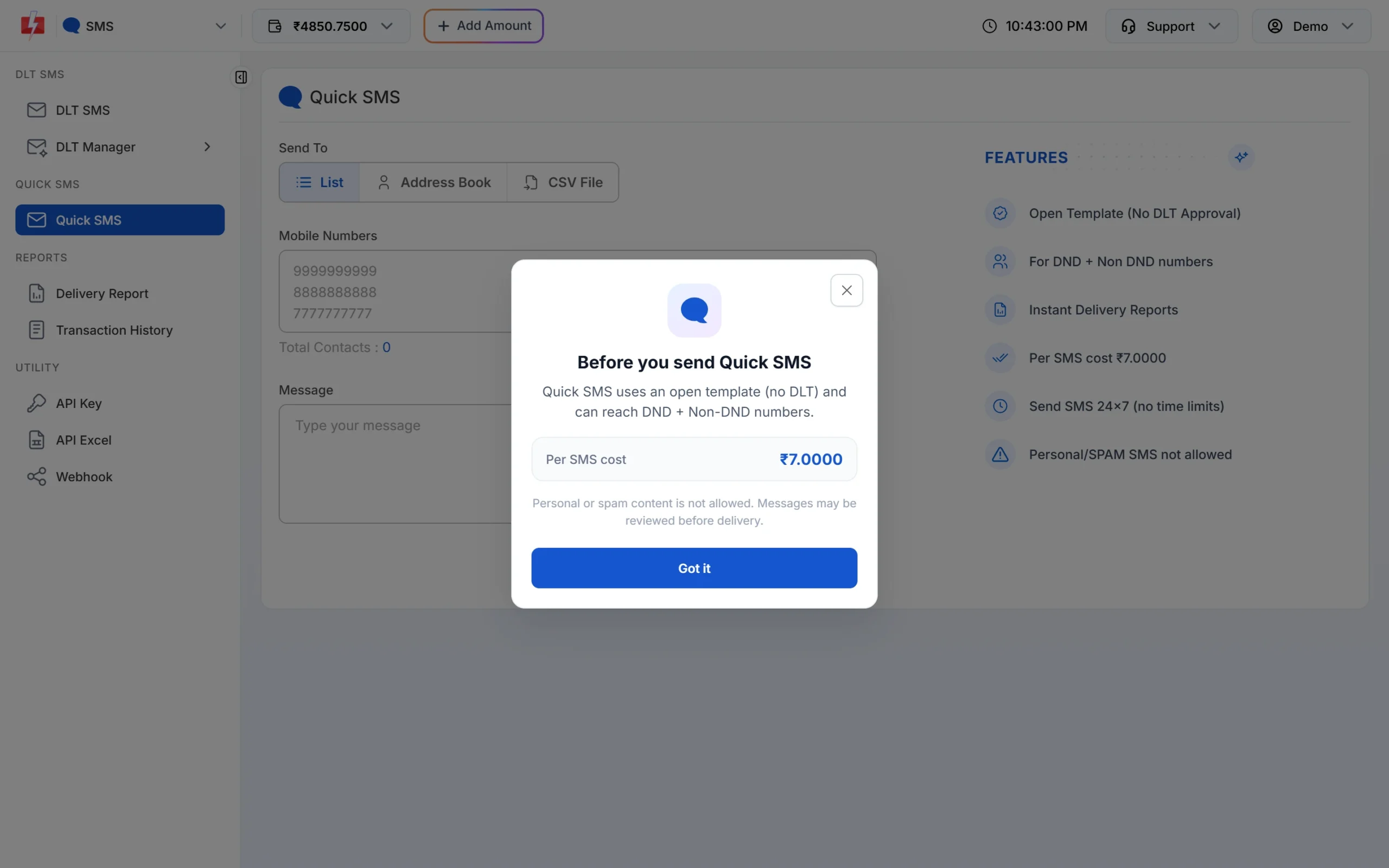
The cost note appears once a day. -
Add numbers and type your message
Under Send To, choose List to type or paste numbers (one per line), Address Book to pick contacts or groups, or CSV File to upload a list. Type your text in Message. The phone preview shows the sender as RANDOM, and the counter shows characters and SMS parts, for example 112/1 SMS.
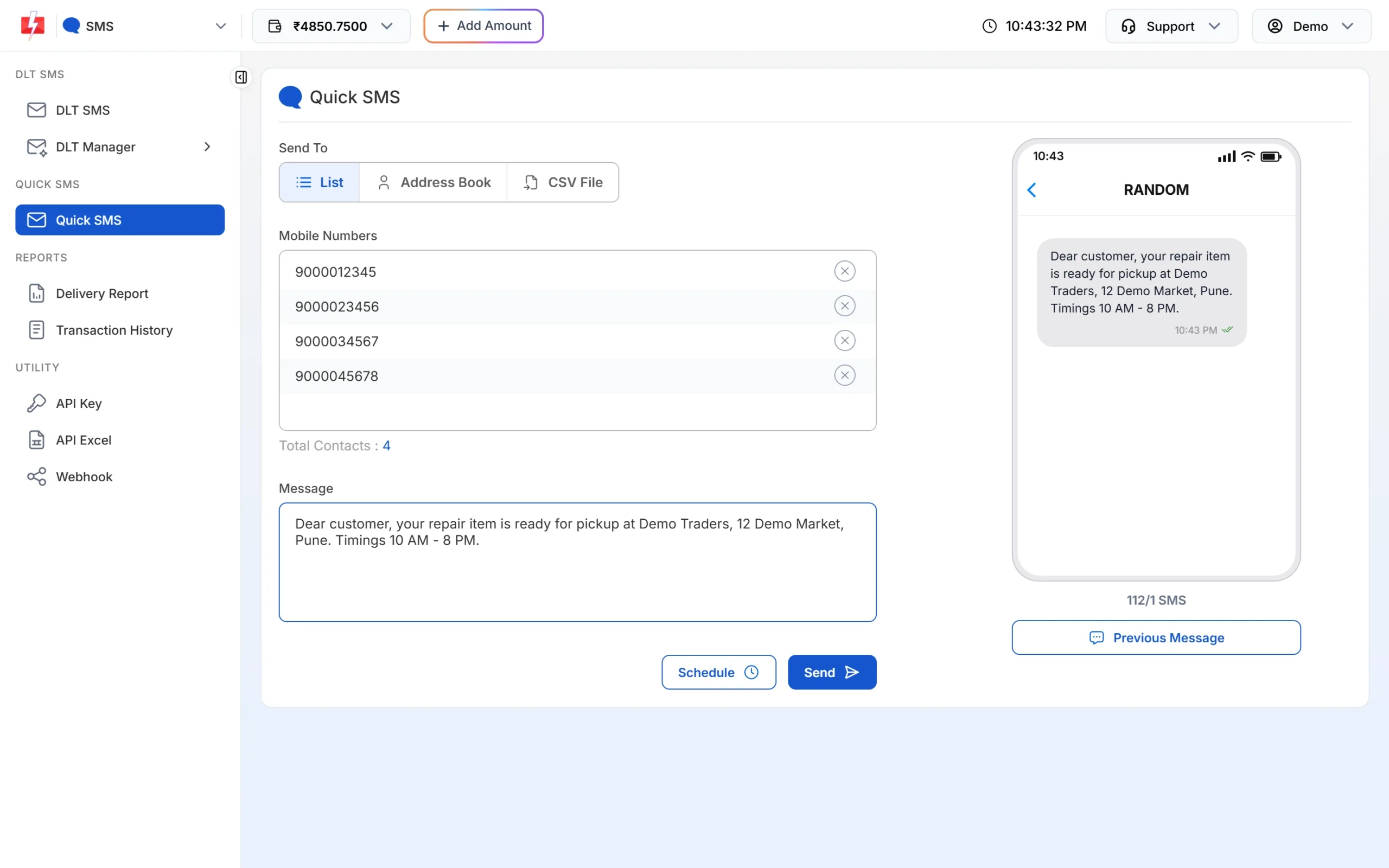
A Quick SMS ready to send to four numbers. -
Reuse or save a message (optional)
Click Previous Message under the preview to open Select Message. Previous Messages shows your last 15 Quick SMS texts. Saved Messages holds up to 30 texts you saved. Use Create Message to save a new one, or Edit and Delete on a saved one.
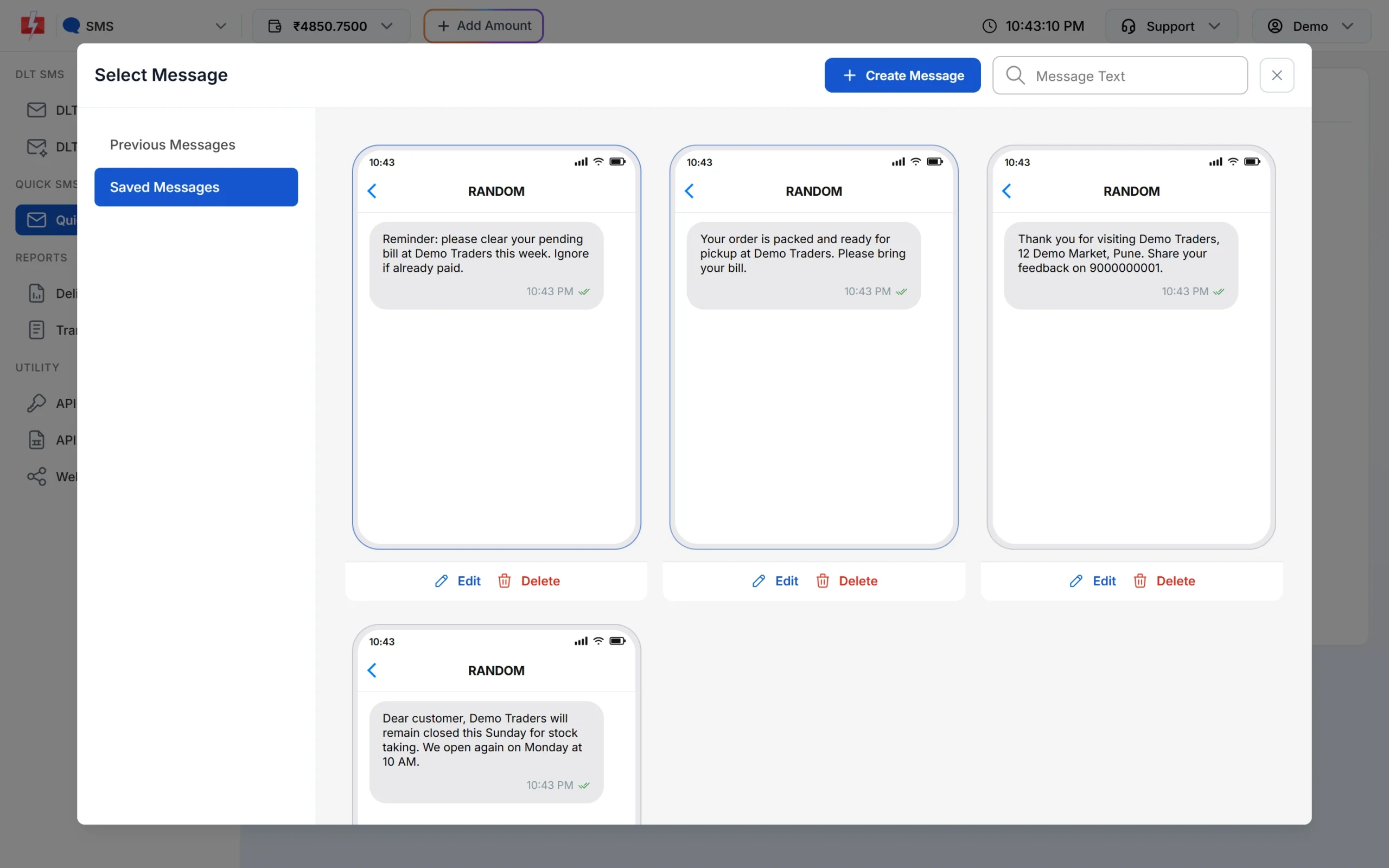
Saved Messages save you typing the same notice again. -
Click Send and confirm the cost
Click Send (or Schedule). The confirmation popup shows the cost per SMS, total characters, SMS parts, total, duplicate, valid and invalid numbers, and the total cost. Click Confirm & Send.
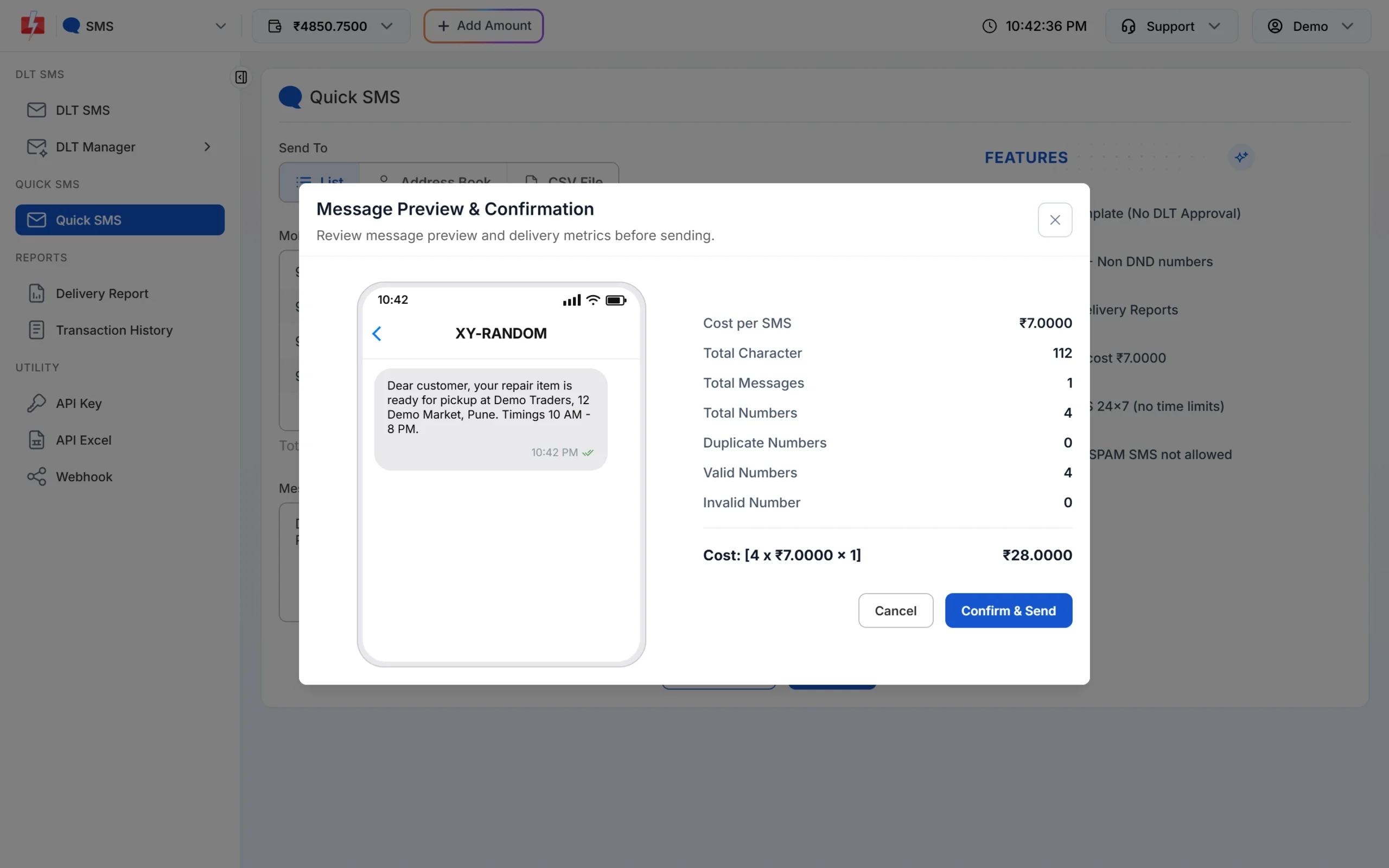
Check the total before you confirm. You then see one of these messages: “SMS sent successfully.” or “SMS scheduled successfully.” if it went straight out, or “After approval, SMS will be sent.” (or “…scheduled.”) if it is waiting for review.
Why is my Quick SMS pending?
When you see “After approval, SMS will be sent.”, the message is waiting for a manual check. It is not in the SMS Report yet. Find it in Delivery Report > SMS Report > Pending SMS.
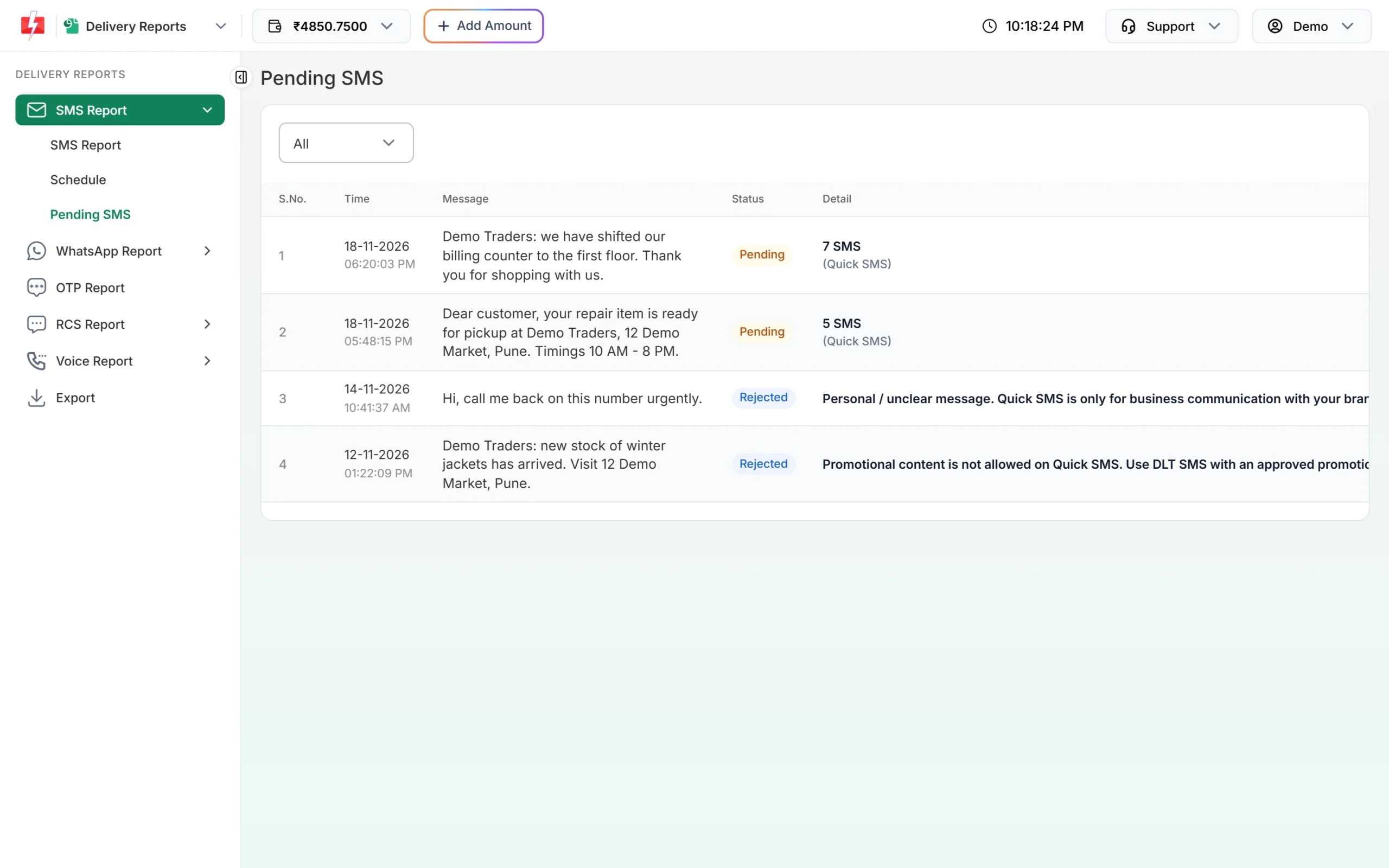
Use the dropdown at the top to show All, Pending or Rejected. The page covers the last 30 days. Once approved, the message is sent and moves to the SMS Report.
Why was my Quick SMS rejected?
The Detail column on the Pending SMS page shows the reason. Common reasons:
- Personal or unclear message, like “call me back”. Quick SMS is only for business messages from your business.
- Promotional content, like sales and offers. Send these with DLT SMS and an approved promotional template.
- Spam or misleading text.
Write a clear business message that names your business, and send it again.
Quick SMS error messages
| Message | Meaning and fix |
|---|---|
| You need to complete one transaction of ₹100.00 or more before using Quick SMS. | Recharge ₹100 or more once with Add Amount. |
| Your last 3 request are pending for approval. You need to wait before sending more. | Wait until your pending Quick SMS are reviewed. |
| Your last 5 SMS got rejected in past. You need to wait 15 days before using Quick SMS. | Too many recent rejections. Use DLT SMS meanwhile. |
| Invalid words used in the message | The text has words that are not allowed. Rewrite it. |
| Route blocked, with “Use DLT SMS section for sending Bulk SMS.” | Quick SMS is turned off for your account. Send with DLT SMS. |
| Minimum one contact or one group requried. | Add at least one number, contact or group. |
Frequently asked questions
Can I send SMS without DLT registration in Fast2SMS?
Yes, with Quick SMS. It needs no DLT template, but the sender is random, the cost per SMS is higher, and messages can be reviewed before sending.
How long does Quick SMS approval take?
Messages are reviewed by our team. Check the Pending SMS page for the current status. Once approved, the SMS is sent.
Can I choose the sender name for Quick SMS?
No. Quick SMS uses a random sender. For your own brand name, register a Sender ID on DLT and use DLT SMS.
Can I send promotional offers with Quick SMS?
No. Promotional content is rejected on Quick SMS. Use DLT SMS with an approved promotional template.
Does Quick SMS reach DND numbers?
Yes. Quick SMS can reach both DND and non-DND numbers.
Can I send Quick SMS at night?
Yes. Quick SMS has no time limit, though a message may wait for review before it is sent.
How many messages can I save?
Up to 30 Saved Messages. After that you see “Saved SMS limit reached, Delete some message to add more.”