
You can make your RCS bot answer customers on its own: a welcome message for new chats, keyword replies for common questions, an out of office message after hours and a “please wait” message when your team is slow to reply. All of this is set up in Inbox Settings under RCS in Fast2SMS.
This guide covers each type of RCS auto reply, the order in which they run, and what they cost. Settings are saved per bot, so set them up for each bot you use.
Before you start
- An approved, active RCS bot. Inbox Settings stays greyed out in the menu until you have one.
- Wallet balance. Every automatic reply is a message sent from your bot, so it is charged like a normal reply.
- A list of common questions customers ask, such as store timings, order status or price list. These become your keywords.
Types of RCS auto reply in Fast2SMS
| Reply | When it is sent | Where to set it |
|---|---|---|
| Auto Reply (keyword) | The customer’s message matches a keyword you set | Inbox Settings > Auto Reply |
| Welcome Message | The customer writes to you for the first time in 24 hours | Inbox Settings > Auto Reply Setting |
| Out of Office Message | A message arrives outside your working hours | Inbox Settings > Auto Reply Setting |
| Delayed Response Message | Nobody replies within the time you set | Inbox Settings > Auto Reply Setting |
How to set up RCS auto replies
-
Open Inbox Settings and pick the bot
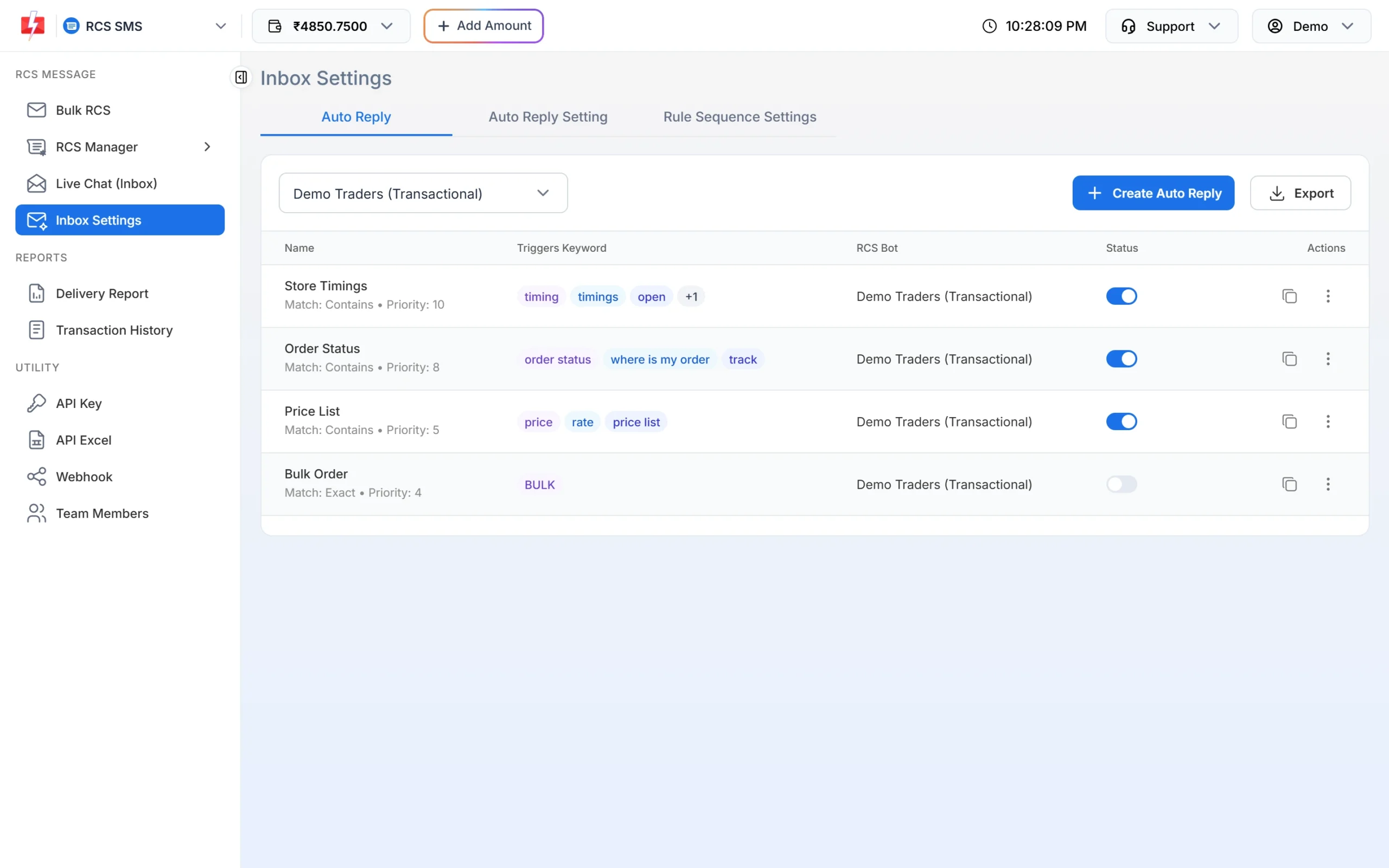
Switch to RCS from the app menu at the top left and click Inbox Settings in the sidebar. The Auto Reply tab opens first. Choose the bot from the dropdown at the top. The list shows each rule with its name, match type, priority, trigger keywords, bot and an on/off Status switch. Use the copy icon to duplicate a rule and Export to save the list as a CSV file.
Keyword auto replies for one RCS bot. -
Create a keyword auto reply
Click Create Auto Reply and fill in:
- Name: for your own reference, such as “Store Timings”.
- Keywords: the words that trigger the reply, such as timing, timings, open.
- Match type: Contains, Exact Match, Starts With or Ends With. You can also make the match case sensitive.
- Priority: 0 to 100. When a message matches more than one rule, the rule with the higher number is checked first.
- Reply: text, image, audio or video.
Save the rule and make sure its Status switch is on. In the example above, “Bulk Order” is switched off, so it will not reply.
Tip: Use Contains for normal questions, because customers type full sentences like “what are your store timings”. Use Exact Match for one-word commands like BULK.
-
Set the welcome message
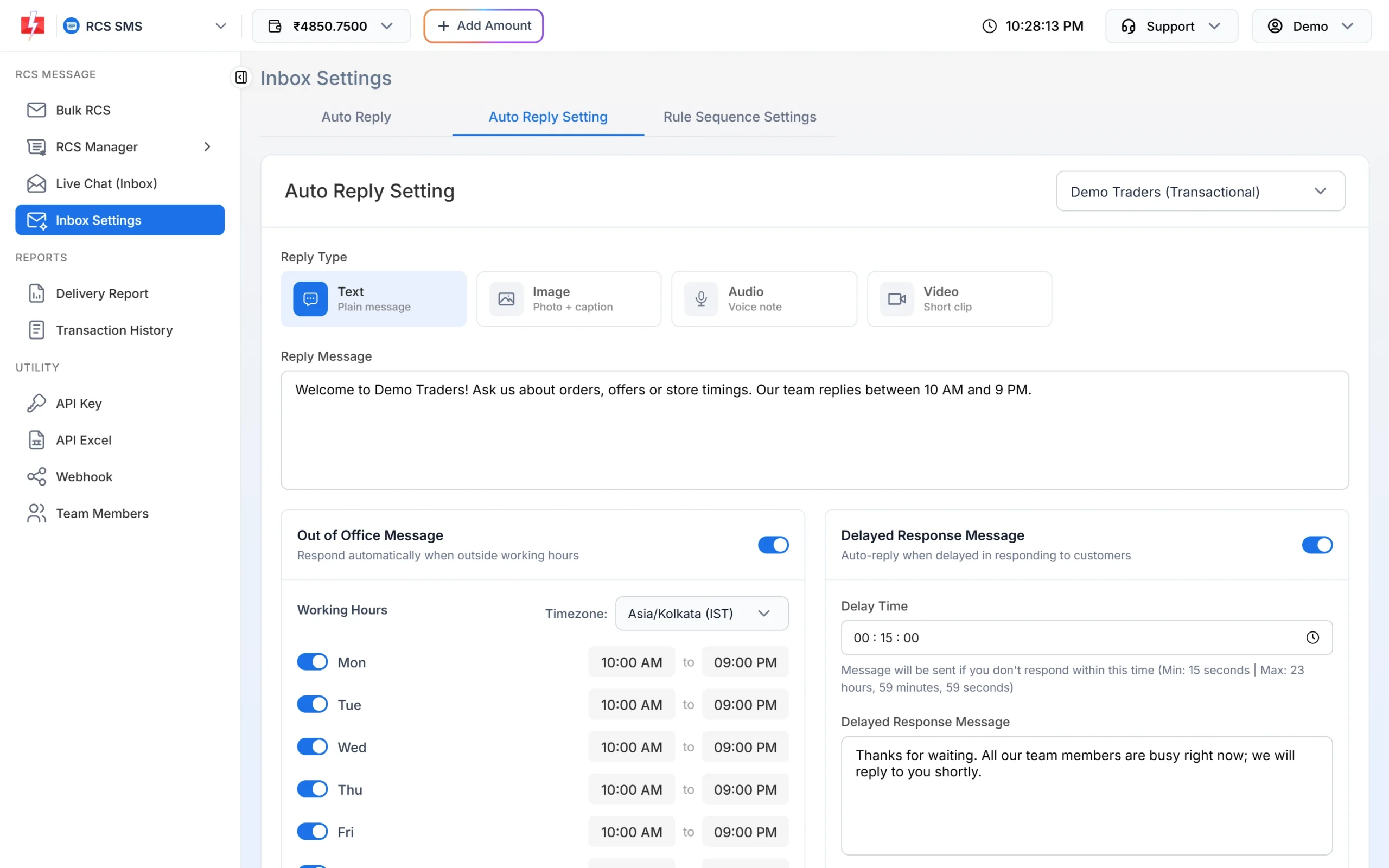
Open the Auto Reply Setting tab and choose the bot on the right. At the top, pick the Reply Type (Text, Image, Audio or Video) and type the Reply Message. This welcome message goes to a customer whose message is the first one from them in 24 hours. Keep it short and tell people what they can ask about.
Welcome, out of office and delayed response settings. -
Turn on the out of office message
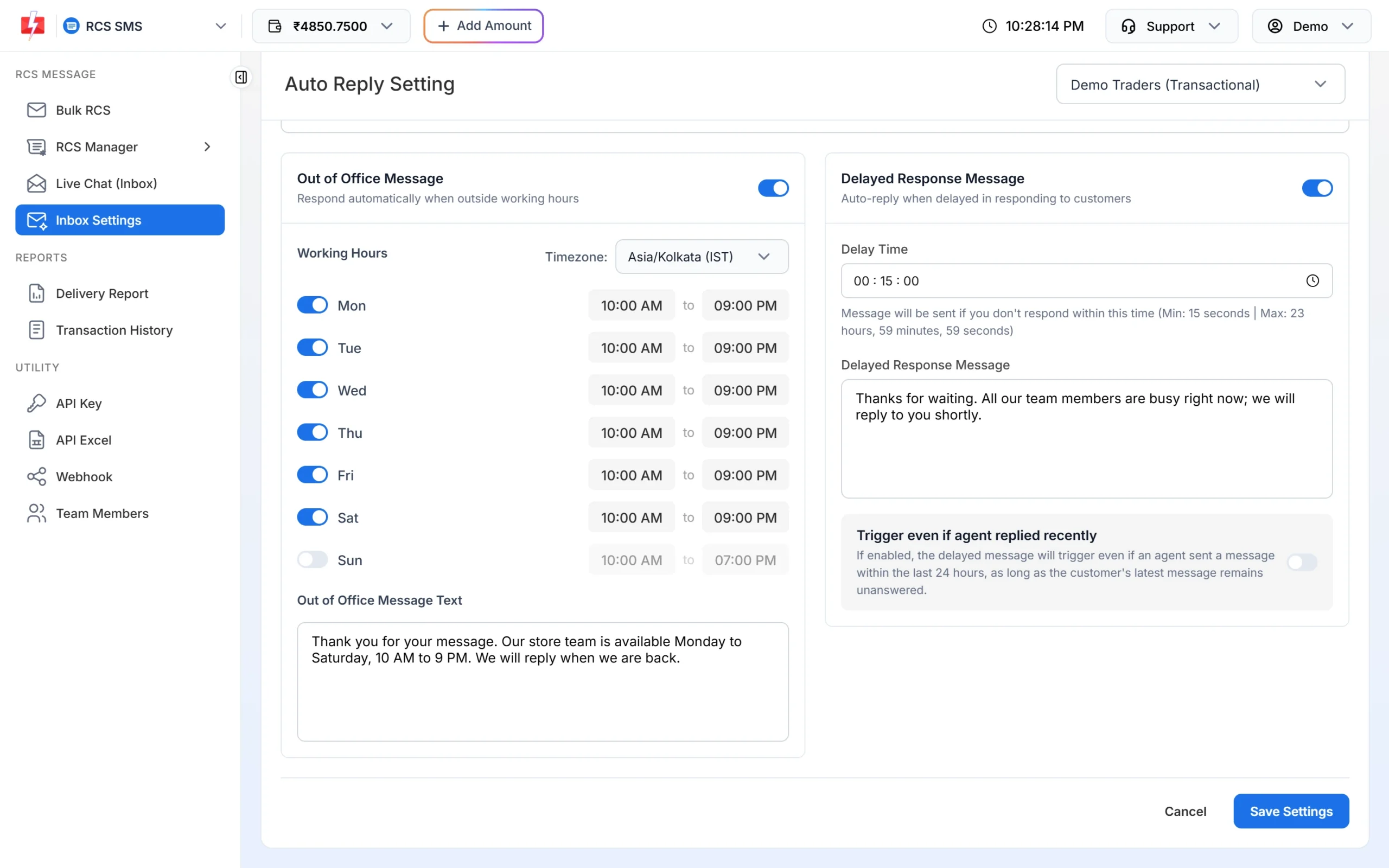
Switch on Out of Office Message, choose your Timezone (for India, Asia/Kolkata (IST)), switch on each working day and set the hours. Days that are switched off count as closed all day. Then type the Out of Office Message Text, for example the days and hours when your team is available. A customer gets the out of office message at most once in 24 hours, so people who send several messages at night are not flooded with the same reply.
-
Turn on the delayed response message
Switch on Delayed Response Message and set the Delay Time in hours, minutes and seconds. The panel allows a minimum of 15 seconds and a maximum of 23 hours, 59 minutes and 59 seconds. If nobody replies within this time, the customer gets your Delayed Response Message, such as “Thanks for waiting, we will reply shortly”.
The option Trigger even if agent replied recently sends the delayed message even when an agent replied in the last 24 hours, as long as the customer’s latest message is still unanswered. Click Save Settings at the bottom.
Working hours and the Save Settings button. -
Choose which rule runs first
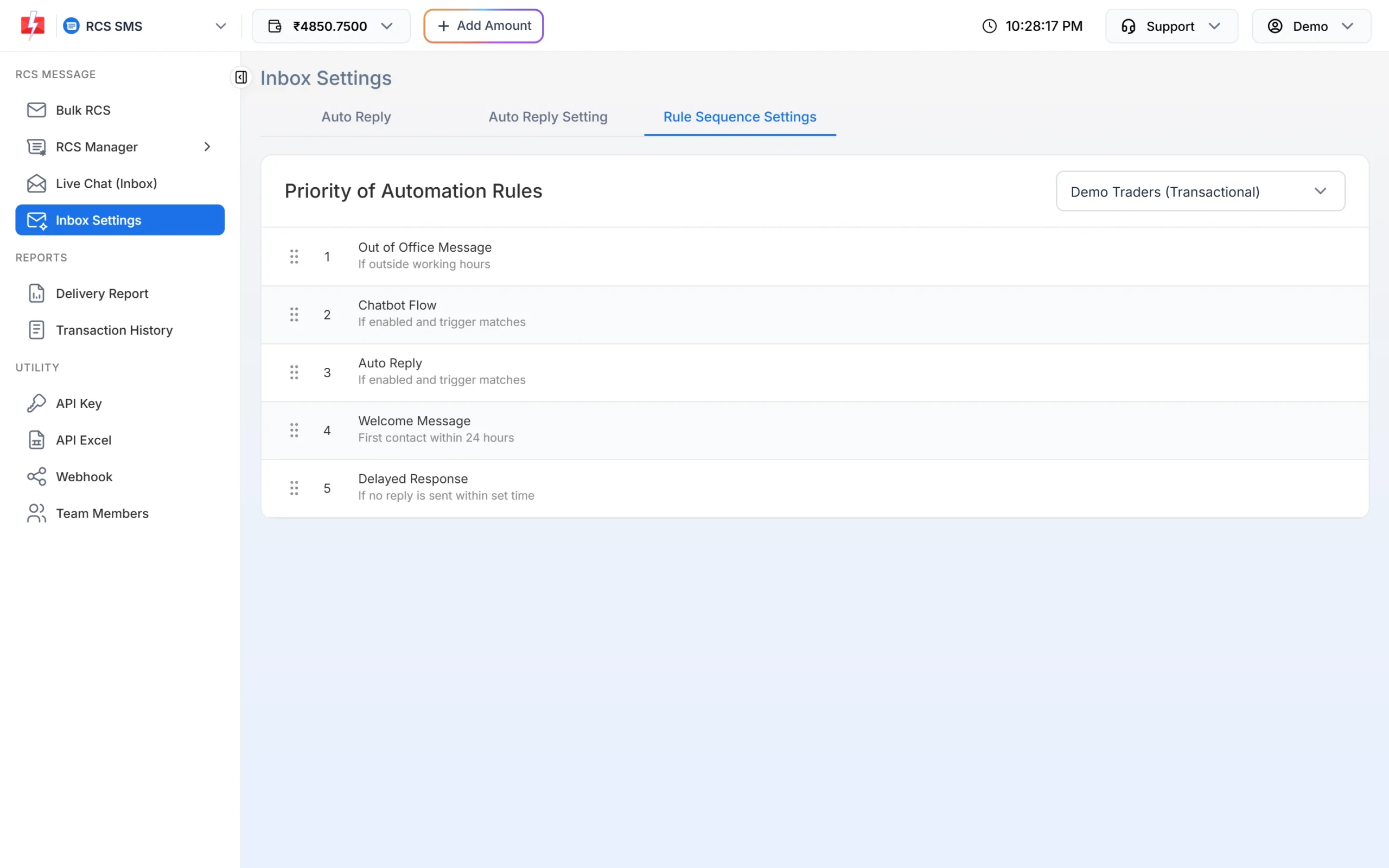
Open Rule Sequence Settings. It lists the automatic replies in the order they are checked: Out of Office Message, Chatbot Flow, Auto Reply, Welcome Message and Delayed Response. Drag a row by its handle to change the order. For each customer message, the first rule that applies sends its reply and the rest are skipped.
The order in which automatic replies are checked.
What do RCS auto replies cost?
Incoming customer messages are free. Each automatic reply is sent from your bot and is charged at the RCS plain message rate, or the rich rate if the reply is long. At the time of writing, the RCS inbox shows ₹0.35 per outgoing RCS message. Check the current rate on the RCS pricing page.
Sending in bulk? For high RCS volumes our team offers discounted rates. Talk to our team or see RCS pricing.
Common problems and fixes
| Message or problem | Fix |
|---|---|
| Out of Office message is required when enabled. | Type the out of office text, or switch the option off. |
| Timezone is required when enabled. | Pick a timezone next to Working Hours. |
| Please enable at least one working day | Switch on at least one day and set its hours. |
| Delay time must be greater than 0. | Set a delay time of at least 15 seconds. |
| Keyword reply is not sent | Check the rule’s Status switch, the match type, and that the right bot is selected. A rule higher in Rule Sequence Settings may have replied first. |
| Welcome message not sent to a regular customer | It only goes when the customer’s message is their first in 24 hours. |
Frequently asked questions
Can I set different auto replies for each RCS bot?
Yes. Every setting in Inbox Settings is saved per bot. Pick the bot from the dropdown before you make changes.
Are RCS auto replies free?
No. The customer’s message is free, but each automatic reply is a message from your bot and is charged from your wallet.
Can an auto reply include an image or video?
Yes. Keyword replies and the welcome message can be text, image, audio or video.
What happens if a message matches two keyword rules?
The rule with the higher priority number is checked first, and only one reply is sent.
Will the out of office message go on Sunday if Sunday is switched off?
Yes. A day that is switched off counts as outside working hours, so customers who write that day get the out of office message.
Do auto replies work for messages sent by API?
Auto replies answer the customer’s incoming message, no matter whether your first message went from the panel or the API.